User guide EN
Español · Welcome · Library and sharing
YT Looper activates on regular YouTube watch pages (youtube.com/watch). It is not designed for
Shorts, embedded players, or mobile browsers. YouTube's in-page navigation is supported, so moving
to another video does not require a full tab reload.
The widget starts collapsed when a video has no A/B points. It expands automatically when the first point is set, or manually through the purple expand button.
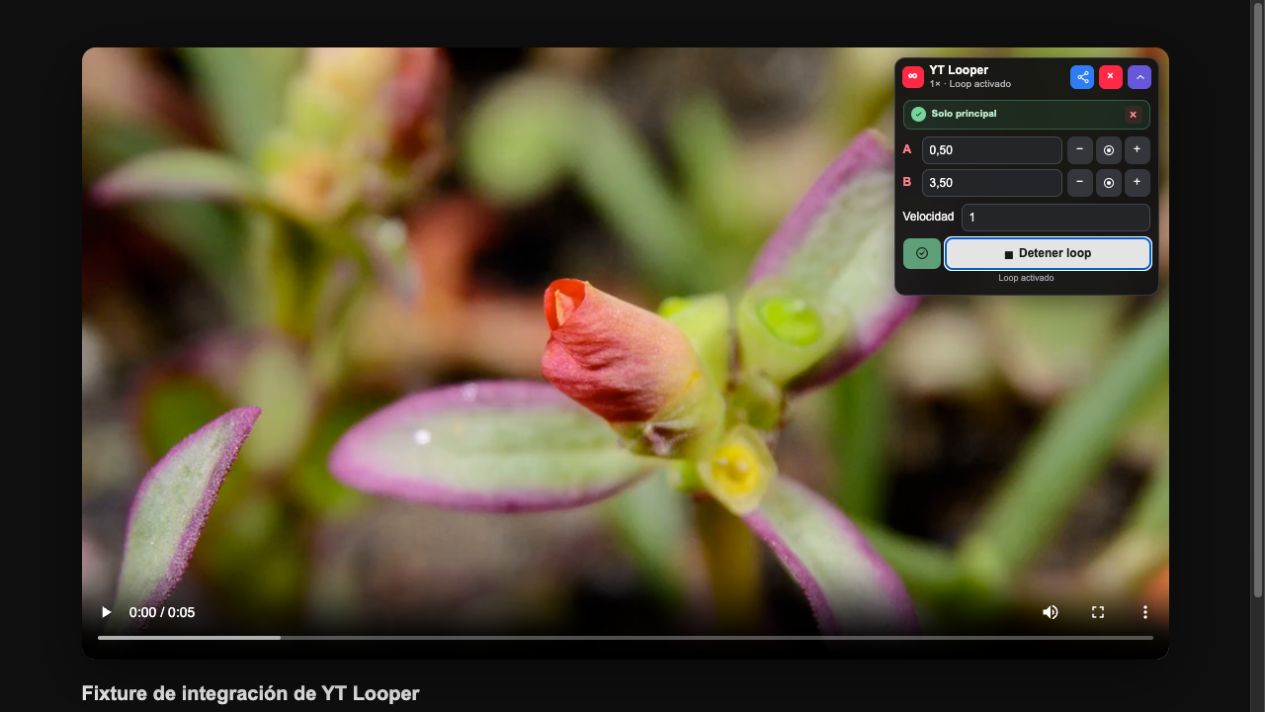
Each point can be set in three ways:
- Click the target button beside A or B to use the video's current time.
- Enter seconds directly in the numeric field.
- Use − and + to move the point in 0.1-second steps.
A must be zero or greater, and B must be after A. Loop actions are enabled only for a valid range. Typing in these fields cannot trigger YouTube's own shortcuts because YT Looper stops those key events before they reach the page.
Enter a playback speed from 0.25× to 4×. Pitch preservation is always enabled, so slowing a song does not unnecessarily change its tuning.
Click Enable loop to seek to A and start repeating. The same button becomes Stop loop. Stopping preserves A, B, and speed so the loop can be resumed later.
The blue share button copies a YouTube link containing the video identifier, A, B, and speed. See how shared links work.
- Collapse keeps a small header over the video.
- The red X hides the widget for that video while shortcuts and looping keep working.
- Open the toolbar popup and click Show panel to restore it.
Closing applies to the current video. A different video without parameters starts collapsed again.
| Action | Windows/Linux | macOS |
|---|---|---|
| Set A | Alt+Shift+A |
⌥⇧A |
| Set B | Alt+Shift+B |
⌥⇧B |
| Start/stop loop | Alt+Shift+L |
⌥⇧L |
On macOS, Alt is the Option (⌥) key. If the operating system, browser, or another extension
reserves a shortcut, use the widget control.
The badge color describes the current relationship with the library:
- Blue: A, B, and speed form a valid loop that has not been saved.
- Green: the loop matches a saved fragment.
- Orange: A, B, or speed differs from the saved fragment.
An orange state offers a quick update action. It changes only A, B, and speed while preserving the name and folder. The badge X detaches the saved loop without deleting it, leaving the current parameters ready to become a new fragment.
With valid A and B, click the bookmark icon. The popup opens a review sheet where you can accept the generated name, enter a new one, review parameters, and choose a folder. Duplicates are identified by video, A, B, and speed—not by name—so the same loop cannot be saved twice.
While YouTube is showing an advertisement, YT Looper suspends video manipulation. The popup replaces its controls with a spinner and the widget shows a waiting state. The controls return after the main video is available, with the loop state preserved.
YT Looper remembers per-video parameters and playback preferences. Opening a library fragment restores its video, A, B, and speed, seeks to A, and enables looping. YouTube's internal navigation events are detected so the controller attaches to the newly selected video.