Create a Project
An MPX project is just a folder — module.json at its root, plus a handful of subfolders (pages/, items/, images/, ...) that MPX creates and reads from. Creating a project sets up that folder for you.
Pick (or create) an empty folder for your module. MPX refuses to scaffold a project into a folder that already has files in it — nothing gets overwritten by accident.
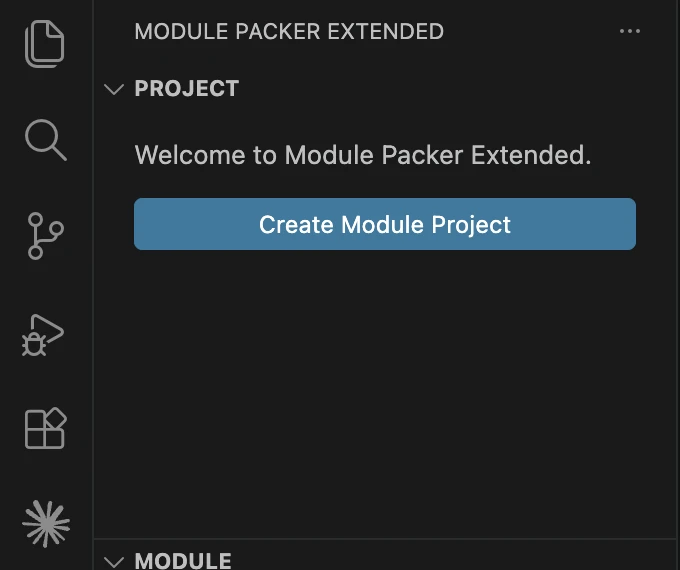
- Open that empty folder in VSCode (File → Open Folder...).
- Open the MPX panel from the activity bar. Since the folder is empty, you'll see a welcome view with a Create Module Project button — click it.
- MPX scaffolds the project and opens
module.jsonfor you.
-
module.json— your module's metadata. See the field-by-field reference below. -
images/— an empty folder, for any image you reference from a page. -
assets/— the current theme's CSS, fonts, and images, copied in so your project can preview and build with it. See Themes for the available themes and how one gets picked.
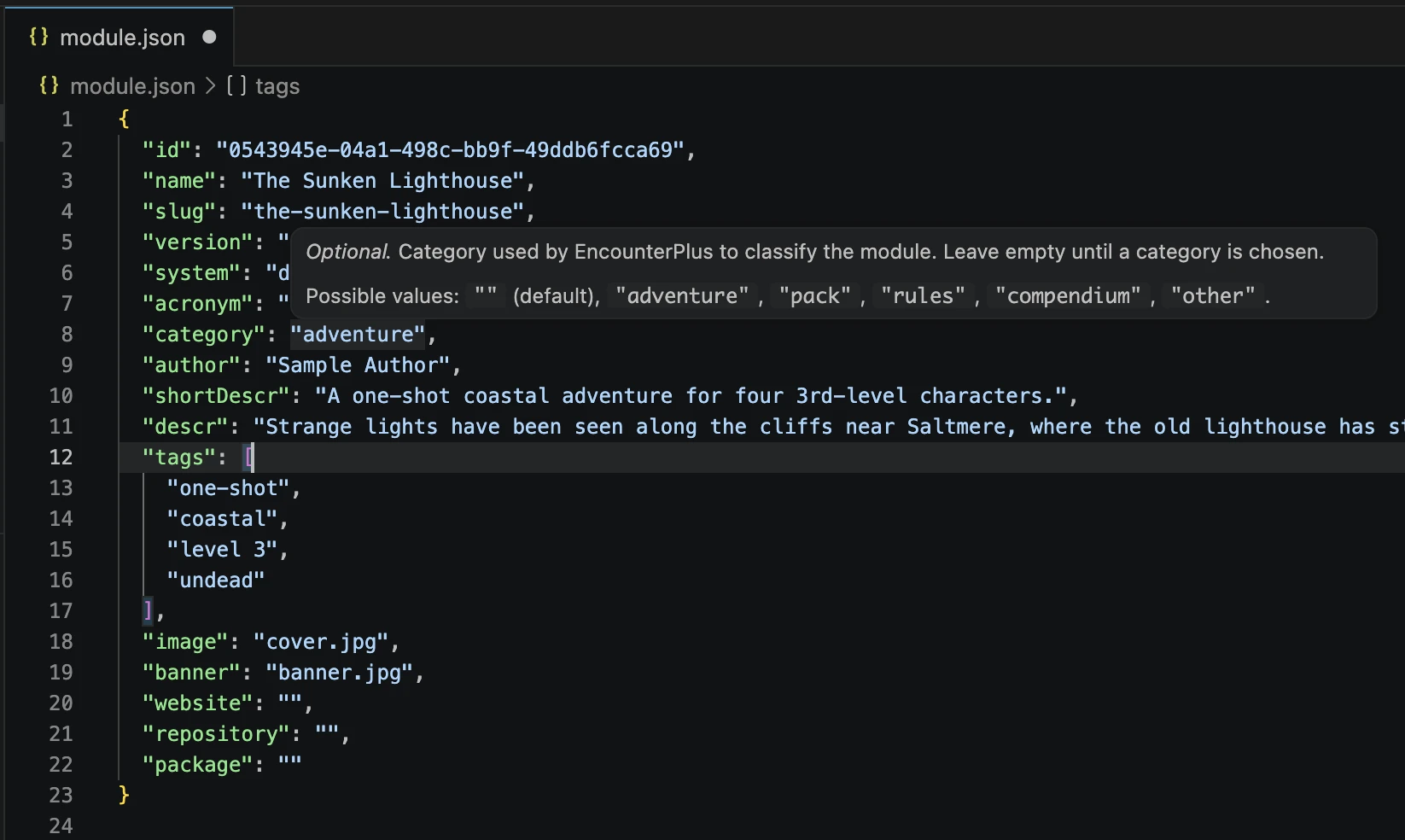
While editing module.json (and every other file MPX manages), VSCode validates it live — a red squiggle means a field is missing or has an invalid value, and hovering a field name shows what it's for. For a field with a fixed list of valid values (like category below), press Ctrl+Space (Windows/Linux) or Control+Space (Mac) to bring up that list instead of typing a value from memory.
| Field | Required | Format | Purpose |
|---|---|---|---|
id |
Yes | UUID | Generated for you at creation. Keep it unchanged for the life of the module — EncounterPlus uses it to recognize updates to the same module. |
name |
Yes | Text | The module's display name. |
slug |
Yes | lowercase, digits, hyphens only | A stable text identifier, generated from name. No spaces, accents, or uppercase letters. |
version |
Yes | Text, e.g. 1.0.0
|
The module's version. See Building and Importing for how this can auto-increment on each build. |
system |
Yes | Text | The EncounterPlus game system. dnd5e is the only one MPX's Compendium and themes are built for today. |
category |
No | One of: (empty), adventure, pack, rules, compendium, other
|
How EncounterPlus classifies the module. Leave empty until you've decided. |
acronym |
No | Text | A short code for the module, if useful. |
author |
No | Text | Your name or publisher name. |
shortDescr |
No | Text | A one-line summary. |
descr |
No | Text | The full description shown for the module. |
tags |
No | Array of strings, e.g. ["adventure", "dnd5e"]
|
Keywords to describe and help find the module. |
image |
No | File name, relative to the project root | The module's cover image, e.g. cover.jpg. The file must exist at the project root. |
banner |
No | File name, relative to the project root | The module's banner image, e.g. banner.jpg. The file must exist at the project root. |
website |
No | URL | A website for the module or its author. |
repository |
No | URL | A source repository URL, if the module's content is version-controlled somewhere. |
package |
No | URL | A download URL for the packaged module, if hosted somewhere. |
Fill in module.json's name and author, then head to the extension panel to see how to navigate your new project and start adding content.