The Extension Panel
Once a project is open, MPX's own icon appears in the activity bar. Its panel has three sections — Project, Module, and Compendium — each collapsible independently.
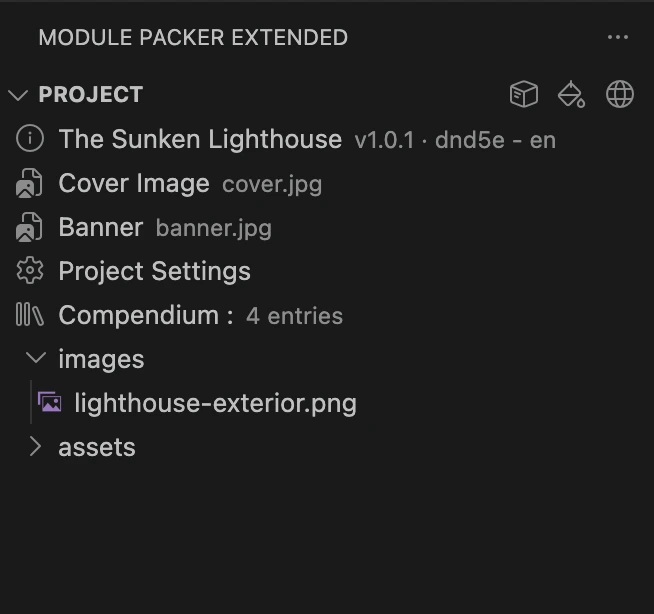
The project as a whole, rather than its content:
- A summary line (module name, version, system, content language) — click it to open
module.json. -
Cover Image / Banner, if set in
module.jsonand the file exists — click to open the image. -
Project Settings — opens
.vscode/settings.json, where MPX's project-wide options live (theme, language, measurement units, and more — see Project Settings). - Translation Overrides, once that file exists — shows how many overrides are set. See Project Settings.
- Compendium total entry count — click to jump to the Compendium section.
-
images/andassets/as browsable folders, so you don't need to switch to VSCode's own Explorer just to peek inside.
Three buttons sit in this section's title bar: Build Module, Select Project Theme, and Create Translation Overrides File.
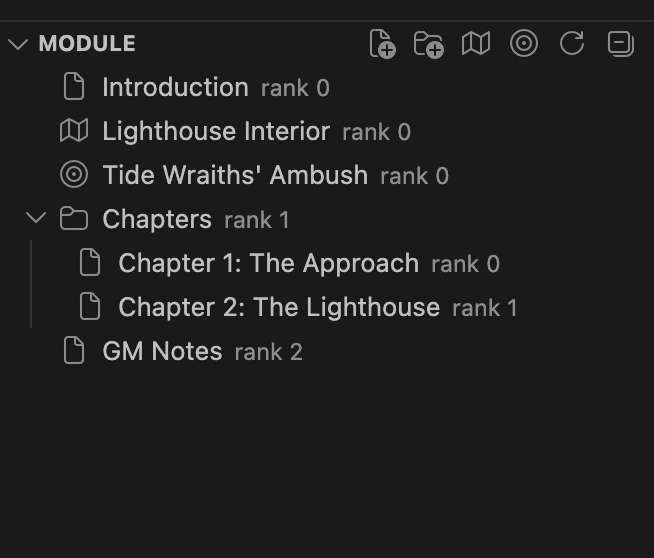
The tree of your module's content — pages, groups, maps, and encounters — nested by parent and ordered by rank, then name.
- Click an item to open its file.
- Right-click an item for Delete — moves the file to your OS trash (recoverable), after a confirmation.
- The tree refreshes automatically as files are created, edited, or deleted. A manual Refresh button is also available, alongside Collapse All.
The remaining title bar icons create a new page, group, map reference, or encounter reference — see Creating Module Content for what each one does.
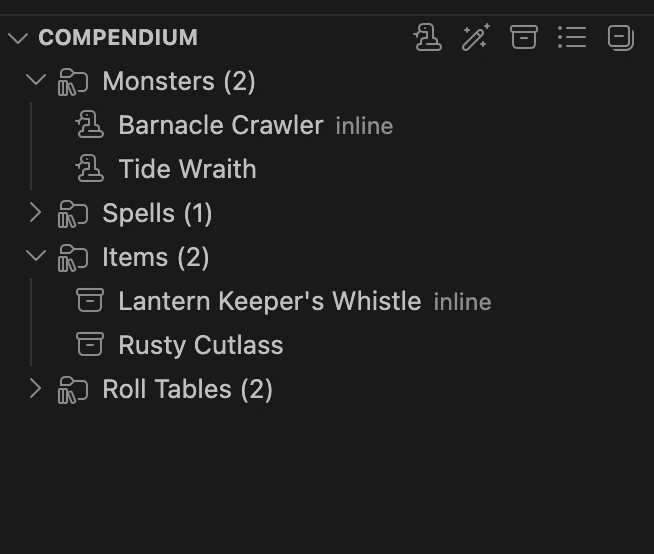
Your reusable game content — items, spells, roll tables, and monsters — organized by category, each labeled with its entry count (e.g. "Monsters (3)").
- Click an entry to open its file.
- Right-click for Delete, same as the Module section.
- An entry authored inline in a page (rather than as its own file) appears here too, labeled "inline" — clicking it opens the page and jumps to that block.
The remaining title bar icons create a new monster, spell, item, or roll table — see Managing the Compendium for what each one does.
With the panel's layout in hand, move on to creating module content — pages, groups, maps, and encounters.