MapHide is a lightweight OBS map hider built for dual-PC live streaming setups.
It is designed primarily for games like Rust, and it can also work for other games that use a similar map system. While it can function on a single-PC setup through OBS WebSocket, dual-PC streaming is where it is most useful.
Watch MapHide in action here:
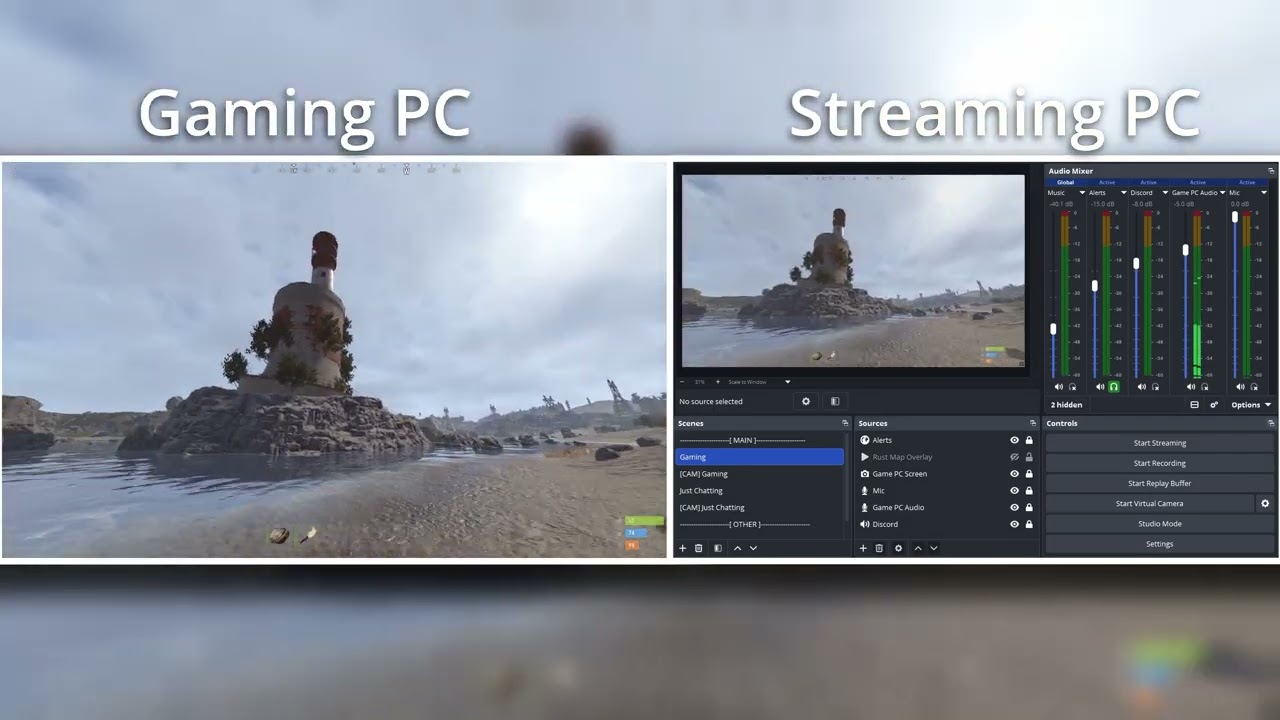
- Lightweight desktop app
- Built for dual-PC OBS workflows
- Hides and shows an OBS source while a hotkey is held
- Follows the current OBS program scene automatically
- Tray support with hide-to-tray behavior
- Configurable hotkey
- Dark mode UI
- Saves settings to the user's AppData folder
- Windows
- OBS Studio with OBS WebSocket enabled
- A source in OBS that you want MapHide to show and hide
- Open OBS Studio.
- Make sure OBS WebSocket is enabled.
- In OBS, create or add the source you want MapHide to control.
- Use the same source name in every scene where you want MapHide to work.
- Open MapHide and click
Settings >. - Enter your OBS host, port, password, source name, and select a hotkey.
- Click
Save Settings. - Click
Start.
If you need overlay assets, you can create your own or use community-made overlays. One useful source is Sendox on YouTube.
- MapHide connects to OBS through OBS WebSocket.
- It checks the current program scene automatically.
- It looks for the configured source name in the active scene.
- While the selected hotkey is held, the source is shown.
- When the hotkey is released, the source is hidden after a short delay to prevent brief map flashes during gameplay.
MapHide stores runtime settings here:
%AppData%\MapHide\config.json
Example:
C:\Users\YourName\AppData\Roaming\MapHide\config.json
- The OBS host, port, and password are hidden by default in the UI.
- If OBS is closed after MapHide has connected, MapHide will try to reconnect automatically.
- If the initial OBS settings are incorrect, MapHide will wait for you to fix the settings and save again.
- Windows may show a SmartScreen or "Unknown publisher" warning when opening the app because this build is not code-signed.
- MapHide can work on a single-PC setup, but it is primarily built for dual-PC streaming. For a single-PC workflow, an OBS script may be a simpler option depending on your setup.
Check that:
- OBS is open
- OBS WebSocket is enabled
- The host and port are correct
- The password is correct
Check that:
- The source name matches exactly
- The source exists in the active scene
- The source exists in each scene you want MapHide to follow
- The hotkey is set correctly
This is normal behavior. MapHide hides to the system tray instead of fully closing. Use the tray icon menu and click Exit to close it fully.
Current release: v0.1.1
Created by Color Dumper.


