Updates and Storage
The supplied Compose file mounts:
| Host path | Container path | Contents |
|---|---|---|
./data |
/data |
Worlds, mods, mod configuration, dashboard settings, and logs |
./backups |
/backups |
Container backup archives |
Use dedicated writable folders. Startup prepares ownership for the runtime user, including Linux host ownership changes to UID/GID 1000:1000. The game and dashboard then run as the non-root tml user.
Keep these folders across container replacement. Do not share one live data directory between instances or mount an unrelated host directory where recursive ownership changes would be inappropriate.
- Read the release notes and changelog.
- Create a verified backup.
- Record the current image version or digest and retain access to it; restores check the originating build.
- Keep copies of Compose,
.env, and externally mounted configuration or secret files. - Arrange for clients to use a compatible tModLoader version and mod selection.
Since 3.4.0, TMOD_AUTO_UPDATE=1 checks for supported Terraria 1.4.4 tModLoader releases at startup, independently of image replacement. The image's stable/preview channel is the default; override it with TMOD_UPDATE_CHANNEL, or pin an exact supported release with TMOD_UPDATE_VERSION. Downgrades require a matching checkpoint; unsupported major Terraria branch migrations are blocked.
A numbered image tag or digest pins the container, not the selected runtime. Set TMOD_AUTO_UPDATE=0 to keep the selected runtime; this also restores the original in-place Workshop startup behavior. It does not revert an already updated runtime or pin mod versions. Custom server configurations skip automatic runtime updates because their external paths cannot safely be redirected for testing.
The updater caches runtimes and their native .NET installation under /data/.tmod-control/updates. It stages Workshop changes in copied game data, checks enabled mods and dependencies, loads or generates a copied world, waits for readiness, and requires a clean exit before selecting the candidate. The live world is not replaced by the test copy. These checks do not prove compatibility throughout gameplay.
Failed downloads or compatibility checks retain the installed runtime and live mods together. If the updated live startup fails its health check, the updater restores the previous runtime and data checkpoint automatically. Dashboard Apply operations still refresh selected Workshop mods; the copied-world compatibility gate described here applies to startup updates.
Staging requires free space for three copies of game data plus TMOD_UPDATE_MIN_FREE_MB (1024 MiB by default). TMOD_UPDATE_TEST_TIMEOUT defaults to 600 seconds; increase it if a large modded world needs longer. A timeout blocks an update. Change these settings in .env and recreate the container.
Overview checks releases in the background, with a six-hour cache and a fifteen-minute retry after failed checks. Check for updates refreshes the notice, at most once per minute, and does not install anything.
Use Restart game and apply updates to review and confirm a game-only restart. It disconnects players, runs the startup update checks, and leaves saved settings drafts unapplied. Follow the progress dialog and confirm healthy startup, the selected world, loaded mods, and a client connection. The dashboard remains available while the game restarts.
Restore previous runtime and data queues recovery for the next game restart after confirmation. Restart game and restore checkpoint performs queued recovery without restarting the container. Worlds, mods, mod configuration, and saved settings revert to the checkpoint, losing progress and saved changes made afterward. Credentials are preserved; Compose values are outside the checkpoint.
Current data is retained in a separate recovery copy until the restored game passes its health check. Successful recovery automatically deletes both recovery copies; failed recovery retains them. Automatic updates are held afterward until Restart game and apply updates is selected.
After testing a successful update, the checkpoint deletion control can free space. Review its confirmation: deletion removes that recovery copy and its logs permanently, while keeping the running world, mods, and cached runtimes. Recovery checkpoints and runtime caches are excluded from ordinary backup archives. Keep an independent backup of the data volume for disaster recovery.
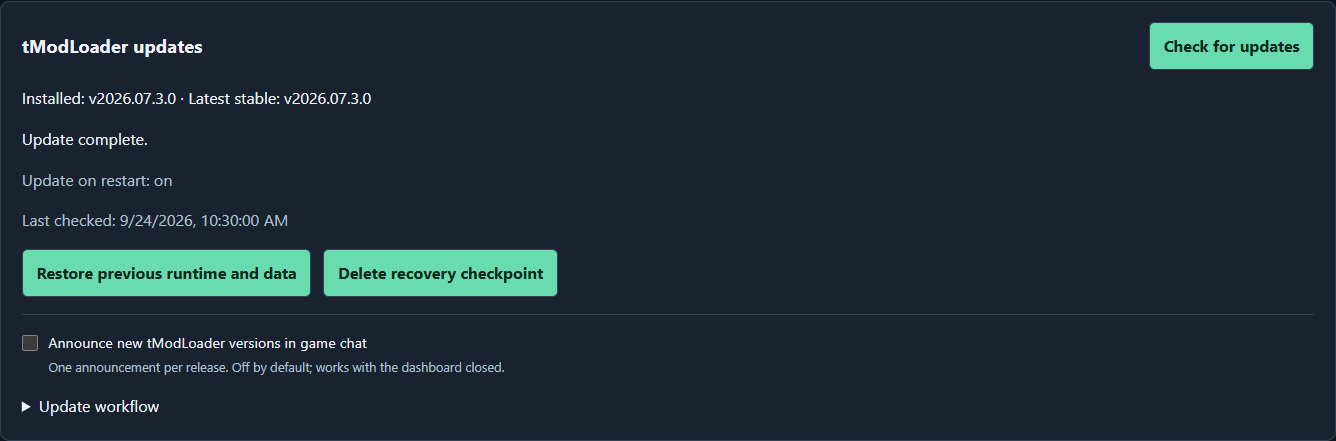
The 3.4.1 interface with a demonstration completed update and retained recovery checkpoint. No runtime update or recovery was performed for this capture. Select it to view full size.
Version 3.0.0 changes the default startup experience: the WebUI is enabled, and a server without an existing admin credential waits for first-run setup before launching the game.
Before pulling the new image, choose the intended behavior in your deployment:
| Deployment | Configuration and startup |
|---|---|
| Game-only, unattended server | Explicitly set TMOD_WEB_ENABLED=0 in .env, or in your existing Compose environment. This skips dashboard setup. |
| Dashboard with no existing credential | Use TMOD_WEB_ENABLED=1, expose the dashboard privately, start the container, then complete setup using the code in its logs. Game startup continues automatically. |
| Dashboard with an existing valid credential | Keep the persistent data directory and any external credential mount. The existing credential is reused. |
The current .env.example selects TMOD_CONFIG_SOURCE=web. Set it explicitly to env if you want environment-managed game settings; env is the application fallback when omitted. Existing saved web values retain precedence over matching environment values.
The supplied 3.0.0 Compose file loads .env with env_file and uses image defaults for initialization. If keeping an older Compose file, review explicit environment entries: those override values supplied by env_file, including TMOD_WEB_ENABLED. If adopting the new file, carry over your deployment's ports, mount paths, and optional secret/custom-configuration mounts. Keep the same data and backup directories.
Follow the backup preparation above, then the image update commands below. If startup waits at admin setup, follow Getting started.
Updating an image does not replace your Compose file or .env. Compare those files with the current templates before adopting new defaults:
- The current template selects
webmode. Keep an explicitenvsetting for environment-managed deployments or custom configuration files. - Since 3.1.0, supplied Compose publishes the dashboard for direct LAN access instead of binding only to localhost. Keep the loopback mapping if you want tunnel-only access. Empty
TMOD_WEB_ORIGINsupports IP/port access; hostnames and proxies need the settings in Networking and access. - Version 3.1.1 improves first-run validation and fixes creation of world names containing spaces. Existing worlds remain preserved.
- Version 3.2.0 moves creation and Journey permissions to Worlds, adds world metadata and uptime, and places restore controls inside expanded archive details. Existing global Journey values seed the server defaults; per-world overrides persist with
/data. - Since 3.3.0, Workshop accepts and validates a saved API key, checks dependencies, and Mod configs edits existing files. Worlds supports confirmed deletion of unused worlds, and saved drafts can be cancelled from their review dialog.
- Since 3.4.0, startup runtime updates are enabled by default even for numbered images. Review the runtime settings and free-space requirements above before restarting an upgraded deployment.
- World uptime starts being recorded with this feature; prior play sessions are not reconstructed. Backup retention now preserves archives from other builds, which can increase storage use.
Inspect older backups after upgrading. When their tModLoader release matches, you can prepare a verified copy for the current build; unknown or different releases still require the original image. See Backups and recovery.
The supplied Compose file uses ghcr.io/crosis47/tmodloader:latest. To update that deployment:
docker compose pull
docker compose up -d
docker compose ps
docker compose logs --tail=200 tmodloader
This restarts the server. Verify health, the selected world, loaded mods, and a client connection afterward.
For a controlled deployment, use a numbered image tag or digest in the Compose image field, as described below. A digest is the immutable image identifier.
Starting with 3.0.1, GitHub Release tags and numbered Docker image tags match the container version. The bundled tModLoader version is recorded in release notes and image labels, rather than appended to the tag.
The numbered examples below use 3.4.1, the latest published stable release at the September 22 check.
| Image tag | Selects |
|---|---|
ghcr.io/crosis47/tmodloader:3.4.1 |
Numbered stable release 3.4.1 |
ghcr.io/crosis47/tmodloader:3.4.1-preview |
Numbered preview release 3.4.1 |
ghcr.io/crosis47/tmodloader:latest |
Moving stable-channel alias; supplied Compose default |
ghcr.io/crosis47/tmodloader:preview |
Moving preview-channel alias |
Only latest and preview are updated as moving channel aliases. The stable image tag is no longer updated on GHCR or Docker Hub. If your Compose file uses :stable, change it to :latest to keep following tested stable builds, or select a numbered version for controlled updates, then pull and recreate the container. The stable release channel itself is unchanged.
To select the numbered stable version, set this under the tmodloader service in Compose:
image: ghcr.io/crosis47/tmodloader:3.4.1Use the digest listed in the release notes when you need an immutable reference. Container images publish when the container version changes or a workflow is run manually. Upstream releases are handled by the startup runtime updater; scheduled upstream image-release polling has been removed. Do not construct the older combined container/tModLoader tag format for new releases.
The 3.4.1 release also provides a verified AMD64/ARM64 image on Docker Hub. To use it, replace only the Compose image line:
image: crosis47/tmodloader:3.4.1Keep the same ports, environment file, and persistent mounts. The release records matching tested multi-platform digests for its GHCR and Docker Hub images. Check each release's published-image details for registry availability; do not assume every historical tag was mirrored.
For moving Docker Hub tags, use crosis47/tmodloader:latest for stable builds or crosis47/tmodloader:preview for preview builds. A mirror retry updates an alias only when the corresponding GHCR alias still points to that release, so retrying an older release does not move the channel backward.
For a numbered stable image managed by Drydock, add this under the service to limit version updates to stable container tags:
labels:
  - 'dd.tag.include=^[0-9]+\.[0-9]+\.[0-9]+$$'
The double dollar sign preserves the regex end anchor through Compose interpolation. Review the matching GitHub Release before applying an update.
The stable 3.4.1 release packages tModLoader v2026.07.3.0. Check the preview release notes before selecting preview and coordinate client versions with players.
The container project has its own version in VERSION. Release notes and image labels identify its bundled tModLoader version; the -preview tag suffix identifies preview builds. The selected persistent runtime can differ from the bundled version after a startup update. Check the actual selected runtime in dashboard diagnostics and logs as well as the image version when troubleshooting client compatibility.
This wiki targets published container 3.4.1. Consult the release matching your image when a setting or feature differs from these instructions. The refreshed 3.4.1 screenshots use demonstration data; older dialog captures retain their preview labels. Screenshot values are examples, not evidence of a running deployment.
For runtime-update failures, inspect Overview diagnostics and the checkpoint recovery controls above. Stop and investigate if the server still cannot load your world or mods. Retain the failed state and backup. Returning to an older image alone does not reverse changes already made to persistent data. Use the original image build and its compatible backup when restoration is needed, following Backups and recovery.