User Guide
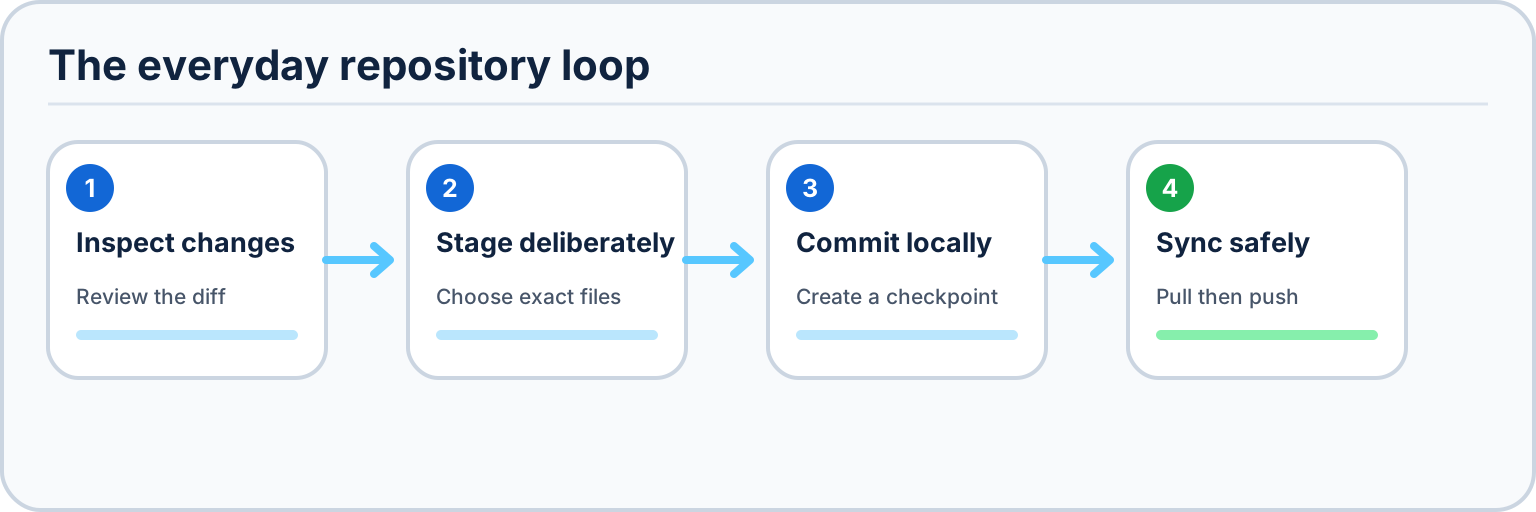
The safest rhythm is simple: inspect, stage, commit, then synchronize. The tools below add power without changing that basic loop.
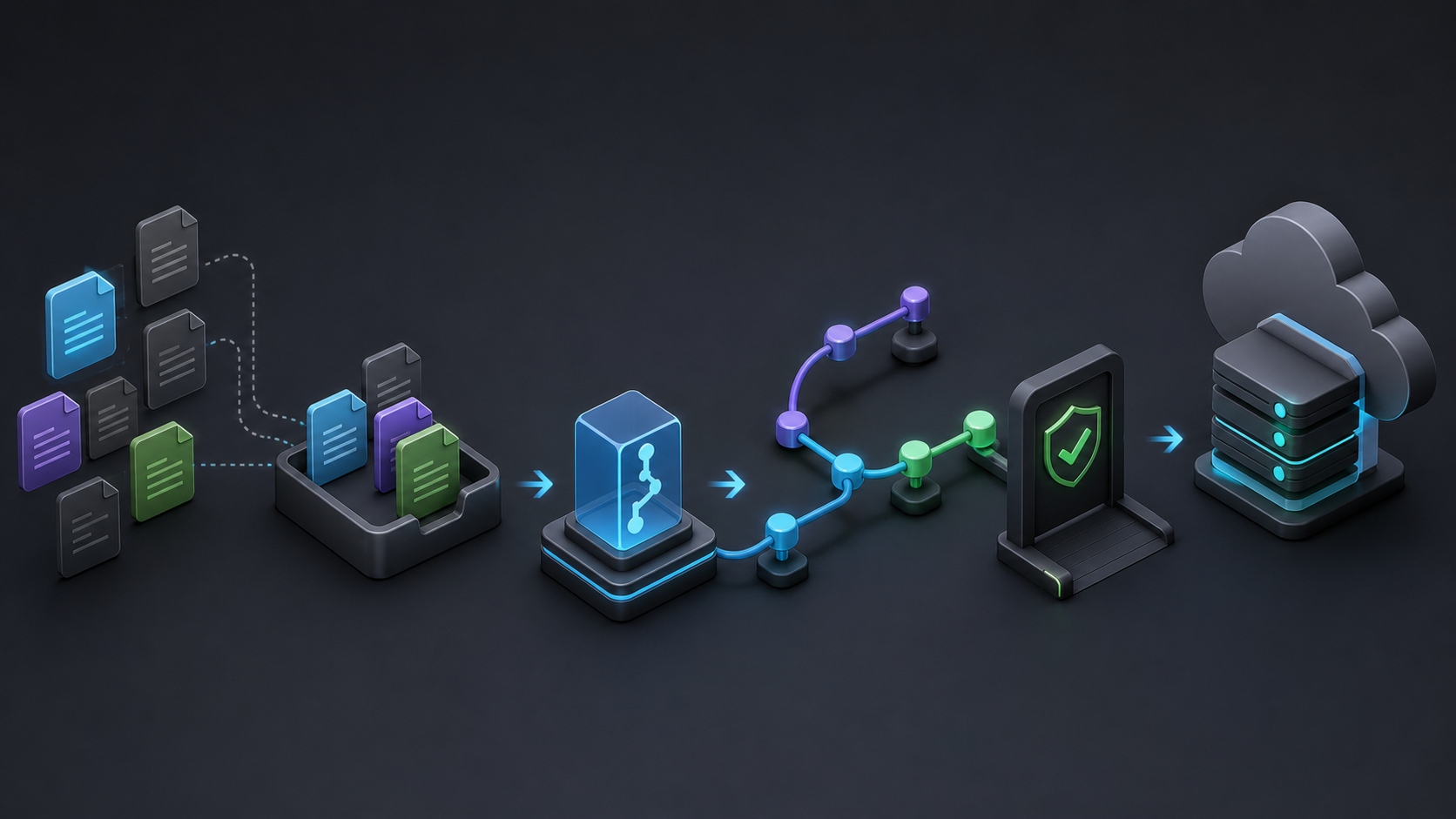
A task-oriented tour of Desktop Material's features. It assumes you already know the basic GitHub Desktop workflow (clone, commit, push, branch, pull request) — that all still works. This guide focuses on what Desktop Material adds on top.
Desktop Material is supported, built, packaged, released, and accepted on Windows only. Use its published Windows x64 installer. The retained Linux TUI prototype, package notes, parity ledger, and Xvfb captures are historical July 27 evidence, not a supported edition or Windows-release blocker.
Feature guide
The numbered roadmap now extends through M27. M0–M21 and M23 have published
receipts; M22 keeps its separate visual refresh, and the acceptance/publication
state for M24–M27 is recorded in the repository's ROADMAP.md and HANDOFF.md.
The July 22 feature continuation is published at f7b4760a13 with exact-source
CI, code scanning, Pages/wiki, and six-asset Windows installer Release
verification. Updater recovery commits 241cc90ce9 and 04246fdf12 are also
published and were accepted from an installed legacy build through the new
alphabetic-z release lane. July 23 Cheap LFS registry storage and automatic
push batching and the responsive Releases correction are published through
c22e29a03a. Exact-source cloud, CI, CodeQL, Pages, and installer run
30057456712 passed; the latter published immutable six-asset Release
v3.6.3-beta3-zadthusbjk. The live Bambu cloud/verifier and initial 10/10 clone
integrity proofs are complete; the serialized materialization correction keeps
its final UI receipt in HANDOFF.md.
The July 27 app-hosted browser, exact-90% Cheap LFS restore look-ahead, and
private-repository lock passed the final focused 760/760 across 58 files
gate, 14/14 verifier contracts, full TypeScript, the exact Windows production
build, and isolated hidden-desktop interaction/privacy review. The source and
captures are pushed through 2abccae8fd, and Pages/wiki publication is
verified live. Packaged Windows E2E is verified. Installer/Release evidence
remained pending at that dated checkpoint; the archived TUI compatibility work
is outside the current Windows acceptance boundary.
The temporary-submodule changeset completed its local ten-pass, final post-build
child/Back, and fresh-bundle duplicate Open/Back race inspections, including
read-only mutation boundaries and owned headless-resource cleanup. Initial
remote CI caught a macOS error-ordering defect without publishing; correction
98d93ccc passed its full remote CI gate and published
v3.6.3-beta3-b0000000165. Exact publication receipts are in HANDOFF.md.
The Guided Feature Gallery declares the canonical 86-scene Windows visual target: every catalogued function or state must own one distinct screenshot rather than borrow an overview image. The current-source updater frame is accepted and published as its own target; it does not replace the immutable historical migration frame. Five earlier Linux/Xvfb captures remain archived outside that target set.
- The shell
- Historical Linux TUI prototype
- Install on Windows
- Material first run
- Signing in
- App-hosted browser
- Local Ollama model management
- Repository tabs
- Command palette
- Appearance customization
- Settings history
- Non-modal dialogs
- Multi-clone
- Advanced Git and collaboration workflows
- Guided Git and GitHub functions
- GitHub API Explorer
- One-click commit & push
- Build & Run output controls
- Repair a failed build with Codex or OpenCode
- Notification centre
- GitHub Actions panel
- Repository Releases
- Repository Packages
- UI scaling
- Automation and merge-all
- History search and graph
- Multiple stashes
- Repository power tools
- Multi-window workflows
- Agent access and CLI
M21 adds progressively disclosed controls around the familiar Desktop flow:
- Use the repository sheet to search, filter by account/provider/status, pin or hide repositories, and run Pull/Fetch All only after reviewing the exact selected subset. History can switch between the current branch and all refs to reveal commits that exist only on remote branches or tags.
- Open a pull request workspace to inspect its summary, checks, changed-file tree, and expanded diff context; comment and reply, resolve conversations, submit an approval or change request, and update supported metadata. The creation composer discovers bounded repository templates and optional metadata before an immutable final review. Fork checkout separately reviews the exact source repository, branch, and commit before fetching.
- Open Stash Manager to create a named stash from selected files or manage any stash visible to Git, including entries made outside the app. Repository Tools exposes tag creation, fetch, push, move, signing, pruning, and deletion; destructive tag and bulk-branch actions identify the exact refs first and retain recovery information.
- In Changes, switch the file list to a directory tree, choose persisted diff context, compare CSV/TSV rows and cells, and preview TGA images. Editor actions understand the expanded editor catalog plus WSL paths. Settings and Repository Tools expose global-ignore editing, allowlisted custom Git presets, reviewed patch import/export, and network/WSL path diagnostics.
- Open GitHub Projects from Repository Tools for the current account-bound repository. A successful bounded load refreshes the local cache; while offline, the workspace labels and shows only the last-known-good snapshot.
The complete 30-item feature ledger links to behavior, recovery, security, and test details for every workflow.
The commands below reproduce the July 27 prototype acceptance record. They are not a current installation recommendation; Desktop Material's supported product and package path is Windows. At that checkpoint the prototype required Git, Python 3.10–3.13, and uv.
Linux shell:
git clone https://github.com/Ding-Ding-Projects/desktop-material.git && cd desktop-material && uv tool install ./tui && uv tool update-shellWindows PowerShell:
git clone https://github.com/Ding-Ding-Projects/desktop-material.git; if ($LASTEXITCODE -ne 0) { throw 'git clone failed' }; Set-Location .\desktop-material; uv tool install .\tui; if ($LASTEXITCODE -ne 0) { throw 'uv tool install failed' }; uv tool update-shellClose and reopen the terminal afterward so the updated PATH is loaded. Then
run github /path/to/repository on Linux or
github C:\path\to\repository on Windows. The interactive acceptance target
was Linux-first; the Windows Terminal launch path and cross-platform core were
also tested at that checkpoint.
The same launcher provides Cheap-LFS-aware Git commands:
github -C /path/to/repository push --dry-run
github -C /path/to/repository push origin main
github -C /path/to/repository pull --ff-only
github -C /path/to/repository git status --short
Open/Create also has a clickable folder browser. Bracketed or Textual clipboard paste unwraps one matching pair of single or double quotes immediately without evaluating shell syntax; submission applies the same normalization as a fallback. See the complete TUI installation guide for package, upgrade, Docker, security, and failure-mode details.
Desktop Material's automated releases provide an x64 per-user installer. The
Windows package command also creates GitHub Desktop-x64.zip, and the gated
release job requires that portable ZIP beside the installer and update-feed
assets. Open Windows PowerShell 5.1 or PowerShell 7 as your normal user and run:
Microsoft.PowerShell.Utility\Invoke-RestMethod 'https://raw.githubusercontent.com/Ding-Ding-Projects/desktop-material/main/script/install-windows.ps1' | Microsoft.PowerShell.Utility\Invoke-ExpressionThe command loads the tracked installer script from this repository. The script then:
- queries
Ding-Ding-Projects/desktop-materialfor its newest non-draft, non-prerelease GitHub release; - requires exactly one installer matching the native Windows architecture and validates that its HTTPS URL belongs to this repository;
- checks the reported byte count and GitHub SHA-256 release-asset digest, then requires any Authenticode signature to be valid;
- runs the per-user Squirrel installer with its supported
--silentflag; - requires Squirrel to exit zero and verifies the installed postcondition; and
- removes the installer from its unique, bounded temporary directory.
For automation, invoke the reviewed script as a script block and choose the explicit current-user operation:
$installer = [scriptblock]::Create((Microsoft.PowerShell.Utility\Invoke-RestMethod 'https://raw.githubusercontent.com/Ding-Ding-Projects/desktop-material/main/script/install-windows.ps1'))
& $installer -Operation Install -InstallScope CurrentUser
& $installer -Operation Update -InstallScope CurrentUser
& $installer -Operation Uninstall -InstallScope CurrentUser
Install may refresh a complete existing installation. Update requires one.
Install uses the downloaded, digest-verified setup asset. Update invokes the
installed updater against the exact immutable release-tag feed with
--update=<url> --silent, preserving normal Squirrel update behavior instead
of performing a full reinstall. Uninstall is idempotent when the app is
already absent and otherwise invokes the installed
Update.exe --uninstall --silent; no executable is downloaded for removal.
Every operation refuses a partial installation and asks for a running app to be
closed normally instead of force-killing it. Squirrel has a 15-minute process
deadline and its installed/removed postcondition has a one-minute deadline;
nonzero exit codes and missing postconditions are failures. Use -ResolveOnly
to inspect the exact plan without changing the machine.
The application scope is always CurrentUser under
%LOCALAPPDATA%\GitHubDesktop. AllUsers is rejected. The generated MSI is a
machine deployment bootstrapper which schedules the same per-user setup at
logon, not a conventional machine-wide Desktop Material payload. Run mutating
operations in a normal, non-administrator PowerShell session; the script
rejects elevation before Squirrel can show its unsupported-elevation error. It
also preflights Squirrel's .NET Framework 4.5 minimum instead of opening a
framework installer or reboot prompt during an unattended install.
The current automated workflow publishes unsigned x64 installers. The script warns about the missing signature after verifying the GitHub digest, and it stops rather than selecting a different package on ARM64 or 32-bit Windows. To inspect or download the asset yourself, use the latest release page. When the portable ZIP is present, download and extract it before starting the packaged executable; it does not run the Squirrel installer. The published baseline already contains the required installer, feed, and portable ZIP assets. The verified updater-migration Releases contain all six required installer, feed, NuGet, MSI, and portable-ZIP assets.
While GitHub Actions is actively building a newer exact main commit, the
About updater can show New update coming soon (or the selected Cantonese or
bilingual equivalent). This remote state is never persisted and cannot make an
update installable. Once the Release exists, the next normal update check takes
over. Each automated Release lists bounded, sanitized commit subjects from the
previous installer release through its exact target SHA. CI, installer, and
Pages invocations use independent per-run groups, so a newer run never cancels
or replaces older running or pending work.
The Windows updater reads the Squirrel RELEASES manifest from the published
releases/latest/download/ asset path. A Release that contains only the
Linux/TUI payload cannot serve that manifest, so it must never become the
Windows Latest Release. The promotion helper now requires every Latest
candidate to carry both RELEASES and a full *-full.nupkg package; a newer
Linux/TUI-only Release therefore cannot replace a valid Windows feed. See the
promotion implementation
and its regression guard in commit
a4ce485037.
The live alias was repaired on 2026-08-05 to the Windows-capable Release
v3.6.3-beta3-zadwftypqg,
and the exact releases/latest/download/RELEASES URL returned HTTP 200 during
verification. If a packaged build still shows the old 404, close and reopen
the About surface after the feed repair; the next check uses the corrected
alias. The focused regression suite passed 29/29.
廣東話:Windows updater 要搵 Squirrel 嘅 RELEASES 檔。淨係 Linux/TUI 資產嘅
Release 冇呢扇門,所以 promotion 而家會先驗齊 Windows 資產,唔畀佢霸住
Latest。2026-08-05 修好 live alias,實際 feed 已經由 404 變返 200。
Automatic and Super Express installers now use the same fixed-width alphabetic
z version lane. This lets an older Super Express installation move forward
instead of treating a newer ordinary Release as a downgrade. Live acceptance
started from 3.6.3-beta3-s000000000201: the ordinary updater automatically
selected, downloaded, and applied 3.6.3-beta3-zadtberjmv; a following
same-source Super Express Release then progressed visibly through Downloading
update… to Quit and Install Update.
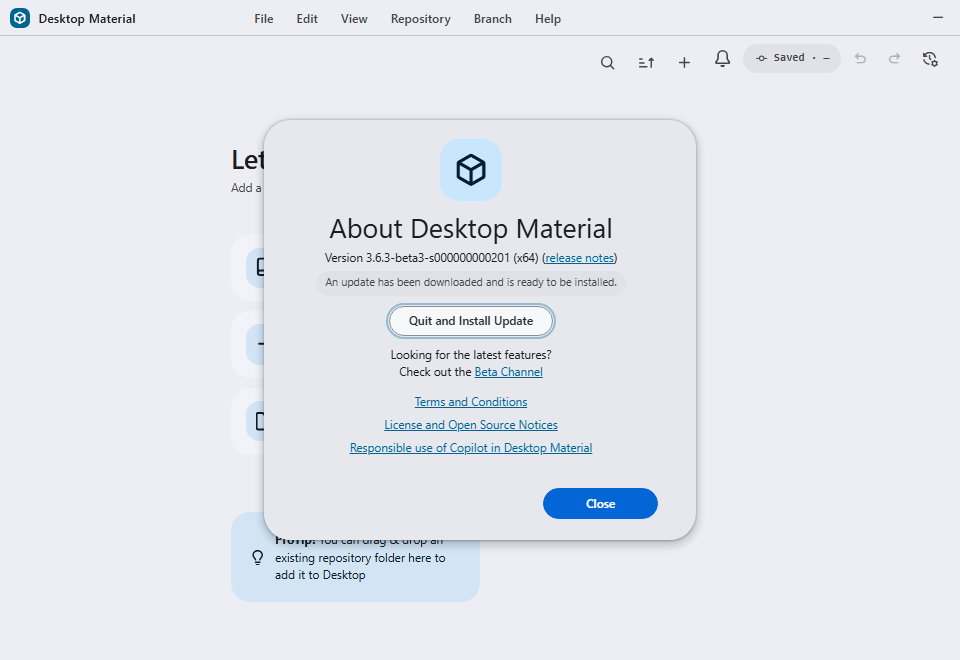
The current-source development frame below separately proves runtime source
b069384ad7d8a65d1192ee06859a705fe484c9c8 reaching the ready state through
the real Electron/Squirrel event path. Its disclosed verifier-owned payload was
inert, so this is UI-path evidence rather than a claim that the payload was
published. Promotion e3967f1b81ec039624500797dca40a1ab6d98598 records the
inspected 960×660, 47,086-byte PNG with SHA-256
0fc9caf5b13eb5b914121090f403c394545e02ea4303b11dd4598afcb3a2dfca.
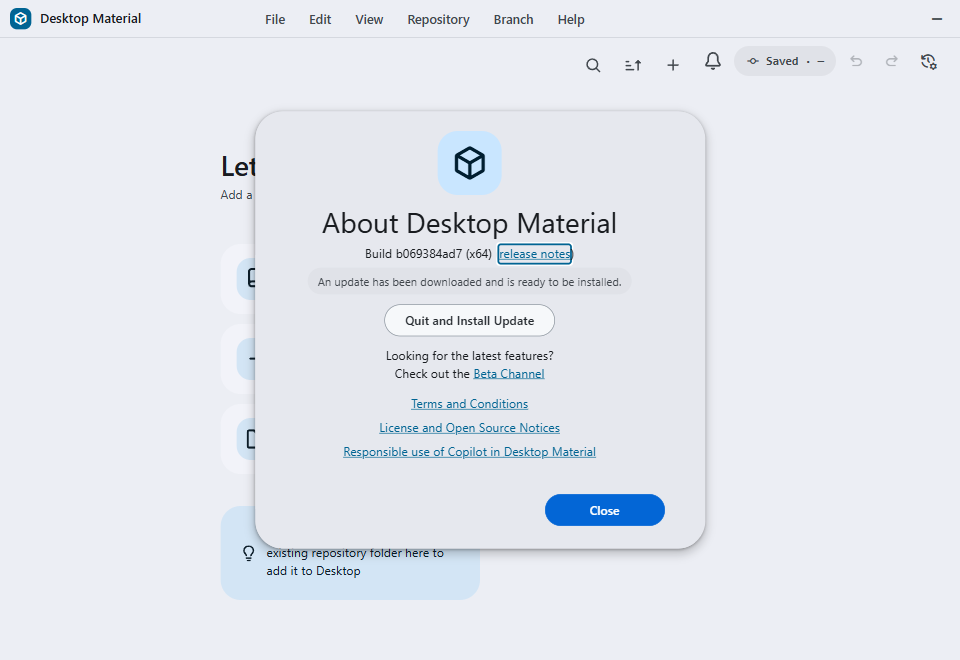
目前原始碼開發版畫面已驗收:真 Electron/Squirrel 路徑用驗證器自有、已披露嘅無害 payload;呢個係 UI 路徑證明,唔係話個 payload 已經發佈。
The immutable frame below remains the separate installed legacy-to-shared-lane migration record.
Open Repository → Release Manager and select New release. Enter the tag, target, name, and notes. Publish immediately is enabled by default; leave it enabled, select Review changes, verify that Publication says Publish immediately, and select Publish release. Desktop Material sends one direct public-release request rather than creating a draft first. Turn Publish immediately off only when you intentionally want an unpublished draft. Review the tracked script before running any remote command.
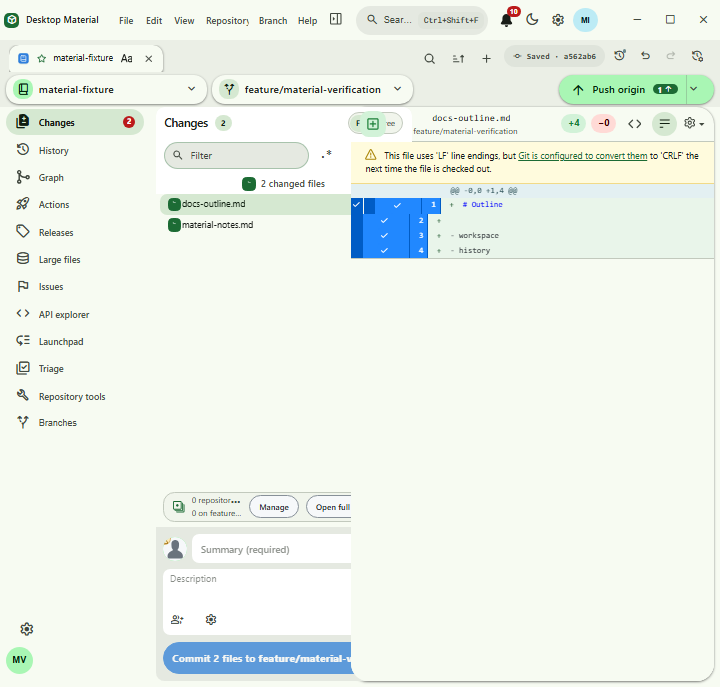
Desktop Material rebuilds the GitHub Desktop shell around Material Design 3. The chrome you work in every day is made of a few pieces:
- A left icon navigation rail with entries for Changes (with a count badge), History, Branches, Settings, and your account avatar at the bottom.
- A floating pill toolbar across the top carrying repository, worktree, branch, and sync controls. When the measured width gets tight, Build & Run moves into the keyboard-accessible More toolbar actions surface first, then Commit & Push follows. Widening the window restores each action automatically before its label can clip. For GitHub-backed repositories, the branch control also shows a small colour-coded CI logo for the current commit; hover it for the result, such as CI checks: successful.
- Browser-like repository tabs (see Repository tabs) above the workspace.
- Floating, radius-24 workspace cards for Changes, the diff, History, and the empty/welcome states, with tri-state selection checkboxes, tonal status chips, token-based diff colors, and an inverse-surface undo banner.
The whole shell has an animated light/dark theme. Everything below tells you how to drive it. On Windows, one uninterrupted bare Alt press toggles the application menu. A held key remains one press, while Alt plus another key, another modifier, a handled event, or a modal transition cancels that sequence cleanly so a stale release cannot affect the next Alt press. While an app update downloads, a thin indeterminate progress bar appears at the top of the workspace. Choose Settings → Appearance → Update progress color to inherit the accent or select blue, violet, teal, green, amber, or rose. These update controls, the current-commit CI status tooltip, and the temporary submodule-navigation copy use the explicit language mode saved under Language: English, playful Hong Kong Cantonese, or a compact bilingual presentation. English is the fallback; the operating-system locale does not silently replace the saved choice.
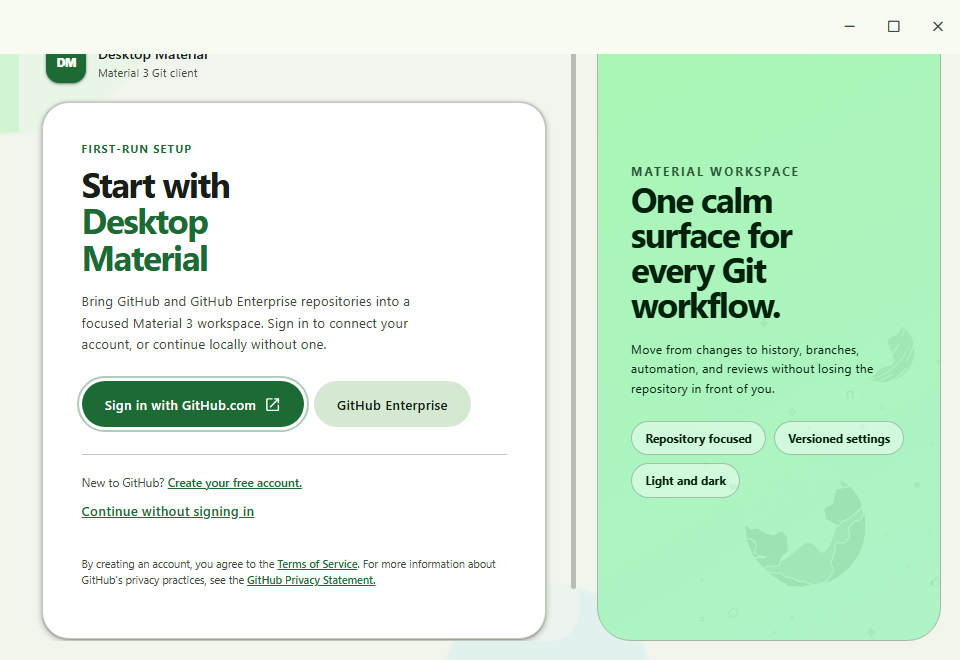
The welcome page is a Material task surface rather than a separate stock onboarding skin. It keeps the Sign in with GitHub.com, GitHub Enterprise, and Continue without signing in routes in one focused card, preserves keyboard focus and sign-in progress, and explains that repositories stay local to the device. A tonal preview introduces the repository-focused workspace; at compact window sizes the preview steps away so the setup task remains unclipped.
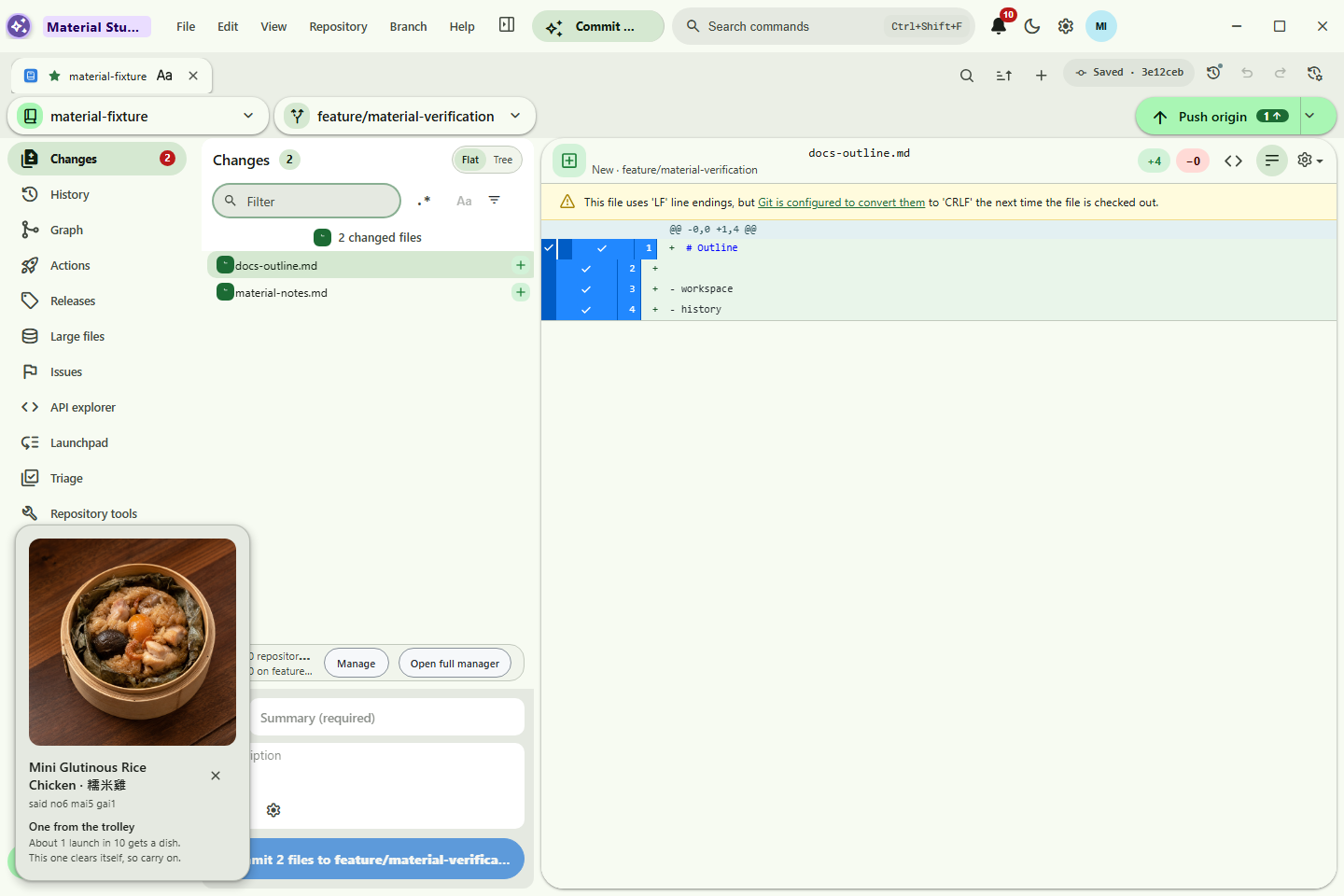
About one launch in ten, a small photograph of a Hong Kong dim sum dish appears in the bottom-left corner, named in English and Traditional Chinese — Classic Har Gow · 蝦餃 — and clears itself after about nine seconds.
It is a delight, not a system. It never delays the app becoming usable, never takes keyboard focus, and is not a dialog you have to dismiss; the labelled close button only saves you the wait. It stays away entirely on a first run, when startup has failed, while an update is in flight, while a blocking dialog is open, and inside your configured quiet hours. A launch it stays away from simply has no surprise; it does not lie in wait for the dialog to close.
Each dish's name is a fact rather than a joke: it reads identically in every language mode and at every playfulness level, and only the order changes (Cantonese mode leads with 蝦餃). The copy around the name follows your two playfulness sliders, each language at its own level. The photographs ship with the app — twelve of them, no network request, no tracking — and the picture's alt text names the dish in both languages so it reaches screen-reader users too.
There is no setting to switch it off, and if an older profile stored one, it is deleted on the next launch so that profile simply rejoins the draw.
Full detail: The dim sum surprise.
Open Settings → Accounts to manage sign-ins. Desktop Material supports multiple accounts at once and, unlike stock GitHub Desktop, multiple identities on the same host — for example two GitHub.com accounts, or a work and a personal GitHub Enterprise identity side by side.
- In Settings → Accounts, choose Add account.
- Pick GitHub.com or GitHub Enterprise and complete the browser sign-in.
- The new identity appears in the accounts list. You can add another on the same host without signing the first one out.
Each account keeps its own tabs, repositories, and settings. Switching the active account switches the whole workspace to that identity's context.
Open the repositories side sheet to narrow cloned repositories by Repository account and Repository service. The filters combine: for example, choose one exact account and GitLab, or choose No available account and Local only. Signed-out/stale bindings remain explicit under Unknown or signed out; the app does not guess a provider from a hostname.
GitHub browser sign-in requests only the feature scopes used by Desktop Material: repository/user access, workflow-file updates, notifications, read-only organization membership, and GHCR package read/write for Cheap LFS. It does not request repository deletion, package deletion, administrative keys, Codespaces, audit-log access, or gists. An older sign-in without package access is offered reauthorization before GHCR storage can use that account.
Desktop Material signs in to self-hosted GitLab with an endpoint + personal access token (PAT) rather than a browser OAuth flow:
- In Settings → Accounts, choose Add account → GitLab (self-hosted).
- Enter your instance endpoint (for example
https://gitlab.example.com). - Paste a personal access token with the scopes you need (typically
api,read_repository,write_repository). - Save. The GitLab identity now behaves like any other account — its repos are browsable and cloneable, and it can own its own tabs.
Bitbucket and hosted GitLab integrations follow the same pattern. Tokens are stored with your platform credential store and are never exposed through the agent API.
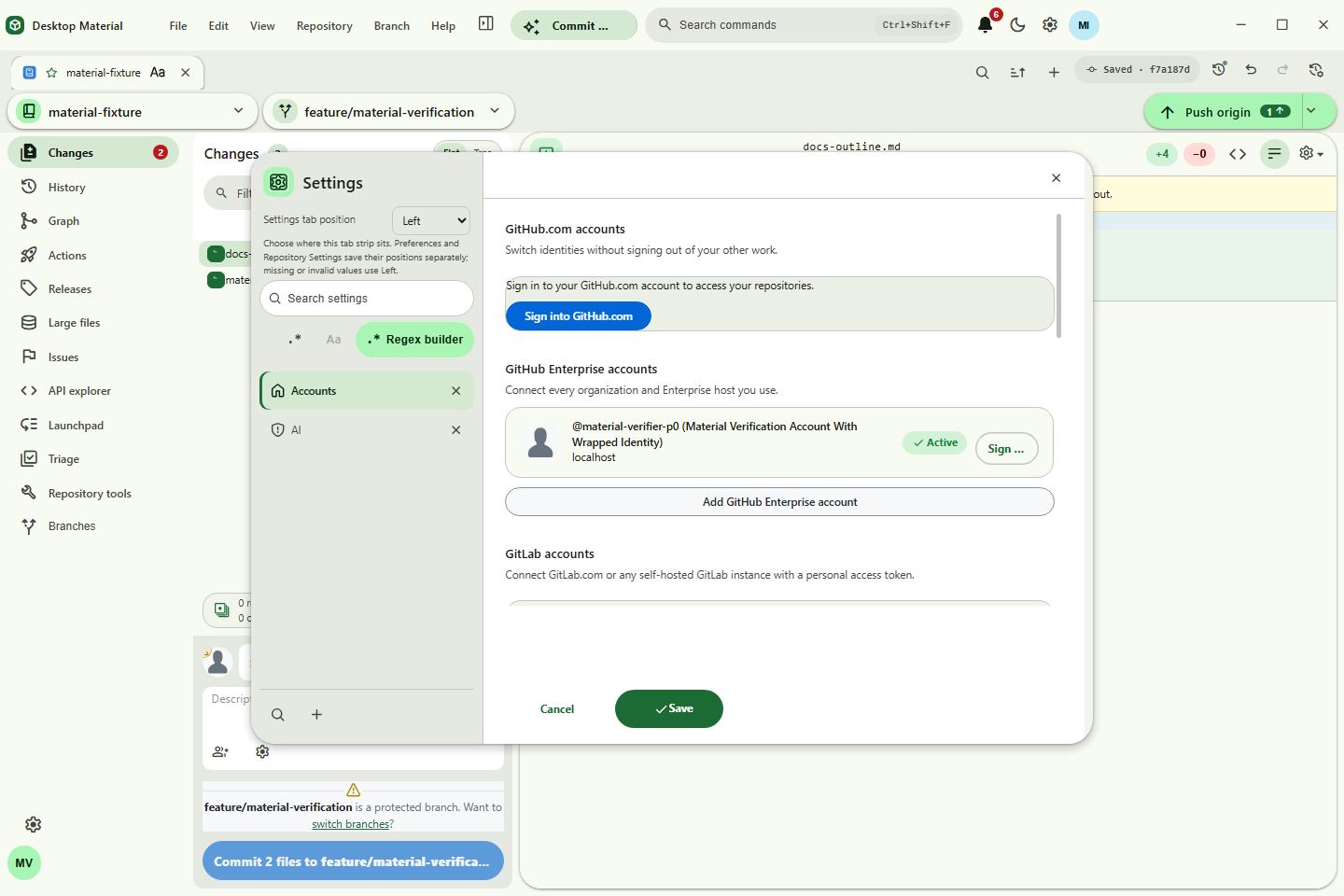
When a GitHub account belongs to organizations, the clone view loads the account's organization list and adds filter chips. Select an organization to browse its complete repository list; if one organization fails to load, the view reports that error without hiding the repositories already available.
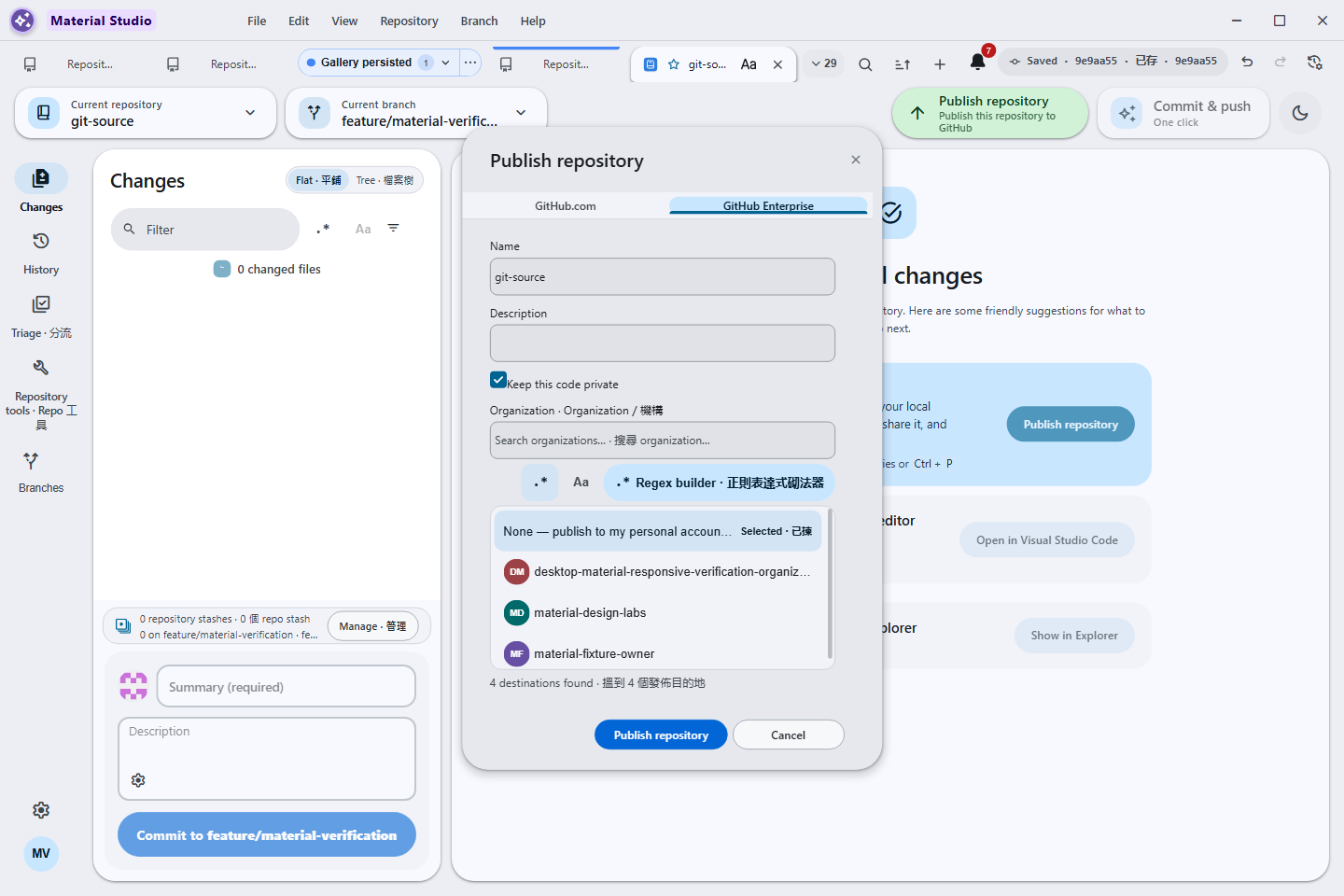
The Publish repository dialog presents that ownership choice as a searchable listbox. None publishes to the personal account, while the other rows select an organization. The search supports fuzzy, substring, and bounded safe-regex modes plus the full Regex Builder. Invalid regex keeps every owner reachable and reports the pattern problem inline. Arrow keys, Home/End, and Enter/Space work from the keyboard. On narrow windows the search tools wrap above a list with its own scroll, so the owner rows and the dialog actions remain reachable.
Repository-bound provider features use Repository settings → Repository account as their one source of truth. If Provider Triage opens while the repository is unassigned, Desktop Material automatically uses the account only when exactly one signed-in identity matches the provider and endpoint. With multiple matches, choose a labelled account and select Use this account; this prevents cross-account API calls. With no match, use Sign in or Manage accounts.
If the saved account has been signed out, lost permission, or needs organization SSO, the tool asks you to re-authenticate or authorize SSO instead of claiming the repository is unassigned. Changing the account in Repository Settings propagates to Provider Triage immediately; an existing valid explicit binding is never silently replaced.
The same repository account controls HTTPS Git network work: normal and scheduled Fetch, Pull, Push, the post-push refresh, pull-request refspec fetches, and remote default-branch lookup. A saved account that is unavailable fails safely rather than falling back to another GitHub.com identity. For an older unassigned repository, Desktop Material verifies same-host accounts against the remote and prefers an account that can push before a read-only account, then saves that verified choice for later operations.
When GitHub reports that the repository was renamed or transferred, Desktop Material updates the exact matched default remote before network work. It keeps SSH as SSH and accepts an HTTP(S) change only on the same exact scheme, host, and port. An explicit push URL moves only when it exactly matched the old fetch URL; a separate deployment or write-only target remains untouched. Concurrent remote edits win, unsafe candidates are refused, and a provider/config failure leaves the current URL in place for a later explicit retry. See Automatic remote URL refresh for the complete safety and retry behavior.
During background fetch, a local refs/remotes/<remote>/HEAD is reused only when it points inside
that exact remote namespace and its target still exists. This avoids an expensive online
default-branch scan on every scheduled refresh. Missing, malformed, dangling, or cross-remote refs
still run one lookup with the repository's selected account. An explicit Fetch always refreshes
the default with a five-second discovery deadline plus one final five-second process-cleanup grace
window, so a generic host's rename is detected even when its old branch still exists and a missing
child-process close event cannot hang the completed fetch. Concurrent preparations for the same
remote URL share one in-flight system proxy lookup instead of multiplying resolver work after a
timeout. Clone cancellation remains stricter and waits for the owned process to close completely.
Published source acceptance: combined tests, verifier contracts, full TypeScript, the exact Windows production build, and hidden-desktop interaction/privacy checks pass. The source and accepted capture are pushed through
2abccae8fd, and Pages/wiki publication is verified live. Packaged Windows E2E is verified. Installer/Release evidence remained pending at that dated checkpoint; archived TUI compatibility work does not block this Windows feature.
Open Settings → Advanced → Open web links and choose:
- In the system browser for the default, recommended behavior, especially when the app-hosted browser renders a blank page; or
- Inside Desktop Material to intentionally send browser-bound HTTP(S) links to the dedicated app-hosted window.
The selection persists, follows profile settings restore, and applies to later links. An explicitly saved internal-browser choice remains selected. Authentication is marked explicitly by the app; Desktop Material does not guess from a hostname or URL path.
If Windows rejects an HTTP(S) launch, Desktop Material shows one non-blocking, detail-free notice whether the link came from app content, the native Help menu, or the app-hosted browser's external escape. It never includes the failed URL and never silently falls back to the app-hosted browser.
The app-hosted window provides browser tabs, New tab, close, Back, Forward,
Refresh/Stop, a labelled address field, Go, ordinary bookmarks, and Open
externally. A bare host such as example.com/docs becomes HTTPS. Arbitrary
words are not sent to a search engine. HTTP(S) redirects stay in the current
tab; a page's window.open target is captured into a new app-hosted tab instead
of receiving an unrestricted popup.
Sign-in tabs show a SIGN IN marker and private-session notice. They cannot be bookmarked, use an in-memory session shared only with their sign-in popups, clear its storage/cache after the authentication browser closes, and always offer Continue in system browser. A valid Desktop Material callback returns to the app. Ordinary bookmarks persist, but their query strings and fragments are removed first so OAuth codes and signed parameters do not land in bookmark storage. Open tabs and their current URLs are not restored.
Remote pages are not part of the trusted Desktop Material renderer. Each lives
in a sandboxed WebContentsView with Node and preload disabled, context
isolation and web security enabled, permissions denied, downloads blocked, and
certificate failures refused. A blocked download explains that the page must
be opened externally. Load, certificate, download, and renderer failures appear
in the browser chrome with a refresh or external-browser recovery path.
香港粵語速讀。 Settings → Advanced → Open web links 預設兼建議用系統 瀏覽器,特別係 app 內瀏覽器一片空白嗰陣;真係想用先明確揀 app 入面。App 入面有分頁、網址列、前後頁、重新整理、Go、書籤同外部逃生門;網頁 自己就鎖喺 sandbox view,冇 Node、冇 app IPC、冇權限,壞憑證唔會夾硬放行。登入 分頁係記憶體工作階段、加唔到書籤,閂咗會清資料,亦永遠可以轉去系統瀏覽器。呢 本機正式 build 同 hidden-desktop 驗收已經過關;遠端發佈證據另外計。
See App-hosted browser for persistence limits, complete failure behavior, security boundaries, and the pending acceptance gates.
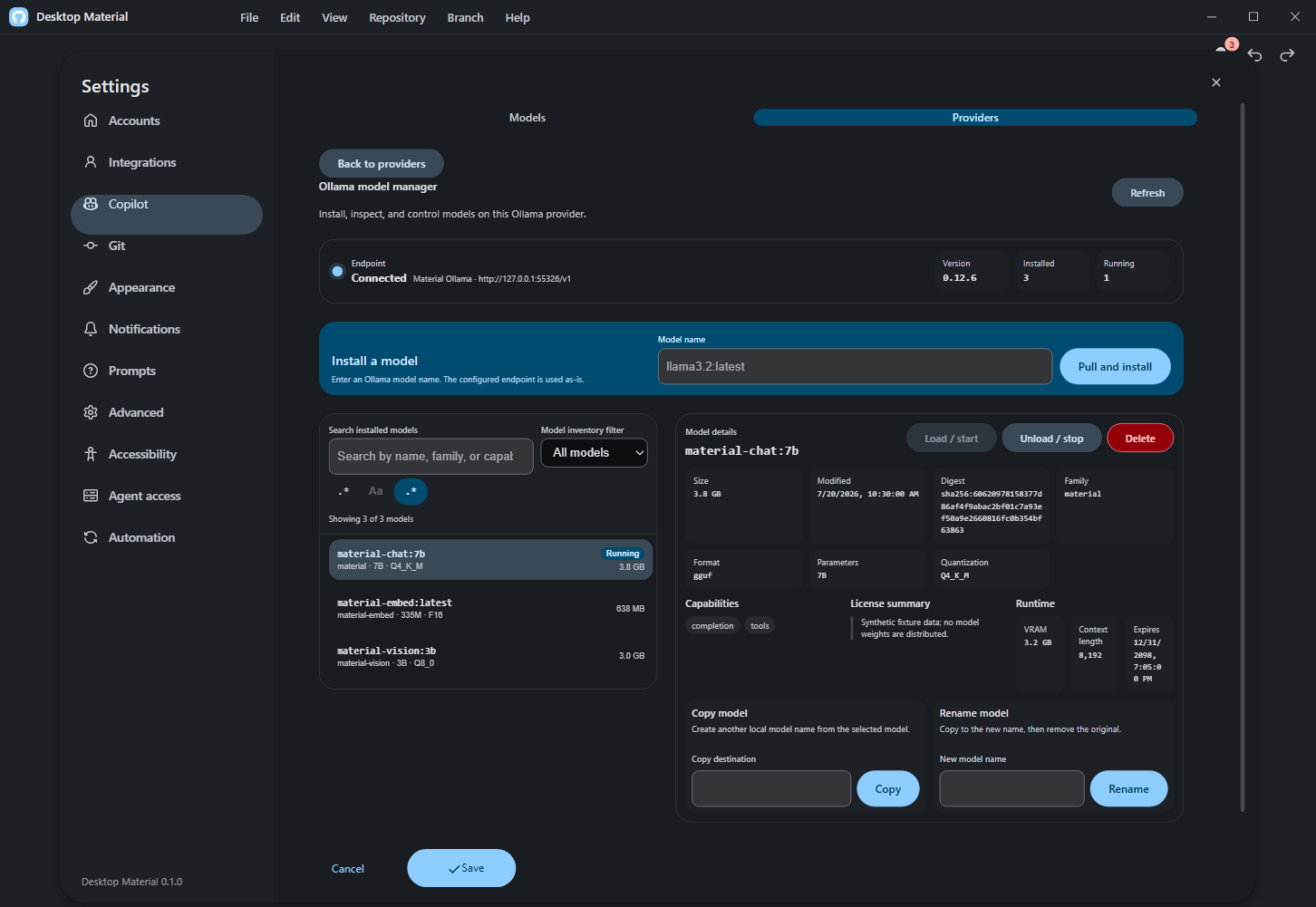
Open Settings → Copilot → Providers, choose Add provider…, select
Ollama (local), and save the preset. Its default URL is
http://127.0.0.1:11434/v1; Ollama runs locally without an API key. Choose
Manage models on the saved provider to open the lifecycle workspace.
The manager keeps service discovery, inventory, and mutations explicit:
- Check the endpoint health and Ollama version. Installed and running models load independently, so a partial response does not erase usable data.
- Search all installed models or filter to running models. Select one to inspect bounded size, digest, family, format, parameter, quantization, capability, license, and runtime details when Ollama reports them.
- Pull a model by name and follow streamed progress; cancel only that pull if needed. Copy a model, or rename it through copy-then-delete with a visible partial result if the original cannot be removed.
- Load or unload the selected model. Delete requires inline confirmation that names the exact model and warns that the action cannot be undone.
After an inventory-changing operation, Desktop Material synchronizes the installed Ollama names back to that provider's selectable Copilot models. The installed inventory is authoritative, while settings for still-matching model identifiers are retained. A successful Ollama request followed by a failed provider-settings update is reported as a split outcome rather than a complete success.
Only HTTP or HTTPS loopback endpoints (localhost, 127.0.0.1, or [::1])
are accepted. The saved provider path must be exactly /v1; the manager derives
that loopback origin and appends only fixed native /api/* routes. Every remote
host, arbitrary prefix, saved /api base, embedded credential, query string,
and URL fragment is rejected. Stale requests are aborted when the provider
changes, response text stays bounded, and credentials are never added to
management URLs or logs.
Every label, validation message, progress announcement, confirmation, and accessible name follows the selected English, playful Hong Kong Cantonese, or English / 香港粵語 mode. The manager is keyboard reachable and reflows for compact Preferences windows.
The accepted 1452×1001 off-screen scene exercised health, inventory, search, running-state filtering, pull cancellation and rollback, completed pull, copy, rename, load, unload, confirmed deletion, and provider synchronization. It uses synthetic fixture data, passes privacy inspection, and has no overlapping or horizontally overflowing manager controls.
The workspace is browser-like and tabbed. Each tab is bound to a repository and an account, so a tab always opens in the identity that owns it.
- Click + on the tab strip to open a new tab, then pick a repository, or
- Middle-click / use the context menu on a repository in the list to open it in a new tab, or
- Drag one or more local repository folders onto the app. An existing repository switches instantly; a new valid repository is added and opened as a tab.
Tabs persist per account — reopening the app restores that account's tabs.
Open File → Add local repository… and choose Auto-detect repositories…. Pick a parent folder rather than one repository. Desktop Material performs a bounded scan that does not follow symbolic links or junctions, skips generated/dependency folders, and stops descending when it finds a repository. Review the relative paths in the result, then add all discovered repositories in one step. You can still edit the path and use the normal single-repository flow at any time.
Double-click a tab's title (or use its context menu → Rename) to edit the label inline. The rename is local to the tab and does not touch the repository name on disk or on the remote.
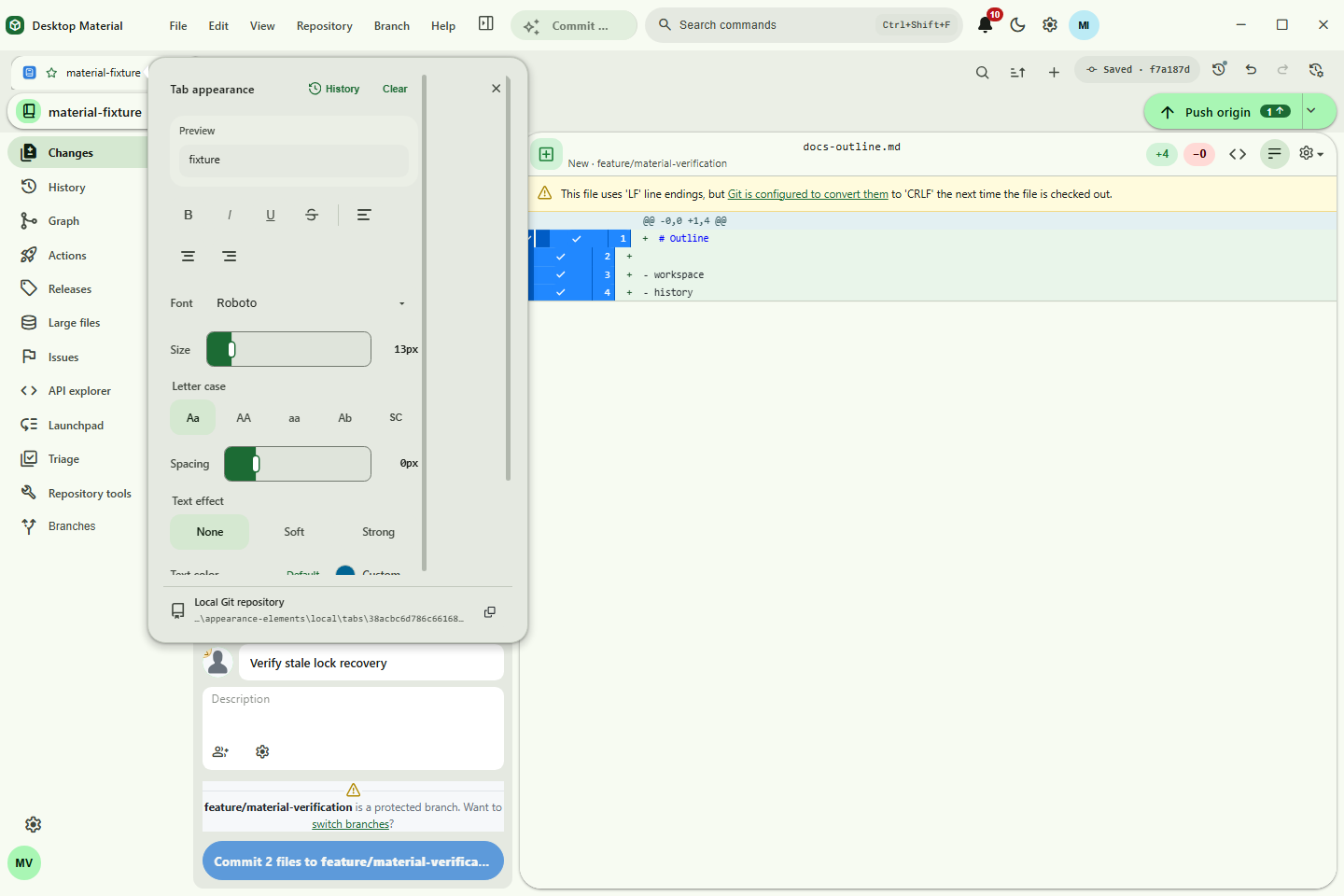
Open a tab's context menu → Text style to open the styling popover. Per tab you can set:
- Weight — bold on/off
- Italic and underline
- Size
- Text color — choose from the palette or use a custom color
- Background color — choose independently from the same palette or use a custom color
- Font family
- Alignment
The picker keeps a short recent-colors row for reuse. Styling is per tab, so you can give a production repository a strong background while leaving a scratch repository muted and italic to tell them apart at a glance.
Tab layout and styling are part of your per-account settings, so every change auto-commits to that account's local settings repo. Open Edit → Settings History… or press
Ctrl+Alt+Zif you ever need to inspect, undo, redo, or restore an earlier state.
Right-click any repository tab and choose Add tab to new group… to name a group and choose one of six curated colors. The group appears as a visible chip before its first member, with its name, member count, color, active state, and a chevron. Select the chip—or focus it and press Enter/Space—to collapse its real member tabs and select it again to restore them.
The same tab menu moves a tab into an existing group, removes it, expands or collapses the group, or deletes only the organizational label. Deleting a group never closes its repositories. Groups stay contiguous and cannot cross the protected pinned/unpinned boundary; pin or unpin the tab before moving it to a group on the other side. Names, membership, colors, collapse state, and future compatible metadata persist per profile/window across open, close, bulk-close, reload, history restore, and session import. All group copy and announcements follow English, playful Hong Kong-style Cantonese, or bilingual mode.
Dragging or using a named move action within a group's run keeps membership; moving a member outside the run ungroups only that tab. One-shot label, opened-time, status, and favorite arrangements keep every named group together as a stable block.
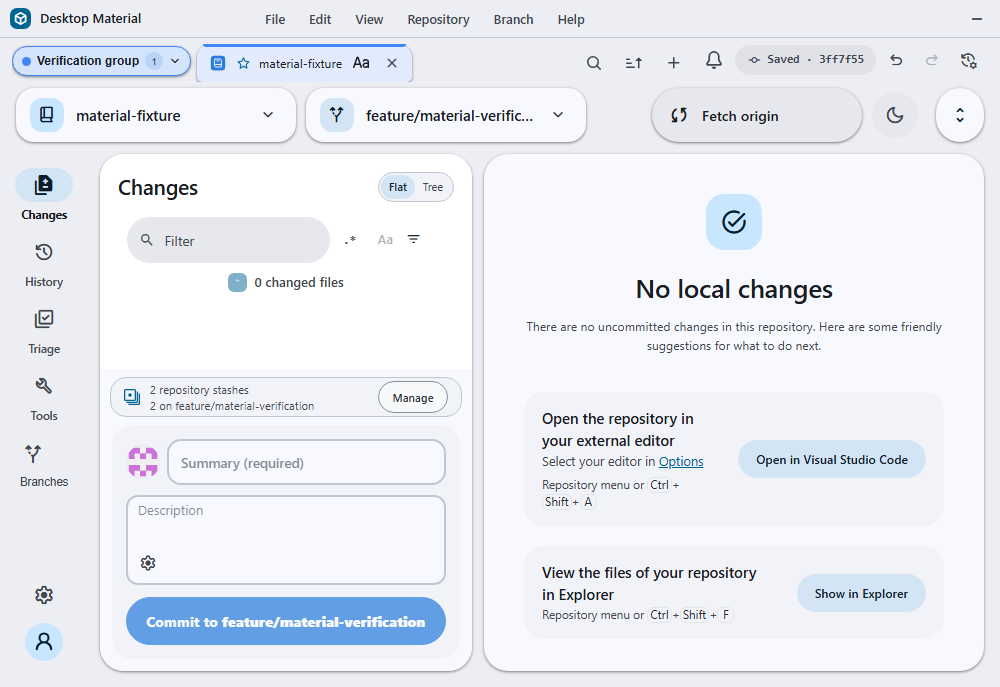
The tab-strip menu keeps both directions explicit:
- Close Tabs Containing… uses the existing regular-expression workflow to close matching tabs.
- Close all tabs except those containing… keeps tabs whose visible label, repository alias/name, or local path contains a case-insensitive literal query. Review the live kept, closed, and pinned counts plus the bounded preview before confirming. Empty input and a query with zero matches cannot confirm, so this action cannot accidentally become close-all.
Pinned tabs are protected in both bulk-close directions. Unpin one explicitly before including it in a bulk close.
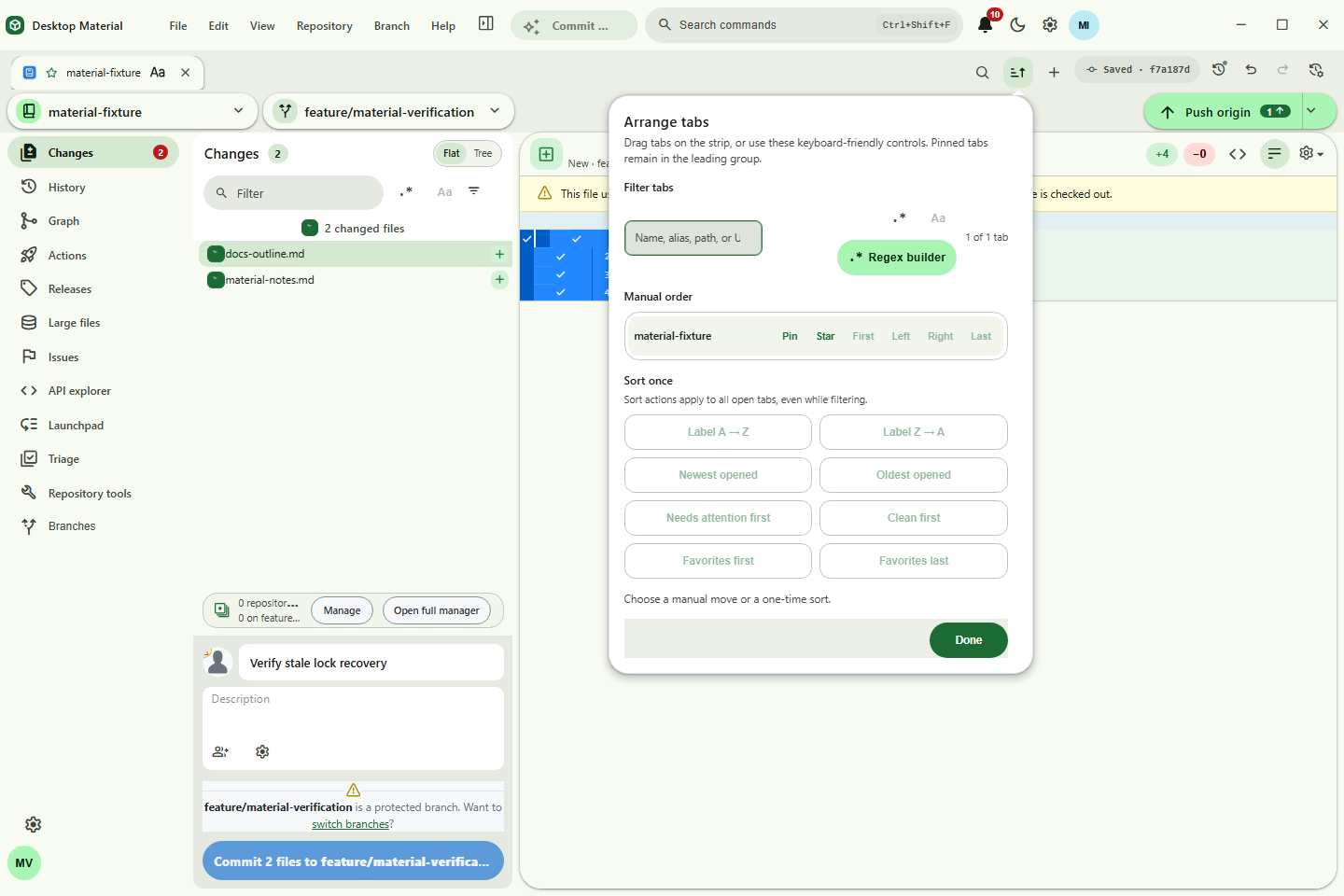
Use the star control or context menu to mark a tab as a Favorite, and use Pin tab when it must remain in the leading group. Open Arrange tabs to:
- drag a tab within its current pin group;
- use the named Move left, Move right, Move first, and Move last keyboard actions;
- apply one-shot A to Z, Z to A, Newest opened, Oldest opened, Needs attention first, Clean first, Favorites first, or Favorites last ordering.
Each sort is a one-time edit: later repository-status changes do not reshuffle the strip. The saved order remains manually editable and restores with the account/window tab state. Pin or unpin a tab explicitly before moving it across the group boundary.
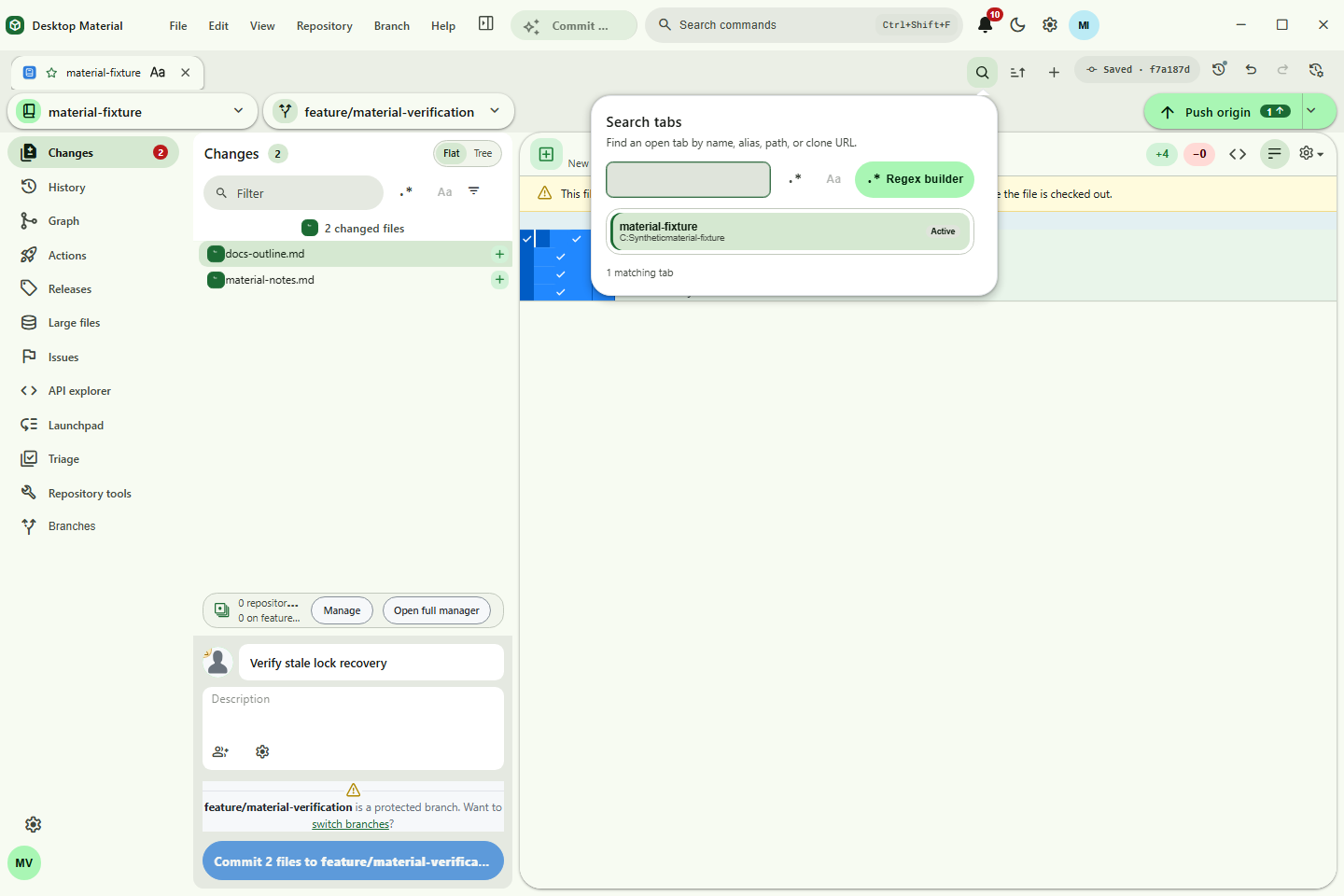
Use the strip's Search tabs button to find and switch to an open repository by its visible name, alias, local path, or clone URL. Arrange tabs has a separate Filter tabs field for narrowing the manual-order rows; the one-shot sort buttons still apply to every open tab and say so explicitly.
Choose File → Export current tabs… to save a portable JSON description of the open tab order,
active tab, aliases, pins, favorites, and per-tab appearance. The file includes local repository
paths but never account tokens or credentials. Profile-local group definitions
and each tab's groupId are intentionally omitted, because membership without
its destination profile's definition would dangle. Choose File → Import
current tabs… to validate a file, preview it, then replace the current tabs or
merge with them; missing folders are skipped without destructively clearing a
usable current session, and the destination profile's existing groups remain
intact.
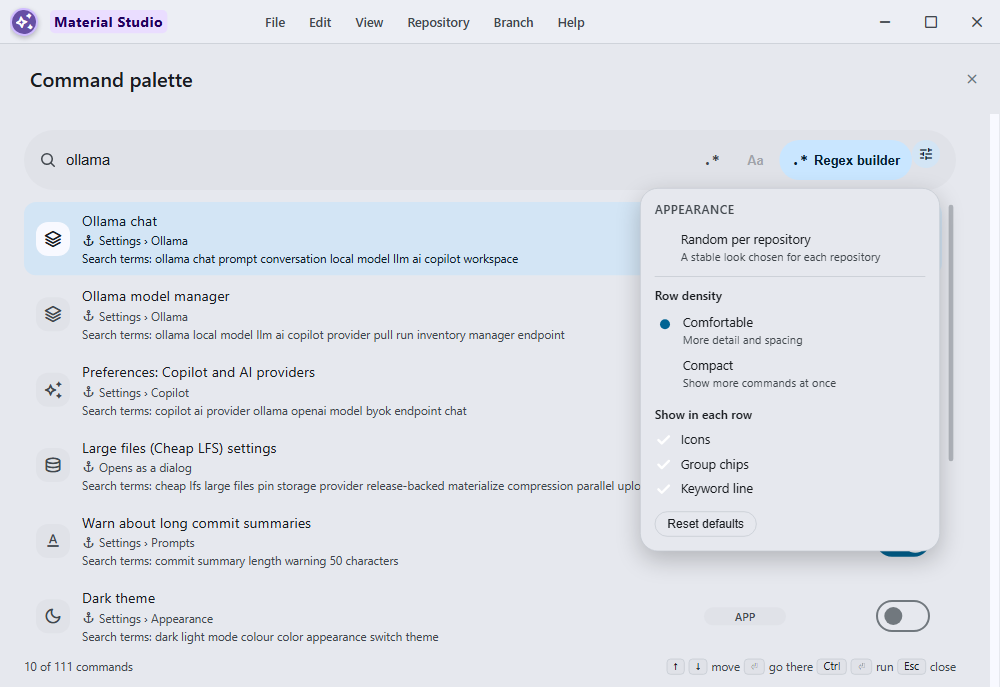
Press Ctrl+Shift+F to search every named app function. The palette covers the
whole app (Material 3's full-screen search view): results on the left, a
detail pane on the right naming what the highlighted command does and where
it lives, and a footer with the match count and keyboard hints. Each
comfortable row shows a leading Material Symbol, localized title, a compact
home label ("Toolbar", "Settings › Appearance"), optional search-term line,
and a localized Navigate, Repository, Branch, Changes, Edit, or App chip.
Compact density fits more commands by suppressing the secondary line.
Rows that are settings carry their live control inline — a switch for a
boolean, a text box for free text, a numeric box for a bounded number, a
select for a choice — so the value can be read and changed without leaving
the palette. Clicking any row (or pressing Enter) teleports to the
control that owns the feature: the owning surface opens, the control scrolls
into view, gets a brief spotlight ring, and receives focus. Ctrl+Enter or
the row's Run button executes the command instead; destructive and
network commands (push, force push, discard…) never fire from a teleport.
Use Customize appearance beside the filter and regex controls to choose comfortable or compact rows and independently show/hide icons, group chips, and the keyword line. The compact, left-aligned editor also offers Random per repository: each repository gets one stable derived layout that survives restarts instead of reshuffling every time the palette opens. Manual controls remain visible but disabled while that mode is active. Changes apply immediately and persist for later palette sessions; malformed stored values repair field by field. Escape closes only the anchored appearance editor and returns focus to its toggle, leaving the palette open.
The palette shell, groups, appearance controls, accessibility names, and the Ollama model manager, Copilot/provider preferences, and background queue entries follow English, playful Hong Kong-style Cantonese, or bilingual mode. English fallback titles and localized group names both remain searchable.
Settings → Appearance contains ordinary preferences only: explicit English, Hong Kong Cantonese, or bilingual language mode; theme and scale; repository-list behavior; branch sorting; formatting; and diff tab size. Visual customization belongs to the thing being changed.
Shift+right-click an actual element—or focus it and press the Context Menu key or
Shift+F10—to open its editor beside that owner. Supported owners include the app
identity/workspace, update progress bar, toolbar, repository list, repository tab strip,
code/diff surface, each reviewed Material feature entry point, each repository name and logo,
each tab title, and the temporary-submodule Back control. Ordinary right-click remains available
to the native or component-specific Git context menu.
Each owner has one strict setting.json in its own local Git repository. The anchored editor shows
and copies that exact path and opens the owner's History manager. Undo, redo, and restore append
audit commits; they never reset or rewrite a successful timeline. Switching profiles switches the
profile, feature, repository-element, and tab-element repository roots and closes stale editors.
Rapid slider, palette, and typography events are collapsed into the latest normalized owner value
before one durable write and state update. A queued get() read, explicit flush, or History action
remains an ordering barrier, and separately awaited changes keep their original sequence.
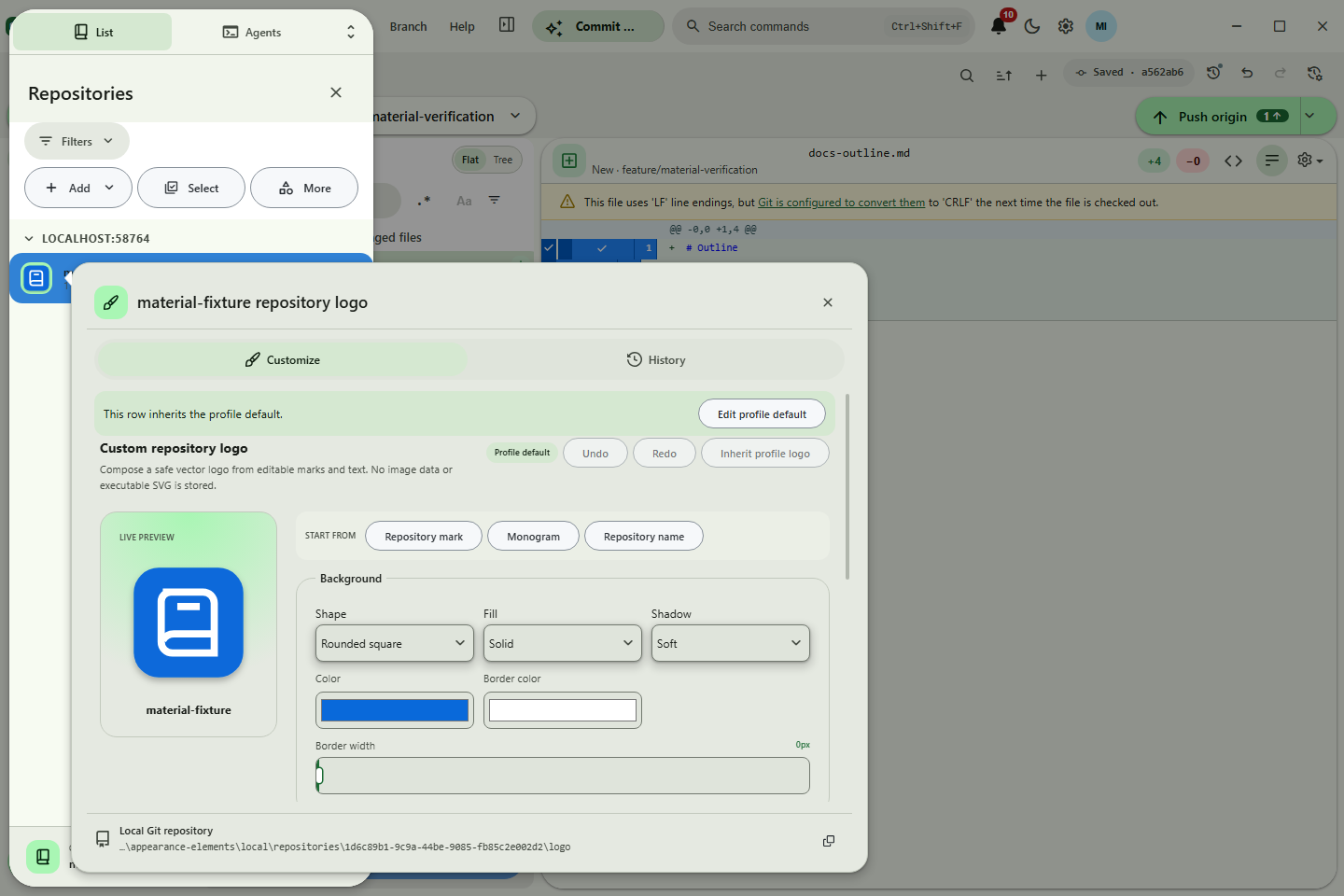
The app identity editor covers the code-native logo and in-app name, geometry, color, typography, spacing, emphasis, and effects. It does not rename the signed executable or operating-system icon.
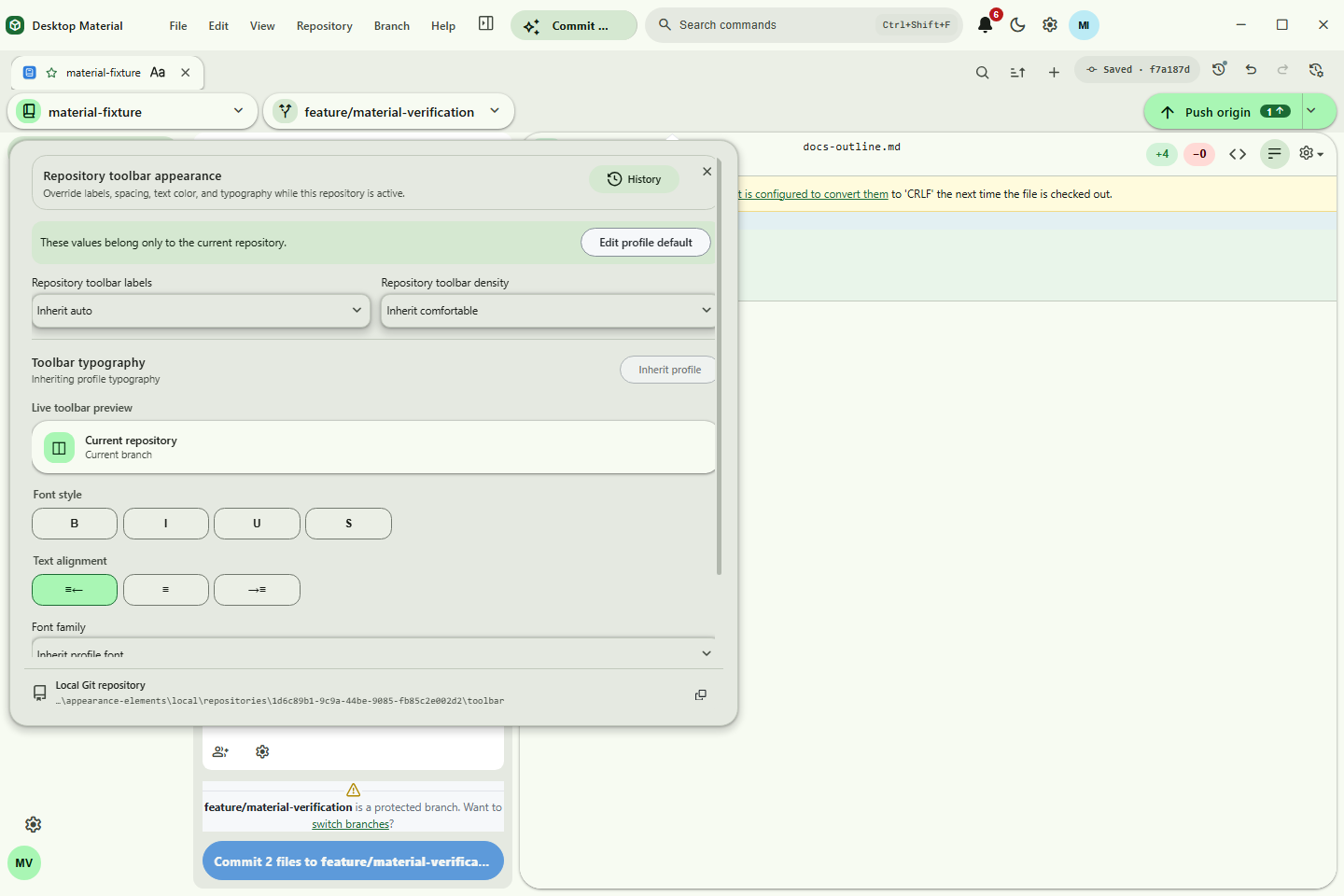
Shift+right-click the selected repository workspace, toolbar, or tab-strip background for its
repository-specific values and an Edit profile default route. Shift+right-click the actual
repository-list name for Word-style typography or its actual logo for the safe vector studio. You
can also focus an owner and press the Context Menu key or Shift+F10. A repository can inherit the
profile owner; Edit profile default keeps that profile editor anchored beside the same real
logo.
If you would rather find everything in one place, Repository settings → Appearance lists the
same five repository owners — list name, logo, tabs, toolbar, and workspace colors — using the very
same editors. It is a hub, not a second copy: each section says whether the value is inherited or
repository-owned, shows a live preview, offers Reset to default for that one owner, and commits
straight to the owner's own local Git repository, so the History, undo, and restore you see there
are the same ones the anchored editor shows. The hub never changes a profile default; for that,
Shift+right-click the element itself, use its keyboard gesture, or use Settings.
The toolbar editor includes text color, curated font family, 10–20 px title size, bold, italic, underline, strikethrough, small caps, case, character spacing, text effects, alignment, and a live toolbar preview. Profile controls can return to the Material theme. A repository stores only the properties it changes, so individual controls can inherit the profile or Inherit profile can clear the complete local typography layer.
A local desktop-material.appearance-id UUID identifies the working copy across path moves. Each
workspace, toolbar, tabs, list-name, and logo value still owns a separate local Git repository. The
old aggregate desktop-material.appearance payload is read only as a migration/startup compatibility
source, not as the mutable history.
The vector logo workbench provides:
- Start from the repository-mark, monogram, or repository-name preset and watch the live preview.
- Choose a rounded square, circle, square, or hexagon; use a solid or gradient fill; then tune colors, gradient angle, border, and shadow.
- Compose up to eight mark and text layers. Reorder or remove layers and edit their mark/text source, font, weight, letter spacing, color, position, scale, rotation, and opacity.
- Use Undo and Redo while experimenting. A repository override can return to Inherit profile logo without changing the profile design.
- Export JSON… for a portable design and bounded version-1 Import JSON….
Logo JSON is capped at 16 KiB, text and layer counts are bounded, and every value is normalized to
the supported model. The studio never stores uploaded image bytes, HTML, or executable/raw SVG.
Tabs and repository-list rows render only the app's code-generated SVG projection.
Shift+right-click an actual tab title, use its keyboard context-menu gesture, or choose the tab
command menu's Customize Appearance… action for its own typography/color editor, dedicated
repository, and history; structural tab state remains separate. Desktop Material initializes the
clicked title before opening its editor. If an account/profile transition is still rebuilding that
title owner, the editor stays closed and a localized status asks you to try again instead of taking
down the app window.
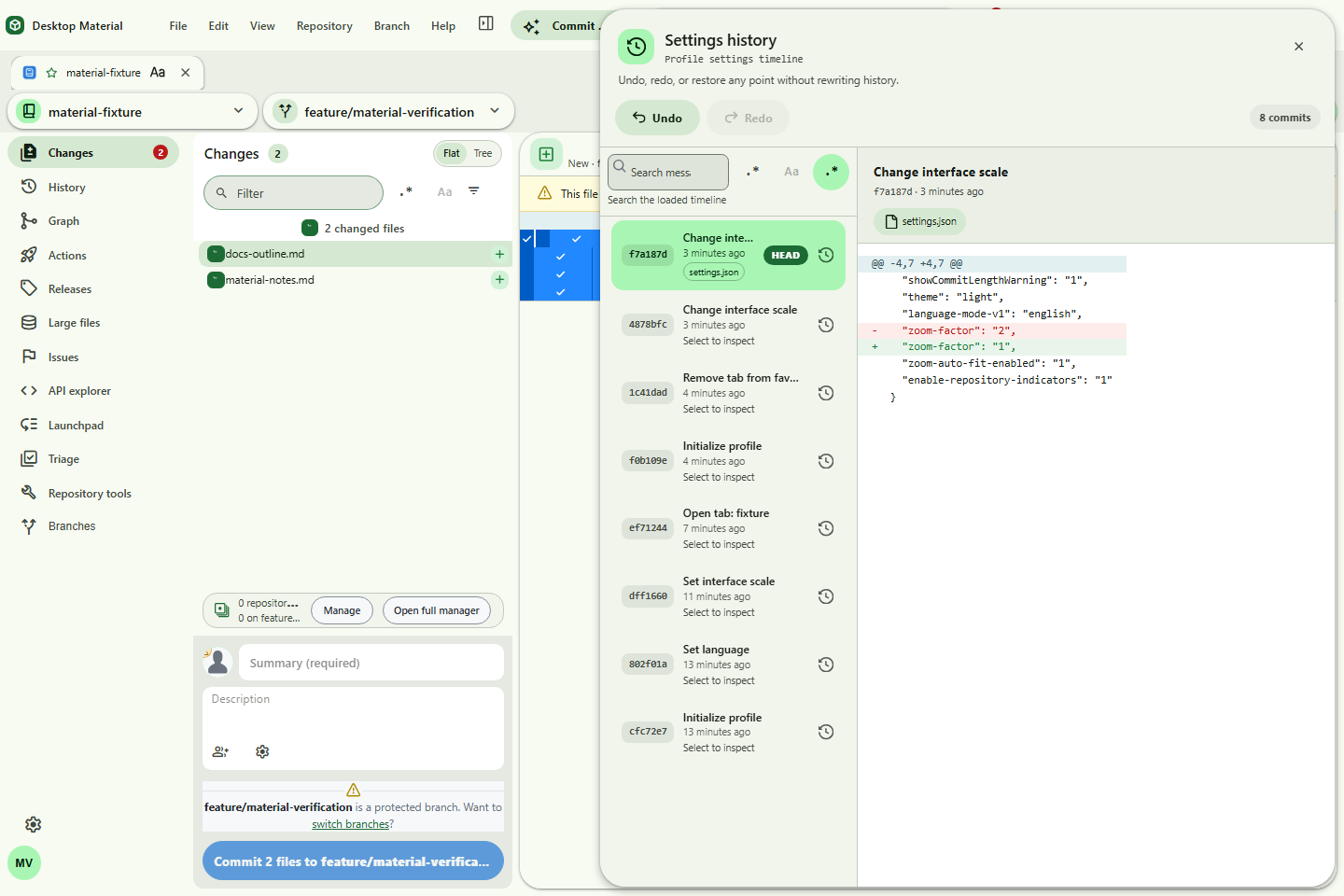
Desktop Material records ordinary per-account preferences and structural tab state in the account
settings repository. Open Edit → Settings History… or press Ctrl+Alt+Z for that non-modal
timeline. Visual owners deliberately do not share it: use the History action in an anchored
appearance editor for that element's narrower Git repository.
- Select a timeline entry to lazily load its changed files and diff.
- Choose Undo last to reverse the latest logical change, or Redo to replay an undone change.
- Use an entry's restore action to confirm and restore the complete settings state at that point.
- Choose Load more when the timeline contains more entries than the first page.
- Undo, redo, and restore all append audit commits, so the history itself is never rewritten.
Desktop Material's dialogs are non-modal floating surfaces — the main window stays fully interactive while a dialog is open.
- Drag a dialog by its header to reposition it, and keep working in the app behind it.
- Click or focus a dialog to bring it to front; multiple open dialogs cascade so you can see them all.
- Wheel or trackpad-scroll anywhere over dialog content; nested lists and editors consume their own range first, then the outer dialog continues at the nested edge.
- OS-native pickers (file open/save) stay native.
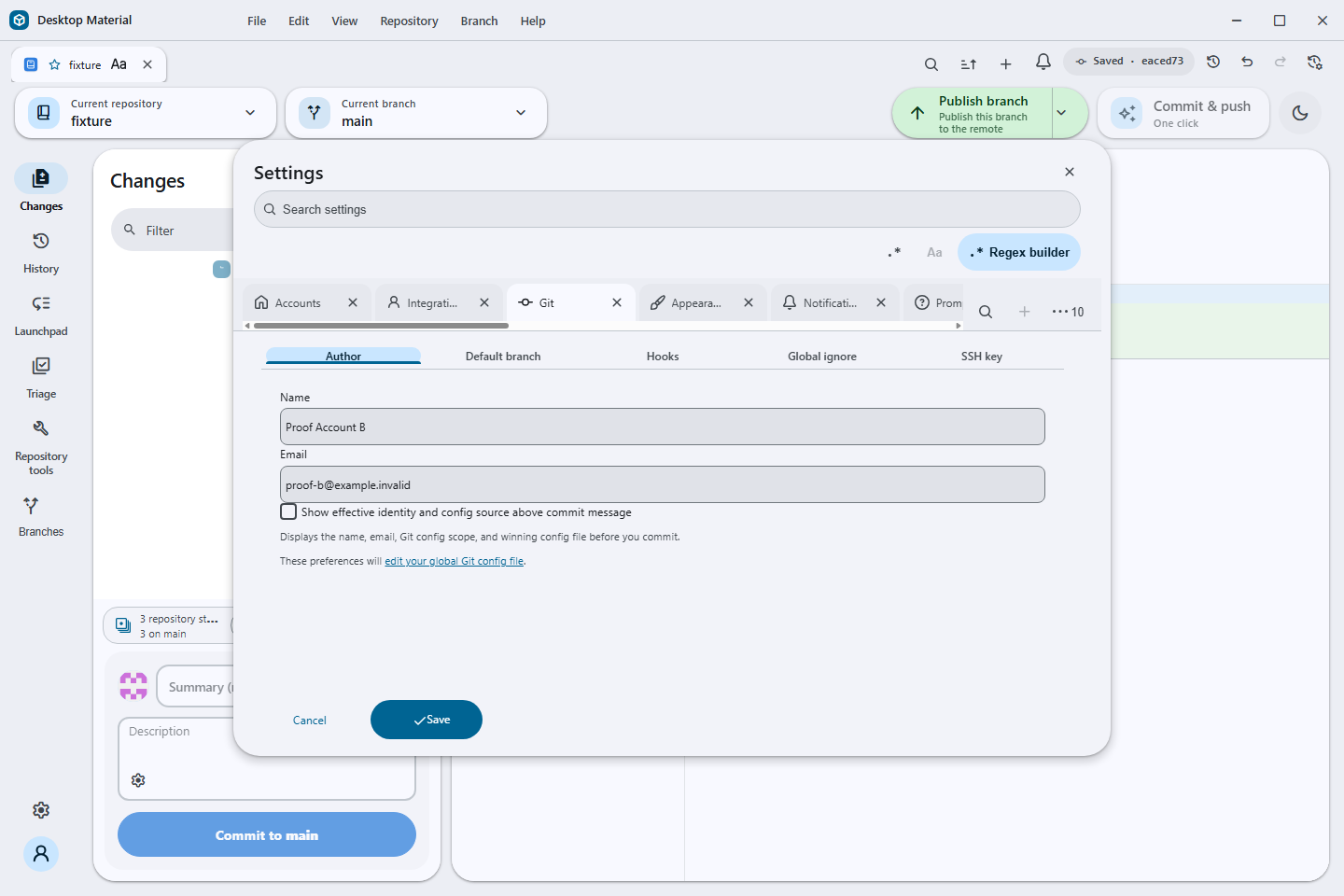
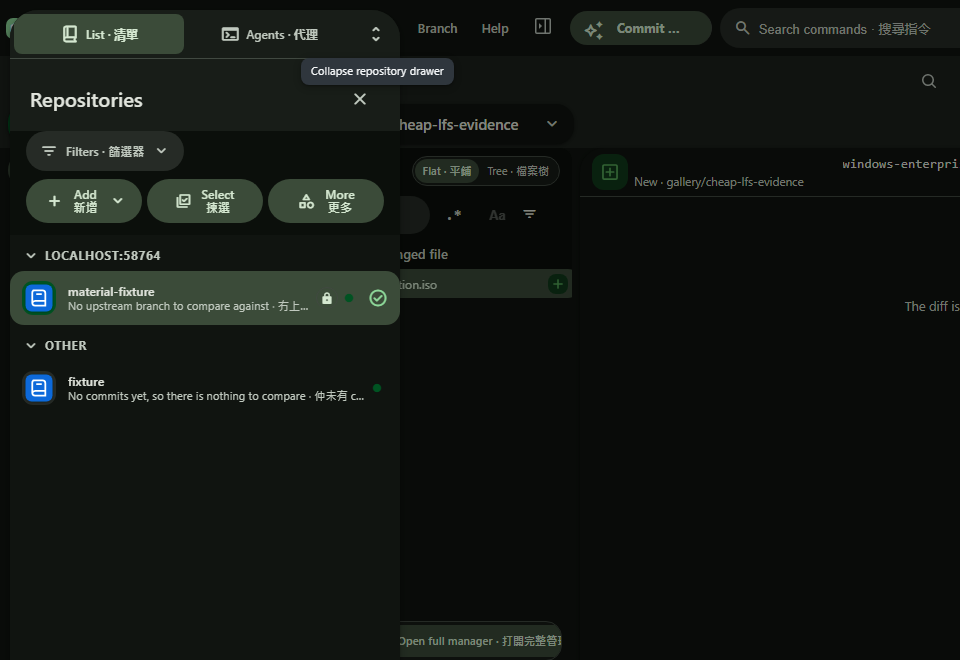
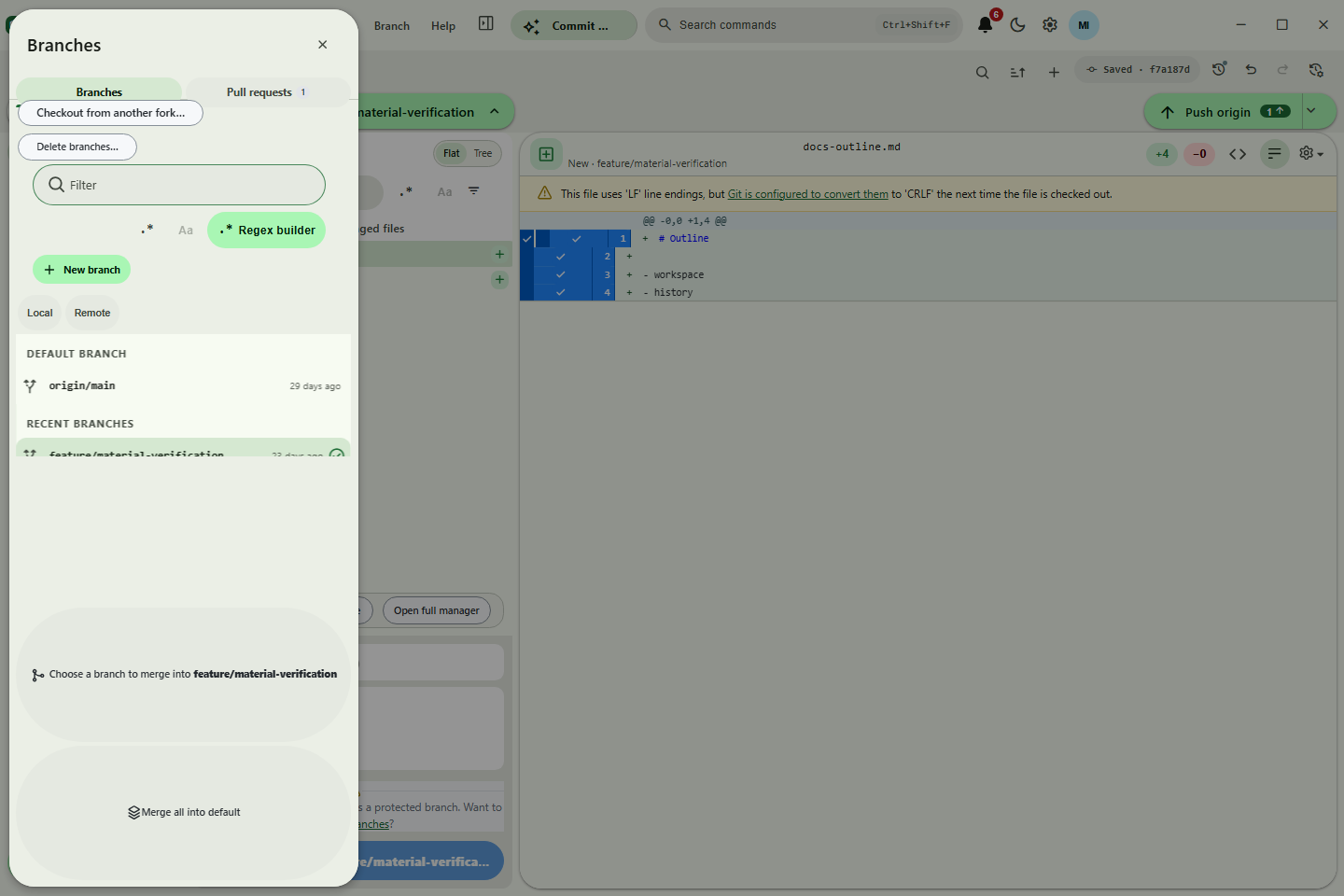
Preferences is the reference surface: an MD3 940×660 dialog with a left navigation rail, an Active chip on the current section, and a pill footer. The repository and branch pickers open as MD3 side sheets rather than blocking modals. The repository sheet keeps Add and Select visible, while More holds group creation, workspace sync, and commit/push-all so all five actions stay available without wrapping into a cluttered multi-line block. Its Filters disclosure folds account, service, status, search, and regex controls together; active values remain applied and are counted on the pill while the panel is collapsed.
The multi-clone window clones many repositories in one pass.
- Open Clone → Multiple repositories (or the multi-clone entry in the repositories menu).
- The list shows every repository available to the active account. Use the search bar — with filter chips, regex mode, and the regex builder (see the Regex Guide) — to narrow it down.
- Use org filter chips to limit the list to a specific organization.
- Tick the checkboxes for the repositories you want.
- Choose the clone mode:
- Parallel — clone all selected repos at once (fast; heavier on network/disk).
- One-by-one — clone sequentially (gentler; easier to watch progress and spot failures).
- Start the clone. Progress is shown per repository.
Changing the account clears repository selections from the previous identity before loading the new account's list. If a provider refresh fails, use Try again in the same view; a stale repository cannot remain selected for cloning under the replacement account.
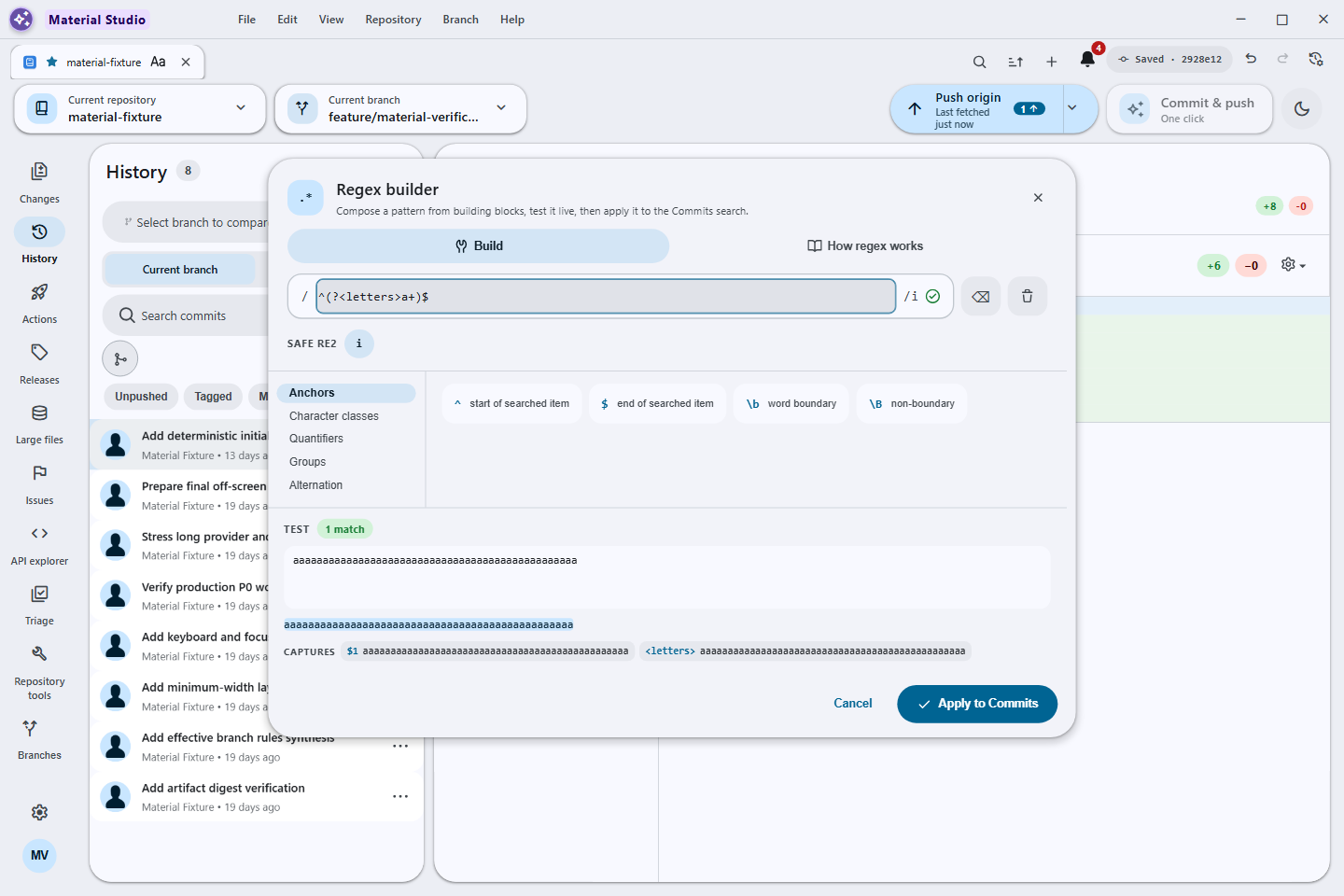
On a compact or zoomed viewport, the builder stacks its category and building-block areas before cards clip. Its body scrolls vertically while the live tester and footer actions remain reachable; the dialog does not require page-level horizontal scrolling.
- Export writes the selected repositories to a list file containing URLs only — no tokens, no credentials.
- Import loads such a list back into the checkbox selection, so you can re-clone the same set on another machine or share a curated set with a teammate.
Open Settings → Clone queue to manage the policy after the Clone dialog closes. Each signed-in hosted account has its own card: choose an absolute base directory, select Parallel — up to 3 at once or Sequential — one at a time, then enable Automatically clone new repositories. The GitHub clone view can configure the same policy. Desktop Material records the current provider list as a baseline; it does not immediately clone every existing repository. Repositories discovered after that baseline are queued into the chosen directory in the background.
Discovery continues for the app lifetime after the Clone window closes. It refreshes periodically, does not open a progress dialog on its own, and posts a notification when a background queue starts or when refresh needs attention. The policy is account-specific and rejects invalid directories, oversized provider lists, duplicate/unsafe URLs, and URLs containing embedded credentials. Changing the directory or clone mode while the switch is on updates that account immediately. Turning it off stops new automatic batches without cancelling a clone that is already running.
The batch progress surface can be hidden while cloning continues. Choose Pause remaining to stop new queue items from starting; clones already running finish, and Resume safely continues the pending work. Cancel remaining marks work that has not started as skipped, while Retry failed starts only failed items again.
Queue transitions are durably journaled. If the renderer or app closes during a clone, the next launch restores the queue in a paused state and labels formerly running rows interrupted. Resume then inspects each destination before invoking Git again:
- an empty destination can be retried;
- a clean, non-bare worktree with a valid
HEADand the exact matchingoriginis accepted as the completed clone; and - an occupied, incomplete, linked, bare, tracked-modified, or differently bound destination is left untouched and marked for review.
Recovery never deletes or moves destination contents. The bounded journal stores queue metadata and stable account references, never provider tokens or credential-bearing clone URLs.
Desktop Material turns useful Git, GitHub CLI, and GitHub API capabilities into named, task-specific workflows. You choose an action, complete a focused form, review any destructive or worktree-changing step, and receive the result in the app. Expert API integration is kept in the separate repository-contextual Explorer below; it does not turn the guided Git workflows into a raw command console.
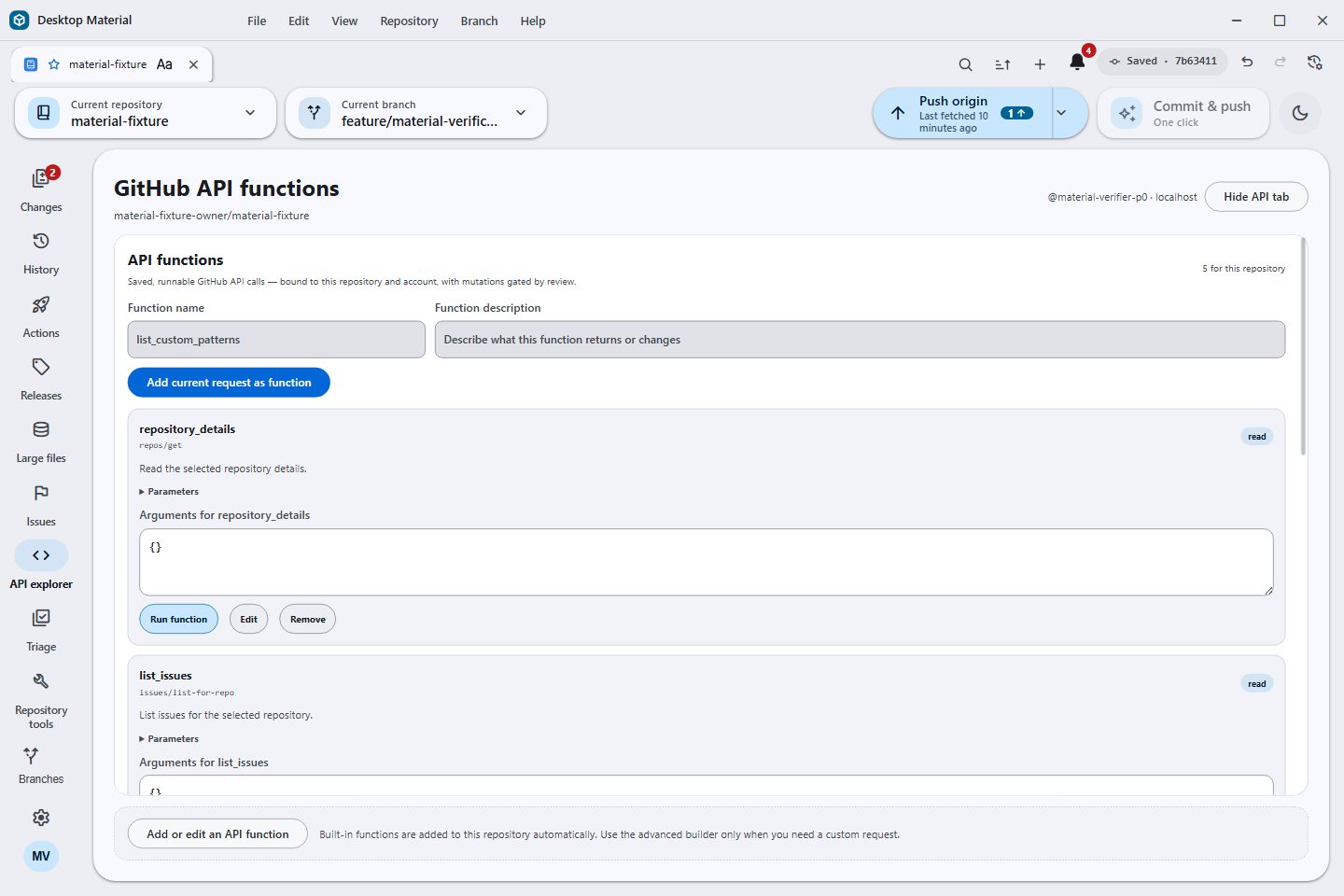
Open API in the repository rail, or Repository tools → API functions, to work against the GitHub host and account explicitly bound to the selected repository. The Explorer never falls back to another identity on the same host. Eligible repositories receive a small set of safe read functions automatically, and each appears as a runnable button.
Choose Hide API tab to remove the rail item for this repository. Show API tab in the API functions tool restores it. The full REST/GraphQL operation catalog and manual request builder are available only after choosing Add or edit an API function.
- Search the complete current catalog of 1,206 REST operations by method, path, summary, or operation ID, narrow it by category, or choose the New operations scope to see exactly the 10 operations added since the prior pinned 2026-03-10 catalog.
- Select a catalog result to populate its method and repository-aware path, or switch between the REST and GraphQL request builders for an explicit request.
- Read requests can run directly. REST write methods and GraphQL mutations first show a Review GitHub API mutation step with the exact account and request preview; they run only after Run reviewed request is confirmed.
- The response view exposes status and allowlisted diagnostic headers, bounds and truncates the displayed body, and recursively redacts credential-shaped values before rendering them.
The App functions panel turns a validated REST catalog request or named GraphQL operation into a reusable extension of Desktop Material. Enter a lowercase function name and description, then choose Add current request as function. Each saved function includes a generated argument schema and can be run, edited from the current request, or removed in the same panel.
Functions follow the active profile and appear only for the exact repository, remote, GitHub host,
and account binding used when they were created. Read functions can run from the panel or through
the local Agent API as github_api_<function-name> tools. A write or destructive function must run
through the API tab's visible mutation-review flow; an agent cannot bypass that confirmation.
Credentials are neither accepted in a function template nor stored with one.
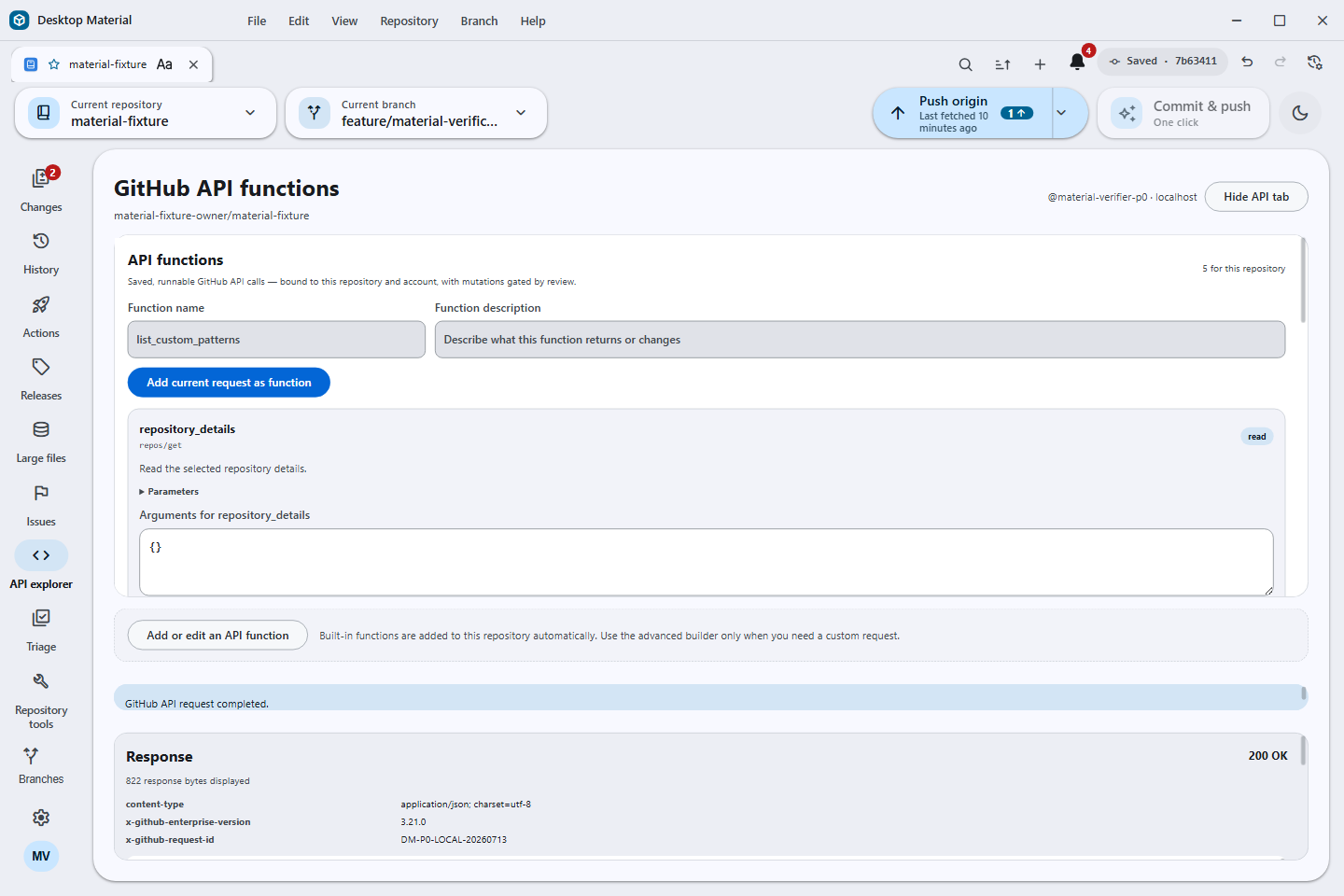
Open File → Clone repository… → URL when you need only recent history:
- Enter the repository URL and local path.
- Enable Shallow clone.
- Set Commit depth to the number of commits to fetch.
- Review the summary, then choose Clone.
The form explains that it fetches the current branch and recursive submodules. If you need older history later, use the named deepen-history action in Repository tools.
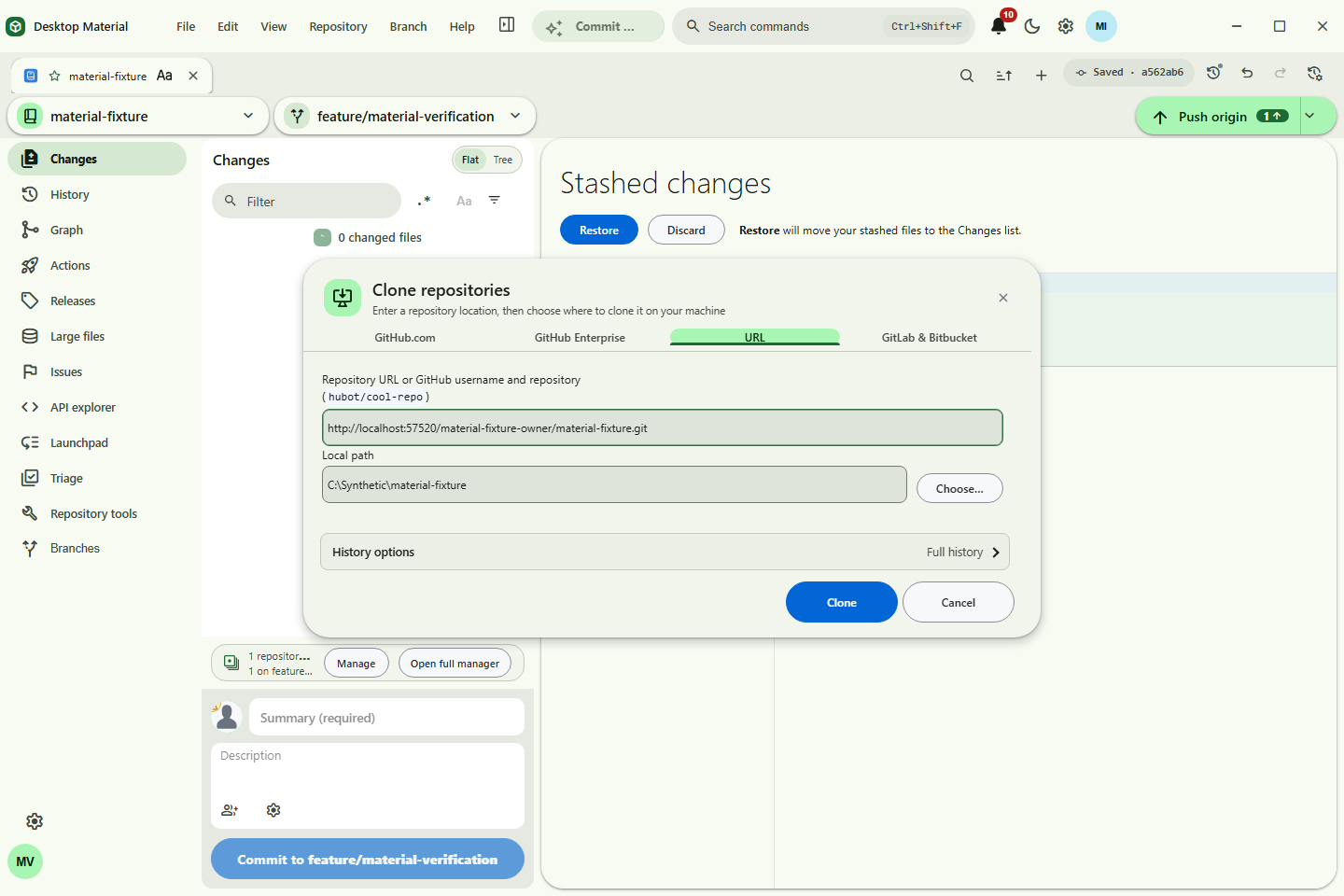
Open the Tools rail, find History depth, and choose Check history status. When Git reports a shallow boundary, choose Review bounded deepen to fetch a specific number of older commits or Review full history to remove the boundary deliberately. The review names the selected remote, scope, and consequence before the bundled Git runtime starts. Progress is cancellable, and the app rechecks the marker when the fetch completes.
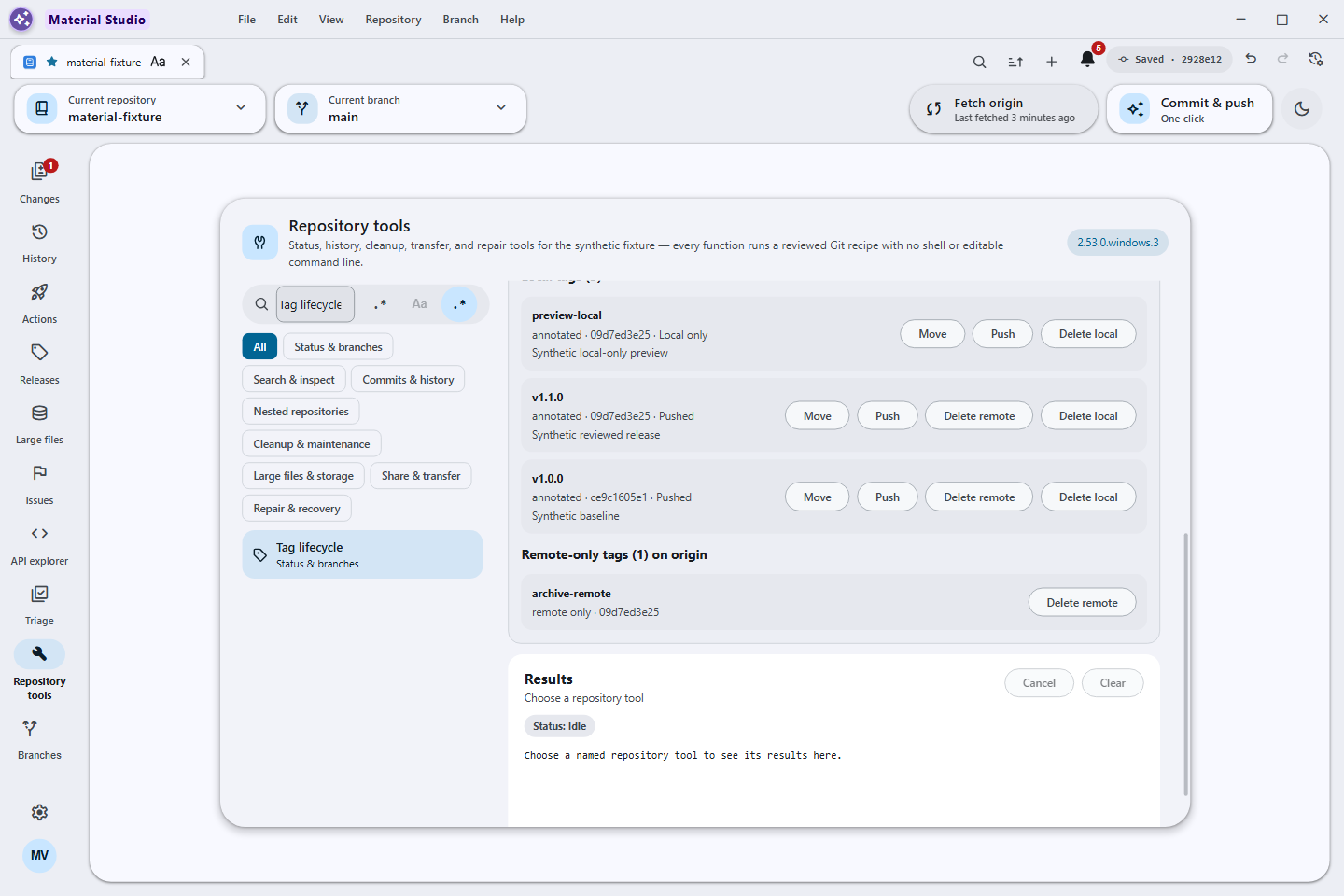
The production fixture began with 3 visible commits and finished with all 15; the clean screenshot below shows the final state. The raw verification receipt is retained in the P0 run manifest.
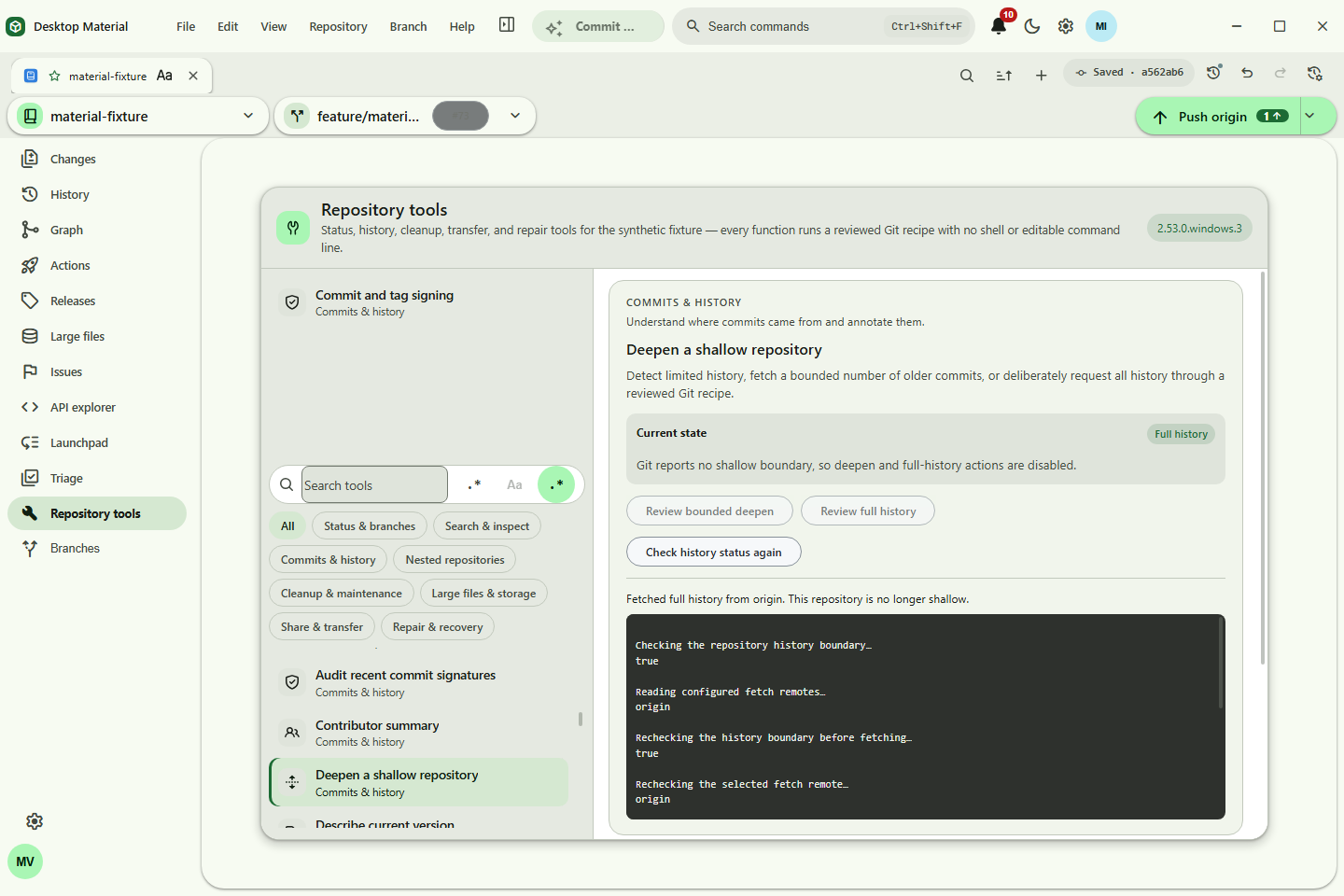
Repository Tools owns its vertical scroll region. At normal, minimum, short-height, and 150% zoom layouts, scrolling reaches the exact final results surface without moving the whole document or clipping controls below the viewport.
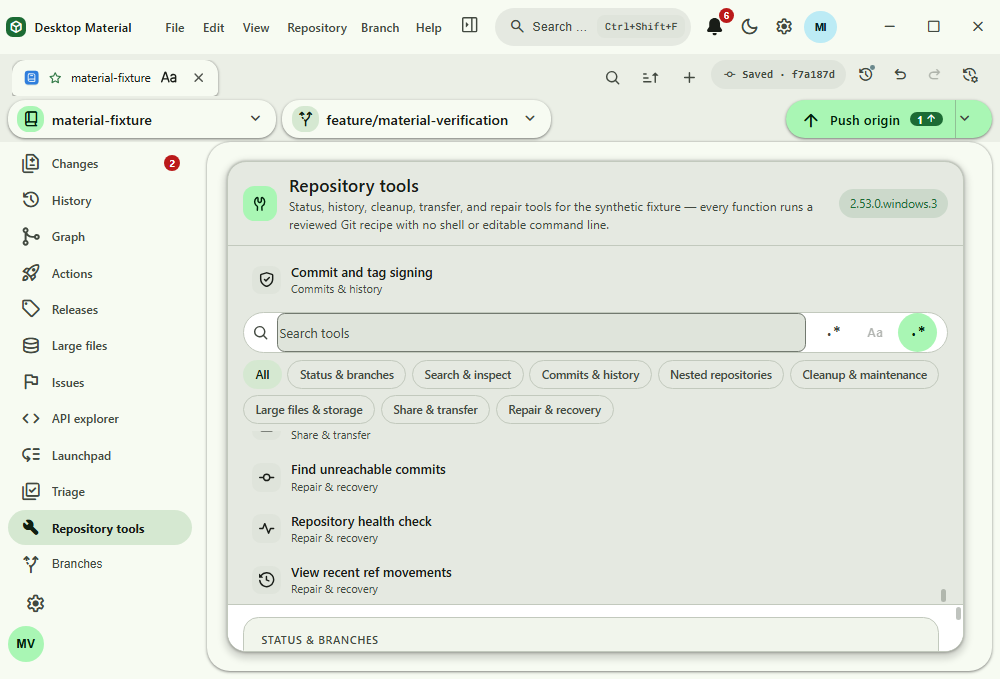
Open Repository → Manage sparse checkout… to keep selected directories in a large worktree. The side panel reports whether sparse checkout is enabled and guides each change through Choose/Adjust/Restore → Review selection → Apply and refresh:
- Choose/Adjust/Restore one repository-relative directory root per line. Slashes are normalized, while absolute paths, traversal, option-like input, control characters, blanks, duplicates, and over-limit selections are rejected. State-aware guidance says whether the selection is empty, needs correction, or is ready for review.
- Review selection freezes the normalized input before Git changes the worktree. The bounded review shows every selected root. When cone mode is already enabled, it also reports added, removed, and unchanged selection entries; these counts describe directory-root entries rather than predicting individual local files.
- Apply and refresh the reviewed operation. Cancellation remains available while Git is changing the worktree. Success, cancellation, or failure stays on the result phase until you edit the selection or request a manual refresh.
The three-step guide remains visible above the scrolling editor and review body. On a compact window, its steps stack inside the sheet instead of covering content or forcing sideways scrolling.
Choose Review enable only after the valid-directory count and exact normalized review match your intent. Reapply and disable have their own review confirmations; disabling restores the full tracked working tree without changing commits or history. The verified disabled state below leaves all working-tree paths eligible to appear locally.
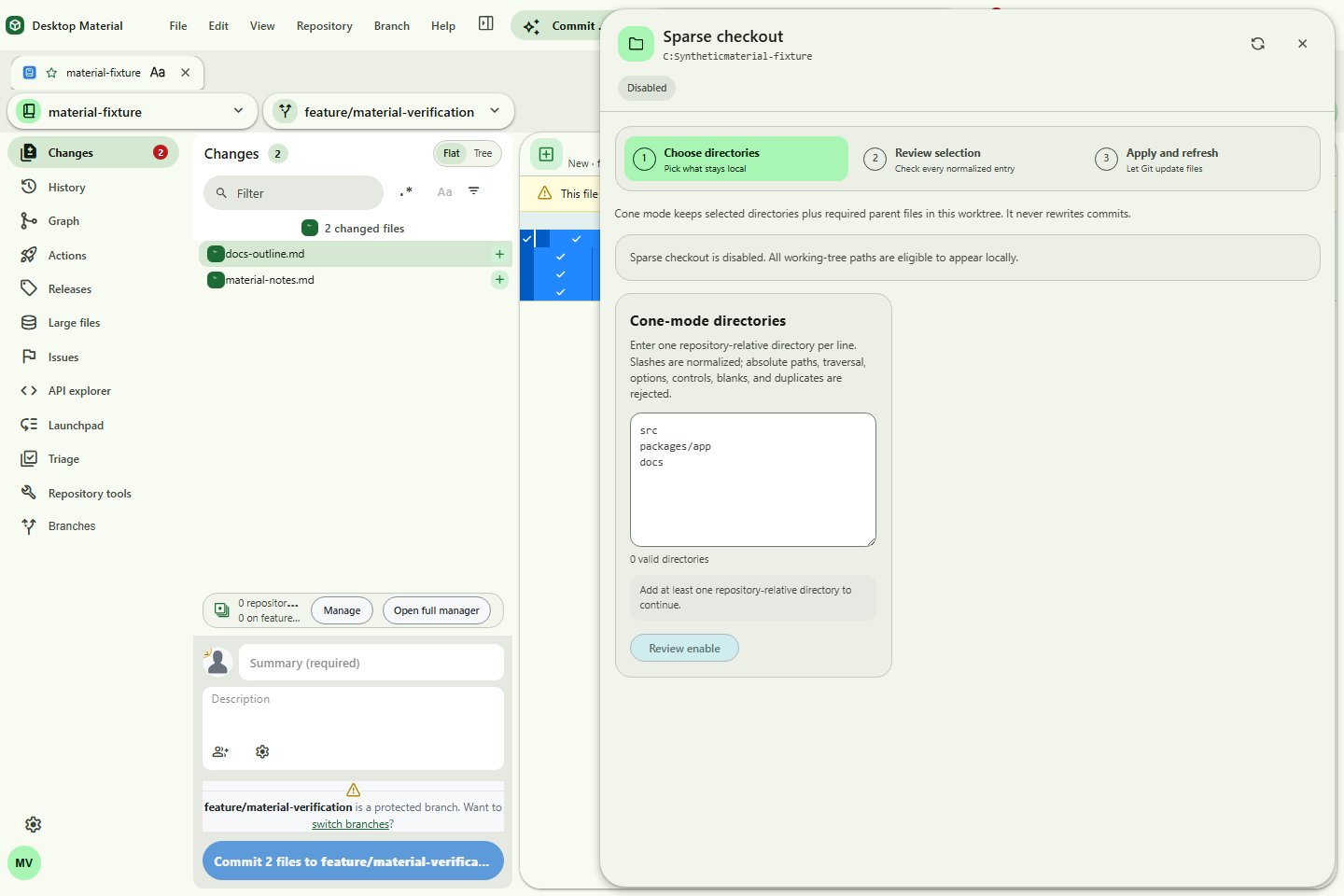
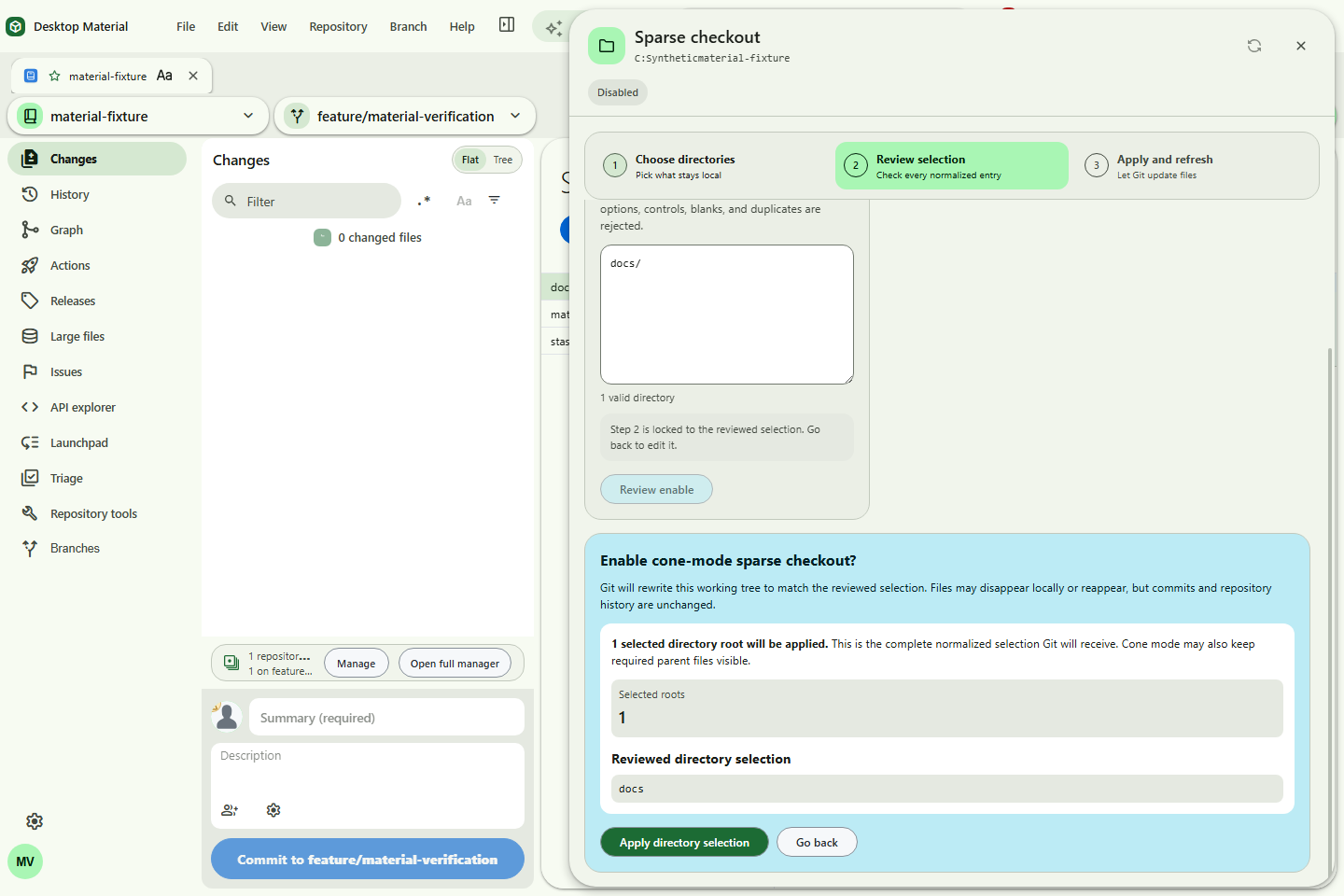
These forms wrap labels and stack actions as space narrows. Page-level sideways scrolling is not part of the workflow; only inherently spatial content such as code, diffs, and logs may scroll horizontally when preserving columns is necessary.
Right-click the primary Pull remote button in the toolbar, or choose Pull from the application menu, when the current branch has incoming work. A plain left click on the toolbar button pulls immediately without opening the review. For the reviewed path, Desktop Material fetches the configured remote first; if that fetch fails, the review stops instead of displaying an older remote-tracking ref as fresh data.
The review identifies the local and upstream branches and their captured object IDs, shows ahead/behind counts and the effective fast-forward, merge, rebase, merge-preserving rebase, interactive-rebase, or blocked fast-forward-only route, and lists up to 25 incoming commits and 100 incoming changed files. The file list describes the upstream side from the merge base, so local-only files do not appear as incoming. Overflow counts keep larger pulls explicit.
The initial fetch has no safe cancellation path, so the modal cannot be closed with a button, Escape, or the backdrop while loading. Cancel appears after preparation finishes and dismisses only the displayed review.
Pull reviewed commit is available only for a completely clean worktree. After confirmation, Desktop Material refreshes state and revalidates the local branch, upstream ref, and both full OIDs. It integrates the exact reviewed upstream OID already fetched, without a second network fetch; if either side changed, the stale review is cleared until Refresh preview succeeds. The modal review remains open while Git starts and runs, preventing an in-app branch switch from changing the reviewed pull destination.
The sheet follows English, playful Hong Kong-style Cantonese, or bilingual language mode. It applies to ordinary manual pull actions only. Scheduled Automatically pull runs and explicitly noninteractive local-agent pull commands keep their direct automation paths and safety checks, while Pull All and batch sync retain their own review and result surfaces.
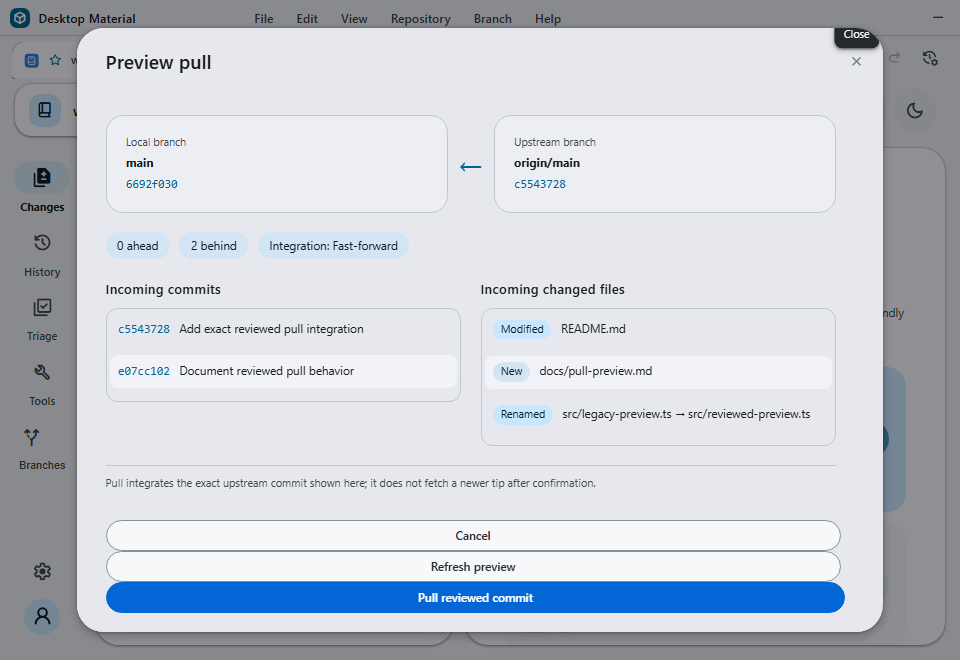
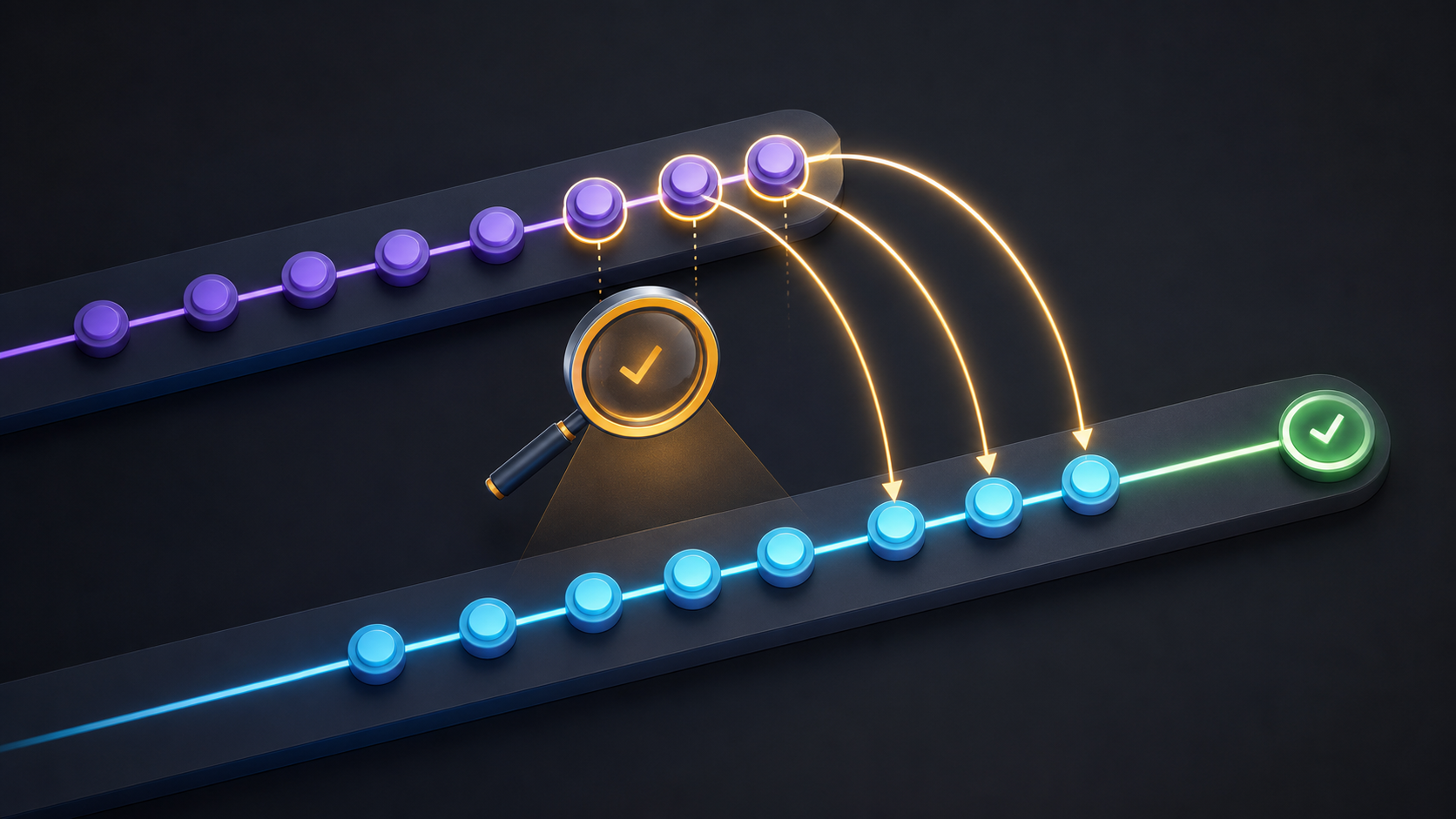
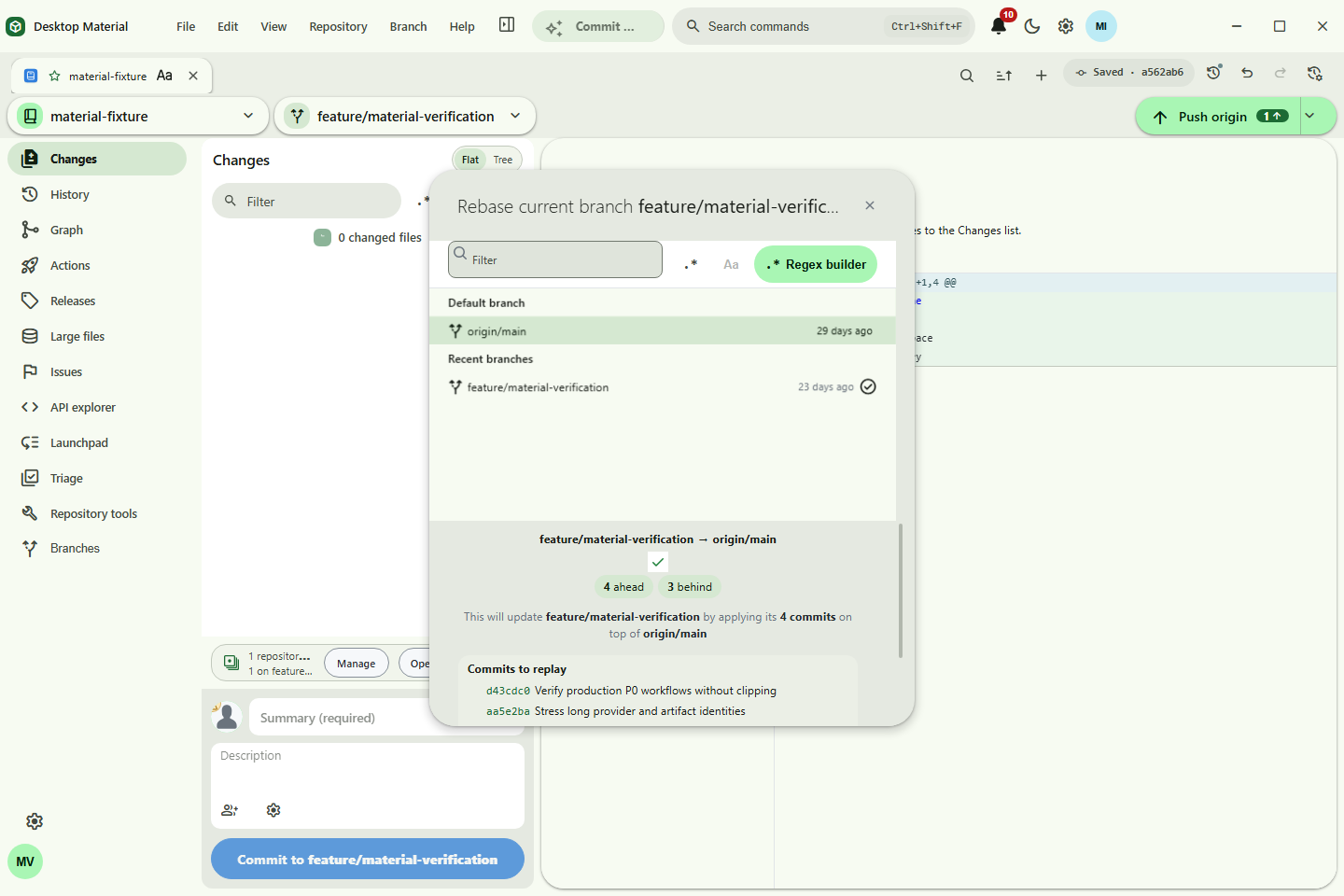
Open Branch → Rebase current branch…, then search for and select the target/base branch. The review shows the current→target relationship, ahead/behind context, and a bounded preview of commits that would be replayed.
Before Git starts, Desktop Material refreshes repository state and blocks unresolved conflicts, dirty changes, and another ongoing operation. It also revalidates the exact current and target refs, so a stale branch picker cannot launch a different rebase. You can cancel while that preflight is running. If Git reports conflicts after start, resolve them through the existing continue/abort flow. Protected branches receive explicit guidance, and the app never force-pushes automatically; review any later force-with-lease decision separately.
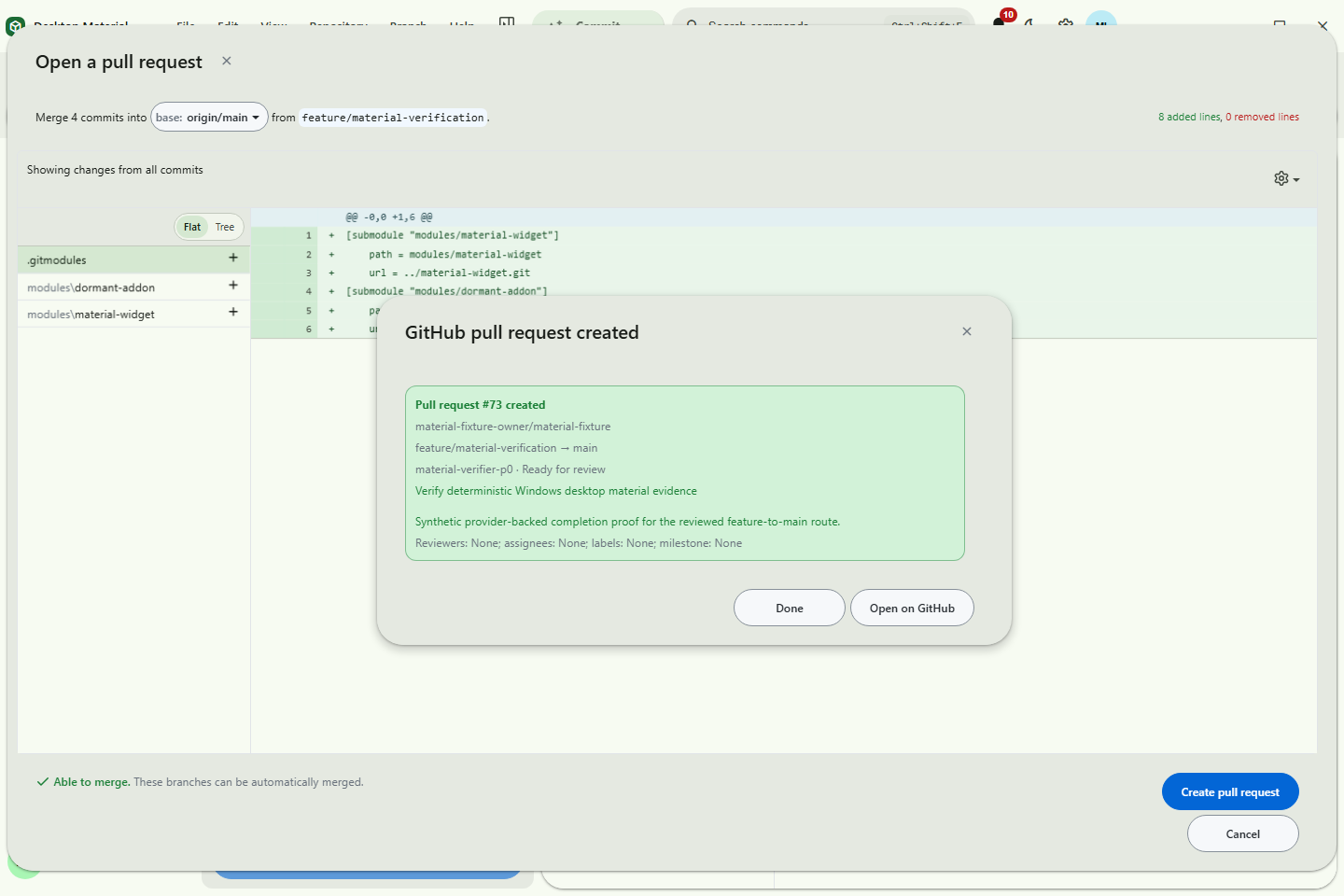
Open Branch → Create pull request while the head branch is checked out:
- Confirm the exact target repository and signed-in account.
- Choose the base branch; the current local branch is the fixed head.
- Enter a title and optional Markdown description, and choose whether to create a draft.
- Select Review pull request and verify repository, account, base/head, title, body, and draft state.
- Select Create pull request. The success receipt offers Done and Open on GitHub.
The app rejects ambiguous remote syntax and routes account problems to repository settings. The
workflow does not expose gh pr create, editable arguments, or a raw REST request.
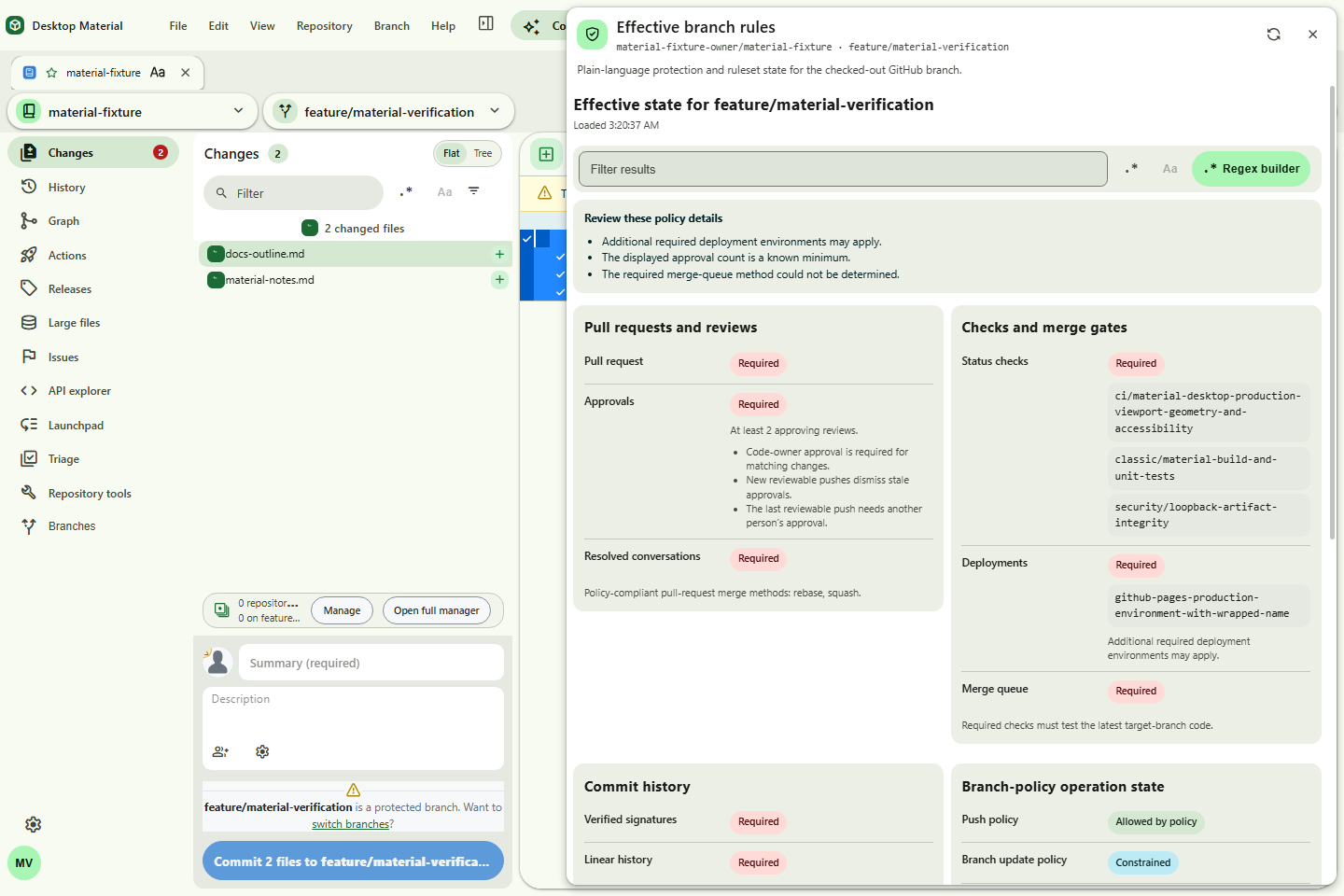
Open Repository → Inspect branch rules…. The non-modal sheet combines classic protection and rulesets for the checked-out branch into plain-language sections for reviews, checks, deployments, merge queue, verified signatures, linear history, update/delete/force policy, bypass context, and source rulesets. Use Refresh to load the same exact branch again.
If no matching account is signed in, Open account settings is shown. If more than one account
matches a legacy repository, Open repository settings opens the real repository-account picker;
saving one records its stable endpoint#id identity. Unknown or partial policy evidence is stated
instead of guessed.
For quick, low-ceremony commits, use one-click commit & push:
- Stage the changes you want (or commit everything shown in Changes).
- Press the one-click commit & push action.
- Copilot writes the commit message from your staged diff.
- Desktop Material commits and pushes in one guided operation. A large ordinary selection can produce several proven commit/push batches.
This is a convenience path built on the normal commit machinery — you can always fall back to writing the message yourself in the Changes view. For scheduled, unattended commits and pushes, see Automation.
When many ordinary small files approach a decimal 1.5 GB (1,500,000,000-byte) push, even the normal Commit action automatically becomes a commit-and-push sequence. Desktop Material uses a conservative 1.4 GB changed-blob budget, reserves the rest for Git/path overhead, and separately bounds path count and proof output. It keeps stable file order, commits only the next group, records a durable pending ref, performs a normal fast-forward push, proves that exact commit at the remote tip, and only then creates the next commit. A failed or unproven push stops before another local commit exists; after fixing the remote or authentication issue, retry Commit or Push and the pending batch is finished first. This is an app safety policy rather than a claimed universal Git-host pack-size limit.
Push also checks unpushed history made by an older Desktop Material. Safe
existing commits keep their IDs, authors, timestamps, messages, and signatures,
and are pushed and proven one at a time before new working-tree batches begin.
An already pending current batch resumes without entering that rewriter. An
individually oversized commit can be rebuilt
automatically only on a linear, clean,
local-only branch with an exact configured or resolved destination and no
operation in progress. A
compare-and-swap backup
ref protects the original tip; Desktop Material never force-pushes or rolls
back a batch already proven remote. Rebuilt oversized history preserves the
reviewed message and final tree, but has new commit IDs, does not preserve
cryptographic commit signatures, and does not promise the original author
timestamp on each replacement batch. Desktop Material proves the final tree and
every replacement path's mode/object ID. Commit commands
disable automatic Git packing only for that process with -c gc.auto=0. If Git
creates the exact verified commit and only later reports a maintenance failure,
the app keeps the commit and warns once instead of duplicating it.
When a selected file is larger than GitHub's ordinary 100 MiB object limit and the configured Cheap LFS backend is available, every commit entry point prepares it before invoking Git. The compact terminal below Commit reports up to three sanitized worker rows, active and queued counts, hashing/preparation/upload/verification phases, selected/recommended providers and the recommendation reason, per-file and aggregate bytes, observed elapsed time, renderer-measured throughput and ETA, honest manual-handoff phases, and success/failure counts. Long recommendations use a native keyboard-focusable disclosure; 100% appears only after the provider accepts and the app verifies the object. A setting under Repository settings → Build & Run switches between sequential operation and at most three transfers. A failed raw file stays selected for the next try, while unrelated safe changes and successful pointers can commit. Use the Large files Changes filter to isolate files over the same threshold.
Every failure says why. Each settled failure adds its own row to the terminal
naming the file and the reason — including the provider's HTTP status where
there is one — and the same reason is repeated in the "Some large files were
not pinned" notification, so a run can never end on a bare pinned 0 · failed 10. Provider text is trimmed and scrubbed of URLs and credentials before it is
shown.
On the GitHub published prerelease backend a release tag has to point at a commit GitHub already has. If the current branch has never been pushed, Desktop Material publishes that branch first and re-reads the remote to confirm it landed, then uploads. If it genuinely cannot — no GitHub repository, no push remote, a detached HEAD, or a branch with no commits yet — it stops before uploading anything and names that exact reason on every affected file instead of retrying. Publish the repository or branch, then commit again.
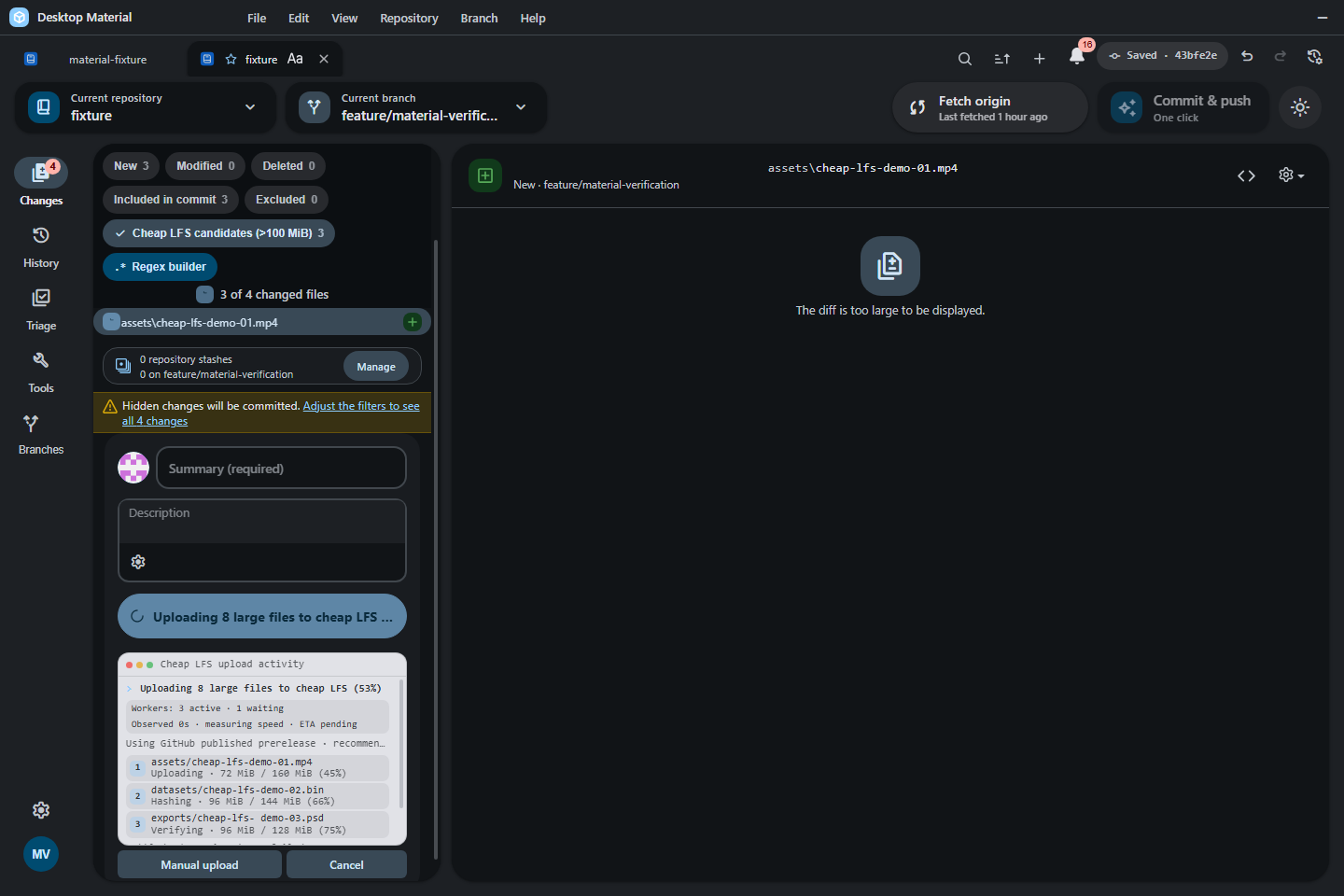
The same settings page chooses GitHub published prerelease, GHCR · one OCI image, or Docker Hub · one OCI image. The terminal recommends ordinary Git, Releases, GHCR, or Docker Hub from the selected byte total and detected local setup without changing your choice. A configured credential does not prove live quota, billing, organization policy, or service health. The Git repository stores only the pointer; the original bytes live in Release assets or registry layers.
Before committing a private registry pointer, Desktop Material proves its exact tracked shared key. An unsafe selected path remains blocked unless a fresh, repository-bound Git status proves that the exact Windows-hostile legacy path is currently deleted. The exception is deletion-only: a current nondeleted unsafe path, an absent or mismatched status proof, and a real OCI pointer under a control-plane path all remain fail-closed.
Desktop Material first uses a bounded exact-length gh api upload when GitHub CLI exists in its
trusted Program Files location. This avoids opening Electron's native upload pipe, which can crash
the app if its remote data-pipe consumer closes during a write. The app
uses the selected account and host, streams and hashes only the validated file range, passes the
token through an isolated temporary child environment rather than the command line, and tears down
the CLI on cancel or app quit. Before uploading again, it scans all ten bounded Release pages once;
if an exact-name object exists, later checks poll only its ID. A completed exact-size/digest asset is
reused, while a persistent starter asset fails closed so it cannot be overwritten or mistaken for
success.
If the trusted CLI is unavailable, Desktop Material retains Electron's memory-bounded chunked compatibility transport. Uploads on either transport run with no stall or runtime timeout — a slow connection can take as long as it needs, and a transfer ends only on completion, a transport failure, or your explicit Cancel; choose the manual flow below if it cannot complete.
For explicit recovery, choose Manual upload beside the progress controls. Desktop Material
stops that attempt and places all remaining files into one temporary upload-these-files folder.
Whole-file assets use verified same-volume hardlinks or bounded copies; the browser folder never
contains symlinks or zero-byte helpers. Files above the Release limit become ordered .partNNN
range copies made with a bounded buffer. Every staged file is rechecked as a regular file with its
exact expected size before Explorer opens it. The commit button shows live preparation
percentage while the app hashes and stages those bytes. It checks the temporary volume before the
worst-case handoff copy and reports insufficient space instead of filling the disk. It opens the exact selected
Release edit/upload page first, then puts that folder in front: select all prepared files, drag them
onto GitHub's asset drop zone, and let the browser finish the upload (then choose its save/update
action if shown). A retry verifies and reuses exact prior parts, starts progress with their completed
bytes, and stages only missing names; digest-less prior parts receive a bounded download/hash check.
Incomplete starter objects remain blocking and the Release editor can be used to wait for or delete
them. The app freshly fences every exact asset ID before pointer writes, rechecks every source, writes
the pointers, and resumes the same commit automatically. Older GitHub
Enterprise versions safely fall back to the repository Releases listing. Cancel stops either
path until the verified pointer commit begins; that short final mutation phase finishes as one
reviewed operation. The app waits for and verifies every multipart asset before writing the pointer.
A file fitting the 500 MiB new-write cap initially uses one raw asset, while a
larger file uses ordered raw ranges of at most 500 MiB each. Legacy pointers
with parts up to 2 GiB remain readable. Public repositories
then automatically receive one owned, SHA-pinned workflow file in Changes for
review. Compression starts only after you commit and push that caller. Private
repositories stay off until you explicitly enable Cloud compression in the
Large files manager or Repository Settings. That persisted opt-in installs no
workflow in the private repository and spends none of its Actions minutes;
compression is routed through the encrypted public builder, whose external
registration must be completed before it runs. Unknown visibility stays off.
The GitHub Action downloads and raw-DEFLATEs one Release object at a time, uses
no Actions artifacts or caches, and adopts a verified side asset only when it is
strictly smaller. A failed or non-beneficial object keeps its exact raw pointer
and asset, so it remains cloneable; other objects continue and a multipart
pointer may safely be mixed. Raw assets remain available for older commits.
GitHub Actions never decompresses. On clone, pull, user-requested fetch, open,
or Materialize, Desktop Material downloads compressed bytes and expands
them on your local PC under the pointer's exact output cap, then verifies every
original part and the complete file before replacing the pointer. To refresh an
older clone that still contains only pointer text, update Desktop Material and
reopen the repository with Download large files after cloning enabled, or
choose Large files → Materialize all. Explicitly public GitHub.com Release
pointers can restore while signed out using read-only anonymous requests with no
Authorization header. Private, unknown-visibility, and GitHub Enterprise
Release pointers still require the repository-selected account; anonymous
Release mutations are never allowed.
Published source acceptance: combined tests, verifier contracts, TypeScript, the exact production build, and hidden-desktop acceptance pass. The source and accepted capture are pushed through
2abccae8fd, and Pages/wiki publication is verified live. Packaged Windows E2E is verified. Installer/Release evidence remained pending at that dated checkpoint; archived TUI compatibility work does not block this Windows feature.
For Release-backed pointers, one restore batch now shares a coordinator with a hard limit of two HTTP downloads. The current file or multipart part owns the first lane. When the provider reports that transfer at 90% or greater, the next file or part may start in the look-ahead lane: 89.9% stays single-lane, while exactly 90% opens it. If a provider has no usable progress total, the next item waits for the current transfer to settle.
The detailed restore panel shows overall progress and separate Current and Next at 90% lanes, plus repository, provider, current phase, file and part ordinals, logical restored bytes, actual downloaded/compressed bytes when known, succeeded/failed/remaining/queued counts, elapsed time, download rate, ETA, bounded per-file failures, and cancellation. Downloading, decrypting, decompressing, verifying, materializing, and canceling remain distinct instead of sharing one ambiguous percentage. For an encrypted-and-compressed Release object, the truthful transform order is Downloading → Decrypting → Decompressing → Verifying → Materializing. Plain bilingual copy renders the second phase as Decrypting · 解密緊; playfulness may change the voice but never the phase, path, byte counts, or order.
The second lane does not weaken validation. Desktop Material still verifies every part's size and SHA-256, assembles parts in pointer order, verifies the whole file, and replaces only the unchanged pointer. Cancellation aborts queued and active work, drains both lanes, cleans owned temporary files, and leaves unverified pointers in place. Visible counters update exactly; screen-reader announcements are grouped into meaningful 10% transitions, reduced-motion mode removes active shimmer, and bilingual/narrow layouts wrap instead of clipping.
香港粵語速讀。 下載真係到 90%,下一個檔或者 part 先可以入第二條 lane;成個 batch 最多兩個下載。面板會分目前/下一條 lane、檔同 part 次序、邏輯 同實際位元組、階段、速度、ETA、排隊、成功、失敗同取消。加密兼壓縮嘅檔案會照實 顯示「下載 → 解密 → 解壓 → 驗證 → 落盤」,雙語係 Decrypting · 解密緊。預取只係慳中間嗰幾秒,每 part 同全檔 SHA-256、大小、指標 冇變先換檔,全部照舊要過關。
New buckets are published prereleases, so collaborators can fetch them while
they remain outside the stable installer /releases/latest feed. For
compatibility, older draft discovery is bounded to 100 pages of 100 releases
because GitHub's direct tag lookup does not expose drafts. Desktop Material
publishes a revalidated legacy draft before a new pin only when the exact
managed-bucket sentinel or a valid legacy asset label proves its Cheap LFS
provenance. The compression Action accepts only a published managed
prerelease; it refuses a draft, stable Release, or unrelated same-tag
prerelease before download or upload and leaves the raw pointer unchanged. The
same safe fallback applies when the Release has reached GitHub's 1,000-asset
capacity and therefore has no free slot for a compressed side asset. Cheap LFS
retains the raw historical object instead of deleting it to force compression.
Live public automatic and private explicit-opt-in runs each reduced the 1 MiB acceptance object to a verified 1,033-byte side asset. Both compressed pointers were restored manually through Desktop Material to the exact original SHA-256; an earlier failed draft lookup also left its raw pointer materializable through the same production UI.
The public codingmachineedge/bambu-build exercise used the real Changes and
Clone UI for exactly 8,305 payload files and 14,809,588,162 bytes.
Desktop Material created four ordered commit/push batches below its conservative
limit. The first ordinary push received HTTP 408 but kept the exact pending
commit durable; retry pushed that same immutable SHA before creating the next
batch.
Managed cloud run 30048474438 compressed each of the 13 Release objects one at
a time and reported 13 compressed, 0 kept raw, and 0 failed. All 13 raw
originals remain beside the 13 compressed assets, so older pointers retain raw
fallback. The final real-UI manifest commit 712ad85 passed verifier run
30054805137, which checked all 8,305 files, ten pointers, and 26 assets and
published immutable manifest Release bambu-build-verify-30054805137.
A fresh real-UI clone restored all ten logical SHA-256 values while the Git
commit still held only 370–514-byte pointer blobs. Its first explicit
Materialize all overlapped clone/open automatic restoration and produced two
hash-identical compare-and-swap recovery copies. The bytes remained correct,
but Desktop Material now serializes automatic and manual materialization per
repository; HANDOFF.md records the corrected UI acceptance separately from
that initial integrity proof. Canceling Materialize all now cancels every
batch queued for that repository — including automatic restores enqueued by a
concurrent fetch or pull — so a canceled download cannot silently restart, the
panel reloads the pinned-file list after a cancel, and a batch that finishes
with failures reports how many files were left as pointers instead of claiming
unconditional success.
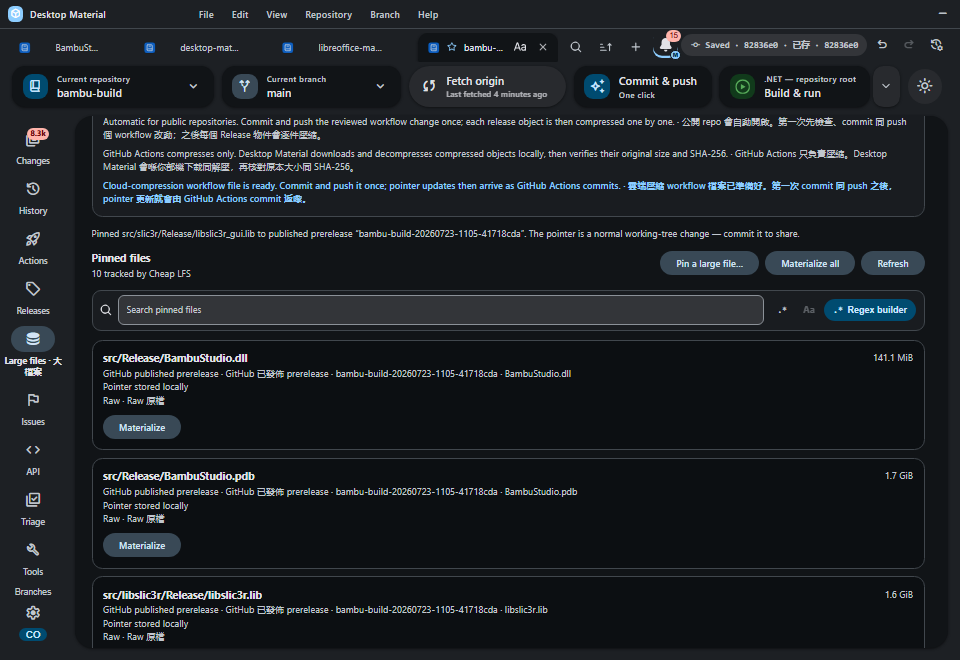
Each Cheap LFS Release holds at most 1,000 assets. Desktop Material counts all
ten asset pages and uses assets, then assets-2, assets-3, and later buckets
as needed. A multipart file or one manual batch always stays together; if the
current bucket lacks enough slots, every asset in that group moves to the next
Release and its pointer stores the exact tag. Assets still marked starter by
GitHub reserve a slot but remain unavailable until GitHub reports them uploaded.
New asset buckets are published prereleases, so they cannot replace the stable
installer update feed.
Registry storage keeps the repository's complete current object set in one
logical <source-name>-cheap-lfs image. One stable tag identifies the newest
snapshot, but committed pointers always name an immutable manifest digest.
One current snapshot is explicitly bounded to 4,096 objects, 8,192 layers, and
8 MiB each for its canonical config and manifest JSON; a larger structural plan
fails before publish rather than pretending that "one image" is unbounded.
Adding or removing files cannot append to that digest: Desktop Material creates
a new manifest, reuses every unchanged content-addressed blob, uploads only new
layers, verifies the result, and moves the tag. Pointer-form files move to that
new digest; verified materialized raws stay in the working tree with their valid
older pointer metadata. Each digest also receives a deterministic
desktop-material-cheap-lfs-sha256-<64hex> retention tag before the stable tag
moves. Historical retention tags are not deleted, so older manifests remain
referenced for mixed current generations and older Git commits instead of
depending on a registry to preserve untagged data.
New layers start at 1.5 GiB. GHCR documents a 10 GB per-layer maximum and a ten-minute upload timeout, so Desktop Material bounds each ORAS operation below that deadline. A timed-out layer is not resumable or mutable; the app rebuilds that object's layers at half the previous size, down to 8 MiB, and safely re-encounters already accepted blobs by digest. Docker Hub publishes no general hard layer-size or upload-time cap that Desktop Material can encode. Its current plan, pull, storage, abuse, and fair-use limits still apply, and the app uses no more than three concurrent transfers for either provider. Docker's current pull-rate table lists 100 pulls per six hours for unauthenticated users, 200 for authenticated Personal users, and unlimited pulls for authenticated Pro, Team, and Business users, subject to fair use.
For a verified-private source repository, every registry chunk is encrypted
with AES-256-GCM. Desktop Material intentionally commits the shared key at
.desktop-material/cheap-lfs-registry-key-v1 so collaborators who can read the
private Git repository can decrypt the image. This protects against a registry-
only leak; it does not protect against anyone who can read the repository,
an old clone, fork, backup, or Git history. Do not make that history public or
discard an old key while immutable historical pointers still need it. New
private pointers bind their key with key-id sha256:...; Desktop Material
force-includes and proves the required tracked key even when an ignore rule or
selection checkbox would otherwise omit it.
GHCR publishing uses the selected GitHub.com account. Docker Hub publishing uses the signed-in Docker Desktop credential helper; only a first publish defaults to that account namespace. Later same-provider updates keep the exact package already named by the pointers, including an organization/collaborator namespace. Changing providers requires every old pointer to be an exact, unedited materialized raw; the app re-hashes local bytes and publishes a fresh full snapshot without pulling from or deleting the old provider. Tokens are passed to the trusted bundled ORAS process through standard input, not command arguments. Public images restore anonymously. Private images need the matching provider credential and tracked key. A first public GHCR package is refused before upload because GitHub creates it private and has no supported visibility-change API; choose published Releases or Docker Hub, or first make an existing exact-linked GHCR package public in GitHub package settings. A first private GHCR push also waits for GitHub to report that exact source link; if it does not, the app leaves the stable tag and pointers unchanged so you can link the package in settings and retry. Its verified digest-specific retention tag remains, allowing immutable blobs to be reused safely.
GitHub's OAuth scope
reference
says write:packages grants package upload and download, but its Container
registry page
separately says Packages supports PAT classic only. Desktop Material requests
and validates write:packages, and its selected OAuth token passed a non-
mutating GHCR challenge; no live package mutation was part of that acceptance.
A provider rejection therefore fails closed before the stable tag or pointers
move rather than claiming PAT-classic compatibility.
Windows installers ship the digest-pinned ORAS 1.3.2 executable and its verified Apache-2.0 license. The ARM64 installer currently carries the same audited x64 ORAS binary as the x64 installer and depends on Windows 11 x64 emulation; if it cannot start, registry storage fails closed and published Release storage remains available.
The compatibility Electron path reads even a multi-gigabyte part incrementally instead of retaining one in-process request body.
Open the repository rail's Large files destination to manage the pointers directly. It lists and searches original repository-relative paths, pins reviewed files, and materializes one or all pointer files without requiring you to find their backing assets in GitHub Releases or a registry. Each row identifies published Release, GHCR, or Docker Hub storage. Release rows also show Raw, Compressed, or Mixed and the public/private cloud policy. OCI rows offer Remove from image, which publishes a survivor-only snapshot and updates the other pointers before the path is removed. The managed Release workflow is added to Changes for your review rather than committed silently. Materialize all reuses one paginated inventory per Release instead of repeating the same API pages for every pointer. Choose Open Cheap LFS settings to jump straight to Repository settings → Cheap LFS, the dedicated tab (right after Build & run) that holds the storage provider, auto-pin, auto-download, parallel-upload, and cloud-compression preferences. The Large files page owns the repository view's vertical scroll, so every row and action in a long inventory remains reachable without a competing nested page scroll.
The prepared folder is flat because GitHub Release assets cannot contain subfolders. Cheap LFS still remembers every original repository-relative path: files in nested folders return to those exact paths, and duplicate basenames receive distinct hash-suffixed asset names. The flat names are reserved case-insensitively, so names that differ only by Windows casing remain distinct too.
Open Build & Run and start the selected project profile. The log panel keeps three output navigation/display choices in its header:
- Scroll to bottom jumps to the newest line once and does not change another setting.
- Auto-scroll output starts enabled and follows incoming lines. Scrolling upward to read older output pauses and saves this setting; enable it again to jump back to the tail and resume following.
- Truncate long lines starts disabled. Enabling it displays each long line on one row with an ellipsis. It does not delete output: disabling it restores normal wrapping, and Copy all output always retains the complete line.
Auto-scroll and truncation persist locally when the panel or app is reopened. Their pressed states and accessible names follow English, playful Hong Kong Cantonese, and bilingual language mode.
When Build & Run fails, choose Fix with Codex or Fix with opencode. The launch sheet lets you switch between the two local CLIs; that choice is saved for this repository and is also available under Repository settings → Build & Run. Send to Codex/OpenCode uses the same selector for a bounded free-form repository request.
Nothing starts when the button merely appears. If the selected CLI is absent,
Desktop Material shows its exact npm install command and waits for consent. If
it is not signed in, open a terminal and run the displayed codex login or
opencode auth login command. Never paste a key, password, or token into the
dialog.
Auto-approve is a separate per-run choice and defaults off. With it off, an agent can stop when an action needs approval. With it on, Codex still retains its repository workspace-write sandbox and OpenCode retains its repository permission block. Both agents stream bounded output to Build & Run, and Stop terminates the owned process tree and prevents the verification rerun from starting. A selected nested project folder is included in the bounded prompt, while the repository root remains the actual process and sandbox root.
Unless you cancelled it, Desktop Material starts Build & Run again after the
agent exits. Trust the rerun result—not an agent's message or exit code—to decide
whether the repair worked. Review Changes after cancellation or a failed rerun
because partial edits may remain. A trusted repository's .codex/config.toml
can still enable MCP servers, so review project Codex configuration before using
repair; Desktop Material does not claim to isolate project MCPs.
The bell in the app chrome opens the notification centre side panel. Its two named views keep local app events separate from GitHub inbox items:
- Local is backed by its own git repo. An unread badge shows how many notifications you have not seen. Search titles and messages, filter by notification type, select every visible result, and apply Mark read, Mark unread, or Delete selected as one history-backed change. Clear all opens an inline confirmation and the notification history can restore the removed entries later.
- GitHub uses an explicit account selector with All, Unread, and Participating only controls. Refresh follows every available 50-item API page automatically, so older entries no longer stop at 50 or require Load more. Search the complete fetched titles, repositories, types, and reasons; select all visible matches; then mark them read or done in bulk. Clear all names the exact fetched count and requires confirmation before marking the complete selected GitHub inbox done with bounded concurrency. Any failed threads stay visible for retry. Changing account, source, filter, or search safely cancels stale work and resets the scoped selection. When no account is signed in, the complete No signed-in accounts state remains visible and tells you to sign in before refreshing the inbox.
The account, filters, and empty state are part of the guided inbox workflow rather than a gh
command or GitHub API search screen.
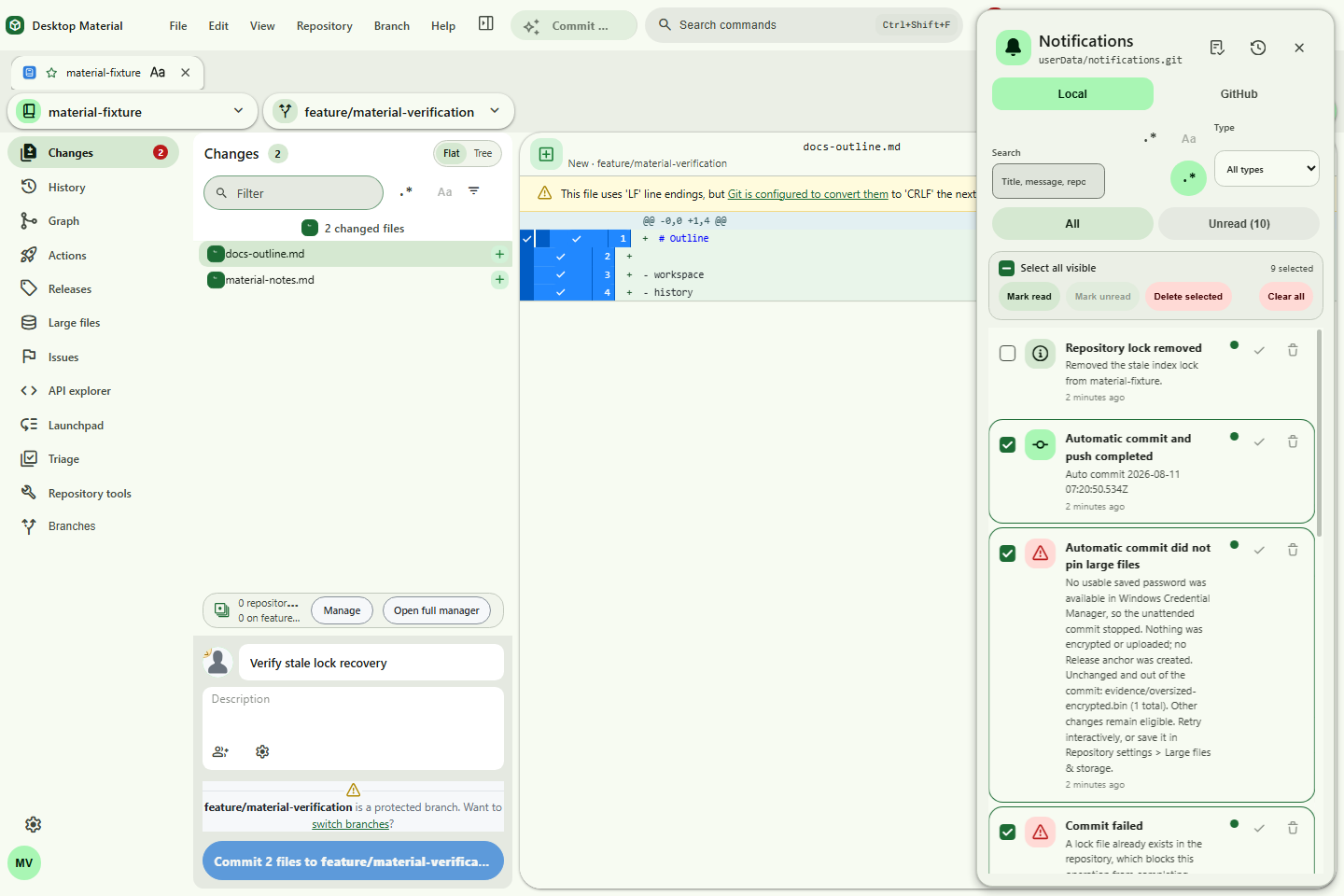
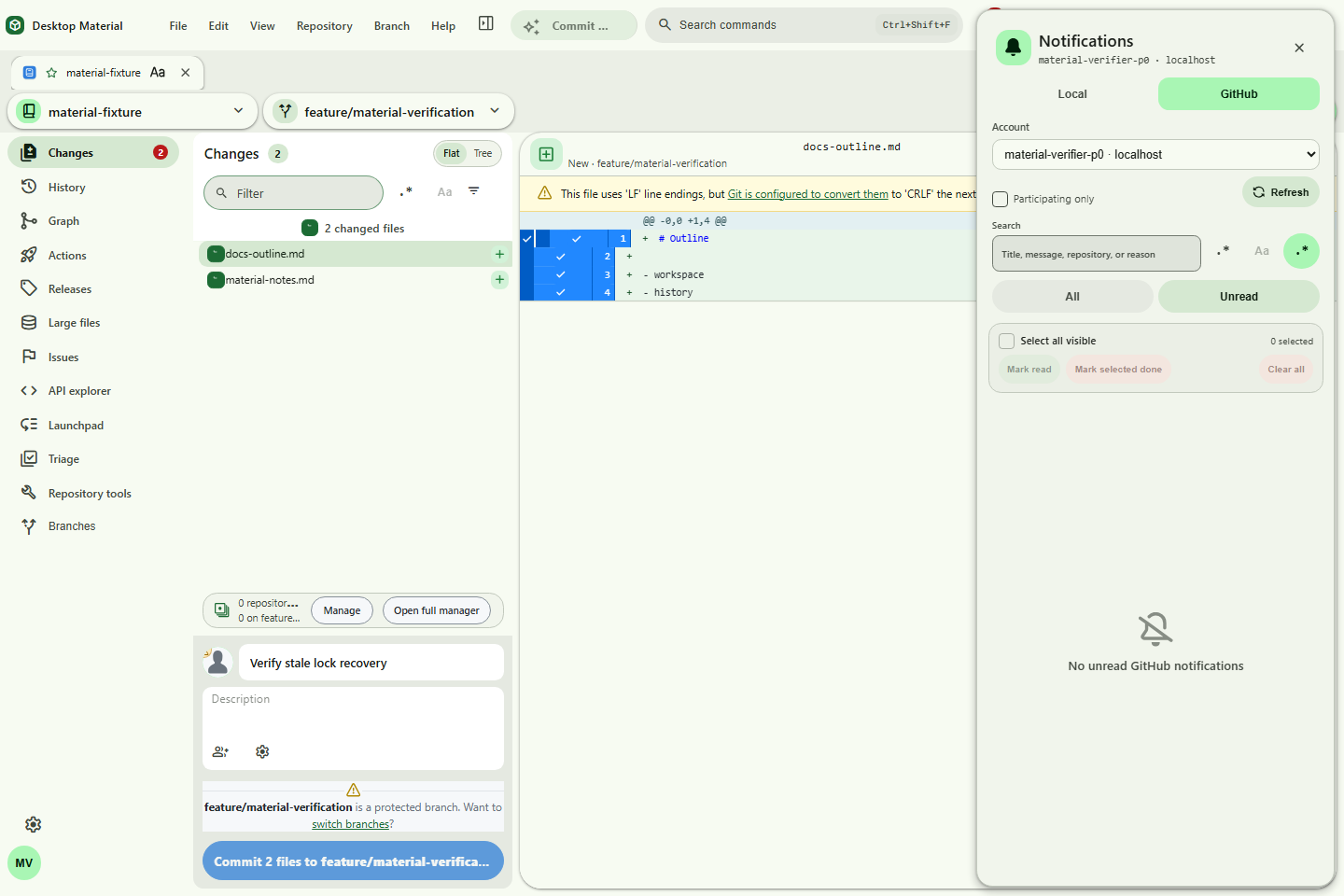
Acknowledgement-only failures appear as dismissible red notices in the bottom-right corner by default, without blocking the task underneath. A notice can expose bounded diagnostic details when they differ from the user-facing message. In Settings → Notifications, choose either Bottom-right notice or Blocking dialog for these acknowledgement-only errors. Failures that need a retry, authentication choice, external remediation, or another real decision remain dialogs regardless of that preference.
When Git reports the affected repository's exact stale .git/index.lock, the notice includes
Remove lock file. Desktop first confirms that its own repository operations are idle, then
refuses recent, linked, non-file, or changed locks before atomically quarantining and removing the
verified stale file. Retry the original Git operation after the notice closes.
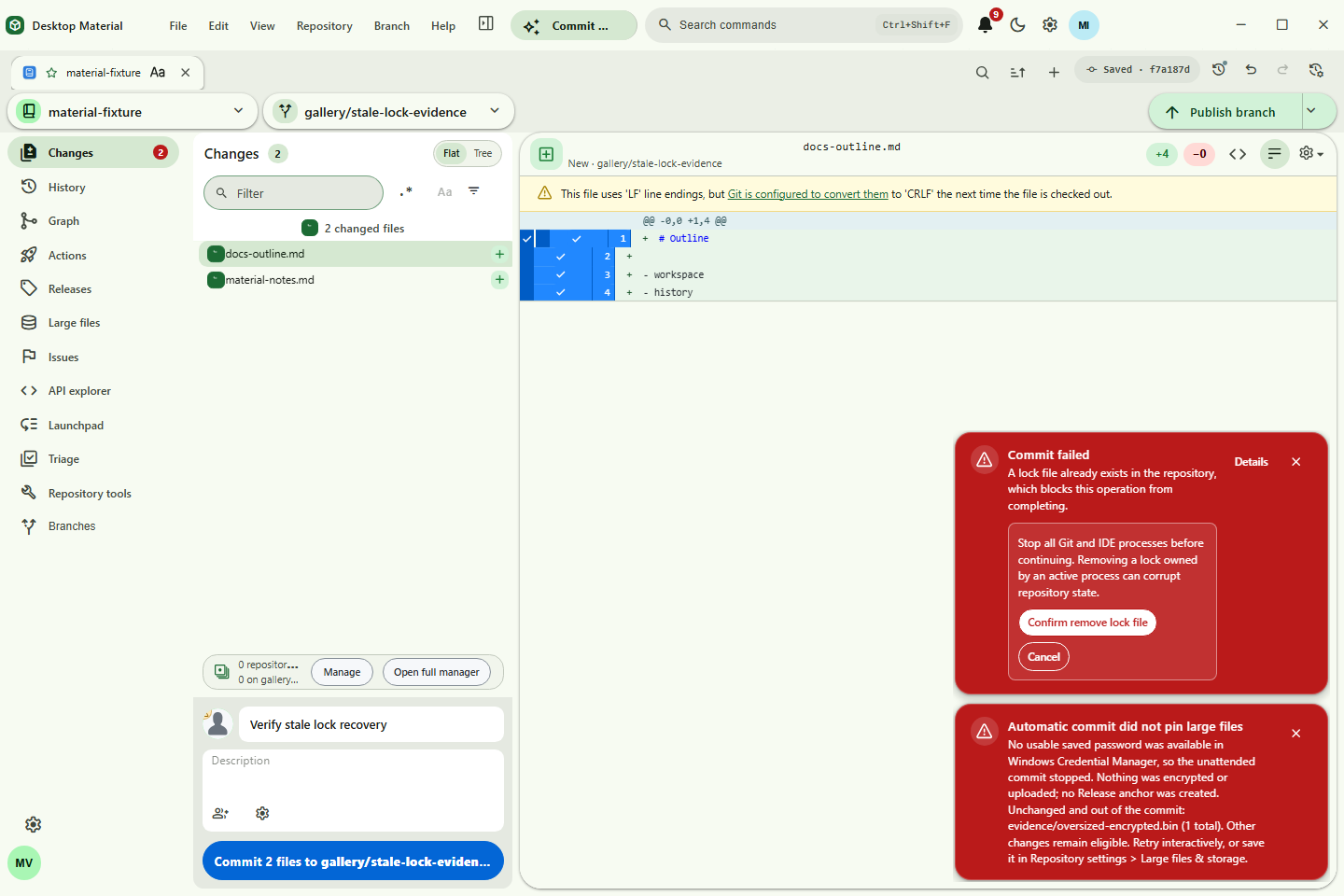
The Actions panel brings CI into the app:
- Workflow runs for the current repository, newest first. When more are available, choose Load more runs; already loaded pages remain visible across background polling and Refresh.
- Filters by workflow, status, branch, and event.
- Re-run a whole run or re-run only the failed jobs.
- For a run that is queued, running, waiting, or pending, choose Cancel run. The Material review names the workflow and run number plus its branch/ref, actor, and commit when GitHub supplied them. Desktop Material revalidates the selected repository/account/run and live cancellable state immediately before one normal cancel request, disables duplicate submission, and refreshes until GitHub reports cancelled or another terminal state. Authentication/SSO and stale/conflict errors keep specific recovery guidance visible; force-cancel is not the primary action.
- Drill into a run, choose the current or a historical attempt, and use Load more jobs to append the next bounded 50-job page. A failed later page keeps the jobs already loaded and offers the same named retry. Every loaded job retains its exact View logs and Re-run job actions.
- Open the in-app log viewer to read output without leaving Desktop Material. Search the loaded log to isolate a command, warning, or error; only the spatial log body may pan horizontally.
- Inspect pending deployment environments and prior review history. Select only environments for which the signed-in account is eligible, enter a required bounded comment, review the exact approve/reject intent, and confirm. Locked environments keep their explanation visible.
- When GitHub marks a first-time fork run as eligible, use the separate Approve fork run confirmation. It is never inferred from a deployment decision.
- Trigger manual workflows with the
workflow_dispatchdialog — pick the workflow, ref, and inputs, and dispatch. - The repository's Super Express Release emergency lane runs the complete
script-contract suite before the Windows x64 production build/package, asset
verification, and optional release. It still omits unit, TUI, lint, type,
parity, smoke, and packaged E2E tests; ordinary CI and tested Express remain
the comprehensive gates. A release
pull request targets the Windows product's
maindefault branch. - Automatic and Super Express installers share one monotonic
zpackage-version namespace. Releases are immutable and initially non-latest; only the greatest release for freshly revalidated currentmainis promoted to the Squirrel update feed, so an older overlapping job cannot move Latest backward. - Select a run artifact to review its name, size, creation/expiry, workflow source, and GitHub digest. Search the loaded artifact catalog by name or workflow context with fuzzy, substring, or safe regular-expression matching; substring and regex modes can also match the digest, and the regex builder is available from the filter control. Choose Load more artifacts to append the next bounded page; search immediately includes each appended page. A failed later page keeps the cards you already loaded and lets you retry that same page. Download archive opens the native save picker; after transfer, Desktop computes SHA-256 locally, reports whether it matches, and offers Show in folder.
- The cache manager can list, search, and delete Actions caches, but Download unavailable is intentional: GitHub does not provide a supported Actions-cache archive download API. Download supported workflow output from that run's Artifacts section instead.
- Check attestations reports whether an attestation record is present. Presence is not presented as cryptographic verification: signer, signature, timestamp, source identity, and policy still need a future verification function.
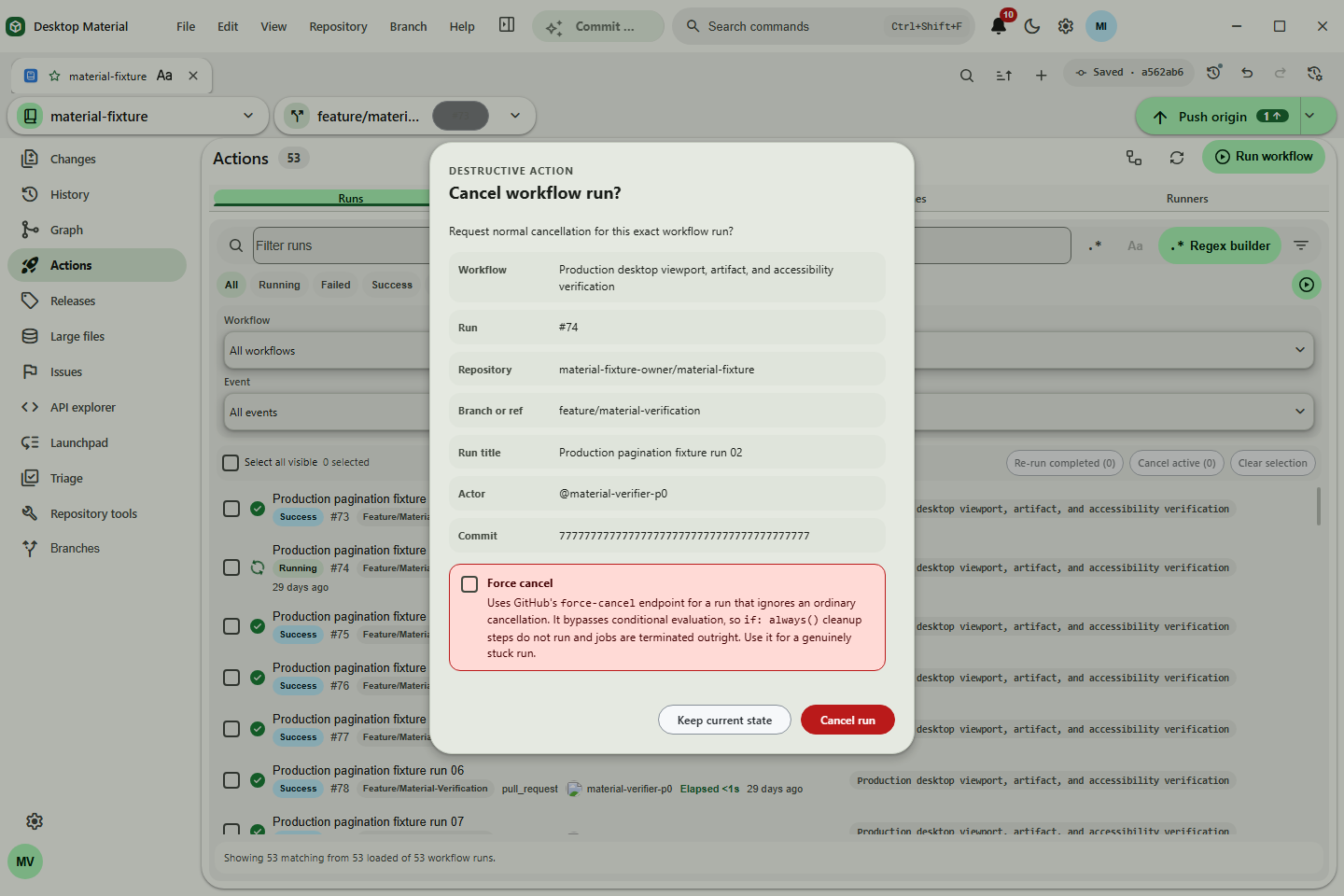
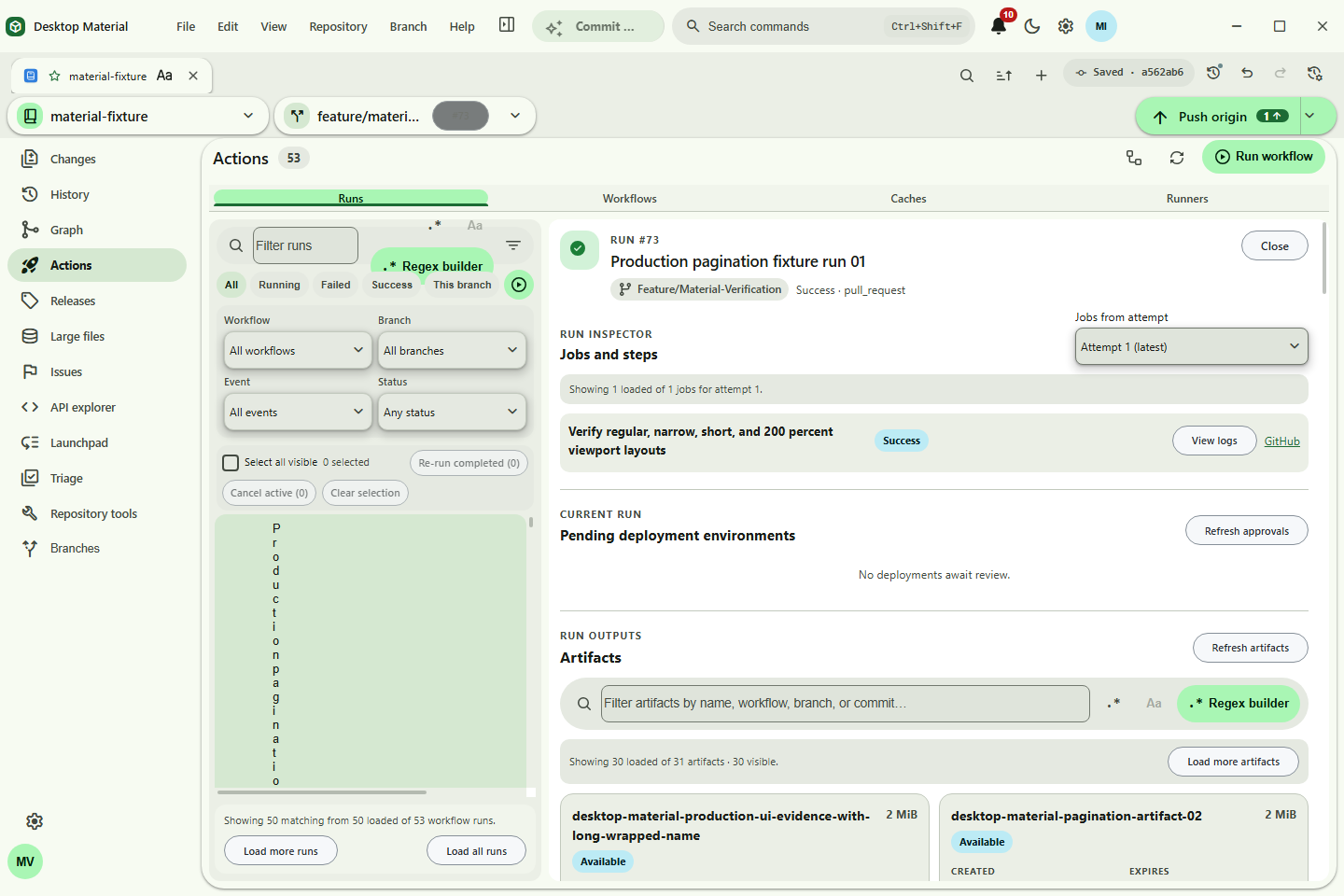
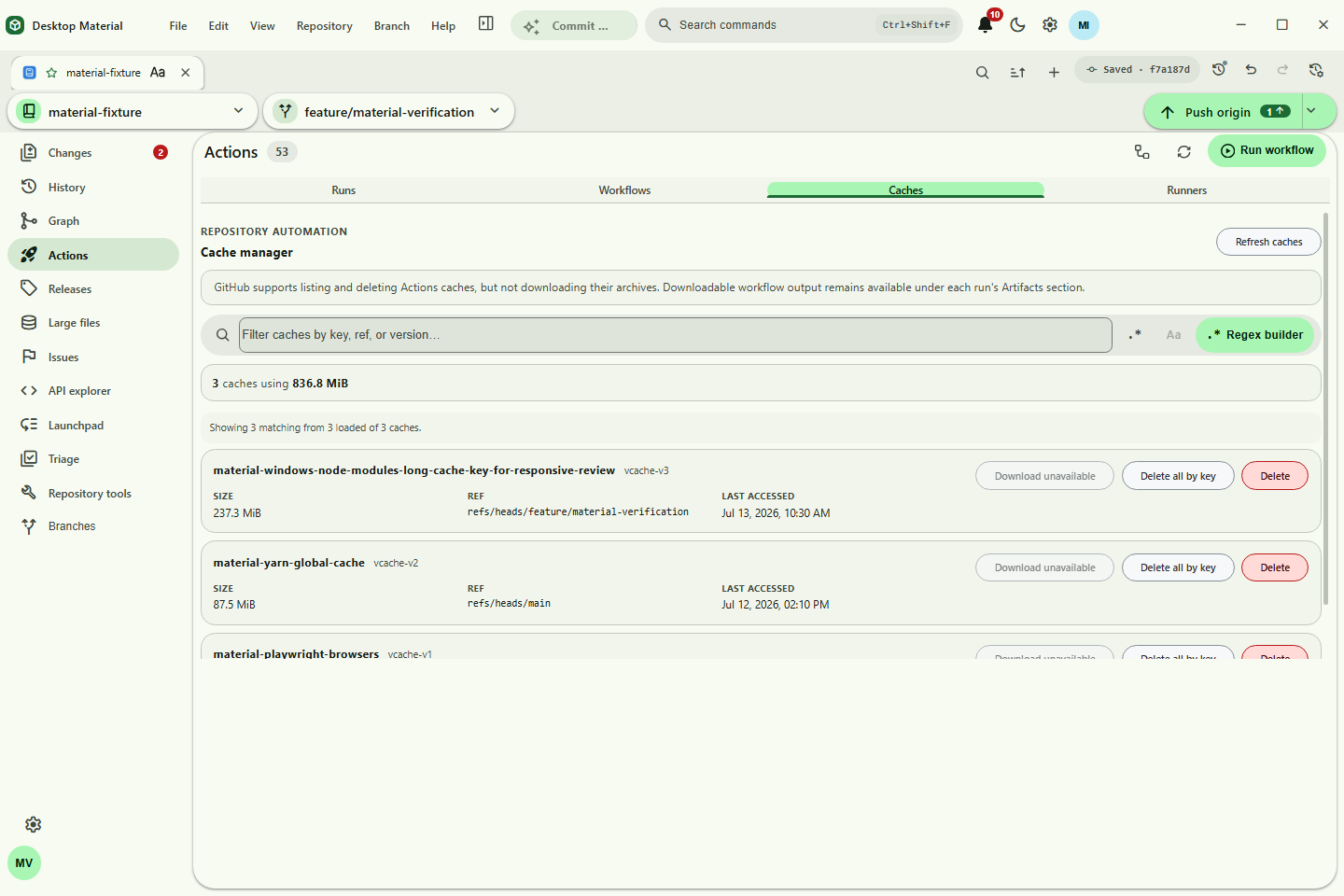
Actions caches can be listed and deleted, but GitHub exposes no supported API for downloading a cache archive. Download unavailable says so directly; use a workflow artifact when output must be downloadable and integrity-reported.
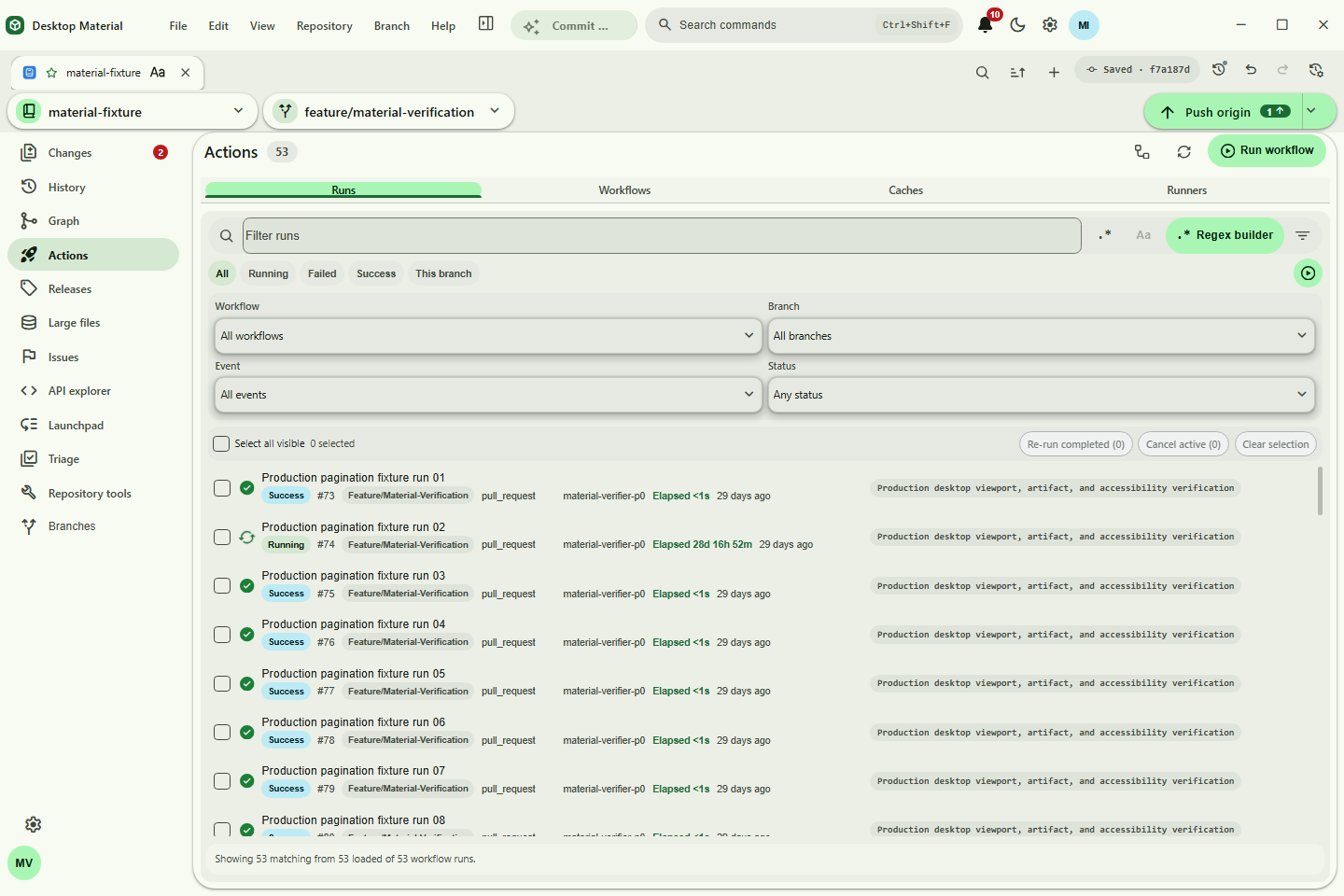
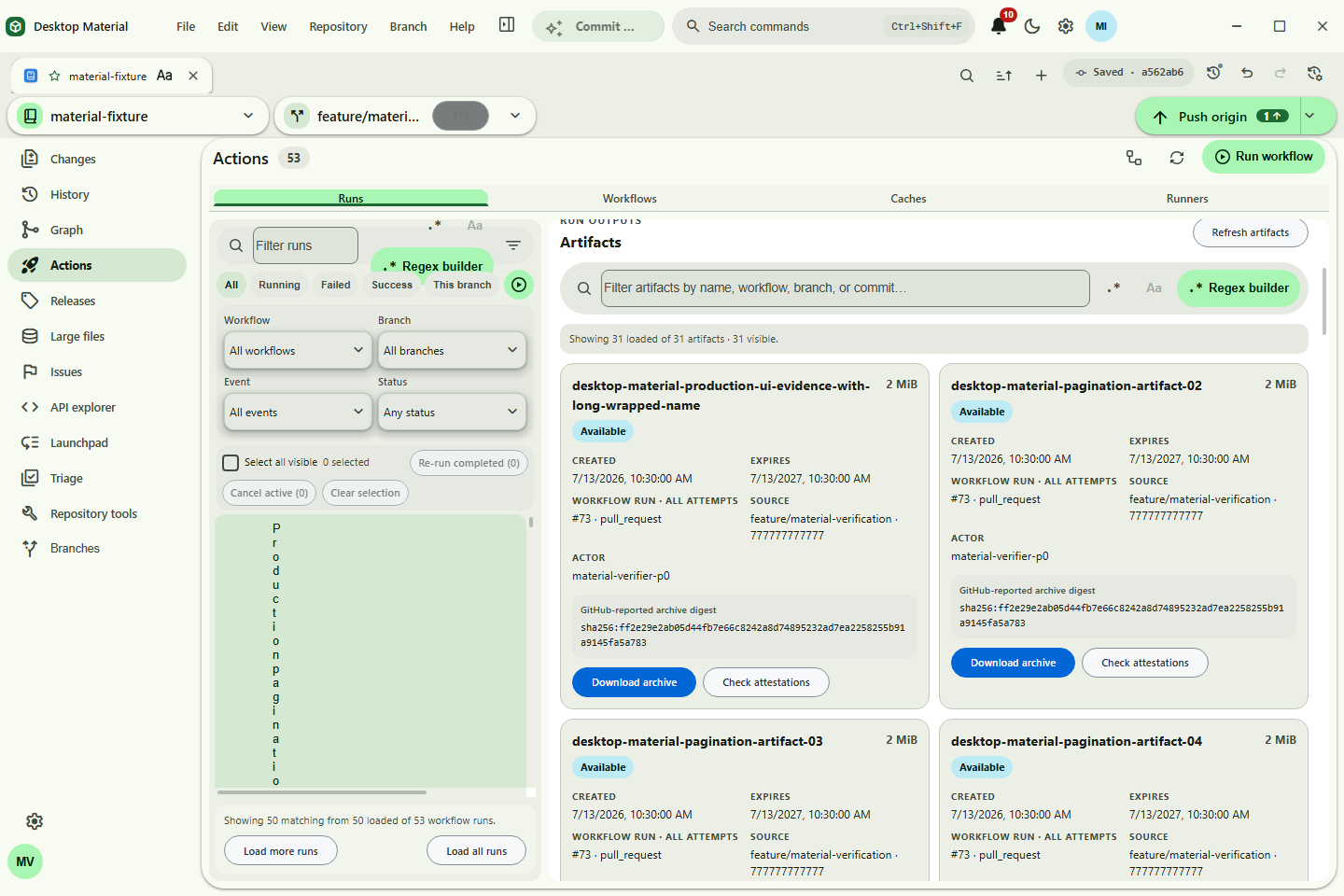
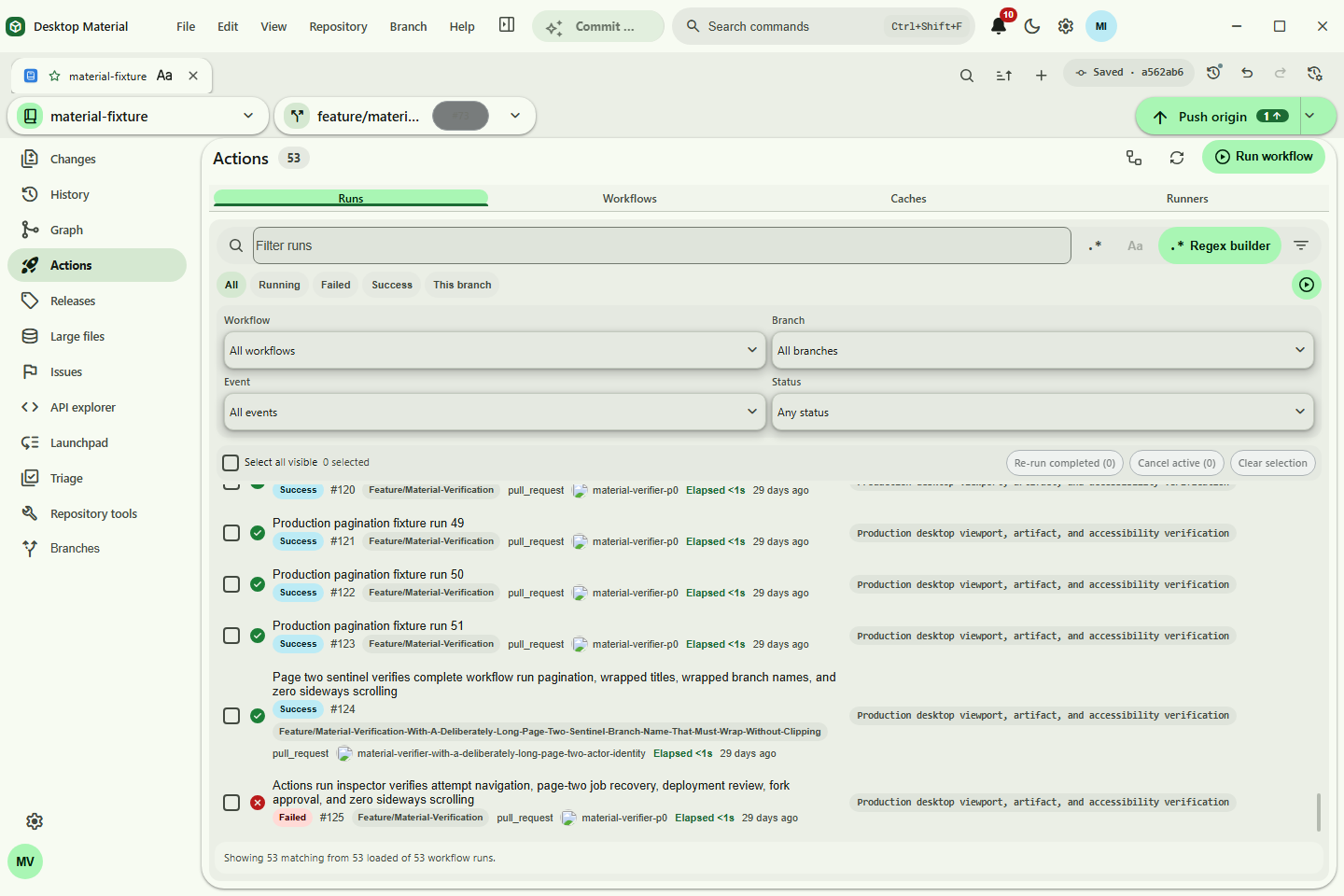
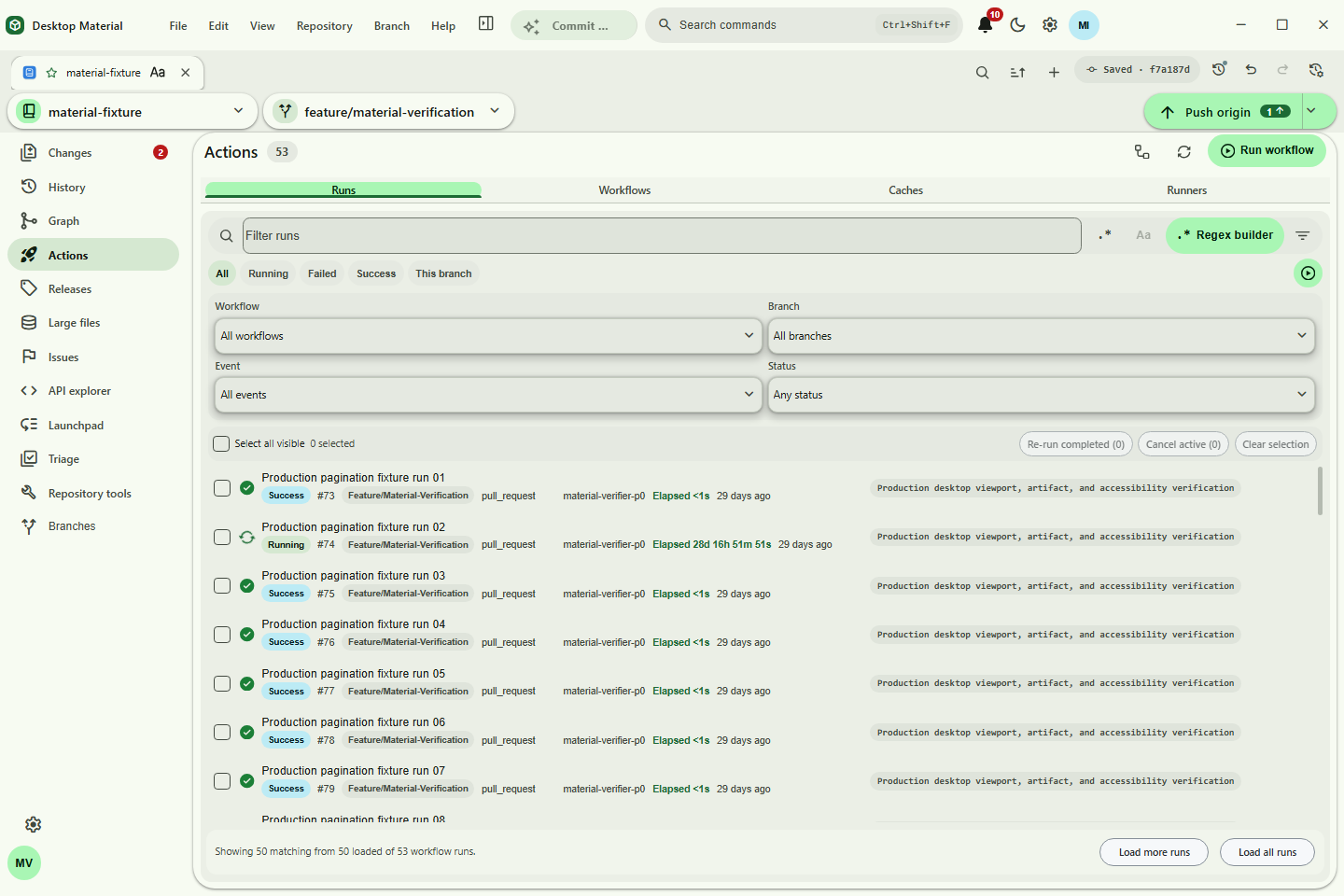
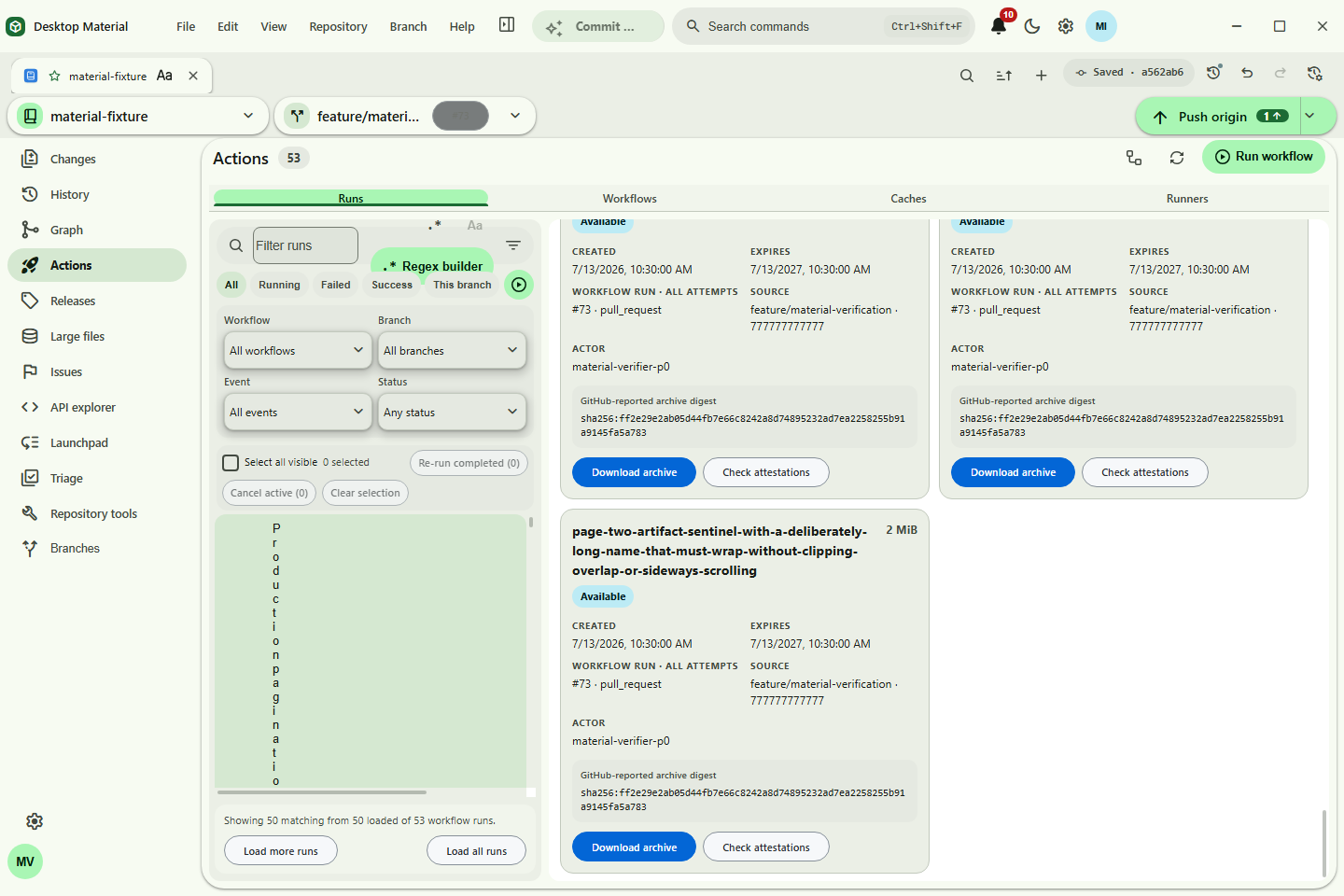
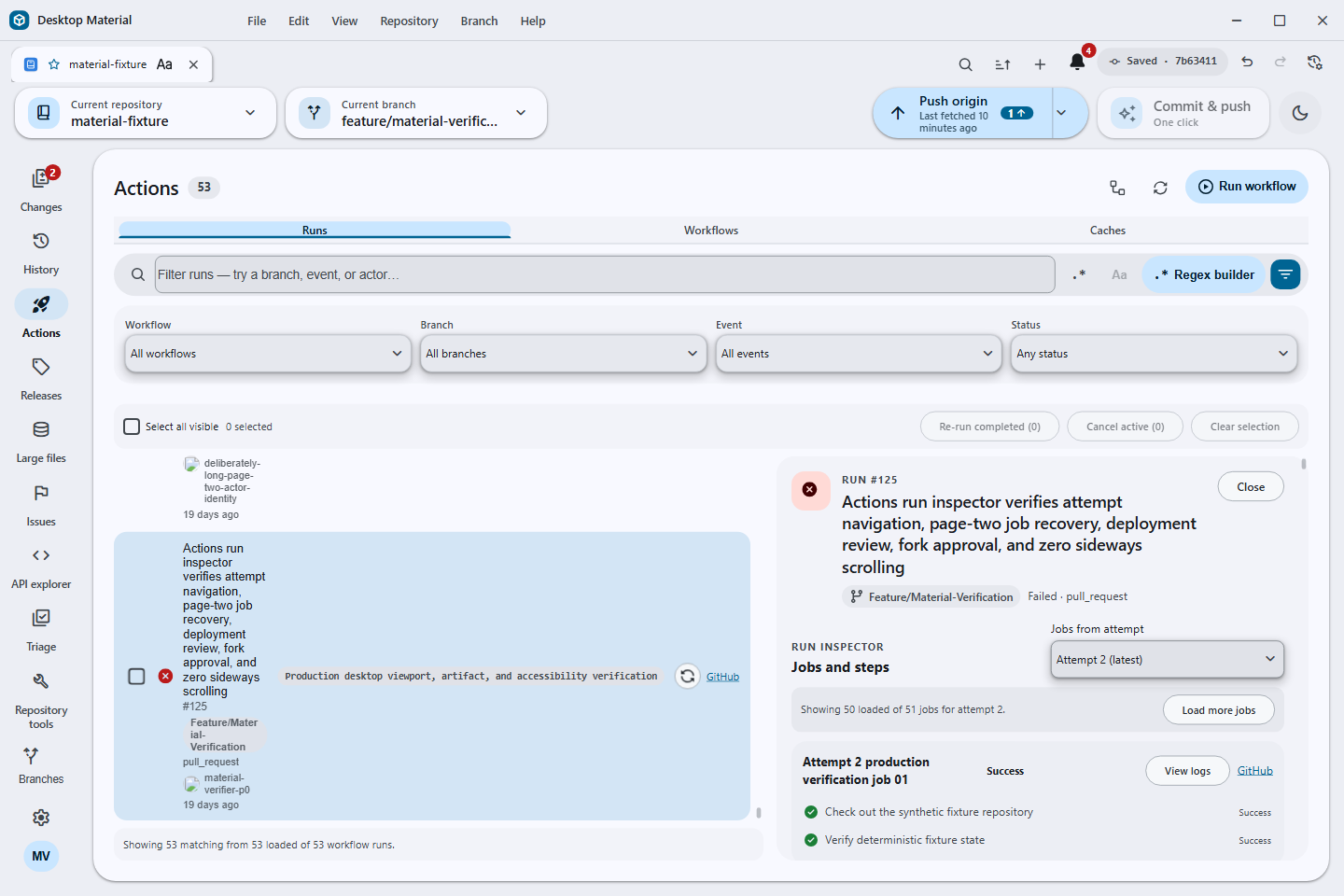
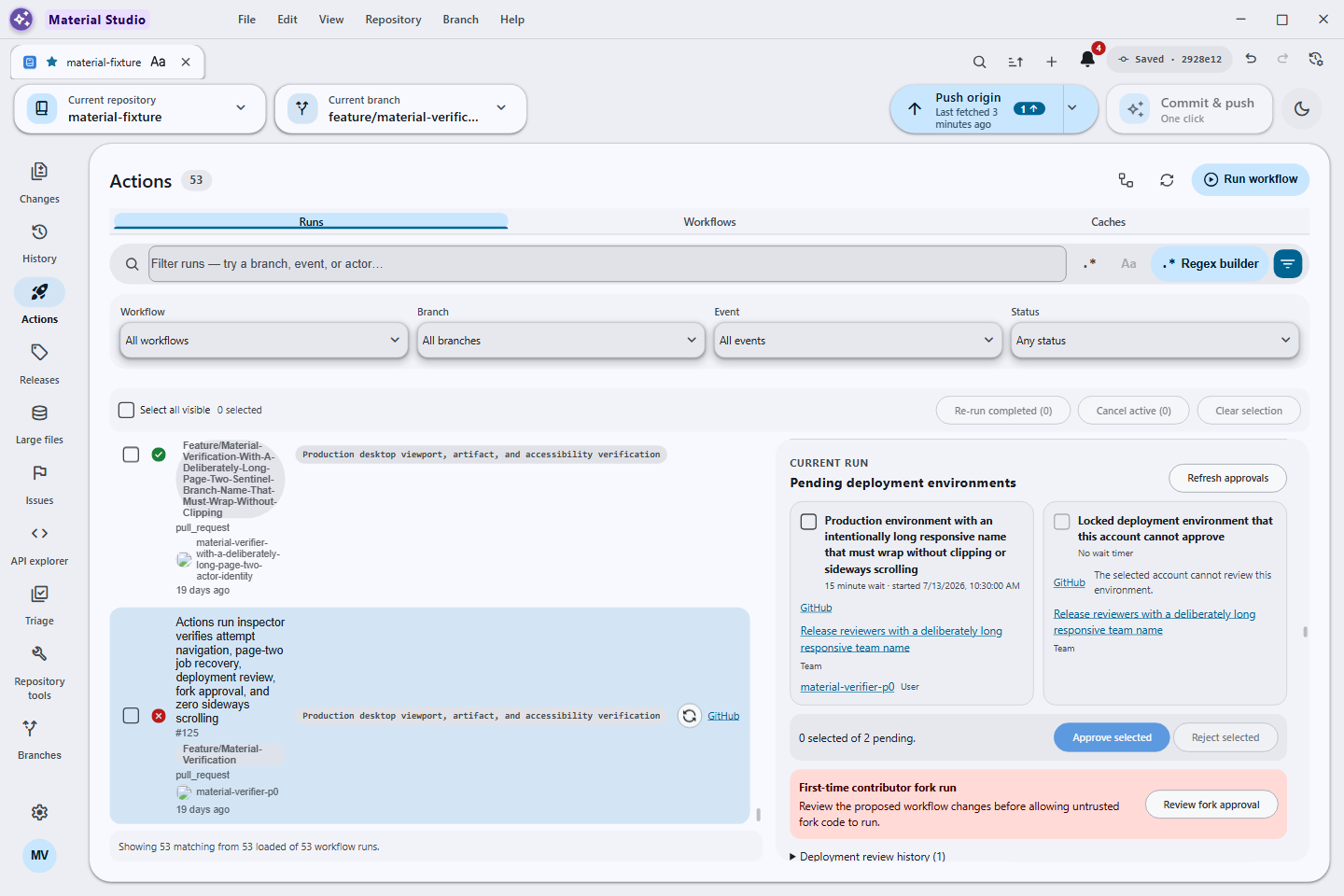
The historical M0–M19 production gates exercised 50→51 filtered runs, 30→31 artifacts, and current/historical 50→51
job pages, including a deliberate later-page 503→200 retry. Exact job log/re-run, deployment review,
and fork approval mutations ran only against the isolated provider. At regular and short windows
plus a requested 200% base with auto-fit, document and body widths matched and the measured Actions
surfaces had no clipping, overlap, outside controls, oversized text, or page-level sideways
scrolling. Modal focus and scrim ownership were also contained. These are named app controls; there
is no gh command, API-path, or GraphQL editor.
Job-log downloads follow GitHub's signed redirect automatically. Desktop Material's main-process request filter tracks the original request and removes authentication, authorization, and cookie headers before any cross-origin hop. Download errors also omit signed URLs and query strings. The live Windows x64 proof below shows the resulting searchable, collapsible log viewer.
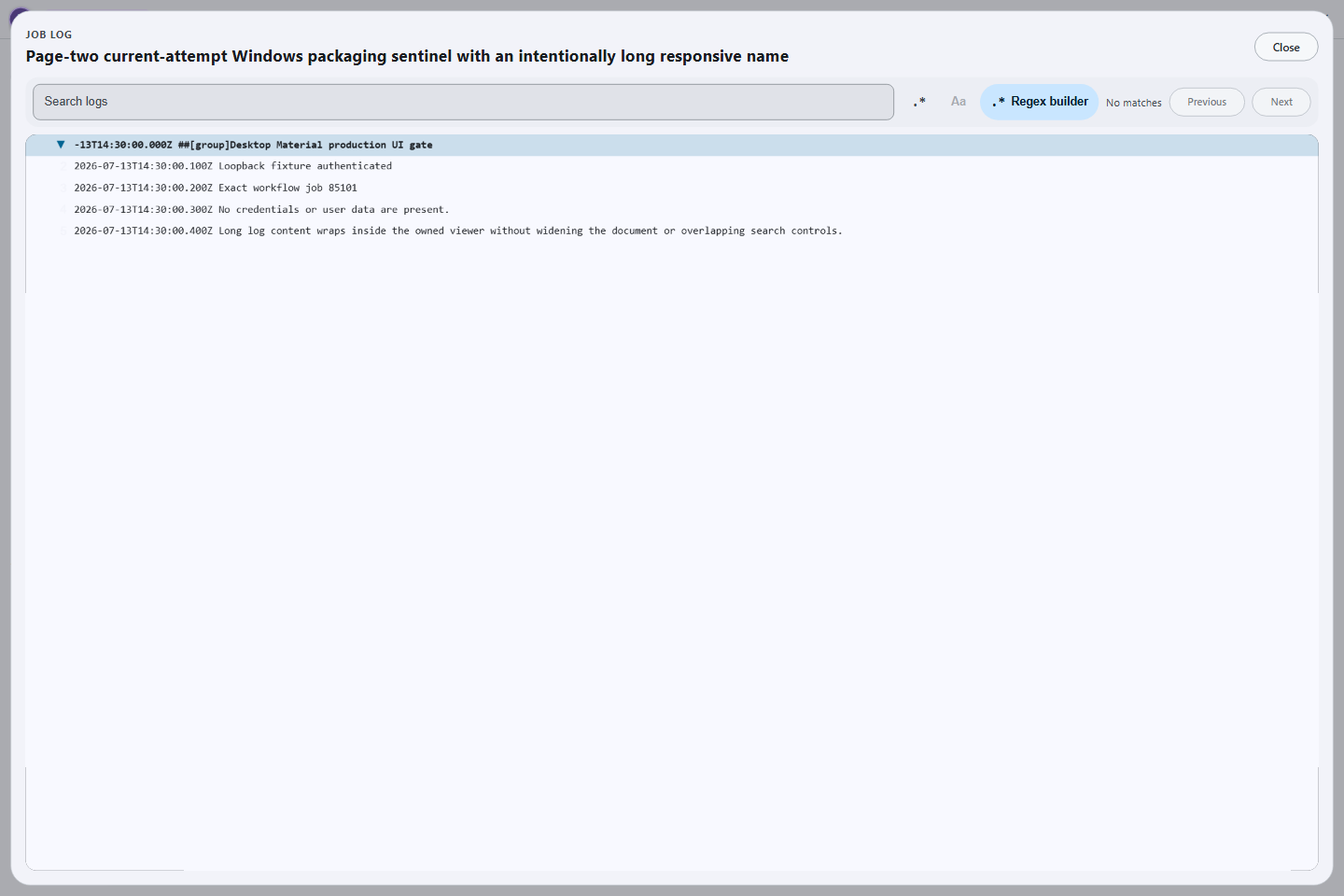
Open Releases from the repository rail to work with the selected GitHub repository without losing its account context. The dashboard summarizes the releases currently loaded, including stable, prerelease, and draft counts, combined asset/download totals, and the latest stable release. The desktop catalog uses a wider 420–560 px pane and larger rows and controls; below 900 px it stacks above the detail pane instead of squeezing text. At the corrected 800×560 combined small-width/short-height gate, the header and metrics compact, the list moves ahead of overview/ detail content, and one complete release row stays visible at 125% (768×528 CSS), 150% (640×440 CSS), and 200% (480×330 CSS) in one 960×660 physical window. The compact layout keeps 9–16 px text, 30–34 px controls, a 176 px tools panel, and at least a 52 px release row instead of shrinking labels to 7–8 px. Metrics reflow into three columns, and the saved English, playful Hong Kong Cantonese, or bilingual tools label can wrap without clipping.
- Search the loaded catalog with fuzzy, substring, or regular-expression matching, optionally case-sensitive, and combine it with the Published, Pre-release, or Draft status filter. The result count always says how many loaded releases are shown; Load more releases expands the catalog before filtering when GitHub reports another bounded page. In the compact gate, Filters and selection is a localized native keyboard-operable disclosure. Clearing a selection after a filter produces zero results returns focus to an enabled fallback rather than disabled select-all.
- Select a release to inspect its status, author, tag, target branch or commit, creation and publish
times, notes, asset count, and total downloads. Row timestamps use unambiguous 24-hour
HH:mmtime. Open the exact provider release page when GitHub supplies a validated repository URL. - Asset cards show file type, size, upload dates, download count, and digest when available. Existing guarded actions still create or edit drafts, publish or delete a reviewed release, upload or delete an asset, and download an asset through bounded transfer and integrity checks. Only after the verified download completes, Open file appears beside Show in folder.
- Initial loading, asset loading, no-releases, no-filter-match, invalid-regex, and provider-error states remain distinct. A failed release or asset request names the failed operation and retries that same scope without discarding already loaded data.
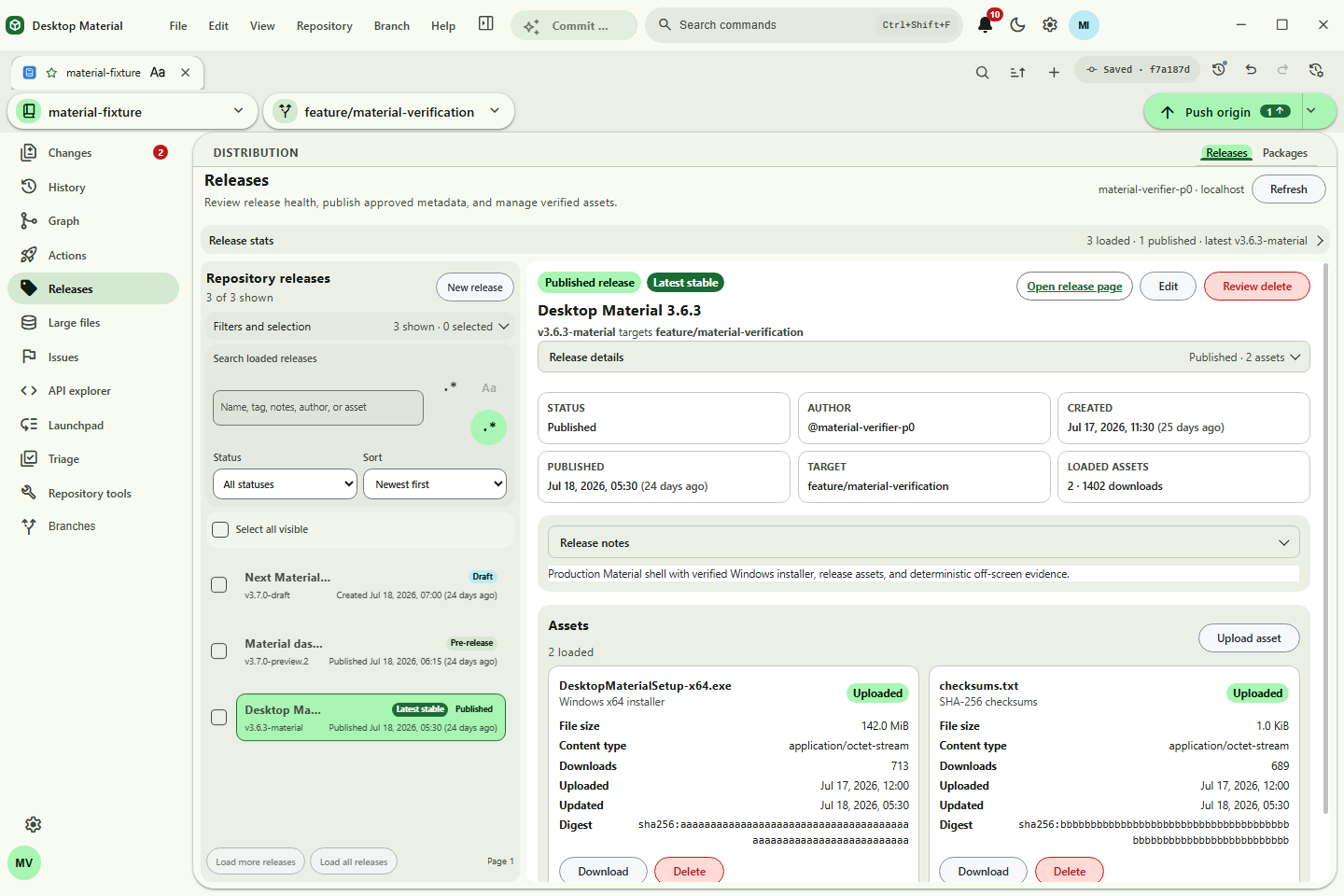
The accepted compact image is the 200% frame from the successful 100%, 125%, 150%, and 200% constant-physical-size gate. It is a 960×660 physical capture of the CSS 480×330 viewport with zero horizontal overflow and one complete row.
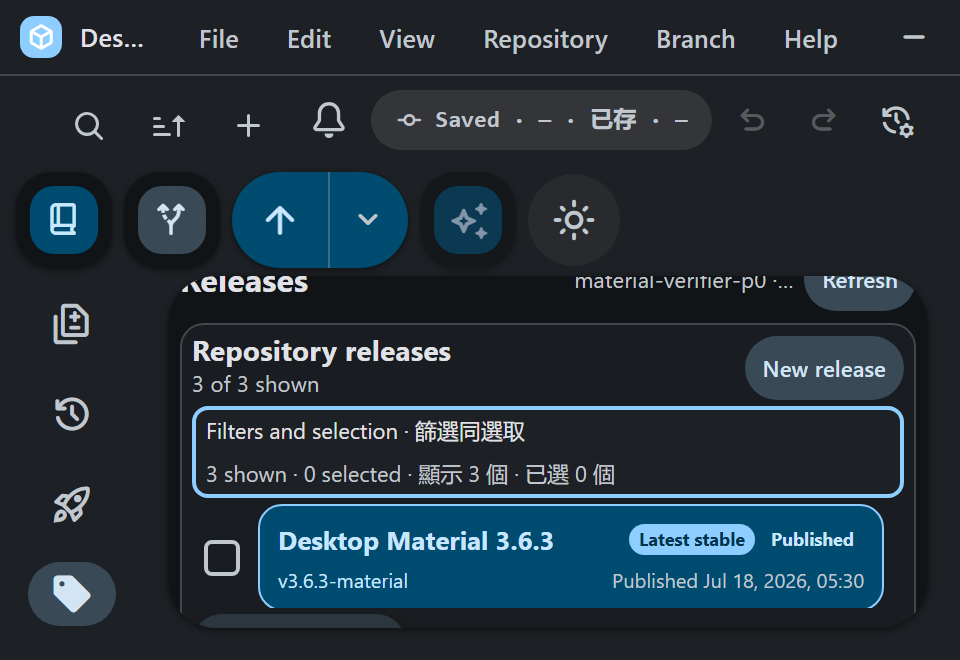
Switch the repository's Distribution surface from Releases to Packages to browse npm, Maven, RubyGems, Docker, NuGet, and container packages. Desktop Material first refreshes the repository's numeric GitHub ID and excludes every owner package without that exact association. Package and version lists support ordinary, fuzzy, substring, and regular-expression search, case sensitivity, and the full Regex Builder.
On GitHub.com, Publish a file package reviews one local file and publishes it as an app-owned GHCR/OCI artifact under a new unique tag, then reports the immutable digest reference. Download file accepts only an exact digest and only after verifying the app artifact type, source repository, one safe title, and the layer's size and SHA-256; the final save never overwrites an existing path. Other ecosystems and general container images remain metadata/link workflows for their normal registry clients. See the GitHub Packages explorer contract for limits, failure recovery, and credential handling.
Desktop Material scales its whole interface independently of the OS:
- Open the scaling slider and set anywhere from 50% to 200%.
- Or choose auto-fit to window, which picks a scale that fits the current window size.
- Auto-fit treats your slider value as the requested maximum. If the window is too small, it caps the effective scale instead of multiplying the requested scale again. At the supported minimum window size, 200% auto-fits below that maximum so the title bar, navigation rail, Appearance cards, value, and footer remain visible without horizontal clipping. The latest P0 gate measured 94%; the older screenshot below records a 96% viewport.
Combined with the animated light/dark theme, this lets you tune the workspace for a laptop panel, a 4K monitor, or a shared screen without touching system display settings.
The responsive toolbar gate measures the space its controls actually need. As the window narrows, Build & Run enters More toolbar actions first and Commit & Push enters next; the repository, worktree, branch, and sync controls remain available in the app bar. Opening More keeps the moved actions keyboard reachable. After the surface closes and the window widens, Commit & Push and then Build & Run return to their original positions, with no page-level horizontal overflow.
The Pages gallery also has a dedicated accessibility/clipping check at 960×660 and 390×844. It passes with zero axe violations, matching document/body widths, and no horizontally outside elements.
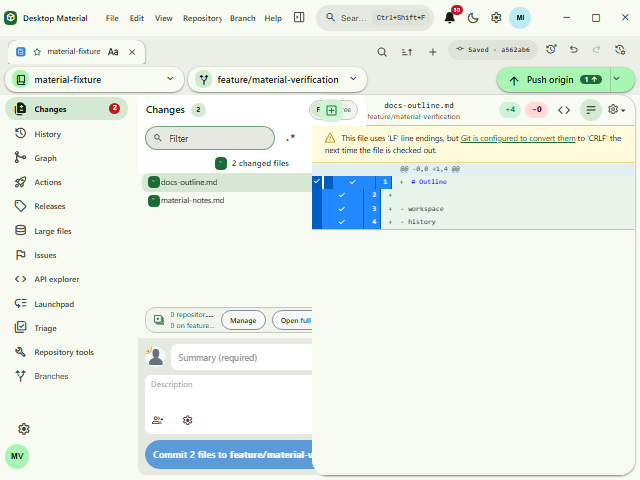
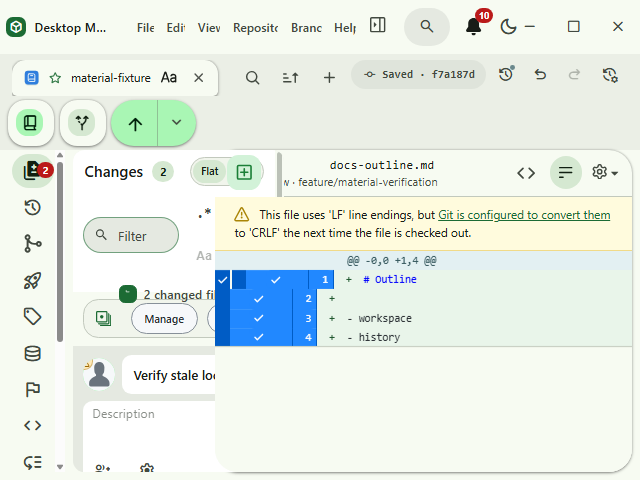
Open Settings → Automation to configure the two background schedules:
- Turn on Automatically commit and push and/or Automatically pull.
- Pick an interval for each enabled operation.
- Under Account overrides, let an identity inherit the global value or override its enabled state and interval.
- For one repository, open Repository settings → Automation and inherit or override the two schedules again.
Automation targets the selected repository only. Before each run it checks repository state, upstream availability, conflicts, in-progress Git operations, and draft commit text. An unsafe repository is skipped rather than overwritten. See Automation for the complete guard table.
Scheduled Git is non-interactive. It uses an already selected/stored credential or fails through a notification without opening a login, credential-manager, SSH, or pinentry window. Scheduled commit, pull, and push skip repository hooks; automatic commits and pull-created commits also disable signing, and post-push SSH deployment uses batch mode. Manual Git actions remain interactive and continue to honor normal hook and signing choices. Repositories that require hooks or signatures should use reviewed manual operations and remote branch protection.
The Branches and Worktrees views also expose Merge all branches and Merge all worktrees. Confirm the target, follow each row's progress, and review any skipped or failed target. When Copilot conflict assistance is available, it participates inside the same guarded workflow.
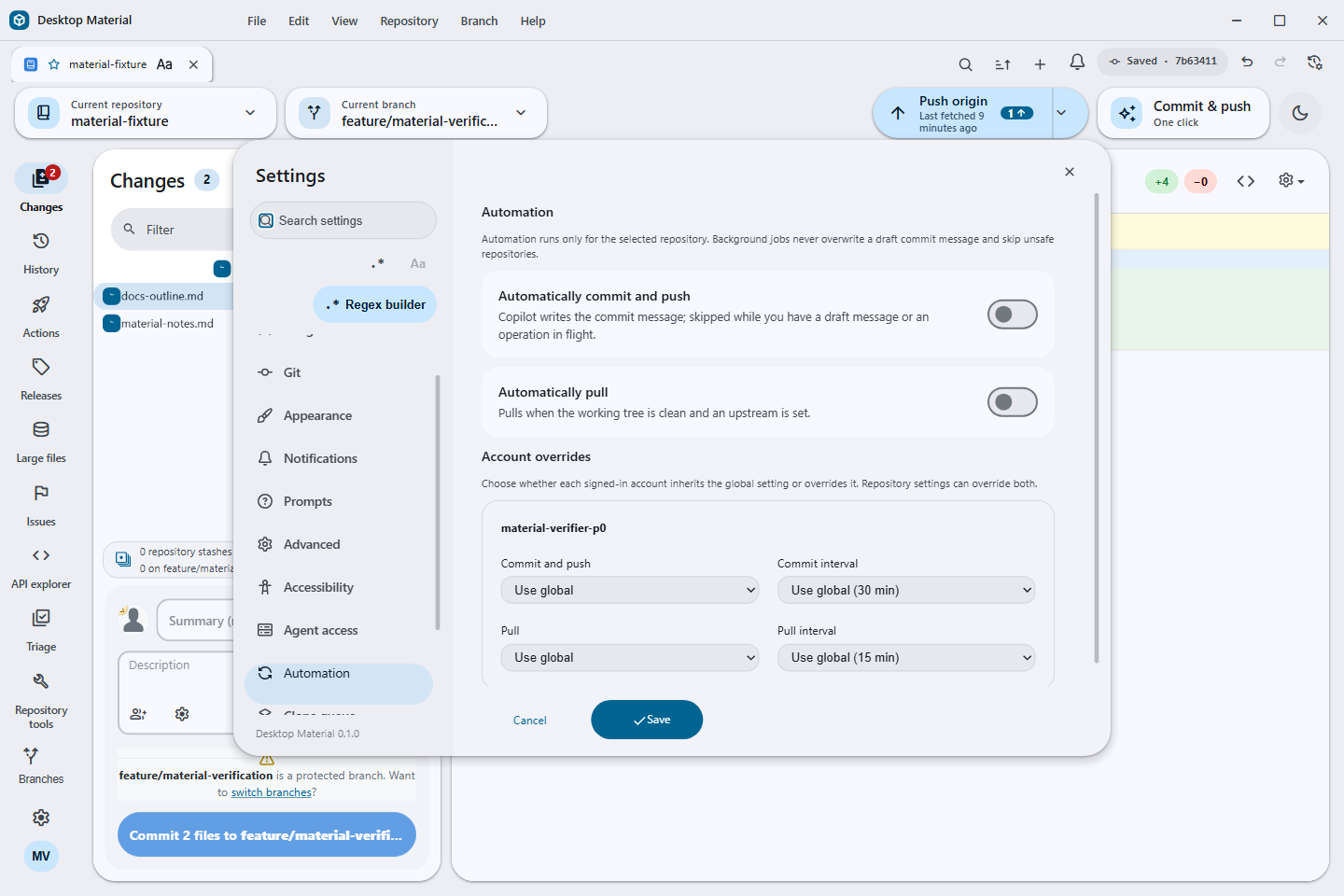
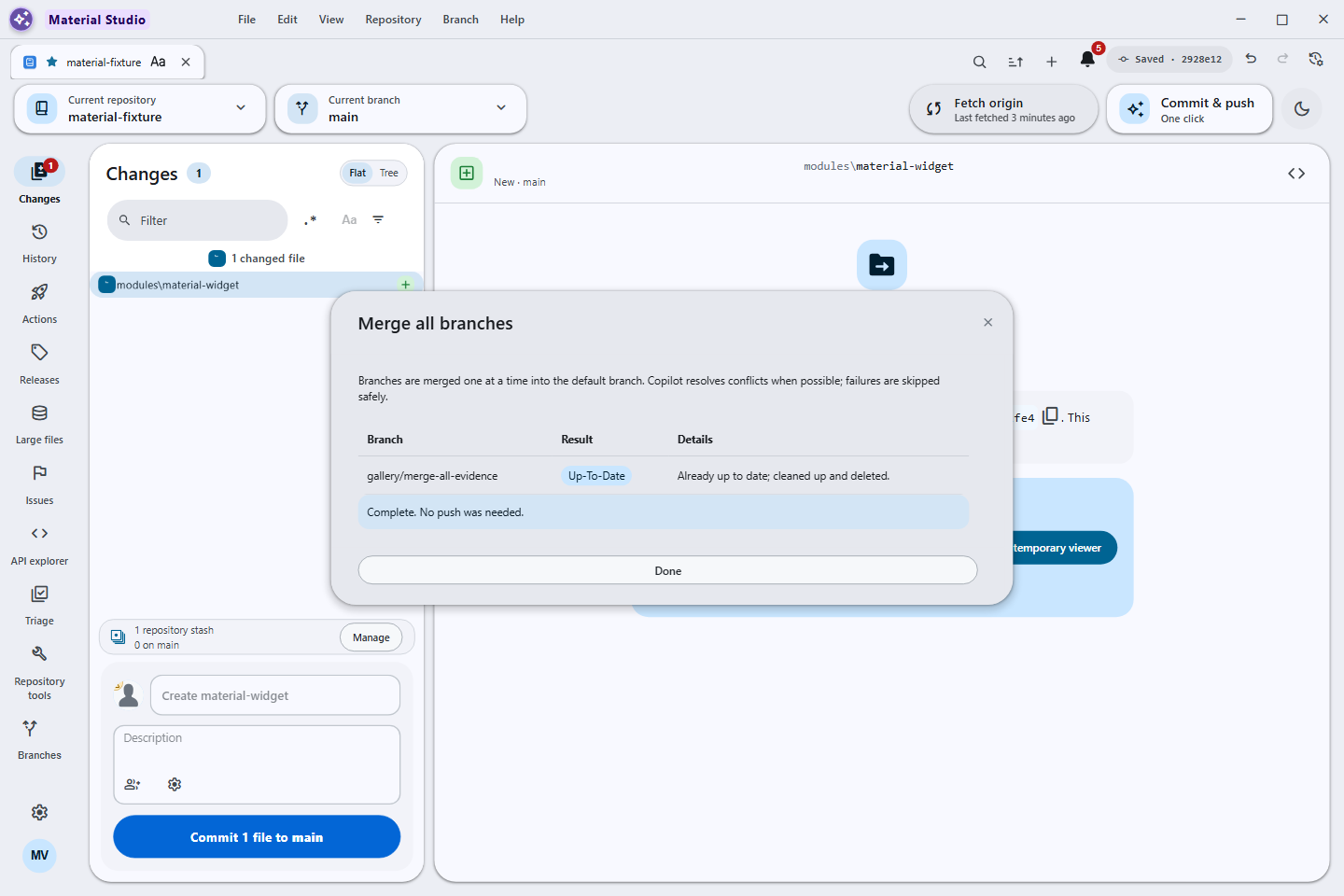
Open History and use the search field to match a commit's title, message, tag, or hash. The results retain the normal commit detail view. Toggle Show commit graph to add ancestry lanes and merge edges beside the unfiltered list; turn the graph off when a compact list is more useful.
Right-click a commit row for reset, checkout, reorder, revert, branch, tag, cherry-pick, copy, and
provider actions. The row's named More actions button, the Context Menu key, and Shift+F10
open the same action set. Invoking an unselected commit targets only that row; invoking a member of
the current multi-selection preserves the selection for eligible multi-commit actions.
Hovering or keyboard-focusing a commit also shows its exact authored timestamp
and an auto-updating relative line such as 2 minutes ago.
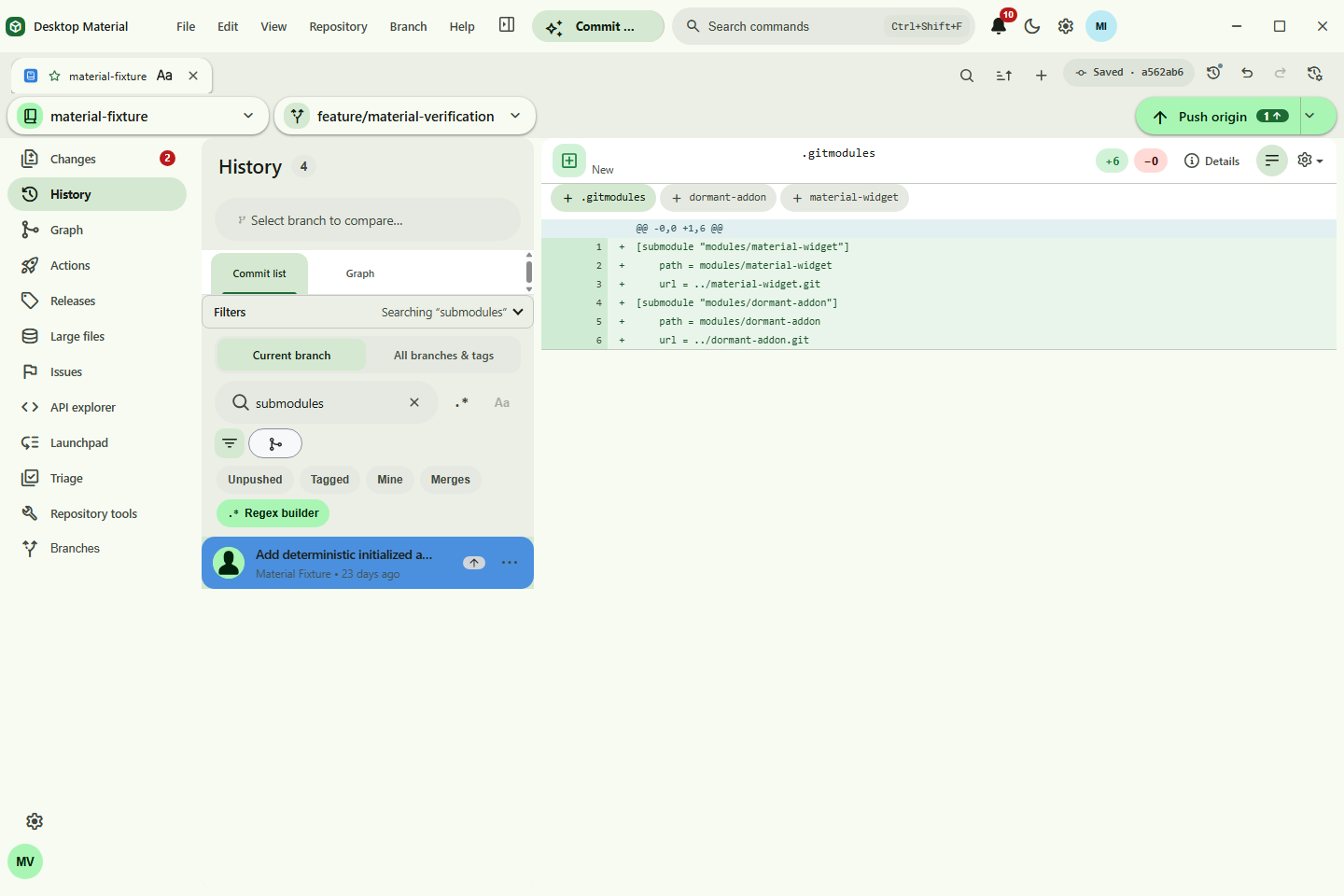
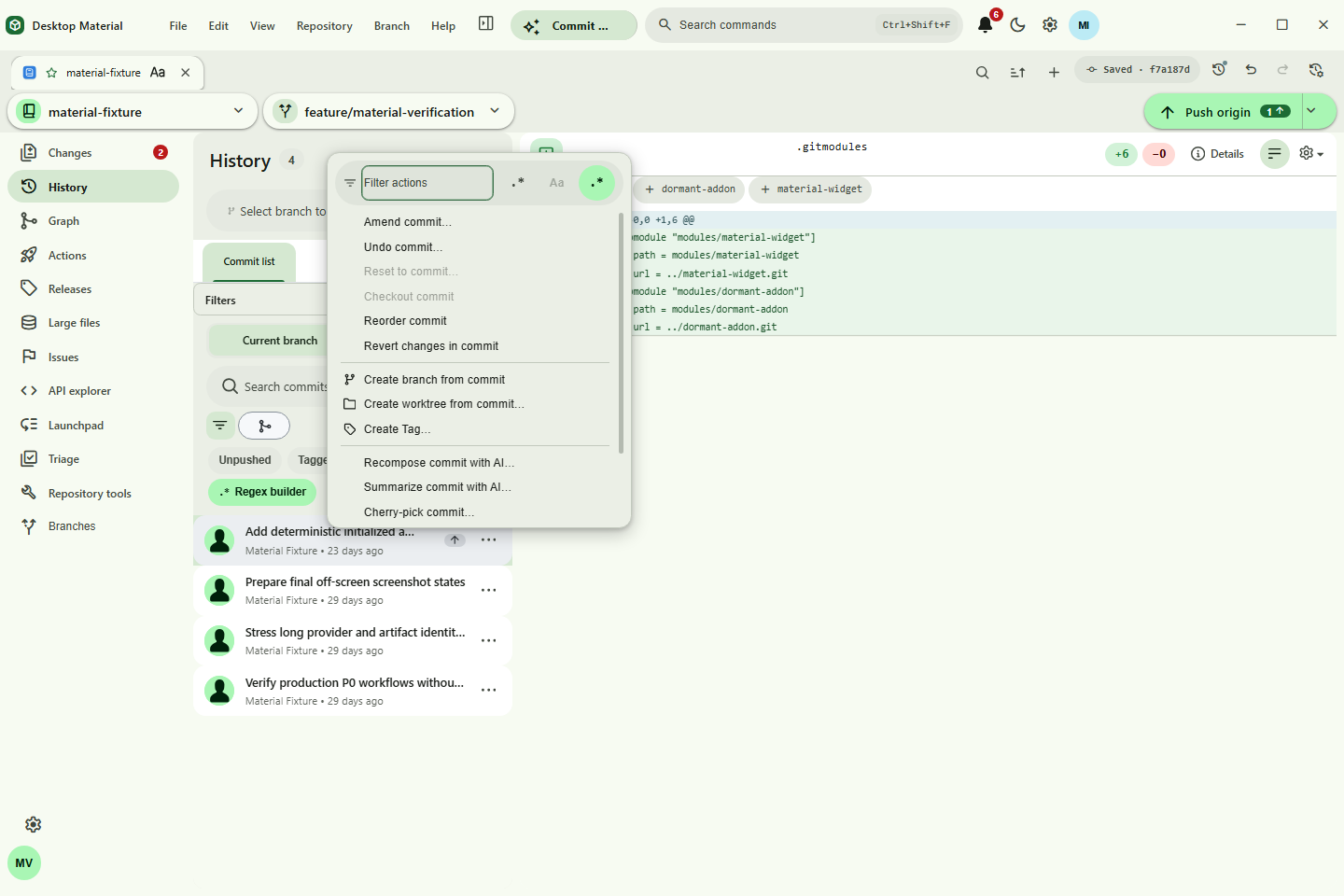
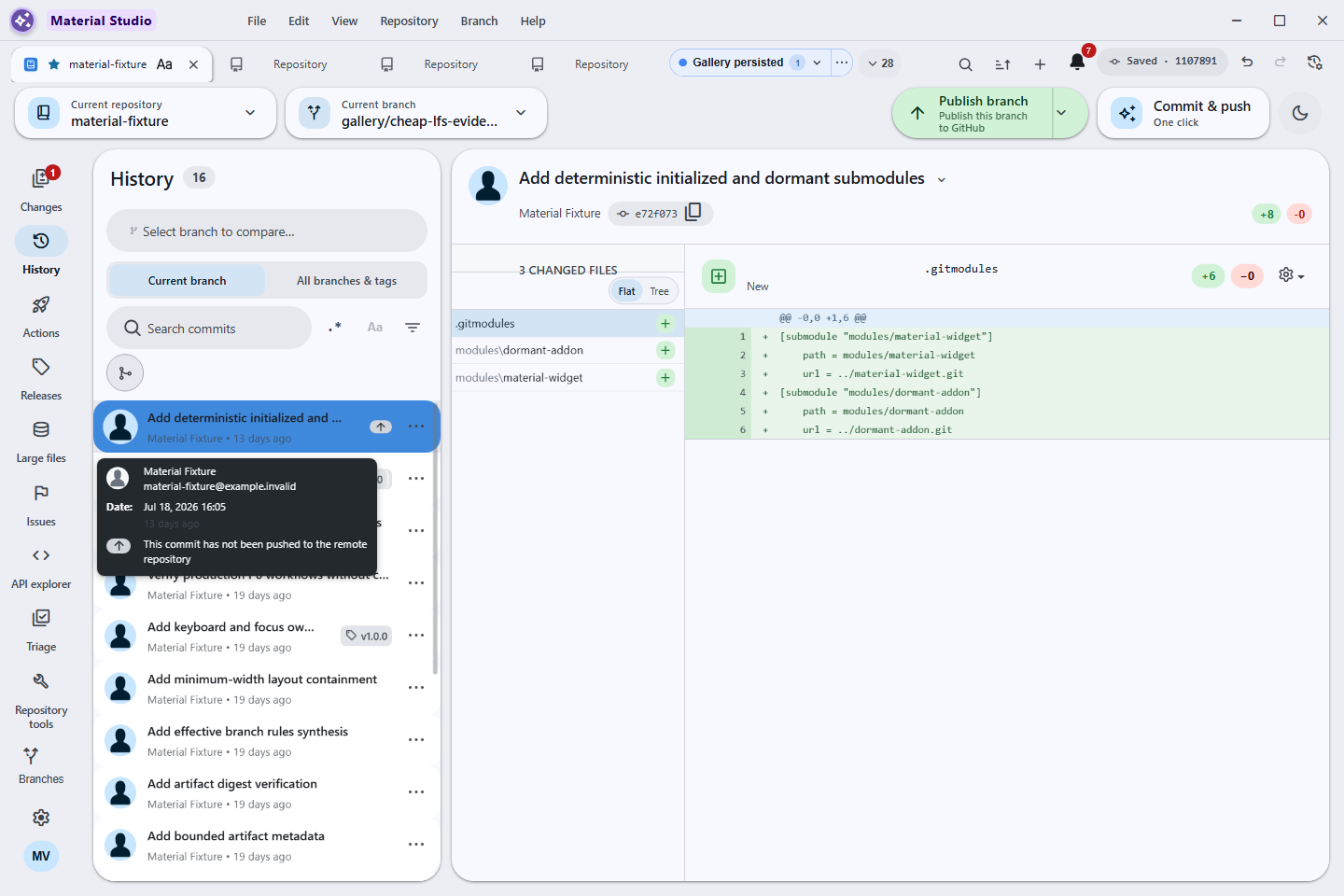
Create a stash from the Changes workflow whenever work must be set aside. Desktop Material keeps all stash entries instead of treating only the newest one as available:
- Expand Stashes in Changes and select an entry by its label.
- Inspect that stash's file list and individual diffs before acting.
- Choose apply or pop for the exact entry, or review rename, create-branch, and delete actions.
- If Git completes only part of an operation, keep the reported state visible and inspect the repository before retrying instead of assuming an all-or-nothing result.
Switching branches can still offer to stash local work, and the resulting entry appears in the same list.
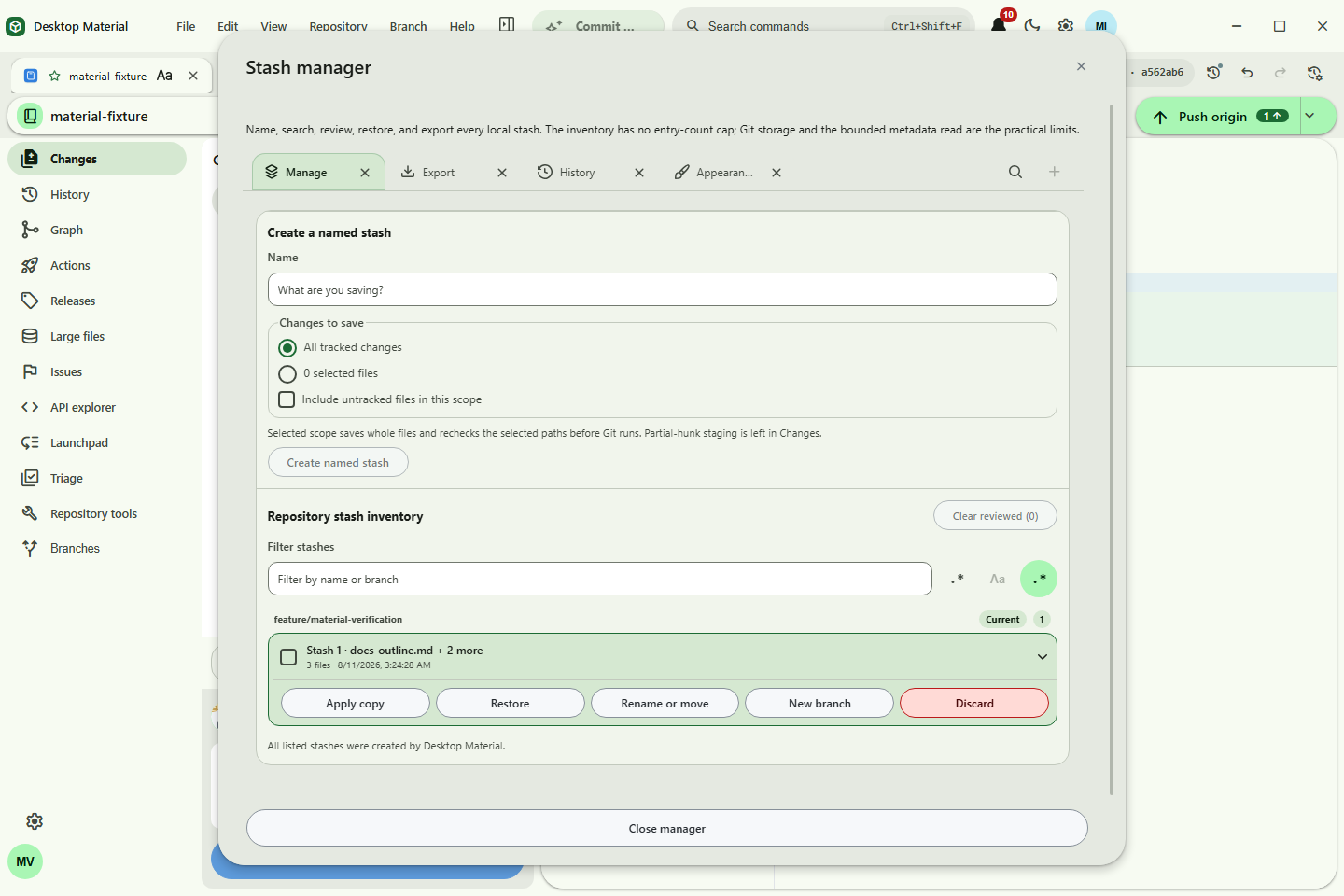
-
Open the repositories side sheet and choose Pull all to fetch/pull every eligible repository; review the per-repository result instead of assuming the batch succeeded as one unit. If the normal pull ends in an HTTPS authentication or repository-not-found ambiguity, Desktop Material can try the remaining token-bearing signed-in accounts whose HTML origin exactly matches that remote. A repository-bound identity is preferred within the otherwise stable account order.
-
Pin important repositories from their context menu, hide the automatically maintained Recent group if desired, and use grouping to keep large repository lists manageable.
-
Use branch presets/default-branch controls when creating or switching branches; pin, hide, solo, and restore branch visibility from branch context and filtered-state controls.
-
Set a repository-specific external editor when the global editor is not appropriate.
-
Manage every named remote in Repository settings → Remote, and administer add/move/rename/ lock/repair/remove/prune worktree operations from the Worktrees view. Remote names and URLs wrap only when genuinely long; before a field/control column becomes unreadable, each row changes to a single-column layout with fetch/push controls and actions in keyboard order.
-
In the same Remote settings page, save a non-secret SSH working-copy definition and keep its password or key passphrase in the operating-system credential vault. Turn on Deploy Docker Compose after pushes to this source remote to deploy only after Desktop Material successfully pushes that named remote. The SSH checkout must already be on the pushed branch; the app fetches that exact branch, requires a fast-forward merge, and then runs
docker compose up --detach --build. A mismatched branch or non-fast-forward update stops without a reset, force operation, or automatic checkout. Deploy Docker now runs the same bounded, output-redacted SSH recipe on demand. Host-key, passphrase, password, generic Git credential, and GitHub sign-in prompts share one FIFO, so concurrent prompts appear and settle one at a time. -
Open the wider Repository settings → Submodules surface and choose Add submodule… to browse GitHub.com, Enterprise, GitLab, or Bitbucket with the appropriate exact account, or enter an HTTPS, SSH, or local Git URL. Review the repository-relative checkout path and optional branch; Desktop rechecks duplicate/occupied destinations immediately before Git, reports bounded clone progress, and lets you cancel the running operation before refreshing the managed list. The same tab shows a Back preview:
Shift+right-click it (or focus it and press the Context Menu key orShift+F10) to open that element's appearance editor beside it. Changes remain staged with the rest of Repository Settings until Save. The adjacent Subtrees tab embeds the full add, pull, push, and split manager. The same managed list opens as the Submodule Manager from the Tools tab's Nested repositories category, and clone-list rows show a submodule badge whose details dialog can clone any submodule as its own repository. New to submodules? The beginner-friendly Submodules page walks the whole workflow in plain words and pictures. -
On any initialized Submodule Manager row or changed/new submodule commit card, choose Open temporary viewer to inspect that checked-out child read-only in the current workspace without importing it. It does not enter the repository list, Recent, or the persisted last selection. The context bar's Close viewer action and Back control both return to the saved root and clear temporary state; repeated Open, Close, or Back activation cannot create another tab or repository entry.
Shift+right-click the actual Back control—or focus it and use the Context Menu key orShift+F10—to open the same anchored editor and save its profile-wide style or label immediately. Uninitialized, stale, invalid-Git, traversal, sibling-prefix, and symlink/junction escape targets fail without changing repository persistence, and the manager stays available for recovery. -
Use the
.gitignoremanager and one-click Build & Run for project-aware cleanup and execution. Build & Run discovers common nested projects across Node, Deno, Rust, Go, .NET, Python, JVM, PHP, Ruby, Swift, Dart/Flutter, Elixir, Scala, Haskell, Zig, Make, and CMake; choose a profile by its displayed project folder when several projects share a language or toolchain. -
Open Repository tools for the full set of named, reviewed Git functions. Diagnostics cover the status summary, repository health check, commit-signature audit, branch sync overview, contributor summary, nearest-tag version description, whitespace/conflict-marker audit, an ignored-files preview, and a commit-notes view. Inspect and search adds Line authorship, which shows the commit, author, and date behind every line of one picked tracked file; Search tracked content, a bounded literal-text search across tracked files with file and line references that can optionally be scoped to one branch, tag, HEAD, or commit ID — a matchless search completes cleanly rather than reporting an error; and Edit commit notes, which saves, replaces, or removes the free-form Git note on one commit only after a dedicated review step that shows the exact commit and note text. Maintenance covers the maintenance preview and run, a fully-merged-branch audit, unreachable-object prune preview, and a two-step untracked cleanup: Preview untracked cleanup lists exactly what would be deleted, and Remove untracked files deletes it only after its own destructive confirmation (tracked and ignored files are always preserved). Recovery covers the reflog view and an unreachable-commit finder for locating work lost to a deleted branch or reset. Every function runs a fixed, reviewed Git recipe — there is no shell and no editable command line; the only accepted inputs are a picked in-repository file and one bounded line of literal search text.
At compact heights, the Repository Tools workspace itself scrolls vertically so the Diagnostics section, results, and later actions remain reachable without a horizontal page scrollbar.
SSH and non-authentication failures never start account fallback. The selected stable account key stays in the app's internal trampoline map; its selector field is removed from the Git options before spawn and never enters child, hook, Git LFS, or log environments. A missing same-origin selection fails closed, while credential requests from cross-origin submodules retain normal account resolution. Successful fallback uses the neutral result Pull completed using another signed-in account.
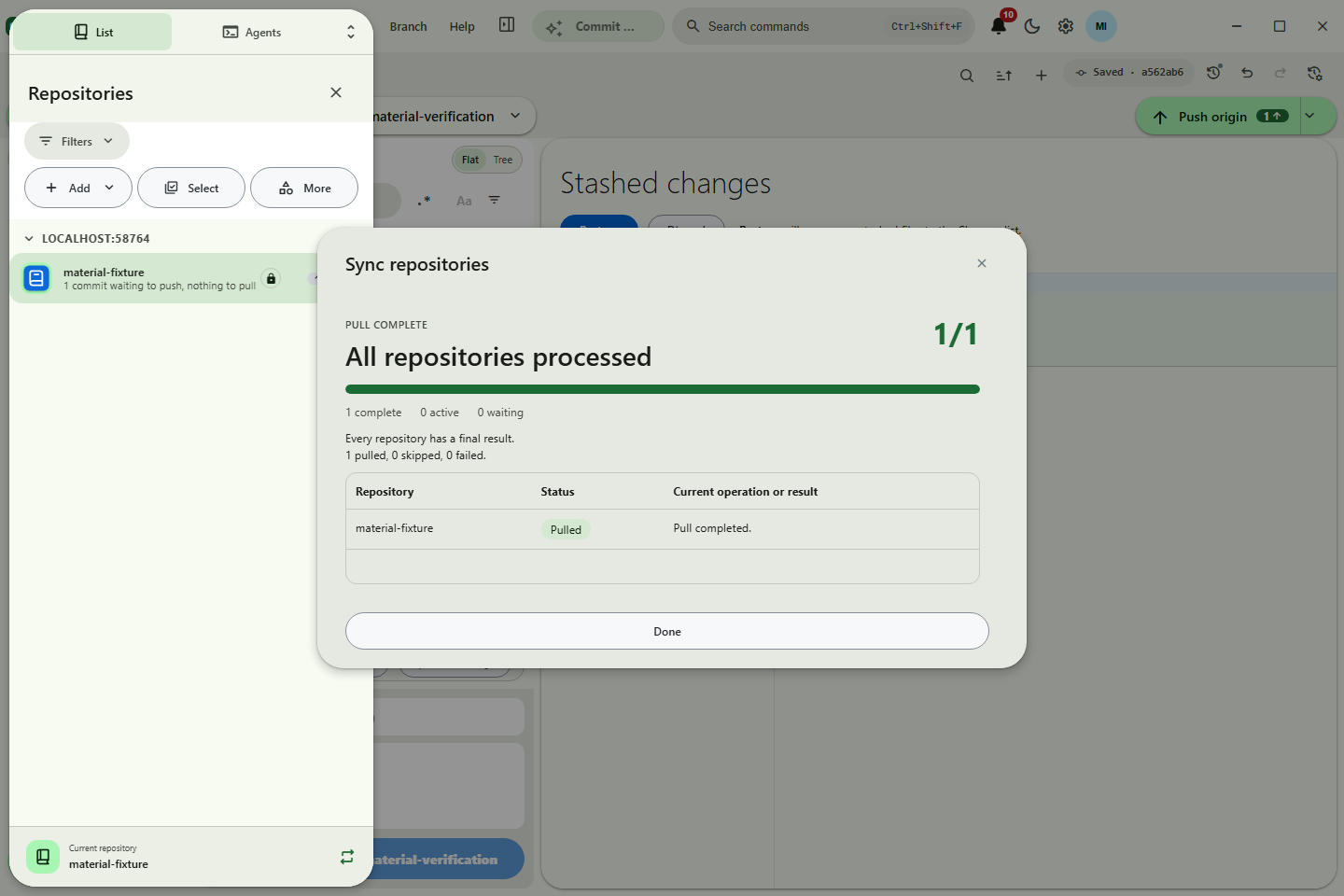
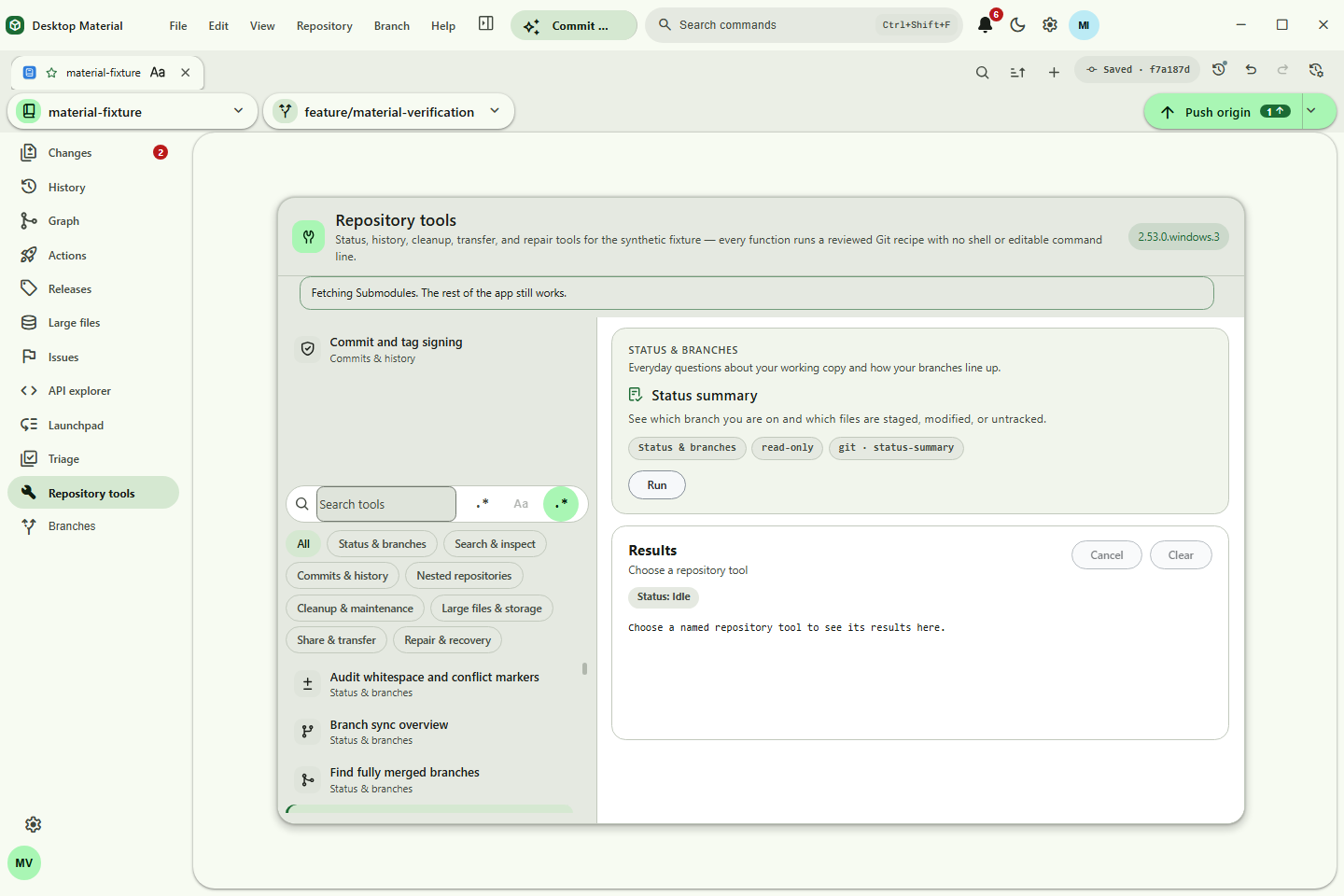
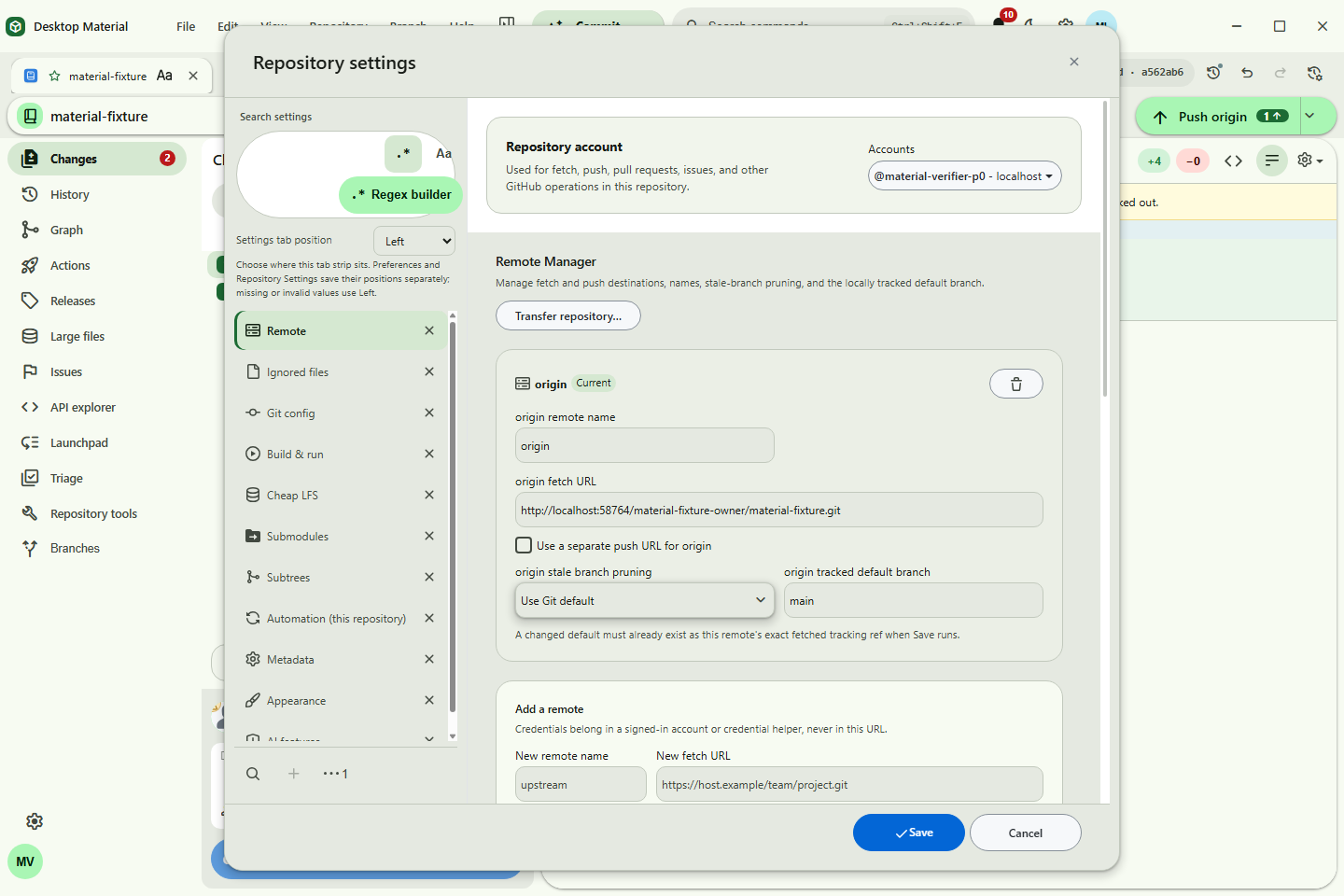
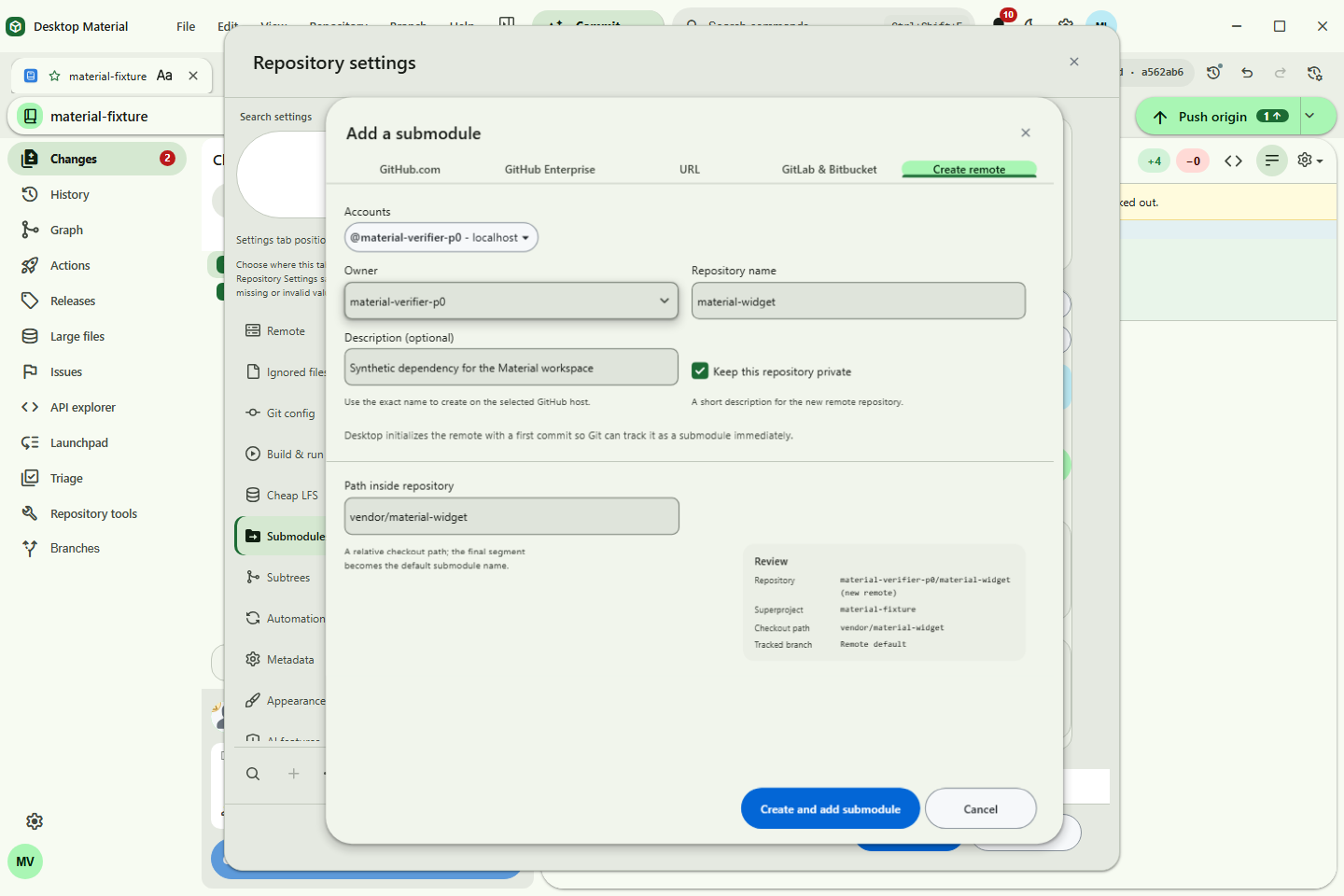
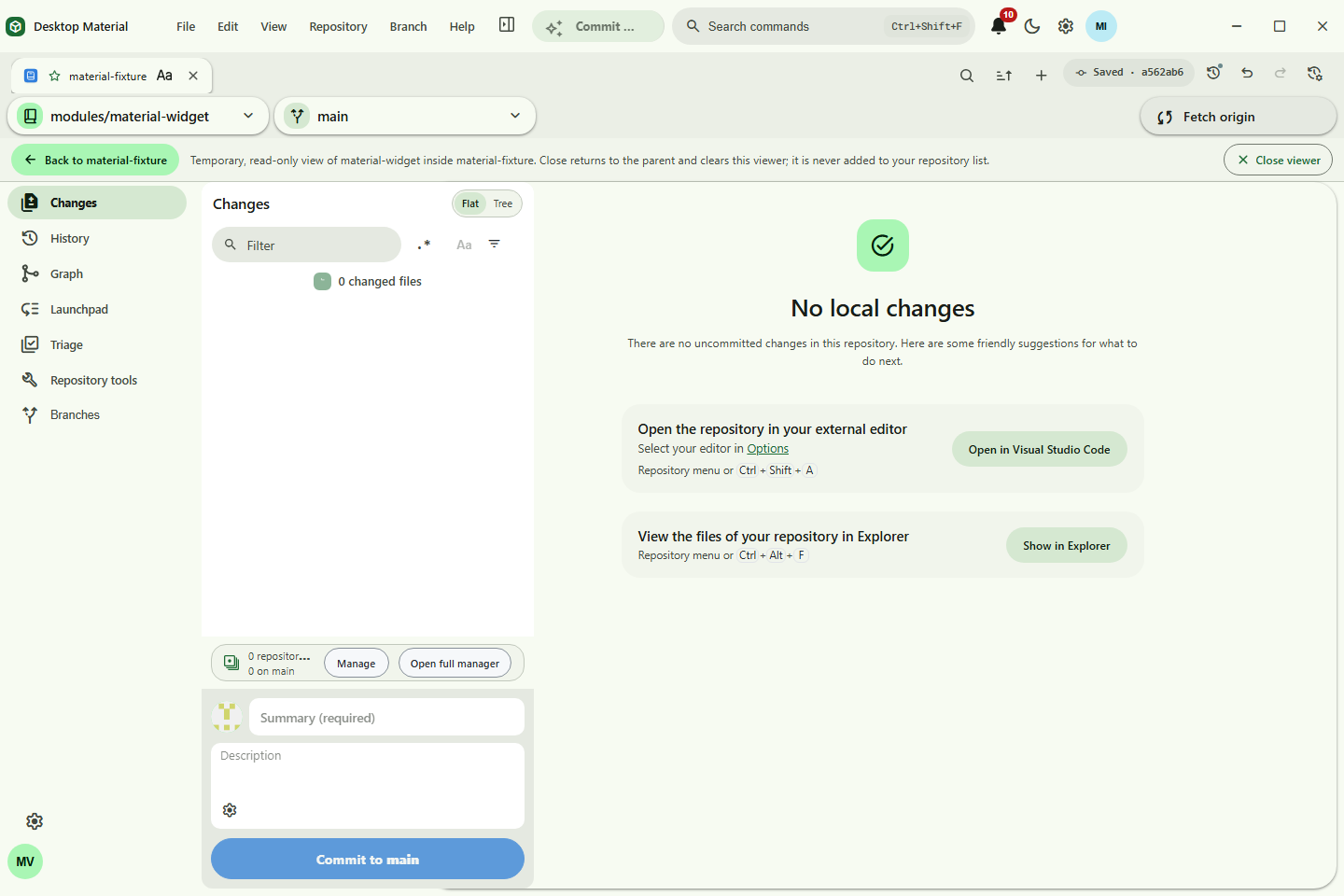
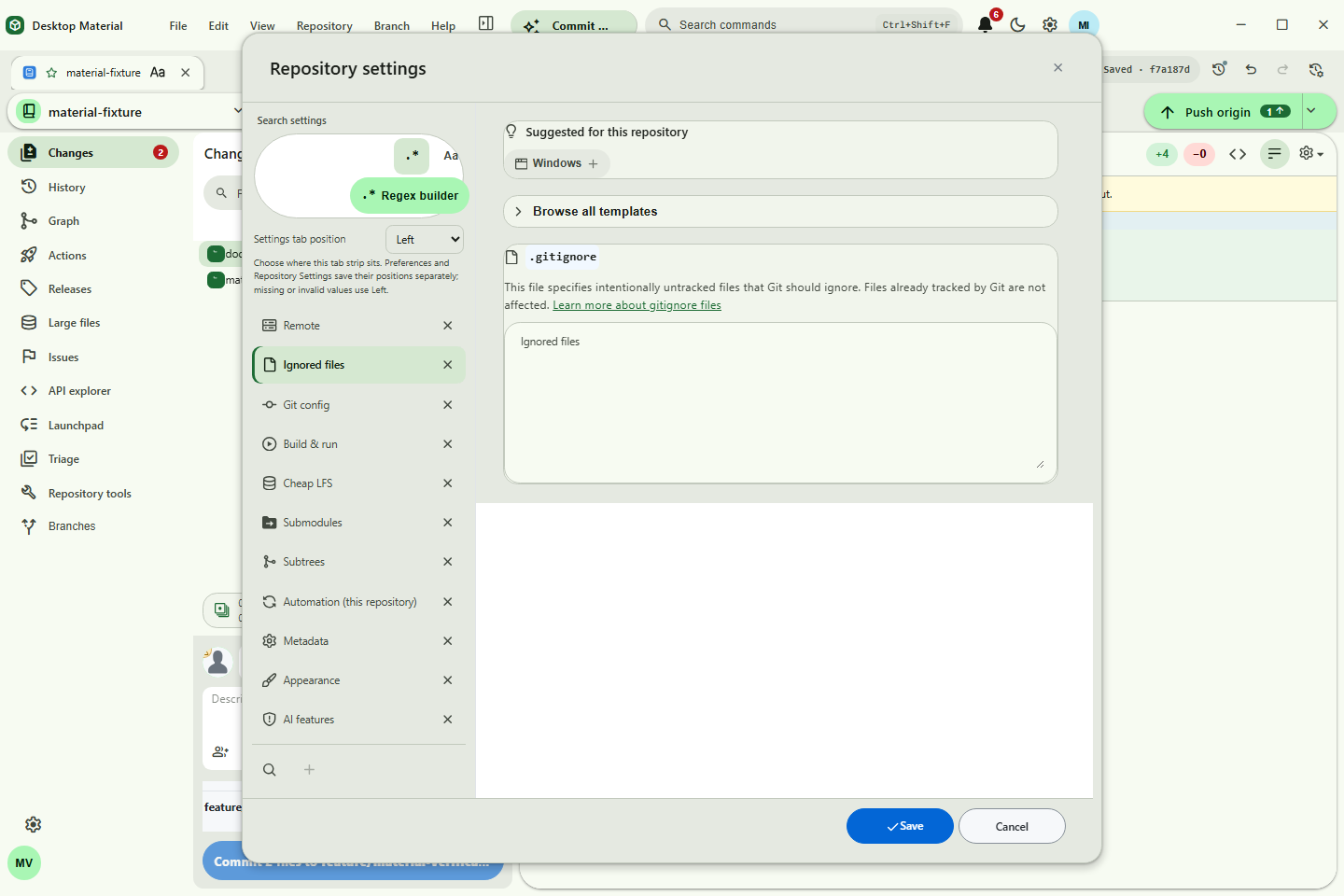
Right-click a repository and choose Open in new window. Worktree context menus offer Open Worktree in New Window as well. Each window maintains its own selected repository and repository tabs, and native/menu/CLI actions route to the correct window. Closing and reopening the app restores the persisted window tab state.
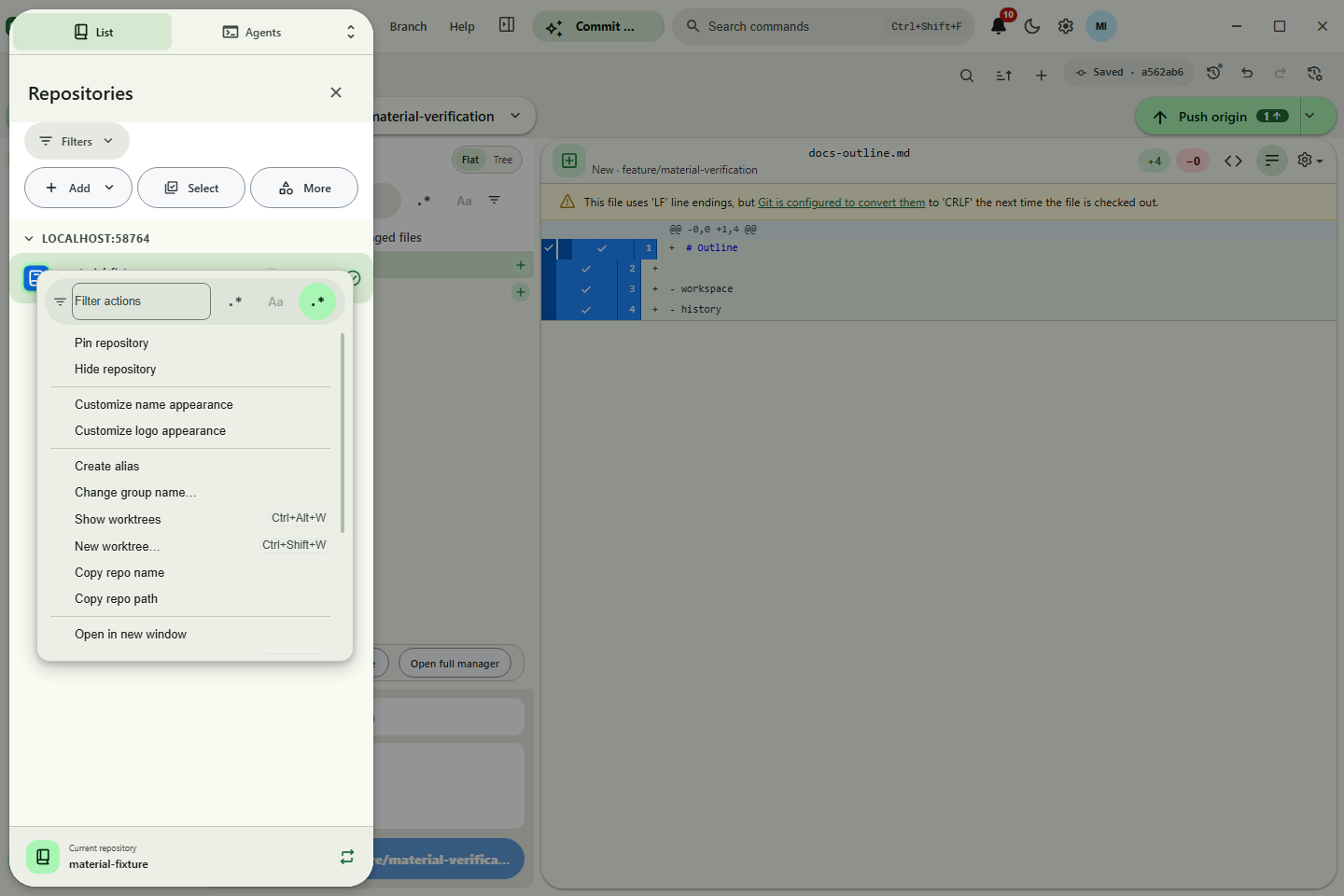
Open Settings → Agent access and turn on Enable local agent server. The panel shows the random loopback address, MCP URL, and bearer token; reveal/copy the token only for a trusted local client, and use Regenerate token to disconnect existing clients immediately.
For the phone-first site, select Paired LAN devices, start the server, and choose Open mobile
connection page in the Mobile connection card. Desktop Material replaces any old pairing code
and opens a fresh five-minute one-use /connect link in the default browser. The secret stays in the
URL fragment, so it is not sent to the site server, and the mobile page removes it from browser
history before exchange. Selecting the button again invalidates the previous code. In Local-only or
stopped-server state, the card remains visible and explains which prerequisite is missing instead of
opening an unusable link.
Set the remote-site address and optional HTTPS gateway in the same panel before pairing. Direct LAN HTTP authenticates but does not encrypt traffic; use a trusted private network or configured HTTPS gateway. A browser-open failure reports a generic error without copying the pairing secret into logs.
- HTTP-capable MCP clients connect to the displayed
/mcpURL with anAuthorization: Bearer …header. - Stdio-only clients run
node script/agent/mcp-stdio-proxy.js. - Scripts can start with
node script/agent/desktop-agent.js infoand use the fallback command-line client for the same bounded command contract.
The contract covers account/repository/tab discovery, repository status, single/batch clone, commit, fetch/pull/push, branch creation/merge, tab selection, automation status/runs, Actions workflow dispatch, and the active profile's repository-bound named API read functions. It never returns provider credentials. See Agent API for command and security details.
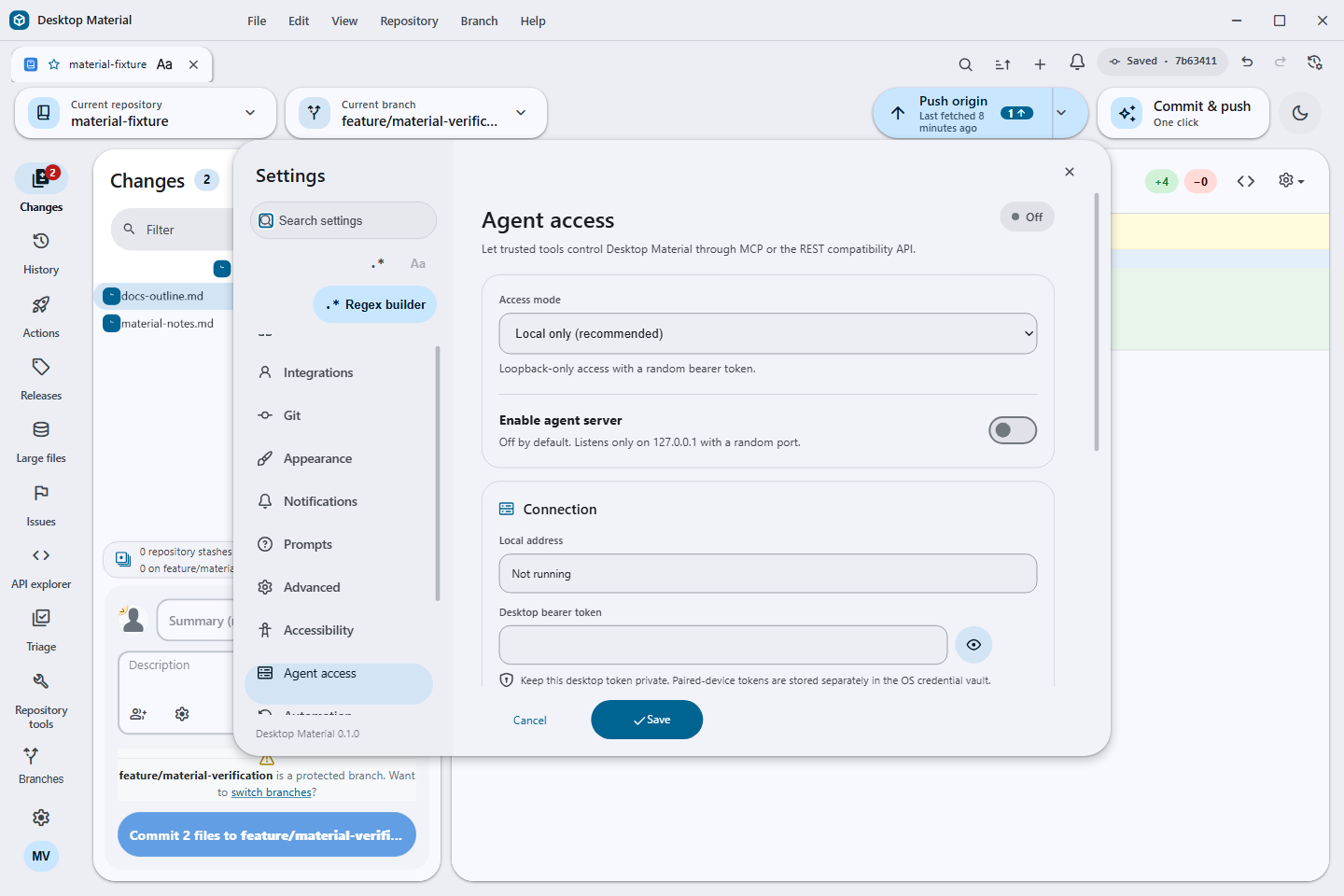
Next: Automation · Submodules · Regex Guide · Developer Guide