Getting Started
- Download the installer for your OS from GitHub Releases:
-
Windows:
DevTent Setup x.y.z.exe -
macOS:
DevTent-x.y.z-arm64.dmgor…-x64.dmg -
Linux: AppImage or
.deb(x64 / arm64)
-
Windows:
- Run the installer. On Windows, if SmartScreen warns about an unsigned app, choose More info → Run anyway (OSS builds may be unsigned — see SIGNING.md).
On first launch DevTent opens a short setup card:
- Leave Install recommended stack checked (PHP 8.3, Nginx, MySQL, mkcert).
- Leave Start services after setup checked if you want the stack running immediately.
- Click Get Started.
DevTent creates its portable root (for example c:\devtent on Windows) and downloads runtimes into bin/. No folder picker is required.
Coming from Laragon or another stack? Finish setup first, then use Settings → Transfer → Import environment. The source folder is never modified.
After setup, look for the tent icon in the system tray (notification area). Click it for the quick panel:
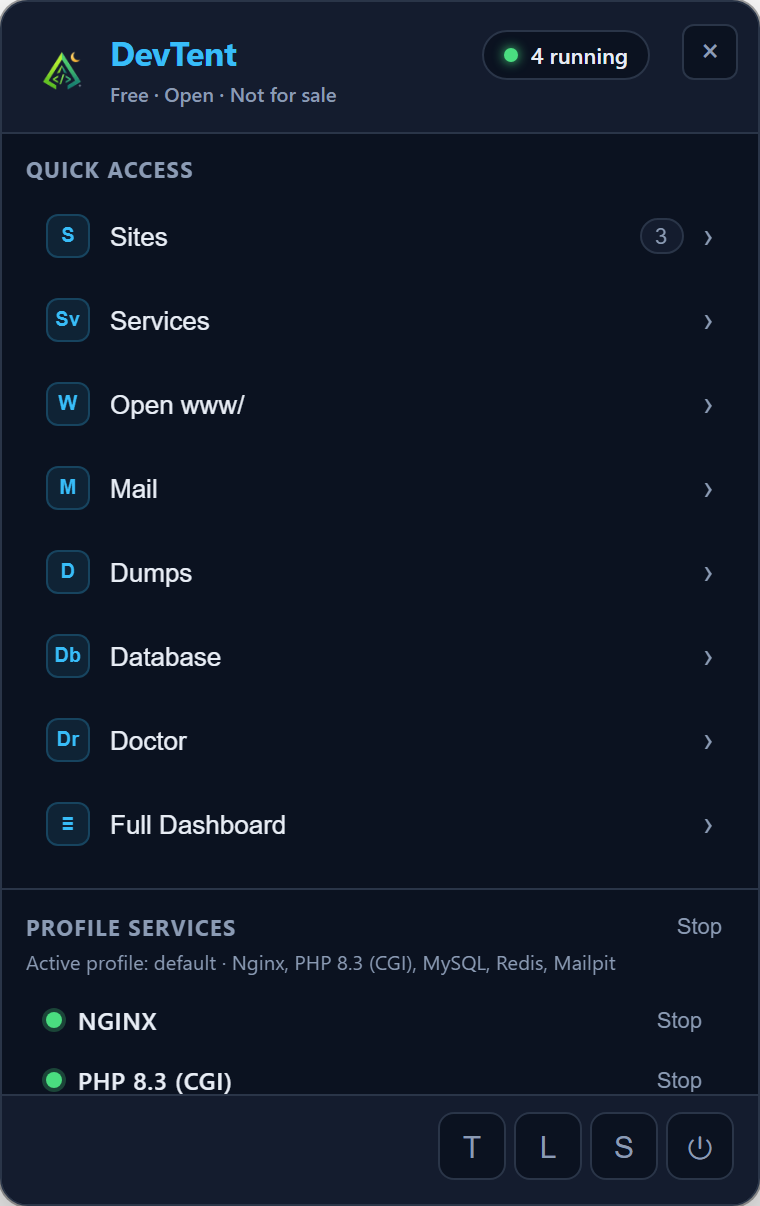
From the tray you can:
- Start / stop profile services
- Open sites, Mail, Dumps, Database, Doctor
- Switch profiles
- Open the full dashboard
Use Full Dashboard in the tray, or run:
devtent open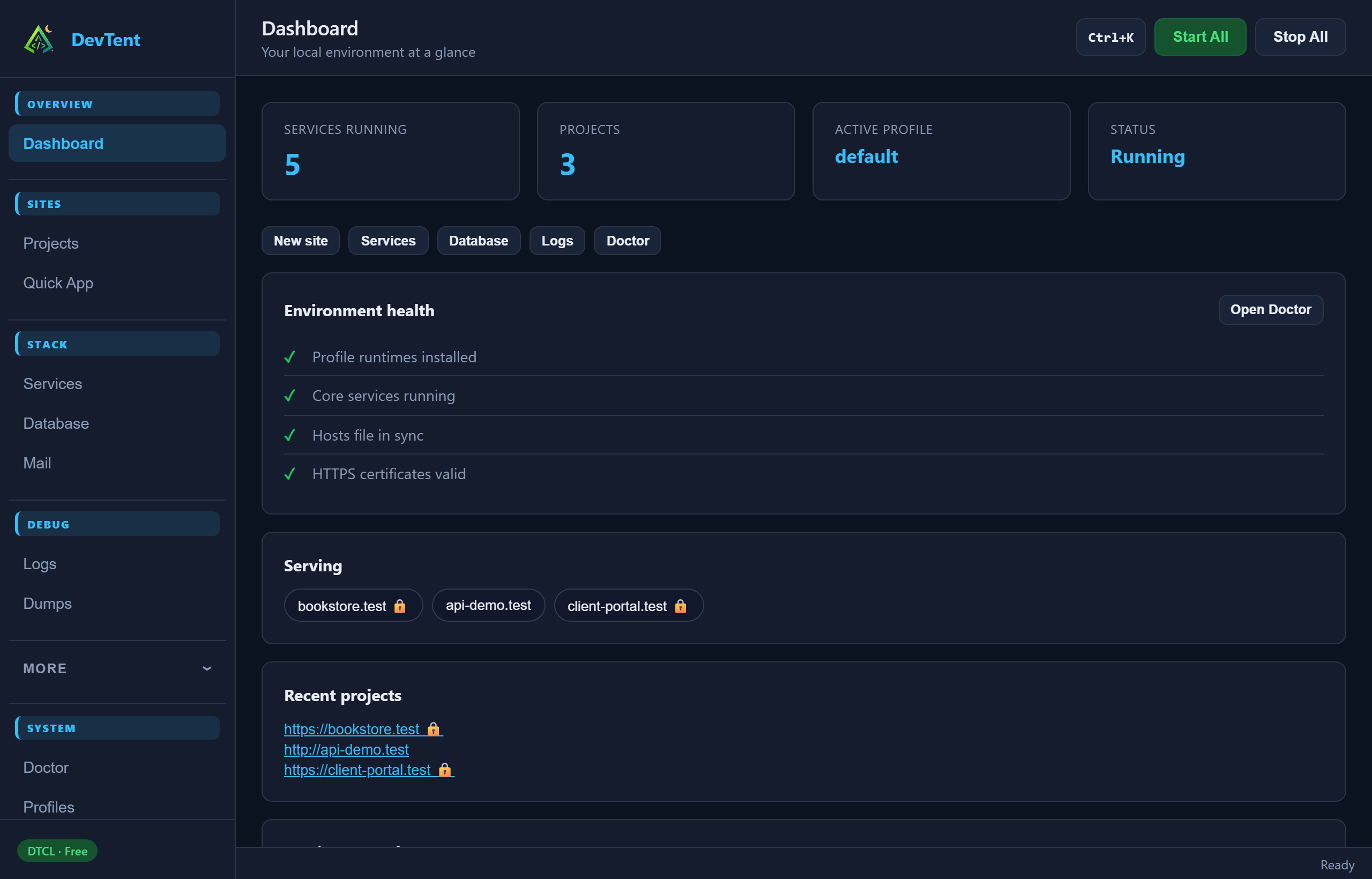
The dashboard shows stack health, sites you’re serving, and shortcuts (New site, Services, Database, Logs, Doctor).
- Open Quick App (sidebar → Sites, or dashboard New site).
- Pick a template (Laravel, WordPress, plain PHP, …) and a project name.
- Click Create Project.
- Open
https://yourname.localhost(default) — no hosts-file admin needed.
Prefer .test domains? Switch under Settings → General → Domain suffix, then Projects → Sync virtual hosts (and approve the admin hosts prompt once if needed).
| Key | Action |
|---|---|
Ctrl+K / ⌘K
|
Command palette |
1–9
|
Jump primary views (Dashboard → … → Settings) |
S |
Start all services |
R |
Refresh |
D |
Open Doctor |
/ |
Command palette |
Next: Sites & Projects