EWCv3.3 Initial Setup for T‐series
[TOC]
This document covers the necessary steps to set up and start the T-series chamber with ESPEC Web Controller, Version 3.2 and later, for your application. The procedure in this document can be performed by ESPEC service technician, contractor or the technically-oriented owner of the T-series chamber.
The T-series chamber with ESPEC Web Controller (EWC) can operate as a standalone system or both as a standalone and networked system. The advantage of each is listed in the following table.
| Standalone System | Networked System |
|---|---|
| No network connection is required. | System can join DHCP or static network. |
| System can operate in complete isolation. | Remote access to EWC by authorized users |
| The touchscreen provides complete control and operation of EWC and the chamber | Any web-based device on the network can access and control the chamber. |
| Update or upgrade is provided via USB. | Update on EWC is provided via Mender cloud service. |
The following sections provide different scenarios how you may set up your T-series chamber and EWC to provide the optimal and operational versatility.
By default, your T-series chamber with EWC and its touchscreen is configured to operate as a standalone system. Such a system, in total isolation, offers complete control and operation via its dedicated HMI (see Figure below).

To start using your T-series chamber with EWC,
-
follow the safety protocol outlined in the chamber operation manual
-
plug in the main power
-
turn on the main switch
When EWC starts for the first time, it presents a Setup Wizard to help configure its operation as a standalone system or as a networked system. The following steps guide you through to complete the Setup Wizard for a standalone system. This procedure involves assigning a new password for the administrator account, setting up a password recovery e-mail and network settings (next section). A network configuration is outlined in Section 3.
-
Login: Log in with User Name as admin and password as admin using the floating keyboard. Touch an area outside of the Setup Wizard window (e.g., the menu bar) to expose the ACCEPT button, then touch it to log in.
-
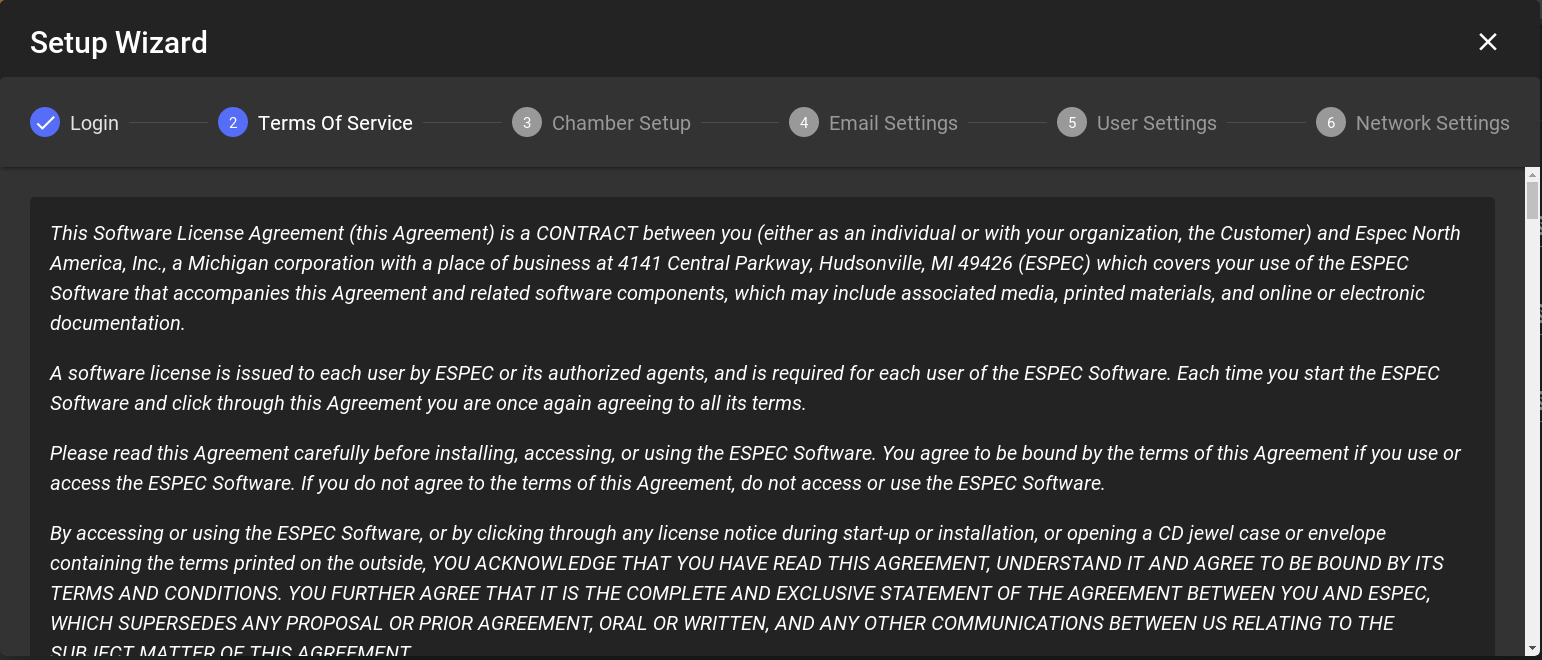
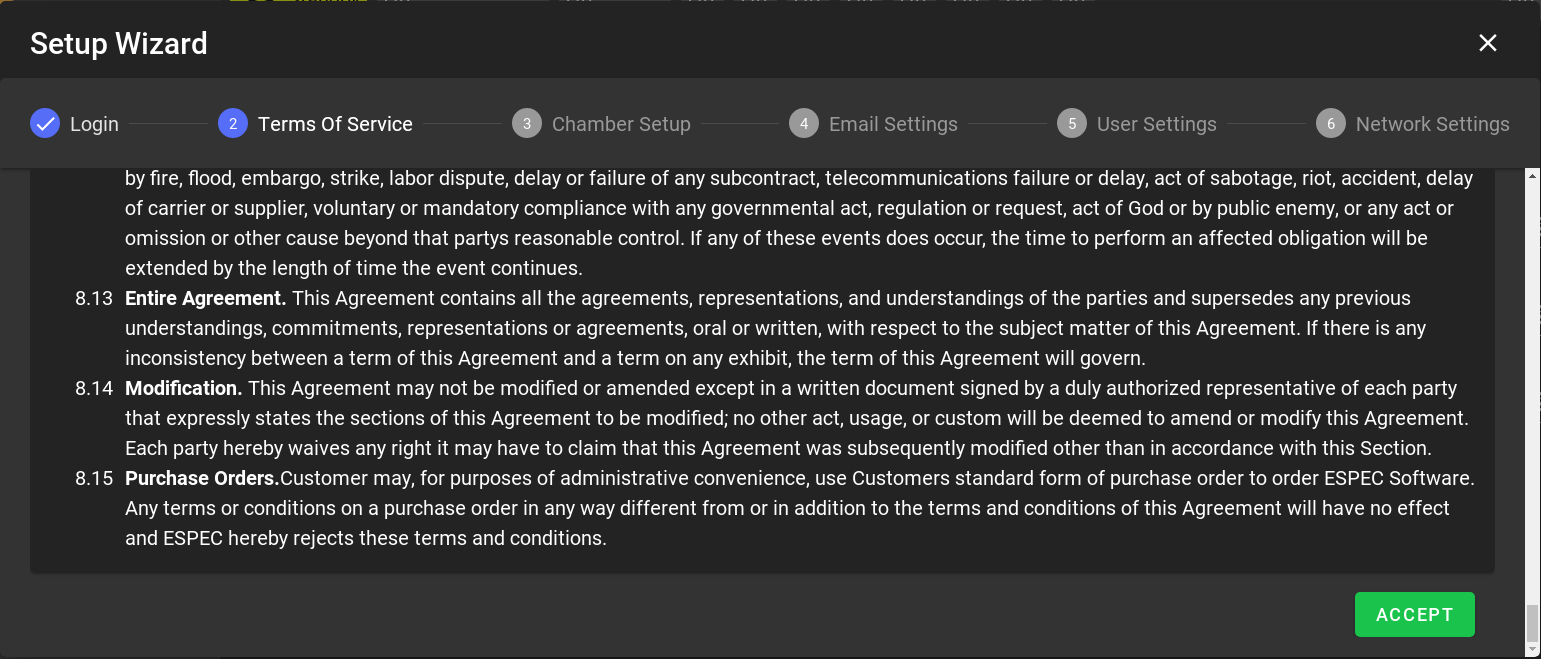
Terms of Service: Swipe the touchscreen upward to read through the Terms of Service, then touch ACCEPT to accept the terms.
If EWC registration page appears as depicted in Figure [registration-issue], contact ESPEC customer service for detail about your EWC registration.
-
Email Settings: For a standalone system, this setup page can be left with its default setting. Touch the ACCEPT button to continue. Note: Account recovery e-mail and alert e-mail setup can be configured later using the Settings menu after your EWC has joined a network and can access the Internet.
-
User Settings: Change your admin password to something secure to protect your chamber and EWC.
-
Enter current password: admin
-
Enter new password; touch the menu bar to expose the third field.
-
Tab on the third field and enter new password, again.
-
Touch ACCEPT.
NOTE: An error message, as depicted in Figure [admin-pswd-error], will be displayed if a new password is not entered.
-
-
Network Settings: For a standalone system, network configuration is empty, as there is no connection to the outside world. Touch ACCEPT to continue.
-
The Setup Wizard is complete; EWC displays its main home page in Overview mode and is now ready for chamber operation.
-
Single-User or Multi-User:
-
If multiple operators need access to control the chamber, they each should have an account on the system. Refer to Section [appendix-a-technical-support] on how to access the embedded manual and proceed to the subsection under the title “User Settings” to create different accounts and privileges for these operators.
-
If this is a single-user system, a separate account (from the administrator account) should be created for daily operation.
-



Your T-series with EWC can operate both as a standalone and/or networked system to allow authorized users to access and control the chamber remotely from any device on the network.

By default, EWC applies DHCP to obtain an IP address assigned by the DHCP server to join the network automatically.
Complete the following steps to connect your EWC to a DHCP network.
-
Plug an RJ-45 Ethernet cable into the Ethernet port (EPO port) at the front of the chamber, while the system is still running.
-
Plug the other end of the cable into an Ethernet port (or a router) that connects to the main network.
-
In less than a minute (30 seconds), touch the network icon on the upper-right corner to view the IP address assigned for eth0 (indicated by the arrow in the figure). Its IP address (on eth0) can be used to access EWC from any device on the network. Note: The IP address assigned to eth1 is used for internal communication between the T-Series PLC and EWC.
-
Your PC or laptop must also join the main network (as shown in the above diagram) in order to access EWC via its IP address assigned on eth0.
-
From any device on the network, open a Web browser and, in the URL, navigate to: http://IP-address/, where IP-address is the IP address assigned for eth0. According to the IP address depicted in the previous figure, the URL is: http://10.30.100.165/

By default, if EWC detects a DHCP server on the network, it first applies DHCP protocol to join that network. If DHCP service is not available, EWC uses its preconfigured Class C static network with the following configurations:
-
IP Address: 192.168.0.83
-
Subnet Mask: 255.255.255.0
-
Gateway: 192.168.0.1
This static network protocol occurs when EWC is connected directly to a computer or a network hub (without DHCP service) via a cross-over or standard Ethernet cable. Modern devices can connect directly to each other with a standard CAT 5/6 cable.

In order for EWC to use its predefined static IP address, your PC must be configured with the following settings:
-
IP Address: 192.168.0.84
-
Subnet Mask: 255.255.255.0
-
Gateway: 192.168.0.1
-
Preferred DNS server: 8.8.8.8
-
Alternate DNS server: 8.8.4.4
Note: 192.168.0.84 is the recommended IP address; your PC can use any IP address except 192.168.0.83.
Complete the following steps:
-
Hold down the Windows key and press R to launch the Run Command dialog box.
-
In the Run dialog box, enter ncpa.cpl into the Open box field and press Enter.
-
Point and Right-Click the “Local Area Connection” icon, then click Properties from the drop-down menu (as illustrated in the following figure). NOTE: The Local Area Connection icon is the one connected to a hub (or EWC via a straight-through or crossover Ethernet cable). It is important to access the correct icon in case the PC has multiple Ethernet ports.
-
In the “Local Area Connection Properties” window, confirm that there is a check mark placed in front of “Internet Protocol Version 4 (TCP/IPv4)”, as illustrated in the following figure. If not, check it. Click to highlight “Internet Protocol Version 4 (TCP/IPv4)” and then click Properties in the lower-right corner.
-
In the “Internet Protocol Version (TCP/IPv4) Properties” window, turn on the radio button for “Use the following IP address:” and enter these settings (see the figure below):
-
IP Address: 192.168.0.84
-
Subnet Mask: 255.255.255.0
-
Gateway: 192.168.0.1
-
-
In the “Use the following DNS server addresses:” section, enter the following address (as shown in the following figure):
-
Preferred DNS server: 8.8.8.8
-
Alternate DNS server: 8.8.4.4
-
-
Turn on “Validate settings upon exit” with a check mark and click OK, as illustrated in the following figure.
-
Click OK to close “Local Area Connection Properties” window.
-
Close out the Network window.
-
Plug an RJ-45 Ethernet cable into the Ethernet port (EPO port) at the front of the chamber.
-
Plug the other end into the PC Ethernet port (or a router).
-
In less than a minute (30 seconds), touch the network icon on the upper-right corner to confirm that eth0 has been assigned to 192.168.0.83 as its IP address (indicated by the arrow in the Figure).
-
To access EWC, open a Web browser on your PC and navigate to: http://192.168.0.83/
-
Proceed to Chapter 5 (User) in the User’s Manual to begin operating the chamber.


IMPORTANT NOTE: If you click SKIP on any of the above Setup Wizard pages, they will reappear every time you restart and log into EWC.
This section briefly outlines the procedure to confirm the correct chamber interface and configuration. By default, correct chamber interface and configuration were completed at the factory. However, it is important to go over this procedure to ensure the correct settings on your T-series chamber for proper operation and application.
To access the Chamber Interface page, log in as admin via the User menu in the menu bar; access the Settings menu, then access the Chamber Interface submenu. The following figure depicts a typical chamber interface configuration with six items (listed below) with labels for cross-referencing with those on your chamber.

-
Status Tab: This status tab confirms that EWC is communicating with the T-series chamber. In case of communication error, this status tab is marked in red with an error notification.
-
SIMPLE mode: By default, a SIMPLE configuration is displayed.
-
Chamber Category: Confirm that the correct type was selected for your T-series chamber.
-
Model: Confirm that the correct model was selected. The drop-down menu provides a list of different models for selection.
-
Vibration: If your chamber has a vibration feature, this option will enable it.
-
Options: Additional optional features, such as Fiber Optic Light, can be selected (i.e., enabled) for operation.
The contents displayed in this Chamber Interface page outline the settings used to configure the chamber; these contents were applied to the settings and stored in the EXPERT mode (in yaml file). Thus, what is shown may not necessarily represent the current chamber settings. That information can be found on the list in the EXPERT mode. However, a simple confirmation can be done by checking all the available options and features displayed in the EWC status bar, as shown in the above figure, and to ensure there are no error notifications.
This Chamber Interface page can be used to reconfigure and apply the chamber settings.
The Operation Manual for ESPEC Web Controller is available in two formats, embedded PDF and online wiki.
-
Embedded PDF: The embedded PDF is accessible from the MANUAL tab under the About menu, as depicted in Figure [embedded-manual]. To view the PDF manual, access the buttons according to the numbered labels in the figure.
-
Online Wiki: The EWC v3.3 online wiki manual for the T-series is freely available and accessible at:
