Termite RS232 User Guide
This guide provides instructions for configuring Termite to communicate with and control ESPEC chambers equipped with GL, P300, SCP220, and ES102 controllers using an RS-232C serial connection.
-
Download and install Termite on your PC or execute it from the download folder.
-
Go to: https://www.compuphase.com/software_termite.htm to download Termite Version 3.4. Similar to PuTTY, Termite is a free software for personal or commercial application.
-
Download Termite Version 3.4, "Complete Setup".
-
Install it on your PC. Note: Termite does not require installation; you can simply execute and use it from within the folder. But it is more convenient to install and use it.
-
-
Determine what COM number is being assigned to your RS232-to-USB interface. One quick way to check this is as follows:
-
Open an MS DOS command prompt (in the Search bar, enter cmd and press ).
-
Without yet plugging in the RS232-to-USB cable, issue chgport and study the list in the output.
-
Plug in your RS232-to-USB cable and issue chgport (again) and study the list in the output. A new COM? (where ? is the new number) will be listed. Example: As shown in the following figure, COM4 has been assigned to my RS232-to-USB cable. This COM? will be used in the Termite setting (next step).
-
-
Launch Termite and configure communication settings with the following steps:
-
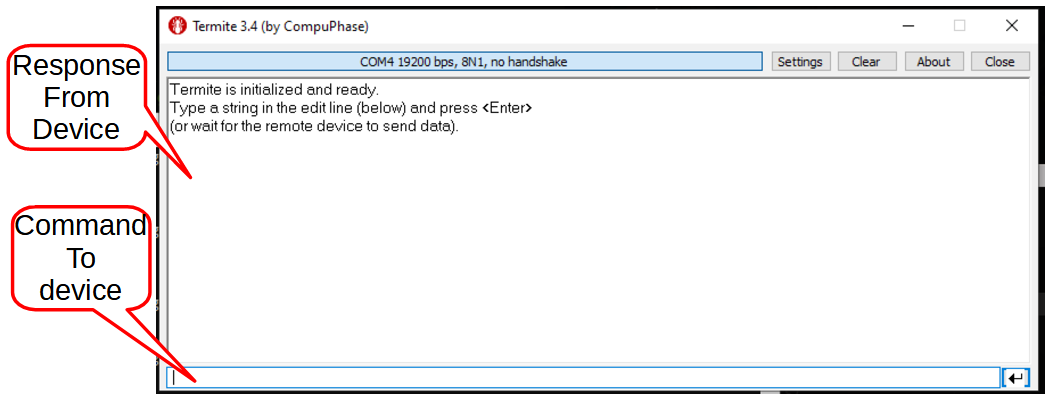
Launch Termite. The following figure shows the Termite UI.
-
Click (see arrow in the following figure) to open Serial port settings window. Select COM? that your host OS is using. The figure shows my COM4 as an example. Select baud rate, data bits, stop bits, parity, flow control and forward according to the figure. Make sure to select and check Append CR-LF under the Transmitted text column. Simply follow all the settings depicted in the figure.
-
Click
-
-
Issue commands to the chamber: Termite command prompt is at the bottom of the UI. Responses returned by the chamber will be displayed in the main buffer, as shown in the following figure.
-
Enter command: To read the ROM information of the chamber, issue ROM? and press :
The following figure shows how command is entered and Figure [6] shows how the response from the chamber is diaplayed. The display shows both the command and the response.
-
Commands can be issued in lower-case or capital letter. The next several figures and illustrate how to read temperature and probe chamber operating mode.
Refer to the P300 communication manual to decipher the response from the chamber.
-