Repository navigation
Extensions
An extension adds to Sextant what it does not have out of the box: a page for your own custom resources, a panel in the details of an object, an action in its menu, a column in a table, a button in the dock, a section in Settings. Extensions are small web pages (HTML, JavaScript, CSS) that you install from a file, from a GitHub release or from a folder on your disk.
You stay in control:
- an extension asks for permissions in the same model as AI agent access: which clusters, which namespaces, which kinds of resources, which actions; you see them, in plain words, before anything is installed;
- every call it makes to a cluster is checked by Sextant against what you allowed; anything else is refused;
- changes and deletes ask you first in the Sextant window (unless the extension's rule says otherwise, which you see at install);
- Secret values never reach an extension unless it asks for Secret values and you agree;
- an extension runs in an isolated frame with no network and no way into Sextant's window, files or credentials;
- every call to a cluster is written to an activity log.

Contents: What an extension can do · Install an extension · Permissions and consent · Confirmations · Activity log · Manage extensions · Security · Limits · Where the files are · Troubleshooting
Want to write one? See Writing extensions.
An extension declares what it adds in its manifest; Sextant draws the menu items, buttons and columns itself and shows the extension's own page wherever its content goes.
| What it adds | Where you see it |
|---|---|
| Pages | An item in the cluster's sidebar, in one of Sextant's sections (Workloads, Config, Custom Resources, …) or in a section of the extension's own, below Sextant's. The page fills the main area. |
| Details sections and tabs | In the details panel of the kinds it names: a section among Sextant's own (between the conditions and the YAML), or a tab next to Overview. |
| Actions | A button in the details panel and an item in the row menu of the table, for the kinds it names. Running it opens a window with the extension's content. |
| Table columns | A column in the table of a kind, read from the object by a JSONPath (like the columns of a CRD); no extension code runs for it. |
| Dock buttons | A button in the dock bar that opens a dock tab with the extension's content. |
| A settings section | Under the extension's row in Settings → Extensions. |

Through Sextant, an extension can:
- list the clusters it was allowed and the kinds they serve;
- list, read and watch objects (Secrets always without their values);
- apply YAML, patch and delete objects;
- read the last lines of a pod's log;
- read one value of one Secret, only with the Secret values permission;
- open the details of an object, open a page, show a short notice;
- keep up to 1 MB of its own data on your computer.
An extension cannot:
- run code outside its frame: there are no backend extensions, no programs, no native code;
- reach the network, your kubeconfig, tokens, Sextant's settings or any file on your disk;
- run commands in containers, open shells or port forwards, or use Helm;
- change or delete the pods behind a node shell, whatever its permissions;
- add tools to the MCP server;
- do anything in a cluster you did not allow it, or anything at all while it is disabled.
Open Settings (the gear at the bottom of the cluster list) and find Extensions. There are three ways to install one; every way ends in the same consent window (see Permissions and consent), and nothing is installed or run before you press Install there.
Install from file… and choose a .sextant-ext or .zip file (a .sextant-ext file is a zip archive). Sextant checks the package (see What Sextant checks) and shows the consent window. The extension is copied into Sextant's data folder; the file you chose is not needed afterwards.
Install from URL…, paste a link to a file attached to a GitHub release and press Download and check. Only links of this form are accepted:
https://github.com/<owner>/<repo>/releases/download/<tag>/<file>
Nothing else: no other site, no http://, no other port, no query string. The download may be redirected only to GitHub's own file hosts (objects.githubusercontent.com, release-assets.githubusercontent.com), it may be at most 20 MB, and it is cancelled after 60 seconds. The file is then checked like a file you chose yourself.
Load unpacked folder… and choose a folder that has sextant-extension.json at its top (for example the dist/ folder of an extension you build). After consent, the extension runs straight from that folder:
- it is marked Development in the list;
- Sextant looks at the folder every second while it is open; when a file changes, the extension's frames reload, and when the manifest changes, its pages, sections, actions, columns and buttons are registered again;
- if the manifest now asks for more than you allowed, the extension is paused until you agree again (see Paused extensions);
- Reload in its row reloads it by hand;
- removing it does not delete the folder.
Entries whose name starts with . (such as .git) and node_modules folders are not part of the extension: they are skipped when the folder is read and never served.
Before the consent window opens, a package must pass every check, otherwise you get an error and nothing is installed:
-
sextant-extension.jsonis at the top of the package (not in a folder inside it), at most 256 KB, and valid; an error names the field, for examplesextant-extension.json: contributes.pages[0].id: …; - the manifest's
sextantApiis one this Sextant supports (now1); - the manifest's
entryfile is in the package; - every path is a plain relative path inside the package: no
.., no absolute path or drive letter, no\or:, no symbolic links, no two names that differ only by case, no names Windows reserves (nul,con,com1, …); - at most 2000 files and 50 MB unpacked (counted while unpacking, not from what the archive claims); encrypted archives are refused;
- the id is not already used by an extension installed from another kind of source (see Updates).
A checked package waits for your answer for 10 minutes; after that, choose it again.
The consent window shows the extension's name, description, Author, Version and Source, then What it adds (its pages, sections, actions, columns, dock buttons and settings section by title) and What it may do.

What it may do has two parts.
Clusters: All clusters (every cluster Sextant knows, now and later), or Only the clusters named …. Clusters are named by their kubeconfig context name. A name covers every context with that name, from every kubeconfig source you have (your KUBECONFIG, ~/.kube/config, added files, pasted kubeconfigs and cloud clusters). If two of your sources have a context called staging, an extension allowed staging can reach both.
Access: one line per rule, such as "Read Pod, Deployment (apps) in all namespaces" or "Modify ConfigMap in the namespace team-a". A rule has:
-
namespaces: all namespaces, or only the listed ones;
-
kinds: all kinds, or only the listed ones (a kind is an API group and a kind, such as
apps/Deployment; custom resources included); -
actions:
Action Lets the extension Read List, read and watch objects Modify Apply YAML and patch objects Delete Delete objects Logs Read pod logs ("Read the logs of …") Secret values Read the value of a Secret key (shown with a warning, see below) -
whether it asks before running: a badge Asks before running or Runs without asking next to rules that Modify or Delete. Rules ask by default; an extension has to say otherwise in its manifest, and you see it here.
How rules work, exactly as for AI agents:
- a call is allowed when any rule covers its namespace, kind and action, and the cluster is one of the extension's clusters;
- if any covering rule asks before running, Sextant asks;
- objects that belong to no namespace (Nodes, Namespaces, PersistentVolumes, CRDs, …) are covered only by rules for all namespaces;
- an extension can never get Exec / shell or Port forward: those actions do not exist for extensions.
Secret values. When an extension asks for Secret values, the window shows a warning box "Reads the values of Secrets" and the rule says "Can read the values of Secrets …" in the warning colour. Without that permission an extension still sees Secrets (names, keys, labels) but every value is empty, whatever else it may do. Allow it only if you trust the author.
Install grants exactly what the manifest asks for; there is no partial consent. If you do not agree with something, press Cancel: nothing is installed. Sextant decides every call against what you agreed to, never against the manifest, and an extension cannot change what it was granted: the list of extensions and their permissions in settings.json is written only by Sextant itself, when you install, consent, enable or remove.
Permissions in the extension's row shows what you allowed (and, for a paused extension, what it asks for now).
When a call needs your approval, Sextant shows An extension asks to act in its window, the same dialog AI agents use. A window that is minimized or hidden in the tray (see Settings) is brought back and focused first:

-
Extension:
Extension <name>; Cluster; Action: what it wants to do and the API method (for example "Patch a resourceresources.patch"); Target: the object (for exampleWidget sextant-demo/demo-widget); Details: the patch or the first lines of the YAML, and the list of objects for a YAML with several documents. - Allow runs it; Deny refuses it.
- Without an answer in 2 minutes (the countdown "Denied automatically in …") it counts as denied.
- Requests wait in a queue, one dialog at a time ("N more requests are waiting").
- After you press Allow, Sextant checks the extension and its permissions once more: if you disabled or removed it meanwhile, the call is still refused.
- Reloading or closing the window declines whatever is waiting.
The extension gets a denied error when you deny or do not answer, and can show you why.
Every call an extension makes to a cluster is recorded. Extension activity in Settings → Extensions shows all of them (with a filter by extension); Activity in an extension's row shows only that one.

| Column | Meaning |
|---|---|
| Time | When the call came |
| Extension | Extension <name> |
| Cluster | The cluster it was about (empty for clusters.list) |
| Method | The API method, such as resources.list or resources.patch
|
| Target | What it was about, such as Pod in namespace default or Widget sextant-demo/demo-widget
|
| Decision | Allowed (the rules allow it without asking), Denied (no rule covers it, or the extension is not active), Approved by you, Declined by you, No answer |
| Result |
ok, or the error code (denied, notFound, forbidden, …) |
| Took | How long it took |
The log keeps summaries only: no Secret values, no YAML, no log lines; long texts are cut. It holds the last 2000 calls in extensions-audit.jsonl in Sextant's data folder. Clear (with a confirmation) deletes it. The extension's own data (storage) is not a cluster call and is not logged. The log stays after an extension is removed.
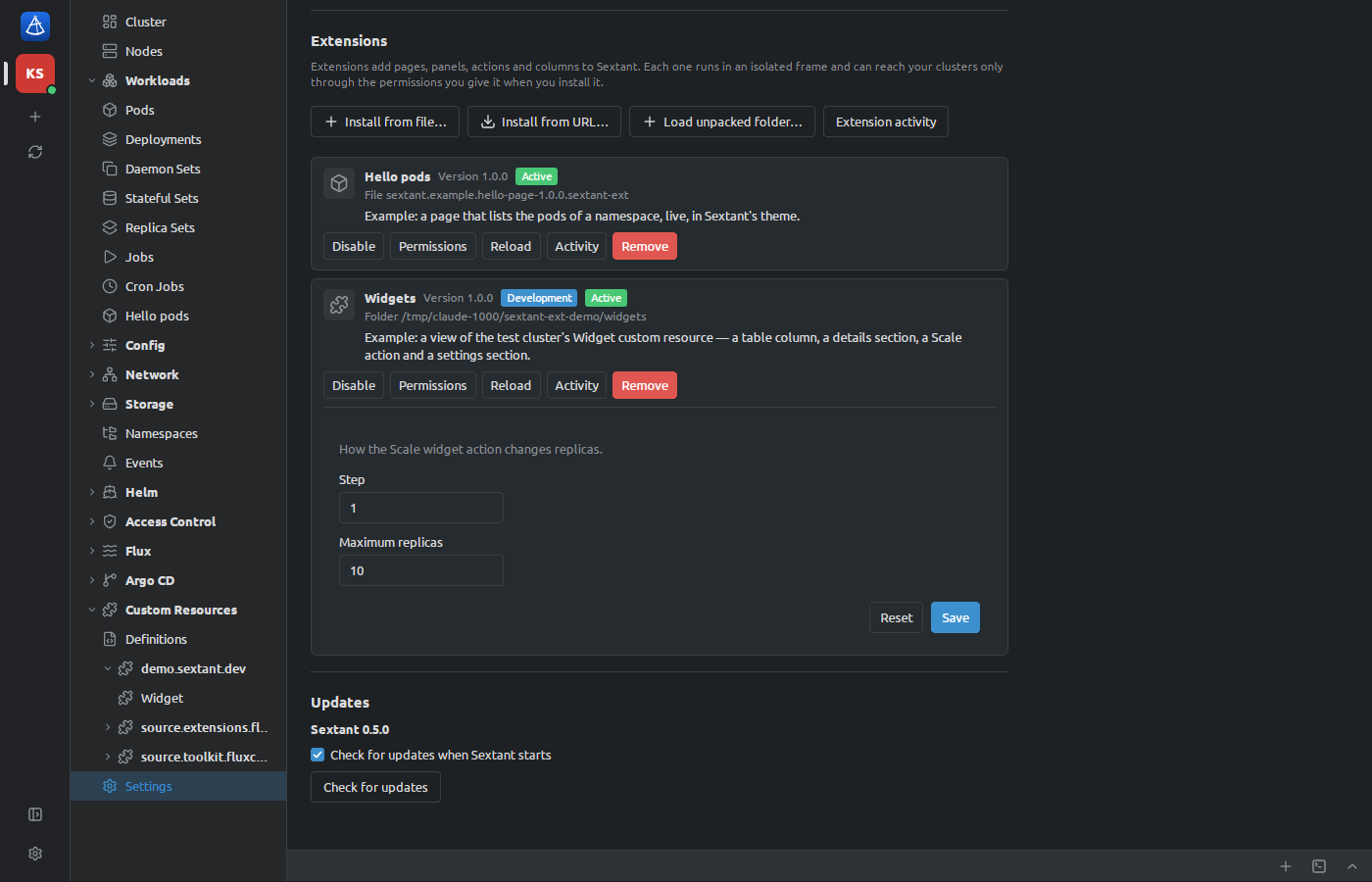
Each installed extension has a row in Settings → Extensions with its icon, name, version, where it came from (File …, a GitHub link, or Folder …), its description and its state:
| State | Meaning |
|---|---|
| Active | Enabled and within what you allowed: it shows and works |
| Disabled | You switched it off |
| Needs your approval | A development folder asks for more than you allowed: paused |
| Failed | Its manifest or files cannot be read; the row says why |
A development folder also has the badge Development.
The buttons:
- Enable / Disable: a disabled extension shows nothing, its files are not served, and every call it makes is refused.
- Permissions: what you allowed.
- Reload: reads the manifest again and reloads the extension's frames.
- Activity: its activity log.
- Remove (with a confirmation): removes the extension, its installed files and the data it stored. Your clusters are not changed. A development folder itself is not deleted.
An extension's settings section, if it has one, is shown under its row while it is active.
When you disable or remove an extension, or it gets paused, everything it added disappears at once: sidebar items, details sections and tabs, actions, columns and dock buttons; its open action windows and dock tabs close, and if one of its pages was open, Sextant shows the cluster overview instead. Its running watches stop, and a change it is still waiting to have confirmed is refused even if you press Allow.
To update, install the new version the same way: a file or a GitHub link with the same extension id. The consent window says Update …?, shows Replaces the installed version … and either:
- New permissions: this version asks for more than you allowed before; read the permissions again. Update grants what the new version asks for;
- Same permissions: it asks for nothing new.
An update keeps your Enable / Disable choice; the old version's files are deleted. A package installed from a file can be updated from a GitHub link and the other way round, but a development folder and an installed package cannot replace each other: remove the one before installing the other. A development folder can be loaded again only from the same path.
When the manifest in a development folder starts asking for more than you allowed, the extension stops (its contributions disappear and its calls are refused), and Sextant says so:

Review permissions (in the notice or in the row) opens the consent window with what it asks for now; Install there grants it and the extension runs again. A manifest that asks for less than you allowed keeps running with what you allowed; load the folder again to grant exactly what it asks for now.
-
Isolation. Each view of an extension is an
<iframe>withsandbox="allow-scripts allow-forms allow-popups-to-escape-sandbox"and withoutallow-same-origin: its origin is opaque, so it cannot reach Sextant's window, its commands (Tauri IPC), its storage or cookies. It talks to Sextant only by messages, and Sextant accepts messages only from that frame's own window; anything malformed is ignored. -
No network. The extension's files are served by Sextant itself (
sextant-ext://<id>/…; on Windowshttp://sextant-ext.localhost/<id>/…) with the policydefault-src 'none'; script-src <base> 'unsafe-inline'; style-src <base> 'unsafe-inline'; img-src <base> data:; font-src <base> data:; connect-src 'none'; form-action 'none'; sandbox allow-scripts allow-forms allow-popups-to-escape-sandbox, where<base>is the extension's own address (sextant-ext://<id>/, on Windowshttp://sextant-ext.localhost/<id>/): no requests anywhere, no scripts, styles or images from the internet or from another extension, and forms cannot be sent anywhere. Only the extension's own files are served, and only while it is active. - Checks in Sextant's core. The window passes a call on; the check is made in Rust, on every call, against what you granted and the extension's current state. Secret values are removed from objects before they leave Sextant. Node shell pods are never changed or deleted by an extension; if Sextant cannot read a pod to make sure, it refuses.
- No code for contributions. Menu items, buttons, columns and sections come from the manifest; Sextant registers them without running the extension.
- A failure stays inside. If an extension's page throws an error, its place shows "Extension failed: … · Reload"; the rest of Sextant keeps working.
- Not signed. Packages are not signed and there is no catalog. Install extensions from people you trust, and read the permissions: they are the real limit of what an extension can do.
| What | Limit |
|---|---|
| Package | 2000 files, 50 MB unpacked; a package file up to 58 MB |
| Download from a GitHub release | 20 MB, 60 seconds |
sextant-extension.json |
256 KB |
| A checked package waits for consent | 10 minutes |
| Development folder | looked at every second |
An extension's own data (storage) |
1 MB in all |
| Watches open at once | 32 per page of an extension |
| Objects in one list | 500 by default, 5000 at most |
| Log lines in one read | 200 by default, 2000 at most |
| Reads from the cluster | 30 seconds each |
| Changes (patch, delete) | 30 seconds each; applying YAML 30 seconds per document |
| Confirmation | 2 minutes, then denied |
Notice (ui.notify) |
500 characters, shown for 8 seconds, at most 4 at once |
| Activity log | the last 2000 calls |
In Sextant's data folder (see Settings for its place on your system):
| Path | What it holds |
|---|---|
extensions/<id>/<version>/ |
Installed extensions (not development folders, which run where they are) |
extensions-data/<id>.json |
Each extension's own data; deleted with the extension |
extensions-audit.jsonl |
The extension activity log |
extensions-pending/ |
Packages waiting for consent; emptied when Sextant starts |
The list of installed extensions, where each came from, whether it is enabled and what you granted are in settings.json (extensions), in the settings folder.
| What you see | What to do |
|---|---|
"This package cannot be installed" with sextant-extension.json: <field>: …
|
The manifest is wrong at that field; tell the author (or see Writing extensions). |
| "extension API N is not supported; this Sextant supports 1" | The extension needs another Sextant version. |
| "sextant-extension.json must be at the top of the package, not in a folder inside it" | The archive has an extra folder level; the author must pack the folder's content. |
| "The package is not safe to install: …" | A symbolic link, .. or another unsafe path in the package. |
| "Another extension with this id is already installed" | It is installed from another kind of source (a folder or a package); remove it first. |
| "This is not a link to a file in a GitHub release." | Use the link of the release asset (…/releases/download/<tag>/<file>), not of the release page. |
| "The download took too long" / "The file could not be downloaded" | Check your connection and the link, or download the file and use Install from file…. |
| "This install is no longer available" | More than 10 minutes passed since the check; choose the package again. |
| The extension is Failed | Its files are missing or damaged ("install it again"), or a development folder's manifest is broken; the row says which. |
| The extension is Needs your approval | Review permissions, see Paused extensions. |
| "Extension failed: …" in place of its content | An error inside the extension; Reload. If it stays, tell the author with the message. |
| The extension says Sextant denied something | It asks for something you did not allow, or you declined it. Its row's Permissions shows what you allowed; a wider grant comes only with a version (or folder) that asks for it. |
| Its pages or buttons are gone | It is disabled, paused, failed or removed: see its row in Settings → Extensions. |