Services
Now that you have completed the steps above, you can launch an existing Ros service or topic. A good example is the Turtlebot simulation. This will require you to open multiple terminal windows. But you will be learning how ROS works.
The Turtlebot Simulator is already installed, so you can jump in quickly by running it.
- Start the ros-visualization container with a
docker run(see above) - This will give you a cursor so attach a shell to the container to open a terminal window to run Turtlebot (see above)
- Now start
roscore, on the command line of the new shell type:
roscore
This will start the Roscore server, and you'll be ready to run a ROS Service. You should see something like this:
  ros@e52e7c314fb4:~$ roscore
  ... logging to /home/ros/.ros/log/f72a3a66-6ece-11ea-bea0-0242ac110002/roslaunch-e52e7c314fb4-292.log
  Checking log directory for disk usage. This may take a while.
  Press Ctrl-C to interrupt
  Done checking log file disk usage. Usage is <1GB.

  started roslaunch server http://e52e7c314fb4:35167/
  ros_comm version 1.14.4


  SUMMARY
  ========

  PARAMETERS
  * /rosdistro: melodic
  * /rosversion: 1.14.4

  NODES

  auto-starting new master
  process[master]: started with pid [302]
  ROS_MASTER_URI=http://e52e7c314fb4:11311/

  setting /run_id to f72a3a66-6ece-11ea-bea0-0242ac110002
  process[rosout-1]: started with pid [313]
  started core service [/rosout]
- Attach a new shell to the container to open a terminal window to run Turtlebot (see above)
- In the new terminal window enter:
rosrun turtlesim turtlesim_node
You should see:
  ros@e52e7c314fb4:~$ rosrun turtlesim turtlesim_node
  QStandardPaths: XDG_RUNTIME_DIR not set, defaulting to '/tmp/runtime-ros'
  [ INFO] [1585164731.259722600]: Starting turtlesim with node name /turtlesim
  [ INFO] [1585164731.268737700]: Spawning turtle [turtle1] at x=[5.544445], y=[5.544445], theta=[0.000000]
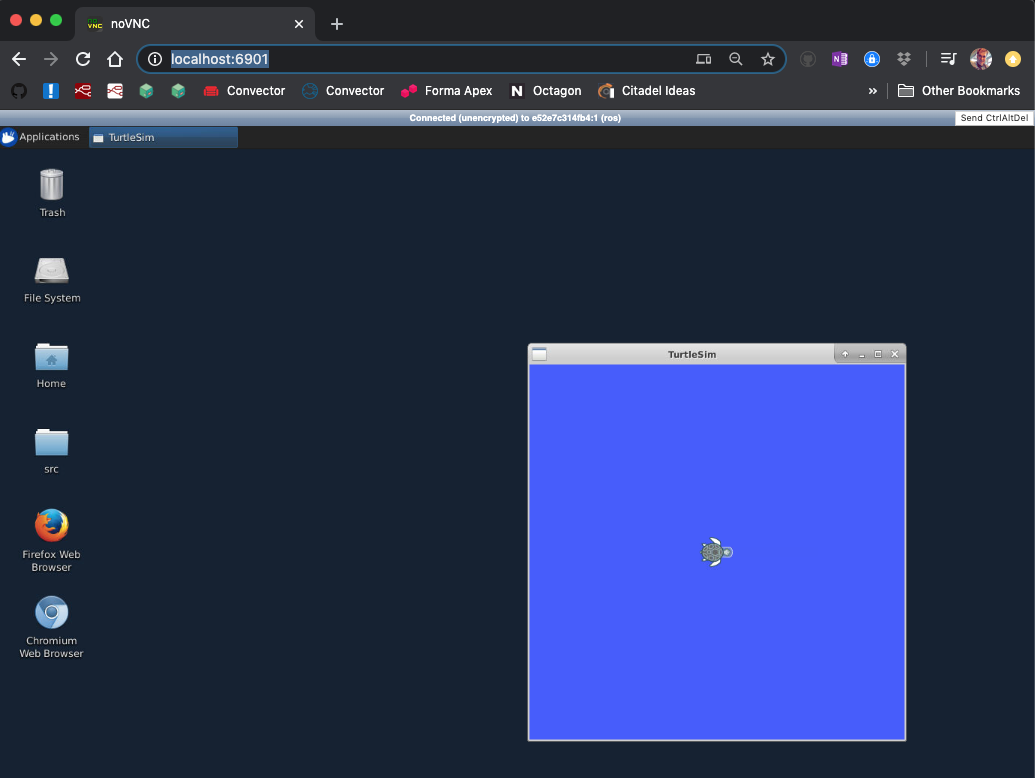
This is shows the name of your turtle "turtle1", and its position and orientation. 6. At this point, in your ROS browser window (see above) to your container at http://localhost:6901/ you should see a turtlebot like this:
- Now let's learn about the services that are running - attach a new shell to the container to open a terminal window to interact with ROS services (see above)
- In the new window let's look into the running TurtleSim ROS services. Let's start with what nodes are running, enter on the command line:
rosnode list
This should show:
  ros@e52e7c314fb4:~$ rosnode list
  /rosout
  /turtlesim
Now let's specifically look at ROS Services running, enter on the command line:
rosservice list
You should see something like this.
  ros@e52e7c314fb4:~$ rosservice list
  /clear
  /kill
  /reset
  /rosout/get_loggers
  /rosout/set_logger_level
  /spawn
  /turtle1/set_pen
  /turtle1/teleport_absolute
  /turtle1/teleport_relative
  /turtlesim/get_loggers
  /turtlesim/set_logger_level
Now let's look into the /spawn service from that list. Spawn creates a new TurtleSim node, on the command line add:
rosservice info /spawn
This should return information about the /spawn service. Think of it as a route.
  ros@e52e7c314fb4:~$ rosservice info /spawn
  Node: /turtlesim
  URI: rosrpc://e52e7c314fb4:50939
  Type: turtlesim/Spawn
  Args: x y theta name
The rosservice has the following commands:
  Commands:
          rosservice args print service arguments
          rosservice call call the service with the provided args
          rosservice find find services by service type
          rosservice info print information about service
          rosservice list list active services
          rosservice type print service type
          rosservice uri  print service ROSRPC uri
Now lets expose information about the API, enter on the command line:
rossrv info turtlesim/Spawn
This exposes the types:
  ros@e52e7c314fb4:~$ rossrv info turtlesim/Spawn
  float32 x
  float32 y
  float32 theta
  string name
  ---
  string name
So lets create a new Turtle a little above and to the right of our current turtle which is at 0 0 0. On the command line enter:
rosservice call /spawn 7 7 0 eddie
This is a terminal at location 7 7 with an orientation of 0 degrees from the base. In the terminal you should see:
name: "eddie"
In your window running the simulation (e.g. the 2nd window) you should see an INFO message:
[ INFO] [1585165017.538127200]: Spawning turtle [eddie] at x=[7.000000], y=[7.000000], theta=[0.000000]
The top message was from when you started TurtleSim, the second message is for our "eddie" turtle created above. In your browser window for the desktop you should see a new turtle added to the screen.
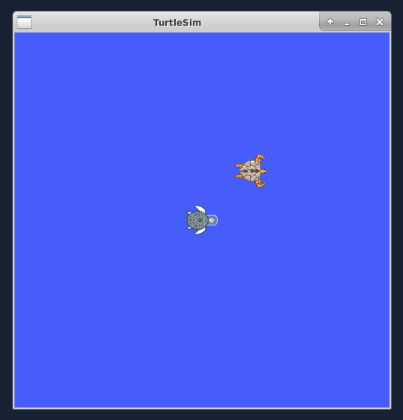
Now let's remove that turtle, on the command line in your rosservice window enter:
rosservice call /kill eddie
The /kill command is listed in your command list on the TurtleSim. If you look at your ROS browser window with the turtles, the "eddie" turtle should be gone.
Check out these tutorials to learn more about ROS Services: