Repository navigation
Launcher Settings
Every option in the launcher's Settings, section by section, with what it does and its default.
Settings is at the foot of the side menu. It opens even before the setup is done. Down its side are seven sections: Game, Server, Identity, Network, Saves, Logs and About. In Game, Network and Logs, changes are saved as you change them: there's no Save button.
Most of these options are written to crosscom.toml in the game's folder, which the client reads as the game starts. Change them before you press Play: a game that's already running won't see the change. (Files and Folders lists the files.)
Folder, video, overlay.
| Option | Default | What it does |
|---|---|---|
| The game's folder · Change | Found by the launcher | Moves Cross-Com to another copy of the game: pick the folder with Future Soldier DX11.exe, and the launcher sets it up there with your current server, account and options |
| Skip the intro videos | On | Straight to the main menu |
| Renderer | DirectX 11 | DirectX 11 or DirectX 9. DirectX 9 only for older graphics cards |
| In-game overlay | On | The panel over the game: the server, your connection and who's online (The In-Game Overlay) |
| Overlay key | F5 | The key that opens the overlay in the game: F1 to F12. Only while the overlay is on |
| Fewest players to start a match | 2 | A Quick Match starts once this many players are in; a squad match with half that a side. 2 to 12. The game's own 8 is rarely reached on a small server |
Under the folder, the section lists the three DLC packs and whether each is installed, with a warning when one is missing or incomplete.
The host of a lobby can also change how many players it needs for that one lobby, in the overlay's Lobby tab.
Restore the game's own files · Restore takes Cross-Com out of the game and puts back the two files it replaced. The launcher asks first: Restore them or Keep Cross-Com. Your account and identity stay. After that, Play shows the setup, to put Cross-Com back.
Where you play.
At the top: the server you're on, Signed in as your account there, and a tag when it's the community test network.
- Choose Community test network (
grfs-test.jdevwebb.net, open to everyone testing Cross-Com), or Another server and type its address or join code in The server's address, then press Check. - The launcher asks the server and your identity's account there:
- "It answered, and your identity has an account there: NAME." Nothing to type.
- "It answered. You have no account there yet: choose the name other players see there." Fill in Name, and the Sign-up code if the server has one.
- "That's the server you're on."
- Press Switch to this server.
Your identity signs you in on every server, so your accounts on other servers stay; you can switch back any time. Your stats and progression are kept by each server, for the account you have there.
Your sign-in.
| Item | What it does |
|---|---|
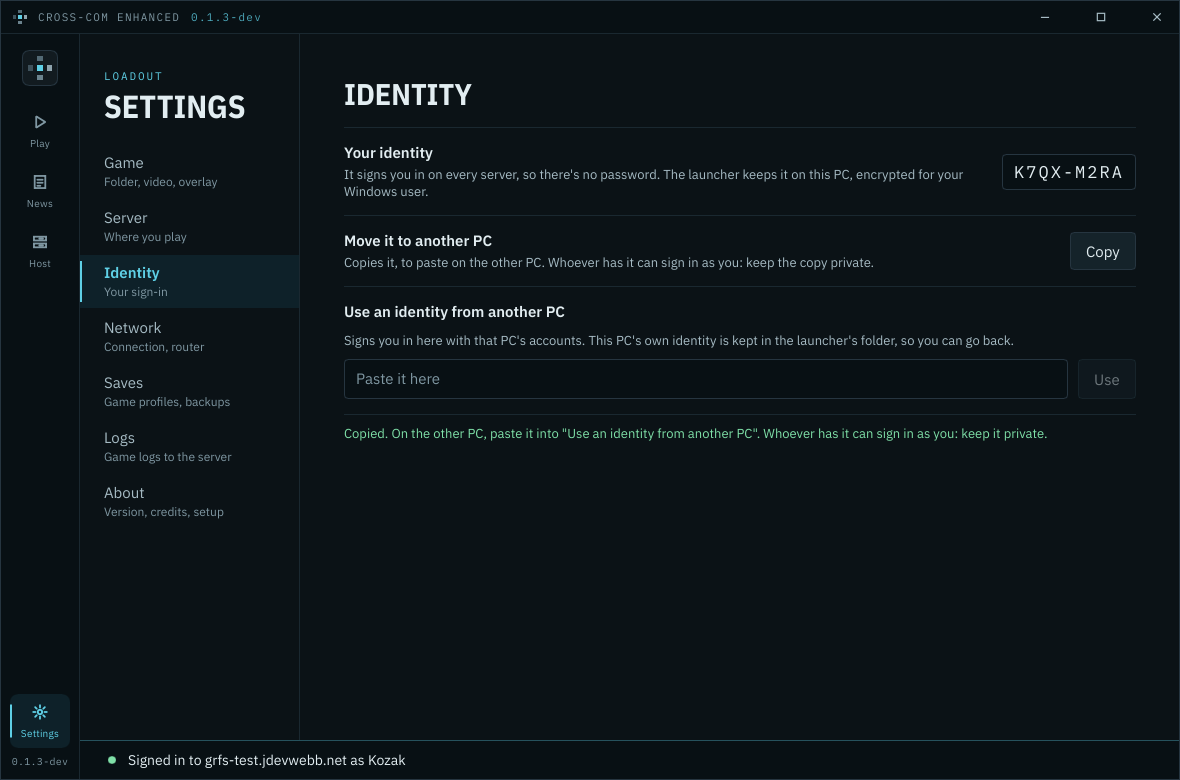
| Your identity | Its short form (ABCD-EFGH). It signs you in on every server, so there's no password. The launcher keeps it on this PC, encrypted for your Windows user |
| Move it to another PC · Copy | Copies it to the clipboard, to paste on the other PC. Whoever has it can sign in as you: keep the copy private |
| Use an identity from another PC · Use | Paste an identity copied on another PC. You're then signed in here with that PC's accounts. This PC's own identity is kept in the launcher's folder, so you can go back. If it would replace a different identity, the launcher asks first: Replace it or Keep mine |
More in Your Account and Identity.
Connection, router.
| Option | Default | What it does |
|---|---|---|
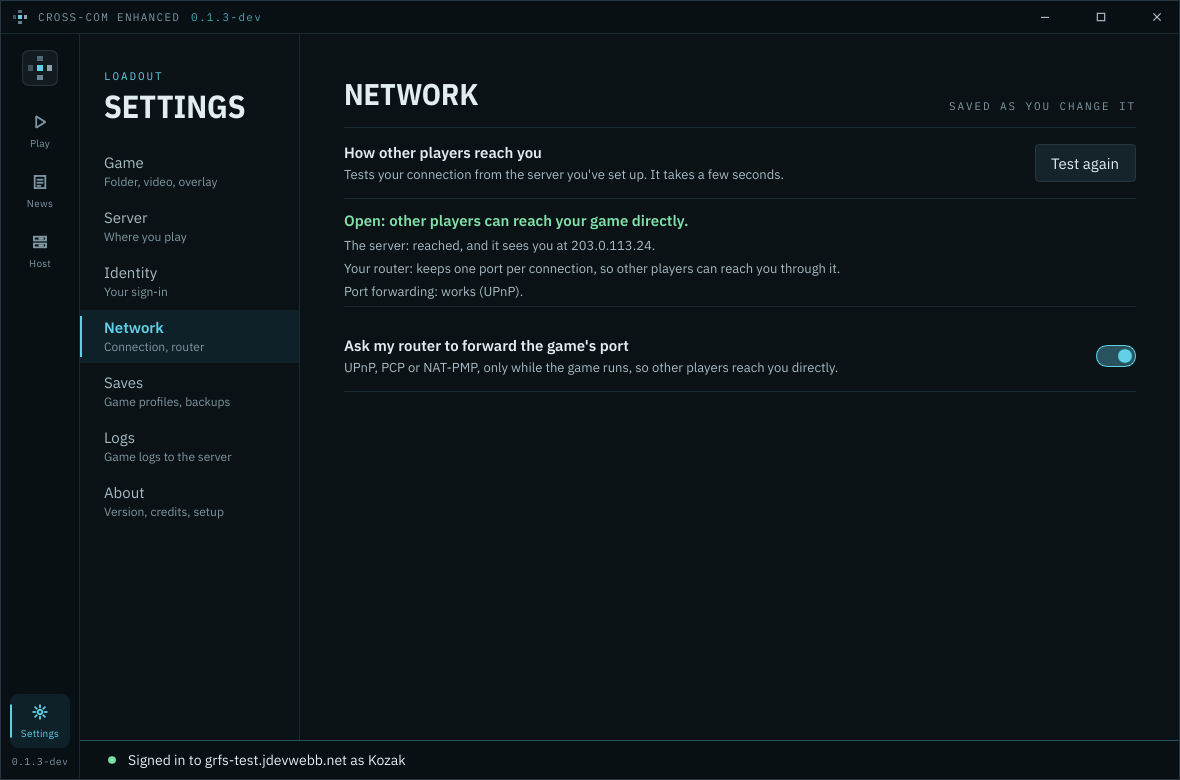
| How other players reach you · Test my connection | Tests your connection from the server you've set up, in a few seconds. The result and its details show under it; Test again runs it again | |
| Ask my router to forward the game's port | On | UPnP, PCP or NAT-PMP, only while the game runs, so other players reach you directly. Turning it off also stops the router report the client sends the server |
The first test may bring up Windows' permission prompt, for a firewall rule that lets the test's packet in. Your Connection explains the results and what to do about each.
Game profiles, backups.
The game keeps a profile for each account you play with: its options, key bindings and campaign saves, in your Documents folder. The first time the game finds no profile for an account it asks for a name ("Enter Name"); Cross-Com gives a new account a profile before the game looks, so it doesn't ask. That profile is a copy of the one you last played on this PC (so your options and campaign come along, even from Ubisoft's days), or a new one, named after the account. Your rank, stats and unlocks aren't in a profile: each server keeps those.
| Option | What it does |
|---|---|
| The profiles | Each profile on this PC: its name in the game, the account it's played with (in brackets when they differ), when it was last played and whether it has campaign saves. The one the game plays now says Plays now |
| Use for my account | Makes that profile the one your account plays (its options and campaign), named after your account. The launcher asks first; the profile it replaces is kept first, in %APPDATA%\Cross-Com\Profile backups
|
| Back up… | Copies every profile, and Cross-Com's own saves, into a new folder named Cross-Com saves <date> <time> UTC where you choose: another drive, a USB stick, a synced folder |
| Restore… | Puts back a backup: choose its Cross-Com saves … folder. What's there now is kept first, in Profile backups
|
| Open folder | Opens the game's profiles folder |
Close the game before you restore or switch profiles: the launcher won't while it's running. More in Files and Folders.
Game logs to the server.
| Option | Default | What it does |
|---|---|---|
| Send game logs after each game | On | After each game you play online, its log goes to the server you played on, so its host can see what went wrong. Your Windows user name and the game's sign-in token are removed first |
| Last sent · Send now | When logs were last sent, and the report's ID ("No logs sent yet." otherwise). Send now sends any game logs still waiting | |
| Open logs folder | Opens the game's logs folder, where each game's log is kept whether it's sent or not |
The server only takes logs from a PC its account has played online from in the last day. Each game's log stays in the game's logs folder either way, so you can still attach it to a report (Reporting a Problem).
Version, credits, setup.
| Button | What it does |
|---|---|
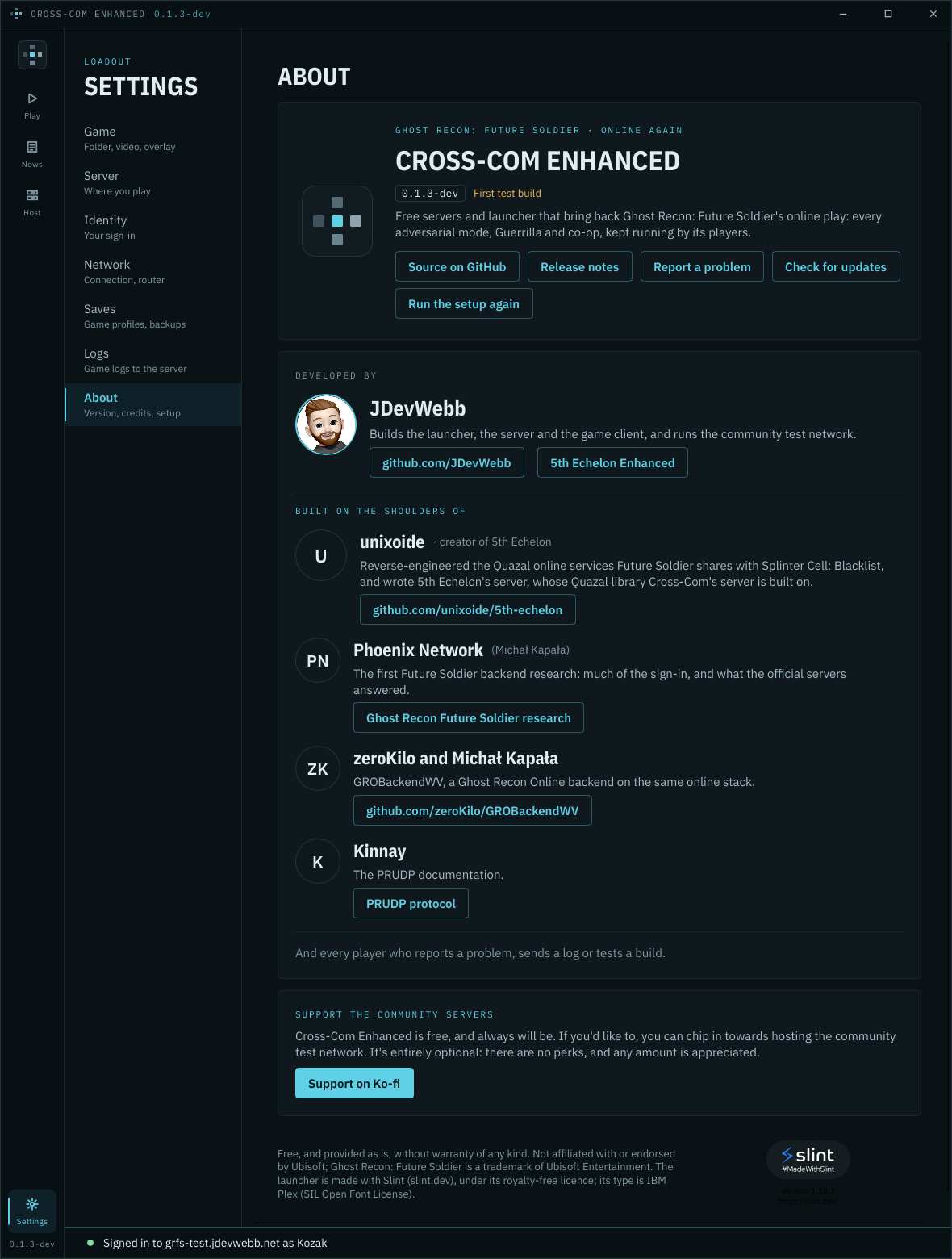
| Source on GitHub | Opens the project's repository |
| Release notes | Opens the releases page |
| Report a problem | Opens the project's issues (Reporting a Problem) |
| Check for updates | Looks for a new release now (the launcher also looks when it starts and every 4 hours). A new one is offered in the update bar |
| Run the setup again | Goes through the setup once more: the game, the server, your name and the game options. Nothing changes until you press Set up on its last step, and Cancel leaves everything as it is |
Below are the credits (Developed by and Built on the shoulders of) and Support the community servers: an optional way to chip in towards hosting the community test network, with Support on Ko-fi. There are no perks.