WiFi Security Research
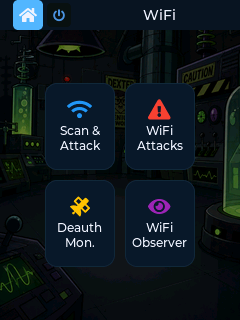
CYM uses the ESP32-C5's native WiFi 6 (802.11ax) radio covering both 2.4 GHz and 5 GHz bands simultaneously (
WIFI_BAND_MODE_AUTO). MAC address: unique per device, visible in Settings.
Passive active scan across all channels. Displays SSID, BSSID, RSSI, channel, and encryption type for every access point in range.
Network enumeration during physical assessment
Quick snapshot of every AP broadcasting in the environment. Identifies hidden SSIDs (shows <hidden> with the BSSID), rogue APs using corporate-looking names, and misconfigured open networks.
Encryption audit
Filter the scan results for OPEN or WEP networks — legacy encryption that is trivially broken. A single-glance scan of a corporate lobby often surfaces guest networks still running WEP or open captive portals.
Channel planning and interference
Identifies which channels are congested, which APs are on non-standard channels, and whether 2.4 GHz / 5 GHz co-channel interference is present. Useful pre-assessment for RF-heavy environments.
BSSID enumeration for follow-on attacks
The BSSID list feeds directly into Deauth and Handshake Capture — select your target from the scan results.
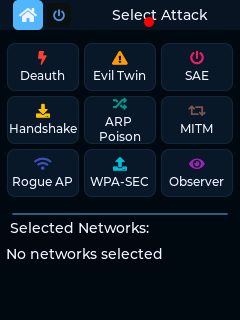
Sends 802.11 deauthentication frames to a selected BSSID/client pair, forcing clients off the network. A 3-second haptic burst fires the moment the attack launches — non-audible confirmation that the deauth stream started, useful when operating the device at arm's length or inside a bag.
Testing 802.11w — Protected Management Frames (PMF)
802.11w makes deauth frames unacceptable if they don't carry a valid MIC. A deauth attack against a PMF-enabled AP should have no effect — clients stay connected. This is the most direct way to verify that PMF is actually enforced on a network. If clients drop, PMF is either disabled or misconfigured.
WPA2 handshake harvesting
Clients that reconnect after deauth will complete a 4-way handshake that CYM's Handshake Capture tool records. See Handshake Capture below.
Client resilience testing
Some devices (IoT sensors, industrial controllers, POS terminals) reconnect insecurely or switch to a fallback network when deauthed. Testing this behavior in a controlled environment surfaces the risk before a real attacker does.
Rogue AP detection baseline
Send a deauth burst to your own AP and observe which clients reconnect immediately vs. clients that switch to a rogue AP with a stronger signal. This reveals which clients are susceptible to evil twin attacks.
Client claims their enterprise WiFi is protected by 802.11w. You select their BSSID, launch deauth, and feel the 3-second haptic blast confirm the attack started — your hand buzzes while you're watching their client devices on the other side of the room. Three devices drop connection immediately. Two devices stay connected. This behavioral test suggests PMF is not enforced on the three clients that dropped — those two that stayed connected are likely protected by 802.11w. Note: deauth outcome reveals enforcement behavior; for a complete audit, confirm PMF capability and requirement bits in the RSN Information Element via packet capture.
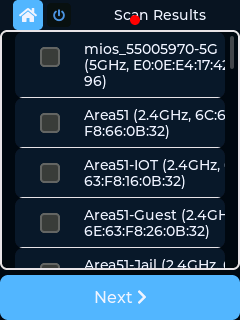
Puts the radio into monitor/promiscuous mode on a selected channel and captures WPA2 EAPOL 4-way handshakes. Saved as .pcap (802.11 raw) and .hccapx (hashcat input) to /sdcard/lab/handshakes/.
Authorized password auditing
The .hccapx file can be fed directly to hashcat -m 2500 or aircrack-ng to test the PSK against a wordlist or rule set. This is the standard method for verifying that a WPA2 PSK meets organizational password policy.
PMKID capture (clientless)
Modern WPA2 routers expose the PMKID in the first EAPOL frame from the AP, allowing handshake capture without waiting for a client to connect. CYM captures this passively.
WPA3 transition mode audit
Networks running WPA3-SAE + WPA2 in transition mode remain vulnerable to handshake capture against WPA2 clients. Capturing the handshake proves the transition mode represents a downgrade attack surface.
Evidence collection
The .pcap format is readable by Wireshark for detailed frame-level inspection, timestamp verification, and chain-of-custody documentation during authorized assessments.
Authorized password audit. The client wants to know if their WPA2 PSK meets policy. You select their AP, kick one client with a deauth burst, watch it reconnect over the next three seconds, and the handshake is captured. Fifteen seconds total. The .hccapx goes to hashcat before you've finished your coffee. The PSK is CompanyName2023!. In this case it cracked in minutes against a rule-based mutation of a common wordlist. The client's password policy said minimum 12 characters, uppercase, number, special character. Technically compliant. Practically broken. That nuance goes in the executive summary.
Starts a rogue AP with a configurable SSID and serves a captive portal (customizable HTML) to connecting clients. Logs submitted credentials to the SD card.
Phishing simulation in red team exercises
Deploy an evil twin matching a corporate guest SSID. Employees who connect and enter credentials to "re-authenticate" demonstrate susceptibility to credential harvesting attacks. This is one of the most common physical red team techniques.
Testing device auto-connect behavior
Devices that automatically connect to any open network with a known SSID (a common IoT misconfiguration) will connect without user interaction. Listing them in the captive portal log proves the scope of the auto-connect vulnerability.
Captive portal detection bypass research
Some devices send captive portal probes to known endpoints (e.g., connectivitycheck.gstatic.com). Hosting the evil twin lets you observe exactly which probe URLs a device uses and whether it validates TLS certificates — a common vector for MITM on IoT devices.
Red team engagement, day two. You set up an evil twin in the parking lot matching the client's guest SSID. Over the next 90 minutes, eleven devices connect automatically — mostly contractor laptops that joined the guest network on a previous visit and stored the credentials. Three employees enter their domain credentials into the captive portal login page thinking they're re-authenticating to the real network. The captive portal log records submitted credentials. The client's guest network had no client isolation, no certificate-based authentication, and no user training about portal verification. All three findings make the report.
Passively detects ESP-NOW frames on a fixed or hopping channel. Logs source/destination MACs, RSSI, channel, timestamp, frame length, and OUI vendor hint to /sdcard/lab/espnow/.
ESP-NOW is Espressif's proprietary low-latency peer-to-peer WiFi protocol, operating as raw 802.11 vendor-specific action frames. It is widely used in:
- DIY IoT sensor networks (ESPHome, Tasmota, custom firmware)
- RC car/drone controllers
- Industrial sensor meshes
- Smart home button/switch arrays
By default, devices show up in the list by MAC address only. To give known devices a friendly name instead, create /sdcard/lab/espnow/profiles.json — a JSON array with one entry per device:
[
  { "mac": "AA:BB:CC:DD:EE:FF", "label": "Cowboy Hat" },
  { "mac": "11:22:33:44:55:66", "label": "Biscuit Pro" }
]
mac is the device's ESP-NOW source address (you can read it off an unlabeled detection first, then add it here). label is whatever name you want shown instead. Profiles are loaded fresh each time you open ESP-NOW Scout — edit the file, then re-open the screen (no reboot needed) to pick up changes. A Passive OT Air Survey session (see OT/IoT Air Survey) also loads this same file at survey start, so ESP-NOW devices get the same friendly labels there.
An optional lmk field (32 hex chars = 16 bytes) can be added per entry to record a device's known Local Master Key for future decrypt support — not used by anything yet, safe to omit.
IoT infrastructure discovery
ESP-NOW devices don't appear in a standard WiFi scan because they don't associate with an AP. The Scout is the only passive way to enumerate them. Identifies unreported IoT deployments during a facility assessment.
Device tracking by MAC
ESP-NOW devices typically use a fixed MAC (the factory-assigned address). The Scout log timestamps every observed transmission, giving you a presence/activity timeline for each device.
Channel analysis
ESP-NOW can operate on any 2.4 GHz or 5 GHz channel. Channel-hopping mode lets you find the channel(s) in use before locking in for deeper capture.
Broadcast vs. unicast identification
Broadcast ESP-NOW frames (destination FF:FF:FF:FF:FF:FF) are unencrypted by spec. Unicast frames may carry an LMK-encrypted payload. The Scout distinguishes these and flags encrypted unicast sessions for follow-up.
Warehouse audit. The client runs inventory sensors throughout the floor but can't account for all of them in their documentation. You open ESP-NOW Scout and start channel hopping. Within two minutes: 14 source MACs, all on ch 6, all from the same ESP32 OUI. Twelve match the documented sensors. Two don't — different MAC batch dates, not in the asset management system, never registered with IT. Both have been silently transmitting data in a protocol that doesn't appear in any WiFi scan for an unknown period of time. You found two ghost devices that standard network monitoring would never have seen.
Menu label: WiFi → Channel Analyzer (previously displayed as "Chanalizer" — renamed for clarity in v2.12.2)
Real-time per-channel utilisation display for 2.4 GHz and 5 GHz. Shows AP count, client activity, and signal density per channel with a colour-coded bar graph. Tap a channel to see the SSIDs active on it.
Pre-engagement RF survey
Before a wireless pen test, a 2-minute Chanalizer session shows channel saturation, which channels the target network is on, and which adjacent channels are clear. Informs attack planning (e.g., best channel to host an evil twin with the least interference).
Rogue AP detection
An unexpected AP on a normally clear channel, or a sudden spike in channel utilisation, can indicate a rogue AP or an ongoing wireless attack by someone else in the environment.
5 GHz coverage gap identification
5 GHz has significantly more non-overlapping channels. The Chanalizer reveals which 5 GHz channels are in use and which are idle — useful for identifying coverage gaps in a corporate wireless deployment.
Pre-engagement WiFi survey for a penetration test. Two minutes with Channel Analyzer tells you that the client's corporate SSID lives on 2.4 GHz ch 6 — already saturated with three overlapping APs and a neighbour's network. Channel 11 is completely clear. You set your evil twin on ch 11 with a slightly stronger SSID broadcast and it becomes the cleanest signal in the building before you've opened a terminal window. Channel Analyzer didn't just show you the landscape — it handed you the best position in it.
CYM supports two targeted packet capture modes that go beyond handshake capture: WiFi Frame Capture (raw 802.11 promiscuous PCAP) and BLE Targeted PCAP (NimBLE advertising reconstruction in Kismet PCAPNG format).
Access: WiFi → WiFi Attacks → Frame Capture
Puts the radio into promiscuous monitor mode on a selected channel and records all 802.11 frames to a .pcap file on the SD card at /sdcard/lab/pcap/. Unlike Handshake Capture (which filters for EAPOL frames), Frame Capture records everything visible on the channel:
- Management frames: beacons, probe requests/responses, auth/deauth, association
- Control frames: ACK, RTS/CTS, Block ACK
- Data frames: encrypted payload frames, null data frames
Output: Wireshark-compatible .pcap with 802.11 link-layer type (DLT 105). Open directly in Wireshark for frame-level analysis.
Management frame analysis
Probe request frames include the device's desired SSID and its MAC (which may or may not be randomized). Capturing probe requests reveals devices seeking preferred networks -- including clients looking for a corporate SSID that isn't broadcasting.
Deauth/disassociation frame detection
Capture ongoing wireless traffic and filter for type/subtype=0x0A (deauth) or 0x0C (disassoc) in Wireshark. Any deauth source that is not the legitimate AP BSSID indicates an active wireless attack in the environment.
Client behavior analysis
Capture all frames on a specific channel to observe client reconnect behavior, association timing, and which clients connect to which BSSIDs -- useful for mapping the client/AP relationships before a more targeted assessment.
802.11w PMF verification
After sending a deauth burst (Deauth Attack screen), capture on the same channel. If clients do not deauthenticate and no unauthenticated deauth frames appear in the capture, PMF is confirmed enforced at both AP and client.
Access: Bluetooth tile → BLE Attacks → BLE PCAP
Records BLE advertising packets as a Kismet PCAPNG file compatible with Wireshark's BLE dissector. The capture reconstructs advertising-layer BLE 5.0 frames from NimBLE's report data, including extended advertising support (BLE 5.0 extended adv).
Output: /sdcard/lab/pcap/ble_<timestamp>.pcapng -- open in Wireshark with BLE dissector enabled.
Each PCAPNG record includes:
- Advertising PDU type (ADV_IND, ADV_NONCONN_IND, ADV_EXT_IND, etc.)
- Source MAC and address type (public/random)
- RSSI at capture time
- Full raw advertising payload (manufacturer data, service UUIDs, TX power, flags)
- Timestamp (GPS-synced if GPS module attached)
BLE payload forensics
Import the PCAPNG into Wireshark and apply btle as the display filter. The BLE dissector decodes manufacturer data, service UUIDs, and AD type fields automatically -- far easier than reading hex from BLE Observer logs.
Device tracking with MAC rotation analysis
Capture over time and filter by device type or manufacturer data. Devices using resolvable random addresses appear with different MACs over time; devices using static MACs appear identically. Wireshark's "Follow" and time-delta analysis makes rotation interval measurement straightforward.
Pre-attack intelligence collection
Capture advertising traffic for a target environment, then import to Wireshark to identify connectable devices (ADV_IND), service UUIDs present in advertisements, and TX power (range estimation). Efficient baseline collection before running GATT Walker on specific targets.
Evidence collection
PCAPNG is the standard format for wireless packet evidence. The Kismet-compatible output includes all metadata needed for chain-of-custody documentation in authorized assessments.
Menu label: WiFi → WiFi Scope
Real-time swept spectrum scan. The radio cycles through 2.4 GHz and/or 5 GHz channels and plots the live signal level on a moving waterfall display. Unlike the Channel Analyzer (which shows per-channel AP counts), the Band Scope shows instantaneous signal energy — useful for spotting hidden transmitters, rogue APs that do not broadcast a beacon, and interference sources that do not appear in any network list.
| Feature | Channel Analyzer | WiFi Band Scope |
|---|---|---|
| Display type | Bar graph (static per channel) | Waterfall (live sweep) |
| What it counts | Access points and signal density per channel | Instantaneous signal energy |
| Updates | Periodic (one scan per sweep cycle) | Continuous |
| Best for | Channel planning, rogue AP detection by SSID | Interference hunting, hidden transmitter detection |
| Tap-to-detail | Yes — tap a bar to see SSIDs on that channel | No |
Both are passive receive-only tools. Neither transmits or modifies any network.
Interference source hunting An industrial site is reporting intermittent WiFi drops on 2.4 GHz channel 6. The Band Scope shows a burst of wideband energy every 30 seconds on channels 5–7 that does not show up as any AP in the Channel Analyzer. The pattern matches a microwave oven or video sender. The Channel Analyzer told you which channel was congested; the Band Scope told you why.
Rogue AP with suppressed SSID broadcast A device transmitting on an unexpected channel appears in the Band Scope waterfall but shows no SSID in Channel Analyzer (because it has beacon broadcast disabled). The Band Scope identifies the channel; a targeted scan on that channel can then enumerate the device.