Releases: Land784/GameDeck
Release list
v0.9.0: fullscreen hotkeys and a self-contained build

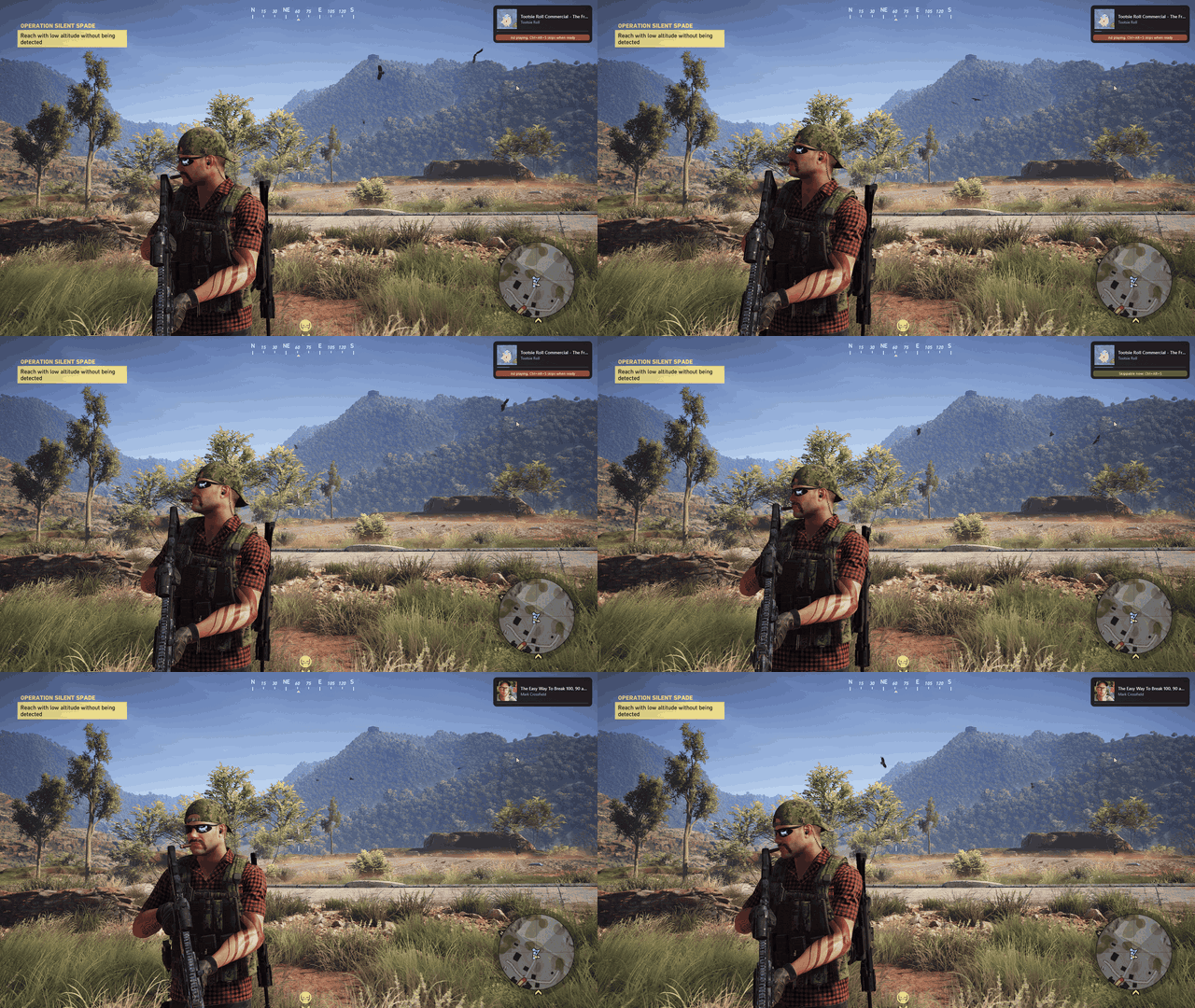
The ship-quality release. Hotkeys now work even in the fullscreen games that used to swallow them, the download is a single self-contained file, and there is a real icon, first-run guidance, a crash dialog, and docs written for people who did not build it.
Highlights
- Hotkeys work in exclusive fullscreen. Some raw-input engines (DOOM Eternal was the reported case) swallowed registered hotkeys entirely. A low-level keyboard-hook fallback now catches the same combos, so play/pause, skip, and the rest work even there. Resolves #3; windowed and borderless were never affected.
- No runtime to install. The build is now a self-contained single-file executable. Unzip and run
GameDeck.exe; you no longer need the .NET Desktop Runtime. - First-run onboarding. On the first launch a tray balloon points you at the overlay hotkey and settings, and the overlay pops once to show what is playing (or a friendly hint when nothing is). It never nags again.
- A real app icon across the executable, tray, Alt-Tab, and notifications, with the overlay accent recolored to match.
- Crash dialog. If something goes unexpectedly wrong, GameDeck now tells you and offers an "Open logs folder" button instead of just vanishing.
- Docs for newcomers. The README is rewritten install-first, with a SmartScreen walkthrough, a hotkey table, the security model, and an FAQ, plus a new architecture doc.
Installing
Unzip and run GameDeck.exe. It lives in the system tray; play something and press Ctrl+Alt+O. Windows SmartScreen may warn you on an unsigned new app: click More info, then Run anyway (details in the README).
Full change list in the CHANGELOG. Windows 10 19041+ or Windows 11. No .NET runtime required.
This is a pre-release on the way to v1.0; a demo GIF and a wider compatibility pass are still to come.
v0.5.0 — Overlay placement, settings window, polish

The polish release. The overlay now remembers where you put it, everything is configurable from a real settings window, and the app behaves on high-DPI setups and second launches.
Highlights
- Settings window (tray icon, right click, "Settings"): overlay opacity with live preview, auto-hide delay (or always visible), corner presets, hotkey rebinding with a key recorder and conflict warnings, media source pinning, extension token and connection status, start with Windows, and an animations toggle.
- The overlay stays where you drag it: move it in interactive mode (
Ctrl+Alt+I) and it snaps to the nearest corner margin, then comes back there on the next launch, per monitor. If that monitor is unplugged, it falls back to the primary. - Per-monitor DPI awareness (V2), so the overlay lands exactly where it should on mixed-DPI setups.
- Quality of life: launching GameDeck twice now points you at the tray icon instead of silently doing nothing, and a pinned media source that isn't running shows grayed as "(not running)" instead of disappearing from the pickers.
Verified against a 14-scenario game-compatibility matrix (windowed, borderless, exclusive fullscreen, raw-input, topmost-stealing, lock/unlock — see docs/testing/testing-matrix.md).
Known issue
Some raw-input engines swallow registered hotkeys in exclusive fullscreen (seen with DOOM Eternal — windowed and borderless are unaffected). Tracked in #3 with a fix planned for the next phase.
Full change list in the CHANGELOG.
Needs the .NET 8 Desktop Runtime. Windows 10 19041+.
v0.3.0 — overlay + YouTube ad-skip
The overlay and the ad-skip release. Change songs, watch what's playing, and skip YouTube ads without leaving your game.
Highlights
- In-game overlay: a translucent now-playing card (album art, title, artist, progress) that fades in on track changes and hides itself. Click-through by default, so your game never loses input.
Ctrl+Alt+Otoggles it,Ctrl+Alt+Imakes it draggable. - YouTube ad-skip: pair the GameDeck Companion browser extension (in the repo's
extension/folder; Chrome Web Store listing under review) and the overlay shows an amber strip when an ad plays in a background tab, green when it becomes skippable. PressCtrl+Alt+Sand keep playing. - Everything stays on your machine: the extension talks to the app over a token-authenticated WebSocket bound to 127.0.0.1 only. No telemetry.
Setup for ad-skip
- Load
extension/unpacked viachrome://extensions(Developer mode) until the store listing is live. - Tray icon, right click, "Copy extension token".
- Paste into the extension's options page and save. Dot turns green.
Full details in the README and bridge protocol doc.
Needs the .NET 8 Desktop Runtime. Windows 10 19041+.
v0.1.1 - hardening pass
Hardening pass from a design review of Phase 1. No new features; this is the recommended build for daily use while the overlay (Phase 2) is developed.
Improvements
- Hotkeys and the media connection now survive workstation lock/unlock; both re-register automatically on unlock
- File logging to
%APPDATA%\GameDeck\logs(7-day retention) so problems are diagnosable; no data leaves your machine - Track-change notifications no longer fire on playback-position ticks, and progress is interpolated locally between the coarse updates some players emit
- The single-instance guard is per-user, so another account on the same PC can run its own copy
- "Start with Windows" lives only in the registry Run key, matching what Task Manager's Startup tab shows
Fixes
- Session bookkeeping no longer accumulates entries for media apps that have closed
Install steps are the same as v0.1.0. Full details in the CHANGELOG.
v0.1.0 - invisible MVP
The "invisible MVP": full media control without a visible window. Control Spotify, YouTube, or any media source with global hotkeys that keep working while you game — no alt-tabbing.
What's in it
- Global hotkeys (work over fullscreen games):
Ctrl+Alt+Spaceplay/pause,Ctrl+Alt+Rightnext,Ctrl+Alt+Leftprevious - Tray icon with now-playing tooltip, playback menu, media-source picker, and opt-in "Start with Windows"
- Works with any media source via Windows SMTC — no accounts, no API keys, nothing leaves your machine
Install
- Install the .NET 8 Desktop Runtime if you don't have it
- Unzip, run
GameDeck.App.exe, look for ♪ in the system tray - Windows SmartScreen may warn on first run (unsigned binary): More info → Run anyway
Known limitations
- No visual overlay yet — that's Phase 2, in progress
- Windows 10 19041+ only
Full details in the CHANGELOG.