Repository navigation

Update from 0.6.3 inside the app: Settings → About → Check for Updates. New here, or coming from 0.6.2 or earlier? Download the disk image below; it's signed with a Developer ID (MicroZ LLC) and notarized by Apple.
从 0.6.3 直接在应用里更新:设置 →「关于」→「检查更新」。新安装,或者从 0.6.2 及更早的版本升级?下载下面的磁盘映像;它用 Developer ID(MicroZ LLC)签名,并经过 Apple 公证。
SHA-256: 0dc3410752606dde271faf4adebebd40f8064eac5de0f944a86ee60f0d886e18
English
Docs: https://allinoneime.com/docs · Changelog: CHANGELOG.md
Highlights
-
Conversations with
@question, carried on in any coding agent installed or on the web. Once an answer is in, type the next question and press ⇧⏎: the panel grows into the conversation, and every round's answer can be inserted. After the last round (5 by default), ⌘1, ⌘2 … carry it on in each coding agent installed on this Mac (the one@agenthands to first: Claude Code, Gemini CLI, Kiro CLI or your own command), in Claude or ChatGPT on the web, in Gemini, or copy it as Markdown; ⌘⏎ shows the same choices at any round. Recent questions keep the whole conversation.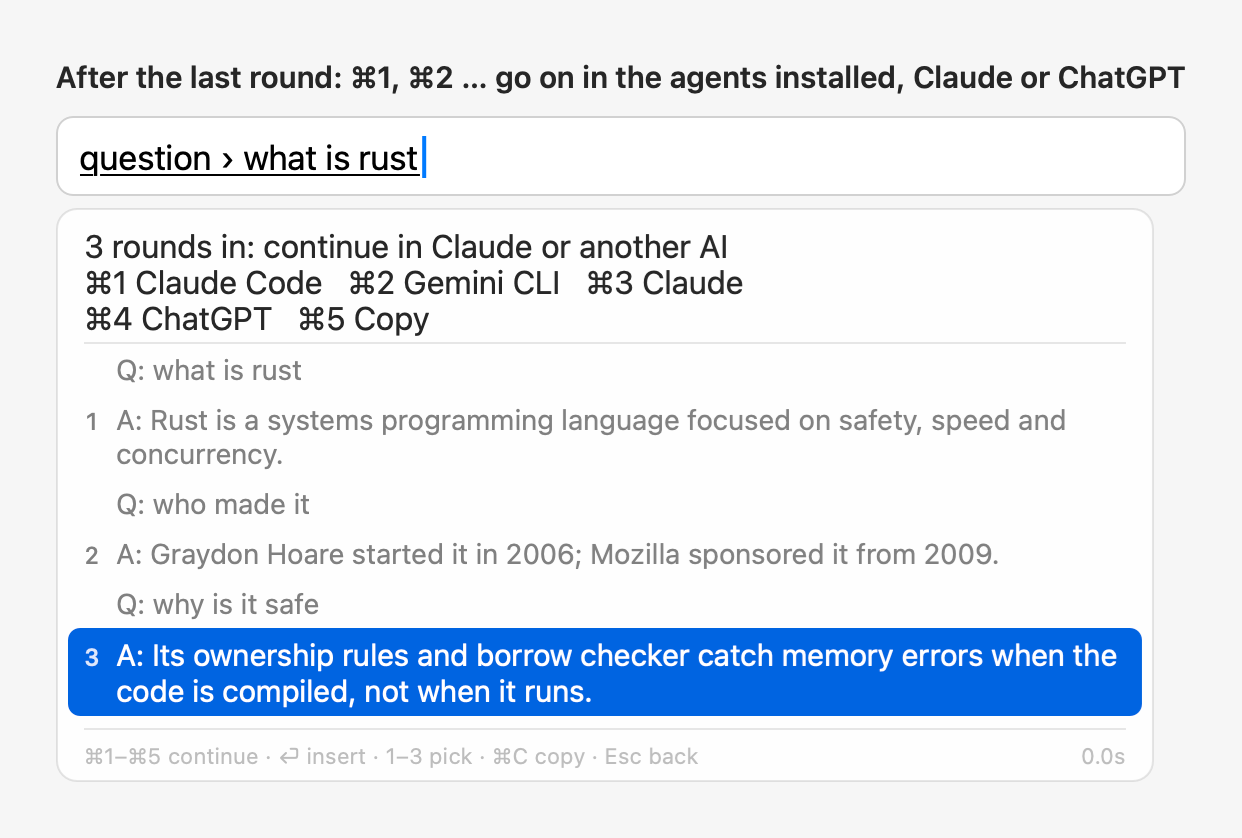
-
⇧⏎ follows up, ⏎ inserts, everywhere. After any AI result, what you type is a follow-up: the next question after
@question, an instruction after@improve, a prompt command or the rewrite of a selection. ⇧⏎ sends it; ⏎ always inserts the selected result, even with a follow-up half typed.@translateno longer refines: type to edit the sentence, and ⏎ translates it again.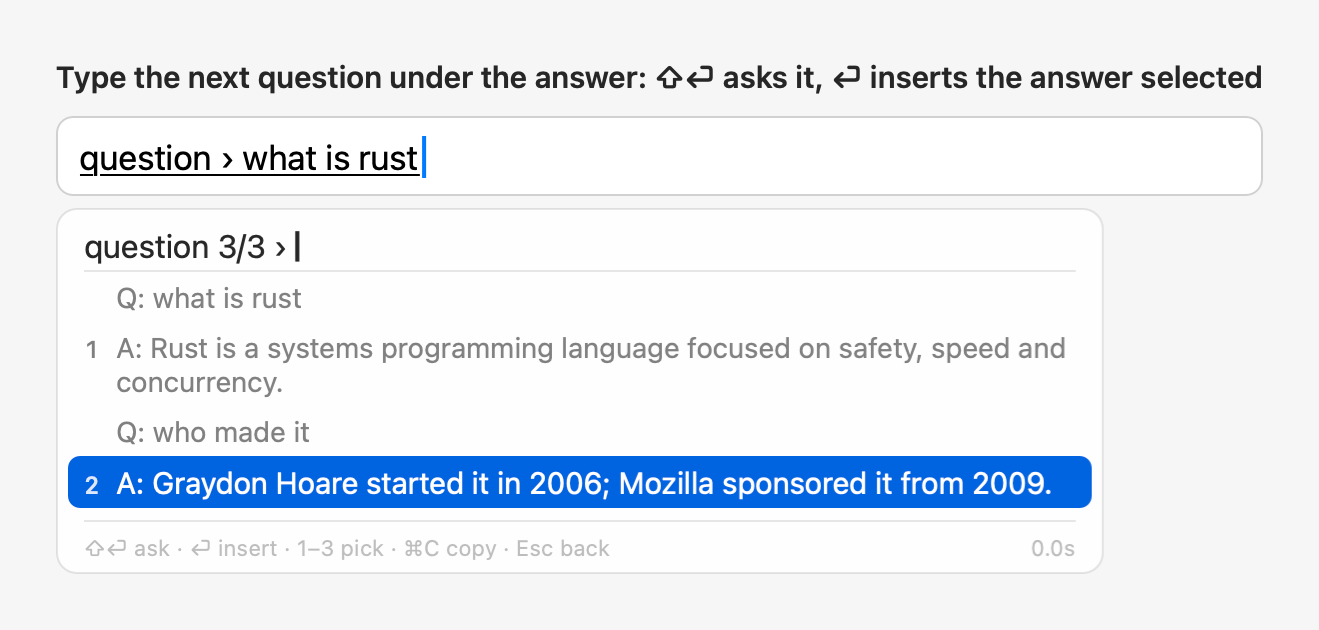
-
@config: change settings by describing them.@config output languages English and French,@config Chinese in WeChat, more formal in Mail,@config candidates in a column,@config use Claude: ⏎ shows each change, old → new, with the labels Settings uses; ⏎ applies them, and ⌘Z (or@config undowithin 10 minutes) puts back exactly what changed. It runs on Apple Intelligence on this Mac whenever it can, else on your provider, and only an allowlist of settings can change: never keys, custom commands, extensions or plugins.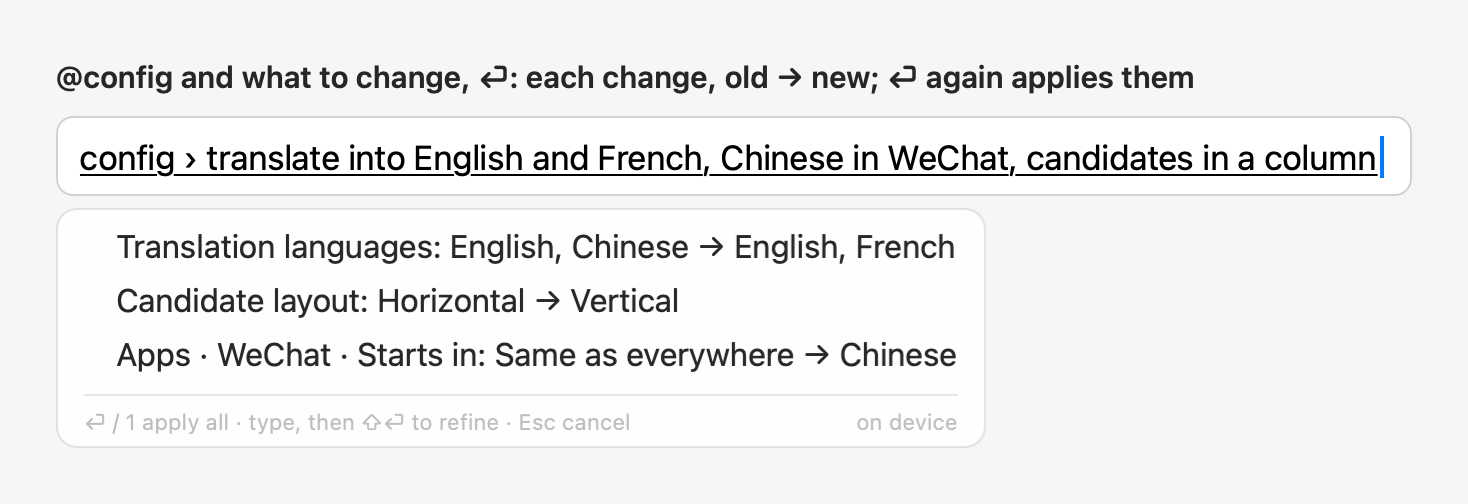
-
@doctor. Checks the setup on this Mac: the input method, the AI provider, permissions, secure input, language packs,config.json, extensions and plugins, updates, and recent errors in the logs; problems first, each with a short fix. A digit previews that fix and ⏎ applies it; ⏎ on the list fixes the safe ones. Nothing deletes your data or touches a key.@doctor <question>has the AI explain the likely cause, sending only the check results.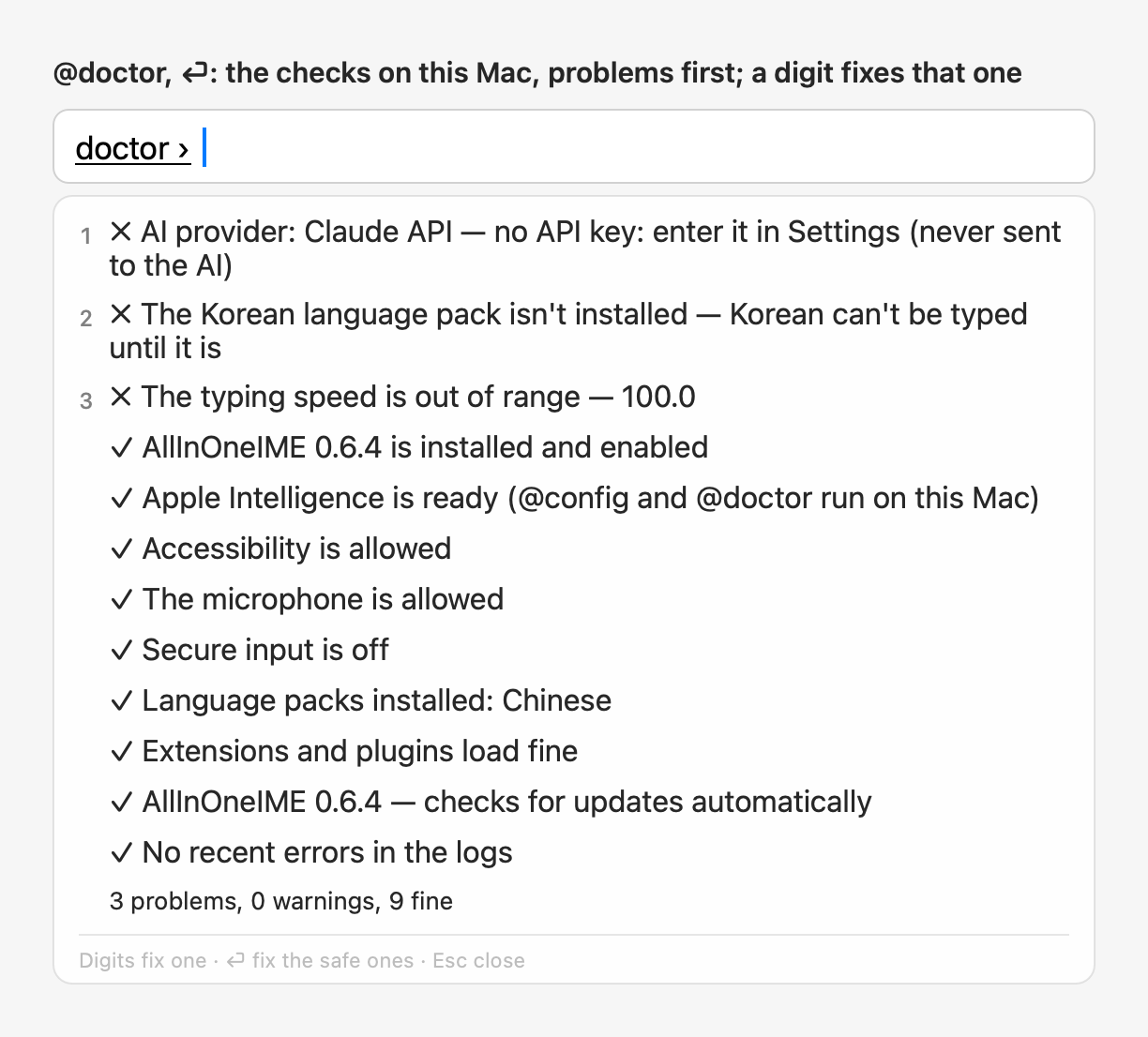
-
@agent, formerly@claude: the coding agent is your pick. Settings → Agent, a page of its own, picks what@agenthands the text to: Claude Code (the default, as before), Gemini CLI, Kiro CLI, or a command of your own. The page shows whether each one is installed and what runs in Terminal. Claude Code can still work in the background (@tasks); the others open in Terminal with what you typed as their first message. How often you used@claudecarries over.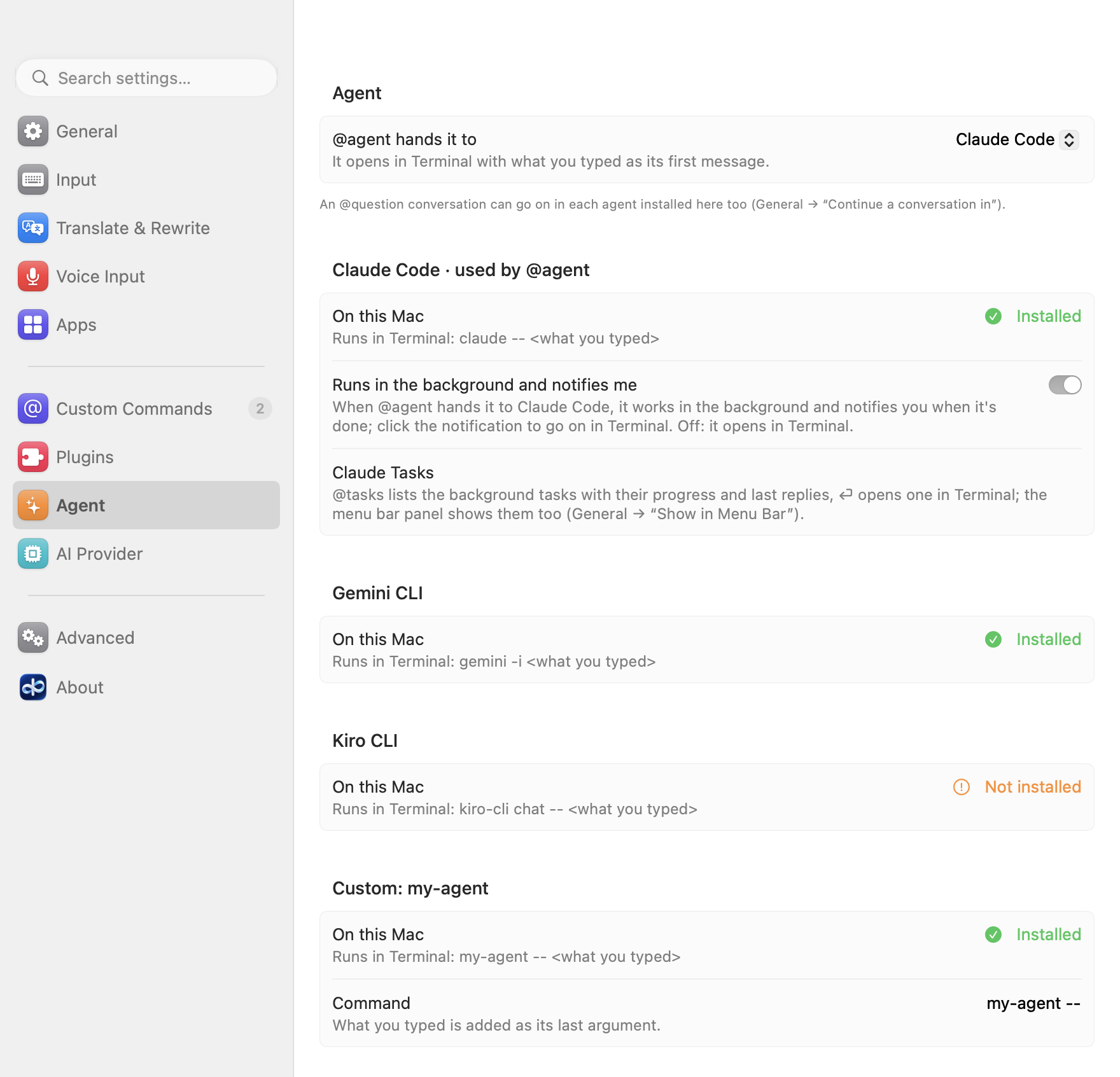
-
Extension sources. Install a script-extension bundle from a Git repository: Settings → Custom Commands → Extension Sources → "Add from Link…" (
ssh://,git@host:,https://). It clones with your own git and SSH setup (keys, agent,~/.ssh/config), shows the bundle's commands and the programs they run before anything loads, and enables it only when you click Enable. Sources are checked once a day, and nothing changes until you click Update.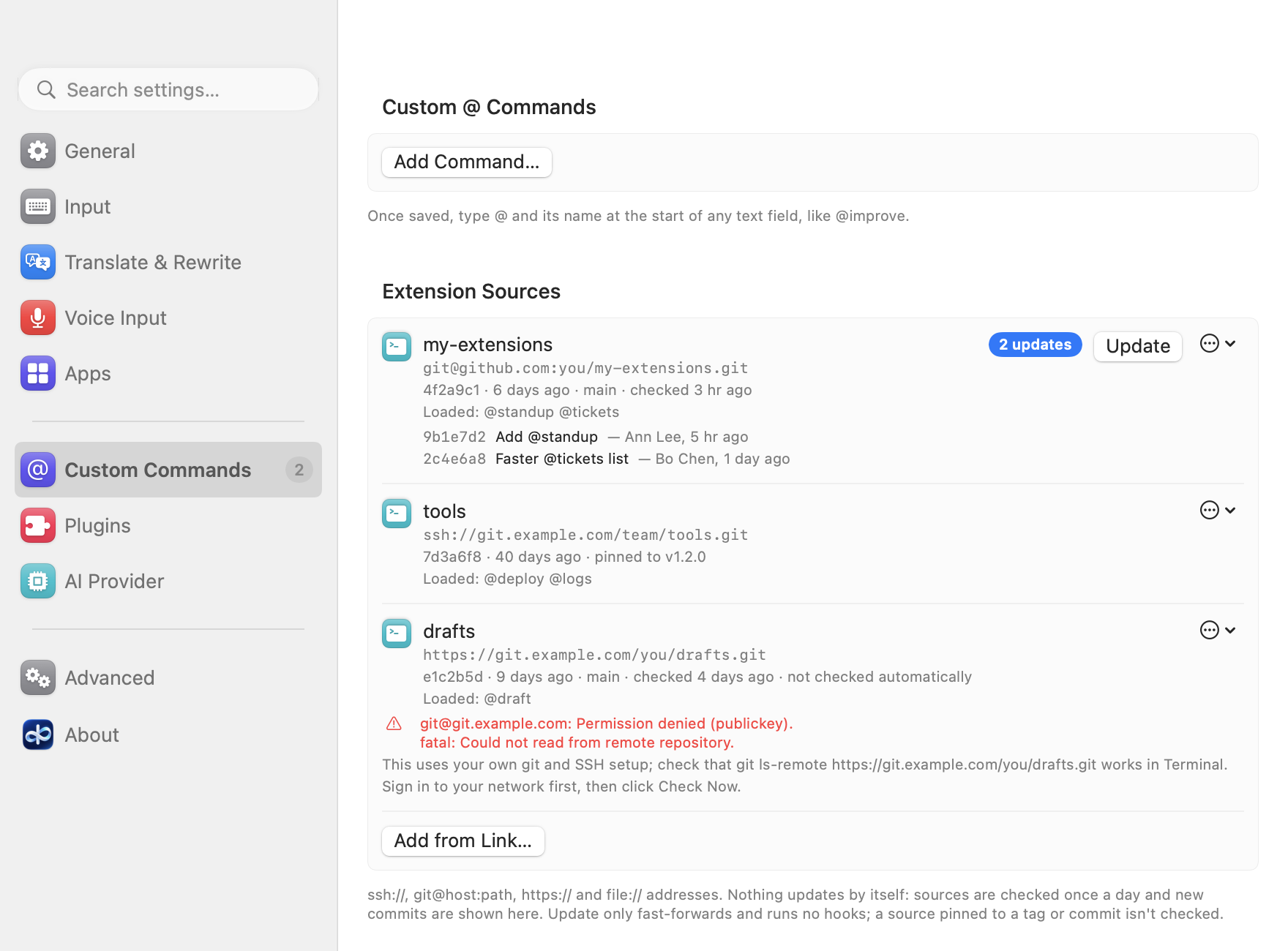
-
AWS profiles that refresh themselves. Amazon Bedrock works with a role (
role_arnwithsource_profile), SSO andcredential_processas well as static keys: credentials are fetched when a request needs them, kept in memory only and renewed before they expire, so there are no temporary keys to copy into~/.aws/credentialsby hand. Settings → AI Provider shows each profile's kind ("dev — Role via base") and when the chosen one's credentials expire; when an SSO sign-in has ended, it gives theaws sso logincommand to run.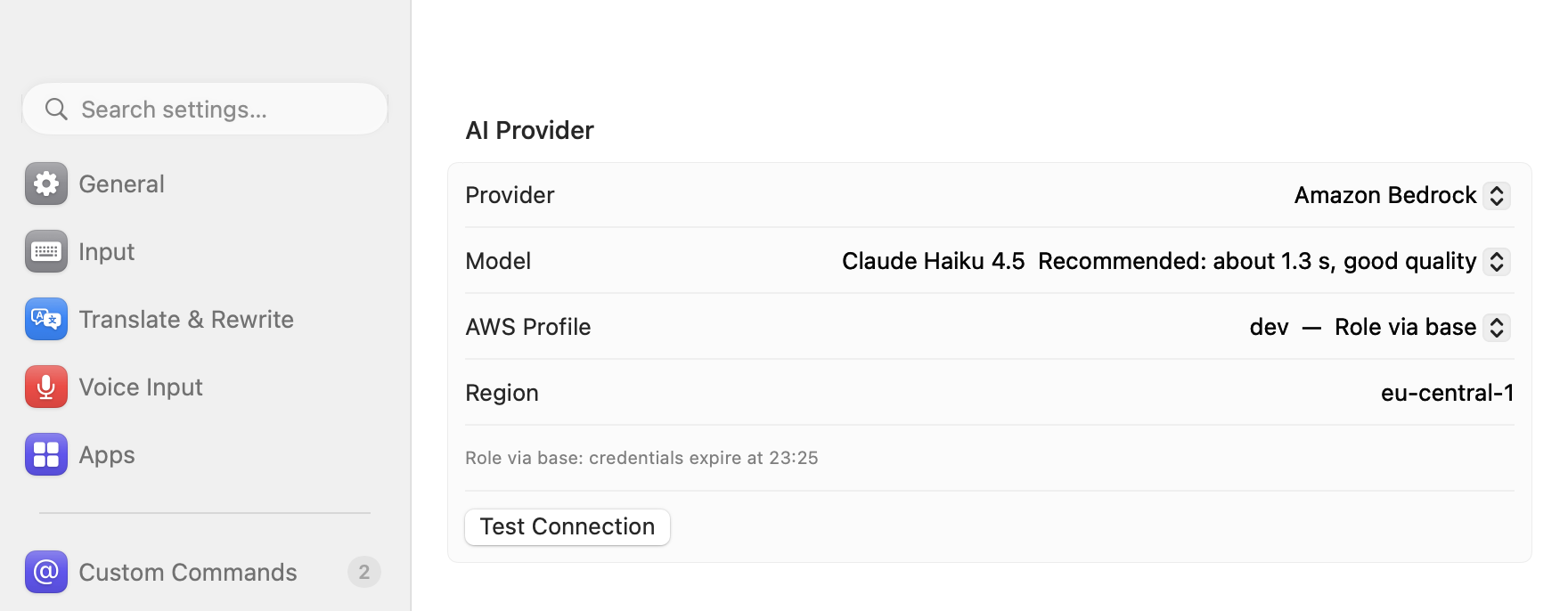
-
Clearer API key status. Every key row says whether a key is set: "✓ Saved · ends in a1b2" with Replace… and Remove…, "✓ From $OPENAI_API_KEY" for a key in your shell, or "No API key yet" with the field to paste one. Remove… asks first. A key for another provider (when
@configor@doctorasks for one) opens a small sheet: Save, or Save and Use.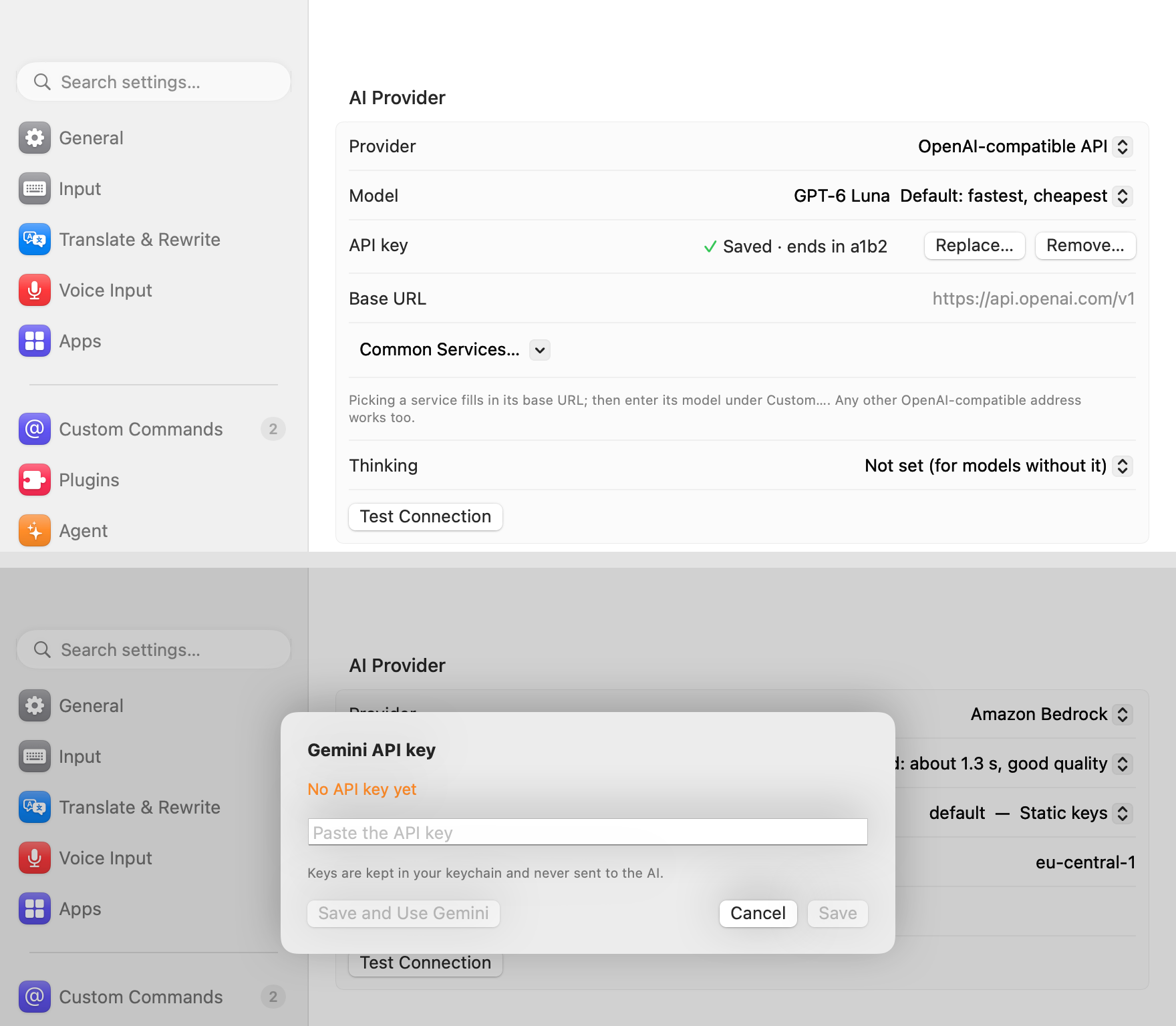
-
Also:
@typed right after a word is plain text (bob@example.com,ssh user@host), terminals included; Settings writes only what you changed, so what@configor a hand edit changed meanwhile is kept; and@questionno longer makes up live information (the weather, news, prices, scores).
Added
- Amazon Bedrock with every common kind of AWS profile, refreshed by itself, in the AWS CLI's order within a profile (a role, SSO, the credentials file's keys,
credential_process, the config file's keys): static keys as before,credential_process(credential_process = /usr/local/bin/my-creds --profile dev: split like a shell command and run without a shell, with your login shell's PATH, in your home folder, 60 s at most), a role (role_arnwithsource_profile, chains too, a profile naming itself with its own keys, orcredential_source = Environment;role_session_name,external_id,duration_seconds; STS in the profile's region), SSO (sso_sessionor the oldersso_start_url, with the sign-in the AWS CLI cached, only read), and for the profile "default" (or none) the keys in your shell's environment first, as the AWS CLI takes them (never for a profile you name);AWS_CONFIG_FILEandAWS_SHARED_CREDENTIALS_FILEare followed. Credentials that expire are kept in memory only and fetched again 5 minutes before they do, in the background when a request comes with less than 10 minutes left; requests at the same time wait for one fetch; Bedrock answering that they expired gets them fetched again and the request sent again, once. Settings → AI Provider lists each profile with its kind ("dev — Role via base") and says of the chosen one when its credentials expire ("Role via base: credentials expire at 15:30", "SSO (signed in until 18:00)"); Test Connection fetches fresh ones through the whole chain;@doctorreports the kind, the expiry and a failed refresh. An SSO sign-in that ended says "SSO sign-in expired: run aws sso login --profile X" (Copy Command and Open in Terminal in Settings, the command to copy in@doctor); a profile withmfa_serialsays to usecredential_processor SSO instead, since an input method can't ask for an MFA code;credential_source = Ec2InstanceMetadataorEcsContainersays why it can't work on a Mac. Programs run and AWS is asked only when a request or Test Connection needs credentials, never to list profiles or for@config; nothing secret is logged or shown. @config: change settings by describing them (@config output languages English and French,@config 微信里用中文,邮件里语气正式一点,@config candidates in a column,@config use Claude). ⏎ shows the changes in the candidate panel, a row each, old → new, with the labels Settings uses; ⏎ (or 1) applies them, Esc cancels, typing more and ⇧⏎ refines them, and ⌘Z on the confirmation or@config undowithin 10 minutes puts back exactly what changed. Only an allowlist can change: the languages, rewrite styles, candidate layout, typing out, the selection, recent questions, hiding sensitive information (words only added), updates, per-app settings (apps found by name) and the provider's non-secret settings (provider, Bedrock profile and region, a known model, anhttps://base URL); keys, custom commands, extensions, plugins and anything that runs programs are refused with the reason (a value that looks like a key is never shown, nor the model's note with one), and every change is checked as Settings checks it (a language pack that isn't installed points to Settings). A provider without a key (none in the keychain or the shell) isn't switched to: its row says the key is needed and applying opens Settings at its key field (choose it there once the key is saved); with a key it switches and Test Connection runs. A key typed into the sentence is never sent. It runs on Apple Intelligence whenever this Mac has it (held to the allowed settings, with lookups for your apps, AWS profiles and language packs), else on your provider; the request holds only the allowed settings' current values.@doctor: checks the setup on this Mac and fixes what it safely can. ⏎ lists the results, ✗ problems first, then ⚠ and ✓, a row each with a short fix: the input method, the AI provider (key saved or Bedrock credentials found, never read; Test Connection; Apple Intelligence), permissions (asked of macOS without a prompt), secure input, language packs,config.json, extensions and plugins, updates, and recent errors in the app's logs. A digit previews that row's fix in@config's preview and ⏎ applies it; ⏎ on the list fixes the safe ones (settings repaired, the input method enabled again); settings changes undo like@config's, and nothing deletes your data or touches a key. In an app with no AI the checks still run and only the question is refused.@doctor <question>then has the AI explain the likely cause and suggest fixes, on Apple Intelligence when available (the checks are its tools), sending only the check results (paths as ~, keys removed) and the question; ⏎ still applies only the safe fixes.@questionconversations: once an answer is in, type the next question and press ⇧⏎. The panel grows into the conversation, earlier rounds dimmed as Q / A rows and the next question's line on top with its round ("question 2/5 › …"); it grows to about half the screen, then scrolls. Every round's answer can be inserted (its digit 1–5, ↑↓ then ⏎, a click; the latest is selected) and ⌘C copies the selected one; Esc clears what you typed, then goes back one round. Each follow-up is sent as a normal conversation (the questions and answers so far, then the new question); the first question is sent exactly as before. With Apple Intelligence on this Mac a long conversation is fitted into its small context (older answers shortened, then the oldest rounds left out) and the panel says "earlier rounds shortened". Up to 5 rounds (questionRoundsin the config, 2–10).- Continue an
@questionconversation in Claude or another AI: after the last round the next question's line becomes "5 rounds in: continue in Claude or another AI", and ⌘⏎ shows the same choices at any round. ⌘1, ⌘2 … pick a coding agent installed on this Mac (the one@agenthands to first, then Claude Code, Gemini CLI, Kiro CLI or your own command, each an interactive session in Terminal started as@agentstarts it; one that isn't installed isn't shown), Claude or ChatGPT on the web (the conversation filled in, or on the clipboard when it's long), Gemini on the web (on the clipboard), or copying the conversation as Markdown; what you type then is the first message there (only ⌘1–⌘9 send it; ⇧⏎ there opens nothing). A question about selected text takes that text along as a quoted block of its own. Which ones and in which order: Settings → General → "Continue a conversation in" (questionContinueIn); its "@agent's agent" (agent) follows the agent picked for@agent, and an agent not installed right now keeps its place when you edit the list. The conversation goes, as shown, only to the service you pick. - Recent questions keep a whole conversation under its first question, and picking it shows its rounds to go on with; files from 0.6.3 load as before.
- Extension sources: install a script-extension bundle from a Git repository and keep it up to date from there. Settings → Custom Commands → Extension Sources → "Add from Link…" takes an
ssh://,git@host:,https://orfile://address (optionally a branch, the bundle's folder in the repository, a tag or commit to pin to), clones it shallow with your own git and SSH setup (keys, agent, ~/.ssh/config, your own ssh command; no terminal and no prompts, 60 s a call) into a staging folder under~/Library/Application Support/AllInOneIME/Sources/, and shows what the bundle holds before anything loads: its commands with what they output and the programs they run, its preferences, the commit, under "This source isn't signed: it will run programs from ". Only Enable puts it in place and adds it to the extensions; Cancel deletes the staged clone. Only reviewed code loads: a source folder in a copied config isn't loaded until it's reviewed here. Sources are checked once a day (and about 30 s after the input method starts) unless turned off (autoCheck) or pinned: "N updates" with the new commits and a badge on the page, and nothing changes until you click Update, which fast-forwards with hooks off (a force push needs the review again: Re-clone shows it). Errors show git's own words, a hint to trygit ls-remotein Terminal, and your ownauthHint. Remove moves the clone to the Trash and keeps the bundle's preferences. From a terminal:--add-source,--update-sources,--list-extensions. In the config:extensionSources(url,path,branch,pin,autoCheck,authHint). An added folder that is itself a bundle (has anextension.json) now loads as that bundle.
Changed
@claudeis now@agent, and it hands the text to the coding agent you pick in Settings → Agent, a page of its own: Claude Code (the default, as before), Gemini CLI, Kiro CLI, or a command of your own (agentCommand, what you typed added as its last argument). Claude Code still runs in the background if you like (@taskslists those tasks); the other agents open in Terminal with what you typed as their first message. An agent that isn't installed isn't offered; the page shows whether each one is, how it starts, Claude Code's background tasks and the custom command. The prompt always reaches the agent whole, however long.@claudeis no longer a command (a command of your own may use the name); how often you used it carries over to@agentin the command list. An@questionconversation can go on in each agent installed, this one first (⌘1). In the config:agent,agentCommand. A command of your own or a plugin namedagentis now hidden by it (as with every built-in name): rename it.- ⇧⏎ sends a follow-up or a refine; ⏎ always inserts. After AI results, what you type goes into a follow-up line (the next question after
@question, an instruction after@improve, a prompt command or the rewrite of a selection), and ⇧⏎ sends it; ⏎ inserts the selected result, also with a follow-up half typed. With nothing typed, ⇧⏎ inserts what you typed as is, as everywhere. - A saved answer of
@questionis asked again with ⌘R (it was R), so a follow-up on it can start with any letter; on a saved conversation ⌘R asks its latest question again. - In
@questionresults, 0 no longer inserts the question: the digits pick the conversation's answers. @translateno longer refines: type to edit the text and translate again (letters after its results continue the sentence, ⏎ translates it).@questionno longer makes up live information: asked about the weather, news, prices, scores or anything "today", it says it can't check live data and gives what general guidance it can.- Custom commands named
configordoctorare now hidden by the built-in@configand@doctor(Settings → Custom Commands says so): rename them to keep using them. - Removing a saved key is a choice of its own: "Remove…" asks first, with Cancel as the default (⏎); a key field left empty, submitted, closed or filled with spaces never removes a key. Saving and removing a key are logged (which key, never the key itself).
- Every key row (AI provider keys, the web search key, extension passwords) says whether a key is set, in the row: "✓ Saved · ends in a1b2" (its last 4 characters, kept with it when saved, so showing them never reads the key; keys saved before show "✓ Saved") with Replace… and Remove…, "✓ From $OPENAI_API_KEY" for a key in your shell, or "No API key yet" in orange with the field to paste one. With a key saved, the paste field appears only after Replace…, so an empty field never stands for a saved key.
- A key asked for another provider than the one in use (
@config,@doctor) opens a small sheet on Settings → AI Provider: paste it, then Save, or Save and Use to switch to that provider (Test Connection follows); Cancel and Esc change nothing. Nothing about another provider is drawn on the current provider's page any more.@config's row for a provider without a key now ends "you can switch to it there". - Settings writes
config.jsononly when a setting changes: a provider's default base URL or model is the field's placeholder, so entering the field, pressing ⏎ on it or closing the window no longer writes the default into the file as if you had set it. - Words added to hide (
@config also hide …, or a hand edit) while Settings → AI Provider shows the list are no longer dropped when you leave the page or close the window: the list follows the file until you edit it, and an edit there keeps words added elsewhere meanwhile. An extension's text setting follows the same rule. - A save from Settings writes only what was changed in the window, down to one app's settings and one switch of hiding sensitive information: something
@config(or a hand edit) wrote while Settings was open and hadn't read yet is no longer put back, and Settings then shows it.
Fixed
- The installer's last step no longer says to set up Amazon Bedrock first: a new install starts on AllInOneIME Cloud (sign in; 20 free requests a day), or Apple Intelligence on a Mac that has it, with no account. Signed out of AllInOneIME Cloud, or out of requests for the day, the message suggests
@config use Apple Intelligenceonly where Apple Intelligence runs; elsewhere, signing in or a key of your own. - Bedrock with a role, SSO or
credential_processprofile no longer needs temporary keys copied into~/.aws/credentialsand refreshed by hand: such profiles were refused before ("only static access keys are supported"), and now their credentials are fetched and renewed automatically. @typed right after a letter, a digit,.,_or-is just text:bob@example.comandssh user@hosttype as usual, with no command list, in every app, terminals included.- In a terminal (Ghostty), → or ← on a lone
@no longer makes it vanish, and.,:, Space or a letter typed after it is no longer lost: the@stays as typed and the list closes (the arrow then only closes the list). - A digit after
@that numbers none of the five rows shown (0, 6–9) goes in as typed instead of picking a command that isn't shown.
Updating from 0.6.3
@claudeis now@agent: type@agent, or pick another agent in Settings → Agent. How often you used@claudecarries over. A custom command namedagent,configordoctor(or a plugin namedagent) is now hidden by the built-in command: rename it to keep using it.- ⏎ inserts, ⇧⏎ refines: in 0.6.3, typing under the results and pressing ⏎ refined them. Now ⇧⏎ sends what you typed (what to change, or the next question after
@question), and ⏎ always inserts the selected result. @translateno longer refines: type to edit the sentence, and ⏎ translates it again.- A saved
@questionanswer is asked again with ⌘R (it was R), and in@questionresults 0 no longer inserts the question. - Amazon Bedrock with a role, SSO or
credential_processprofile: pick it in Settings → AI Provider; there's no need to copy temporary keys into~/.aws/credentialsany more. - Keys saved with 0.6.3 show "✓ Saved"; "ends in …" shows for a key saved or replaced from 0.6.4 on.
- Nothing else to do: your settings, keys, language packs, learned words and extensions carry over.
Download
- Updating from 0.6.3: Settings → About → Check for Updates (or "Check for Updates…" in the input menu), then "Update to 0.6.4". It downloads, checks and installs it and restarts the input method, keeping your settings, language packs, learned words and extensions. AllInOneIME also checks once a day by itself; nothing is installed until you click.
- New install, or updating from 0.6.2 or earlier: download
AllInOneIME-0.6.4.dmgbelow (only from this page), open it, double-click "Install AllInOneIME" and click Install. Install over the old version; there's no need to uninstall first. It's signed with a Developer ID (MicroZ LLC) and notarized by Apple, so macOS only asks once whether to open an app downloaded from the internet: click Open. Coming from 0.6.2 or earlier, read "Updating from 0.6.2 or earlier" in 0.6.3's notes first: macOS asks for your login password once for each saved key. - Needs macOS 14 or later (voice input and Apple Intelligence: macOS 26 or later). Universal: Apple silicon and Intel.
中文
使用说明:https://allinoneime.com/docs · 更新日志:CHANGELOG.zh-CN.md
亮点
-
@question可以接着问,还能换到装了的编程 agent 或网页版 AI 里接着聊。 答案出来后接着打下一个问题,按 ⇧⏎:候选框长成一段对话,每一轮的答案都能上屏。聊满后(默认 5 轮),⌘1、⌘2… 换到这台 Mac 上装了的每个编程 agent(@agent交给的那个在最前:Claude Code、Gemini CLI、Kiro CLI 或你自己的命令)、网页版 Claude 或 ChatGPT、Gemini 里接着聊,或者把对话复制成 Markdown;随时按 ⌘⏎ 也能列出来。「最近的问题」存下整段对话。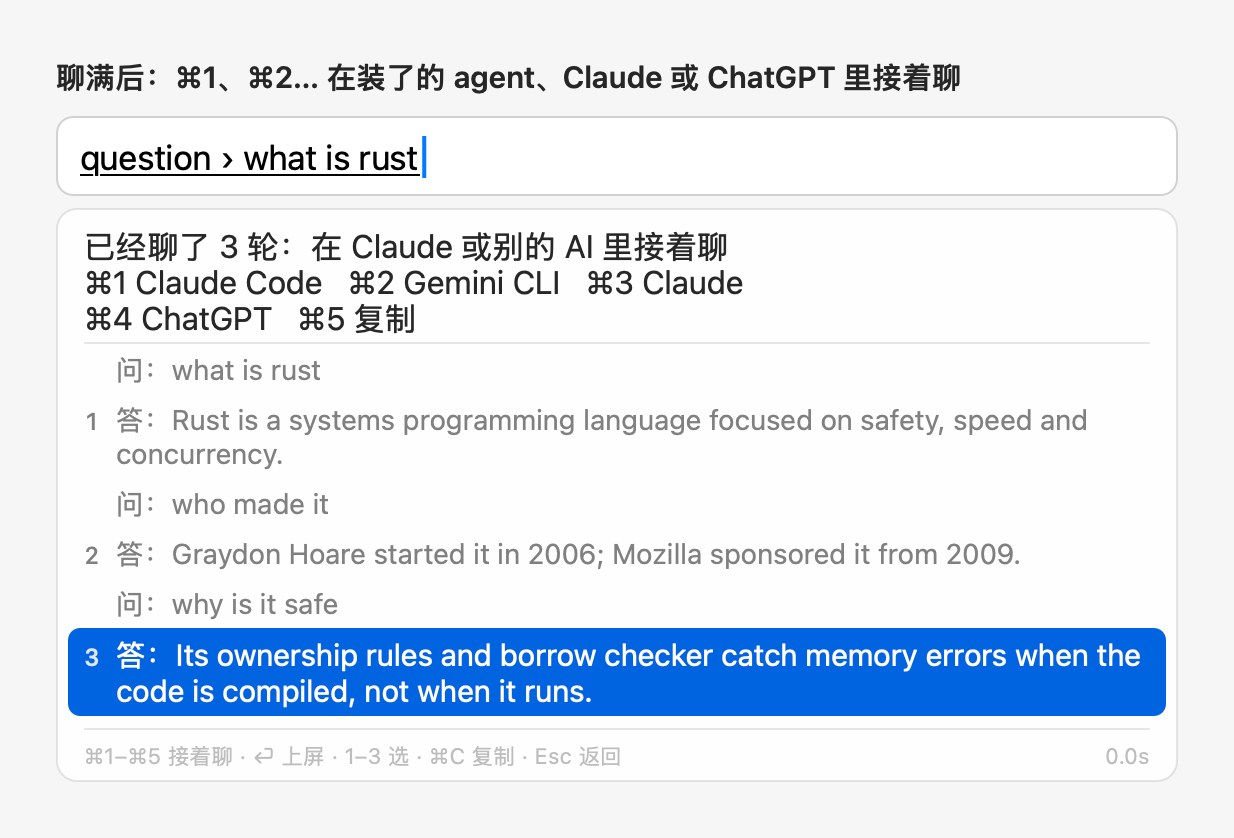
-
处处都是 ⇧⏎ 追问,⏎ 上屏。 出了 AI 结果后打的字就是追问:
@question之后是下一个问题,@improve、提示词命令或改写选中文字之后是修改要求。按 ⇧⏎ 发出去;⏎ 总是上屏选中的结果,追问打了一半也一样。@translate不再修改结果:直接打字改原文,⏎ 重新翻译。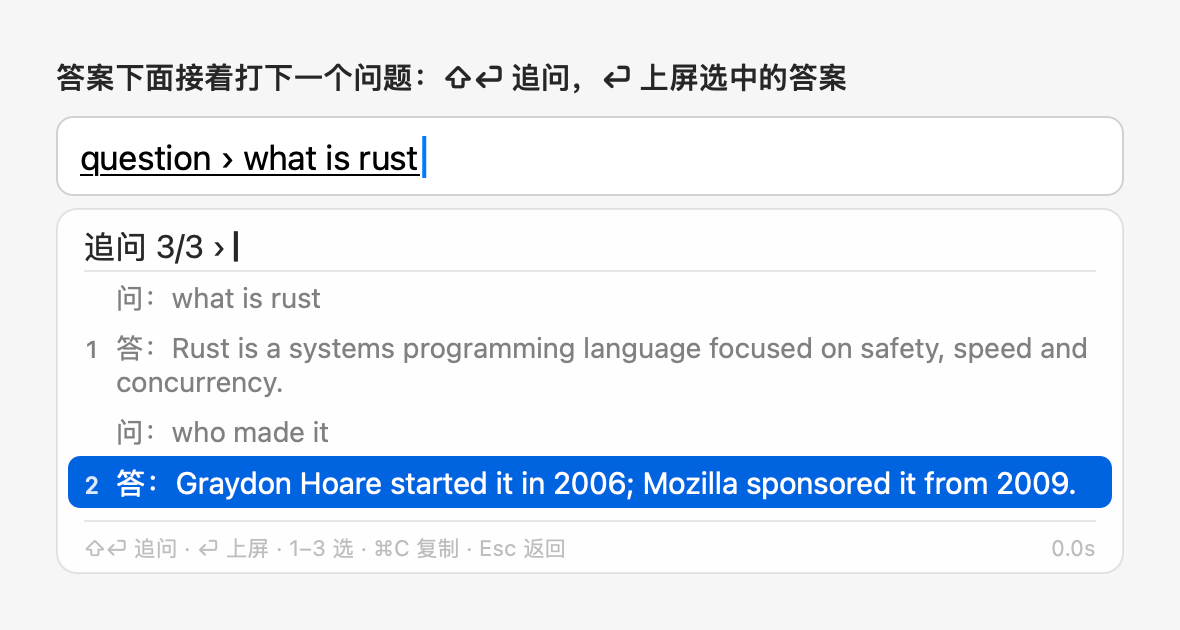
-
@config:用一句话改设置。@config 翻译成英语和法语、@config 微信里用中文,邮件里语气正式一点、@config 候选竖排、@config 用 Claude:⏎ 一行一行列出要改的地方,原来 → 改成,用设置里的名字;⏎ 应用,⌘Z(或 10 分钟内打@config undo)把改过的恢复原样。这台 Mac 有 Apple 智能就在本机运行,没有就用你选的服务;只能改允许的设置,密钥、自定义命令、扩展和插件都不能改。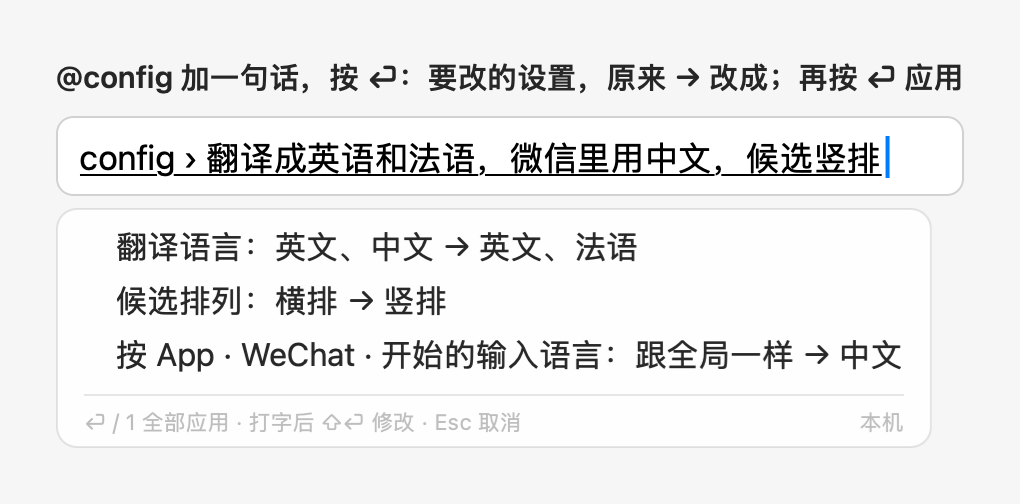
-
@doctor:检查设置。 检查这台 Mac 上的输入法、AI 服务、权限、安全输入、语言包、config.json、扩展和插件、更新,还有日志里最近的错误;问题在前,每项附一句怎么修。按数字预览那一项怎么修,⏎ 应用;在列表上按 ⏎ 修好所有安全的。不会删除你的数据,也不会碰密钥。@doctor <问题>让 AI 解释可能的原因,只发出检查结果。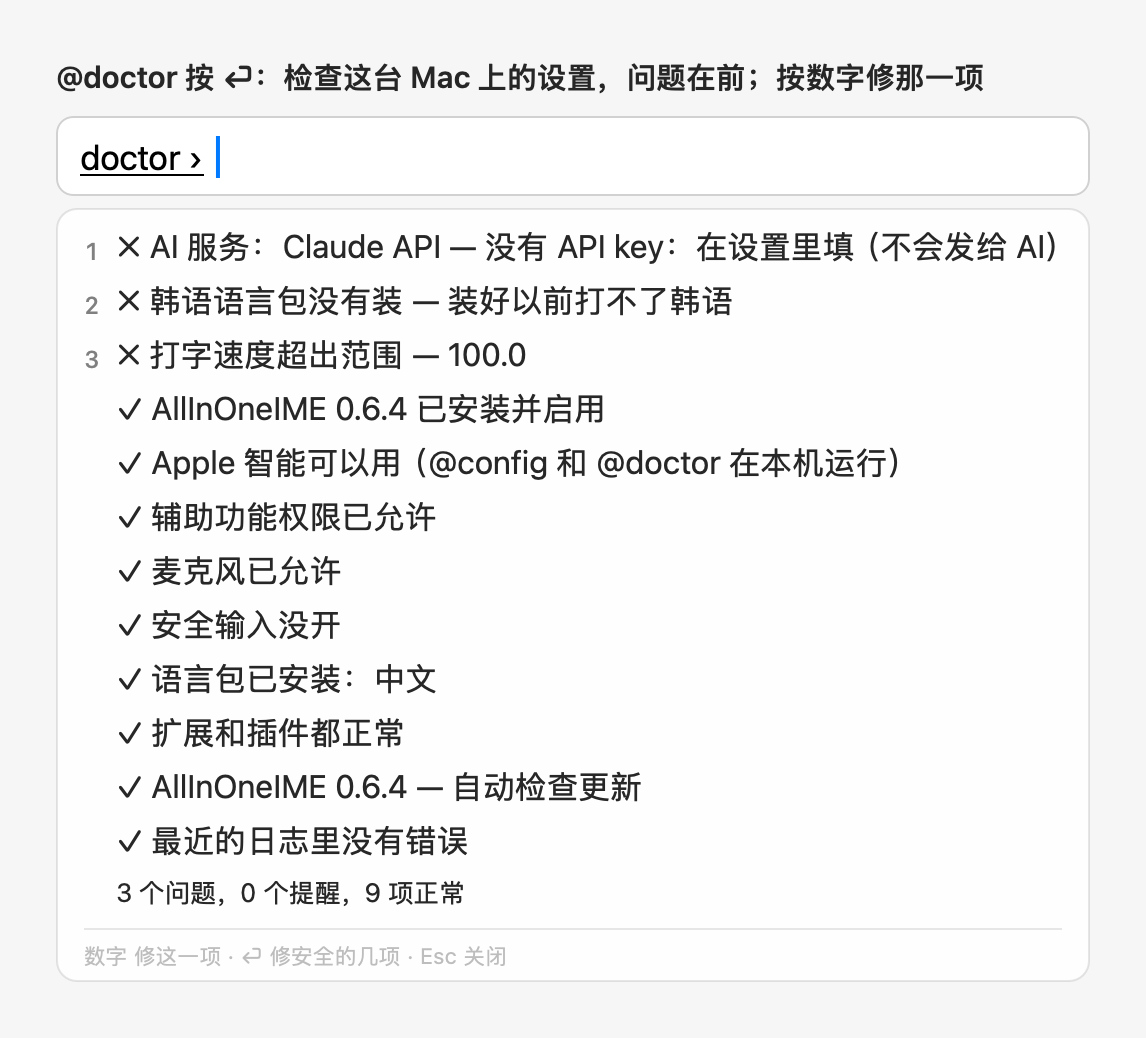
-
@agent(原来的@claude):编程 agent 由你选。 设置 →「Agent」(单独的一页)选@agent交给谁:Claude Code(默认,和以前一样)、Gemini CLI、Kiro CLI,或你自己的命令。这一页列出每个 agent 装了没有、在终端里运行什么。Claude Code 照样可以在后台做(@tasks);别的 agent 在终端打开,你打的字是第一句话。以前用@claude的次数算到@agent上。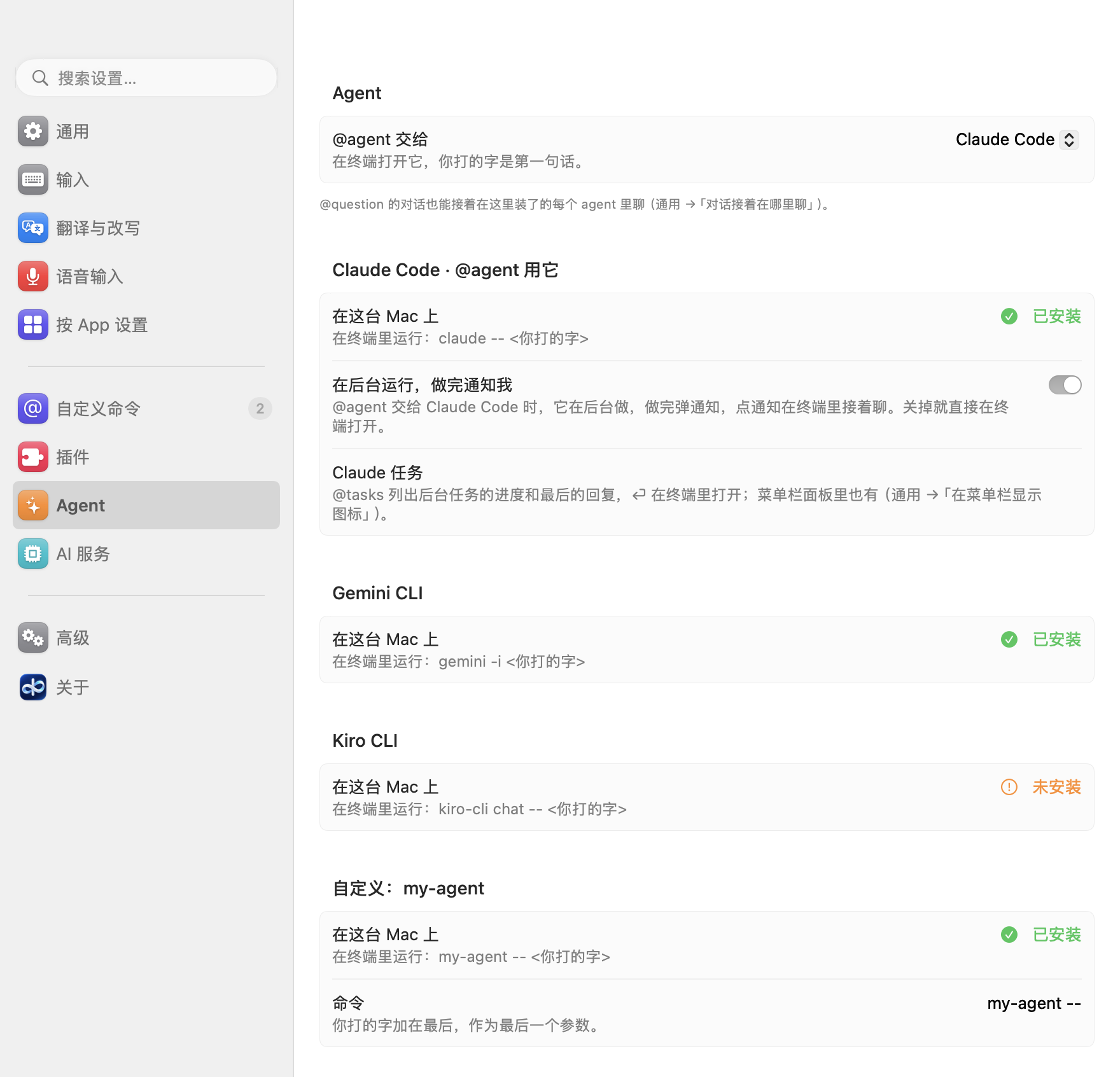
-
扩展来源。 从 Git 仓库安装脚本扩展包:设置 → 自定义命令 → 扩展来源 →「从链接添加…」(
ssh://、git@主机:、https://)。用你自己的 git 和 SSH 设置(密钥、ssh-agent、~/.ssh/config)克隆,在加载任何东西之前先给你看扩展包里的命令和要运行的程序,点「启用」才会启用。来源每天检查一次更新,点「更新」之前什么都不变。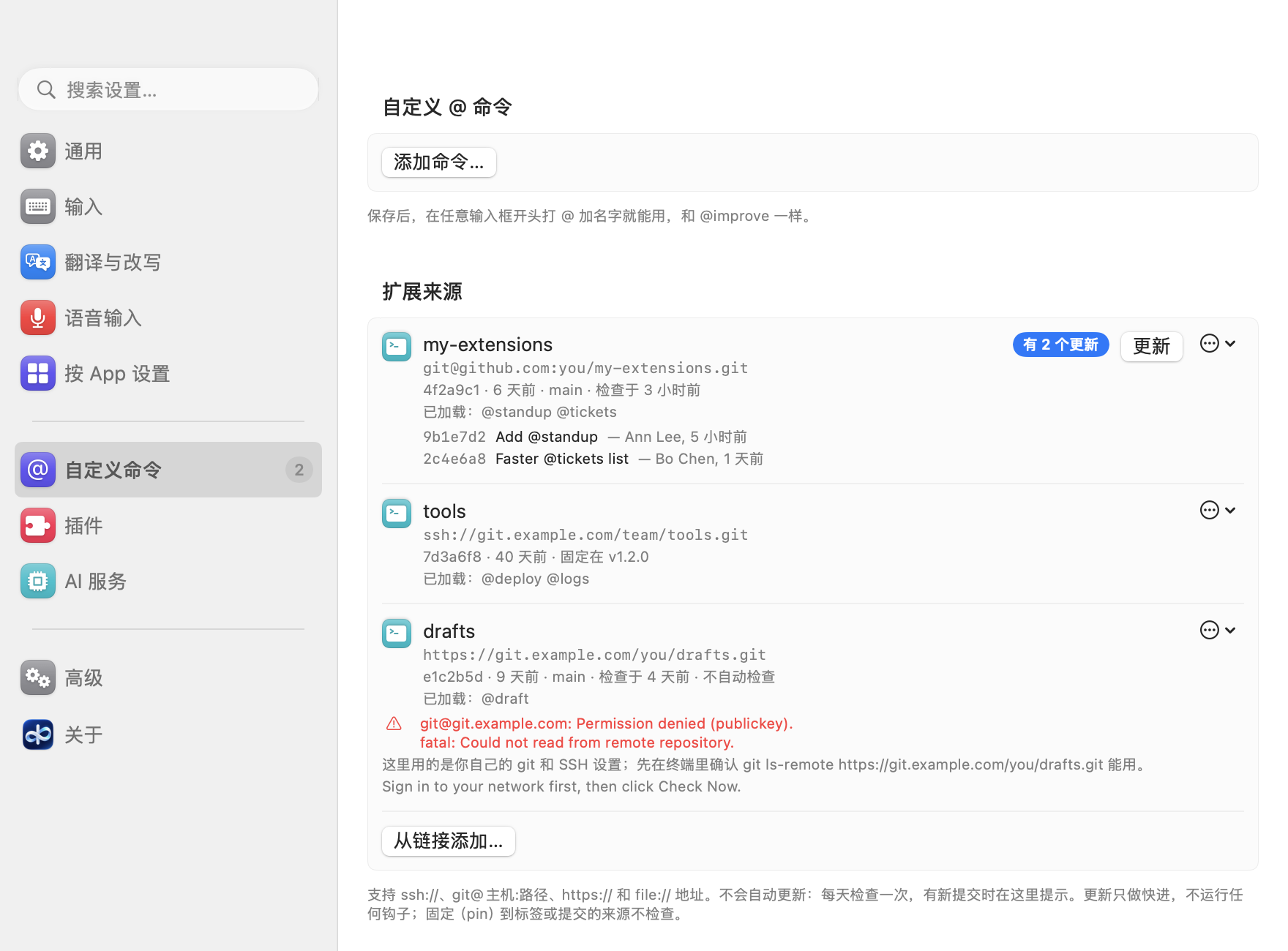
-
会自己刷新的 AWS profile。 Amazon Bedrock 除了固定密钥,现在也支持角色(
role_arn加source_profile)、SSO 和credential_process:请求需要时才取凭证,只放在内存里,到期前自动续期,不用再手动把临时密钥抄进~/.aws/credentials。设置 → AI 服务列出每个 profile 的种类(「dev — 通过 base 的角色」),并说明选中的那个的凭证什么时候到期;SSO 登录过期时,给出要运行的aws sso login命令。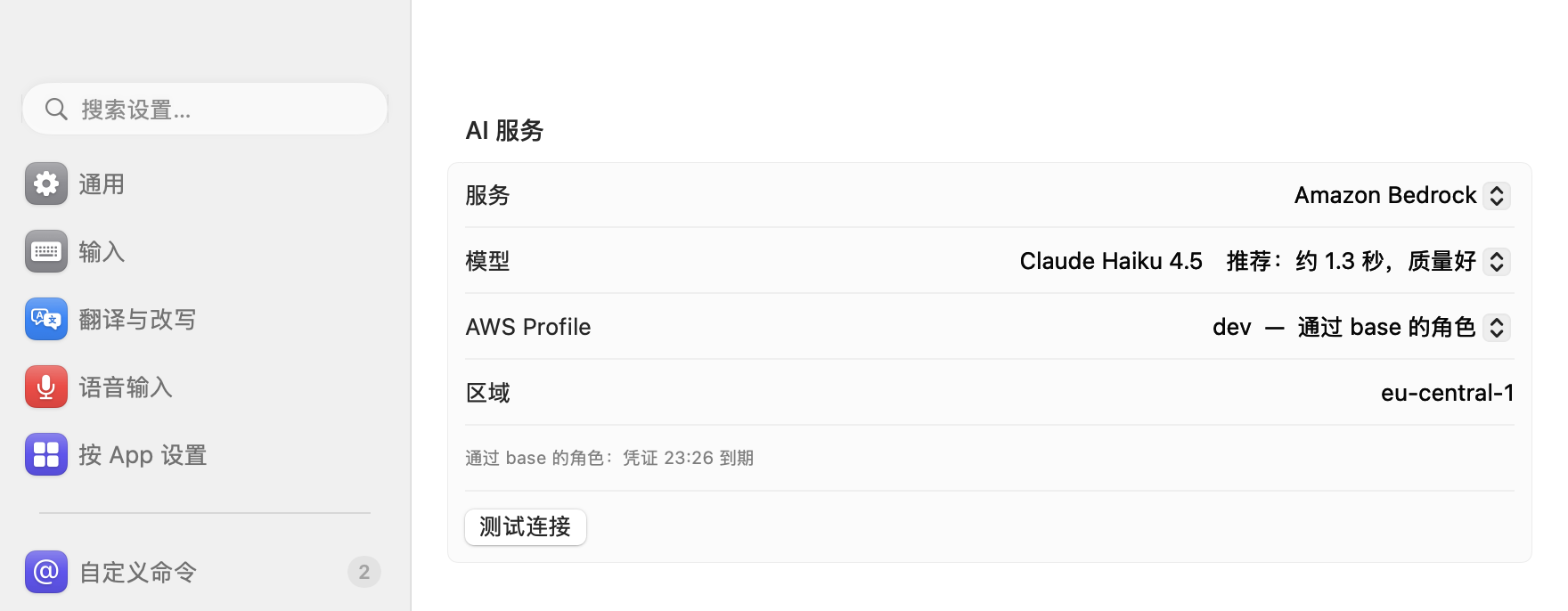
-
API key 的状态一目了然。 每个填 key 的地方都直接写有没有 key:「✓ 已保存 · 结尾 a1b2」,旁边是「替换…」「删除…」;用 shell 里的写「✓ 来自 $OPENAI_API_KEY」;没有就写「还没有 API key」,直接给出粘贴框。「删除…」会先问一次。要填别的服务的 key 时(
@config、@doctor要你填),会弹出一个小窗:「保存」,或「保存并使用」。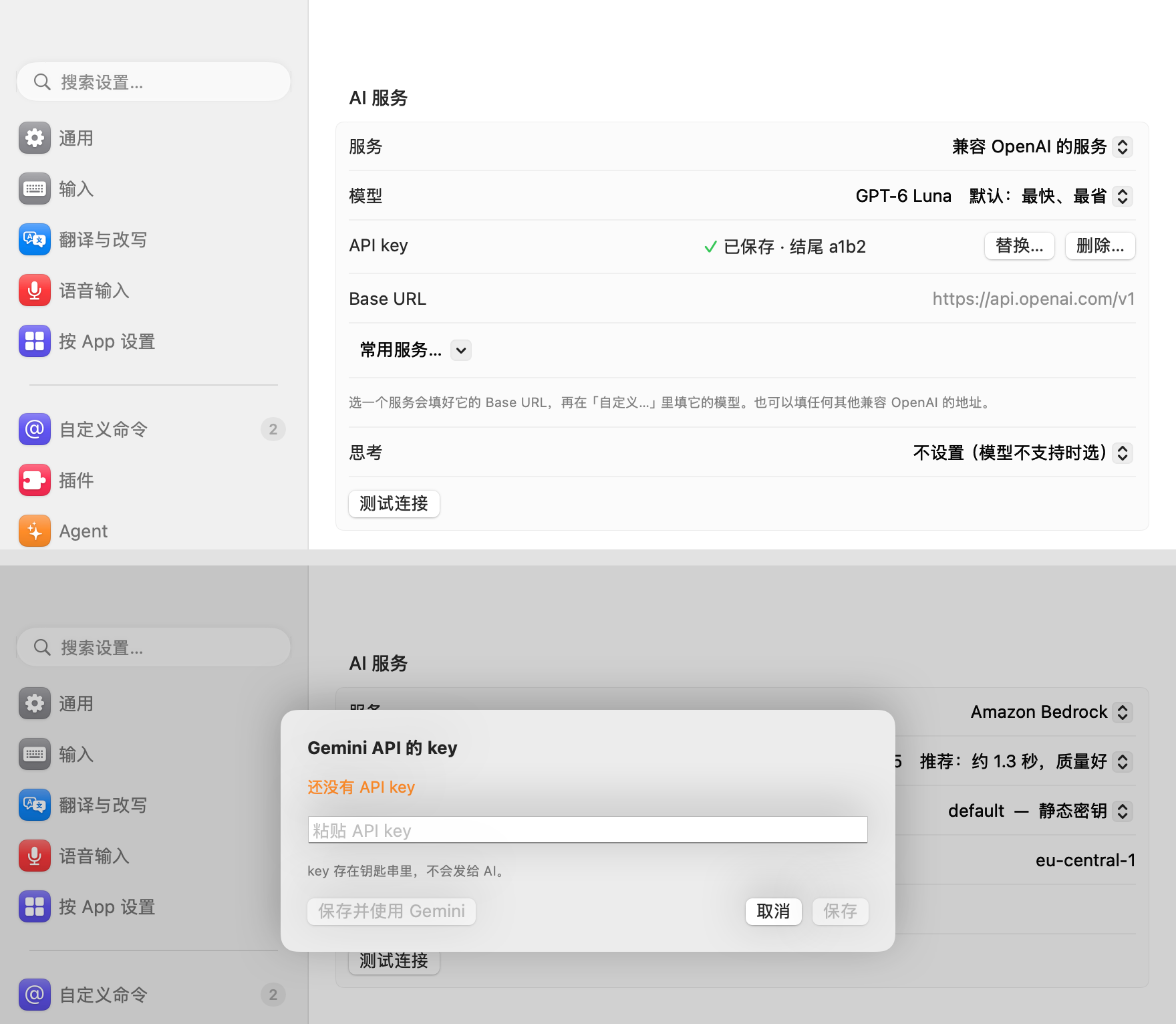
-
另外:紧跟着字母、数字打的
@就是普通字符(bob@example.com、ssh user@host),终端里也一样;设置窗口只写你改过的东西,这期间@config或手动改的不会被改回去;@question不再编造天气、新闻、价格、比分这类实时信息。
新增
- Amazon Bedrock 支持常见的各种 AWS profile,并自动刷新,一个 profile 里按 AWS CLI 的顺序(角色、SSO、credentials 文件里的密钥、
credential_process、config 文件里的密钥):固定密钥照旧;credential_process(credential_process = /usr/local/bin/my-creds --profile dev:像 shell 命令一样拆开,但不经过 shell 运行,用登录 shell 的 PATH,在主目录里,最多 60 秒);角色(role_arn加source_profile,可以串起来,也可以指向自己用自己的密钥,或credential_source = Environment;支持role_session_name、external_id、duration_seconds;在 profile 的区域调用 STS);SSO(sso_session或老的sso_start_url,用 AWS CLI 缓存的登录,只读不写);profile 是「default」(或者没选)时,和 AWS CLI 一样先用 shell 环境变量里的密钥(选了别的 profile 时从不用);会按AWS_CONFIG_FILE和AWS_SHARED_CREDENTIALS_FILE找文件。会过期的凭证只放在内存里,到期前 5 分钟重新取,请求来时剩不到 10 分钟就在后台取;同时来的请求只等同一次刷新;Bedrock 回答凭证过期时,重新取一次凭证再发一次请求。设置 → AI 服务列出每个 profile 和它的种类(「dev — 通过 base 的角色」),并说明选中的那个的凭证什么时候到期(「通过 base 的角色:凭证 15:30 到期」「SSO(登录有效至 18:00)」);「测试连接」顺着整条链重新取凭证;@doctor报告种类、到期时间和刷新失败。SSO 登录过期时会说「SSO 登录已过期:运行 aws sso login --profile X」(设置里有「复制命令」和「在终端里打开」,@doctor可以复制命令);带mfa_serial的 profile 会说明输入法没法问 MFA 验证码,请改用credential_process或 SSO;credential_source = Ec2InstanceMetadata或EcsContainer会说明为什么在 Mac 上用不了。只有请求或「测试连接」需要凭证时才运行程序、向 AWS 要凭证,列出 profile 和@config都不会;不记录也不显示任何密钥。 @config:用一句话改设置(@config 翻译成英语和法语、@config 微信里用中文,邮件里语气正式一点、@config 候选竖排、@config 用 Claude)。⏎ 在候选框里一行一行列出要改的地方,原来 → 改成,用设置里的名字;⏎(或 1)应用,Esc 取消,接着打字再按 ⇧⏎ 可以再改,确认那一行还在时按 ⌘Z 或 10 分钟内打@config undo恢复原来的值。只能改允许的设置:语言、改写风格、候选排列、逐字上屏、使用选中的文字、记住最近的问题、隐藏敏感信息(要隐藏的词只加不删)、检查更新、按 App 设置(按名字找 App),还有 AI 服务里不涉及密钥的设置(服务、Bedrock 的 profile 和区域、已知的模型、https://的 Base URL);密钥、自定义命令、扩展、插件和会运行程序的东西都会写明原因拒绝(看起来像密钥的值从不显示,模型的备注里有也不显示),每项改动都按设置里的规则检查(没装的语言包会指向设置)。不会换到还没有密钥的服务(钥匙串和 shell 里都没有):那一行说需要密钥,应用时打开设置里它的密钥输入框(存好后在那里选它);有密钥就换过去并自动测试连接。句子里打的密钥不会发出去。这台 Mac 有 Apple 智能就用它(只能回答允许的设置,可以查你的 App、AWS profile 和语言包),没有就用你选的服务;请求里只有允许改的设置现在的值。@doctor:检查这台 Mac 上的设置,能安全修好的帮你修。⏎ 列出结果,✗ 问题在前,然后是 ⚠ 和 ✓,一行一项,附一句怎么修:输入法、AI 服务(密钥有没有保存、Bedrock 的密钥找不找得到,从不读出;测试连接;Apple 智能)、权限(问系统时不弹窗)、安全输入、语言包、config.json、扩展和插件、更新,还有 App 日志里最近的错误。按数字在@config的预览里看那一项怎么修,⏎ 应用;在列表上按 ⏎ 修好所有安全的(修正设置、重新启用输入法);设置的改动可以像@config一样撤销,不会删除你的数据,也不会碰密钥。在关了 AI 的 App 里照样检查,只拒绝提问。@doctor <问题>再让 AI 解释可能的原因并建议修哪几项,有 Apple 智能就用它(各项检查是它的工具),只发出检查结果(路径只到 ~,去掉密钥)和问题;⏎ 仍然只修安全的几项。@question可以接着问,变成一段对话:答案出来后接着打下一个问题,按 ⇧⏎。候选框长成这段对话,前几轮用「问」「答」两行淡色显示,顶上是下一个问题的那一行和轮次(「追问 2/5 › …」);最多长到大约半个屏幕高,再多就滚动。每一轮的答案都能上屏(按数字 1–5、↑↓ 再按 ⏎,或者点一下;默认选中最新的),⌘C 复制选中的;Esc 先清掉打的字,再按退回上一轮。每次追问都按普通的多轮对话发出(前面的问答,再加新问题);第一个问题和以前发得一模一样。用本机的 Apple Intelligence 时,长对话会缩到放得进它很小的上下文(先缩短早的答案,再去掉最早的几轮),候选框里写「前面几轮已缩短」。最多 5 轮(配置里的questionRounds,2–10)。@question对话可以换到 Claude 或别的 AI 里接着聊:聊满后,下一个问题的那一行换成「已经聊了 5 轮:在 Claude 或别的 AI 里接着聊」,随时按 ⌘⏎ 也能列出来。⌘1、⌘2… 选这台 Mac 上装了的编程 agent(@agent交给的那个在最前,然后是 Claude Code、Gemini CLI、Kiro CLI 或你自己的命令,都在终端里开一个能接着聊的会话,启动方式和@agent一样;没装的不显示)、网页版 Claude 或 ChatGPT(对话直接填好,太长时放到剪贴板)、网页版 Gemini(放到剪贴板),或者把对话复制成 Markdown;这时打的字就是到那边的第一句话(只有 ⌘1–⌘9 发出去;这时按 ⇧⏎ 不会打开任何东西)。对选中文字的提问会把那段文字作为单独的引用块带过去。列哪几个、按什么顺序:设置 →「通用」→「对话接着在哪里聊」(questionContinueIn);里面的「@agent 的 agent」(agent)跟着@agent选的 agent 走,暂时没装的 agent 在改列表时保留原来的位置。对话只按你看到的样子发给你选的那个服务。- 「最近的问题」按第一个问题存下整段对话,选出来就能看到所有轮次接着聊;0.6.3 存的文件照常能读。
- 扩展来源:从 Git 仓库安装脚本扩展包,并从那里更新。设置 → 自定义命令 → 扩展来源 →「从链接添加…」,填
ssh://、git@主机:、https://或file://地址(可以另填分支、扩展包在仓库里的文件夹、要固定的标签或提交),用你自己的 git 和 SSH 设置(密钥、ssh-agent、~/.ssh/config、你自己的 ssh 命令;没有终端、不弹询问,每次最多 60 秒)浅克隆到~/Library/Application Support/AllInOneIME/Sources/下的暂存文件夹,在加载任何东西之前先给你看扩展包里有什么:命令和它们的输出方式、要运行的程序、偏好设置、提交,上面是「这个来源没有签名:会运行来自 <地址> 的程序」。只有点「启用」才会放到位、加进扩展;取消会删掉暂存的克隆。只加载检查过的代码:复制来的配置里的来源文件夹,在这台 Mac 上检查过之前不加载。来源每天检查一次(输入法启动后约 30 秒也会),除非关掉(autoCheck)或固定了:显示「有 N 个更新」和新的提交,页面上有角标,点「更新」之前什么都不变;更新只做快进,不运行钩子(强制推送之后要重新检查:「重新克隆」会再给你看一遍)。出错时显示 git 自己的话、在终端里试git ls-remote的提示,以及你自己的authHint。移除会把克隆移到废纸篓,保留扩展包的偏好设置。终端里可以用--add-source、--update-sources、--list-extensions。配置里是extensionSources(url、path、branch、pin、autoCheck、authHint)。添加的文件夹本身就是扩展包(有extension.json)时,现在按这个扩展包加载。
变更
@claude改名为@agent,交给你在设置 →「Agent」(单独的一页)里选的编程 agent:Claude Code(默认,和以前一样)、Gemini CLI、Kiro CLI,或你自己的命令(agentCommand,你打的字加在最后,作为最后一个参数)。Claude Code 照样可以在后台做(@tasks列出这些任务);别的 agent 在终端打开,你打的字是第一句话。没装的 agent 不显示;这一页列出每个 agent 装了没有、怎么启动,还有 Claude Code 的后台任务和自定义命令。不管多长,打的字都完整交给 agent。@claude不再是命令(你自己的命令可以用这个名字);以前用它的次数算到@agent上,命令列表的顺序不变。@question对话可以换到装了的每个 agent 里接着聊,这个排在最前(⌘1)。配置里:agent、agentCommand。你自己的命令或插件叫agent的,会被它盖住(和别的内置命令同名时一样),请改个名。- ⇧⏎ 发出追问或修改要求,⏎ 总是上屏。出了 AI 结果后打的字进追问那一行(
@question之后是下一个问题,@improve、提示词命令或改写选中文字之后是修改要求),按 ⇧⏎ 发出去;⏎ 上屏选中的结果,打了一半也一样。什么都没打时,⇧⏎ 和别处一样照原样上屏。 - 重新问保存的
@question答案改成 ⌘R(原来是 R),这样接着问的问题可以用任何字母开头;保存的对话按 ⌘R 重新问最后一个问题。 @question的结果里按 0 不再上屏问题:数字用来选对话里的答案。@translate不再修改结果:直接打字改原文再翻译(结果出来后打字就是接着写这句话,⏎ 重新翻译)。@question不再编造实时信息:问天气、新闻、价格、比分或「今天」的事时,会说明查不了实时信息,再给些一般性的建议。- 名叫
config或doctor的自定义命令现在被内置的@config和@doctor盖住了(设置 → 自定义命令里会标出来):改个名字就能接着用。 - 删除存好的密钥要专门确认:「删除…」会先问一次,默认(⏎)是取消;密钥输入框空着、按 ⏎、关掉或只打了空格,都不会删掉密钥。保存和删除密钥会记到日志里(只记是哪个,不记密钥本身)。
- 每个填 key 的地方(AI 服务的 API key、网页搜索的 key、扩展的密码)都在那一行直接写有没有 key:「✓ 已保存 · 结尾 a1b2」(最后 4 位,保存时一起记下,显示时不读 key 本身;以前存的只写「✓ 已保存」),旁边是「替换…」「删除…」;用 shell 里的写「✓ 来自 $OPENAI_API_KEY」;没有就用橙色写「还没有 API key」,直接给出粘贴框。已经存了 key 时,点「替换…」才出现粘贴框,空着的输入框不再代表「已保存」。
- 要填的不是当前服务的 key 时(
@config、@doctor),设置 → AI 服务会弹出一个小窗:粘贴后「保存」,或「保存并使用」直接换过去(随后测试连接);「取消」和 Esc 什么都不改。当前服务的页面上不再出现别的服务的内容。@config里没有 key 的服务那一行,结尾改成「可以在那里换过去」。 - 设置窗口只在设置真的改了时才写
config.json:服务默认的 Base URL 和模型只作为输入框里的提示,点进输入框、按 ⏎ 或关掉窗口,都不会再把默认值当成你设的写进文件。 - 设置 → AI 服务显示着要隐藏的词时,用
@config或手动加进去的词,不会在离开这一页或关掉窗口时又被去掉:没在编辑时这一栏跟着文件走,编辑后保存也会留下这期间别处加的词。扩展的文字设置也一样。 - 设置窗口保存时只写在窗口里改过的东西,细到某个 App 的设置、隐藏敏感信息的某一个开关:设置开着、还没读进来时
@config(或手动)写进去的改动,不会再被改回去,设置随后也会显示出来。
修复
- 安装程序最后一步不再说要先配置 Amazon Bedrock:新装默认用 AllInOneIME 云(登录就行,每天 20 次免费),支持 Apple 智能的 Mac 上也可以不用账号直接用它。AllInOneIME 云没登录或今天的次数用完时,只有在能用 Apple 智能的 Mac 上才提示「打 @config 用 Apple 智能」;别的 Mac 上提示登录或填自己的 key。
- 用角色、SSO 或
credential_process的 profile 调用 Bedrock,不用再把临时密钥抄进~/.aws/credentials、过期了再手动换:以前这些 profile 会被拒绝(「暂只支持静态 access key」),现在会自动取凭证、自动续期。 - 紧跟着刚打的英文字母、数字、
.、_或-打的@就是普通字符:bob@example.com、ssh user@host照常输入,不弹命令列表,哪个 App 里都一样,终端也是。 - 在终端(Ghostty)里,单独一个
@后按 → 或 ←,@不会再消失;之后打的.、:、空格或字母也不会再丢:@照原样留下,列表关掉(这时方向键只关掉列表)。 @后面按的数字不对应显示出来的五行(0、6–9)时,照原样输入,不再选中一个没显示出来的命令。
从 0.6.3 升级
@claude改名为@agent:打@agent,或在设置 →「Agent」里换一个 agent。以前用@claude的次数算到@agent上。名叫agent、config或doctor的自定义命令(或名叫agent的插件)现在会被内置命令盖住:改个名字就能接着用。- ⏎ 上屏,⇧⏎ 修改:0.6.3 里在结果下面打字再按 ⏎ 是修改结果;现在按 ⇧⏎ 发出打的字(修改要求,或
@question的下一个问题),⏎ 总是上屏选中的结果。 @translate不再修改结果:直接打字改原文,⏎ 重新翻译。- 重新问保存的
@question答案改成 ⌘R(原来是 R);@question的结果里按 0 也不再上屏问题。 - 用角色、SSO 或
credential_process的 profile 调用 Amazon Bedrock:在设置 → AI 服务里选它就行,不用再把临时密钥抄进~/.aws/credentials。 - 0.6.3 存的 key 显示「✓ 已保存」;从 0.6.4 起保存或替换的 key 才显示「结尾 …」。
- 别的不用做:设置、key、语言包、学到的词和扩展都保留。
下载
- 从 0.6.3 升级:设置 →「关于」→「检查更新」(输入法菜单里也有「检查更新…」),再点「更新到 0.6.4」。它会下载、核对、安装,再重启输入法,设置、语言包、学到的词和扩展都保留。AllInOneIME 每天也会自己看一次;不点就不会安装。
- 新安装,或从 0.6.2 及更早的版本升级:下载下面的
AllInOneIME-0.6.4.dmg(只从这个页面下载),打开,双击「Install AllInOneIME」,点「安装」。直接装在旧版本上,不用先卸载。它用 Developer ID(MicroZ LLC)签名,并经过 Apple 公证,macOS 只会问一次要不要打开从互联网下载的 App:点「打开」。从 0.6.2 或更早的版本升级,先看 0.6.3 的说明里的「从 0.6.2 或更早版本升级」:每个保存过的 key,macOS 会问一次登录密码。 - 需要 macOS 14 或更高版本(语音输入和 Apple Intelligence 需要 macOS 26 或更高)。通用版本:Apple 芯片和 Intel 都能用。

