MSFS2020 How to Create a Blinking LED configuration
In this tutorial, we will keep things simple by just configuring an LED that blinks first, nothing else. This procedure assumes you already have a working installation of Mobiflight, the wasm module and at least one LED connected to your board and configured in Mobiflight Modules.
-
Create an output config that will use the simulator time variable. Enter this variable name in the Variable field of the output config window. (E: SIMULATOR TIME, second) This variable displays the time in seconds elapsed since the simulator started.
-
Add some integer math to this variable by applying the modulo function with 2 as divider. (E:SIMULATOR TIME, second) 2 % This simple statement will now display an alternating value of 0 and 1 each second. You can name this config as "Blink 1 second". You could configure a LED to display with this output, but it would not be very useful, as the LED will blink forever. So we next add a variable to control when to blink.

-
Create an output config for the variable you wish to display with the blinking LED. For example the classic Parking Brake variable used in the old Mobiflight tutuorial: (A:BRAKE PARKING INDICATOR,Bool)

-
Configure the Display tab to use a LED in your board. This part is identical to the LED for parking brake tutorial. With this You should have a LED that turns on and off with the Parking Brake indicator.
-
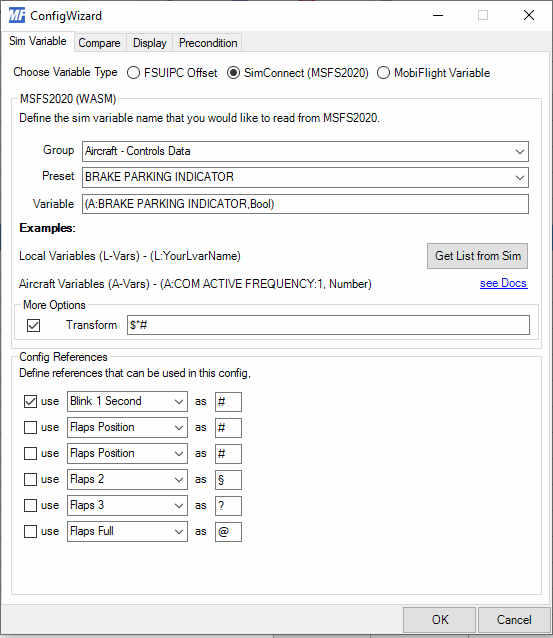
We will now add the blink function by using the Transform field and bring the “Blink 1 second” config as a config reference. Go to Config References and put a checkmark on the first config ref. Select from the list of configs “Blink 1 second”. Now use the placeholder for that config ref, which in this case it is the “#” sign and put the formula $*# in the Transform field. Both variables in this formula only take values of either 0 or 1 so multiplying the two together results also in a value of 0 (if either variable is equal to 0) or 1 (only when both variables are equal to 1).
-
Save your MF config. Your LED will now blink once per second when the Parking Brake is ON.
The same effect can be achieved with only one output configuration by moving all the math to the output configuration Variable field with something like the following statement:
`(A:BRAKE PARKING INDICATOR,Bool) (E:SIMULATOR TIME, second) 2 % *`
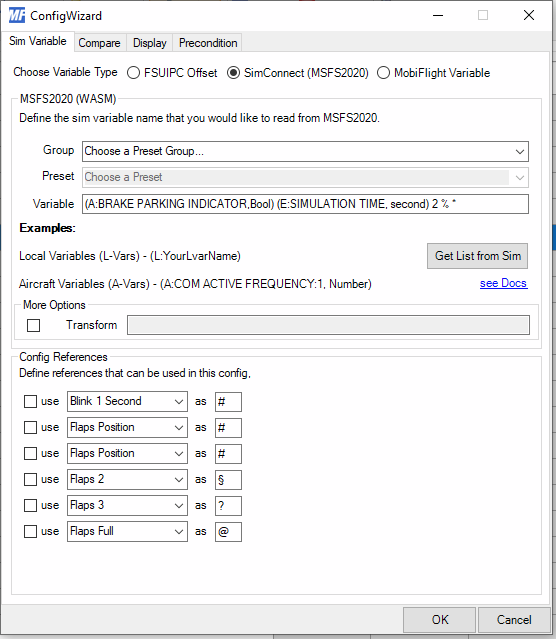
This type of technique can be used with some modifications in other instances, like blinking values in an LCD screen.
The frequency of the blink can also be adjusted by changing the formula used in the blink. For example you can increase the frequency to twice per second by multiplying the E: variable times 2.
`(E:SIMULATION TIME, second) 2 * 2 %`
On the other hand you can have the frequency drop to once every 5 seconds by diving the variable by 5.
`(E:SIMULATION TIME, second) 5 / 2 %`
- MobiFlight Connector Installation
- Mobiflight Connector BETA version installation
- Modules
- MobiFlight Connector Files Structure
- MobiFlight Connector Uninstall
- Modules Reset to factory default
- Verifying the WASM module installation and locating the MSFS2020 community folder
- Verifying the WASM module installation and locating the MSFS2024 community folder
- Using a Winwing FCU with MobiFlight
- Using VKB controllers with MobiFlight
- Providing logs from MobiFlight
- MobiFlight Connector How does it work
- Mobiflight Connector Main Window
- Flash module with MobiFlight firmware
- Input and Output devices
- Joysticks
- Midi Boards
- Sim Variables (for Output)
- Input Actions
- Merging configuration files
- Disabling specific COM ports
- Examples Output LEDs
- Examples Input Switch
- Example 7 segment display
- Example Servo motor
- Controlling LEDs with an output shift register
- Adding lots of buttons with an input shift register
- Beginner's guide to input multiplexers
- Key Matrix with standard MobiFlight and Multiplexers
- Tutorial Easy Driver and x.27 or x.40 Stepper Motor
- Tutorial for Airbus VS display via 7-Segment LED Module
- Example Analog Input Potentiometer
- Baron G58 Tutorial Gear, Flaps, Mags, ELT Input Output Programming
- Using Mobiflight to control arduino-based 3rd party panels (RealSimGear GNS530)
- How to use a VNH2SP30 DC motor shield with MobiFlight
- Using 3D printer mainboards
- Playing sounds by sending keystrokes to AutoHotKey
- Using the selector knob on a Honeycomb Bravo
- Using an adjustable 12 position switch as a GA starter
- Brightness of LCD displays with I2C
- Using three-position switches
- Transponder with one Rotary
- Workflow for Creating Flight Simulation Panels ‐ Part 1
- MSFS2020 RPN Tips and Tricks
- MSFS2020 Using the Custom Input Code Box
- MSFS2020 Install WASM module and Event List
- MSFS2020 How to Create and Use User Defined Lvars
- MSFS2020 How to Create a Blinking LED configuration
- MSFS2020 User Defined WASM Module Events Best Practices
- MSFS2020 Developer Mode, Model Behavior dialog and Console window
- MSFS2020 PMDG 737‐700 List of Events that require use of FSUIPC7
-
MSFS2020 PMDG 737‐700 Calibrate throttle idle and reverse thrust using interpolation (Valkyrie)
- MSFS2020 PMDG 737-700 Chrono unit functions implemented in Mobiflight
- Configuring PMDG 737 Parking Brake Lever Auto-Release with a Servo in Mobiflight
- Using encoder to drive a value back and forth within a given range

- Adding a custom board to MobiFlight
- User guide - Community Board and Custom Devices
- Developing your own custom devices/boards