Repository navigation
Features
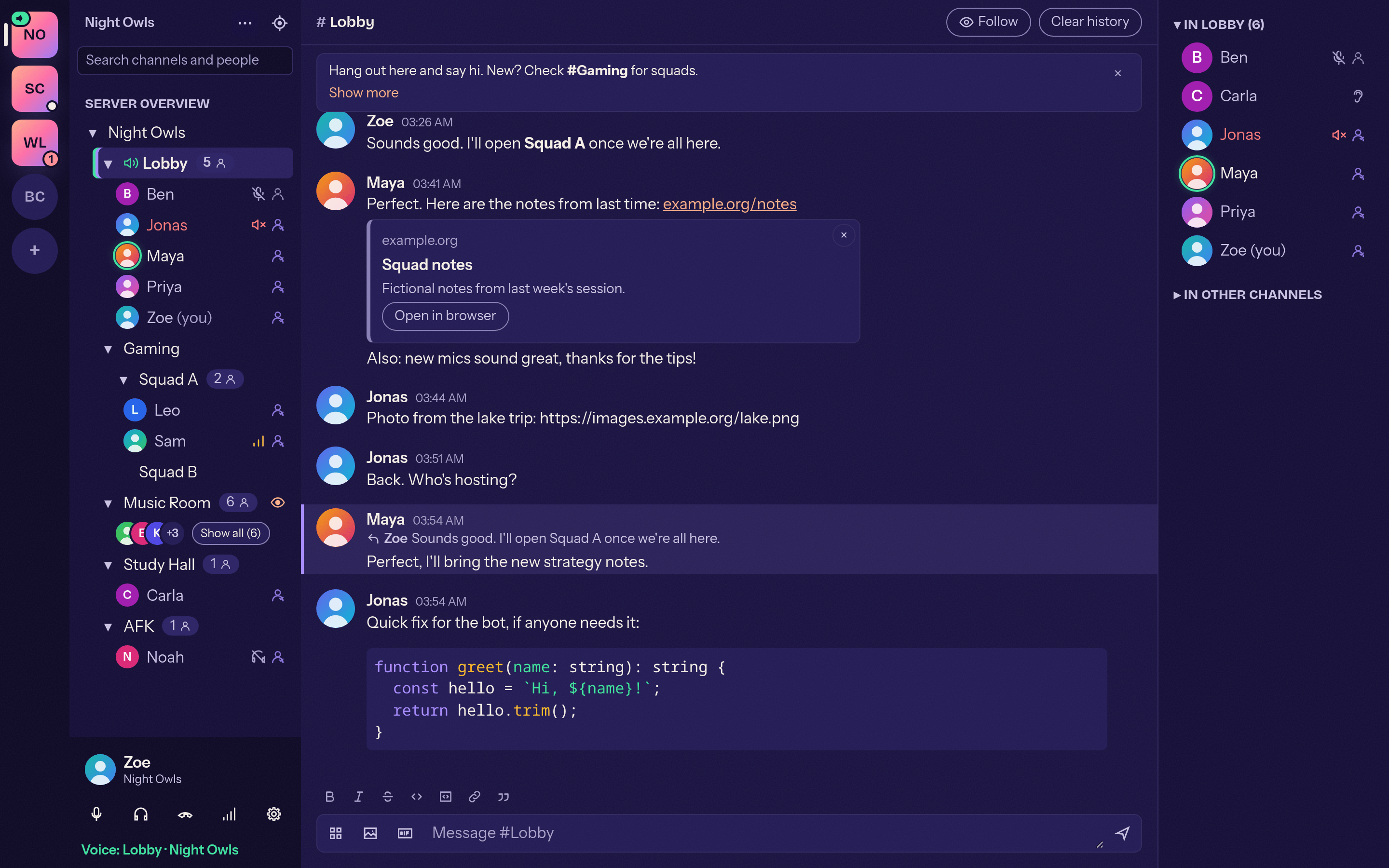
What Mumcord can do today (Epic 1, stage 1a released as v0.1.0 alpha, v0.1.1 with the music quality switch, stage 1b chat features as v0.2.0, and stages 1c and 1d as v0.3.0; Epic 2 followed in 0.4.0, current release 0.4.2) and what is planned. Features marked Beta depend on the game and may change.
- Saved servers appear as icons in the server bar. Add one with "+" using address, port (default 64738), username and optional password, or paste a
mumble://link. Servers can be edited, reordered and removed. - Server passwords are stored in your system's secure storage, never in plain files.
- Open
mumble://links from a browser or another app: Mumcord starts, offers to save the server and joins the channel from the link. - Certificate trust on first use: you see the server certificate's fingerprint and decide whether to trust it. If a trusted server's certificate changes later, a clear warning blocks the connection until you decide.
- Automatic reconnect with a "reconnecting" bar. After an automatic reconnect Mumcord restores your channel, your mute/deafen state and your followed channels.
- A fresh connect is read-only by default: you land in the default channel, muted and deafened. Chat works; you join voice by joining a channel on purpose. When you join, Mumcord restores your last mute and deafen setting. The setting "Connect muted until I join a channel" (on by default) controls this.
- After a restart, Mumcord offers a prompt above the chat to rejoin the voice channel you were in last on that server.
- The user panel has two rows: your name is never cut off, and the microphone button fills live with your input level. A Disconnect button leaves the server.
- One server connected at a time. Planned (Epic 2): several servers at once to read along on all of them.
- Collapsible channel tree with people under their channel. Each person has an avatar (or a colored circle with their initials) that gets a green ring while they talk.
- Single-click a channel to read its chat without joining. Double-click (or "Join") to enter its voice. The channel you are in by voice is highlighted, distinct from the channel you are just reading.
- Avatar stacks: collapsed channels, and expanded channels with more than 5 people, show a compact stack of avatars on their own line under the channel name (talking people in front, "+N" for the rest, with status badges). The stack adapts to the list width.
- Follow channels: every channel row has a star (the "follow eye") to follow or unfollow it, and the server context menu offers Follow all / Unfollow all channels (respecting the server's listener limit). You receive followed channels' messages without being in them; they show unread badges. This needs a server 1.4 or newer; on older servers the feature is hidden.
- Unread counts also appear for your own channel while its chat is not on screen.
- Status icons next to people, each with a tooltip: guest (not registered) or registered, self-muted, self-deafened, server-muted, suppressed (cannot speak in this channel) and muted for you. People you muted locally have a red name.
- Hover a person (channel list, member list, chat avatar or name) to see a profile preview next to them; click for the full profile card.
- Right-click a person for a menu: view profile, mute for me, volume slider (0-200 %) and private message. The browser's own context menu is suppressed everywhere in the app.
- Per-person volume and local mute are remembered by the person's certificate and re-applied when they come back, even after a rename.
- Resizable lists: drag the edges of the channel list and member list (width is remembered).
- Member list with avatar, name, talking state and status icons. People who only listen to a channel appear in the member list, not in the channel tree.
- Pinned info: the top of each channel's chat shows a collapsible box with the channel description; the server welcome message is pinned in the root channel.
- Grouped chat: each message group has the sender's avatar, name and time, with consecutive messages grouped. Choose Cozy (default) or Compact display in Settings, Appearance.
- Text chat in channels and private messages, with formatting, links and small inline images. Everything from the server is sanitized; links open in your system browser only after a click.
- Write with Markdown shortcuts (bold, italic, code, links); paste or drop images, which are scaled to the server's size limit.
- Local chat history, with "Clear history" and a per-server "Save history" switch.
- Server registration from the user menu, with a plain-language explanation and an "Export identity" shortcut.
- Code: fenced code blocks (optionally with a language) and inline code are highlighted. Other clients see plain text.
- Formatting toolbar with shortcuts (Ctrl+B, Ctrl+I, Ctrl+Shift+X, Ctrl+E, Ctrl+K) that insert Markdown.
- Link previews: links get a card with title, description, image and "Open in browser". Mumcord fetches the metadata itself; no previews for private or LAN addresses.
- YouTube and Twitch cards: the player loads only after you click. How much plays inline depends on the platform.
- External images are shown inline. They share one privacy switch with link previews (default on; wizard and settings).
- Dismiss (x) on any preview or card, remembered per message. Cached previews, thumbnails and images are deleted after a set number of days (default 7, Settings, Chat & history, with "Clear now"). Optionally, chat history older than a set number of days is deleted automatically (off by default).
-
@mentions: typing
@autocompletes names. A message that mentions you is highlighted and notifies you, with a ping sound; each part has a switch. Other clients see plain@Name. - Spotify cards: like YouTube and Twitch, the player loads only after a click.
- Image viewer with zoom for inline images.
- GIF links with favorites: GIFs from links are shown inline, labeled "via GIPHY" or "via Tenor", and can be saved to a favorites list. There is no GIF search; that is Epic 6.
- In-game overlay (Linux): shows who is talking inside the game. A Vulkan layer in the style of MangoHud with an OpenGL fallback; works with Steam games, including Proton. Set per game, with a global Off/On switch, optional auto start and a first-start wizard choice with an example screenshot. An anti-cheat blocklist is off by default.
- Window overlay: a transparent, click-through, always-on-top window showing who is talking (corner, move mode, size, opacity; tray and quick settings switch).
-
"Now gaming" status: detects Steam and known games, with controller icon, Steam picture and play time; Join game for Steam games that support
+connect. - Quick settings (gear button) with a collapsible Beta group.
- Settings search with a sticky sidebar, and accessibility switches.
- Person menu (right-click) with icons and Join channel, which moves you into that person's channel (also for friends in the Friends list).
- Full profile with a private note about the person; friends (added from the card, menu or profile, identified by certificate so renames do not matter) in a collapsible right-hand "Friends" section showing online state and where they are.
- Member column: collapsible "In " and "In other channels" sections, and a "Server overview" label above the channel tree. Open/closed state is remembered.
- History sync between Mumcord clients (channel messages only, at most 7 days / 500 messages, marked "from X's history"; on by default, switchable in the wizard and settings).
- Full-size images on demand: thumbnails in chat, the original loads when you open it. (Beta; sending and receiving can be switched off separately in Settings, Chat.)
- Positional audio (Beta, off by default): voices of people sharing game positions are placed in 3D around you, via Mumble Link and the official game plugins. People currently sending positions show a small "3D" icon.
- 24 EU languages, picked in their own names; defaults to your OS language.
- Privacy step in the first-start wizard: a short summary of every network connection, with a link to the privacy statement.
- Mumcord badge, double-click for a private chat, several images by drop or paste, @mention chips, a pinned person card and design polish.
- Beta: positional audio, game plugins and full-size images are marked "Beta" because results depend on the game.
- Coming later: Windows in-game overlay (Epic 2). There is no overlay of any kind on macOS.
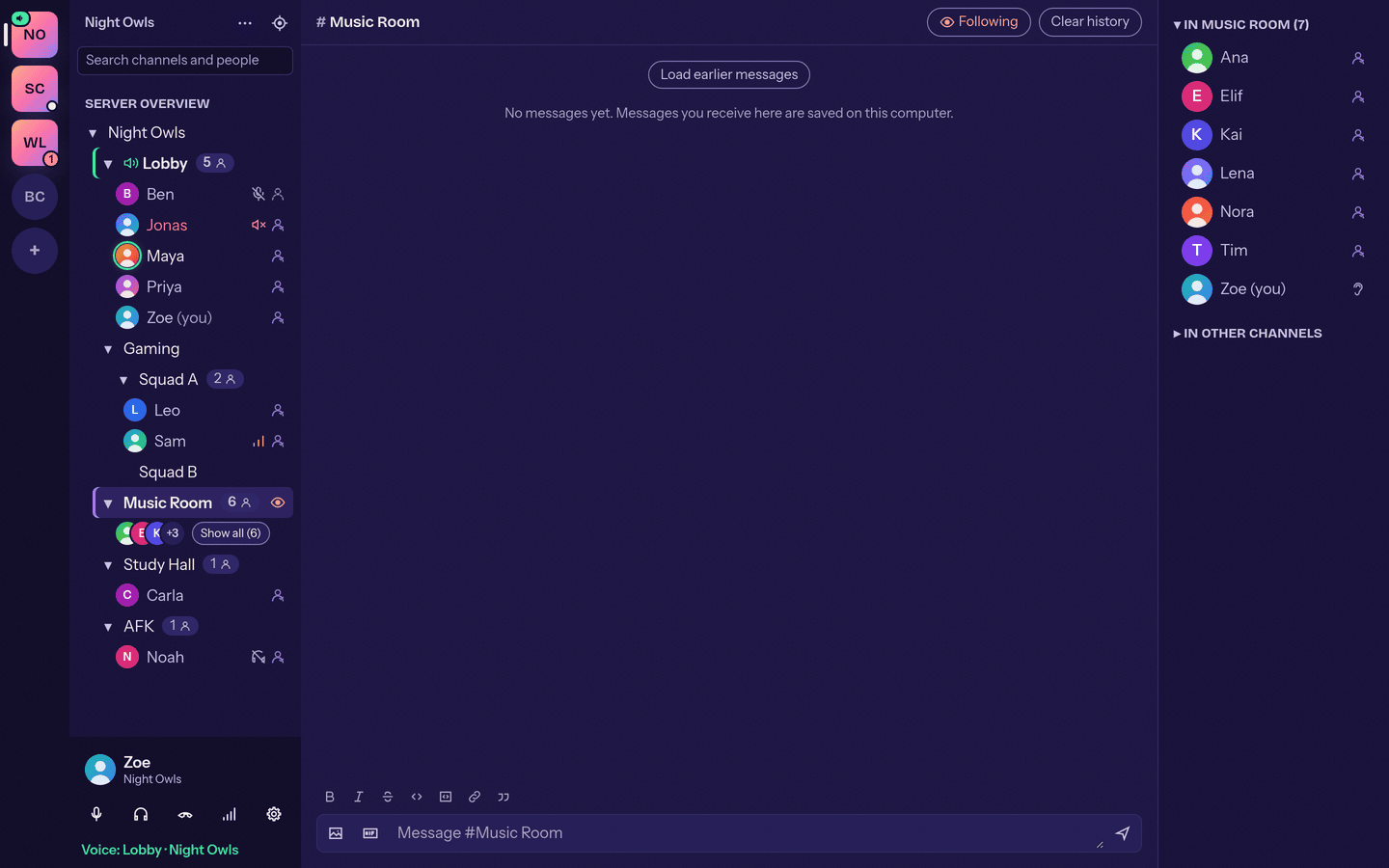
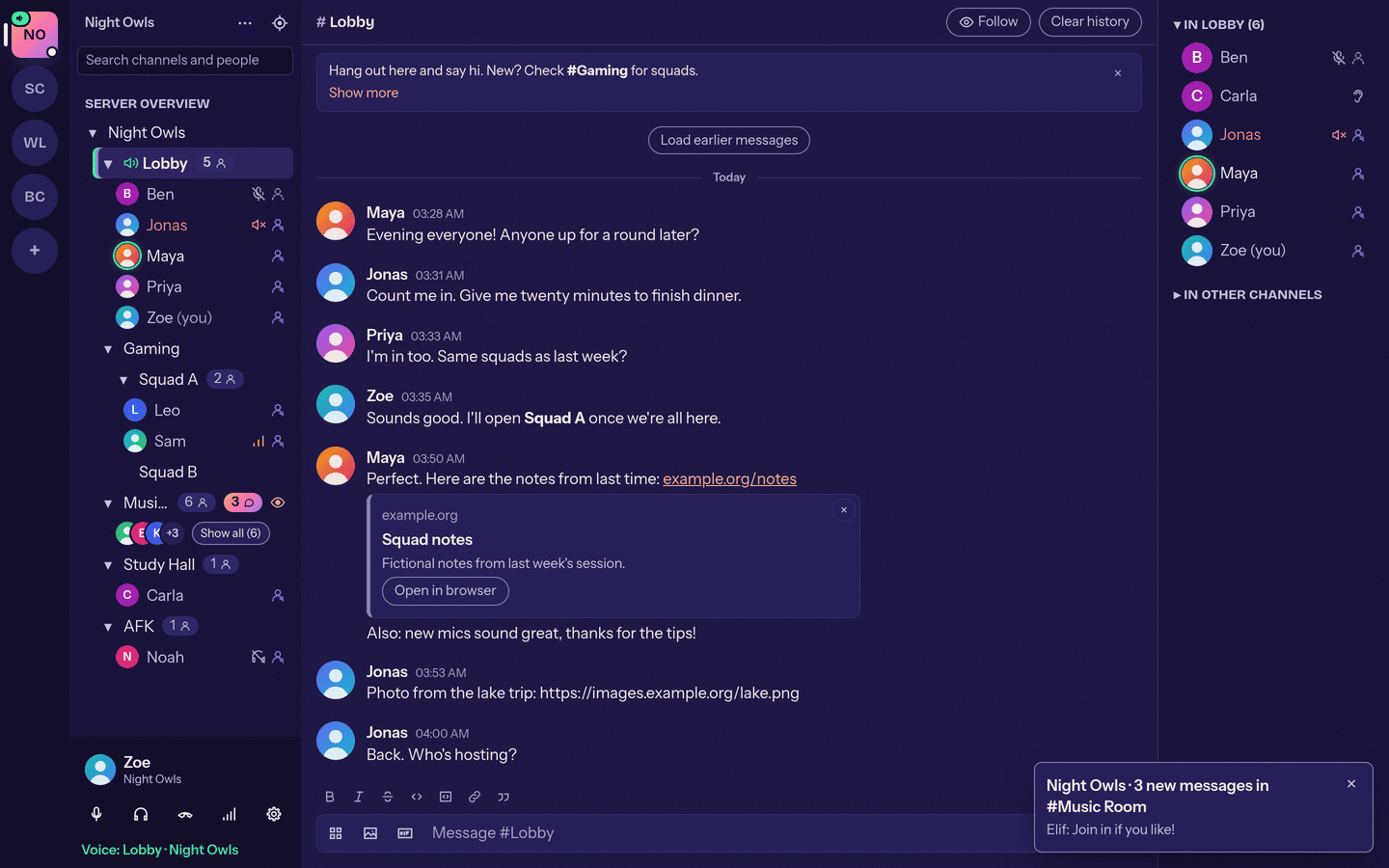
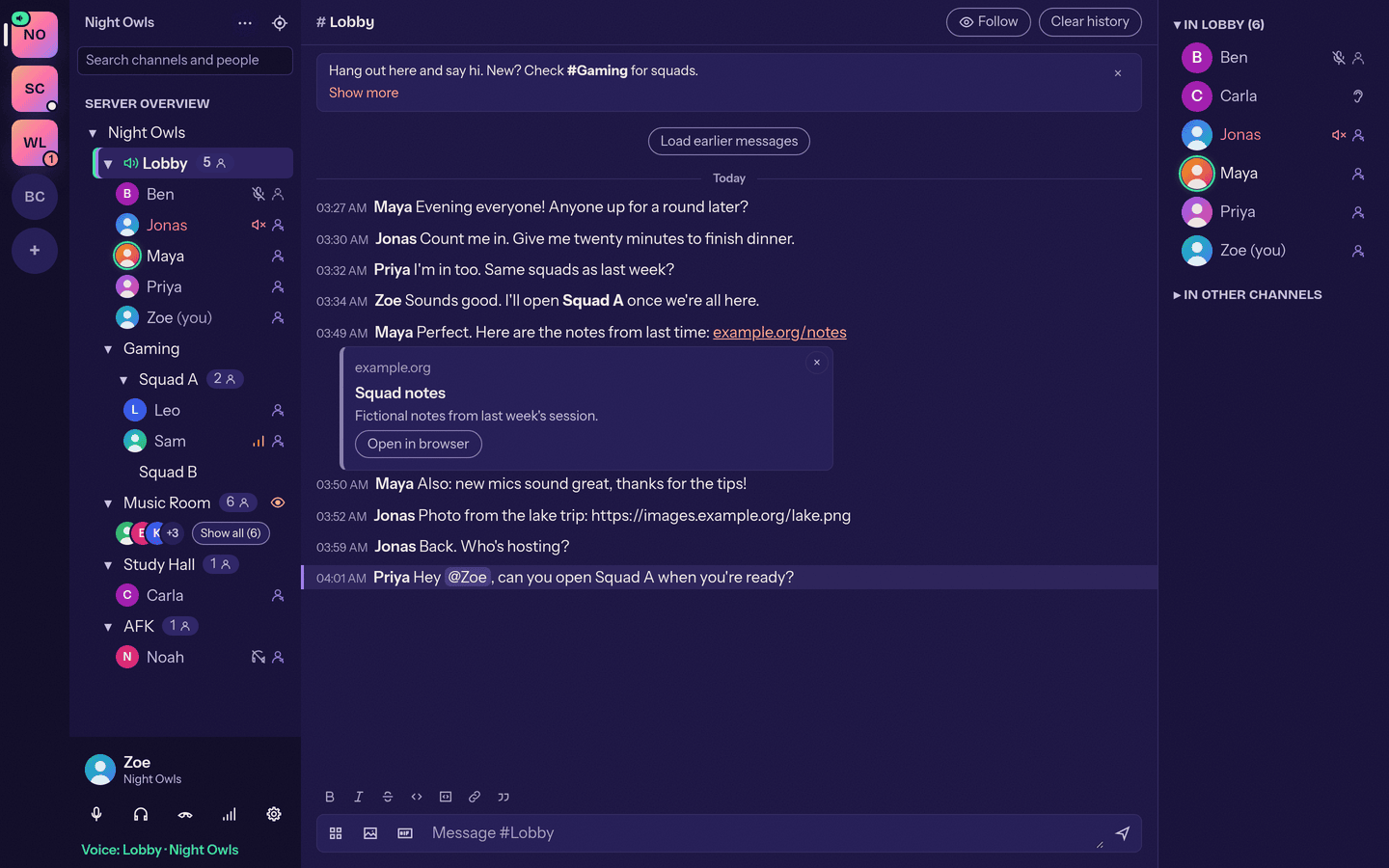
Tested with 1000 people in 305 channels:
- Search channels and people with Ctrl+K.
- Jump to my channel scrolls the list to where you are.
- Servers with more than about 50 channels start collapsed. Deep channel names stay readable.
- Avatars load only for rows near the screen. Measured on a stress test (1000 people, 305 channels, fast machine): 60 fps under heavy movement and talking, about 4 ms of UI work when one person moves, no freeze after connecting (previously about 13 s), and 2 avatar requests on connect instead of 98-307. A slow-laptop profile reaches 34-41 fps; there the first render of the whole tree can still take a good fraction of a second.
- Voice activation (default) or push-to-talk.
- Noise suppression (AI-based), echo cancellation and automatic input gain; each can be switched off in settings.
- Device selection without reconnecting, live level meter and a microphone test that plays your own voice back.
- Automatic audio quality: the highest bitrate the server allows, lowered when packet loss rises and raised again when it recovers. Adaptive jitter buffer for low delay on stable connections.
- Encrypted UDP voice with automatic fallback to TCP tunnelling.
- Self mute and self deafen (deafen implies mute); others see these states.
- Music quality switch (v0.1.1) allows higher bitrates for sharing music.
- Manual voice activation threshold instead of the automatic one.
- "Now playing" status: share what you are listening to (Linux and Windows; not macOS).
- Short, subtle sounds (someone joins/leaves your channel, mute/deafen, new message in a followed channel or private chat, a join sound when you enter a channel, a hang-up sound when you disconnect), toggled per event. No text-to-speech.
- Works while another app is focused. Keys and mouse buttons (such as side buttons) are supported.
- Windows, macOS and X11: native support. On macOS the system asks for the Accessibility permission.
-
Linux Wayland:
- Keyboard push-to-talk uses the desktop's global-shortcuts portal. On KDE a portal dialog appears to confirm the shortcut.
- Portals cannot capture mouse buttons. The setting "Allow mouse buttons (requires input group)" reads mouse devices directly. It is off by default and needs membership of the
inputgroup. - If your desktop offers no global-shortcuts portal, keyboard push-to-talk is shown as unavailable and voice activation is suggested.
- The switch "Compatibility mode (X11)" runs Mumcord through the desktop's X11 compatibility layer, so push-to-talk works without a desktop dialog and without the
inputgroup. It is less isolated than the modern way, and takes effect after a restart.
- See Troubleshooting for the exact steps.
- A first-start wizard (about a minute): identity, microphone, talk mode.
- Create a new identity (self-signed client certificate) or import an existing PKCS#12 file, for example one exported from the official Mumble client.
- Your identity lives in the OS secure storage. Export it (password-protected PKCS#12) or import it any time from settings. Back it up: it is your registered identity on servers.
- Show other people's avatars; set your own avatar and profile comment.
- Optional default avatar that is sent once to new servers automatically.
- Servers keep avatars only for registered users. For unregistered users Mumcord remembers your avatar per server and sends it again on each connect, and shows a short hint explaining this.
- Tray icon showing connection and talk state, with Show, Mute, Deafen and Quit.
- Closing the window while connected asks once whether to minimize to tray or quit, with "Remember my choice".
- Message notifications for new messages in channels you receive (your own and followed channels) and in private chats, except the chat on screen. In Settings, Sounds & notifications choose In-app (a toast at the bottom right while Mumcord is in front), Desktop (a system notification), Both or Off. Clicking a notification opens that chat. Bursts are grouped per channel. Message content is never written to logs.
- Start at login: the first-start wizard asks, and Settings has the same switch (off by default) plus Start minimized (on by default), which goes straight to the tray.
- Planned (Epic 3): full tray menu (#65), global hotkeys beyond push-to-talk (#64), Do Not Disturb mode (#69).
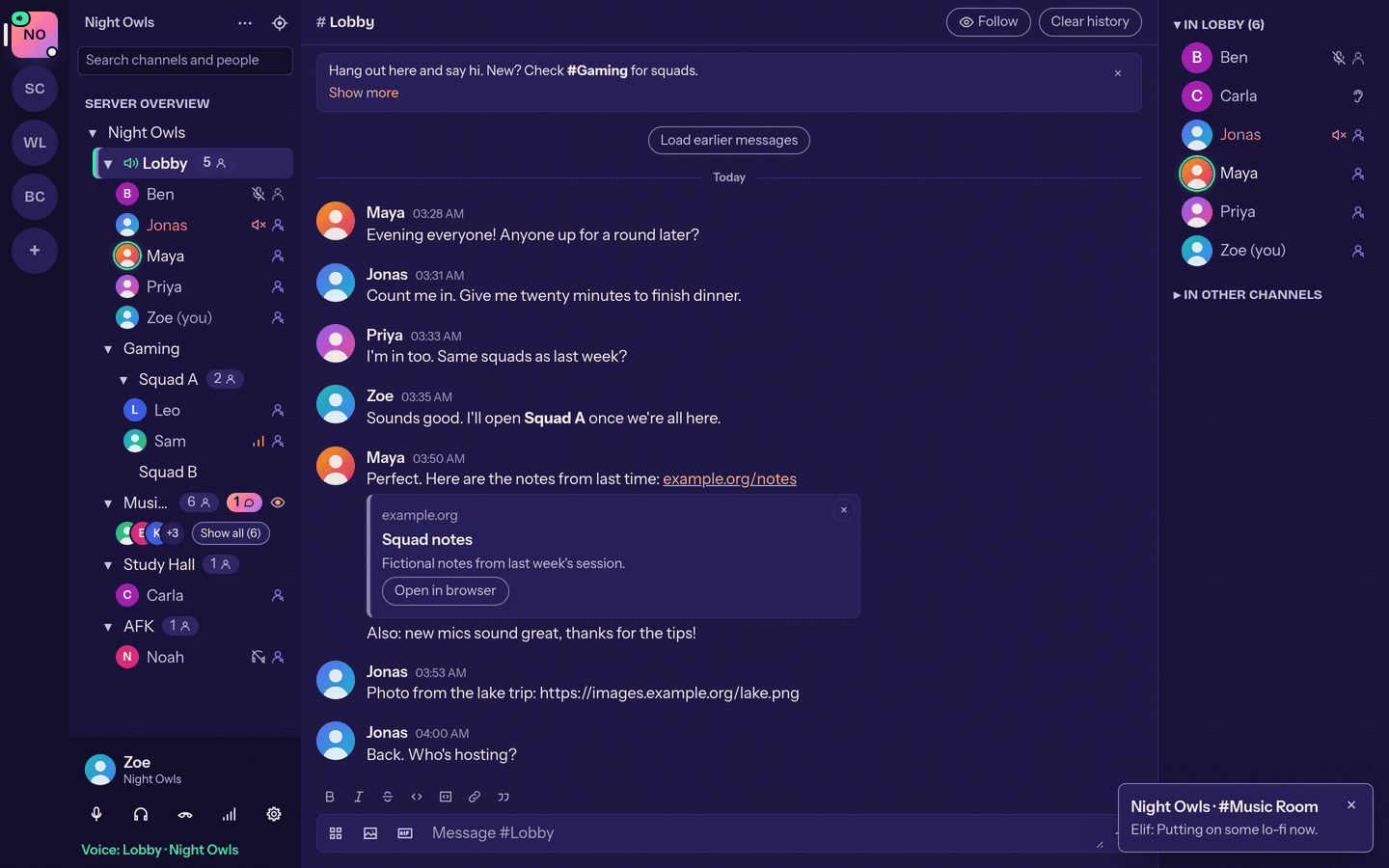
- Themes follow the system setting; dark is the default design and light is fully supported, with a manual override.
- Design refreshed after mumcord.app: indigo, cream and violet, gradient only on highlights.
- Languages: all 24 official EU languages, shown in their own names in the picker. Defaults to your OS language and switches without a restart. Corrections are welcome via issues.
- Accessibility target is WCAG 2.2 AA: keyboard operation, screen-reader labels, system theme and scaling respected.
- "Save diagnostic file" writes app version, OS, audio devices, connection statistics and recent log lines. It contains no chat contents, passwords, certificates or personal data.
- No telemetry and no automatic crash reports.
Linux (X11 and Wayland; KDE and GNOME tested), Windows 10/11, macOS (current and previous major version). macOS builds are signed and notarized since 0.4.1; Windows builds are still unsigned (see Privacy and code signing): AppImage, Windows installer and a universal DMG (Apple Silicon and Intel). See Installation.
Full details on the Roadmap page.
- Epic 2 also takes over what did not make v0.3.0: the Windows in-game overlay, HDR10 overlay colours, overlay on top of borderless-fullscreen games, in-game overlay with Flatpak Steam, a "Now gaming" join target from the Mumble Link game context, cancelling a running full-size image transfer, "Join channel" for friends on another connected server, and checking the game plugins with real games so the Beta features can leave Beta.
- Planned: Epic 3 (comfort and polish) is listed on the Roadmap. None of it is built yet.
- Later (Epics 2 to 6; Epic 2 includes shareable themes): see the table below.
| Status | When | What |
|---|---|---|
| Built | Stage 1a (v0.1.0 alpha), music quality switch (v0.1.1), stage 1b chat features (v0.2.0), stages 1c and 1d (v0.3.0) | Everything described above |
| Later | Epic 2 | Multi-server read-along (connect to several servers at once), custom shareable themes (config string with a preview card in chat) and the v0.3.0 carry-overs (Windows in-game overlay, "Join channel" for friends on another server, more) |
| Planned | Epic 3 | Comfort and polish (overview #63): global hotkeys, full tray menu, import from the official client, whisper/shout, public server browser, Do Not Disturb, @all and @channel mentions, message cards, a mumpeer relay for peer-to-peer connections, a packet inspector. See Roadmap |
| Later | Epic 4 | Admin features: ACL/permission editing, bans, channel management |
| Later | Epic 5 | Release and distribution: signed installers, auto-update, opt-in crash reports, store/package listings |
| Later | Epic 6 | GIF search |
The roadmap is a proposal in specs/01-foundation-specification.md (section 14) and may change. Mobile apps and a web version are not planned for now. Nothing server-side will ever be required.