Getting Started
🌐 English · Deutsch
This page takes you from a fresh clone to your first login in the browser. The PDC Redbot Webapp is a SvelteKit dashboard (frontend + BFF) that talks to your Red-DiscordBot through the companion cog pdc_webdashboard. You will need three things: a Discord OAuth2 application, the cog loaded on your bot, and a filled-in .env. The whole local setup takes a few minutes.
| Component | Requirement |
|---|---|
| Node.js | ≥ 18 (LTS recommended) |
| npm | Bundled with Node.js |
| Red-DiscordBot | Running, with the pdc_webdashboard cog loaded |
| Discord application | An OAuth2 app in the Discord Developer Portal |
The bot and the web app are two separate processes. For local development they typically run on the same machine, so the gateway is reachable at http://127.0.0.1:6970.
git clone https://github.com/pd-codes/PDC_Redbot_Webapp.git
cd PDC_Redbot_Webapp
npm installcp .env.example .envOpen .env in an editor and fill in the values from the next steps. The full reference for every variable lives on the Configuration page.
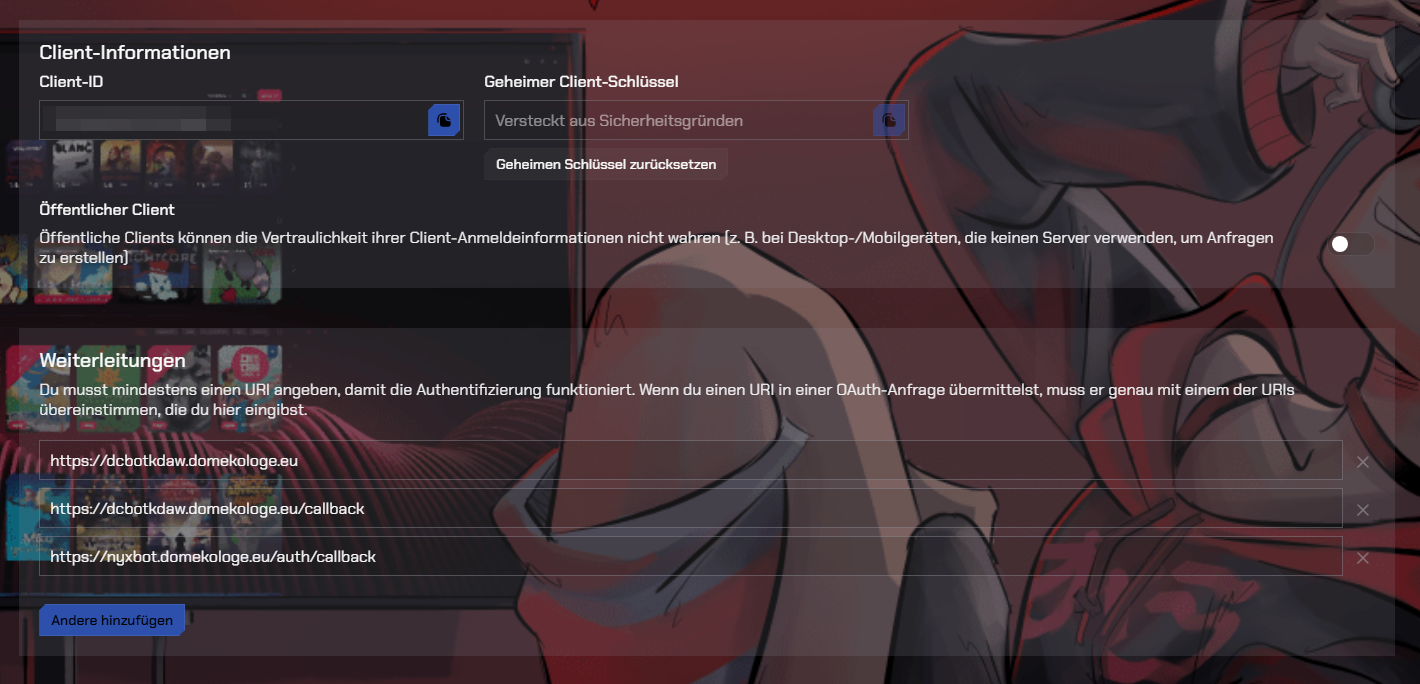
- Go to the Discord Developer Portal and click New Application.
- In the OAuth2 section, copy the Client ID and Client Secret into your
.env:DISCORD_CLIENT_ID=your-client-id DISCORD_CLIENT_SECRET=your-client-secret
- Under OAuth2 → Redirects, add the exact redirect URI the app uses. For local development that is:
It must match
http://localhost:5173/auth/callbackDISCORD_REDIRECT_URIin your.envcharacter-for-character (scheme, host, port, path), otherwise Discord rejects the login.DISCORD_REDIRECT_URI=http://localhost:5173/auth/callback
The app requests the identify and guilds scopes — enough to read who you are and which servers you are in. See Authentication for how the login works.
The web app and the cog share a secret token so that only your dashboard can talk to the bot. On the bot, run (replace [p] with your prefix):
[p]pdcdashboard token
Copy the value into your .env:
GATEWAY_URL=http://127.0.0.1:6970
GATEWAY_TOKEN=the-token-from-the-bot
GATEWAY_URL defaults to http://127.0.0.1:6970. Change it only if the gateway listens on a different host/port (for example in Docker, see Deployment).
Sessions are signed with an HMAC keyed on SESSION_SECRET. Generate a long random value:
openssl rand -hex 32Paste it into .env:
SESSION_SECRET=the-generated-random-hex-stringIn production the app refuses to start with a missing or default
SESSION_SECRET. Always set a unique one.
npm run devThe dashboard is now available at http://localhost:5173.
Open http://localhost:5173, click Login with Discord, approve the consent screen, and you are redirected back to the dashboard. You will see the servers you share with the bot and any cog widgets/panels you have permission for. If you are the bot owner you also get the Cog Management, Settings and System areas.
The public landing page and the command list are reachable without logging in.
| Symptom | Likely cause |
|---|---|
| "Invalid redirect URI" from Discord |
DISCORD_REDIRECT_URI does not match the portal entry exactly |
| Login works but no servers / data shown | Wrong or empty GATEWAY_TOKEN, or the bot/cog is not running |
| "Connection refused" to the gateway |
GATEWAY_URL wrong, or the pdc_webdashboard cog is not loaded |
| App won't start in production |
SESSION_SECRET missing or left at the default |
-
Configuration — every
.envvariable explained - Authentication — the OAuth2 flow, sessions and permission levels
- Web UI — a tour of every page
- Deployment — running it in production