Repository navigation
User Guide
English · Español
Proxy Builder turns a pasted Magic: The Gathering deck list into a print-ready PDF of proxy cards. This page walks through every user-facing feature end to end, how to install the app on each OS, and what the Settings dialog controls. Screenshots are taken from the English UI.
Everything heavy (Scryfall lookups, downloads, image processing, PDF, statistics) runs in Rust on your machine; the interface only draws state (see Architecture). The only network traffic is to Scryfall and a closed list of other sources (see Scryfall Integration and External Sources).
- Installation
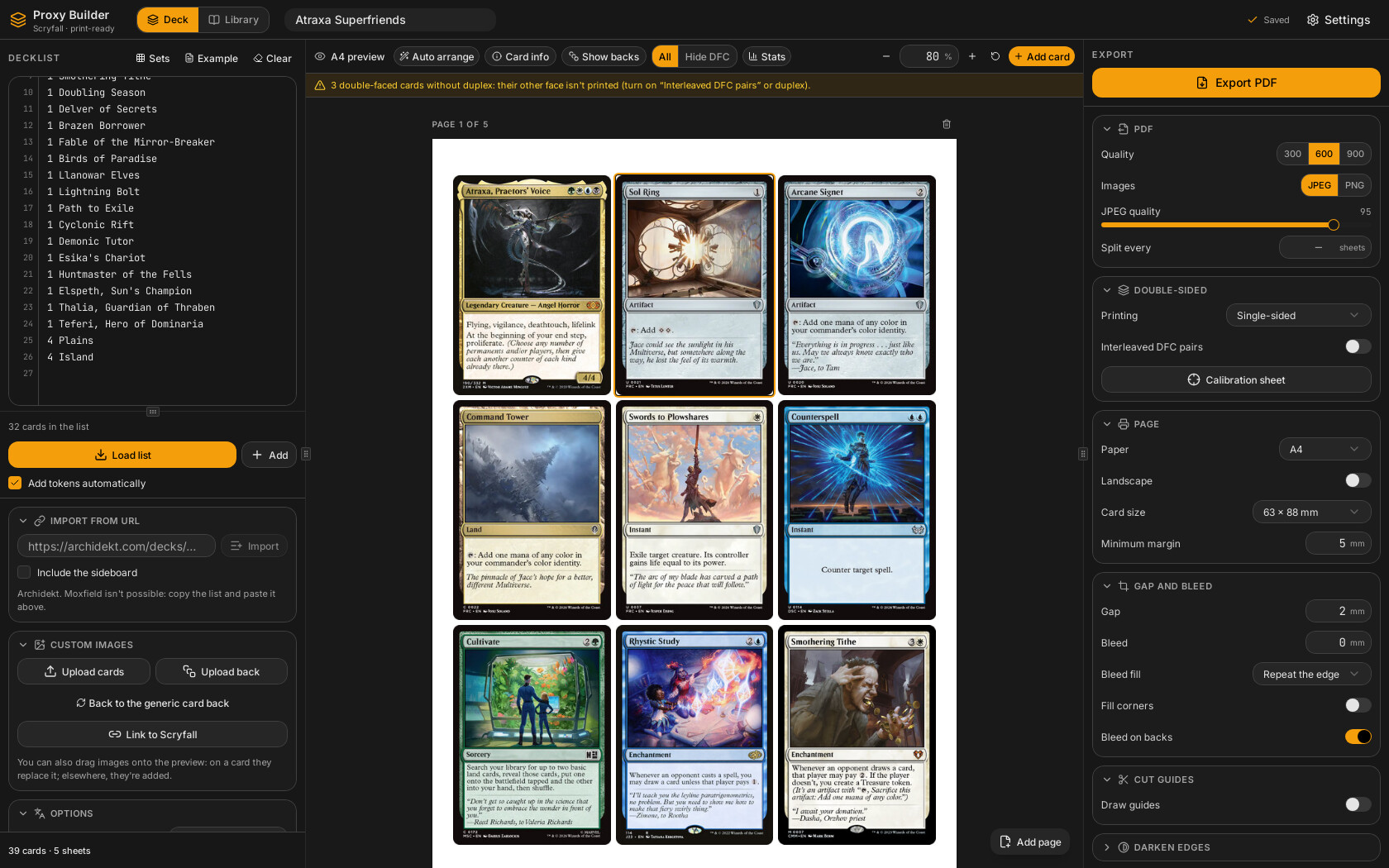
- The main window
- Tutorials
- From list to paper
- Finding and changing cards
- Your own images and linking proxies
- Working on the sheets
- Retouching a card
- Exporting a PDF
- Statistics
- The deck library
- The card editor (Design tab)
- Playing a deck (Play tab)
- Settings
- Where your data lives
- Keyboard shortcuts and mouse
- Troubleshooting
Installers for each version are attached to the repository's Releases page. They are produced by the release workflow (.github/workflows/release.yml) on a GitHub runner per platform; src-tauri/tauri.conf.json has bundle.targets: "all", so Tauri builds every format native to the platform it runs on. See Releases and Auto-Updates.
| OS | Installers (what the updater recognises) | Notes |
|---|---|---|
| Linux (x86_64) |
.deb, .rpm, AppImage |
Built on Ubuntu 22.04 with WebKitGTK 4.1. Installing an update from a .deb/.rpm asks for your password (via pkexec). |
| Windows (x86_64) | NSIS setup (.exe), MSI |
The updater runs the installer in passive mode (plugins.updater.windows.installMode). |
| macOS |
.app bundle (and the DMG Tauri produces), for Apple Silicon (aarch64-apple-darwin) and Intel (x86_64-apple-darwin) |
Two separate builds, one per architecture. |
Gotchas that matter to a user:
- The installers are not code-signed for the OS. Windows SmartScreen shows "unknown publisher" (More info, then Run anyway); on macOS, Gatekeeper asks you to open the app with right click, then Open, the first time. (They are signed for the in-app updater; that is a different signature.)
- Self-update exists from version 2.4.0. Older versions must be replaced by hand once. After that the app checks on start and every 6 hours, downloads quietly and offers to restart.
- The window starts hidden and appears when the page has loaded, so you do not see a white flash.
- The default UI language is English. Settings offers 15: Spanish, English, French, German, Italian, Portuguese (Brazil), Romanian, Polish, Dutch, Russian, Ukrainian, Japanese, Korean, Simplified and Traditional Chinese (the choice is remembered). A string not yet translated into your language shows in English.
Building from source is covered in Development Setup.
The top bar has four tabs and a few buttons:
| Part | What it is |
|---|---|
| Deck tab | The working view: three resizable panels (widths are remembered). Left: the card list (features/decklist). Centre: the sheets preview (features/preview). Right: export settings (features/export). |
| Design tab | The card editor's "Design" view for creating your own version of a card (features/disenar). |
| Library tab | All your saved decks (features/library). |
| Play tab | The game table: play a deck of the library in solitaire (features/mesa). See Playing a deck. |
| Deck name | Editable in place (Enter confirms, Escape cancels). |
| Save indicator | Decks save automatically while you work (features/shell/save-indicator.tsx). |
| Update button | Appears only when a new version has been downloaded and is waiting for a restart. |
| Help (question mark) | Opens the tutorial of the screen you are on. |
| Settings (gear) | Opens the Settings dialog. A small dot on it shows an update downloading (amber) or ready (accent colour). |
Closing the app. Your deck is saved the moment you close, so a change made a split second before is not lost. If nothing is at risk the window just closes. If something would be lost or interrupted, a "Close Proxy Builder?" dialog lists what: a long job running (with its phase), an update downloading or installing, a window with a running process or unsaved changes (designing the whole deck, exporting images, linking in bulk, editing collections), unsaved changes in the card you are designing, a deck that could not be saved, or a game open on the table (it is saved either way and you can continue it later). Cancel stays in the app; Close anyway cancels the running job and closes; when the card you are designing is unsaved there is also Save and close, which saves it first (if saving fails the window stays open). The same happens if you leave the Design tab for another tab with the card unsaved: you can discard or "Save and continue".
The layout is defined in src/features/shell/app-shell.tsx (AppShell). See Settings and Shell and Frontend Architecture.
Each screen (Deck, Design, Library, Play) has a short guided tour. It opens by itself the first time you enter that screen (unless a dialog is open) and the help button (question mark, "Tutorial for this screen") next to Settings replays it at any time. Each step darkens everything except one area, outlines it, and explains it in a card beside it: the deck tour covers the tabs, the deck name, the list box and its options, the preview toolbar and sheets, export and its settings, Settings and the help button; the Design tour, the card list, the toolbar, the preview, the warnings, the editing tabs and the save footer; the Library tour, search and sort, the new/import/space actions, tags and favourites, and the decks; the Play tour, choosing deck and format, the Solitaire button, the table bar, the battlefield, the hand, the library, your life and the shortcuts.
Move with Next / Back or the Left/Right arrow keys (Enter also presses Next); Finish, the X or Escape closes it. Which screens you have already seen is remembered. See Tutorials.
-
Paste the list in the left panel, in whatever form you have it:
4 Lightning Bolt,1 Sol Ring (CMM) 410. Moxfield, Arena and MTGO formats work, and so does a list copied as text from Archidekt (with itsSIDEBOARDor#SIDEBOARDheader). You can instead import an Archidekt deck by URL, with or without its sideboard. Parsing is done in Rust (proxy-core::decklist); see Decklist Parsing. - Press "Cargar lista" (Load list). The app resolves each card on Scryfall, picks a printing, downloads the images and, if the option is on, automatically adds the tokens the deck creates. Progress is shown and the job can be cancelled. See Decklist Panel.
-
Check the sheets. The preview and the PDF come from the same page calculation (
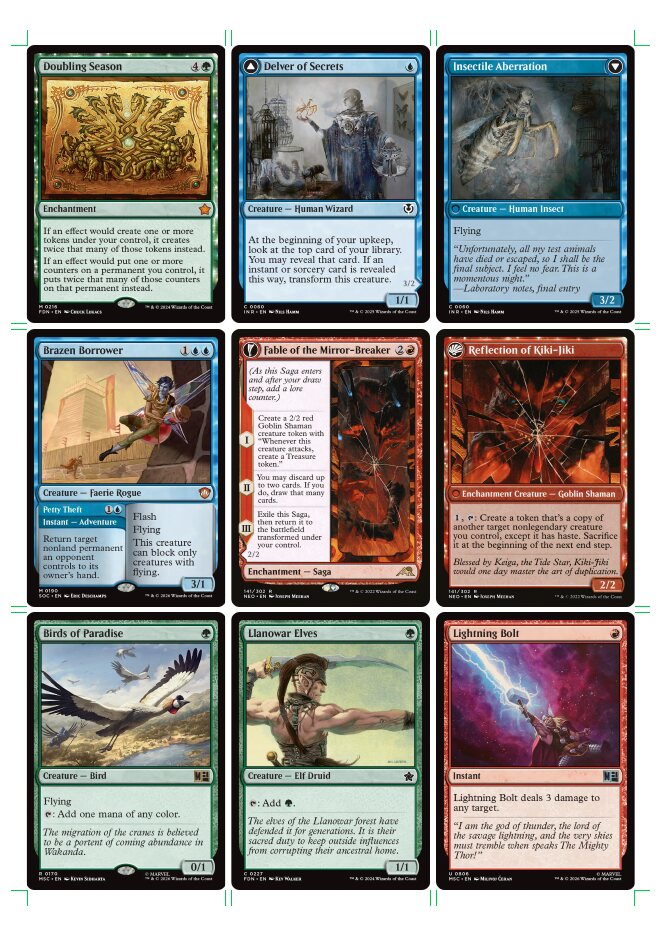
PagePlan, in millimetres), so what you see is what is printed. See Layout Engine and Live Preview. - Export the PDF, print at 100 %, cut and play. See Exporting a PDF.
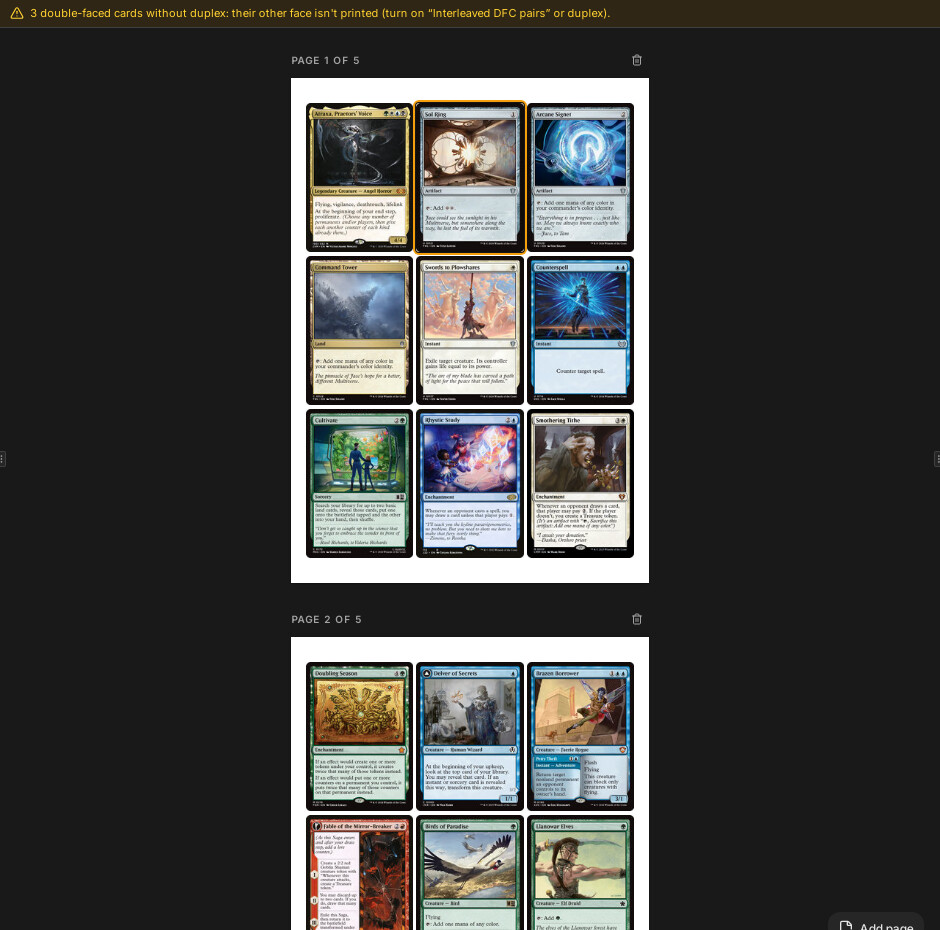
Warnings are honest and per slot: card not found, low-resolution image, card not yet scanned by Scryfall. The sections of the pasted list (for example Sideboard) are kept: cards in the Sideboard section arrive already marked as sideboard, and Maybeboard (if you include it) as optional (see Card marks).
Pick the language you want printings in. If a card does not exist in that language, it stays in English and the slot says so. "Reaplicar idioma" (Reapply language) re-picks the language for every card that is not pinned.
Tokens, emblems and copies your cards create are appended at the end. "Detectar fichas" (Detect tokens) in the list panel looks for the ones an existing deck lacks, including for linked custom cards (features/decklist/fichas-dialog.tsx). Tokens that Scryfall does not have (for example Kelp or some Oozes) come from the Cockatrice token catalogue: they show up when linking, in "Añadir carta" (Add card) and while resolving the list. See External Sources.
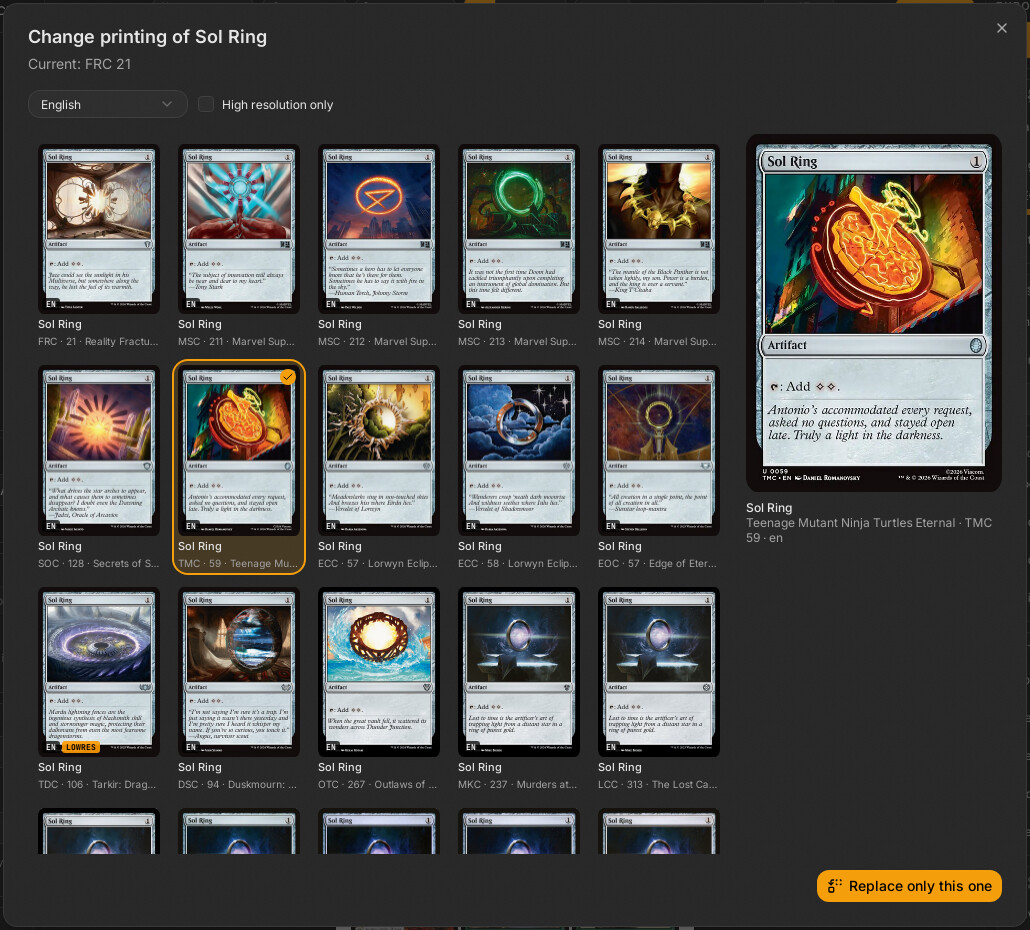
Change the printing. Every card has all its editions one click away, in any language, optionally only high-resolution ones. You can change one copy or all copies at once (features/variants, see Add Card and Variants).
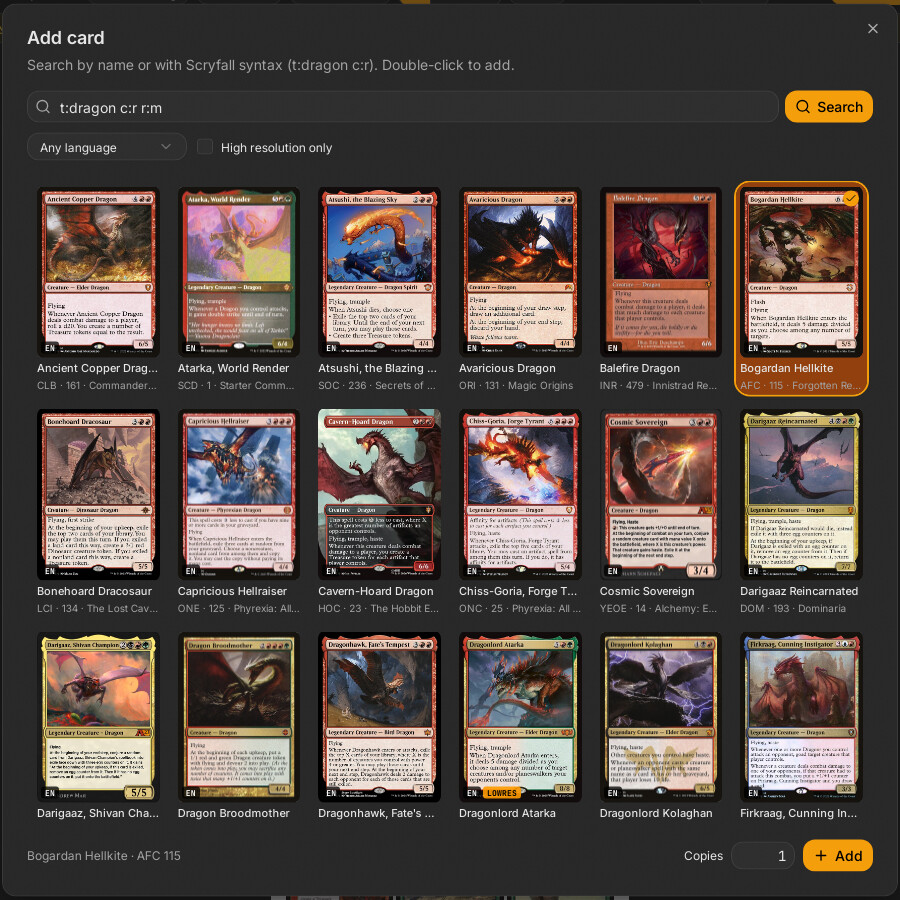
Search and add cards by name (with autocomplete) or with Scryfall syntax: t:dragon c:r r:m finds red mythic dragons. Double-click a result to add it.
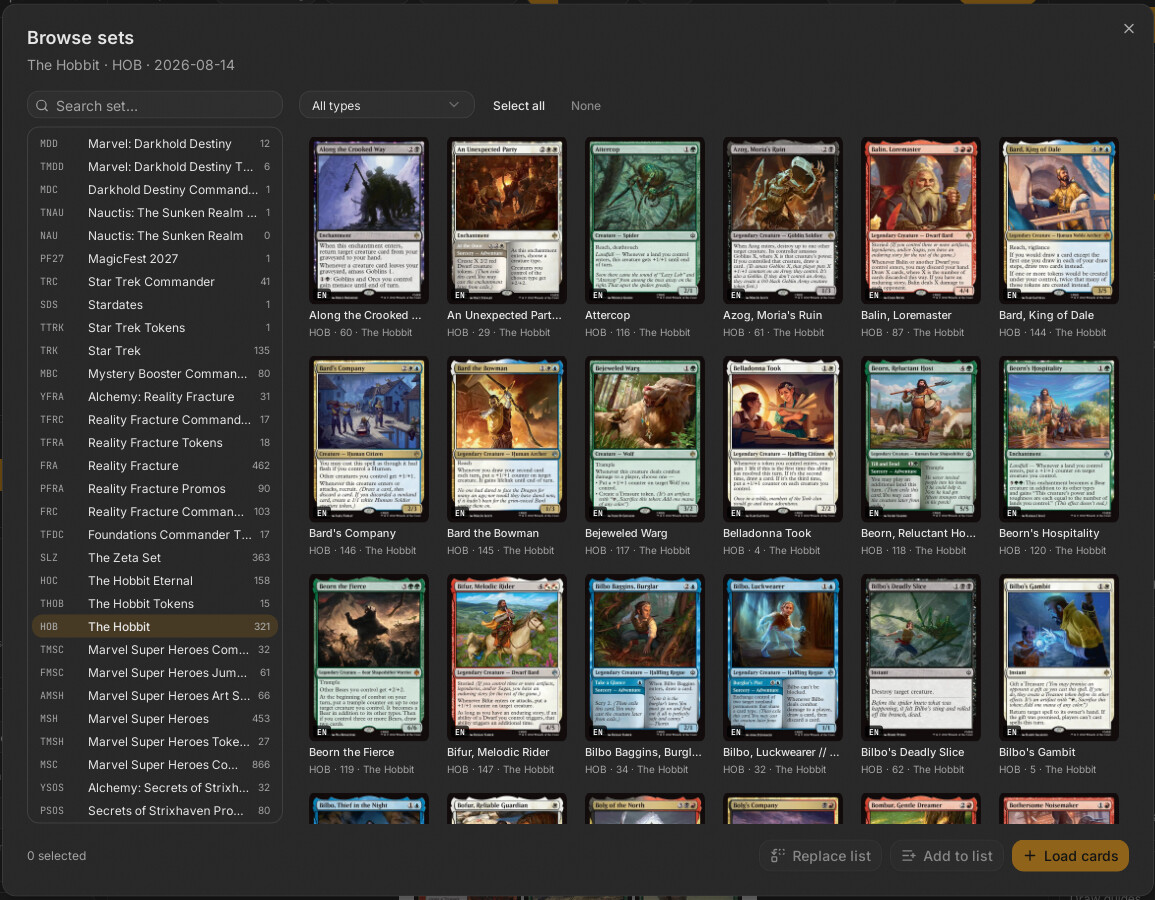
Browse whole sets and load the cards you pick (or the entire set), replacing the list or appending to it (features/set-browser, see Set Browser).
Names in other languages: cards written by a Spanish (or other language) name that Scryfall does not have printed that way are also found. Without the optional names index (Settings) the app asks an online service, more slowly; with it, the lookup is local.
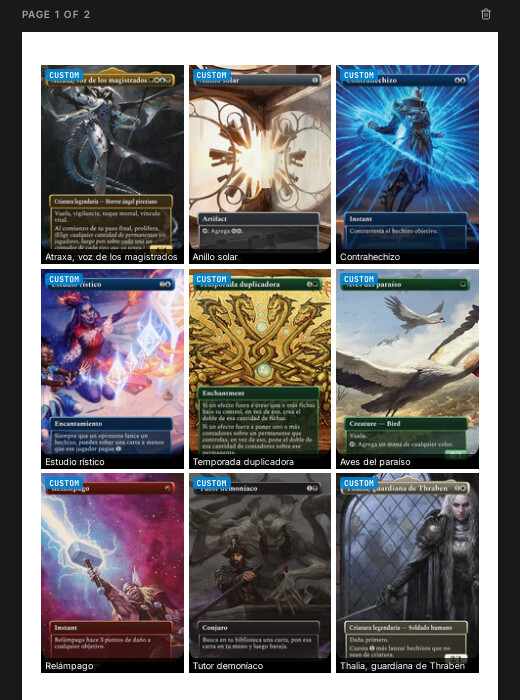
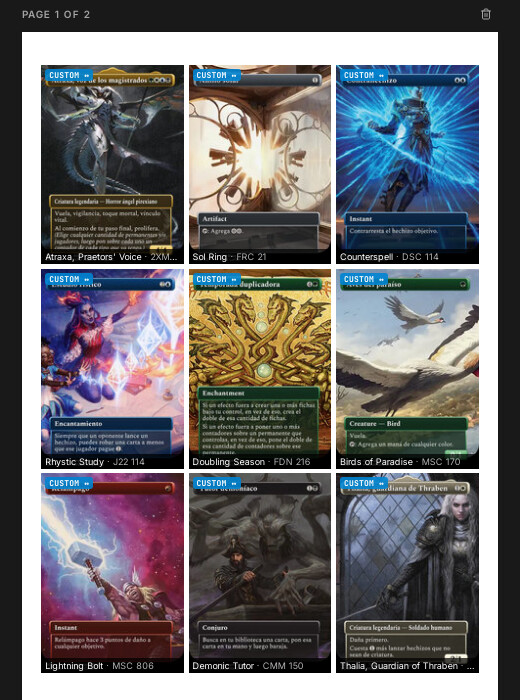
- Upload custom cards (alters, scans, cards you made) with the file picker, or drag them onto the preview: dropped over a card they replace it, outside they are appended.
- Back: choose one for the whole deck or a different one per card. The app ships a generic back of its own.
A custom image is just an image: the app does not know which card it is. Linking it to its Scryfall card leaves the image untouched but makes the card count in the statistics, prices and legality, and the card info shows its real name and edition. Linking is stored as CardSource::Custom { scryfallId?, externa? } (see Deck Model).
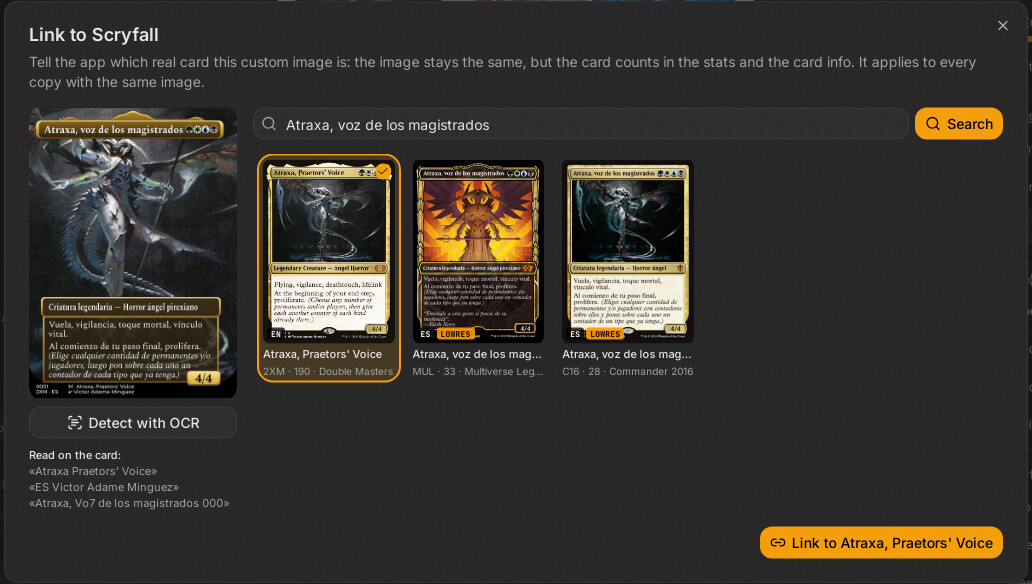
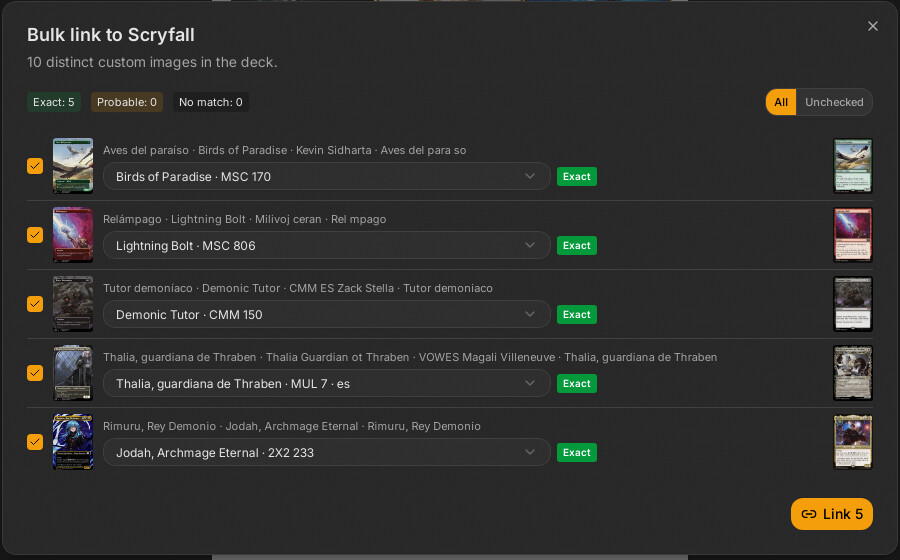
To recognise them the app can run OCR locally over the whole card: the title, the type line and the bottom text (where many proxies carry the original name). It matches what it reads against the Scryfall catalogue in any language and proposes a card with a confidence level: exact, probable, or no proposal. It also reads the set, number and language printed at the bottom, so the image's language is recorded. The OCR models are downloaded the first time they are needed and are kept in the app's data folder. See Card Identification and OCR.
Three ways to link:
-
One card: right click, "Vincular con una carta…" (Link to a card…). The search starts from the file name; "Detectar con OCR" (Detect with OCR) reads the card.
-
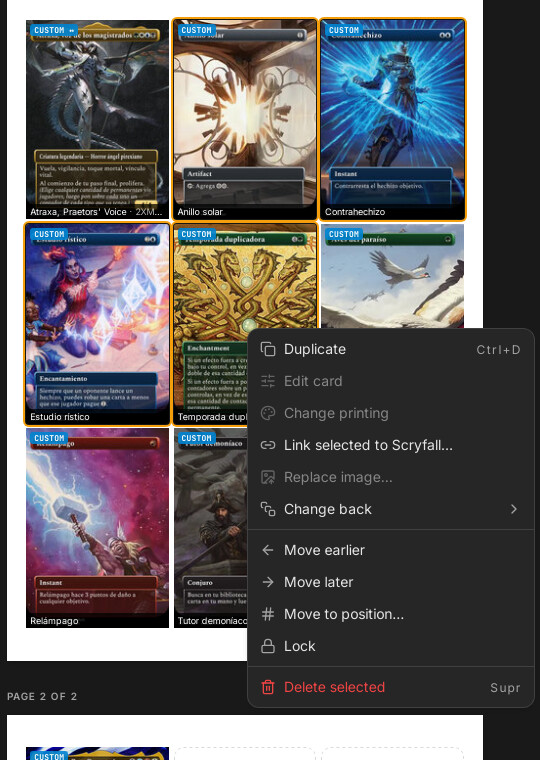
Selected cards: select several with Ctrl or Shift, right click, "Vincular las seleccionadas…" (Link selected…). The dialog chooses between the selection and the whole deck, and between reading only the missing ones or all of them again.
-
The whole deck: the "Vincular con una carta" button in the left panel reads every custom image in one go, with a progress bar and remaining time. You can stop halfway and review. Each proposal can be changed in its dropdown or unticked before pressing "Vincular".
The result is the same images with their real card behind them:
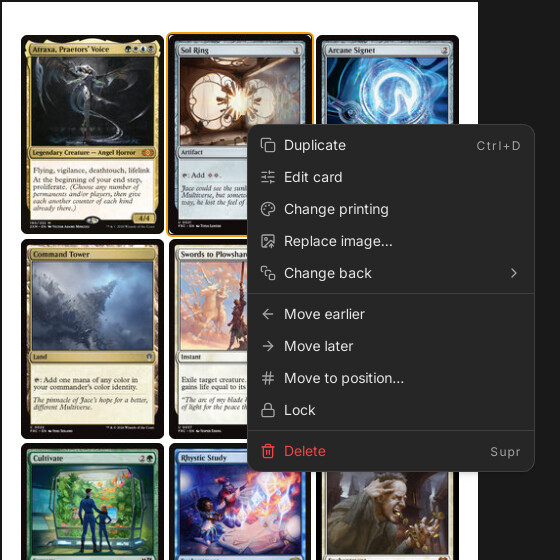
- Reorder: drag cards, or use "Mover antes / después / a la posición…" (Move before / after / to position…). Select several with Ctrl or Shift and act on all of them.
- Pin a card to its slot so nothing moves it.
- Auto sort groups copies, removes gaps and respects pinned cards.
- Card info shows the name and edition of each slot; "Ver reversos" (Show backs) shows the other side of the sheet.
- Undo / redo: Ctrl+Z and Ctrl+Shift+Z (the last hundred changes).
- Zoom: Ctrl + wheel. Sheets that are scrolled out of view unmount their images, so decks of hundreds of cards stay smooth.
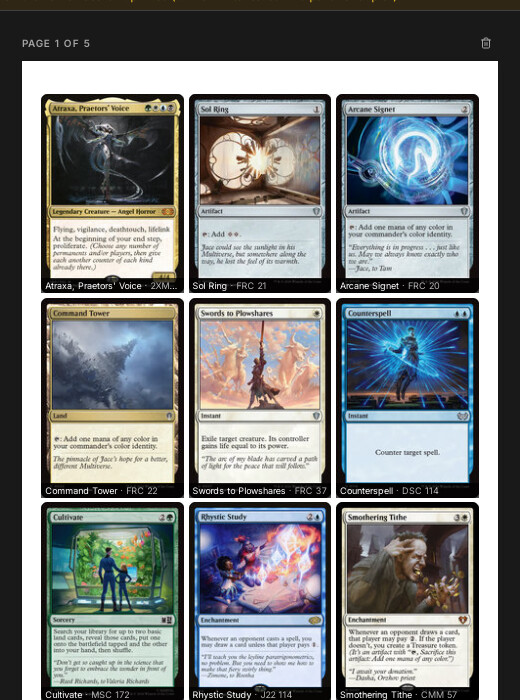
The card menu's "Marca" (Mark) submenu tags a card as a design variant (another version of a card already in the deck, to pick later), optional, or sideboard (violet badge). Marked cards are printed, but do not count for the deck size, copy limit, statistics, or the exported list (sideboard cards go to the sideboard section). Of the variants of one card, one still counts if it is not marked. This is how a Commander deck with variants still adds up to 100. Source: DeckCard.marca and proxy_core::model::cuentan (see Deck Model).
"Editar carta" (Edit card) offers rotation, zoom, framing and eleven adjustments: brightness, exposure, contrast, saturation, warmth, intensity, sharpness, clarity, noise reduction, vignette and fade. The view updates instantly, and the preview is the same render that goes into the PDF.
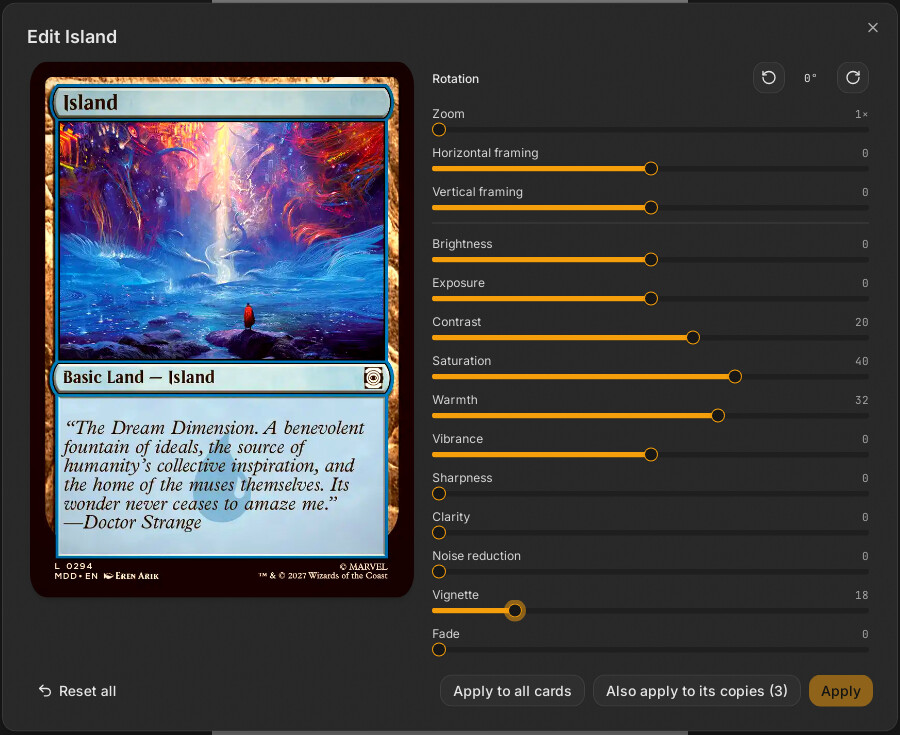
Then decide where the change goes:
- Apply: only this card.
- Apply also to its copies: every card using the same image, with rotation, framing and adjustments (handy for four copies, or all basic lands with the same art).
- Apply to all cards: the colour adjustments only, to the whole deck (rotation and framing stay on the card).
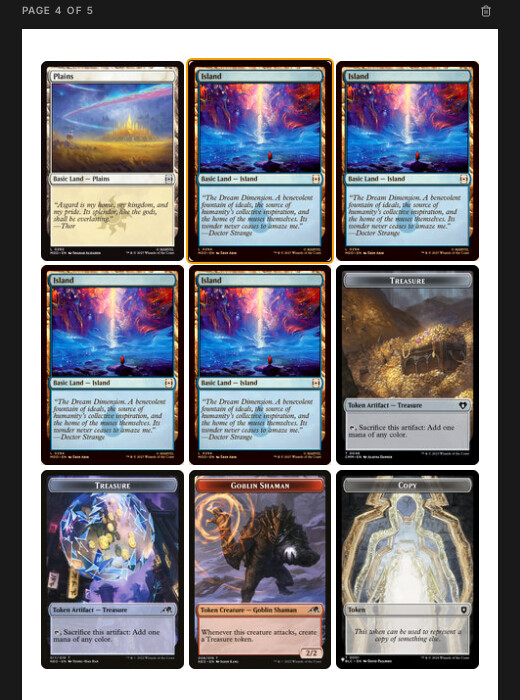
See Card Editor Dialog and Imaging and PDF.
The right panel holds all print settings. The "Exportar PDF" button is split: the main part exports; the three-dots menu next to it copies the deck list for Moxfield, Arena, MTGO or plain text, saves it as an MTGO .txt, or saves the deck with its images as .pbdeck.
| Setting | Options |
|---|---|
| Quality | 300, 600 or 900 DPI; JPEG (adjustable quality) or PNG |
| Paper | A3, A4, A5, Letter, Legal, Tabloid, photo paper (4x6, 5x7, 8x10, 8x12 in); portrait or landscape |
| Card size | Standard Magic (63 x 88 mm), poker (63.5 x 88.9 mm) or 65 x 90 mm, which fills a sleeve exactly (like 1 mm of bleed, but with the whole image scaled instead of a repeated edge; on US Letter it leaves two rows unless you lower the margin to 2.7 mm); margin and spacing |
| Bleed | Repeats the border or mirrors it; also on backs |
| Cut guides | Colour, thickness and length |
| Darken edges | Fixes light borders of old scans (contrast, solid black or threshold); leaves white-border and full-art cards alone |
| Double-sided | One side or duplex (backs always come out upright, mirrored left to right) |
| Split PDF | Every N sheets; the app warns first when the file would be huge and suggests lowering quality |
| Presets | Save all print settings under a name (for example a printer model) and reuse them in any deck |
Factory defaults: 2 mm spacing, 0 bleed, cut guides off, and "Rellenar las esquinas" (fill corners) off, so transparent corners come out as paper colour.
Other behaviour:
- Exporting shows a progress bar and can be cancelled at any time.
-
Duplex alignment: the calibration sheet and "Alinear filas" (Align rows) correct your printer's offset row by row, measured with a ruler (
features/export/alinear-filas.tsx). - Double-faced cards print with their real back (duplex) or, for single-sided printers, as interleaved pairs (both faces in consecutive slots, to go in the same sleeve). Large cards (planes, schemes, Vanguard) go on their own sheets at the end, at their real size.
- Image framing stretches the picture to the exact card slot (a slight deformation is accepted) and only crops when the proportions differ by more than 15 %.
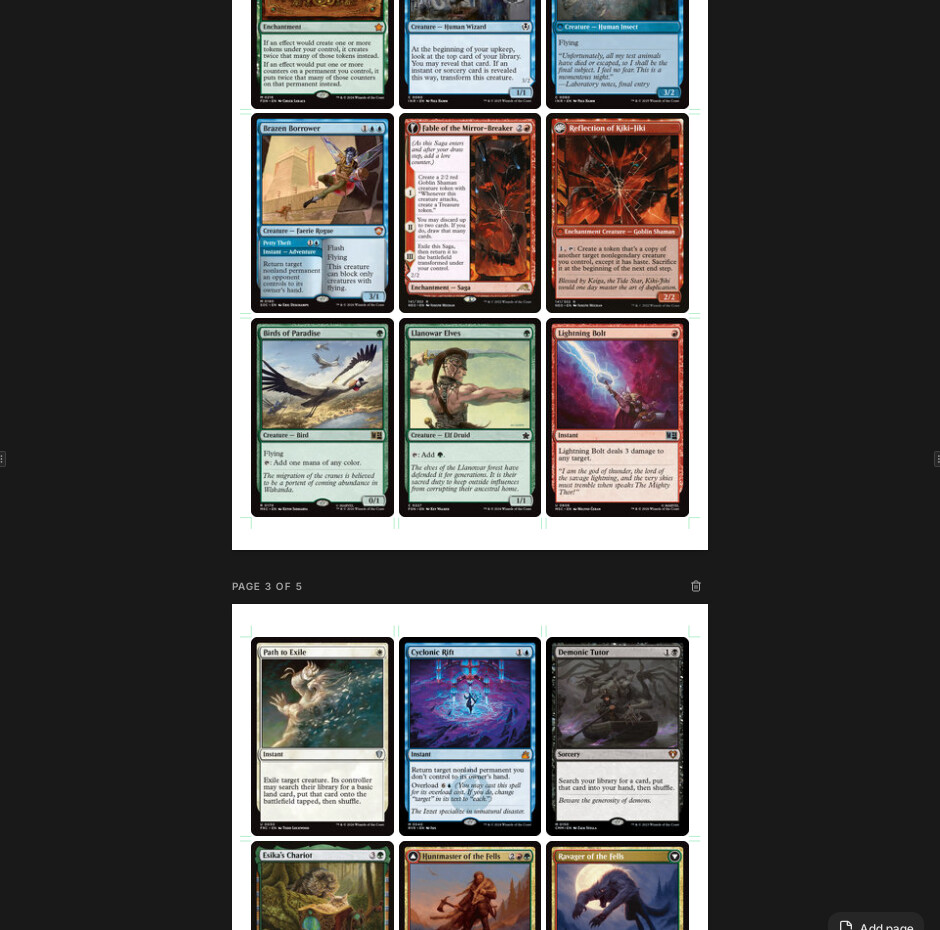
See Export, Imaging and PDF and Layout Engine.
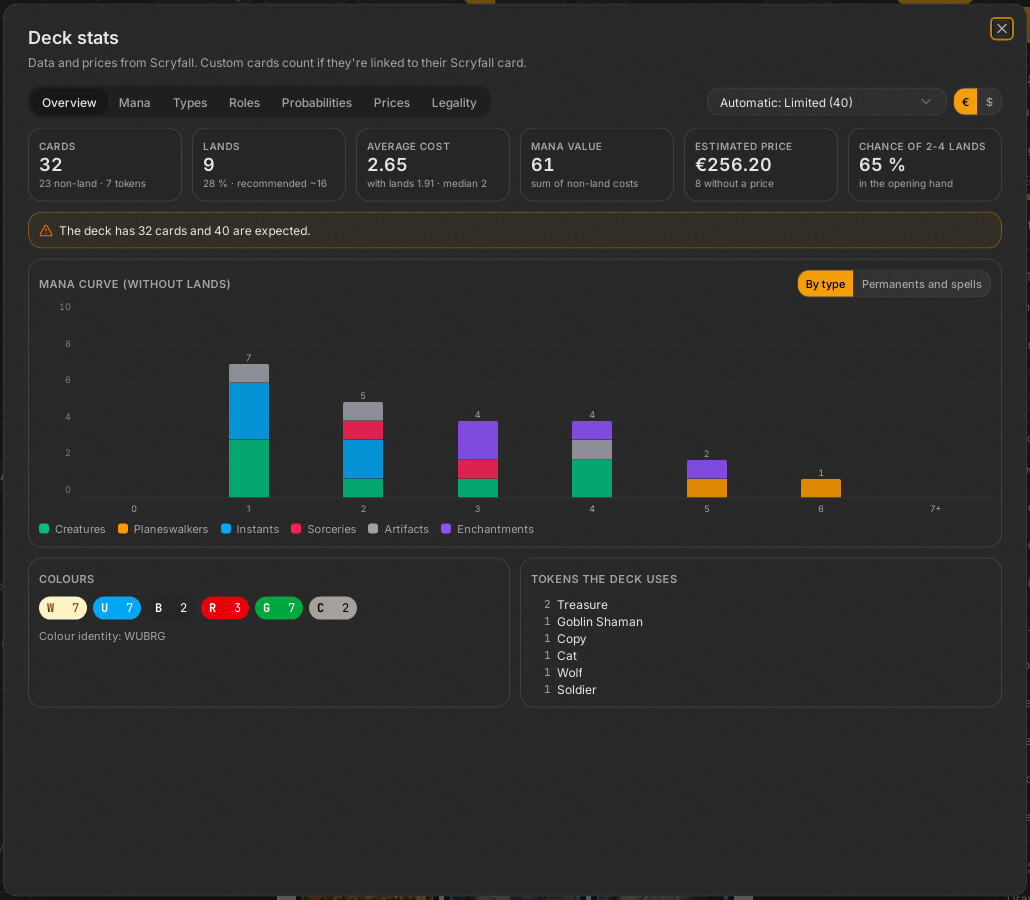
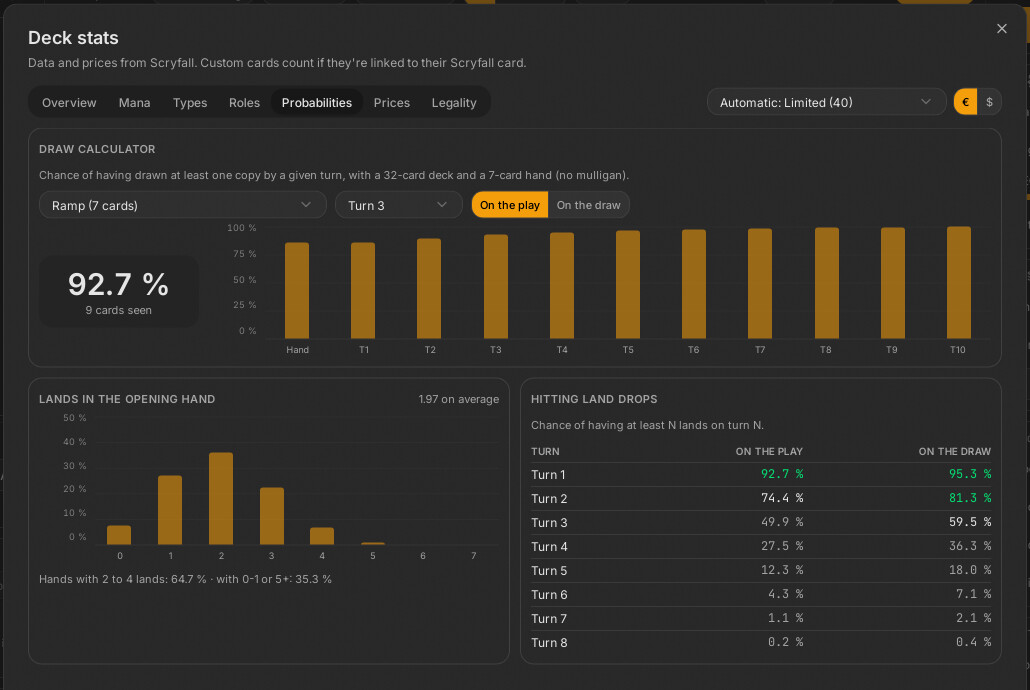
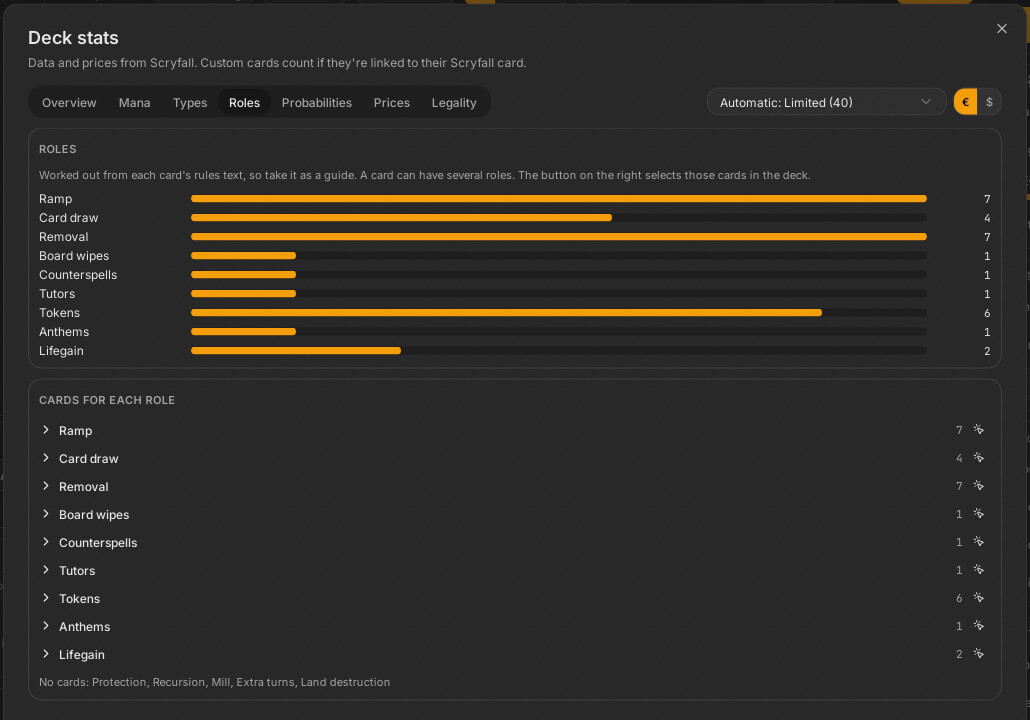
A tabbed dialog, computed entirely in Rust (proxy-core::stats) from Scryfall data and prices:
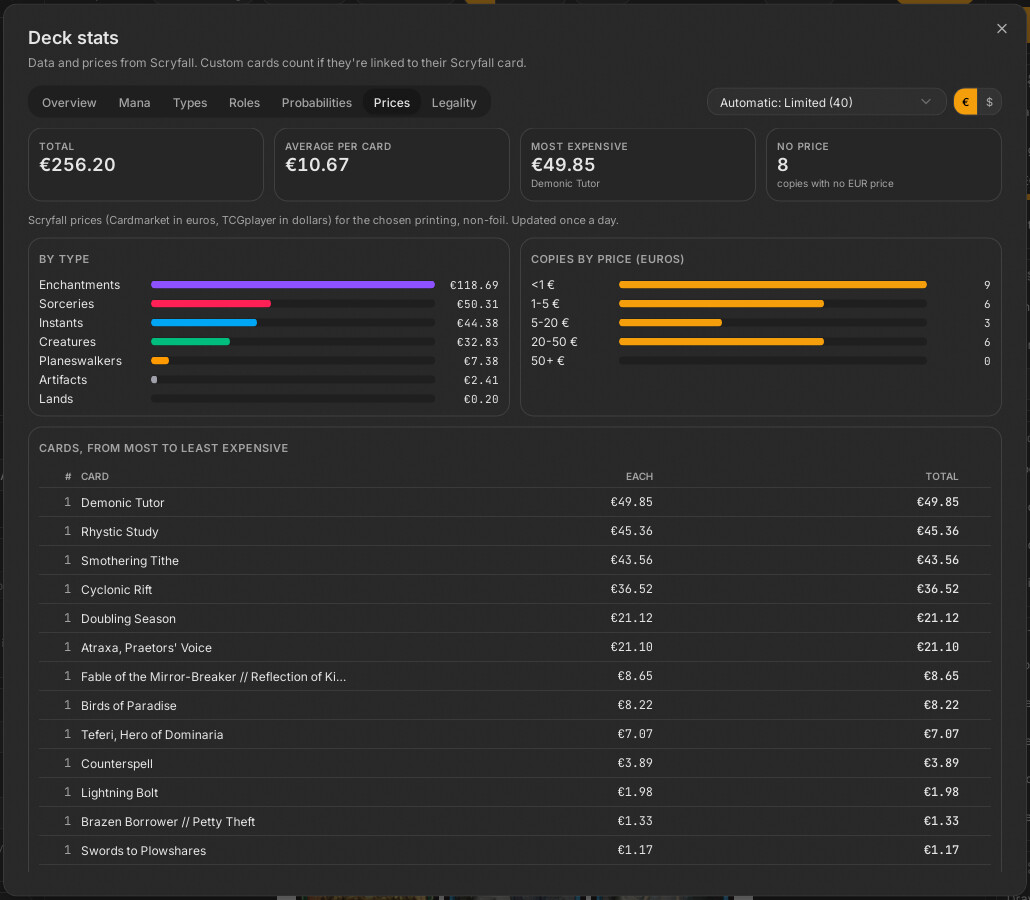
- Summary: card count, recommended lands, average cost, estimated price, probability of a good opening hand.
- Curve and colours: mana curve by type, colours, colour identity, tokens used.
- Functions: ramp, card draw, removal, sweepers, counterspells, tutors, tokens, deduced from each card's rules text, with a button to select them in the deck.
- Probabilities: hypergeometric draw calculator, lands in the opening hand, probability of hitting each land drop going first or second.
- Prices: euros (Cardmarket) or dollars (TCGplayer) for the chosen printing, by type, most to least expensive. Non-English printings use the English printing's price, since Scryfall gives none.
- Legality by format and an estimated Commander bracket; the format is detected or chosen by hand.
Only cards that count (see Card marks) are included. Linked custom cards participate through their link. See Statistics.
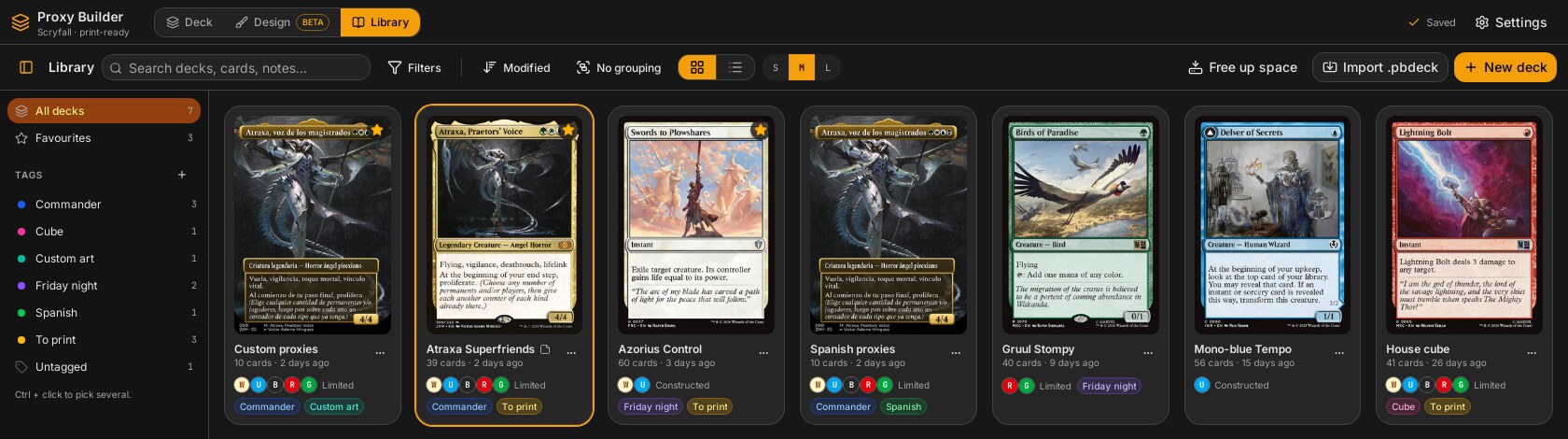
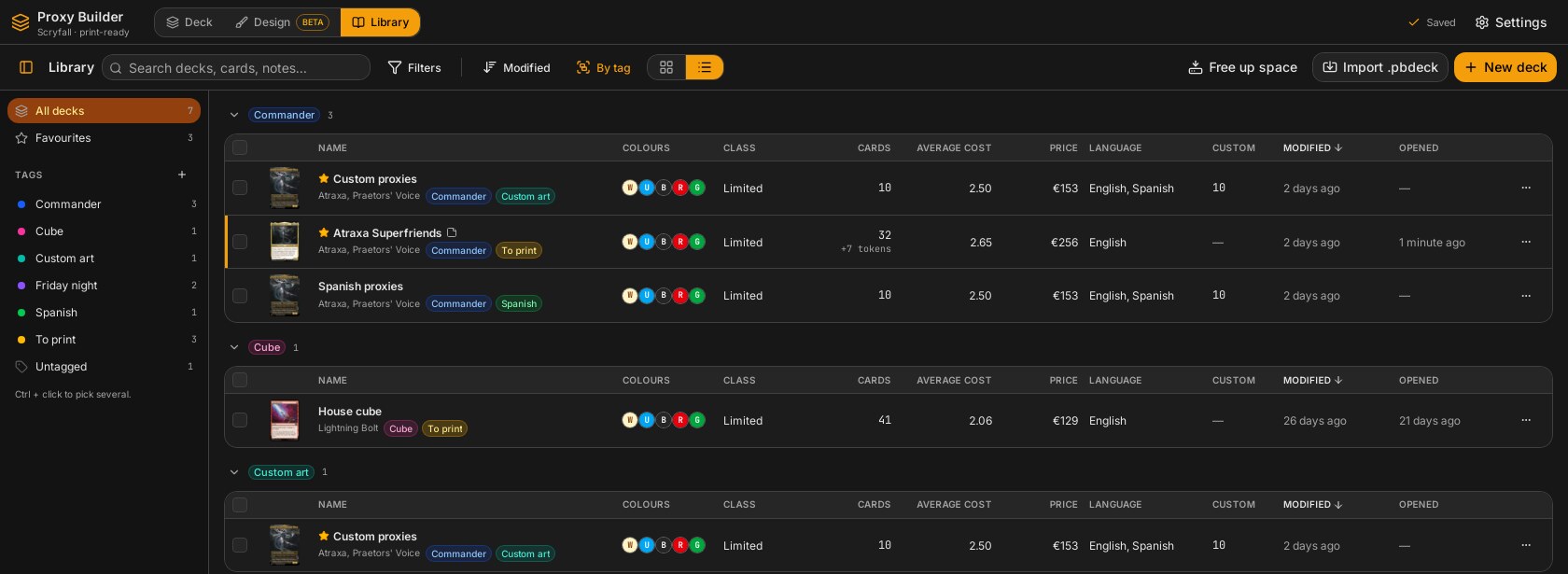
All saved decks with their cover. You can duplicate, rename, and export as .pbdeck (a zip with all images, see Deck Package Format) to move a deck to another computer. "Liberar espacio" (Free up space) deletes images no deck uses any more (BlobStore::gc in src-tauri/src/store/blobs.rs: only images older than 24 h, and it refuses with a "busy" error while a long job is active).
- Tags with a name and colour; apply to one or many decks; filter by any or all.
- Favourites pinned at the top, per-deck notes, and a cover chosen from its cards.
- Search by deck name, contained cards, notes or tags. Filters: colour identity (includes, exactly, at most), class (Commander, constructed, limited), formats it is legal in, card language, designed cards or custom images present. If a deck is really in another language but its cards are linked to English printings, set its language by hand from its menu.
- Sort by modified, opened or created date, name, cards, price, average cost or colours; group by tag, colours, class or language (grouped by tag, a multi-tag deck appears under each).
- Two views: grid (three sizes) and list (colours, class and bracket, cards and tokens, average cost, price, language, custom images, dates).
- Multi-select (Ctrl+click, Shift+click, Ctrl+A) to tag, favourite or delete together.
See Deck Library.
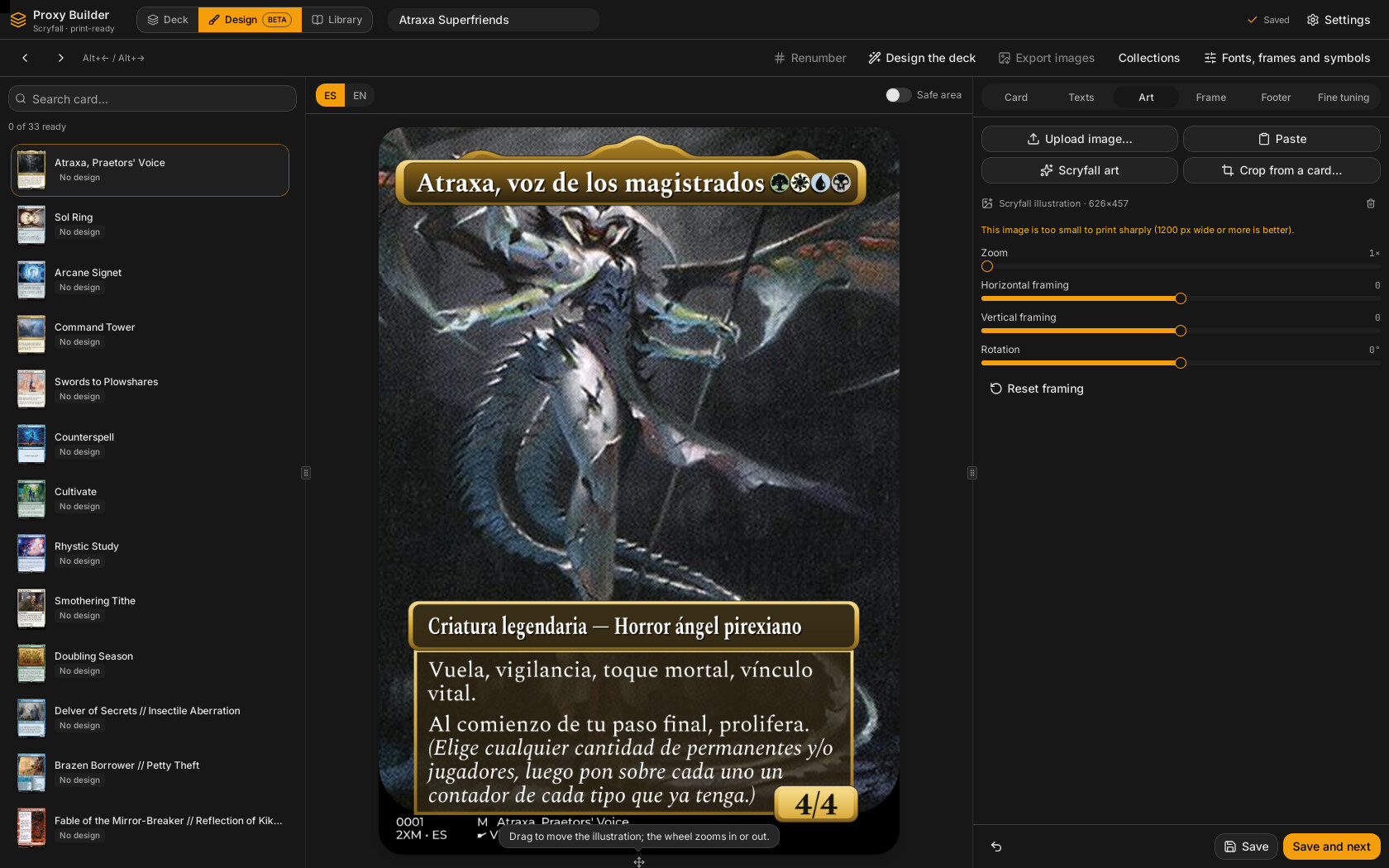
The Design tab (and "Diseñar proxy" in each card's menu) creates your own version of a card with a new frame and translated text. The result prints from its design at export resolution.
- Text from the real card in the deck's design language: any of the same 15 languages, chosen in the export panel ("Language of designed cards") or above the card preview. Name, type line and rules come from the official printing in that language; Romanian, Polish, Dutch and Ukrainian have no printed cards, so their rules stay in the English Oracle (with a warning) while the fixed words of the frame are translated. Switching to a new language fetches it for the cards already designed (a themed name you typed is kept). For cards with no printing in that language there is a suggested translation built from official phrases.
- Several copies of one card can each carry their own design. The "Copy:" buttons in the footer pick the copy; with "Only this copy (there are N)" ticked the design is saved for that copy alone, otherwise it applies to every copy. "Also step through copies with the arrows" makes the arrow keys go copy by copy. "Create variant" (next to the copy buttons, always visible) adds another copy of the card with a copy of the current design, marked as a design variant (it prints but does not count towards the deck) and jumps to it so you can change its art, frame or texts; what you had in progress is saved first.
-
Unsaved changes are never dropped silently: moving to another card (list, arrows or
Alt+←/→) or leaving the tab asks "Discard the changes?" with a third button, Save and continue, that saves the card and then makes the move. - Warnings under the card are sorted in three levels, each with its own counter: errors (something does not fit or a font or symbol is missing), warnings (the frame or text is degraded) and information (no official text in that language, or rules edited by hand). Open a level to see its list.
- Type line can be edited for each language. An empty field goes back to the English line.
- Japanese, Korean and Chinese need extra fonts (Noto Sans, about 10–18 MB each). They are downloaded the first time you pick one of those design languages; until then the card shows the warning "The {idioma} fonts are missing…" with a "Download the fonts" button.
- Art from Scryfall, uploaded, pasted or cropped from another card, with zoom, framing and rotation (dragging is instant: the art is moved on screen while Rust renders the exact card afterwards).
- Frames and styles from a frame pack, with colour, legendary crown and rules box automatic or manual. The rules box can adapt its height to the text (useful for tokens with little or no text) or stay fixed; this is a fine-tuning option, "Height follows the text", for any frame and for the whole collection or a single card. The custom tint colour of the rules box has its own opacity slider. The fine settings also include the mana symbol size: smaller symbols leave more room for the title. Besides the house pack there are the "Original" image frames (Card Conjurer M15 for the borderless, extended and classic styles, all with the same marble bars and parchment rules box), downloaded on first use rather than shipped. If an update needs new frame images, the app fetches them on its own at start.
- Free fonts downloadable from inside the app (classical/medieval/fantasy for titles, very legible ones for rules, plus a pixel font), and per-collection control of how much the title and type line are condensed.
- Downloadable frame packs; the first is Balatro (pixel art, seven styles: Joker, Planeswalker, Spectral, Tarot, Planet, Voucher, Land) with ready-made backs, tokens and lands to add to the deck. See Frame Packs.
- Collections carry a set symbol and numbering so the whole deck looks like one edition.
- Almost every Magic layout: planeswalkers, sagas, classes, cases, levels, adventures, split, aftermath, flip, double-faced, battles, meld, dungeons, large cards. Dungeons are drawn as a floor plan like the printed ones (no art and no type line; rooms side by side with walls and doors). Their text is English, because Scryfall has no dungeons in other languages, unless you write the rules yourself. The bottom half of an aftermath card is turned like on the printed ones (its title along the card's right edge) and has its own art: in the Art tab, pick "Part 2" at the top (the same selector as above the preview) and upload, paste or crop it there; dragging and the wheel on the preview move it live like any other art. For split, Fuse, Room and aftermath cards, Scryfall's art ("Scryfall art", and "Design the deck") gives each half only its own illustration, cut out of Scryfall's single image that holds both.
-
Design the whole deck at once (one draft per card, to review) and export PNGs at 300/600/900 DPI in the languages you tick (the deck's design language by default), each into its own folder named by its code (
es/,en/,fr/…). Languages the cards do not have yet are fetched first.
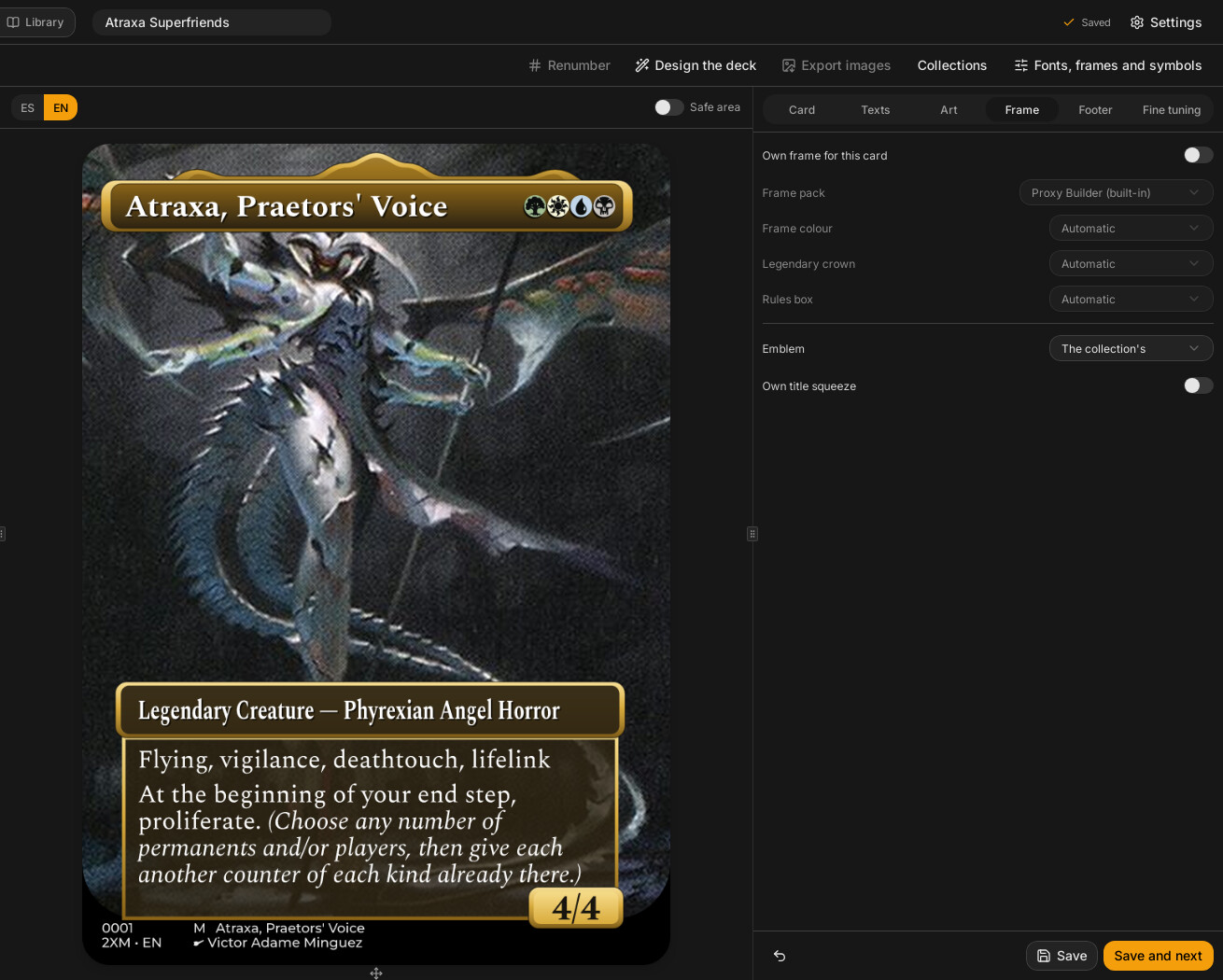
See Designer Overview, Designer UI, Designer Engine.
The Play tab is a kitchen table for trying a deck in solitaire. There are no programmed rules: you move the cards, tap them, count life and counters, roll dice, and the table keeps a log you can undo without limit.
-
Choose a deck from the library (the last one you opened comes selected). The picker works like the Library tab: search, filters, sorting, grouping, tags on the left, and grid or list view, each remembered separately from the Library's; double click a deck to start a solo game. Then choose the format (Commander, 60 cards, Limited, Free; deduced from the deck), the starting life, the mulligan rule (London, London with a free first mulligan, Friendly, Free) and the helpers (draw and untap at the start of your turn, the first player does not draw, commander tax, counters on entering). «Tapete de este deck…» picks a background mat: an image of yours or the art of a Scryfall card, per deck or a general one.
Game lists. If the deck has more cards than you play (design variants of the same card, alternatives to test other synergies), make a game list with «New game list»: in Commander you pick the commander (the exact copy, so the design variant you want) and 99 more; the deck itself does not change. Cards are grouped by name; picking one variant in Commander removes the others of the same card, and basic lands are chosen by number. The app checks the list as you go: a wrong size, no commander or repeated cards keep you from starting; colour identity only warns. You can save a list half-done and edit it later («Edit game list»). A Commander deck with more than 100 cards needs a list before Solitaire is enabled. Game lists travel inside the
.pbdeck. - Solitaire prepares the images (the first time it takes a moment with designed cards; the next times it is instant) and deals your opening hand. Keep it or take a mulligan; with London you then choose which cards go to the bottom.
- Play. Drag cards anywhere on the battlefield or to another zone; double click taps a card on the battlefield or plays one from the hand. Right click on a card shows everything you can do to it (counters, power/toughness, labels, attach, arrows, transform, face down, piles…); on the empty battlefield, untap all, organise, create tokens or a marker. Drag on the empty battlefield to select several. Hover any card to see it large with its status. A click on the library draws; its right-click menu mills, scries, surveils, searches, reveals and casts (discover, cascade…) and shuffles. Next to your life (− and +, or the wheel) are the pass-turn button and the counters you choose. The phantom at the top right is the imagined opponent's life.
- The bar at the top has the turn and its clock, pause, undo/redo, dice and coins, tokens, the game log, the mat, the shortcut list, full screen, restart (same list, new game), end the game, edit this deck and leave.
- Sparring. The «Sparring» button on the bar turns on a phantom opponent that answers some of your plays the way a Commander table would: it counters what you cast, removes threats that land and wipes the board when you pass with many creatures. Choose how hard (Off, Light, Realistic, Cutthroat; also when starting and in Settings). When it reacts you see its card, why now and why, and you choose: «Resolverla» (Enter) applies it, «Tengo respuesta» (A) lets it fizzle, «No aplica» (Esc) clears it. It never looks at your hand, of your lands only touches the very strong ones (like Gaea's Cradle) and cannot cast what it could not pay for in that round. Its panel lists the reactions of the game.
Playing with several people. «Local game…» seats from 2 to 10 players on the same computer, each with a deck of the library: you choose the format, whether teams play (with or without friendly fire and shared life, Two-Headed Giant, or an archenemy against everyone), best of 1, 3 or 5 with a sideboard, who starts and the seat order (drag the players or shuffle). The player chips in the corner pass the screen from one player to the next, hand included; Settings can do it for you when the turn changes. With several boards a selector arranges them: one board, split in two, a large board with the others as thumbnails, or a grid (with the teammates together when there are teams); the choice is remembered for that number of players. In a game with teams the teammates see each other's hand without asking (the option «Los compañeros ven su mano» turns it off); everyone else's hand is always visible as card backs — in the large board and in the thumbnails, with the back of that player's deck even for double-faced cards. Commander games add a commander damage table and tax; Planechase shows the active plane and the planar die; Archenemy gives the archenemy their schemes. Online, the same table is played through «With friends…» and a room.
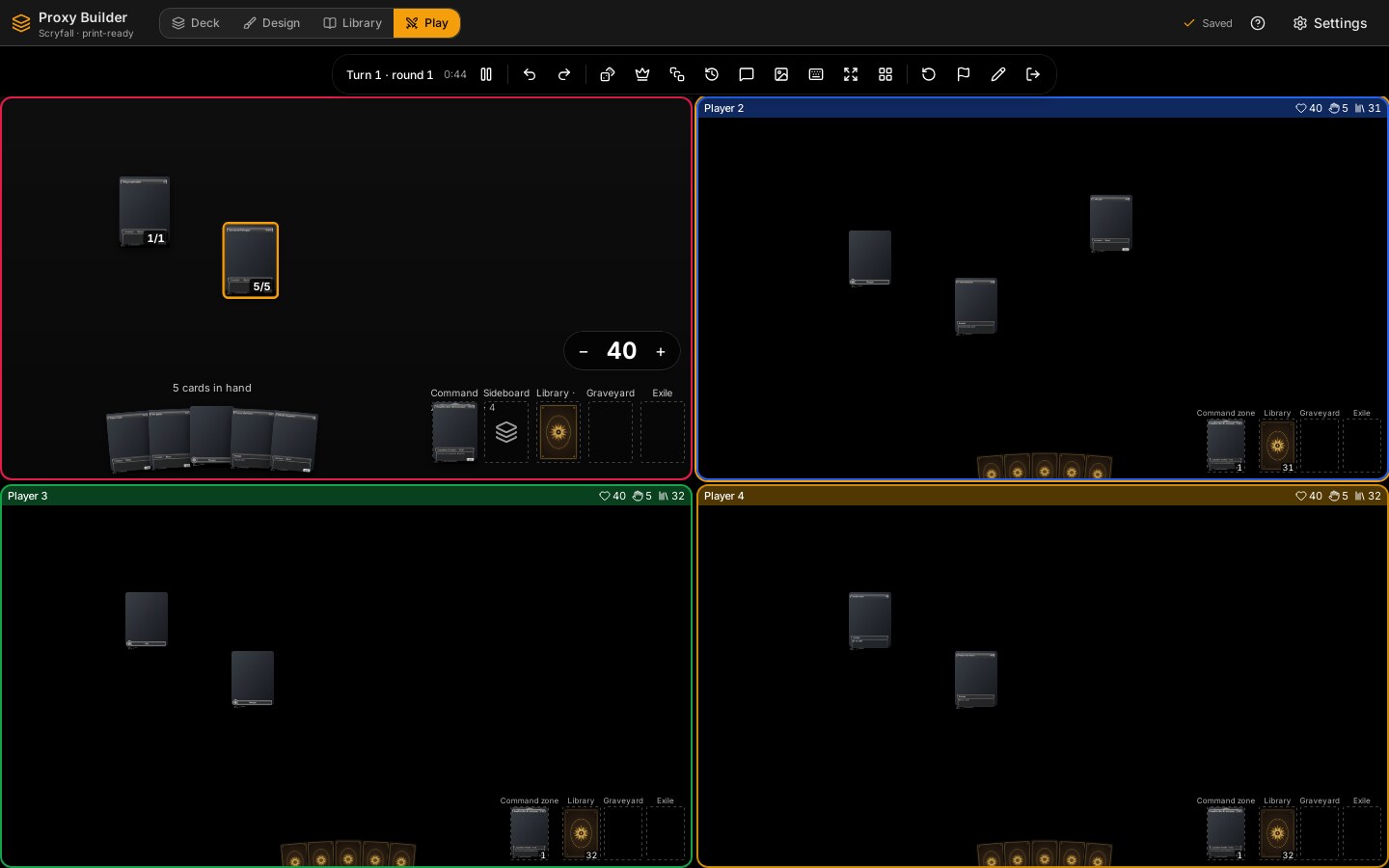
Deaths and absentees. The table never decides that someone is out: when a player reaches 0 life, ten poison counters or 21 damage from one commander, it asks them «¿Confirmas que estás fuera?» (who caused it can be chosen) and tells the others, who may mark it themselves after 15 seconds. When someone loses 5 or more life on another player's turn, the active player is asked whose damage it was with one click. If a player's connection drops, everyone sees it; after 30 seconds the next player can skip their turn and, in the mulligan, after a minute the absent player keeps their hand. The person who created the room can expel a player (from the player's menu on the table or from the lobby): they are eliminated and cannot come back into that game.
Almost everything has a key: T taps, G graveyard, H hand, E exile, C counter; over the library D draws and 1–9 draws that many; Ctrl+Z undoes, Ctrl+Enter passes the turn. Press ? for the full list.
The log and the chat. The side panel (button on the bar) has two tabs. Log: one line per thing that happened, with an icon by kind and the time; pass-turn lines say how long the turn took; hover a card's name to see it large; on the latest plays, «A la pila» sends a card that went straight to the battlefield through the stack instead; and in solitaire each line has «Deshacer hasta aquí». Chat: messages of up to 500 characters and quick notices of one click (Espera, Respondo, OK, Paso, Tu turno, Pienso: Alt+1…6); Enter opens the chat. Ctrl+Shift+1…4 put a priority signal next to your name (sin respuesta, espera, pensando, ausente); choosing the same one again clears it. Others' messages also pop up as a bubble for a few seconds. You can mute a player for yourself only. Spectators can read but not write.
The end of a game, your history and replays. When the game ends, a summary shows the winners and how, each player's place (round they fell and who knocked them out), rounds and duration; from there you can look at the table, watch the replay, play another game or leave. The replay moves to any moment of the game: slider, previous/next turn, play with speed from 0.5× to 8×, and «Ver como» to see it as any player or with everything in view; nothing can be played in it. Every game you finish is kept in the Partidas tab of the deck's properties (library): wins, win rate, rivals, rounds, duration and date, with «Ver repetición» and a button to delete it. The Historial button of the Play screen shows all your finished games, from every deck, with the deck and the play list (the cards you chose when the deck has more than fit) each seat played; you can search by deck, list, player or note and filter by result and format. In an online game, the host and the players who were there from the start keep the whole game; a guest keeps only the summary (no replay); spectators keep nothing.
Your game is kept. Switching to another tab leaves the game open; leaving the table asks whether to end it or keep it for later; closing the app saves it. Next time, the Play tab offers «Seguir la partida». While a game is open the app does not install updates (it would restart in the middle of the game).
Settings › «Mesa de juego» adjusts card size, the large view, image quality, how dice and coins are drawn (3D with physics, a light 3D, 2D or automatic; the result is always the one the app decided, the animation only shows it), the look of your dice and coin (colour, number colour, finish, an image of your own, the coin's metal, with a sample to try) and their sound, the sounds of the cards, the turn and the chat (each with its own switch), animations, shadows, a frame counter and a performance mode (if the table runs slowly for two minutes, the app offers it). See Game Table.
The gear opens a dialog (src/features/settings/settings-dialog.tsx, SettingsDialog) with five cards, top to bottom:
| Section | Component | What it does |
|---|---|---|
| Language | SettingsDialog |
A drop-down with the 15 interface languages, each with its flag and its own name (SelectorIdioma). Remembered in the browser storage key proxybuilder.lang (language-provider.tsx). Default English. It changes only the interface, not the language of printings or of designed cards. |
| Updates |
settings/actualizaciones.tsx (Actualizaciones) |
"Buscar ahora" (check now); a switch to look for and download new versions automatically (on by default; ui-store preference actualizarSola); shows notes, progress, and "Reiniciar y actualizar". On a copy that did not come from an installer (for example pnpm tauri dev) it says updates are only available in the installed app. See Releases and Auto-Updates. |
| Names in other languages |
settings/nombres-idiomas.tsx (NombresIdiomas) |
Downloads (the size is shown on the button) an MTGJSON-derived index of card names in every language into a local SQLite database, so foreign-language names resolve offline. Can be updated or removed. |
| Appearance |
settings/appearance.tsx (Appearance) |
Light/dark/system; interface size; smooth scrolling; surface style (Flat, Zeus embossed 3D, Hera floating glass) with optional filigree; background (plain or gradient) for the Flat style; card material (solid, glass, matte with grain); effects (blur, grain, shadow strength, whether side panels are included); colour theme (more than forty built in). |
| Game table |
settings/mesa.tsx (AjustesMesa) |
Play: offer the bonus of auras and equipment when attaching, show the phantom's life, hold the button to open the card menu. Board: size of battlefield cards, size of the large view, status panel. Performance: image quality, dice and coins, reduce animations, shadows, frame counter, «Modo rendimiento». See Game Table. |
"Más temas…" (More themes…) in Appearance opens settings/temas-tweakcn.tsx: paste a link from the tweakcn community (tweakcn.com/r/themes/<id> or a theme id) and Rust (src-tauri/src/temas.rs) downloads it, converts it to CSS, and downloads its Google Fonts to the app data folder. Installed themes are appended to the theme list at startup. See Themes and Skins.
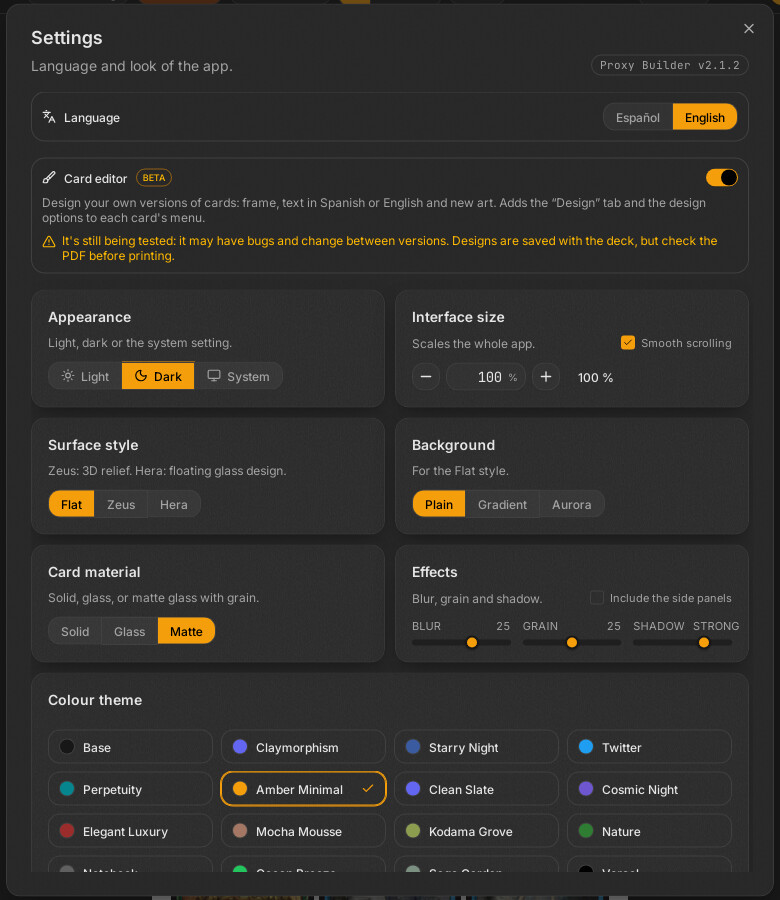
The library also exposes cache cleaning (thumbnail/derived cache): clearing it never loses deck images (see Storage and Blobs).
The app uses the OS-standard per-app folders for the identifier com.estigio.proxybuilder (tauri.conf.json identifier):
| Folder | Contents | Safe to delete? |
|---|---|---|
| App data dir |
library.db (SQLite: decks, tags, presets, settings), blobs/ (deck images by SHA-256), fonts (including the downloaded Japanese/Korean/Chinese ones), packs, installed themes, OCR models, partidas/actual.json.gz (the game in progress) |
No: decks depend on blobs/
|
| App cache dir |
renders/ (thumbnails and derivatives), mesa/ (the card images of the game table), Scryfall name catalogue |
Yes: it is rebuilt |
| App log dir |
proxy-builder.log (every network request is logged, which lets you verify a saved deck downloads nothing) |
Yes |
Decks are local and private. Moving a deck between computers: export .pbdeck from the library or the export menu, import it on the other machine. See Storage and Blobs.
Found in the code (features/preview/preview-pane.tsx, features/shell/use-deck-inicial.ts, features/library/library-screen.tsx, features/disenar/disenar-screen.tsx, features/tutorial/tutorial.tsx, features/mesa/atajos.ts):
| Where | Keys |
|---|---|
| Deck sheets | Ctrl+Z undo, Ctrl+Shift+Z redo, Ctrl+A select all, Ctrl+D duplicate selection, Delete remove selection, Escape clear selection, Ctrl+wheel zoom |
| Library | Ctrl+F focus search, Ctrl+A select all, Delete delete selection, Escape clear search or selection |
| Design tab | Alt+Left/Alt+Right move between cards |
| Play tab | A card under the pointer (or the selection): T tap, R transform, F face down, C counter, +/− +1/+1, X power/toughness, G graveyard, H hand, E exile (Shift+E face down), S shuffle into the library, B bottom, I inspect, P highlight, A attach, D attack/target. Over the library: D draw, 1–9 draw that many, S scry, U surveil, M mill, V view, T search, L search a land, H shuffle. Anywhere: U untap all, Ctrl+Z / Ctrl+Y undo/redo, Ctrl+Enter pass the turn, Ctrl+A select the battlefield, Escape clear, ? the list |
| Tutorial open | Left/Right arrows (and Enter) move between steps, Escape closes; those keys do not reach the screen underneath |
| Deck name | Enter confirms, Escape reverts |
On macOS the Command key acts as Ctrl (the code checks metaKey). Interface text is not selectable except in input fields and copy boxes.
- A card says "not found": check the name; try the card search ("Añadir carta") or a different language setting. The slot keeps a warning until fixed.
- Update says it is unsupported: you are running a build that did not come from an installer (dev build), or from a bare binary.
-
Update asks for a password on Linux: expected for
.deb/.rpm(installed withpkexec). - "Close Proxy Builder?" appears when closing: something would be lost or interrupted (a running job, an update downloading, unsaved changes in the card or in a window). Read the list: cancel to go back and finish or save, or "Close anyway".
- "Hay un trabajo en marcha" (a job is running): installing an update or freeing space is refused while a long job (export, resolving, OCR) runs or, for freeing space, while a game is open; wait or cancel it. With a game open on the table the update says «Hay una partida abierta: termínala o sal de la mesa para actualizar.»: end the game or leave the table (keeping it for later) and install.
-
Dialog animations invisible in a VM or on a GPU-less screen: run with
WEBKIT_DISABLE_COMPOSITING_MODE=1 WEBKIT_DISABLE_DMABUF_RENDERER=1(see Development Setup). -
Log file:
proxy-builder.login the app log dir lists what the app did and each request it made.