Repository navigation
Flow Examples
- Play an announcement
- Direct speaker announcement
- Play a sound before speech
- Translate a message
- Search YouTube
- Combine translation and speech
- Maps examples
Use Homey's Advanced Flow editor and a manual Start for tests. Save before running. Text in code is an example you can enter; insert named tokens using Homey's token picker.
Before you start: set up Text-to-Speech and a speaker with a Homey action that accepts an audio URL. For cloud speech the speaker must reach Homey on port 47333 and support your encoding (MP3 by default).
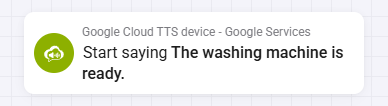
- Connect Start to Start TTS with voice at speed with pitch (with tokens). Enter
Dinner is ready.Choose an English voice, set Speed to1and Pitch to0; leave device pitch at0too. - Connect the successful output to your speaker's play-URL action. Put the speech action's Url token in the player's URL argument.
- Add a private failure notification on the speech action's error path. Save and run: you should hear the sentence. Duration is audio length in milliseconds, not a playback acknowledgment. If the Flow succeeds but there is no sound, check the player and URL.
For regular Flows or waiting conditions, make one enabled Flow with Url triggered for the same speech device, passing its Url token to the player. A different Flow can then run Start TTS. Choose either this trigger route or the direct token connection for the same player; cloud token actions also fire the trigger. For Non-Cloud speech use its own Start TTS action or Url triggered card and a short text up to 200 characters.
This follows the app author's announcement tutorial. Edgar's Advanced Flow routes announcements by room with sensors and variables; Google Services doesn't determine your room.
For Google Cast, Sonos or a compatible UPnP/DLNA speaker, you can have Google Services play directly instead of passing a speech URL to a separate player.

Live HP2023 capture: direct playback can announce on All speakers, with volume and Sonos controls in the card.
- Add a Text-to-Speech device and finish Cloud Text-to-Speech setup. In Pair or Repair, select a default speaker if you want the device to use one.
- In an Advanced Flow, connect Start to Announce text on a speaker. Enter
Dinner is ready.Choose a speaker, saved group or All speakers in the picker. If you leave Speaker empty, the device default is used. - Leave Speaker volume (%) empty to keep the current volume, or enter
0–100(0is a valid override). For Sonos, use the app/device default or select Play Separately or Play in Sync. See speaker settings to choose the mode and understand its effect on groups. - Choose continue to proceed after playback starts, or wait to finish to wait for playback and restoration where supported. Connect the error path to a private notification. The optional wait does not make unsupported speakers provide playback feedback.
The action uses the device's Cloud voice and audio settings, accepts SSML and supports BLL coding in Text. The basic Google TTS and Translate devices have their own direct announcement actions. See the complete card details.
Direct playback does not run the device's When cards by default. Enable Run When cards for speaker announcements in Pair, Repair or Advanced Settings if you also need a successful announcement to fire its URL or translation trigger. Cloud Finished is timed from the generated audio duration and device delay. Do not send the same announcement to a second player Flow as well, or it may play twice.
Use Music Url Converter only on Homey models with supported speaker playback. With the setup above, connect the speech action's Url token to Music Url Converter's Play URL action, URL field. If using the trigger route instead, use that trigger's Url, not both routes. Test with Dinner is ready. in MP3. The converter's action completion does not confirm the speaker finished.
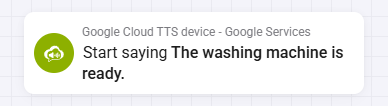
Before you start: make the announcement work, set the default cloud voice, and set up Universal Media Player with a UPnP server (a server that shares media on your network). Put a short, known two-second MP3 such as chime.mp3 on that server. Use the player that already plays your announcements.
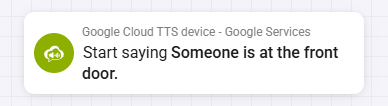
- Start with Universal Media Player's Play a UPnP file action that returns tokens. Select your chime in File and leave Finish off. Use the action's Url in the speaker action's URL field, not a separate UPnP URL trigger.
- On the speaker action's success path, add a four-second delay before the speech action with tokens above. Enter
Dinner is ready.Use its Url in a second speaker action. Connect errors to a notification, not to the next audio action. - Save and run. Expect the chime, then the sentence. Allow more time if they overlap or the chime starts late. Prefer actual playback completion from the player if it provides it.
For two spoken messages with an enabled trigger-based player Flow, use two Start saying Text and finish conditions chained from the first condition's true path to the next, with Text Dinner is ready. and Please come to the table. The conditions wait for the generated duration plus the device's delay, not for feedback from the speaker. Another speech request to the same device can replace the pending timer. See the Advanced Triggers discussion and optional sequencing; Google Services does not queue independent requests.
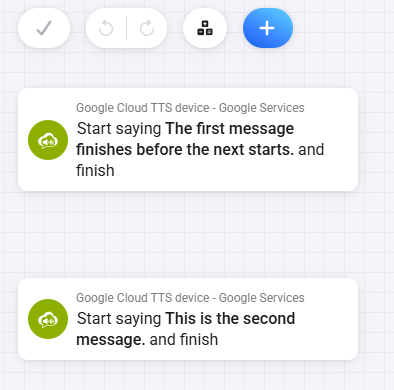
Live HP2023 capture: two speech conditions with example text for a sequential announcement.
Before you start: configure the Cloud Translation JSON and project ID, and add Google Translate.

Live HP2023 capture: a translation action with its source and target languages.
- Connect Start to Translate (with tokens). Enter
Hello, choose English (en) under Source Language and Dutch (nl) under Target Language. - Connect the success path to a notification. Insert Translation in the message. Connect the error path to a separate translation failure message.
- Save and run. Expect a Dutch translation, typically “Hallo”. If suggestions are empty, check translation troubleshooting.
Before you start: enable YouTube Data API v3, save a YouTube API key and add YouTube.

Live HP2023 capture: a YouTube search action with an example query.
- Connect Start to Search within YouTube (with tokens). Enter
Homey smart home. - Connect success to a notification with YouTube link in its message. Add a separate error notification for no result, invalid key or quota issues.
- Save and run. Expect a link to the first video in this search; results vary. The action also fires YouTube triggered. Use one result path per notification to avoid duplicates.
Before you start: make the translation and cloud announcement above work.
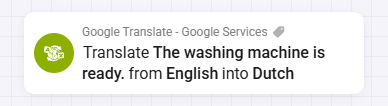
- Keep the Translate (with tokens) action and its
Hello, English → Dutch inputs. On success, connect to the cloud speech action with tokens. - Insert Translation into the speech card's Text. Select a Dutch voice, Speed
1and Pitch0(also0on the device). Connect success to the speaker action with Url in its URL field. - Connect both error paths to notifications, not the speaker. Save and run. Expect the player to speak the Dutch translation. Don't also route the trigger to the same speaker.
To add the current time or another expression to Text, see BLL coding. For a trip estimate, go to Maps examples.