Configuring_Application_Settings
[Home]
Illuminated Cloud provides several options that you can use to control application behavior. You can access these configuration options by selecting Configure Application from the Tools | Illuminated Cloud menu, Illuminated Cloud context menu, or toolbar icon (select View | Toolbar to enable the toolbar, if it isn't visible).
Related configuration options are grouped as follows:
- About — View installed build details and manage your Illuminated Cloud license.
- Connections — Configure connections at the application level so you can re-use them across projects.
- Deployment — Configure how and when metadata gets moved between a project and its associated connection.
- Salesforce DX — Configure how you want Illuminated Cloud to interact with the Salesforce CLI.
- Apex — Configure Apex features such as unit tests and code coverage.
- UI Frameworks — Configure UI framework features such as LWC and UI Bundles.
- GraphQL — Configure Illuminated Cloud GraphQL settings.
- Agentforce — Configure Illuminated Cloud Agentforce settings.
- Other — Configure other Illuminated Cloud settings.
NOTE: If you're unsure about the meaning of a particular configuration option, simply hover over it to view its associated tooltip.
Use the available options to configure how and when metadata gets moved between a project and its associated connection. Options are grouped according to whether they relate to deployment behavior, automatic metadata subscription management, tooling API usage, or near-real-time source code validation.
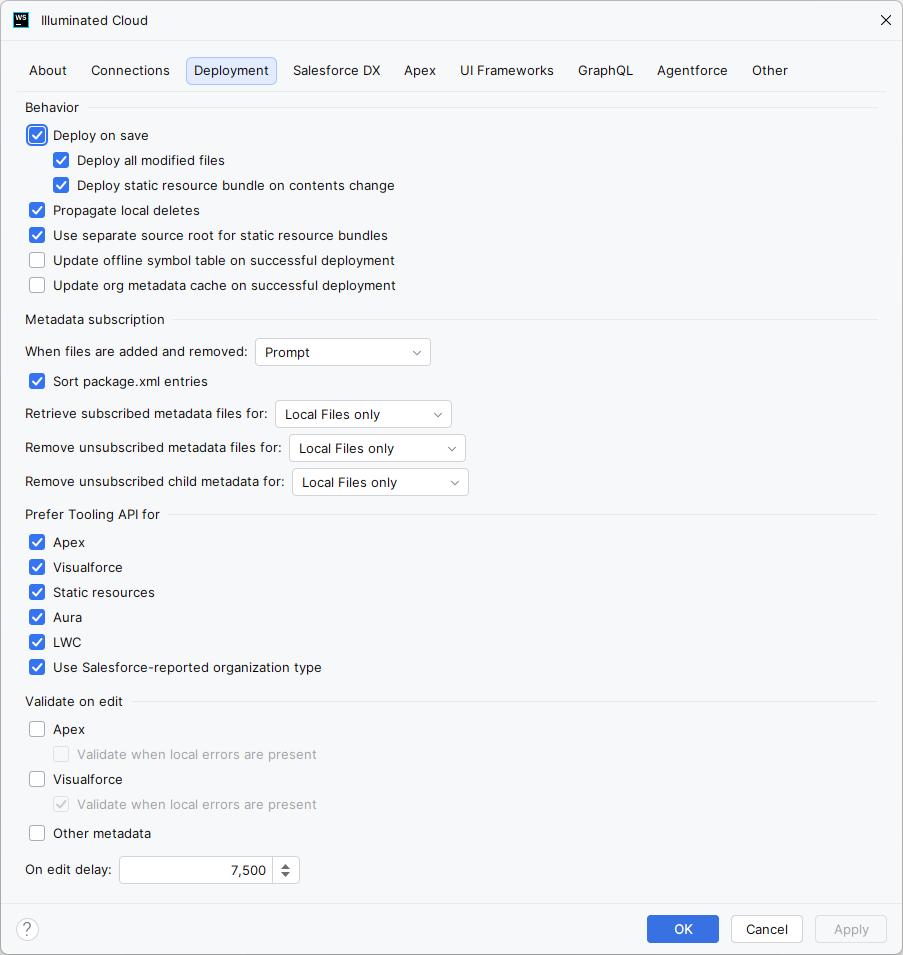
Deploy on save — If checked, indicates that you want your changes automatically propagated to the server every time you save files in the IDE.
-
Deploy all modified files — If checked, all files modified locally since the last deploy-on-save operation are included in the deployment payload in addition to the explicitly-selected files. If unchecked, only the explicitly-selected files are included in the deployment payload.
-
Deploy static resource bundle on contents change — Illuminated Cloud can extract archive-type static resources so you can work with the contents using the IDE's associated editor. If checked, the corresponding static resource will be automatically rebuilt when you explicitly request a deployment that includes a static resource. If unchecked, you'll need to explicitly deploy the static resource.
Propagate local deletes — If checked, deleting local metadata files will result in the user being prompted as to whether the corresponding metadata should be deleted from the connected organization.
Use separate source root for static resource bundles — Check this option if you want the directory that's created for static resource bundles in your non-Salesforce DX projects to be created in a separate top-level source root directory called resource-bundles. Uncheck this option if you want them placed directly in your source root. We recommend you check this option to maintain compatibility with other tools that support resource bundles and retain the ability for other tools to deploy the source project.
Update offline symbol table on successful deployment — When enabled (default), the offline symbol table entries for SObjects and fields are regenerated automatically on successful deployment of the corresponding metadata files.
Update org metadata cache on successful deployment — When enabled, the org metadata cache is updated automatically for all metadata types included in a deployment on successful deployment of the corresponding metadata files.
Metadata subscription | When files are added and removed: — Choose whether and how you want your metadata subscription to be updated with metadata files that you add and remove from your project (e.g., new classes or Lightning components you create) in the IDE:
-
Prompt — Select this option if you want the IDE to show you the impact of any changes on your metadata subscription so you can choose whether or not you want to accept those updates. RECOMMENDED.
-
Always Update — Select this option if you want the IDE to automatically update your metadata subscription with all changes.
-
Never Update — Select this option if you want to manage your metadata subscription, preventing the IDE from making any updates automatically.
Sort package.xml entries — Check this option to maintain the selected package.xml file's entries in proper lexicographic order as they are added and removed by Illuminated Cloud.
NOTE: This option applies only to modules that use a package.xml metadata subscription.
Retrieve subscribed metadata files for: — Specifies the subscription types for which newly-subscribed metadata files should be retrieved automatically when the subscription contents change.
Remove unsubscribed metadata files for: — Specifies the subscription types for which newly-unsubscribed metadata files should be removed automatically when the subscription contents change.
Remove unsubscribed child metadata for: — Specifies the subscription types for which newly-unsubscribed child metadata files should be removed automatically when the subscription contents change.
Prefer Tooling API for — Specifies which supported metadata types should be deployed using the Tooling API whenever possible.
- If unchecked, the Metadata API will be used. We recommend using the Tooling API wherever possible to enhance deployment performance.
- We also recommend you check the Use Salesforce-reported organization type option unless there is a valid use case for overriding the type when you configure the connection (e.g., you're testing against a Developer Edition org as if it were a Production org).
Validate on edit — Use these options to choose whether you want the IDE to perform near-real-time validation of your source code as you're writing it against each of the listed metadata types.
Validate when local errors are present in each case means the following:
- If unchecked, and if the IDE's parser has identified errors, the file will not be sent to the server for validation.
- If checked, the file will always be sent to the server for validation.
Use the On edit delay field to enter a value (in milliseconds) to wait after you've stopped editing a file before performing a check-only deployment on the file against the server and annotating any errors in the editor. This is helpful if you want to ensure your code is valid before committing it to the organization.
NOTE: These options are not enabled by default as the real-time code inspection and client-side code analysis features included with Illuminated Cloud 2 provide similar functionality without the performance hit of having to continually connect to the server and consume precious API requests for source code validation.
Illuminated Cloud requires access to the Salesforce CLI to perform Salesforce DX-specific operations and connect to SFDX orgs (scratch and non-scratch).
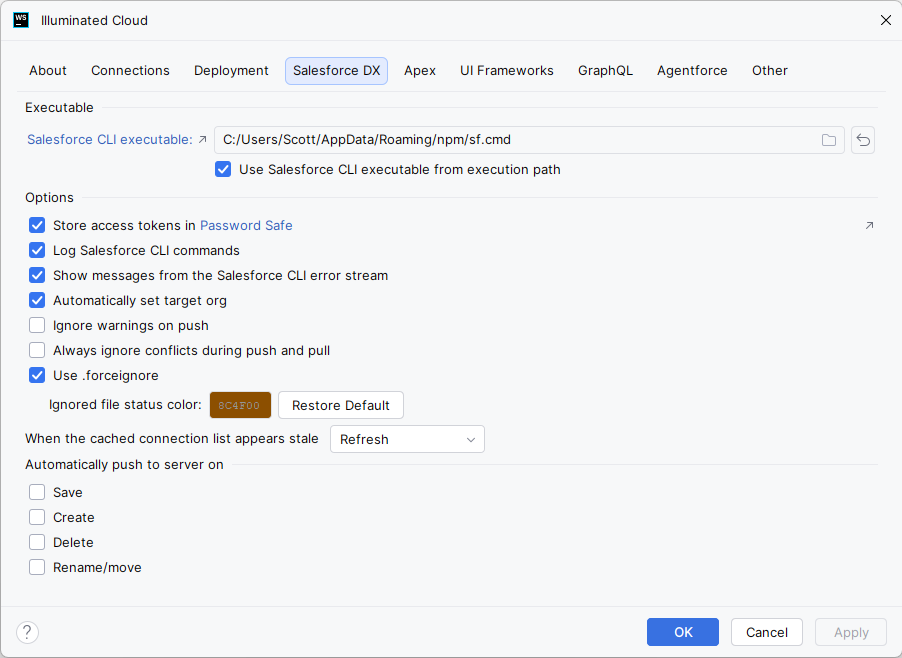
If you haven't already done so, click the provided link to download the Salesforce CLI. If the Salesforce CLI executable is available via the system execution path and Use Salesforce CLI executable from execution path is enabled, it will be found automatically. Otherwise use the browse button to locate the Salesforce CLI executable (called sf on Mac/Linux and sf.cmd on Windows) and register it with the IDE.
Now you can use the available options to specify how you want Illuminated Cloud to interact with the Salesforce CLI:
-
Store access tokens in Password Safe — Illuminated Cloud caches Salesforce access tokens aggressively in-memory, but they must be re-queried from the Salesforce CLI when the IDE is restarted. By enabling this option, Illuminated Cloud can store CLI connection access tokens securely in the JetBrains IDE's Password Safe. As long as the access tokens are valid, they can be used without needing to query the Salesforce CLI.
-
Log Salesforce CLI commands — Enable this option to display the output of any Salesforce CLI commands that are executed in the Messages tool window.
-
Show messages from the Salesforce CLI error stream — Check this option to display messages emitted to the Salesforce CLI's standard error stream in a toaster notification (recommended).
-
Automatically set target org — When checked, Illuminated Cloud will automatically set the CLI's target org when an OAuth or scratch org connection is associated with an Illuminated Cloud module. For existing projects, Illuminated Cloud will inform the user when the CLI's target org is not configured properly or at all, and will assist in setting the CLI's target org accordingly (recommended).
-
Always ignore warnings on push — When checked, warnings are ignored on push.
-
Always ignore conflicts during push and pull — When checked, source-tracked actions are always executed with the
-fflag causing any conflicts to be overwritten.NOTE: This option is disabled by default, and we strongly recommend you enable it only if you are experiencing issues where conflicts are being reported incorrectly and overwriting them is the only way to resolve them.
-
Use .forceignore — When checked, Illuminated Cloud will use entries from a source format project's
.forceignorefile for filtering in the build options dialog, metadata subscription editor, and metadata management operations. Ignored files are also visibly distinguished in the IDE's Project view, and Add to .forceignore actions are available to help manage the.forceignorefile (recommended).- Ignored file status color — When Use .forceignore is enabled, allows configuration of the color used to distinguish ignored files in the IDE's Project view. The standard Ignored file status color is used by default and can be restored using the Restore Default button.
-
When the cached connection list appears stale — Determines the actions that occur when the cached CLI connection list information appears stale relative to the corresponding files under the user's
.sfdxdirectory. Options include:-
Refresh (default) - Immediately and synchronously runs
sfdx force:org:list --skipconnectionstatusto repopulate the connection list cache. This can be faster but can yield stale connection status information. -
Force Refresh - Immediately and synchronously runs
sfdx force:org:listto repopulate the connection list cache. This can be slower but yields accurate connection status information. - Notify - Displays a stale cache notification to the end user with options to refresh, force refresh, defer the notification, or configure the stale cache behavior.
- Do Nothing - No action is taken. The user is responsible for maintaining the connection cache via the connection manager and/or named actions.
-
Refresh (default) - Immediately and synchronously runs
-
Use the Automatically push to server on options to specify whether you want the Salesforce org to be automatically kept up-to-date with changes you make in the IDE.
To explicitly update the Salesforce org yourself (e.g., using the Illuminated Cloud push to server feature or the CLI) and never have it updated automatically in response to IDE actions, disable all of these options.
NOTE: If you checked the Deploy on save option on the Deployment tab, you'll also need to enable these push options for it to work correctly.
Use the available options to specify how Apex features such as unit test execution and code coverage analysis should behave within Illuminated Cloud:
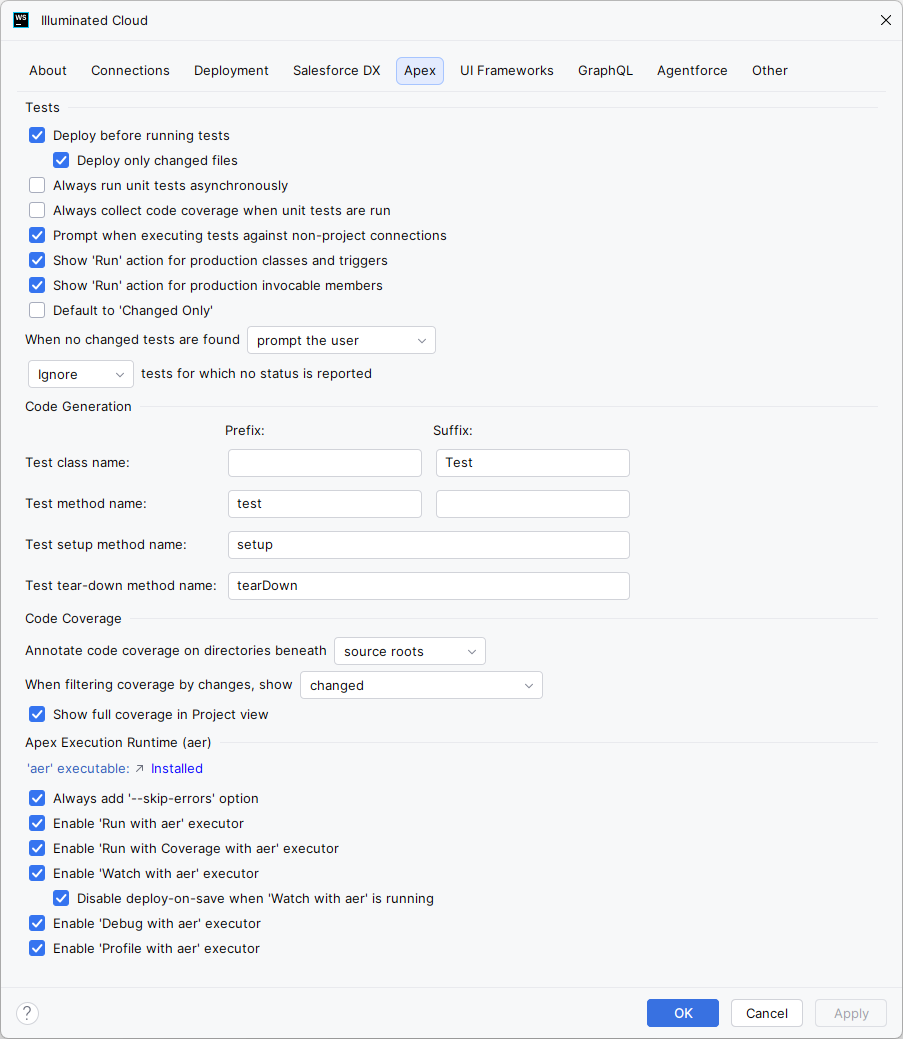
Tests — Configures Apex unit test execution behavior.
-
Deploy before running tests — When enabled, the organization is updated automatically via metadata deployment before running Apex unit tests using the Salesforce test runner.
-
Deploy only changed files — When enabled alongside Deploy before running tests, only files changed relative to version control are included in the pre-test execution deployment.
-
Always run unit tests asynchronously — By default, Illuminated Cloud will run test execution requests for a single Apex class synchronously, often resulting in faster test execution. If you are experiencing issues where unit tests being run synchronously are reporting false negatives, check this option to run unit tests asynchronously instead.
-
Always collect code coverage when tests are run — Illuminated Cloud doesn't collect code coverage metrics unless you explicitly choose the Run with coverage command in the IDE. Check this option if you want to collect code coverage information whenever tests are run, regardless of how you run them (e.g., in standard execution and debug mode).
-
Prompt when executing tests against non-project connections — When enabled (default) and unit test execution would occur against a connection that is not configured for the current project, the user will be prompted whether to continue executing tests against the non-project connection, edit the unit test run configuration settings, or cancel unit test execution.
-
Show 'Run' action for production classes and triggers — When enabled, gutter run actions are included for production Apex classes and triggers for execution of transitive dependent Apex unit tests of that Apex class or trigger.
-
Show 'Run' action for production invocable members — When enabled, gutter run actions are included for production Apex methods and constructors for execution of transitive dependent Apex unit tests of that Apex method or constructor.
-
Default to 'Changed Only' — When enabled, new Apex unit test run configurations are automatically configured as Changed Only meaning that, when executed, only Apex unit tests in the scope of that run configuration that are also changed relative to version control or are transitive dependents of production files that are changed relative to version control are executed.
-
When no changed tests are found — When enabled and a Changed Only Apex unit test run configuration is executed against no changed files, this determines the behavior as one of:
-
Prompt the user (default) - Immediately and synchronously runs
sfdx force:org:list --skipconnectionstatusto repopulate the connection list cache. This can be faster but can yield stale connection status information. -
Force Refresh - Immediately and synchronously runs
sfdx force:org:listto repopulate the connection list cache. This can be slower but yields accurate connection status information. - Notify - Displays a stale cache notification to the end user with options to refresh, force refresh, defer the notification, or configure the stale cache behavior.
- Do Nothing - No action is taken. The user is responsible for maintaining the connection cache via the connection manager and/or named actions.
-
Prompt the user (default) - Immediately and synchronously runs
-
Ignore/Fail unit tests for which no status is reported — If you choose Ignore and no other methods failed, your overall test execution will be reported as having passed (but you also won't know whether tests were skipped without reviewing the test execution results). Choose Fail if you want to be notified of any such skipped methods. In this case, the overall test execution will be marked as "Failed", even if there were no explicit test failures.
Code Generation — Configures Apex unit test code generation behavior.
-
Test class name | Prefix / Suffix — Specifies the prefix and/or suffix for generated Apex test class names. The default is a suffix of
Test, so the generated test class for a production class namedMyClasswould beMyClassTest. -
Test method name | Prefix / Suffix — Specifies the prefix and/or suffix for generated Apex test method names. The default is a prefix of
test, so the generated test method for a production method nameddoSomething()would betestDoSomething(). -
Test setup method name — Specifies the name of the generated
@TestSetupmethod (unit tests only),setup()by default. -
Test tear-down method name — Specifies the name of the generated
@TearDownmethod (integration tests only),tearDown()by default.
Code Coverage — Configures Apex code coverage analysis behavior.
-
Annotate code coverage on directories beneath source roots|content roots — Determines the level at which aggregate code coverage is reported in the IDE's Project view. By default it is reported at the source root-level and below, but it can be configured to display at the content root-level and below if desired.
-
When filtering coverage by changes, show all|changed|changed and dependents — When displaying Apex code coverage in a project configured for version control, the view can be filtered by changes. This settings determines which production classes and triggers are included when filtering as one of:
- All - No filtering is applied.
- Changed - Only changed production Apex classes and triggers are included.
- Changed and dependents - All production Apex classes and triggers which are affected by changed transitive dependencies are included.
-
Show full coverage in Project view — When enabled (default), code coverage in the IDE's Project view is reported as
X of Y lines covered (XX.YY%). On smaller displays, it can be useful to use a more concise format of justXX.YY%.
Apex Execution Runtime (aer) — Configures Apex Execution Runtime (aer) behavior.
-
'aer' executable — Shows the installation status of the
aerexecutable. The field label includes a link to download the latest version. Illuminated Cloud finds the executable using the system execution path. -
Always add '--skip-errors option — When enabled (default),
aeris always executed using the--skip-errorsoption so that it does not fail fast if one or more errors are found scanning project source files. Apex unit test failures are still reported properly for executed tests, but this provides more resilience if the project's source files are not 100% supported by aer yet. -
Enable 'Run with aer' executor — When enabled (default) and the
aerexecutable is available, a Run with aer action is available anywhere that a Run action is available for Apex unit tests. -
Enable 'Run with Coverage with aer' executor — When enabled (default) and the
aerexecutable is available, a Run with Coverage with aer action is available anywhere that a Run with Coverage action is available for Apex unit tests. -
Enable 'Watch with aer' executor — When enabled (default) and the
aerexecutable is available, a Watch with aer action is available anywhere that a Run action is available for Apex unit tests. -
Disable deploy-on-save when 'Watch with aer' is running — When enabled and a Watch with aer run configuration is active, deploy-on-save will be disabled for Apex source files. Files can still be deployed explicitly using other deployment actions.
-
Enable 'Debug with aer' executor — When enabled (default) and the
aerexecutable is available, a Debug with aer action is available anywhere that a Debug action is available for Apex unit tests. LSP4IJ is required for aer-based debugging. -
Enable 'Profile with aer' executor — When enabled (default) and the
aerexecutable is available, a Profile with aer action is available anywhere that a Run action is available for Apex unit tests. Profiling results are displayed in Perfetto.
Use the available options to configure the behavior of Salesforce-specific UI frameworks in Illuminated Cloud:
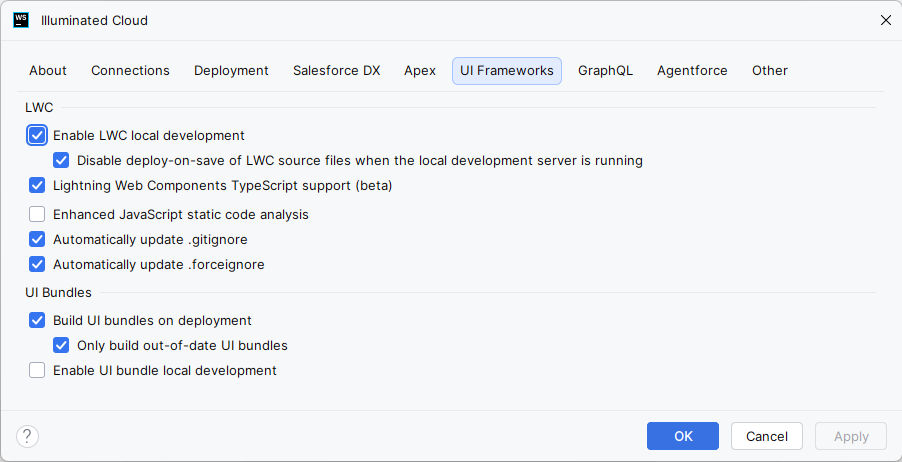
LWC — Configures Lightning Web Components behavior.
-
Enable LWC local development — When enabled, actions are integrated for starting, restarting, and stopping LWC local development servers for LWC custom applications, LWC components, and LWR sites.
-
Disable deploy-on-save of LWC source files when the local development server is running — When enabled and an LWC local development server is active, deploy-on-save will be disabled for LWC source files. Files can still be deployed explicitly using other deployment actions.
-
Lightning Web Components TypeScript support (beta) — When enabled, Illuminated Cloud provides full support for development of Lightning Web Components using TypeScript. Note that this feature is considered beta.
-
Enhanced JavaScript static code analysis — When enabled, the Illuminated Cloud-managed
tsconfig.jsonfiles include rules for LWC JavaScript files resulting in additional static code analysis information being integrated into the IDE from the TypeScript language server. -
Automatically update .gitignore — When enabled, Illuminated Cloud automatically updates the project-level
.gitignorefile with files and directories which are needed but should not typically be added to version control. -
Automatically update .forceignore — When enabled, Illuminated Cloud automatically updates the project-level
.forceignorefile with files and directories which are needed but should not typically be deployed to Salesforce organizations.
UI Bundles — Configures UI Bundles behavior.
-
Build UI bundles on deployment — When enabled, UI bundles are automatically built using the Salesforce CLI when their contents are deployed.
-
Only build out-of-date UI bundles — When enabled alongside Build UI bundles on deployment, only out-of-date UI bundles are automatically built using the Salesforce CLI when their contents are deployed.
-
Enable UI bundle local development — When enabled, actions are integrated for starting, restarting, and stopping local development servers for UI bundles.
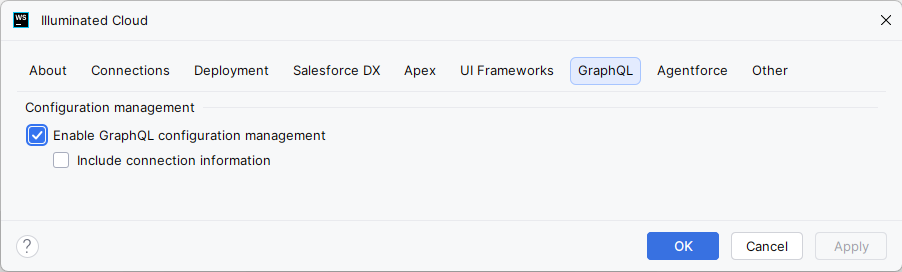
Use the available options to configure GraphQL behavior in Illuminated Cloud:
-
Enable GraphQL configuration management — When enabled, Illuminated Cloud will manage the contents of projects'
graphql.config.ymlfiles. -
Include connection information — When enabled alongside **Enable GraphQL configuration management, Illuminated Cloud add the project connection's access token to the GraphQL configuration to enable integrated GraphQL query execution. This option is disabled by default and should only be enabled if you're comfortable having an active OAuth access token in a plain-text file in the project root directory.
Use the available options to configure Agentforce and generative AI behavior in Illuminated Cloud:
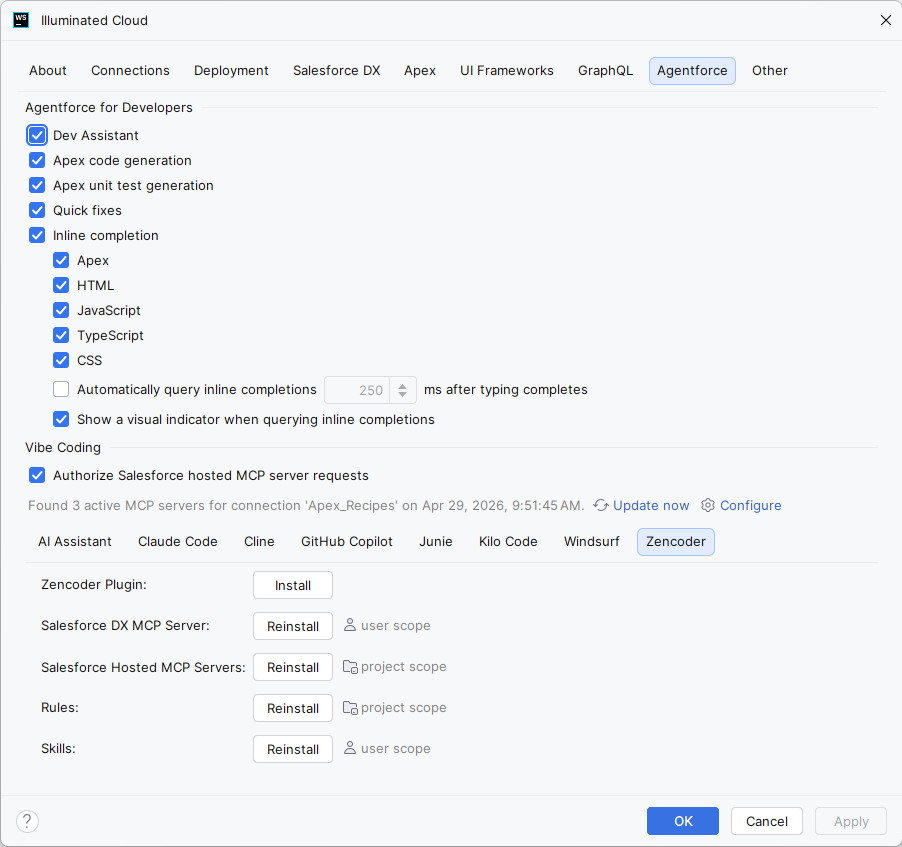
Agentforce for Developers — Configures Agentforce for Developers behavior. Note that Agentforce for Developers is now considered legacy. Users are encouraged to use the Vibe Coding integrations described below for a more complete feature set.
-
Dev Assistant — When enabled, Illuminated Cloud includes a Dev Assistant tool window that be used to issue prompts and integrate prompt responses into the IDE.
-
Apex code generation — When enabled, Illuminated Cloud includes an Apex Generate | Using Agentforce for Developers action.
-
Apex unit test generation — When enabled, Illuminated Cloud includes an option to generate implementations for otherwise stubbed Apex unit test methods using Agentforce for Developers.
-
Quick fixes — When enabled, Illuminated Cloud includes Fix with Agentforce for Developers quick-fixes for integrated external static code analyzers such as PMD and Salesforce Code Analyzer.
-
Inline completion — When enabled, Illuminated Cloud shows inline completion offerings for the enabled languages (Apex, HTML, JavaScript, TypeScript, and CSS).
-
Automatically query inline completions XXX ms after typing completes — When Inline completion is enabled, configures the delay after typing completes before inline completions are queried from Agentforce for Developers.
-
Show a visual indicator when querying inline completions — When enabled, a subtle indicator is shown at the caret when Illuminated Cloud is querying Agentforce for Developers for inline completions.
Vibe Coding — Helps integrate third-party agentic AI plugins for Salesforce development by assisting with plugin installation and configuration, Salesforce MCP server installation and configuration, and installation and configuration of Salesforce-specific rules and skills.
Use the available options to specify behaviors of other features in Illuminated Cloud:
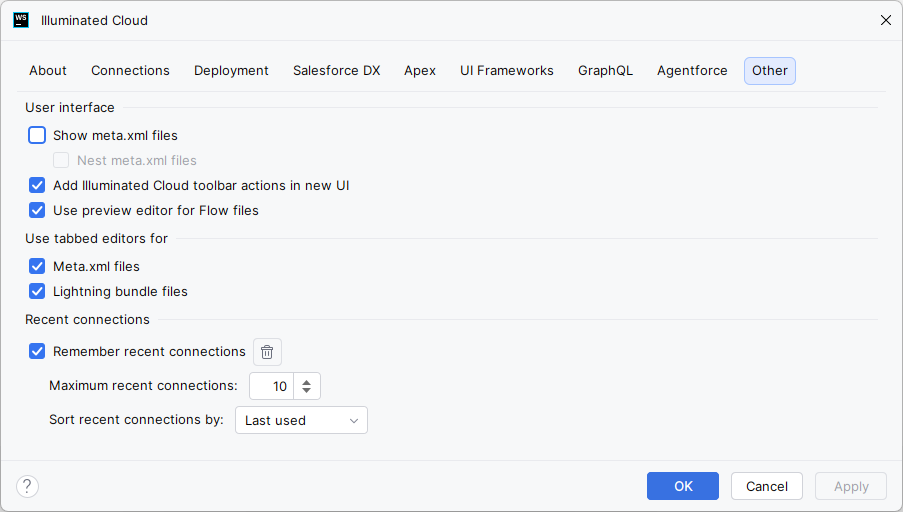
User Interface — Configures Illuminated Cloud user interface behaviors.
-
Show meta.xml files — By default, Illuminated Cloud hides supporting
meta.xmlfiles in the IDE's Project view. These files are still available through the tabbed editor interface (if so configured using the option below) and through the Navigate | Related Symbol... action. If you wish to include these files explicitly in the Project view, enable this option and optionally enable the Nest meta.xml files option described below. -
Nest meta.xml files — If Show meta.xml files is disabled and this option is enabled, supporting
meta.xmlare displayed nested beneath their associated main source files in the Project view. -
Add Illuminated Cloud toolbar actions in new UI — When checked, the Illuminated Cloud toolbar actions are added to the top IDE toolbar in the new UI.
-
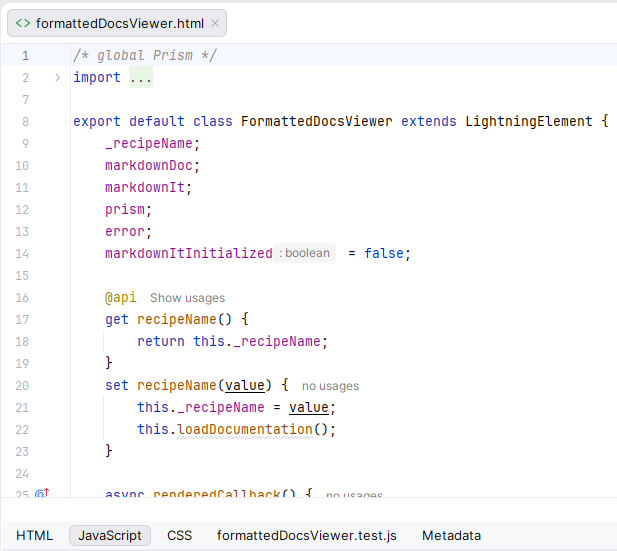
Use preview editor for Flow files — When enabled, Flow metadata files are displayed in a preview editor with a Mermaid-based diagram as a preview of the Flow file's contents.
Use tabbed editors for — Determines how tabbed editors are enabled for Salesforce metadata files.
-
Meta.xml files — By default, Illuminated Cloud groups source files and their supporting
meta.xmlfiles into a tabbed editor UI with sub-tabs for the source and metadata files respectively. If desired, this tab grouping behavior can be disabled.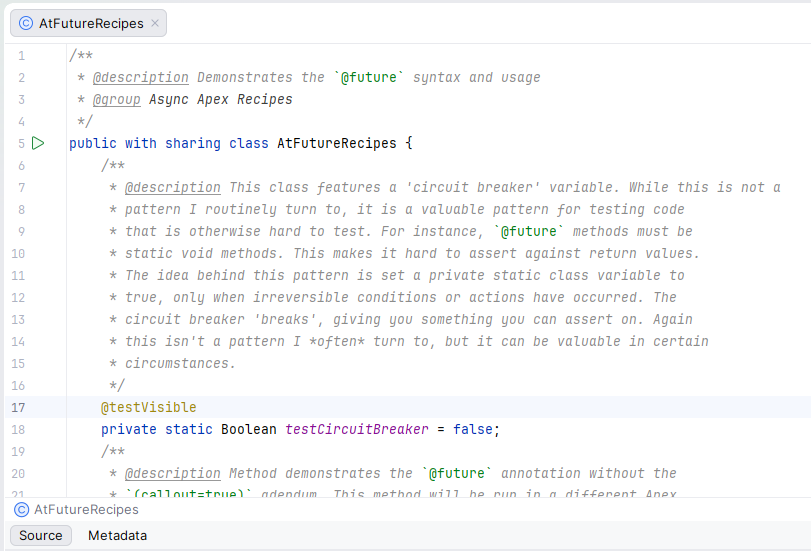
-
Use tabbed editors for | Lightning bundle files — By default, Illuminated Cloud groups Aura and LWC bundle files into a tabbed editor UI with sub-tabs for the source and metadata files respectively. If desired, this tab grouping behavior can be disabled.
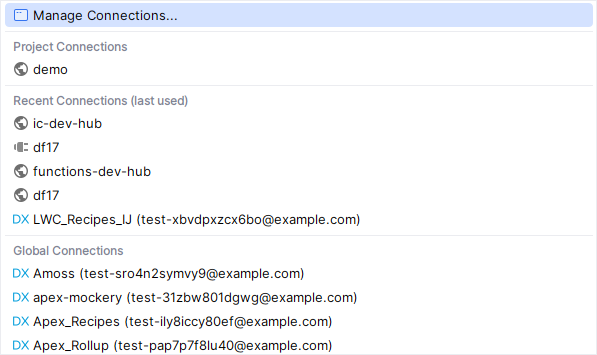
Recent connections — For convenience, Illuminated Cloud can remember non-project connections that have been recently used in a given project and offer them in a distinct sub-group.
-
Remember recent connections — When enabled, a project-level Recent Connections section is added to all project connection selectors that includes the most used non-project connections. Non-project connections are added to this list automatically when they are used for certain operations from the current project, e.g., metadata deployment/retrieval/removal, Anonymous Apex and SOQL Query execution, Log Analyzer, etc. Enabled by default.
-
Clear recent connections for project — Allows the user to clear/reset all remembered connections for the current project if desired.
-
Maximum recent connections — Allows the user to configure the number of recent connections that are included in the list in the range 5-20 (10 by default).
-
Sort recent connections by — Allows the user to determine how recent connections are sorted (and therefore retained within the maximum allowed constraint described above) as one of:
- Last used — by recency of usage; default
- Most used — by frequency of usage
- Alphabetic — by case-insensitive connection name
[Home]