Managing_Metadata
[Home]
Any given Salesforce organization contains a vast amount of metadata, only a subset of which is generally relevant for your project. Illuminated Cloud enables you to filter an organization's full set of metadata to the relevant subset using a metadata subscription. A project's metadata subscription will typically include Apex classes and triggers, Visualforce and/or Lightning presentation tier assets, static resources, custom objects and fields, page layouts, and similar customizations and extensions to the standard Salesforce metadata.
You can manage the metadata subscription by selecting Configure Module from the Tools | Illuminated Cloud menu, Illuminated Cloud context menu, or toolbar icon (select View | Toolbar to enable the toolbar, if it isn't visible).
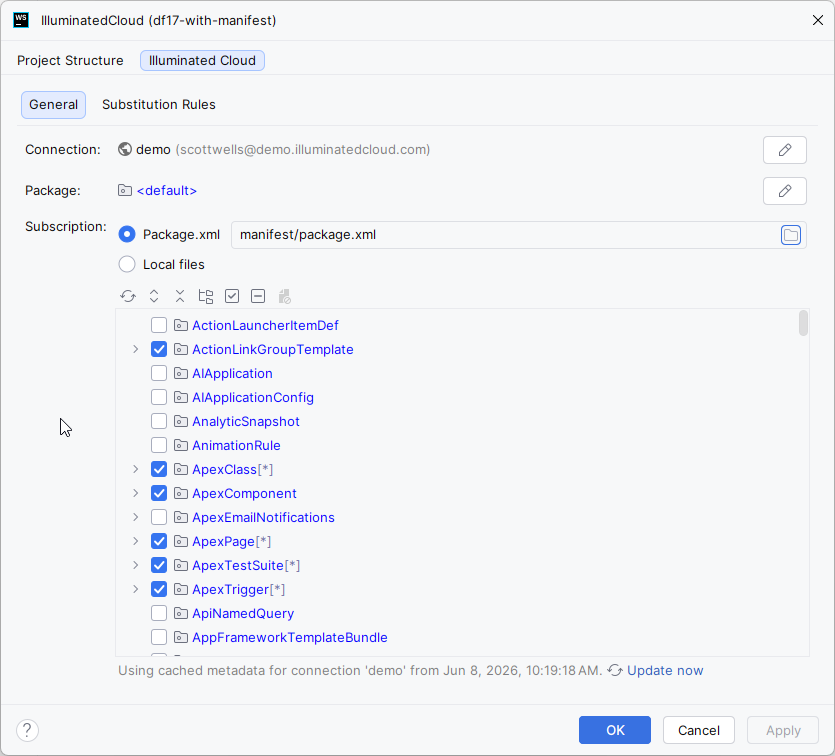
Illuminated Cloud supports two different types of metadata subscriptions, so you can choose the one that works best for you:
-
Package.xml — If you already have a
package.xmlfile for use with other tools such as the Force Migration Tool, Salesforce CLI, or CI/CD system, select this option to use yourpackage.xmlfile as the basis for your metadata subscription. You can then explicitly select the metadata types and objects you want to include in your Illuminated Cloud project. This is the recommended metadata subscription type. -
Local Files — Uses local metadata files as the inferred metadata subscription. Changing the subscription contents in the metadata subscription editor can result in metadata files being retrieved from the organization or removed from the local project based on metadata subscription settings.
NOTES:
-
A wildcarded type includes a
[*]marker denoting it as such. Checking a metadata type node attempts to select it as wildcarded. Wildcard behavior differs based on the metadata subscription type: In a Selected metadata subscription, any type can be wildcarded and Illuminated Cloud will attempt to keep the members of that metadata type current when the metadata list from the server is updated. In a Package.xml metadata subscription, only metadata types that allow wildcards can be wildcarded. Selecting a type which doesn't allow wildcards will select all current members of the type and create explicit entries for each member in thepackage.xmlfile. For more information, see the related release notes. -
Illuminated Cloud caches the list of metadata to improve performance. If new metadata is available in the organization, be sure to click the refresh icon
 to update the list with the latest available metadata. The timestamp when the metadata cache was last updated is displayed clearly for your reference, whether you're managing a metadata subscription or specifying the scope for an operation that will update metadata.
Click OK to save your changes.
After you’ve configured your initial metadata subscription, you’ll want to maintain it over time so it can continue to be an accurate representation of your working set of Salesforce metadata. Illuminated Cloud provides features to help you manage your metadata subscription.
To access these features, select Configure Application from the Tools | Illuminated Cloud menu, Illuminated Cloud context menu, or toolbar icon.
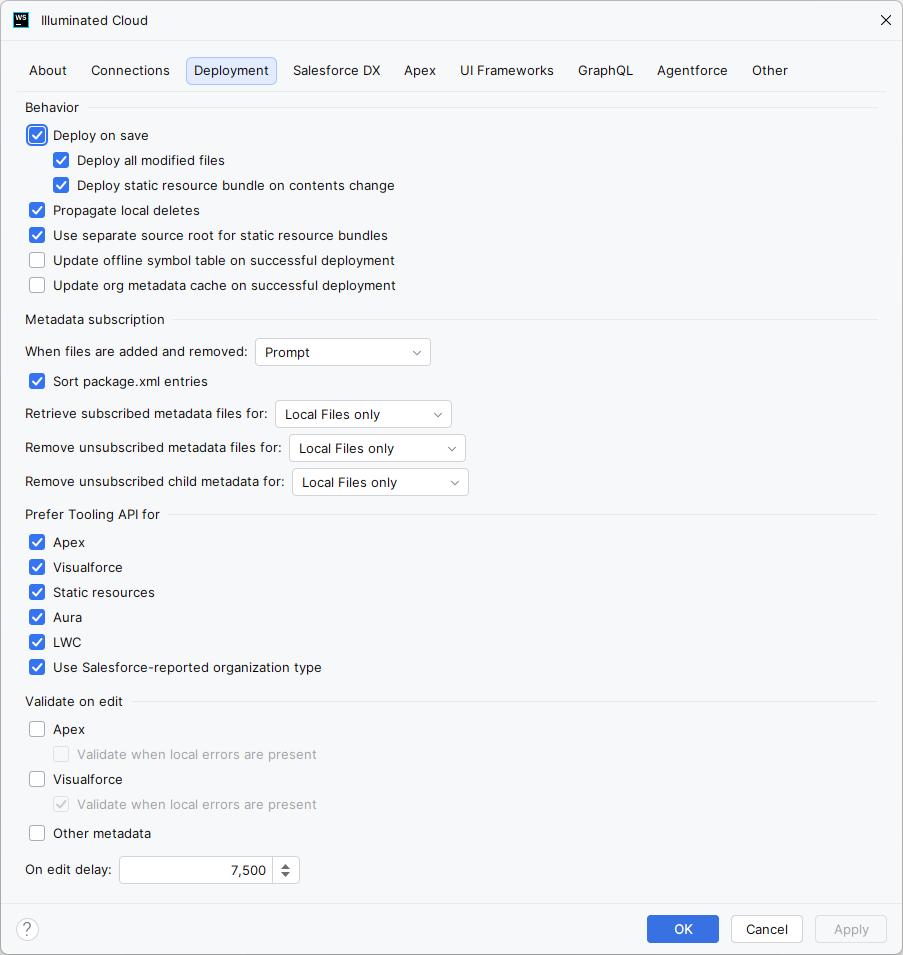
Select the Deployment tab, and use the options in the Metadata subscription section to specify whether and how you want your metadata subscription to be updated with metadata files that you add to and remove from your project in the IDE (e.g., new Apex classes, Lightning components, etc. you create):
-
Prompt — Select this option if you want the IDE to show you the impact of any changes on your metadata subscription so you can choose whether or not you want to accept those updates. RECOMMENDED
-
Always Update — Select this option if you want the IDE to automatically update your metadata subscription with all changes.
-
Never Update — Select this option if you want to manage your metadata subscription explicitly, preventing the IDE from making any updates automatically.
-
Sort package.xml entries — Check this option to maintain the configured
package.xmlfile's entries in proper lexicographic order as they are added and removed by Illuminated Cloud.NOTE: This option applies only to modules that use a
package.xmlmetadata subscription.
Click OK to save your changes.
You can also tell Illuminated Cloud to automatically scan your project for changes and update your metadata subscription:
Right click on any node in the current project and select Illuminated Cloud | Add to Metadata Subscription.
Illuminated Cloud scans the selected node and its descendants to look for any items in the filesystem that aren’t represented in your metadata subscription and prompts you to add any that it detects.
Illuminated Cloud attempts to add metadata subscription entries at the finest level of granularity according to the metadata files' contents. For example, if a custom object is customized at the header-level and includes custom fields, validation rules, etc., the entire object is added to the metadata subscription; if an object is not customized at the header-level but includes custom fields, validation rules, etc., only the fields, rules, etc., are added to the metadata subscription.
Illuminated Cloud respects existing wildcards and parent metadata subscriptions to avoid redundant entries.
Click Yes to update the metadata subscription with the changes.
NOTE: You cannot currently use this method to remove items from your metadata subscription. That feature is being considered for a future update. You can, however, clear your metadata subscription completely and use this feature to have Illuminated Cloud recreate your metadata subscription based on the local project files.
To visually compare local project metadata with organization metadata, right-click on one or more metadata objects in the list and select Compare with Server (or use the  icon).
TIP: You can achieve the same result by selecting one or more top-level items directly in your project tree and selecting Illuminated Cloud | Compare with Server or the toolbar icon. The comparison is always based on the content you select.
NOTE: If you select a parent object that includes one or more explicitly-subscribed child objects, Illuminated Cloud notifies you that the parent object is not part of your current metadata subscription, and prompts you to choose whether you want to compare only the subscribed children or All, in which case Illuminated Cloud will pull down the entire object, so you can see all the fields and header-level customizations that exist on the server that you don’t have locally.
[Home]