Repository navigation
AppBuilder's GUI API

We have implemented a fun wrapper to JavaFX that gives a unified look to all of the applications in the system. You can still use JavaFX if you want, but we highly recommend using our API for GUI design.
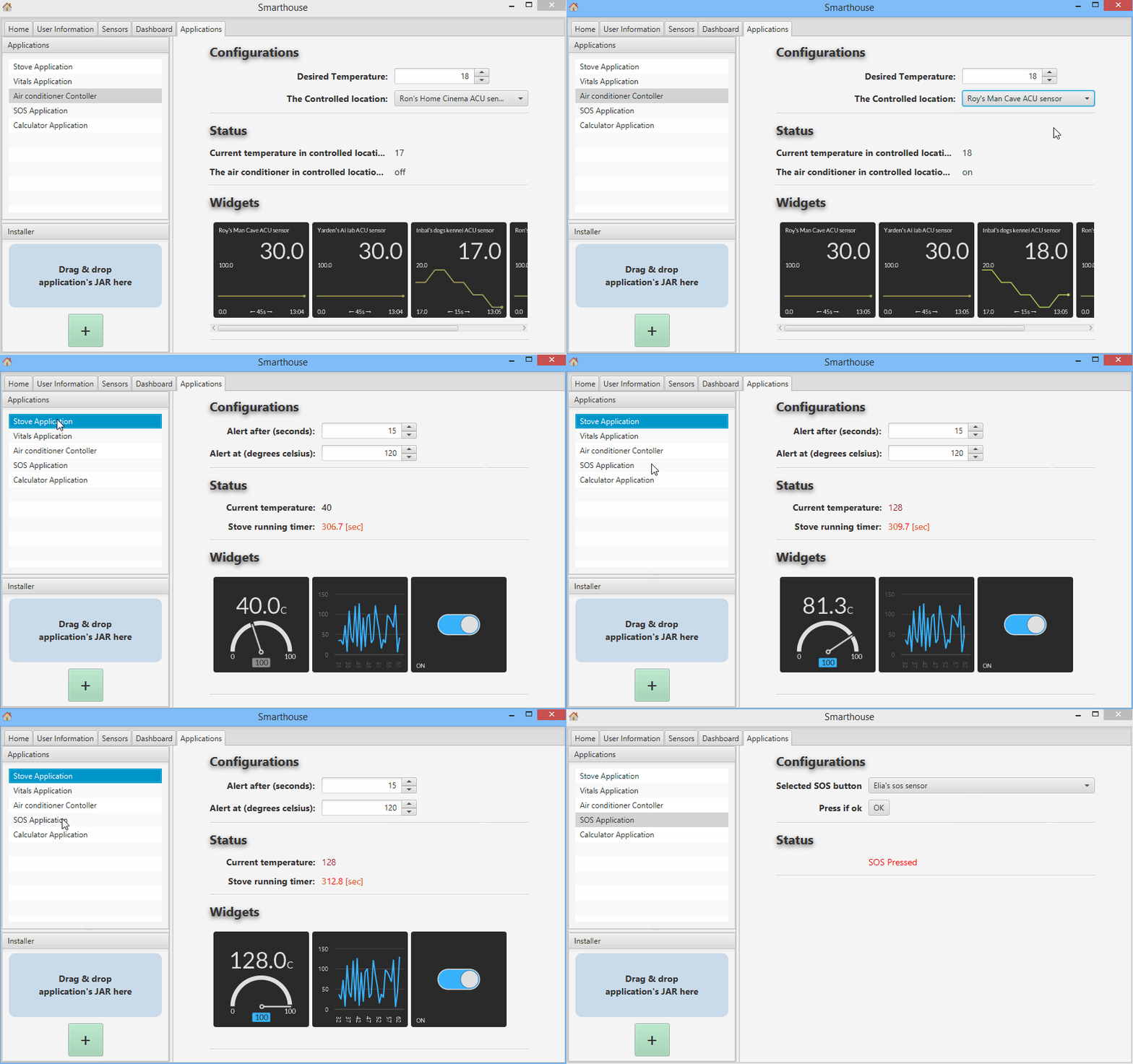
As you can see in the above GIF, the GUI is divided into several regions. You can manipulate and link data between them, and also link data fields to sensors. You don't need to worry about the look, we will take care of it for you. You just need to use our fluent AppBuilder API.
The AppBuilder allows you to set and modify 4 regions:
-
Configurations Region
A region with editable field. The application's user will use this region to pass parameters to your application. -
Status Region
A region with read-only fields. Here you can present information to the application's user. -
Widgets Region
A region that presents widgets that you can define. The user can add your widgets to his Dashboard. -
Custom Region
A custom region in which you can add your own JavaFXNode. It allows you to load your own FXML.
(click a link to jump to the section describing the region you want to read about)
Any region that you leave empty, will not be previewed to the user.
Here is a look on the functionality the AppBuilder gives you:
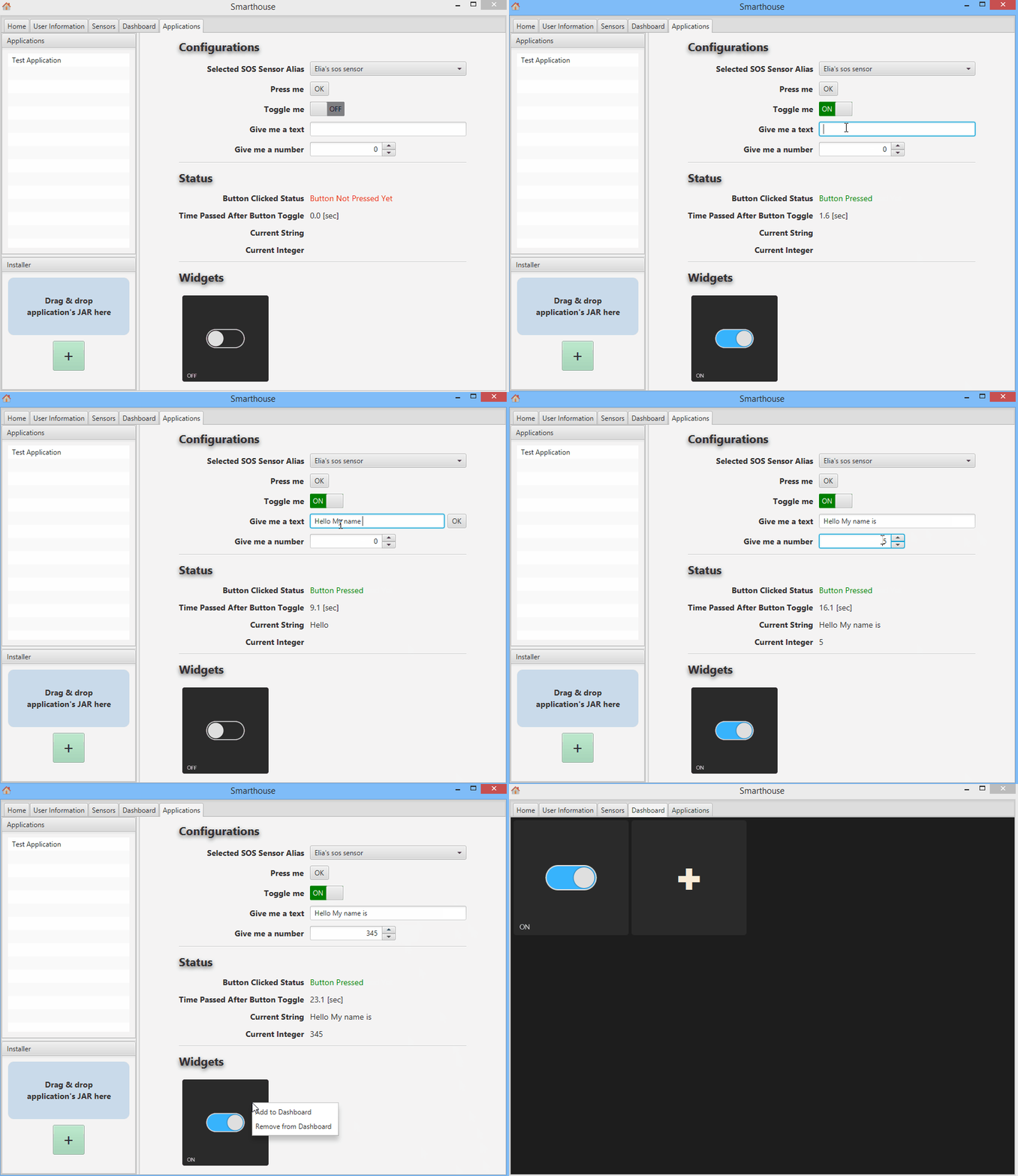
Here is the source code that made this:
@Override
public void onLoad() throws Exception {
    SensorApi<SosSensor> mySosSensor = ((SensorsService) super.getService(ServiceType.SENSORS_SERVICE))
                    .getSensor("iSOS", SosSensor.class);

    // ...subscribing to mySosSensor, and other things...

    GuiBinderObject<String>  buttonClickedStatusString = new GuiBinderObject<>("Button Not Pressed Yet");
    GuiBinderObject<Boolean> okButtonValue =             new GuiBinderObject<>(false);
    GuiBinderObject<Boolean> toggleButtonValue =         new GuiBinderObject<>(false);
    GuiBinderObject<String>  textFieldString =           new GuiBinderObject<>();
    GuiBinderObject<Integer> integerSpinnerField =       new GuiBinderObject<>();

    getAppBuilder().getConfigurationsRegionBuilder()
                   .addSensorAliasSelectionField("Selected SOS Sensor Alias", mySosSensor)
                   .addButtonInputField("Press me", "OK", okButtonValue.addOnDataChangedListener(z -> buttonClickedStatusString.setData("Button Pressed")))
                   .addButtonToggleField("Toggle me", toggleButtonValue)
                   .addStringInputField("Give me a text", textFieldString)
                   .addIntegerInputField("Give me a number", integerSpinnerField);

    getAppBuilder().getStatusRegionBuilder()
                   .addStatusField("Button Clicked Status", buttonClickedStatusString, new ColorRange<String>(Color.RED).addIfEquals("Button Pressed", Color.GREEN))
                   .addTimerStatusField("Time Passed After Button Toggle", toggleButtonValue, new GuiBinderObject<>())
                   .addStatusField("Current String", textFieldString)
                   .addStatusField("Current Integer", integerSpinnerField);

    getAppBuilder().getWidgetsRegionBuilder()
                   .addWidget(WidgetType.SWITCH, new InfoCollector().addInfoEntry("sos.pressed", null));
}This object is passed as a parameter to Use this object to link data fields to the GUI's configuration and status fields.
public final class GuiBinderObject<T> {
    // Constructors:
    /** Create an empty GuiBinderObject with null as data */
    public GuiBinderObject();

    /** Create a GuiBinderObject with an initial value */
    public GuiBinderObject(T initialValue);

    // Getters - get the inner data in various formats:
    public T getData();
    public T getData(T orElseValue);
    public String getDataAsString();
    public Optional<T> getDataAsOptional();

    /** Set the inner data to newData. All listeners will be notified */
    public GuiBinderObject<T> setData(T newData);

    /** Notify all listeners on this GuiBinderObject */
	public void notifyListeners();

    /** Add a listener for new data. The listener will get this object as input (for convenience) */
	public GuiBinderObject<T> addOnDataChangedListener(Consumer<GuiBinderObject<T>> listener);

    /** Add a listener for new data */
    public GuiBinderObject<T> addOnDataChangedListener(Runnable listener);
}You can set the color of the fields in the status region with the ColorRange class.
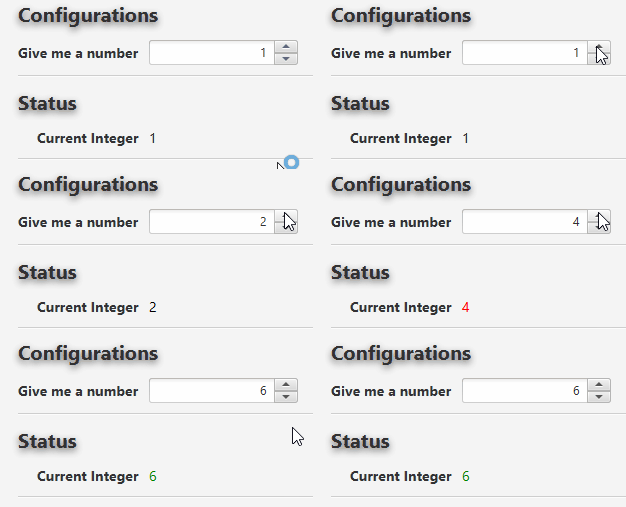
For example, if you have a numeric value and want to set its color based on its value, do this:
GuiBinderObject<Integer> integerSpinnerField = new GuiBinderObject<>(0);

getAppBuilder().getStatusRegionBuilder()
               .addStatusField("Current Integer", integerSpinnerField,
                               new ColorRange<Integer>()
                               .addRange(3, Color.RED)
                               .addRange(5, Color.GREEN));
And here is the result:
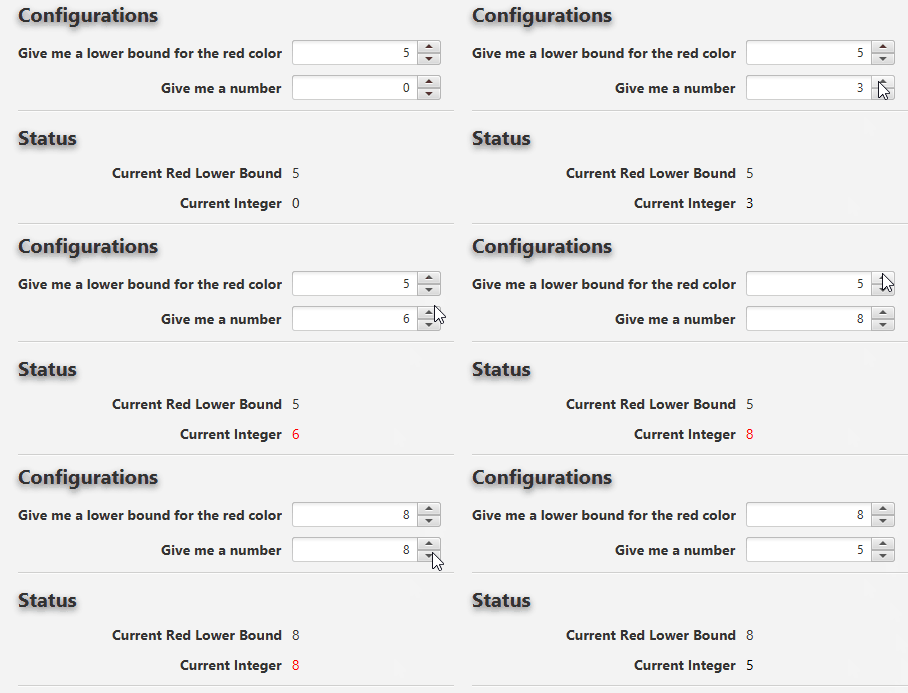
You can also set a dynamic range based on another GuiBinderObject:
GuiBinderObject<Integer> integerSpinnerField = new GuiBinderObject<>(0);
GuiBinderObject<Integer> dynamicRange = new GuiBinderObject<>(0);

getAppBuilder().getConfigurationsRegionBuilder()
                .addIntegerInputField("Give me a lower bound for the red color", dynamicRange)
                .addIntegerInputField("Give me a number", integerSpinnerField);

getAppBuilder().getStatusRegionBuilder()
                .addStatusField("Current Red Lower Bound", dynamicRange)
                .addStatusField("Current Integer", integerSpinnerField,
                                new ColorRange<Integer>()
                                .addRange(dynamicRange, Color.RED));
And here is the result:
A region with editable field. The application's user will use this region to pass parameters to your application.
To get the ConfigurationsRegionBuilder just call: getAppBuilder().getConfigurationsRegionBuilder().
public interface ConfigurationsRegionBuilder {
    /** Set a title to the region - the default one is "Configurations" */
    public ConfigurationsRegionBuilder setTitle(String title);

    // General input fields:
    public ConfigurationsRegionBuilder addStringInputField(String title, GuiBinderObject<String> bindingDataObject);
    public ConfigurationsRegionBuilder addDoubleInputField(String title, GuiBinderObject<Double> bindingDataObject);
    public ConfigurationsRegionBuilder addIntegerInputField(String title, GuiBinderObject<Integer> bindingDataObject);
    public <T> ConfigurationsRegionBuilder addComboboxInputField(String title, GuiBinderObject<T> bindingDataObject, T... comboOptions);
    public ConfigurationsRegionBuilder addButtonToggleField(String title, GuiBinderObject<Boolean> bindingDataObject);
    public <T> ConfigurationsRegionBuilder addButtonInputField(String title, String textOnButton, GuiBinderObject<T> bindingDataObject);

    /** A sensor alias selection field allows the user to select a sensor based on its alias */
    public <T extends SensorData> ConfigurationsRegionBuilder addSensorAliasSelectionField(String title, SensorApi<T> sensorApiObject);

    /** A sensor alias selection field - in this one you can pass an aliasesConsumer that will be
        notified when the alias value in combobox changes */
    public <T extends SensorData> ConfigurationsRegionBuilder addSensorAliasSelectionField(String title,
                    SensorApi<T> sensorApiObject, BiConsumer<String, String> aliasesConsumer);
}
To know more about GuiBinderObject read about it in the linking data to fields section from above.
To know more about sensor aliases and the SensorApi read about the Sensors Service.
A region with read-only fields. Here you can present information to the application's user.
To get the StatusRegionBuilder just call: getAppBuilder().getStatusRegionBuilder().
public interface StatusRegionBuilder {
    /** Set a title to the region - the default one is "Status" */
    public StatusRegionBuilder setTitle(String title);

    // Regular status field
    public <T> StatusRegionBuilder addStatusField(String title, GuiBinderObject<T> bindingDataObject);
    public <T extends Comparable<T>> StatusRegionBuilder addStatusField(String title, GuiBinderObject<T> bindingDataObject, ColorRange<T> r);

    // Timer status field:
    // Starts the timer when timerToggle is true, and resets it when timerToggle is false.
    // The current timer's value will be placed in timerDuration.
    public StatusRegionBuilder addTimerStatusField(String title, GuiBinderObject<Boolean> timerToggle, GuiBinderObject<Double> timerDuration);
    public StatusRegionBuilder addTimerStatusField(String title, GuiBinderObject<Boolean> timerToggle, GuiBinderObject<Double> timerDuration, ColorRange<Double> d);
}
To know more about GuiBinderObject read about it in the linking data to fields section from above.
To know more about ColorRange read about it in the ColorRange section from above.
A region that presents widgets that you can define. The user can add your widgets to his Dashboard.
To get the WidgetsRegionBuilder just call: getAppBuilder().getWidgetsRegionBuilder().
public interface WidgetsRegionBuilder {
    /** Set a title to the region - the default one is "Widgets" */
    public WidgetsRegionBuilder setTitle(String title);

    /** TODO ELIA */
    public WidgetsRegionBuilder addWidget(WidgetType type, InfoCollector info);

    /** TODO ELIA */
    public <T extends SensorData> WidgetsRegionBuilder addWidget(WidgetType type, InfoCollector info,
                    SensorApi<T> sensor, Function<T, Map<String, Object>> sensorProcessor);
}A custom region in which you can add your own JavaFX Node. It allows you to load your own FXML.
To get the CustomRegionBuilder just call: getAppBuilder().getCustomRegionBuilder().
public interface CustomRegionBuilder {
    /** Set a title to the region - the default one is "Custom Region" */
    public CustomRegionBuilder setTitle(String title);

    /** add a JavaFX node to the region */
    public CustomRegionBuilder add(Node n);

    /** add your own FXML, and we will build it for you. You can get the controller as an output from outController */
    public CustomRegionBuilder add(String fxmlFileName, GuiBinderObject<? extends Initializable> outController);
}
Read more about writing a JavaFX Application here: Writing a JavaFX Application

Overview
Quick Start
Smarthouse Usage for Owners
Development Manuals
Continuous Development
Misc.