Editor
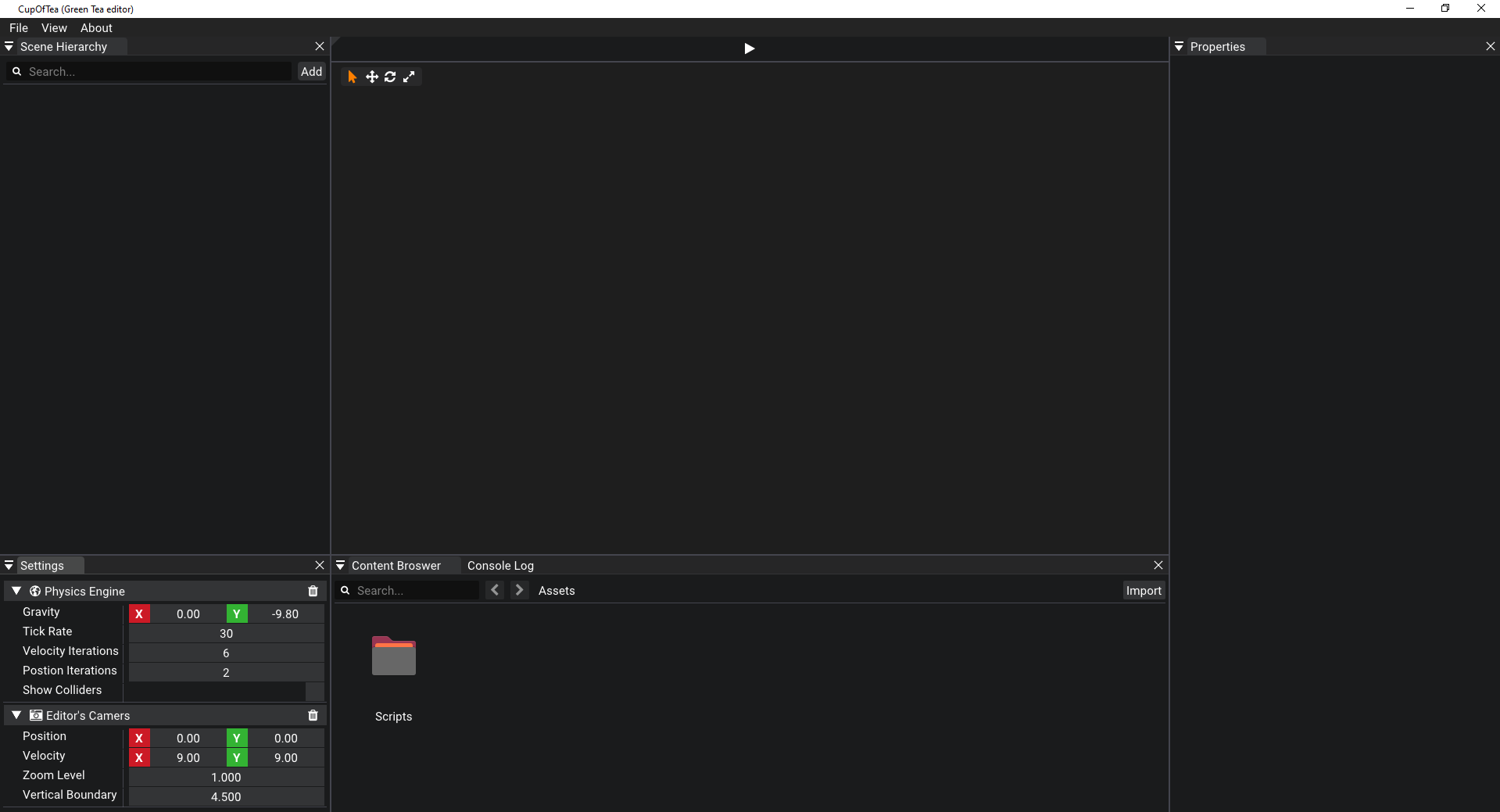
Green Tea engine comes with a level Editor named CupOfTea that you can use to build your scenes using a UI. The Editor has many panels most of which you can toogle on and off using the View menu on the top left corner.
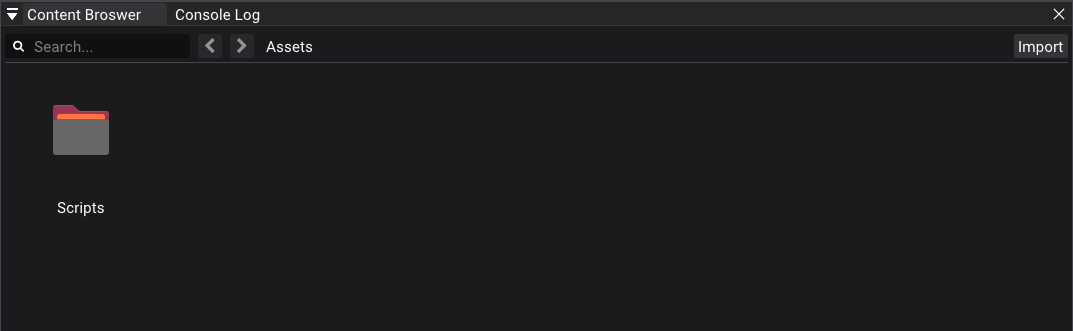
The Content Browser panel can be used to manage your assets. The first time you open your Project it will only contain an Empty Folder called Scripts.
- You can
createa New Folder, Script or Animation Asset by Right Clicking on the empty space on the Panel. - You can
importassets like Textures, Sounds and Fonts by clicking the Import button on the top right corner. - The
searchbarcan be used to filter assets or folders on the current directory.
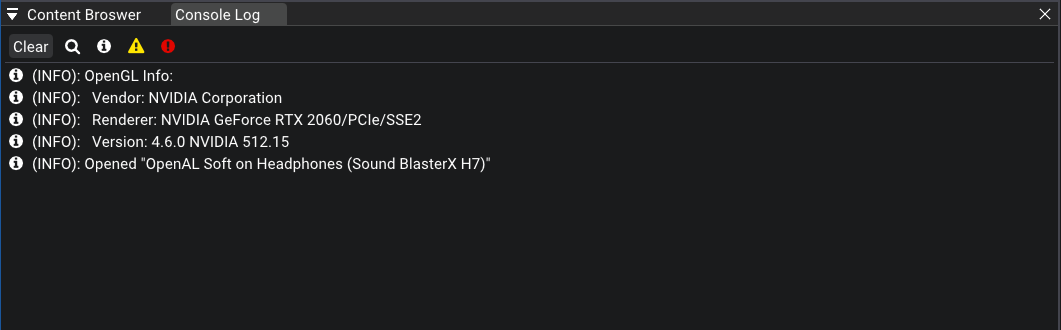
In the Console Log panel you can see messages produce by the Engine as well as your own Scripts.
- Press the
Clearbutton to empty the list of messages. - Use the other buttons to filter the messages by type.
You can choose between one or more types by simply activating one or more buttons. If none of the buttons are active then all types of messages will be shown on your screen.
Using the Scene Hierarchy panel you can organized your Entities as well as select an Entity. When entity is selected an orange overlay will appear over it on the Viewport panel and you can tweak it's components on the Properties Panel.

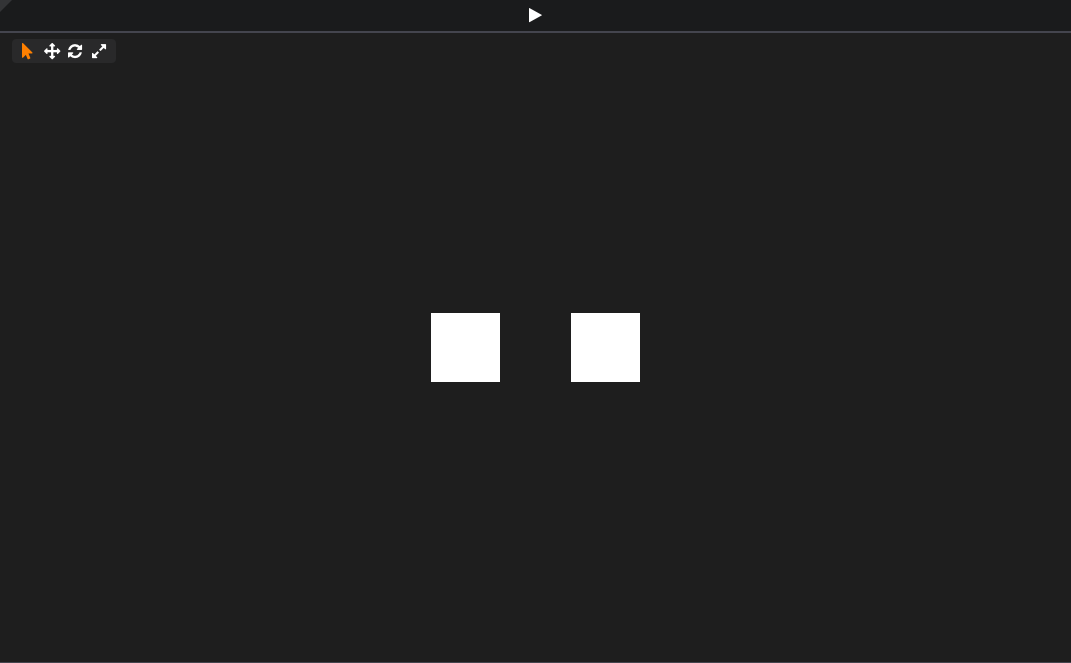
In the Viewport panel you can see how the entities are layed out on your scene from the perspective of your Editor's camera. When the Viewport is focus you can press Q, W, E, R keys to switch between Guizmo modes. This will help you to select, move, scale or rotate Entities on the fly. You can press the play button at the top to test your game (if you don't have a Primary Camera on your scene nothing will appear).
Note: In order for an Entity to appear on the Viewport and be able to select it. It must have both Transformation Component as well as one of the Renderable components.
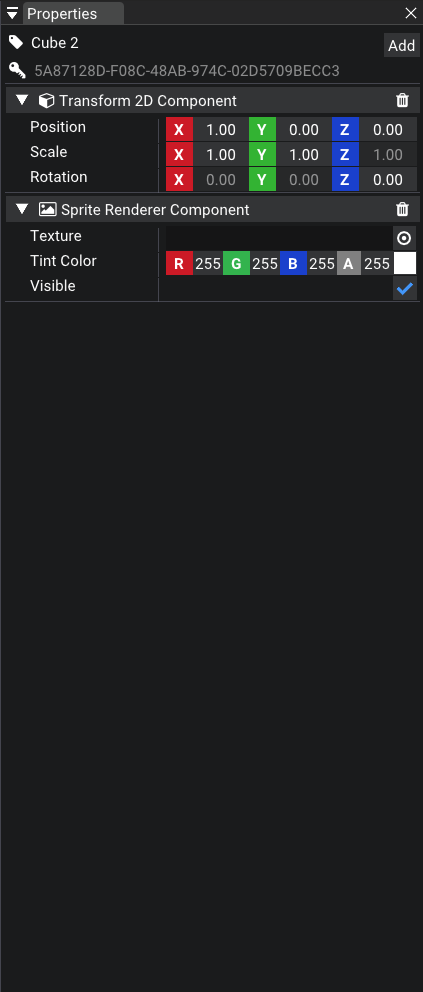
In the Properties panel you can tweak the Components of the currently Selected Entity.
- Double click on the name at the top to change it's name. Press enter to save your changed name.
Entities' names also might also be refered asTag. - Press the
Addbutton to select a Component that will be added to an Entity. - You can
deletea Component at any time by pressing theTrashbutton. - Hover over the names of the components to get some feedback on what the actually do.