Repository navigation
Features
The landing screen answers one question: where did the day go?
- Hero overview cards — today's total screen time, the last 30 days of cumulative totals and the daily average, with a separate active-versus-idle breakdown.
-
Interactive weekly bar chart — one bar per day, with human-friendly tooltips (
45m,1h 27m). - App-share donut chart — the proportional breakdown of your usage, colour-coded with a legend.
- Per-day app breakdown — every tracked application, ordered by time spent, with progress bars.
- Set daily goal — the daily screen-time target is edited straight from the hero card.

Slide back and forward through weeks with the < / > arrows, then tap any bar in the chart to open that day's app breakdown — for example Most Used Apps (Wednesday, 12 August).


Set a per-application daily cap — presets of 30m, 1h, 2h and 4h, or any custom number of minutes.
- 90% — warning. A desktop notification tells you that you are close to the limit.
-
100% — lockout. The offending window is minimised and a dedicated warning screen takes over. It offers:
- +1 minute — a short grace window to save your work,
- +15 minutes — a temporary extension for the day,
- edit limit — change the cap,
- close — close the application,
- back to the dashboard.
The warning screen is re-shown every few seconds while the application stays focused, so dismissing it forces a real decision, and the desktop warning repeats alongside it. The one-minute grace window is honoured in full — but the moment it expires while the application is still open, you are warned again immediately.

Nothing is closed behind your back unless you ask for it — the default path only ever minimises the window.
Limits are per application. A limit on one app never affects another, and your limits survive restarts.
A Pomodoro timer that also blocks distractions.
- Animated countdown ring with presets of 15m, 25m, 45m and 60m, or a custom duration.
- Distraction blocker — pick the apps that pull you away and they are minimised automatically if they open during a session.
- Pause and resume at any time; the state survives a restart, and no notifications fire while a session is paused.
- Break phases are shown in blue with a coffee icon, and app blocking is suspended during breaks — open whatever you like while you are on one.
- Phase notifications — Session 1 complete, take a break, Focus session 2 starting, and all focus sessions complete.
- Focus statistics — completed sessions are counted per day and shown on the dashboard.
- Pomodoro loop — chain several work/break cycles automatically, with a configurable cycle count (1–20) and break length (1–60 minutes).
- App picker layouts — list rows with tracked time, or a GNOME-style icon grid with a check badge, switched with the Grid layout toggle.
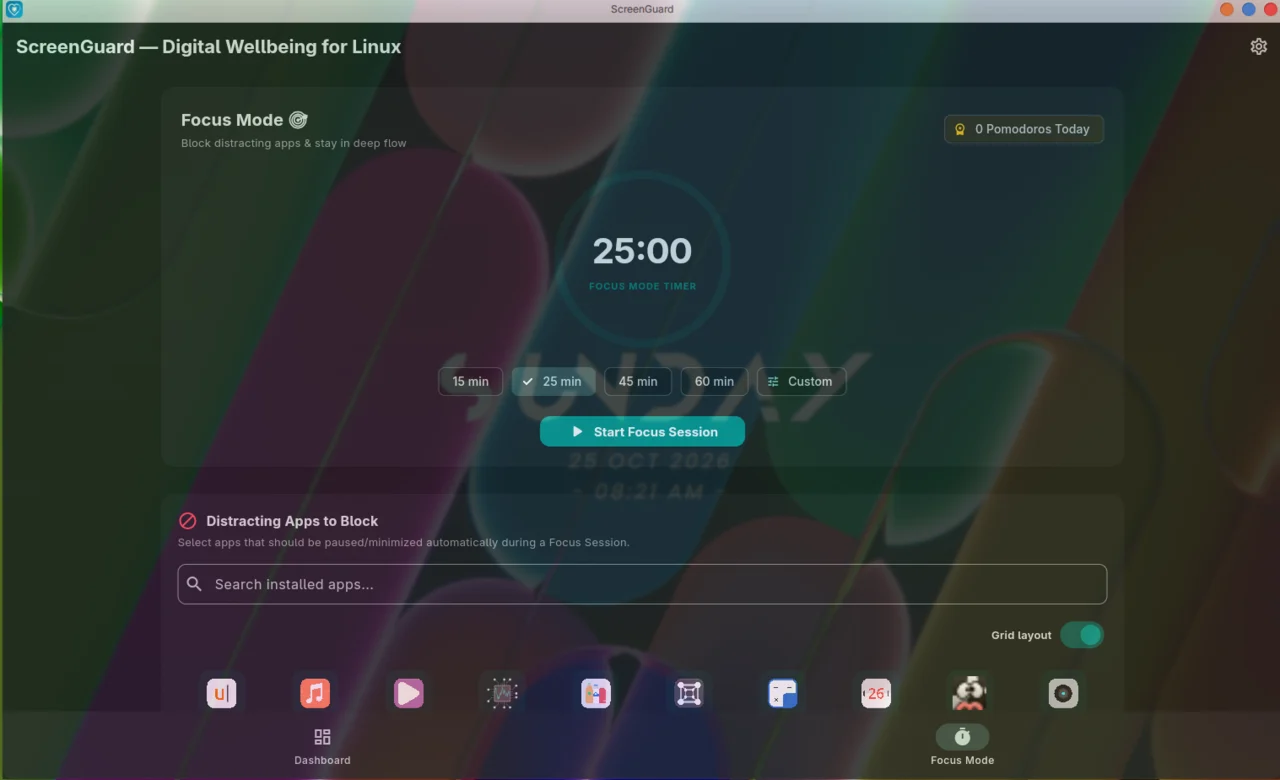
Window transparency is done by Blur My Shell.

By default ScreenGuard never destroys unsaved work: a violating application is minimised and shown a persistent warning screen, and you decide what happens to it.
Turning on Strict auto-close in Settings → Limits & Pomodoro restores hard enforcement — the offending application is closed and terminated instead. Your choice, your data.
Steam games are first-class citizens:
- Real game names are resolved from your Steam library manifests instead of mystery ids like
steam_app_2730970. - Per-game icons are rendered from your active icon theme.
- Usage is tracked like any other application, and limits and focus rules apply to games too.
- A fullscreen game leaves fullscreen before it is minimised — otherwise it silently ignores the request.
- The GNOME extension reports the real minimised state, so the app can tell whether the window actually went away.
Pick a screen-time target from the dashboard. ScreenGuard alerts you at 50%, at 100%, and at every further 50% of overtime, so a bad day is visible before it is over.
- Master toggles for desktop notifications and sound effects.
- Per-event control: daily-goal milestones, goal-overtime alerts, app limits and lockout, focus-mode alerts.
- Three built-in sound themes — Gentle Chime, Classic Bell and Digital Alert — or point ScreenGuard at your own
.ogg,.oga,.wavor.mp3. Custom files play through apaplay→ffplay→pw-playfallback chain, so they follow the active audio sink (headphones, EasyEffects, and so on). - Test buttons, so you know what a notification looks like before you need it.
Adaptive (follow the system), light or dark themes.
Settings is a sidebar with five sections:
| Section | What lives there |
|---|---|
| General | Theme, notification and sound masters, per-event controls, feedback |
| Limits & Pomodoro | Pomodoro loop, cycles, break length, strict auto-close |
| Diagnostics | Daemon status and autostart, opt-out crash reports and active-install ping, local crash log viewer |
| Updates | Update channel (stable or beta), check frequency, in-app update |
| Data | Storage statistics, per-day deletion, date-range deletion, full wipe |
While the daemon is not running, a red banner is pinned across every screen so you always know that tracking has stopped — and Settings → Diagnostics is where you restart it or turn on autostart.
Window transparency in the screenshots below is done by the Blur My Shell GNOME extension, not by ScreenGuard.
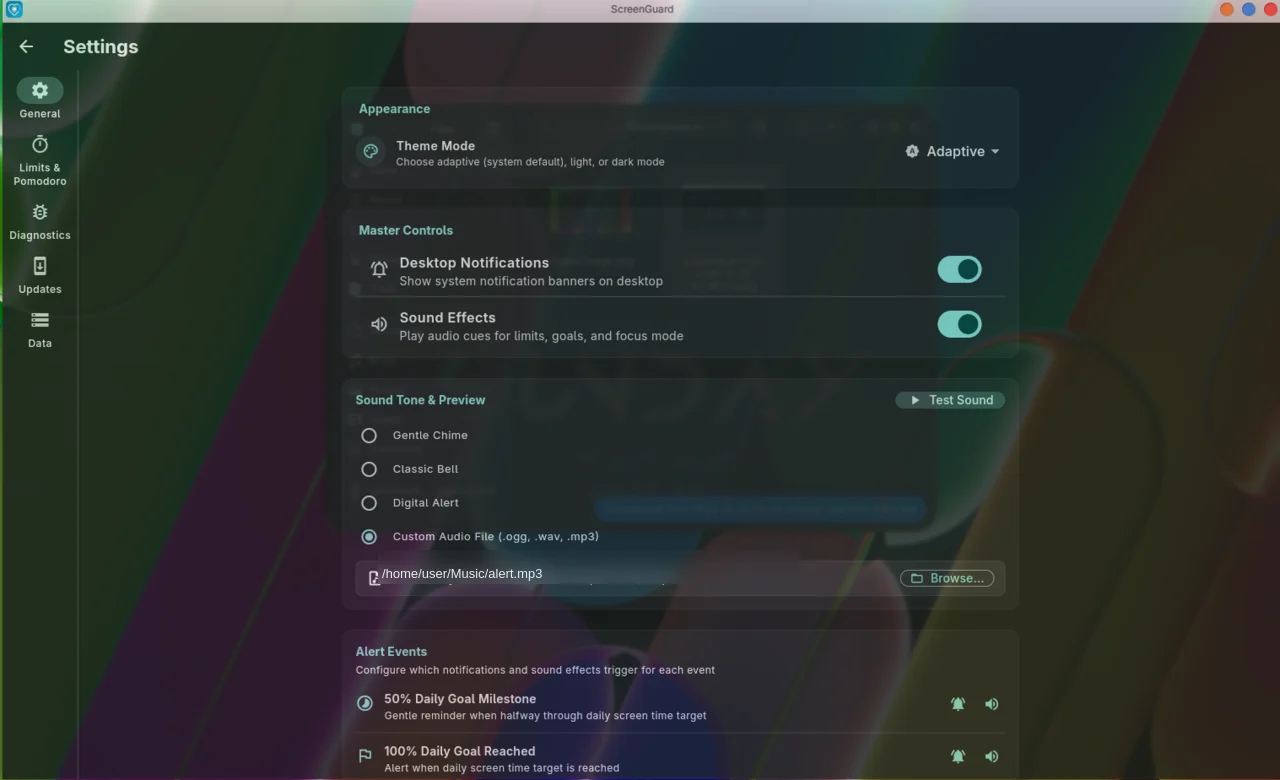 Settings → General. Window transparency is done by Blur My Shell.
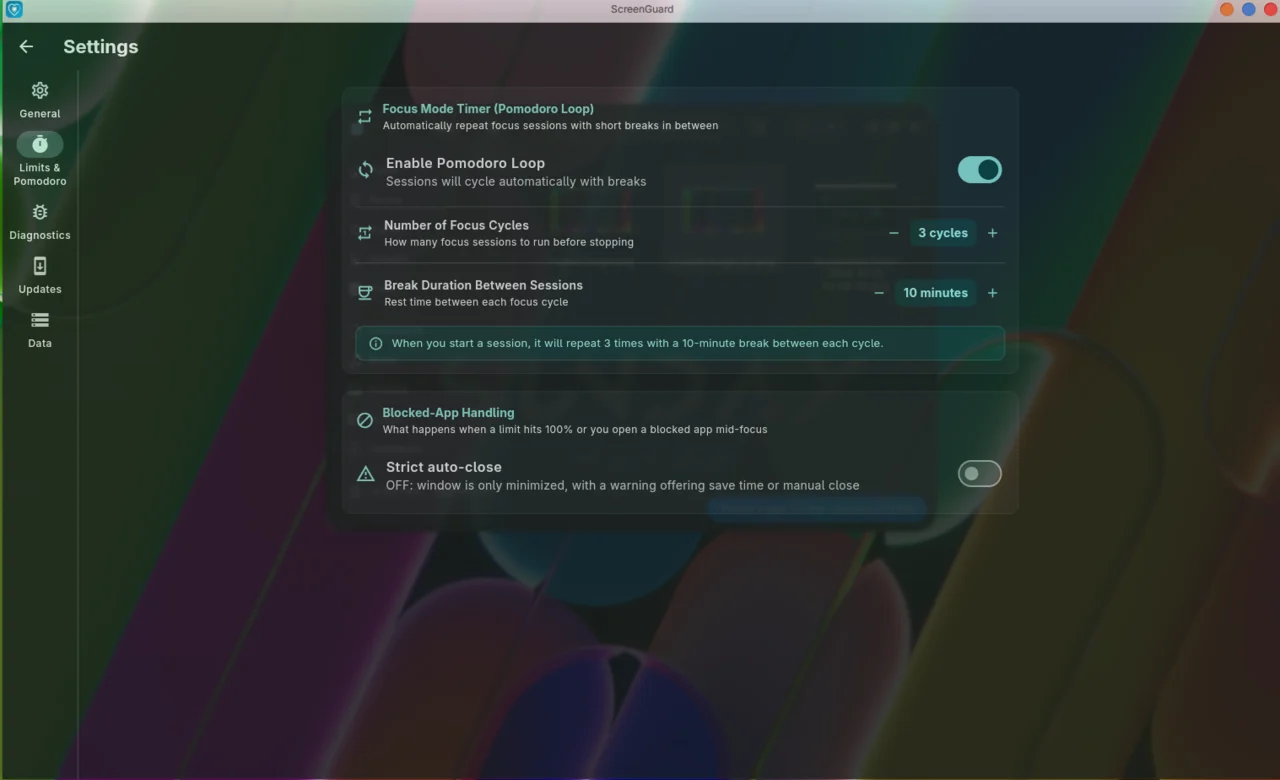 Settings → Limits & Pomodoro. Window transparency is done by Blur My Shell.
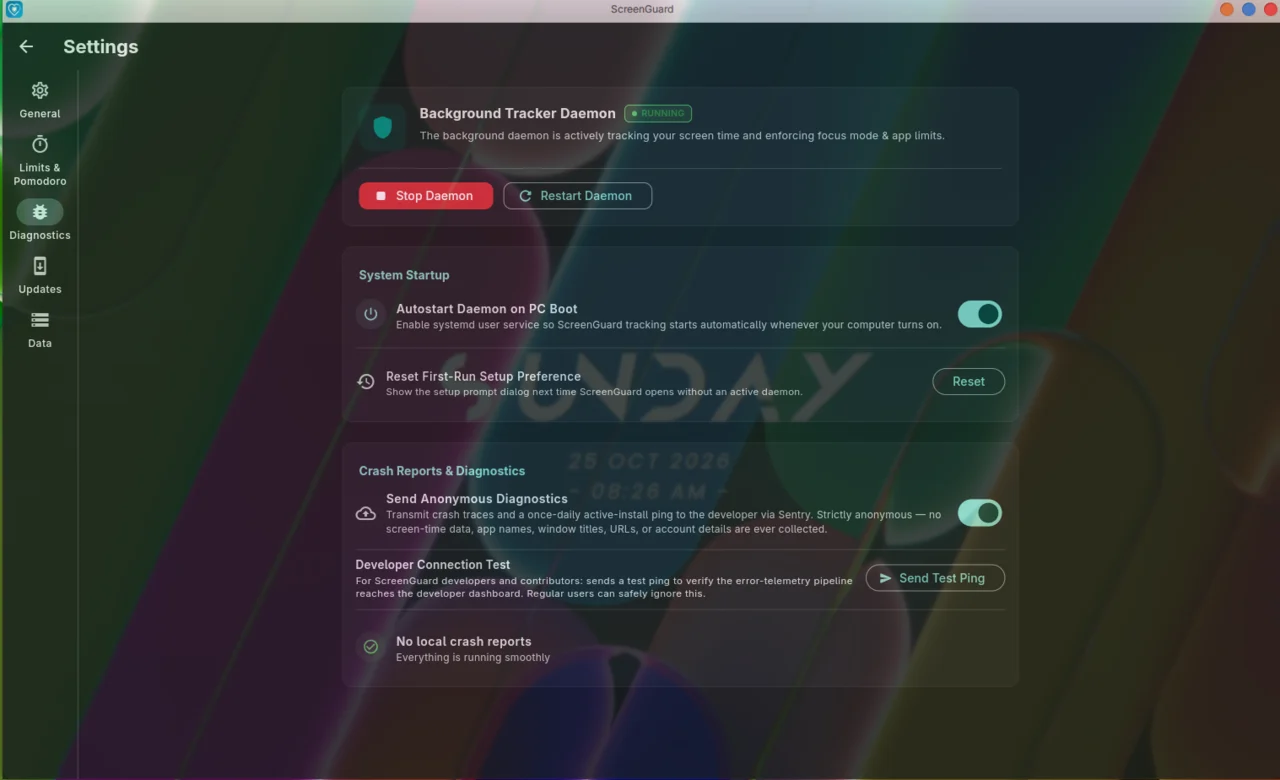 Settings → Diagnostics. Window transparency is done by Blur My Shell.
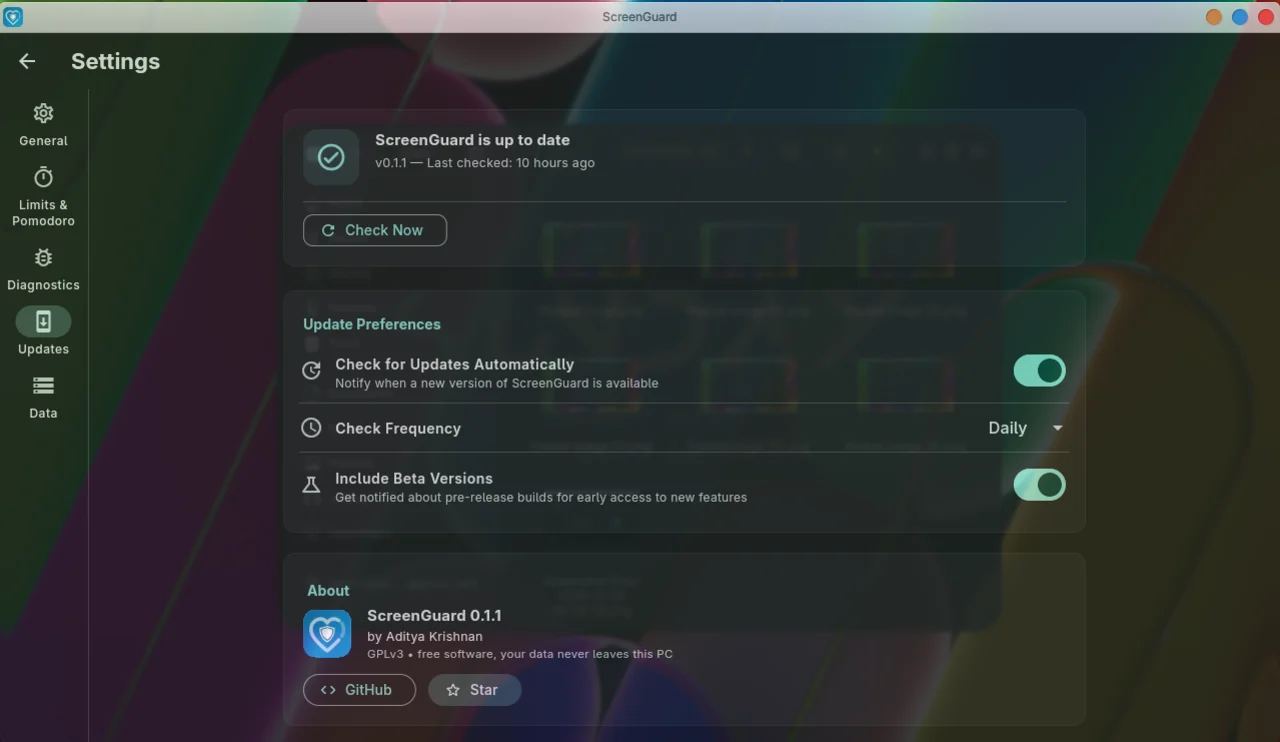 Settings → Updates. Window transparency is done by Blur My Shell.
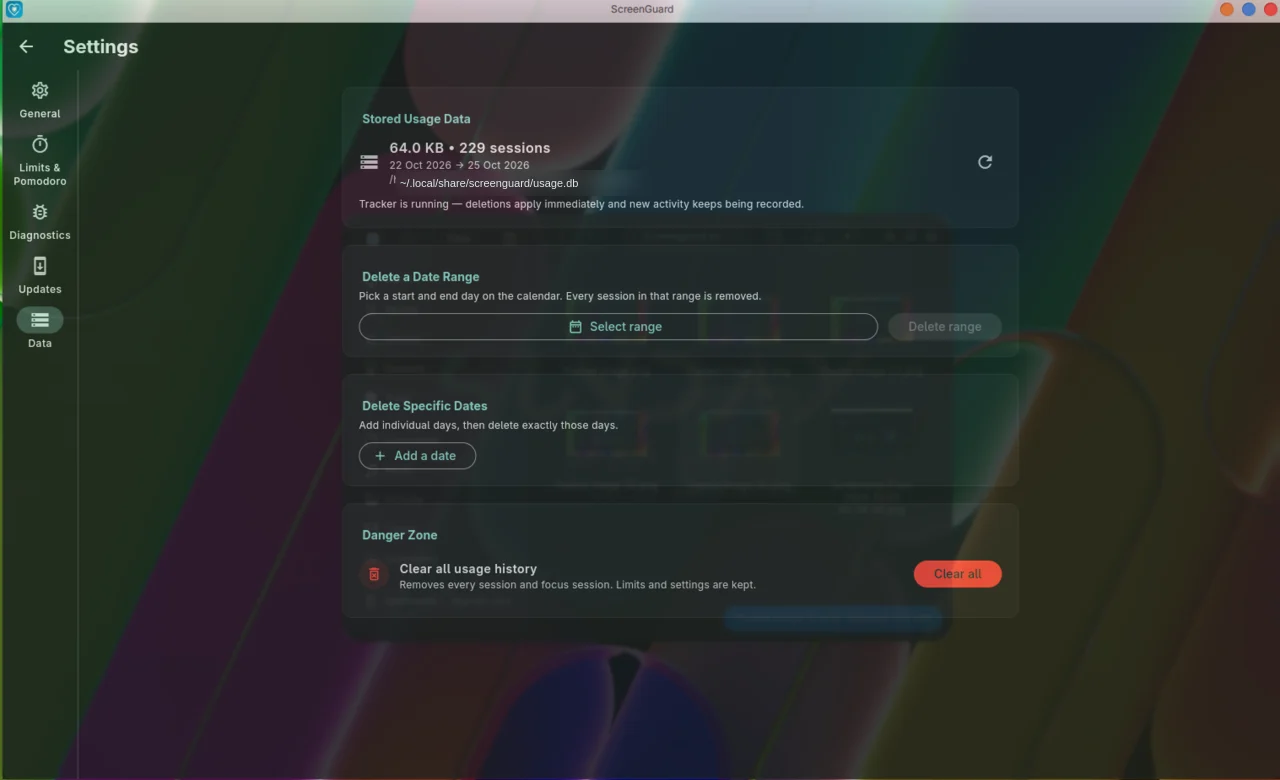 Settings → Data. Window transparency is done by Blur My Shell.
Settings → Data gives you live storage statistics and lets you delete history three ways: individual days, an arbitrary date range, or everything at all. A full wipe is behind a double confirmation. Your settings and limits are always preserved — only usage history is touched.
Sessions left orphaned by an unclean stop (a logout, a power loss) are closed on the next start, so they no longer inflate the 30-day totals.
Settings → Updates checks the GitHub Releases API once a day, shows the changelog, and installs new versions in place:
-
.deb/.rpmare installed throughpkexec, so you get a normal password prompt and no terminal, - tarballs are installed through the bundled
install.sh, - the download is made by the application itself, so a minimal system without
curlorwgetcan still update, - the installer runs in its own systemd service, so it survives the closing of the app that started it,
- after a successful update you get a desktop notification and the new version opens by itself.
Pre-release versions can be included with the Include Beta Versions toggle, and the check frequency can be set to daily or weekly.
Settings → Diagnostics keeps a local list of crash logs, lets you read them, and can open a pre-filled GitHub issue with the stack trace and your environment attached.
Crash reporting and the daily active-install ping are opt-out. The ping sends a random local identifier, the app version, your desktop environment, display server, distribution name and build channel. Crash reports add the error message and stack trace. Neither sends usernames, machine identity, screen-time data, application names or window history. A Send test ping button lets you check connectivity yourself.
When the maintainer needs input on a specific decision, ScreenGuard can show a short request in the app. It reads one small public JSON file once a day, shows the request once, and you can act on it, postpone it for a week, or switch it off entirely. Nothing about you is sent — see Feedback.
The next major milestones are v1.2 — a major UI and experience refresh, intentionally feature-light — and v1.5 — a C port of the daemon. Feature work still planned: browser-tab tracking, grouped app limits, native Wayland support for KDE Plasma and Hyprland/Sway, data export and weekly digests. See the Roadmap for where each of them stands.
Related: Getting Started · Architecture · Roadmap