Repository navigation
Getting Started
Five minutes from install to a working setup.
ScreenGuard has two processes: the GUI you interact with, and the daemon that watches which application is in the foreground, records usage and enforces limits. The daemon is the important one.
systemctl --user enable --now screenguard
systemctl --user status screenguard
You want to see active (running). If it says inactive, see Troubleshooting.
On first launch the GUI offers to set this up for you — "Run Permanently" enables autostart at login, which is what most people want. While the daemon is stopped, a red banner stays pinned across every screen so you cannot miss that tracking has stopped.
Wayland does not let ordinary applications ask which window is focused. ScreenGuard ships its own GNOME Shell extension for that.
gnome-extensions enable screenguard@screenguard.app
gnome-extensions list --enabled | grep screenguard
Also make sure accessibility (AT-SPI) is enabled — ScreenGuard uses it to identify applications:
sudo /usr/share/screenguard/enable_fedora_a11y.sh # onceNothing to do. ScreenGuard reads the active window through the standard EWMH _NET_ACTIVE_WINDOW property.
Install the helper tools for enforcement:
sudo apt install xdotool xorg-xprop xprintidleOpen ScreenGuard and look at the dashboard. Within a minute of switching between applications, the bar chart and the app list should fill in.
If everything shows as unknown, jump to Troubleshooting → Tracking shows "unknown".
- Open Settings → Limits & Pomodoro, or use the app-limit dialog from the dashboard.
- Pick an application and a cap — 30m, 1h, 2h, 4h, or type your own.
- At 90% of the limit you get a desktop warning.
- At 100% the window is minimised and a lockout screen appears. From there you can add 15 minutes, edit the limit, or go back to the dashboard.

Limits are stored per application, so a limit on Firefox never touches your editor.
- Open the Focus Mode tab.
- Choose a duration — 15m, 25m, 45m, 60m or a custom value.
- Select the apps that distract you. They are minimised automatically if they open during the session.
- Press Start Focus Session.
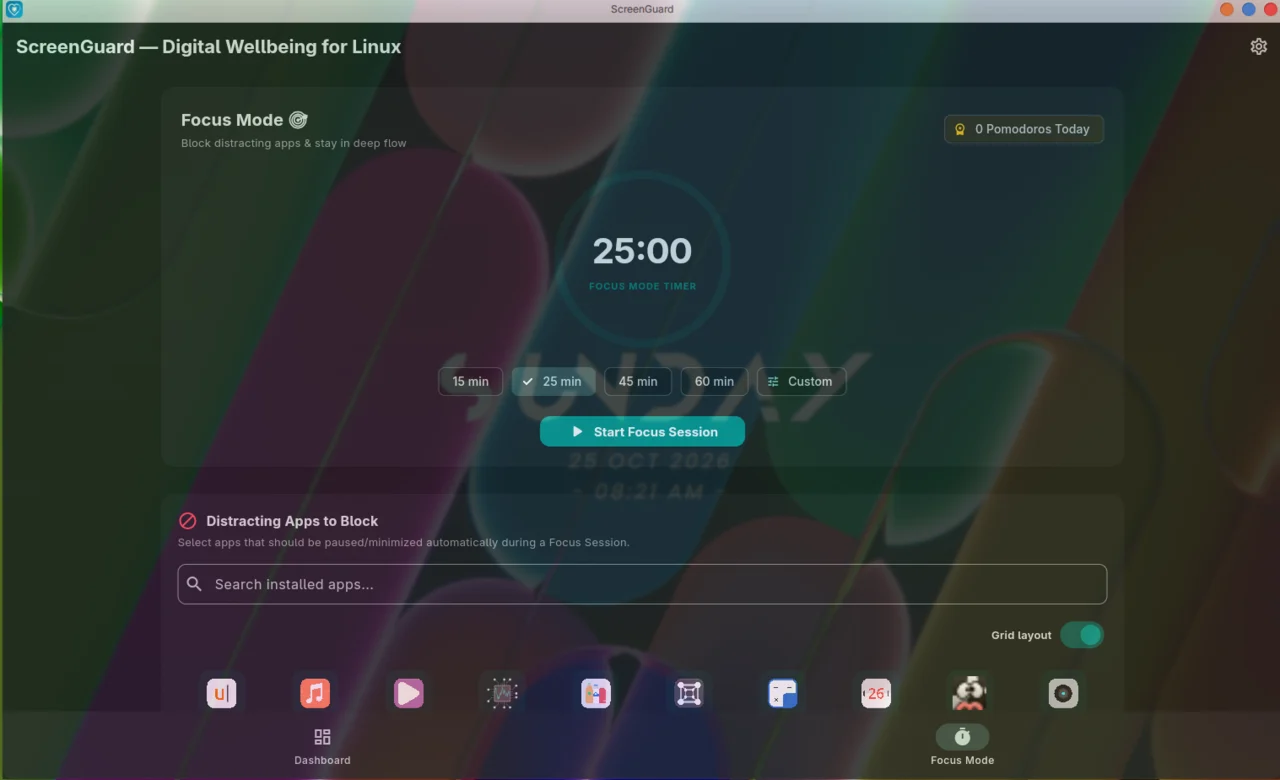
Window transparency is done by Blur My Shell.

You can pause and resume a session, and cancel it. If you use long sessions, turn on the Pomodoro loop in Settings → Limits & Pomodoro to chain several work/break cycles automatically. App blocking is suspended during breaks — open whatever you like while you are on one.
Tap Set daily goal on the dashboard hero card and pick your screen-time target. ScreenGuard alerts you at 50%, at 100%, and every 50% beyond that, so you find out while there is still time to do something about it.
~/.local/share/screenguard/
├── usage.db        ← your screen-time history (SQLite, WAL mode)
├── daemon.lock     ← single-instance lock
├── daemon_heartbeat
└── crashes/        ← local crash logs (only if something crashed)
Nothing is uploaded. The database is yours to inspect with any SQLite tool:
sqlite3 ~/.local/share/screenguard/usage.db ".tables"
sqlite3 ~/.local/share/screenguard/usage.db \
  "select app_name, sum(duration_ms)/60000 as minutes from sessions group by app_name order by minutes desc limit 10;"
To start completely fresh, stop the daemon and delete the database:
systemctl --user stop screenguard
rm -f ~/.local/share/screenguard/usage.db*Settings → Updates checks GitHub Releases once a day and can download and install a new version in place — .deb and .rpm through pkexec, tarballs through the bundled install.sh. Turn off Check for updates if you prefer managing versions with your package manager.
Related: Installation · Features · Troubleshooting