Repository navigation
Getting Started
Three steps, about two minutes.
Open a terminal and paste one line.
Windows (open PowerShell from the Start menu):
irm https://raw.githubusercontent.com/anand34577/ssh-mcp/main/install.ps1 | iexmacOS or Linux (open Terminal):
curl -fsSL https://raw.githubusercontent.com/anand34577/ssh-mcp/main/install.sh | shThis downloads SSH MCP, checks that the download is genuine, and installs it just for your user account. You don't need administrator rights, and there's nothing else to install.
Rather not paste commands? Download the file for your computer from the Releases page and double-click it (Windows) or run it (macOS/Linux). It offers to install itself.
The setup starts on its own right after installing. It asks a few simple questions:
-
The server's address, like
me@myserver.com - How you sign in: with your key file (recommended) or a password
- What the AI may do: anything, or look only
- Whether you trust the server's fingerprint: say yes if it matches what your provider shows
Then it signs in once to make sure everything works.
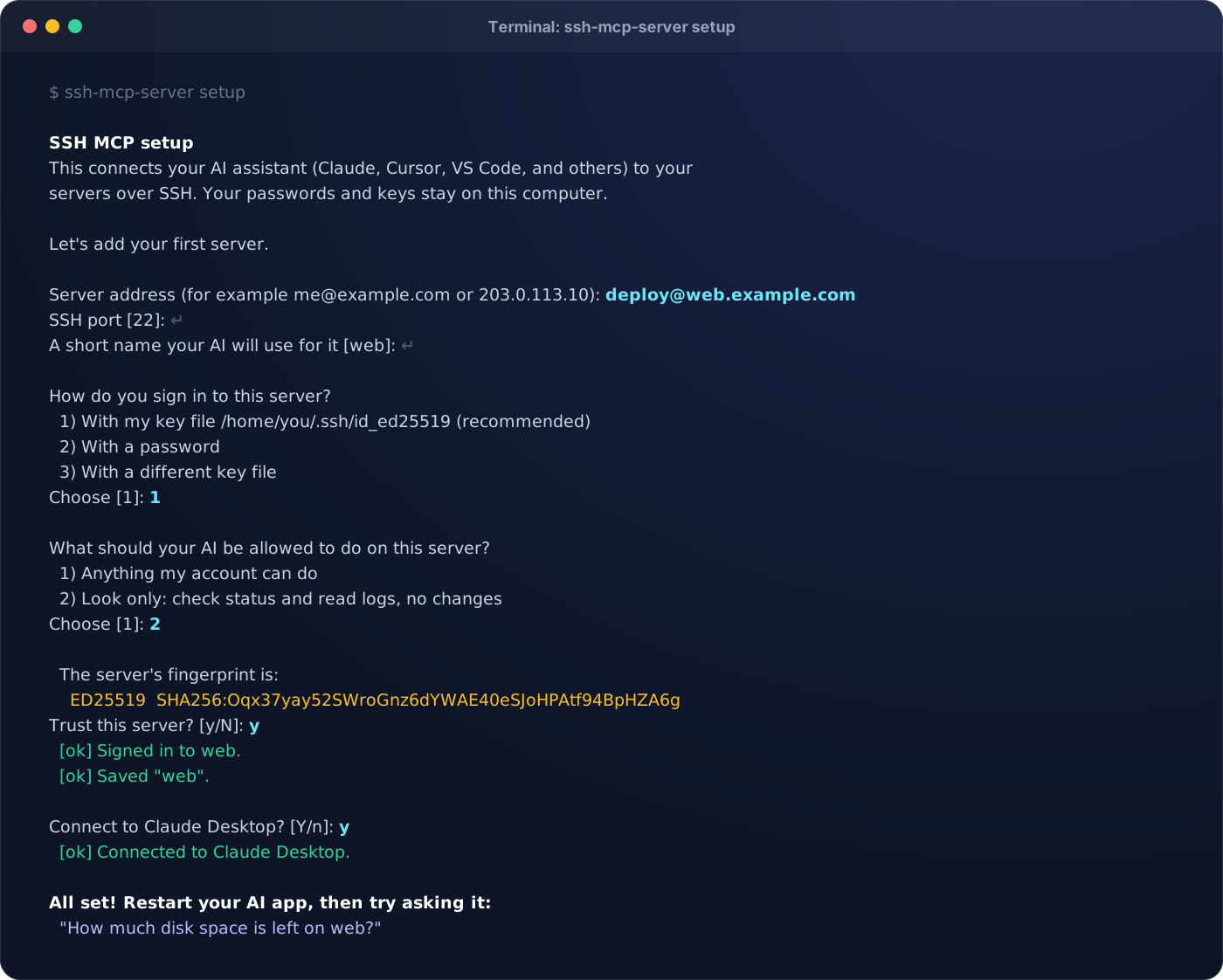
The setup finds the AI apps on your computer (Claude, Codex, Cursor, VS Code, Gemini CLI, Windsurf) and asks which ones to connect. Say yes, restart the app, and ask:
List my SSH servers
That's it. Try something real next:
How much disk space is left on my server?
Run the setup again at any time:
ssh-mcp-server setupFrom there you can add, test, or remove servers, and connect more apps.
Next: What You Can Ask · Staying Safe