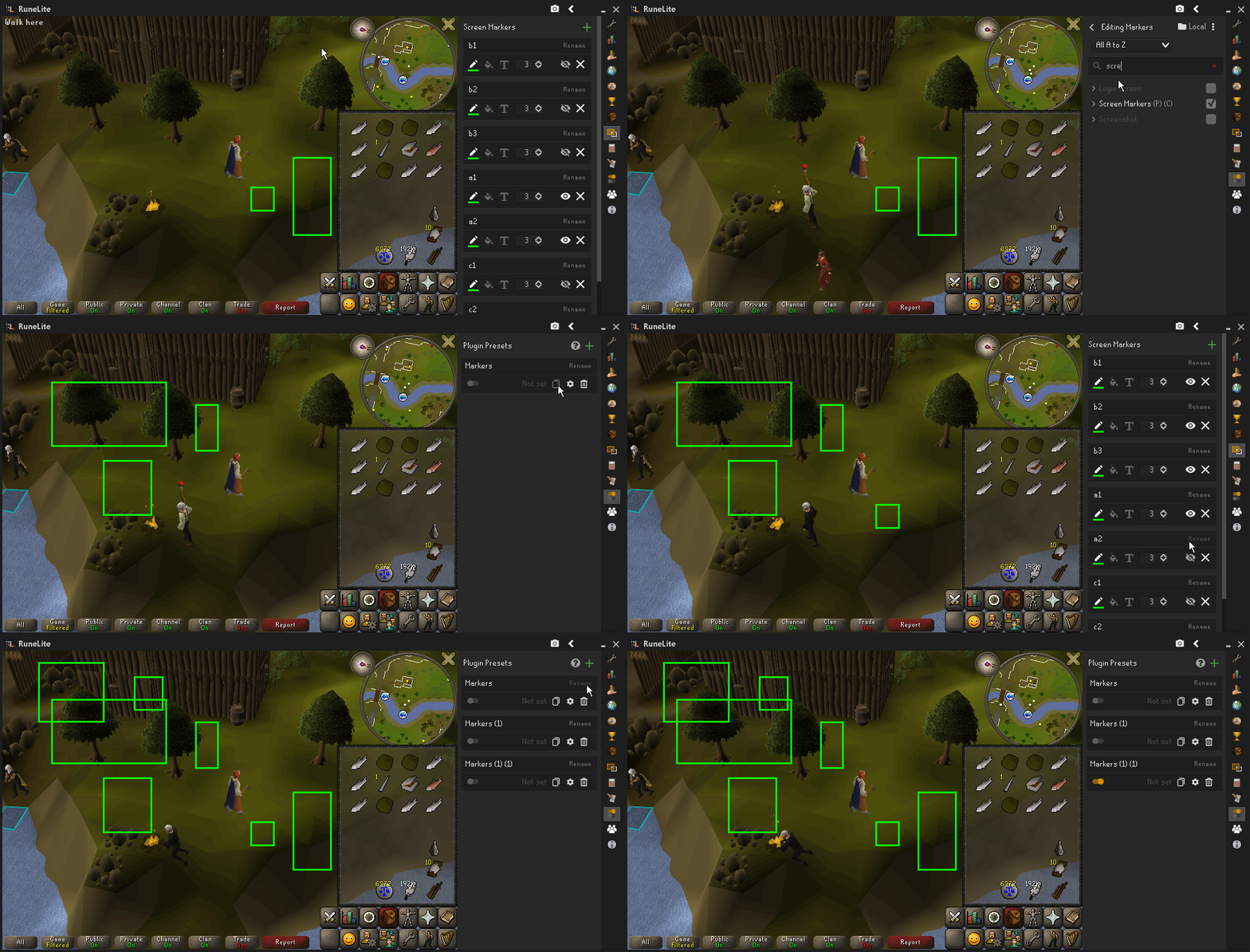
Screen Markers
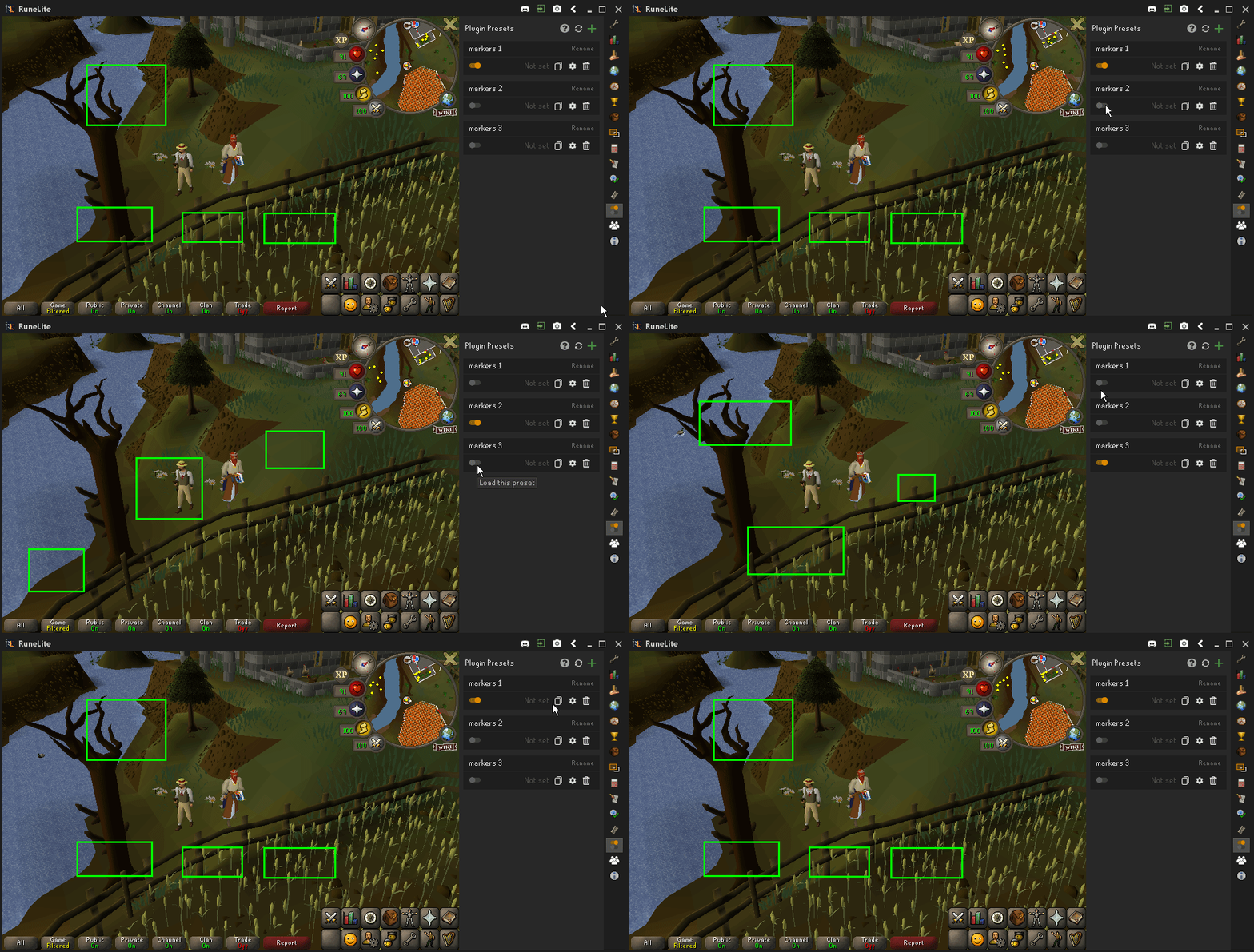
Screen markers are not added to presets automatically since you can't edit markers from the configurations tab.
To add markers to your presets, add custom setting screenmarkers.markers to your screen markers configurations and then "Markers" setting should be added to the preset.
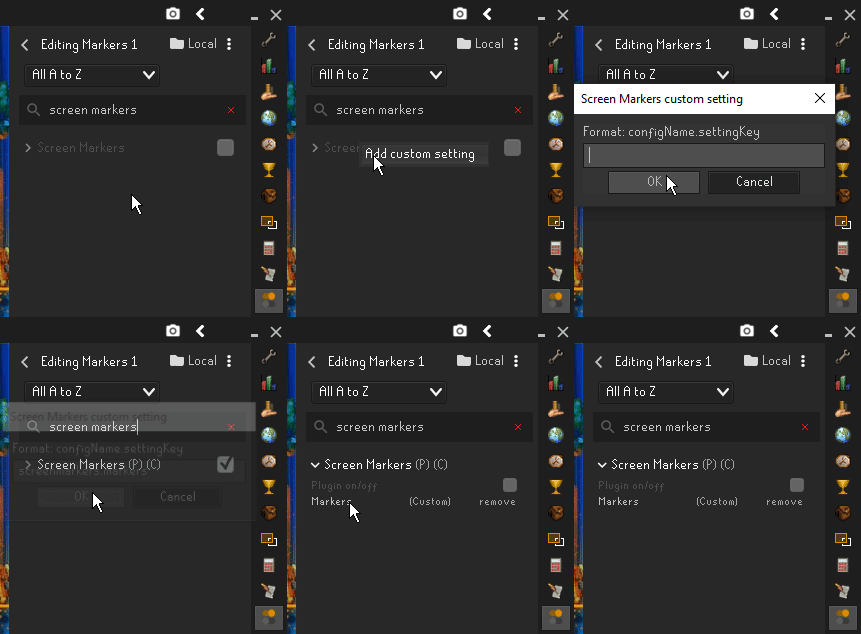
You need to have at least one screen marker before adding the custom setting because if you don't have any markers saved on your config, the plugin does not find any marker data in the screenmarkers.markers config key.
To create multiple marker presets, create preset and store your markers to it by adding the custom setting. Modify your screen marker configurations and copy and import the first preset and then update screen marker configuration on that preset. Now the first preset contains your previous marker configurations and the new copied and updated preset contains your newly modified configurations. You can now switch between the presets to load different screen marker configurations easily.
If you modify your marker configurations after creating a preset to store them, remember to update it before switching to another screen marker preset to avoid losing your current unsaved markers!
Simpler way for working with screen markers is just to change the screen markers visibility. The drawback is that the marker listing will be long but because of you handle them with presets it should not be a problem.
- Create preset and add
screenmarkers.markersto its Screen Markers configuration. - Change visibility of some screen markers
- Copy and import the previous preset and update the screen marker configurations in it
Now you have 2 presest that when loaded change the visibility of your screen markers.