Repository navigation
Using goodmail
- Top bar: your monogram and the app name, the app switcher (Mail, Calendar, To-Do, Contacts), search, and on the right the buttons for the calendar-panel aside, Show preview text, the reading pane position (each click moves on: right, below, hidden), the theme (auto, light, dark) and ⚙ settings.
- Toolbar (mail view): New mail, Delete, Archive, Move, Mark as junk, Flag, Read/Unread, Sync, then the Filter and sort menu and the calendar-panel toggle on the right.
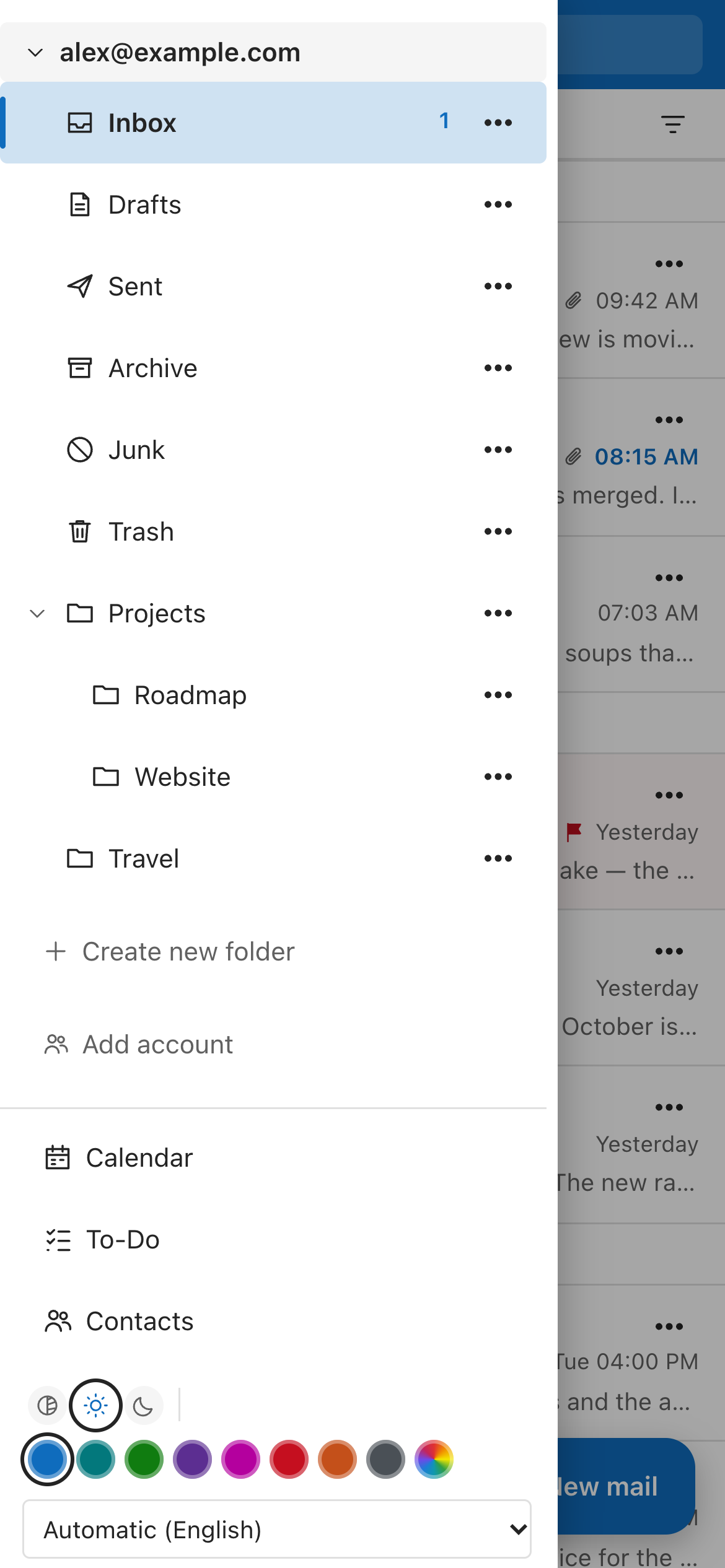
- Folder tree with unread counts. Each account has its own tree; drag an account header to put the accounts in your preferred order (kept per device).
- Message list grouped Today / Yesterday / This week…, with preview lines, unread/flag/attachment markers and hover actions. With the reading pane below or hidden the list switches to compact one-line rows.
- Reading pane with reply, reply all, forward, mark as junk, view headers and create rule from this message.
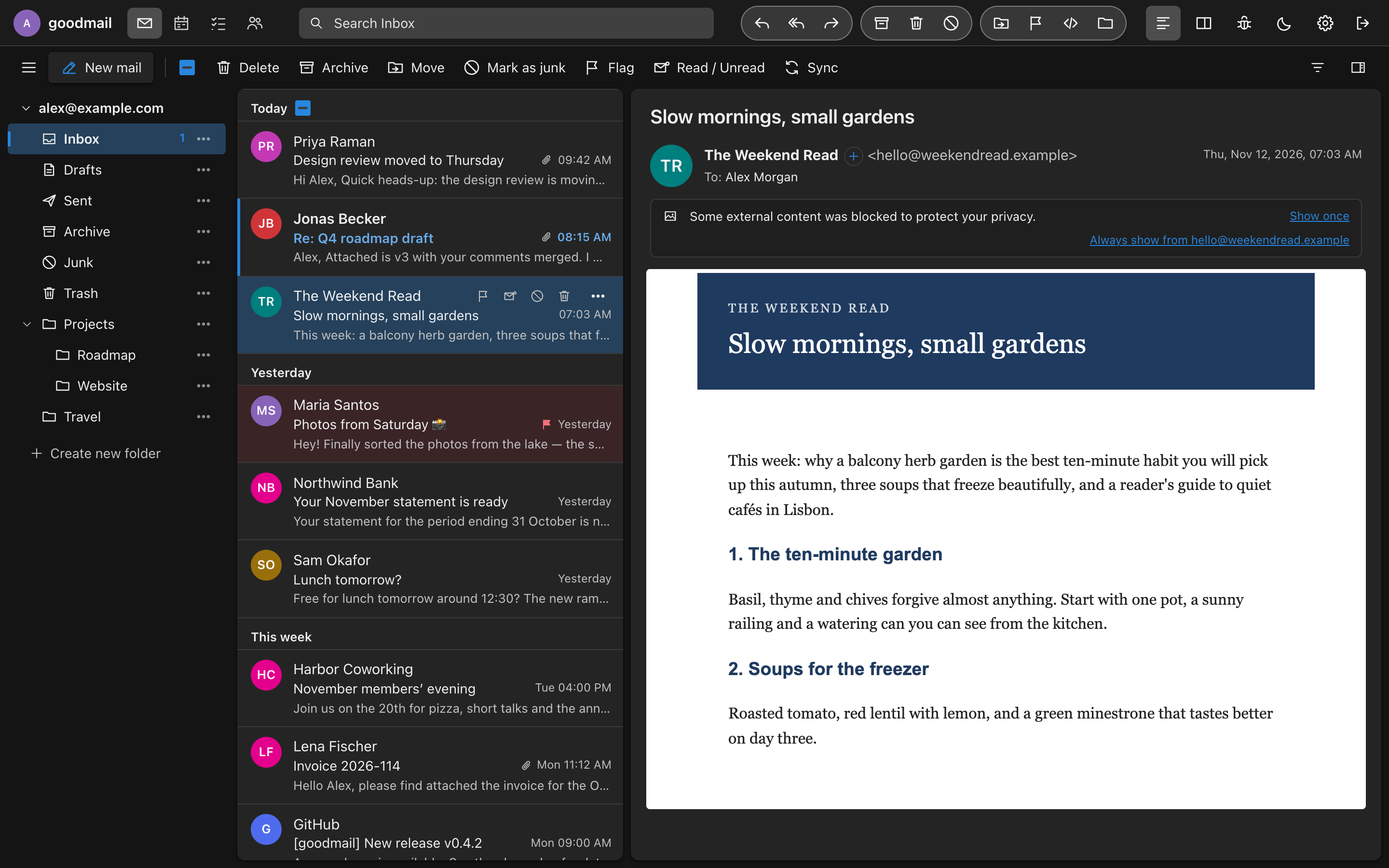
Drag messages onto a folder to move them. Drag folders onto another folder (or onto empty space for the top level) to re-arrange them. The ⋯ button (or right-click) on a folder offers new subfolder, rename and delete. A deleted folder, subfolders included, goes to Trash; one already in Trash is deleted for good and the dialog says so. Inbox, Sent, Drafts, Trash, Junk and Archive cannot be renamed, moved or deleted. Each account has its own Create new folder button.
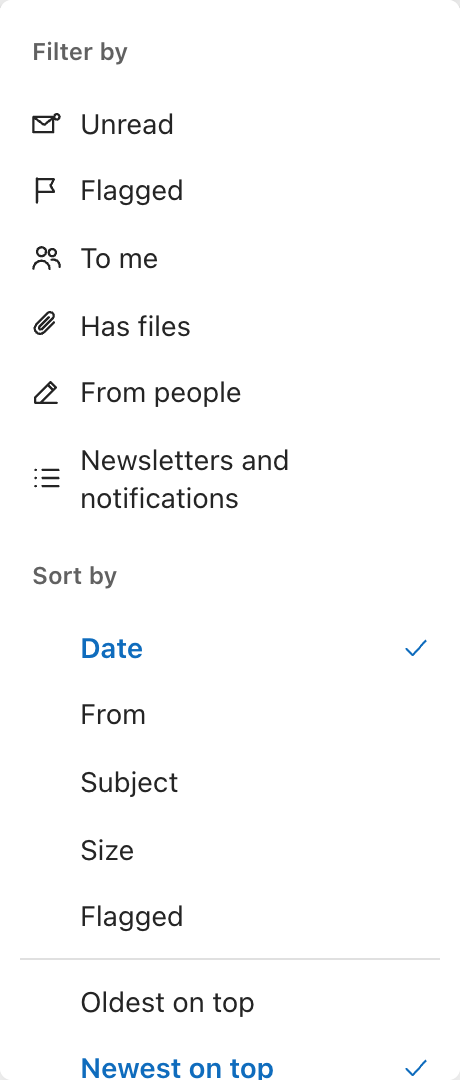
The funnel button opens the Outlook-style menu:
- Filter by: Unread, Flagged, To me, Has files. Click the active filter again to clear it. Filters ask the server for every match in the folder, not only the loaded page.
- Sort by: Date, From, Subject, Size, Flagged, in either direction. Date sorting covers the whole folder; the other keys sort the messages loaded so far.
Search (the box in the top bar) is server-side: subject, from, to and body.
Under ⚙ → Manage accounts every user can add iCloud, Gmail, Yahoo, GMX, WEB.DE, Fastmail or any IMAP mailbox (use app passwords where the provider requires them). Passwords are stored encrypted with a key derived from the server key and the user's login password. User-entered servers must be public hosts on standard mail ports.
With two or more accounts the folder list starts with All inboxes and All sent (and, if you switch them on, All drafts, junk, trash and archive): one list, newest first, from all your mailboxes. Every row knows its own mailbox, so reading, replying (From is the mailbox the message came to), flagging, archiving and deleting act on the right one. ⚙ → Manage accounts chooses which combined folders show and which mailboxes they include. Move is disabled inside combined views; open the mailbox itself to move mail to another folder. Paging is approximate: each mailbox contributes its newest page, merged by date.
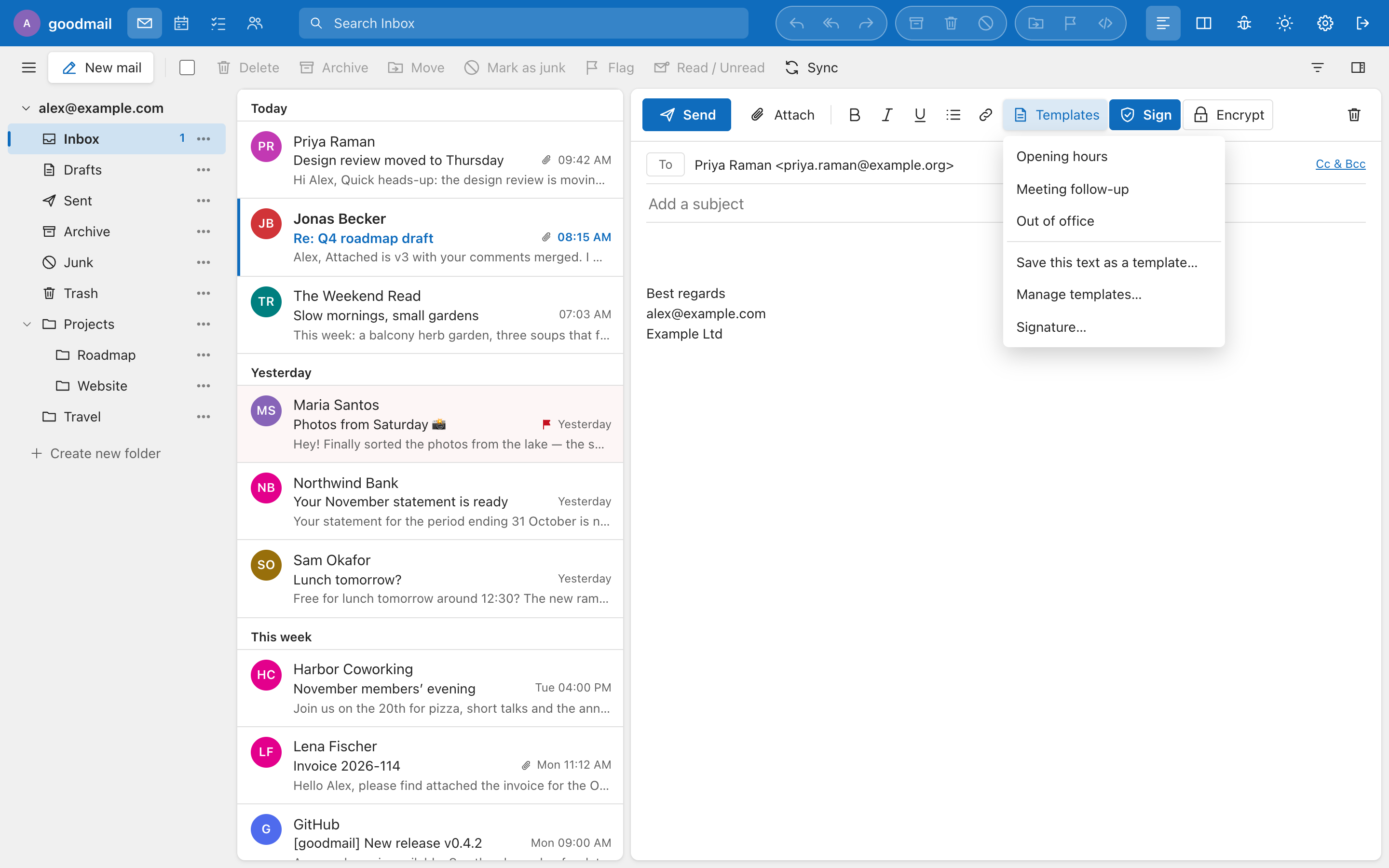
Rich text, attachments by button or drag-and-drop, sent mail saved to Sent. Signatures (one per account) and templates (ready-made texts with an optional subject) live under ⚙ → Signatures & templates; templates are inserted from the composer's Templates button. Placeholders: {name} and {firstname} of the first recipient, {date}, {me}. Both are stored on the server, so they follow you to every device.
HTML mail is sanitised (DOMPurify) and shown in a script-less sandboxed iframe with its own content-security policy. Remote images and trackers are blocked until you allow them once or per sender. The spam meter under the date goes from green to red using the score from rspamd or SpamAssassin headers (only the topmost header is trusted). The </> button shows the raw header block (Received chain, SPF/DKIM/DMARC results, spam scores) with a Copy button.
| Key | Action |
|---|---|
j / k
|
next / previous message |
r |
reply |
a |
reply all |
f |
forward |
e |
archive |
Del |
delete |
u |
read / unread |
! |
junk / not junk |
n |
new message |
/ |
search |
Cmd/Ctrl+Enter |
send |
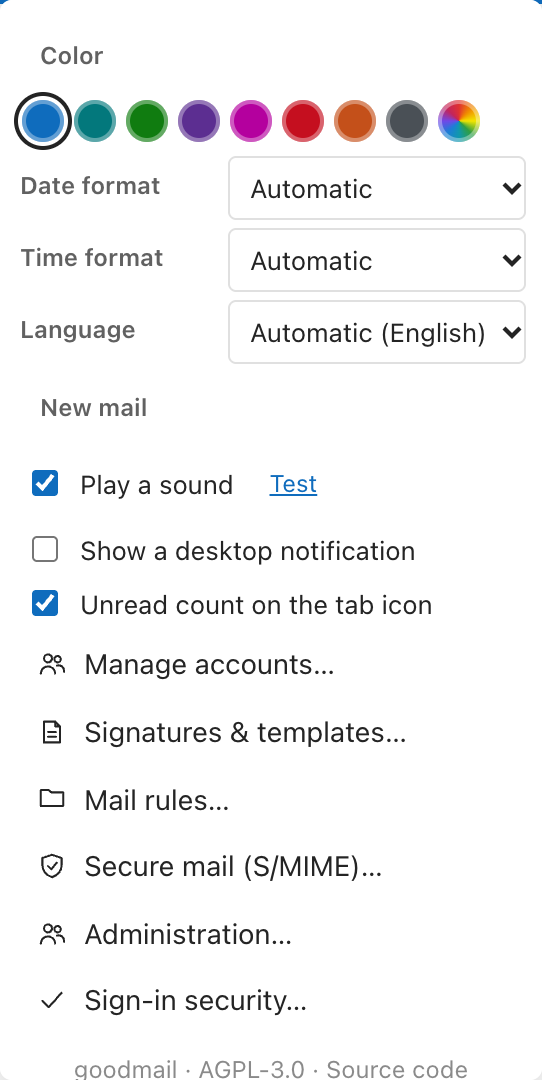
⚙ holds the accent colour (eight colours), date format (automatic, DD/MM/YYYY, MM/DD/YYYY, YYYY-MM-DD), time format (automatic, 12-hour, 24-hour) and language ("Automatic" follows the browser and falls back to English), followed by the dialogs for accounts, signatures and templates, mail rules, secure mail, administration and sign-in security. Languages: English, Dansk, Deutsch, Svenska, Norsk, Français, Español. Date and time formats, the theme, the pane layout and the account order are stored per browser.
The layout works down to phone width: a folder drawer with the ⋯ buttons, tap a message to read, a sheet to move mail, and a floating New mail button.


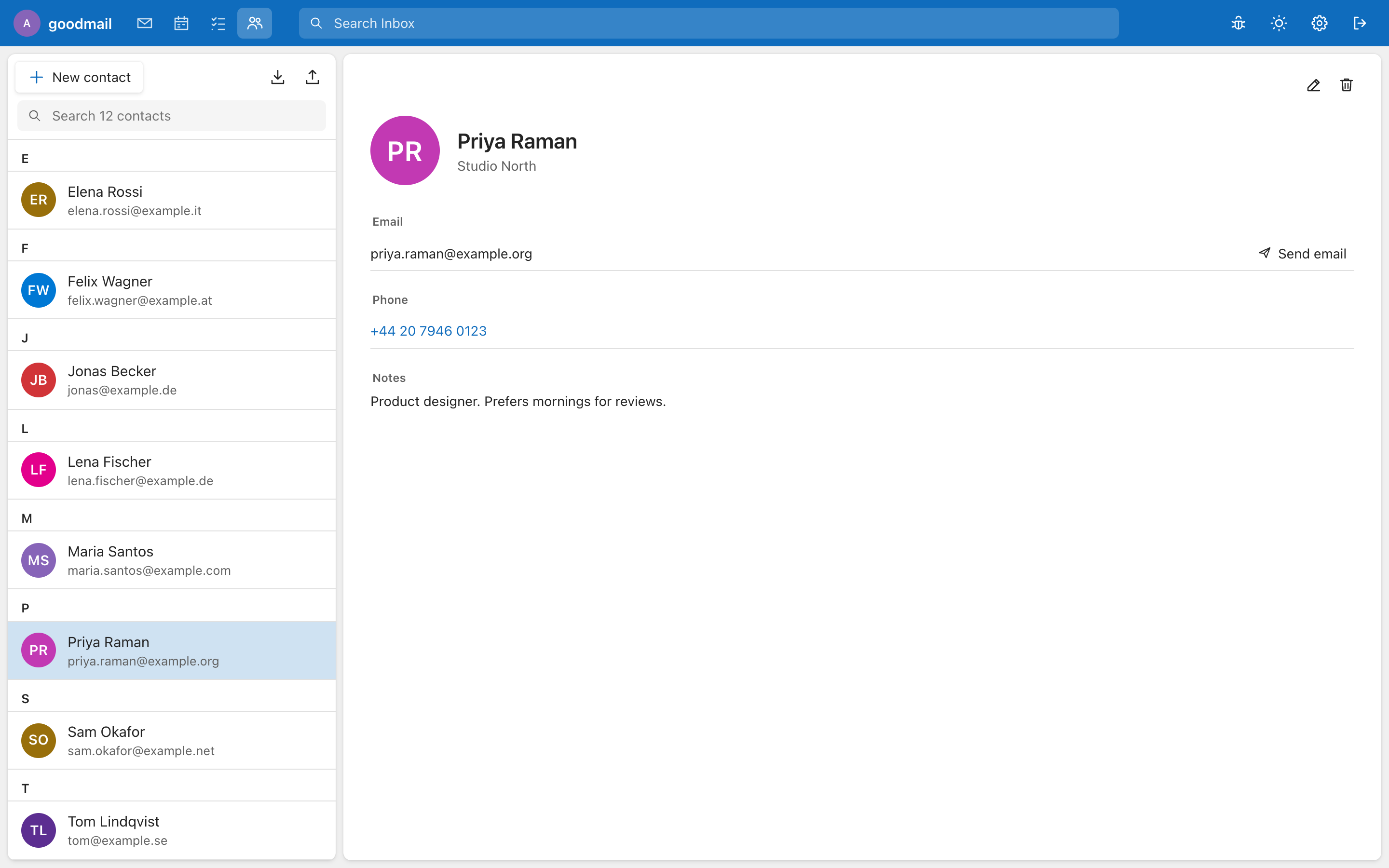
Per-account contacts with vCard and CSV import/export (Apple, Google, Outlook, Thunderbird), duplicate merge by e-mail, an "add sender" button on messages and To/Cc autocomplete.