Repository navigation
Legacy
This page describes the original system. These screens still ship and still load, but they are no longer the recommended way to set up a panel. Design your panel in the configurator instead (Designing Your Panel); the rest of this manual describes that system.
Before the configurator, pyEFIS shipped a fixed set of screens, laid out in YAML and adapted through the preferences. They are what a device shows until a panel is pulled, and what stays loaded beside a one-screen configurator panel.
The pictures on this page come from the original documentation and show those screens with sample data.
screens/default_list.yaml lists them, in this order:
| Name | File | What it is |
|---|---|---|
DataStatus |
screens/datastatus.yaml |
The navdata status screen; see Data Status, Updates and Notices. Loaded, never booted. |
PFD |
screens/pfd.yaml |
The stock primary flight display. The default boot screen (defaultScreen: PFD in main/default.yaml). |
PFD_AI_ONLY |
screens/pfd_ai_only.yaml |
The attitude bundle across the full width, with no engine or radio column. |
RADIO |
screens/radio.yaml |
Radio tuning. |
EMS |
screens/ems.yaml |
Engine monitoring beside the attitude bundle. |
EMS2 |
screens/ems2.yaml |
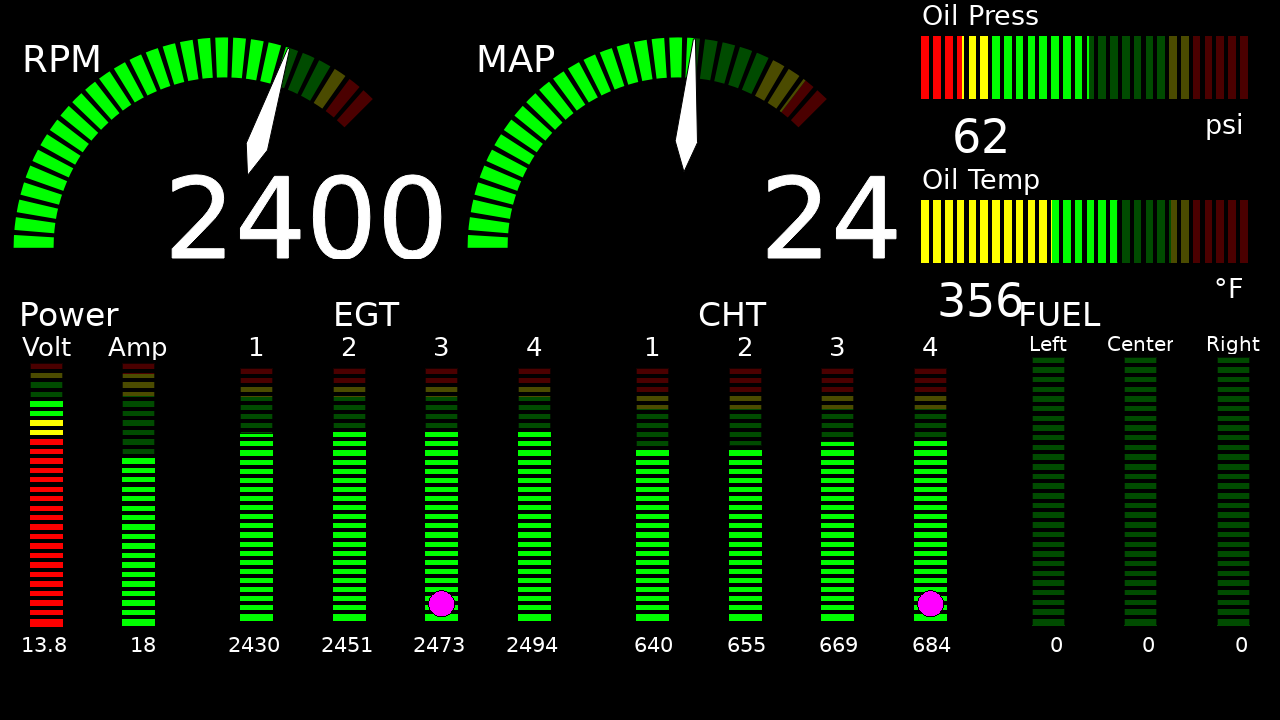
A full engine page, no attitude. |
FLIGHTPLAN |
screens/flightplan.yaml |
The moving map and nav status line on the left, the flight plan page on the right. |
pyEFIS also adds the About screen to every configuration. screens/android.yaml
ships too, but is not in the list; add SCREEN_ANDROID to load it. A
configurator panel replaces PFD (one screen) or the whole list (several
screens); see
Customizing Beyond the Configurator.
Most stock flight screens share one include, includes/ahrs/virtual_vfr.yaml:
the virtual_vfr attitude display with the HSI over it, airspeed and altitude
tapes, a vertical-speed indicator (vsi_pfd or a VS tape, chosen by the
VSI_BALL and VSI_TAPE flags), heading_display, wind_display, readouts
for the altimeter setting, pressure and density altitude, OAT, time, autopilot
status and aircraft ID, trim controls and a dimmer. Most parts are switched by
an enabled: flag. Synthetic vision is off in this include; with it off, the
attitude display draws the legacy Virtual VFR view (below).
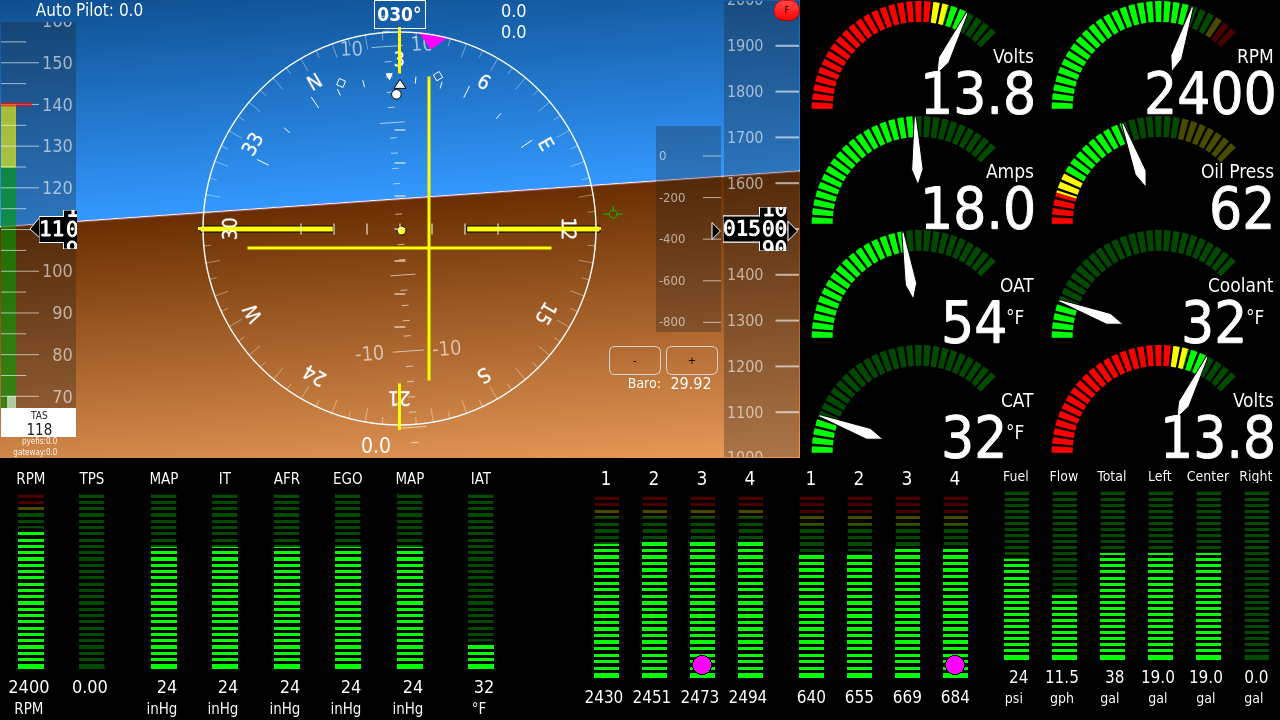
The attitude bundle, a column of four engine arcs on the right (RPM, oil,
coolant, volts), the side button bar, and a lower-right panel that alternates
every 3 seconds between a fuel bar strip and an MGL V16 radio display. A DATA
flag sits at the top left.

The attitude bundle across the full width, keeping only the DATA flag. Set
defaultScreen: PFD_AI_ONLY to boot it.

The attitude bundle, narrower, with two arc columns and the engine strips along the bottom: EGT and CHT bars, a fuel strip, a power group, and the EGT mode buttons (Engine Monitoring).
A full engine page with no attitude: RPM and manifold-pressure arcs, oil bars, and rows of power, EGT, CHT and fuel bars, with the EGT mode buttons.
The attitude bundle and the arc columns, with the combined MGL V16 radio panel
(active and standby frequencies, volumes and a frequency list). A second radio
entry is present but disabled: true, as an example.

The moving map with the nav status line under it, and the flight plan page on the right half. See Moving Map and Flight Plan.
The weston instrument showing an Android app under waydroid, with an engine
arc column, the side buttons and the fuel/radio panel. Not loaded by default.
See System & Containers.
Most stock screens carry a side button bar (BUTTON_GROUP1; BUTTON_GROUP2
for a horizontal bar). It shows while the BUTTONS flag is on, as shipped; with it off, the arc column moves into its place. Each button switches
between the PFD and one other screen: on the EMS screen the EMS button reads
PFD and goes back.
| Button file | Goes to | FIX key |
|---|---|---|
screen-ems-pfd.yaml |
EMS | TSBTN{id}12 |
screen-ems2-pfd.yaml |
EMS2 | TSBTN{id}20 |
screen-radio-pfd.yaml |
Radio | TSBTN{id}14 |
screen-android-pfd.yaml |
Android | TSBTN{id}19 |
screen-map-pfd.yaml |
the map screen | TSBTN{id}13 |
units.yaml |
toggles units; reads Show Menu while the buttons are hidden | TSBTN{id}15 |
The EMS and EMS2 buttons turn red while a CHT or EGT is annunciating. A second
bar, screen_changing_PFD-EMS-MAP-RADIO-AP-Units.yaml, offers PFD, EMS, Map,
Radio, Autopilot and Units instead. With a keyboard, S, A and P step
through the screens.
Most stock screens ship in two more layouts with the same screen name. Select
one by pointing its SCREEN_* include at the file in preferences.yaml.custom:
-
*-portrait.yaml: for tall displays (pfd-portrait.yamland so on). -
*-left-buttons.yaml: the button bar and columns on the left.
includes:
SCREEN_PFD: screens/pfd-left-buttons.yamlWith synthetic vision off, virtual_vfr draws its original view: airports and
runways from the FAA's CIFP data, drawn over the plain sky-and-ground attitude.
The data paths (dbpath, indexpath) come from screens/virtualvfr_db.yaml,
included by the stock flight screens, and the CIFP data is a separate download.
This view is deprecated: the configurator's synthetic vision replaces it and
needs no CIFP data. See Attitude and Synthetic Vision.
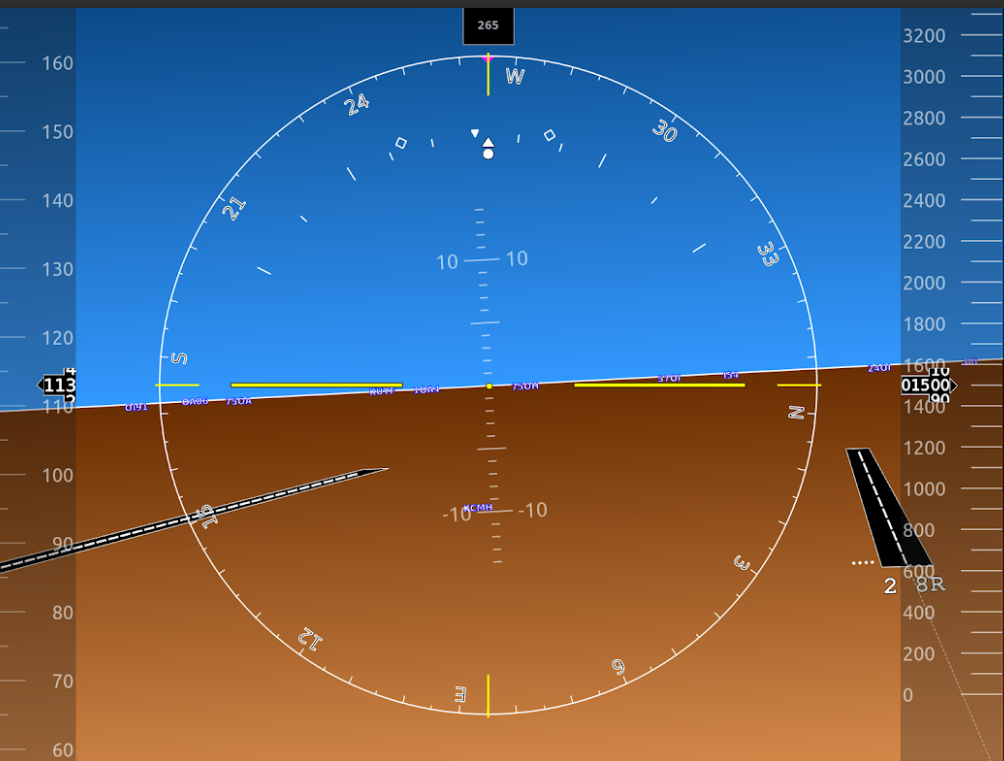
pyEFIS no longer ships a six-pack screen. A configuration that still maps
SCREEN_SIXPACK to the removed file fails to load with an error. Build one in
the configurator, or from the example on
Customizing Beyond the Configurator.