Repository navigation
Screenshots
A tour of what Heimdall Nexus does, before you install it. The pictures follow the order you will likely use each part: first the website players see, then the panel, and finally the site editor.
Note
Every screenshot uses a sample server called Midgard, with made-up players, stories and map. None shows a real server. The interface is in Portuguese, its only language for now.
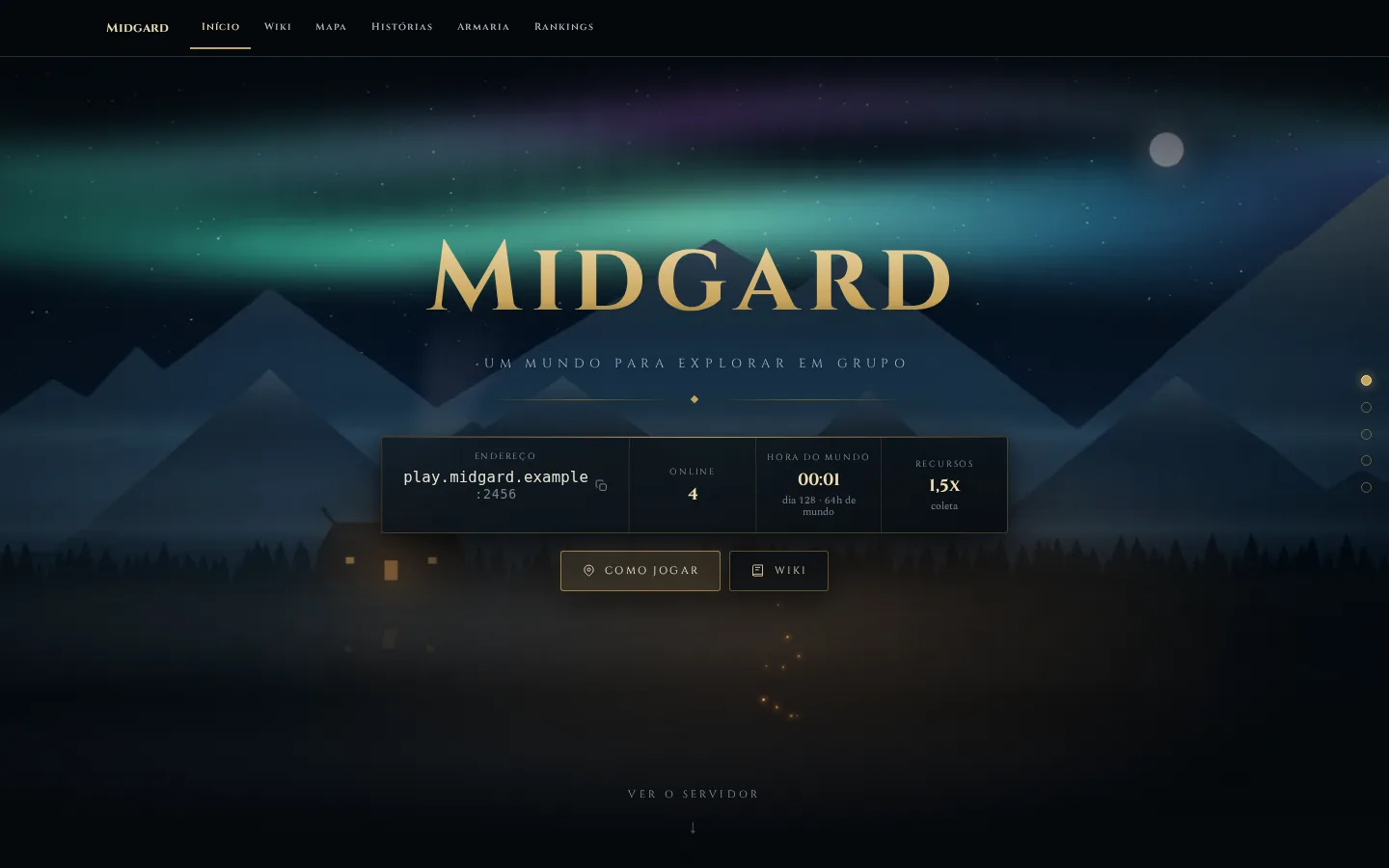
The website is what your community sees. Everything on it can be changed in the Layout Editor.
The server address with a copy button, players online, the in-game time and the resource rate, all updated live.
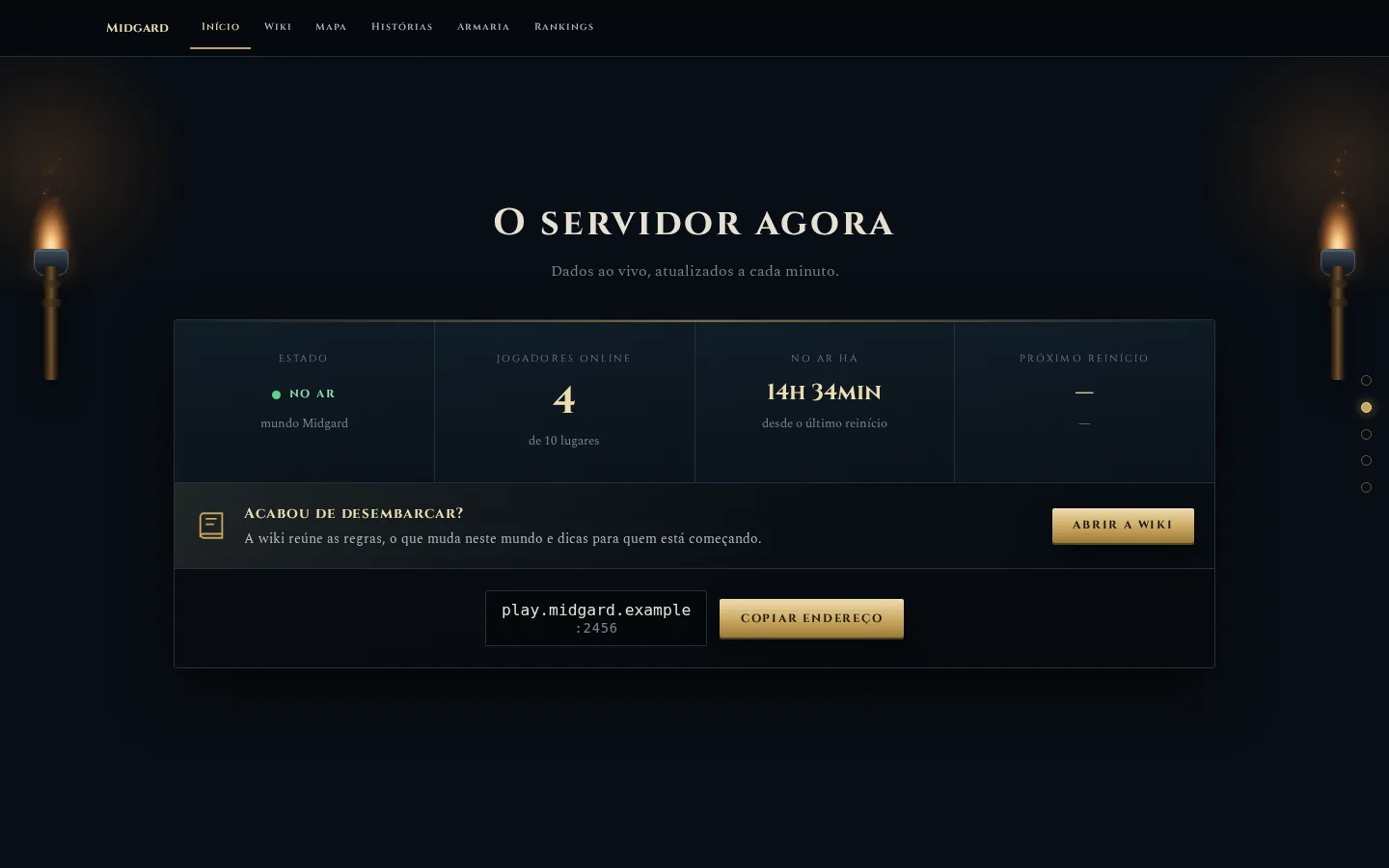
Further down, the server status in detail and an invitation for newcomers to read the wiki.
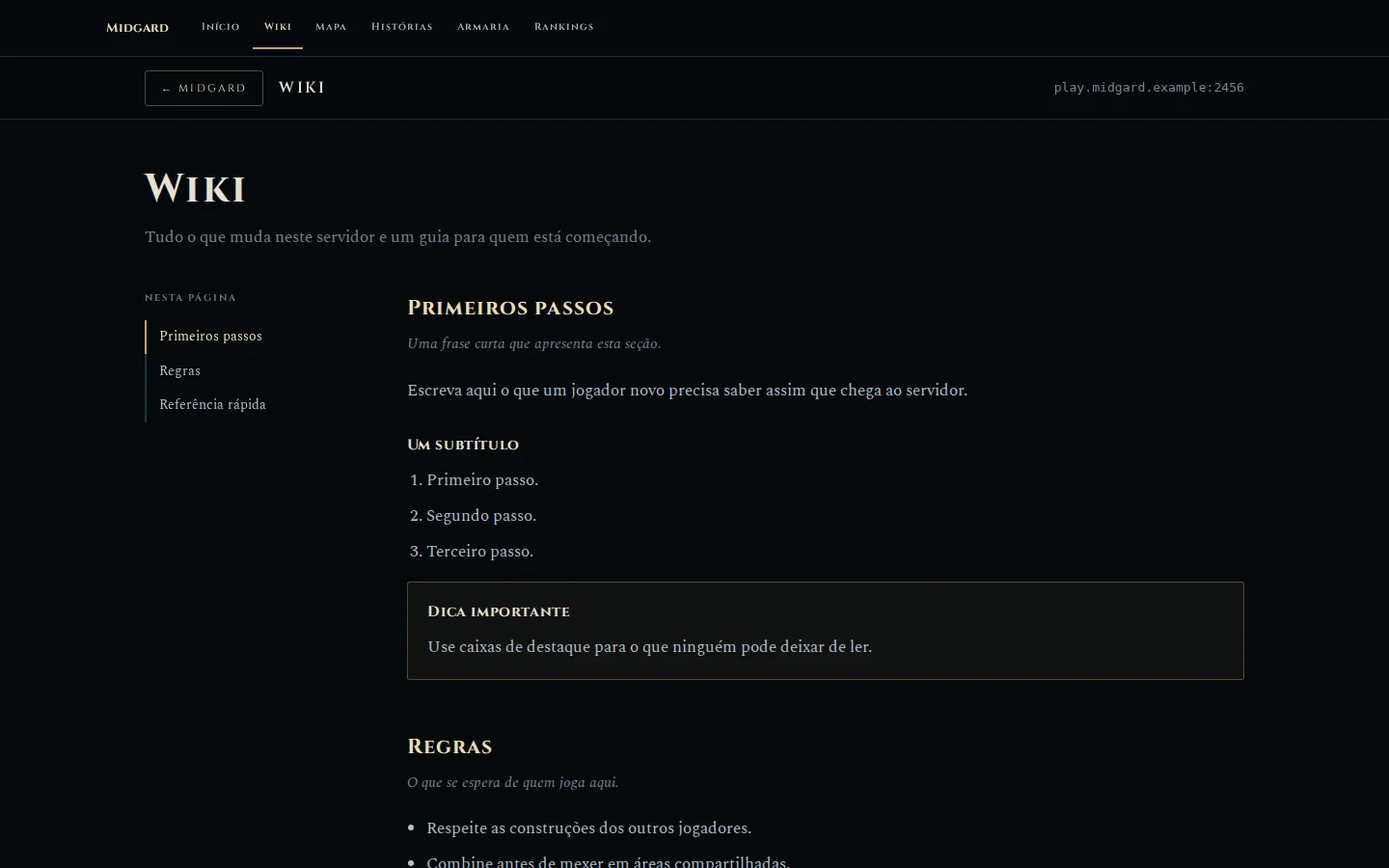
A wiki-format page with a side index, sections and highlight boxes: the ready-made template for rules and guides.
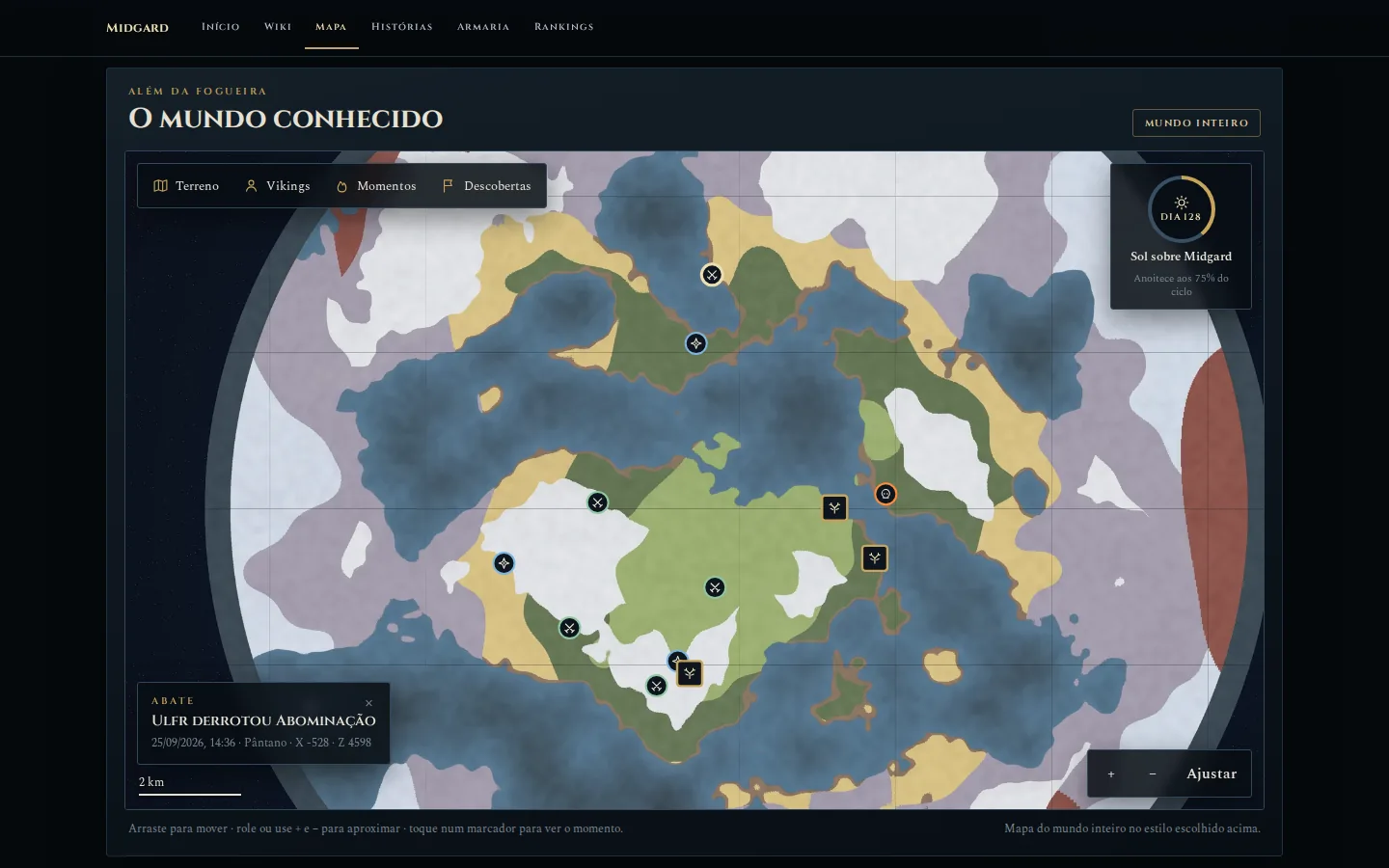
The world map with the moments players chose to share. Click a marker to see what happened there.
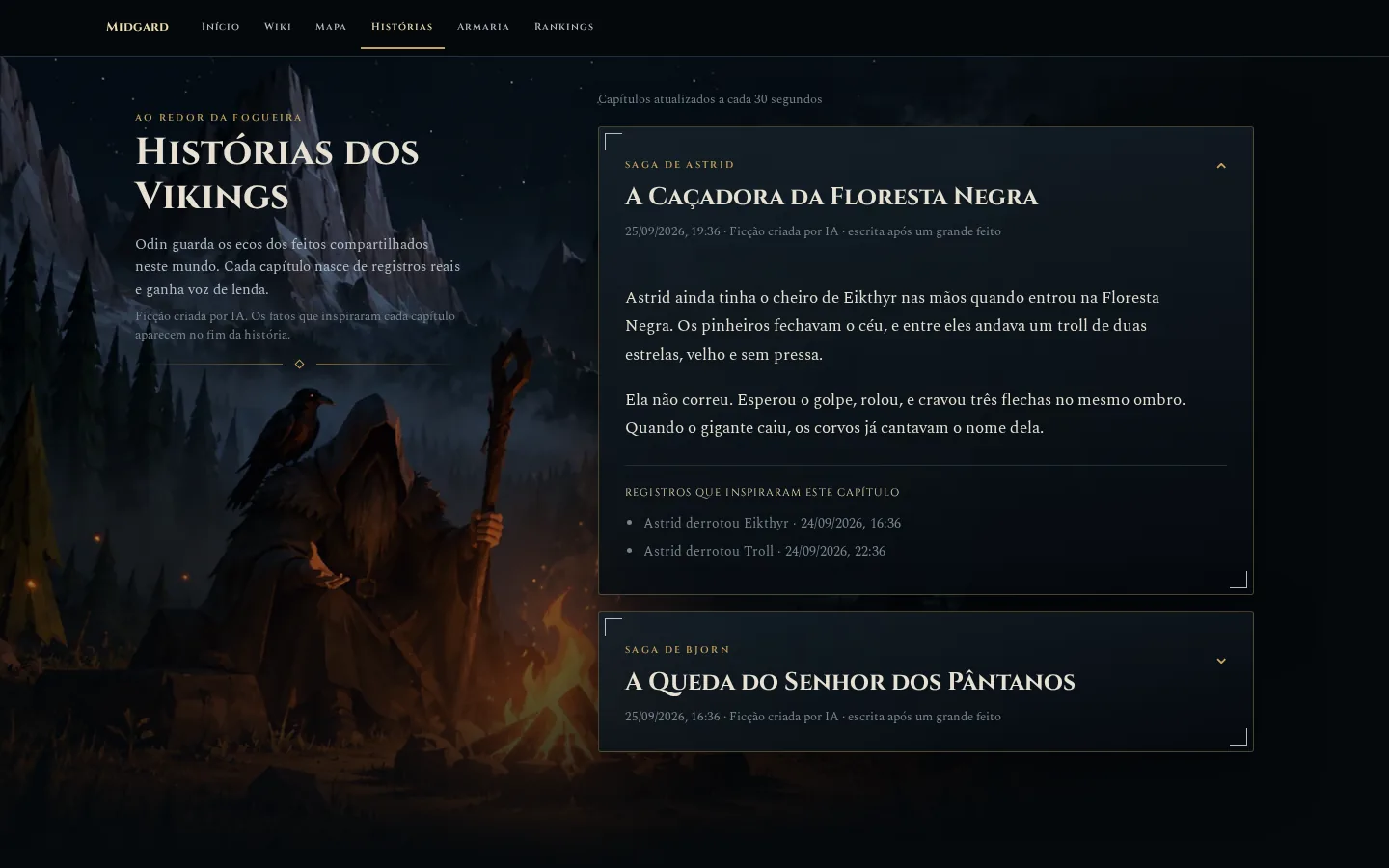
Chapters written by AI from real feats, always labeled as fiction and citing the records behind them.
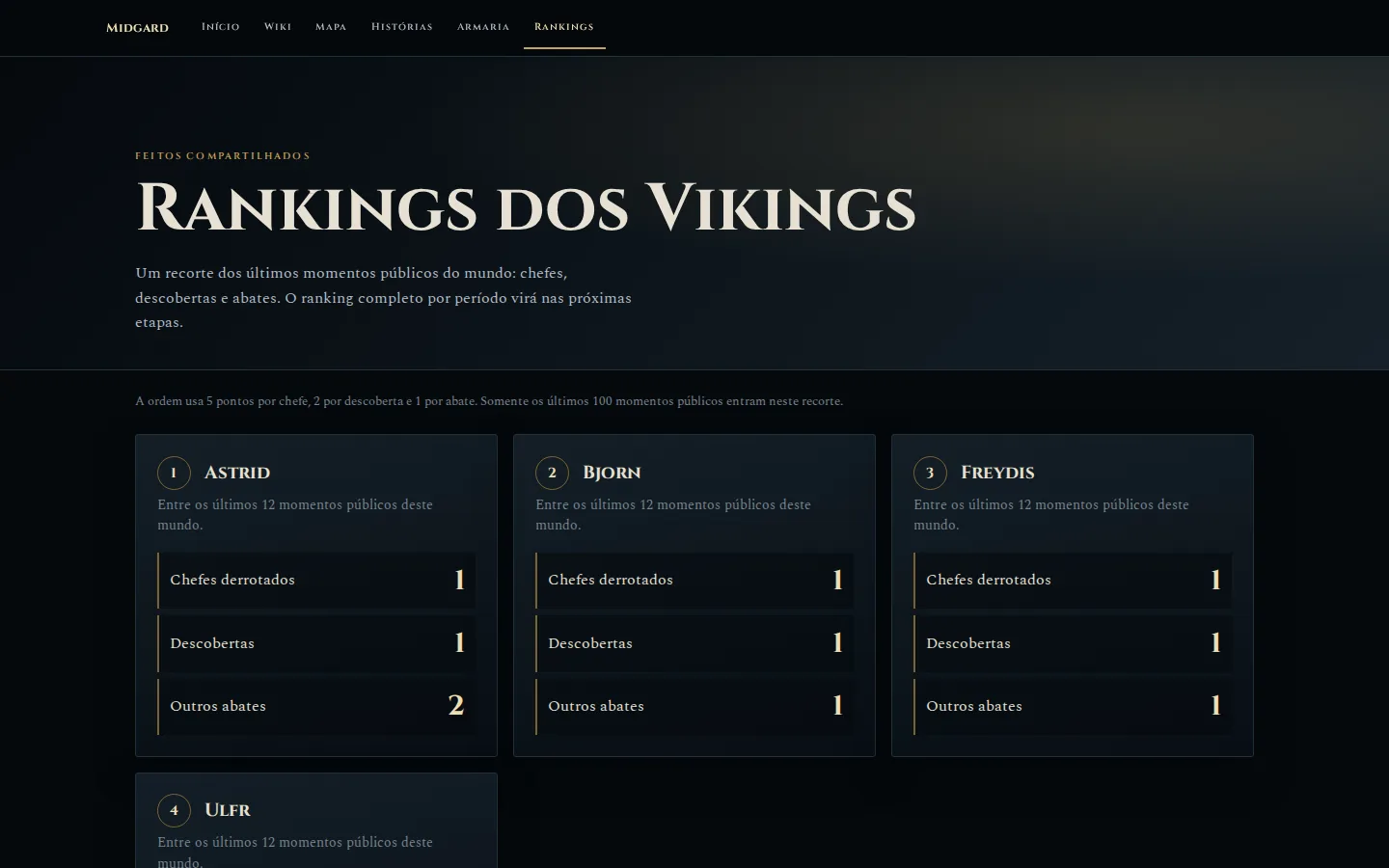
Who defeated the most bosses, made discoveries and kills among the recent public moments.
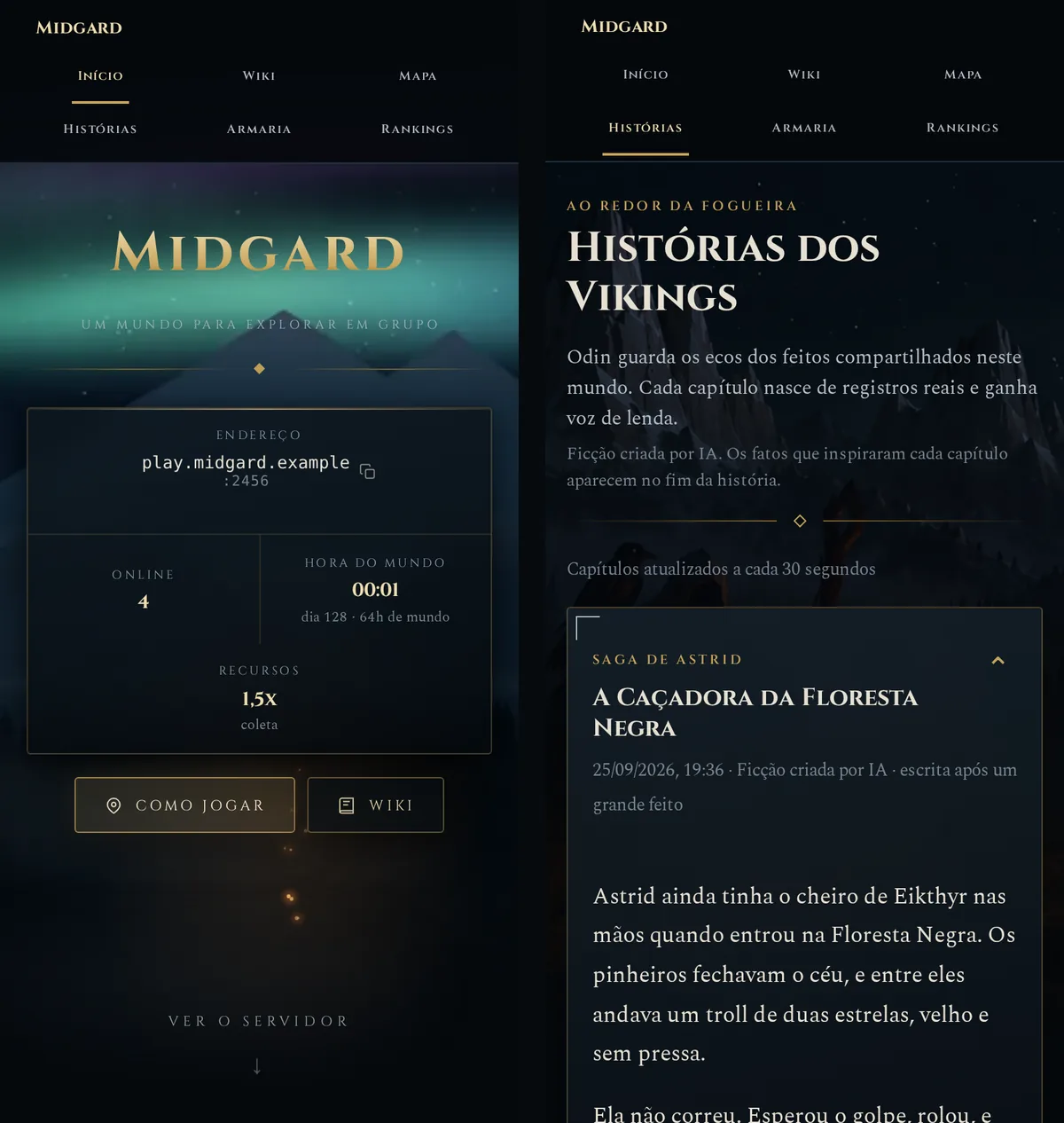
The site adapts to small screens, with the menu rearranged and the numbers stacked.
Jarl is where you run the server. Each screen is described in Operations.
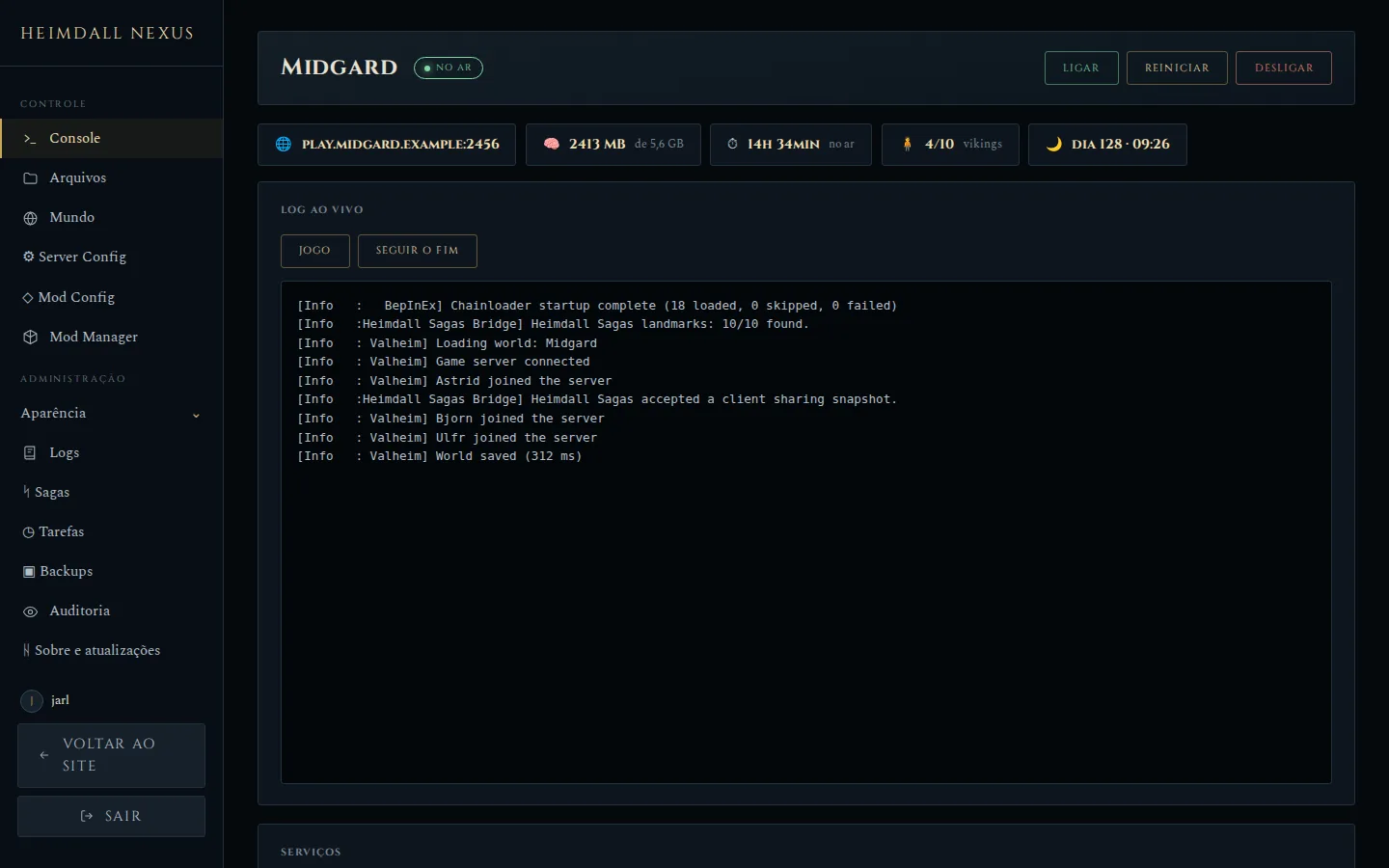
Start, restart and stop, the server numbers and the live game log.
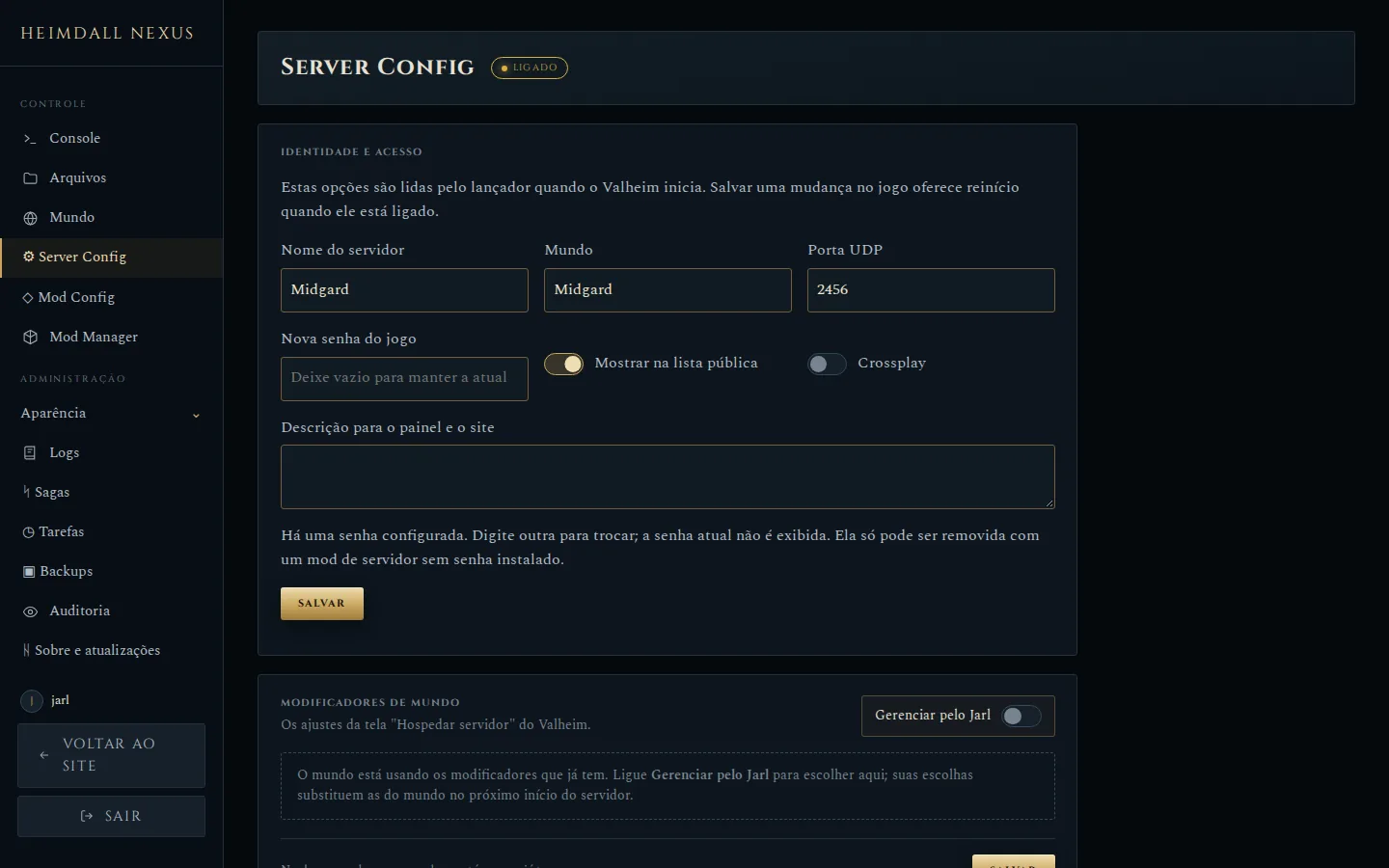
Name, world, port, public listing, crossplay and password, plus the world modifiers.
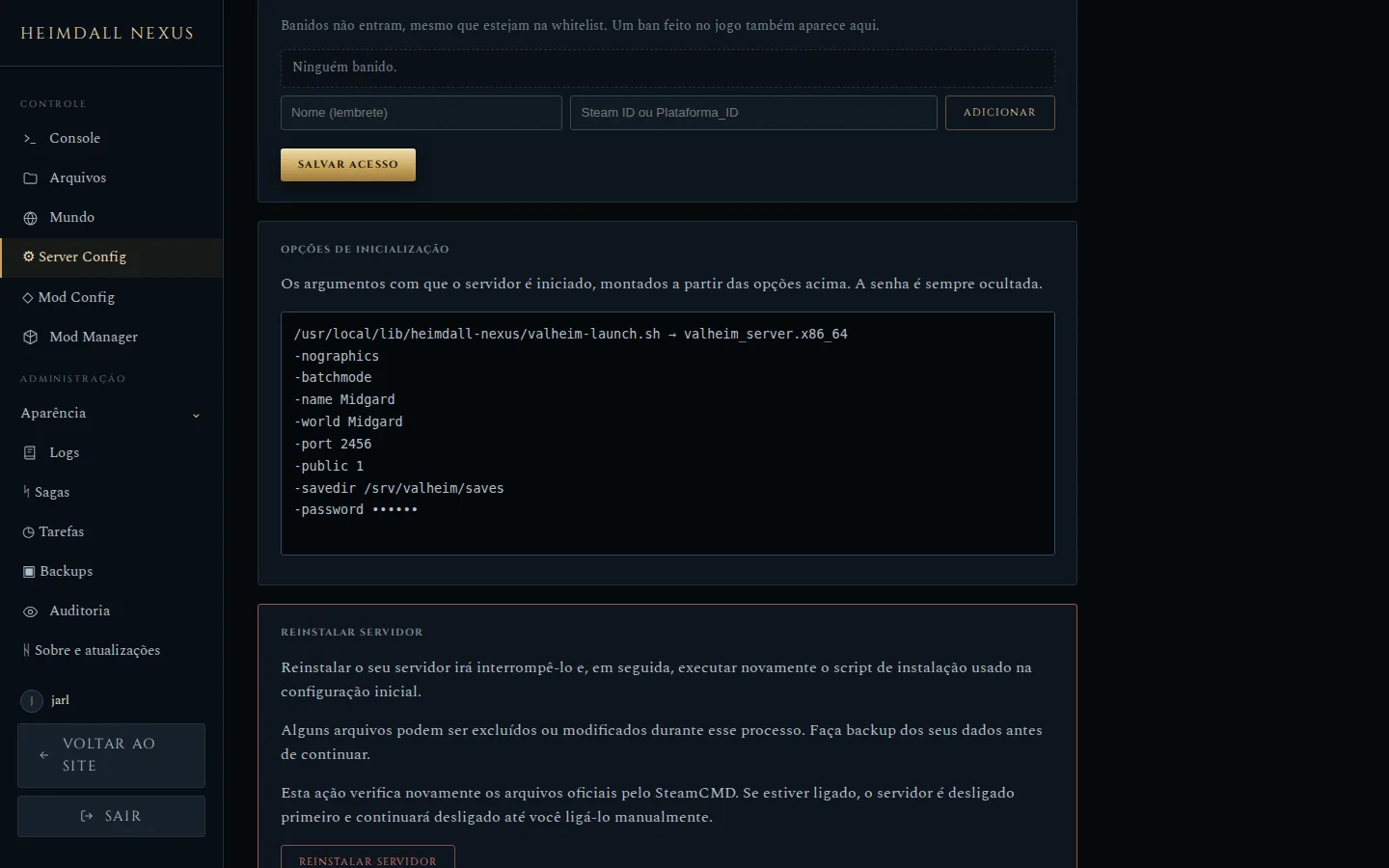
The command the server will start with, one option per line, to check before restarting.
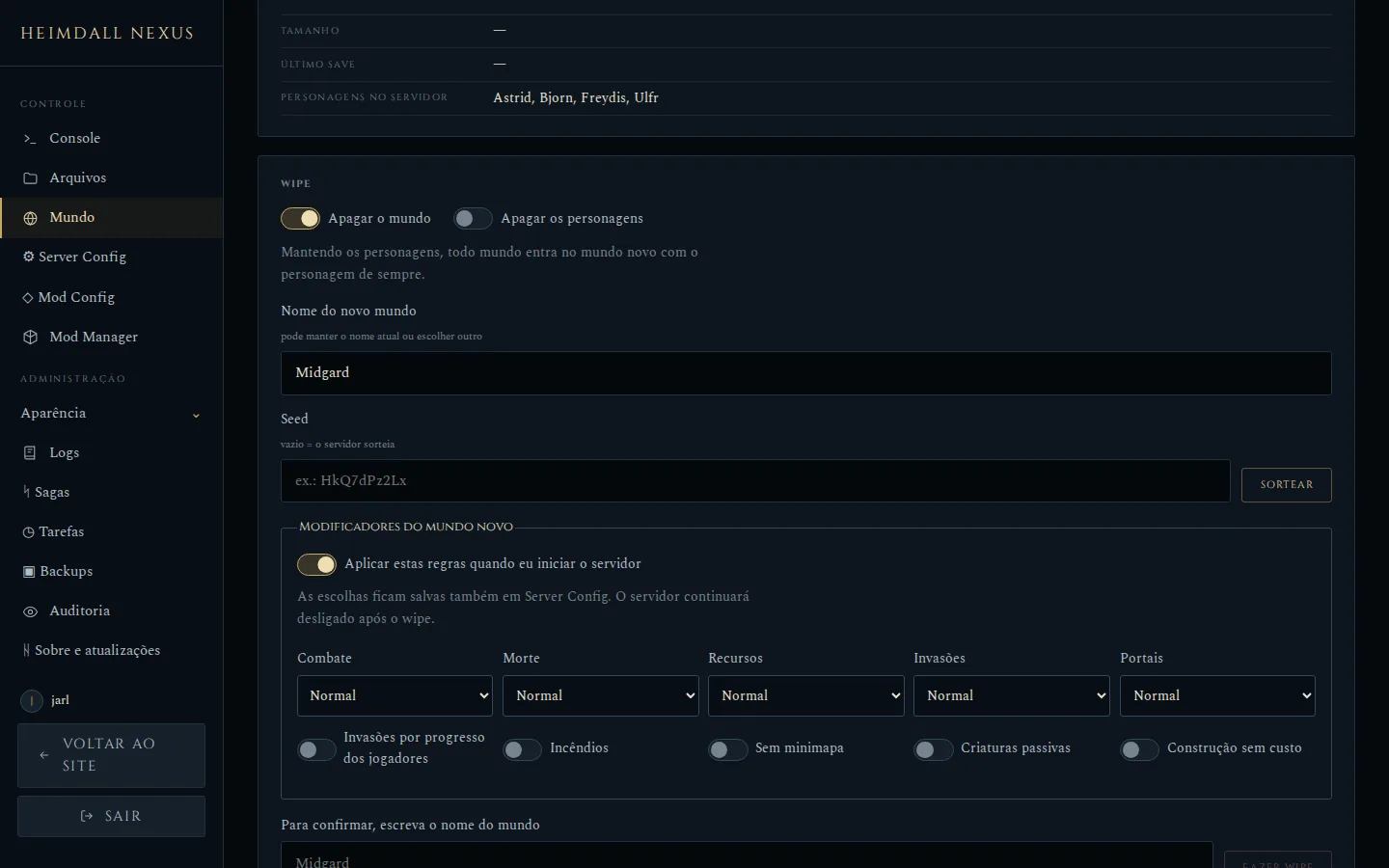
Reset the world, the characters or both, with a new name, seed and modifiers. A backup comes first.
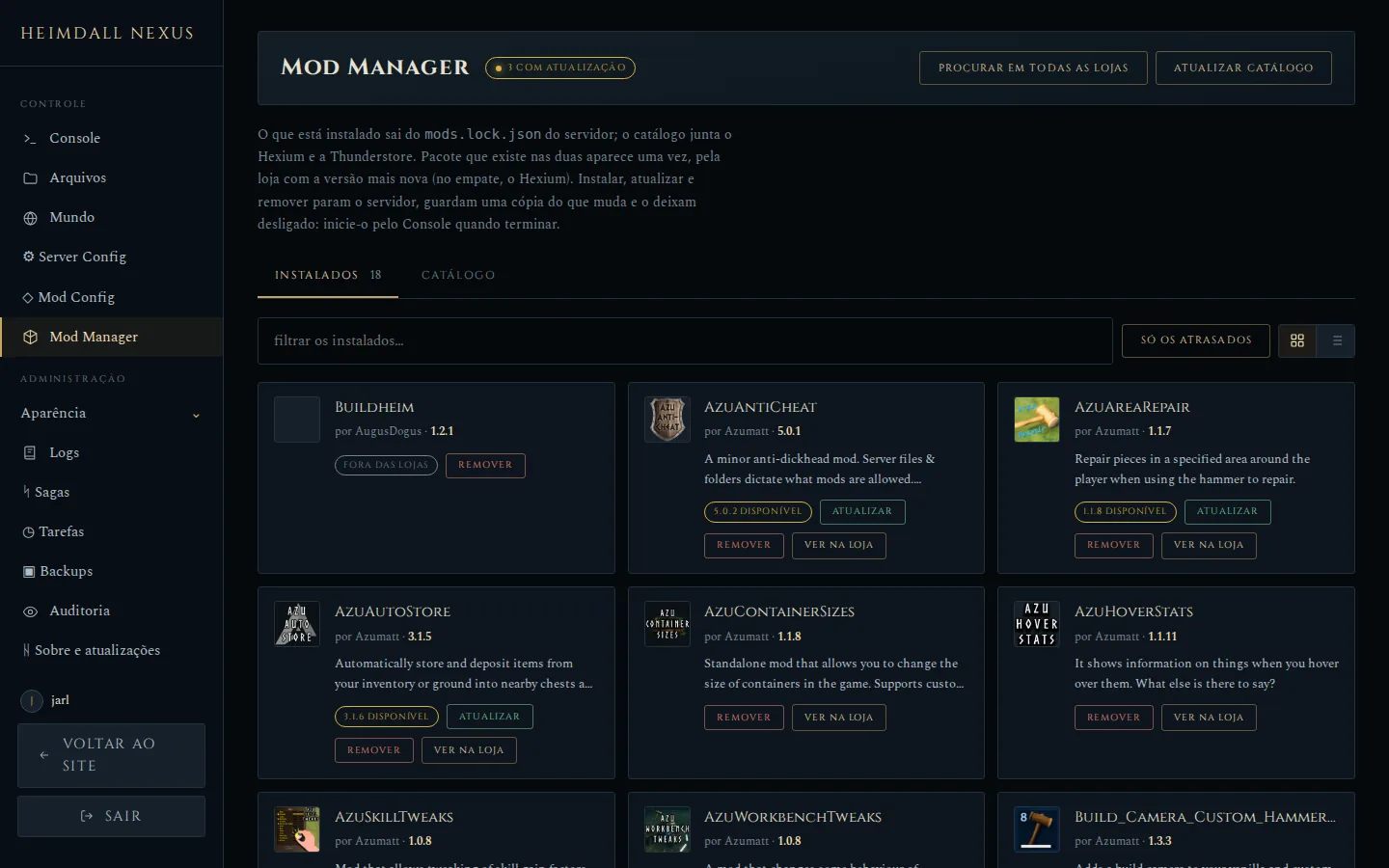
The mods installed on the server, with new-version badges and buttons to update or remove.
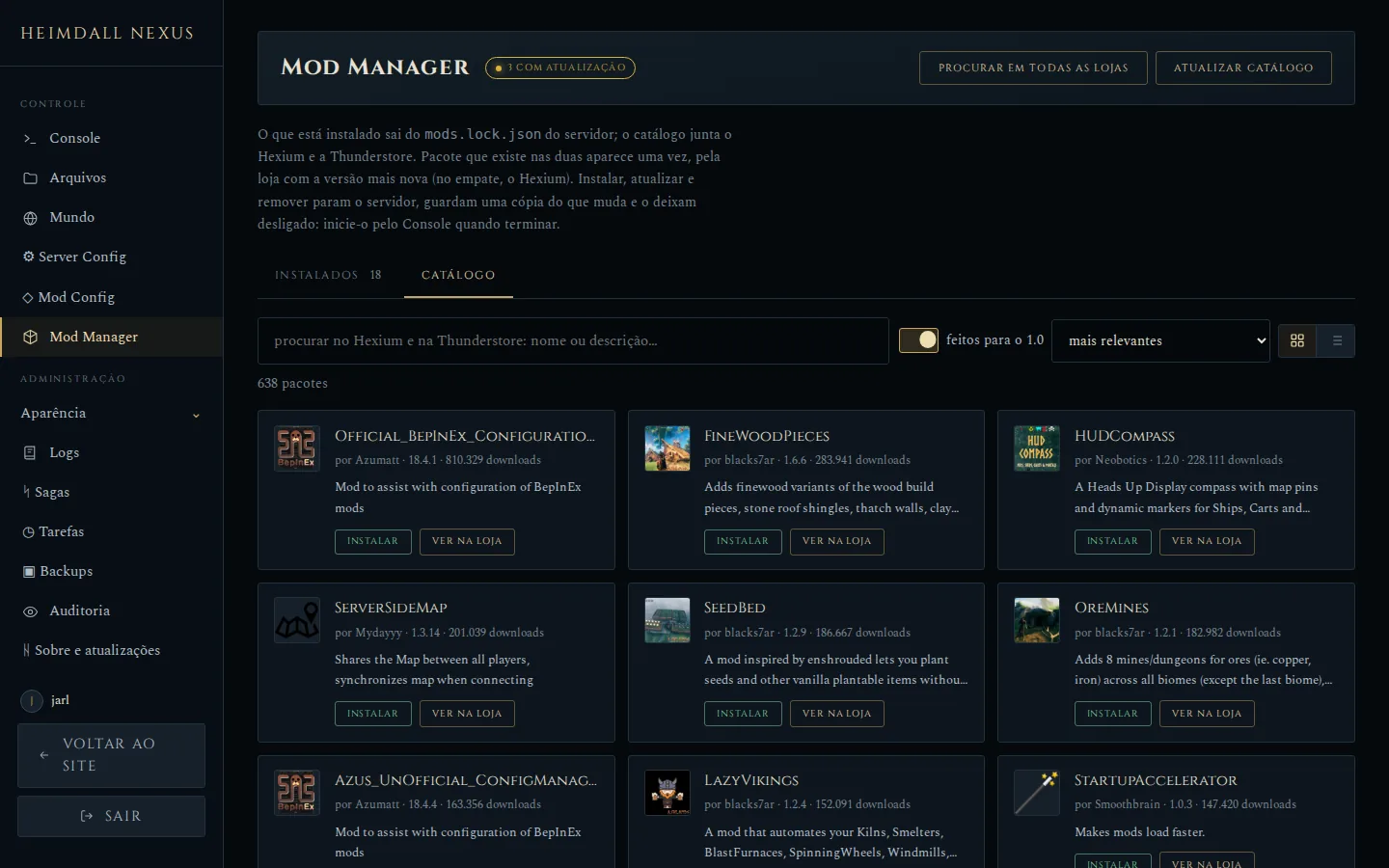
Hexium and Thunderstore in a single search, with a filter for mods made for Valheim 1.0.
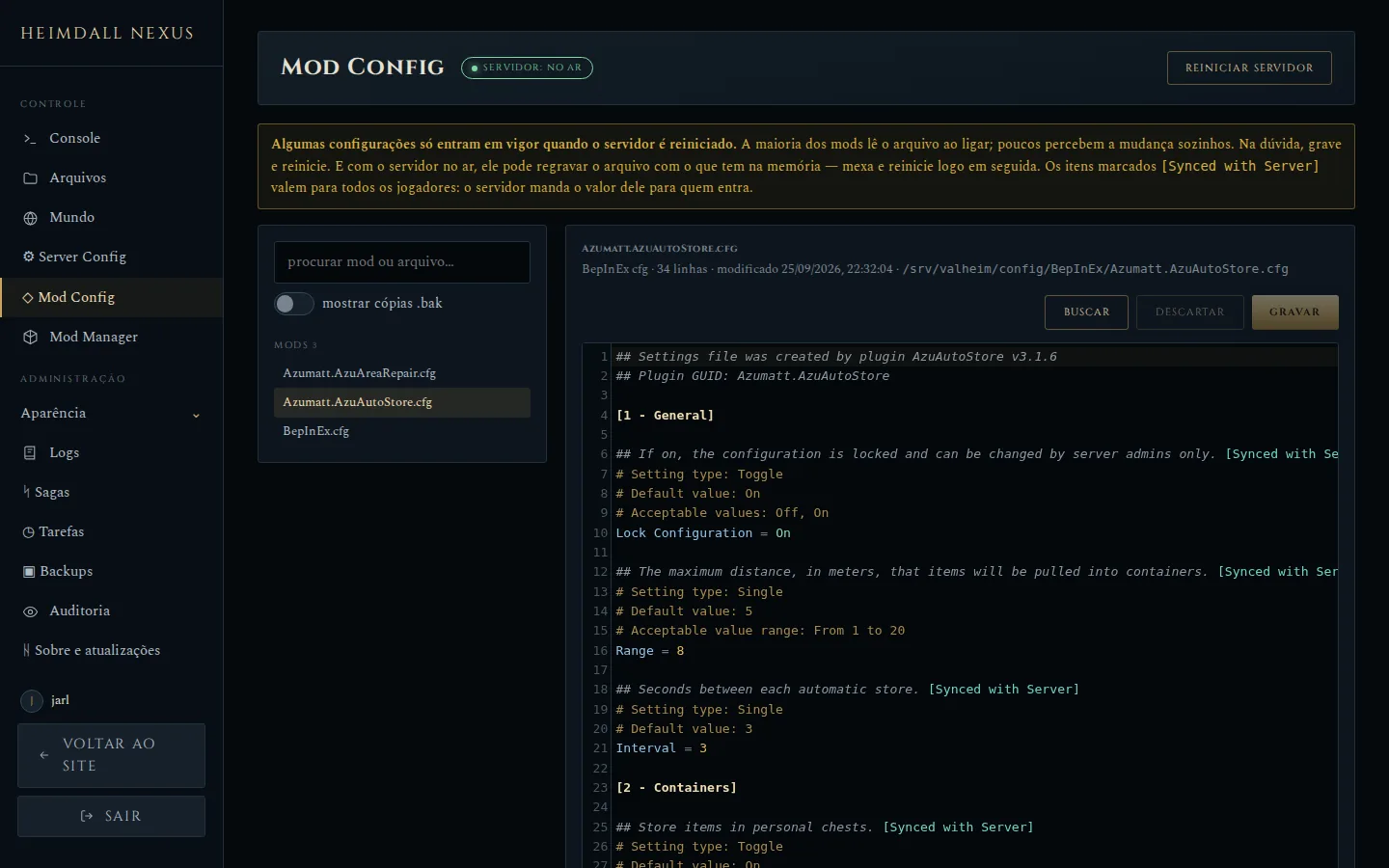
The mod settings editor, with search and syntax highlighting.
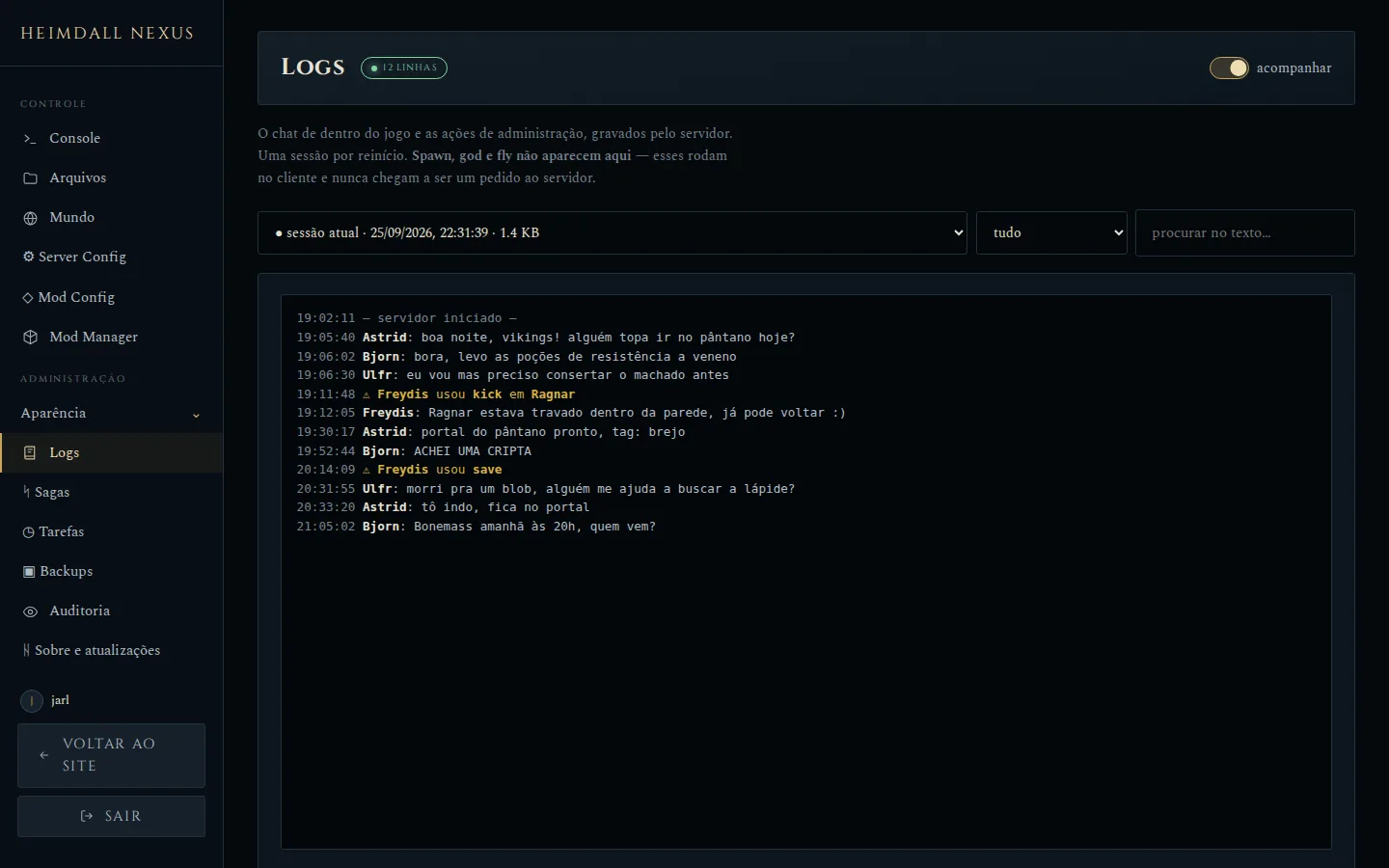
In-game chat and administration actions, one session per restart.
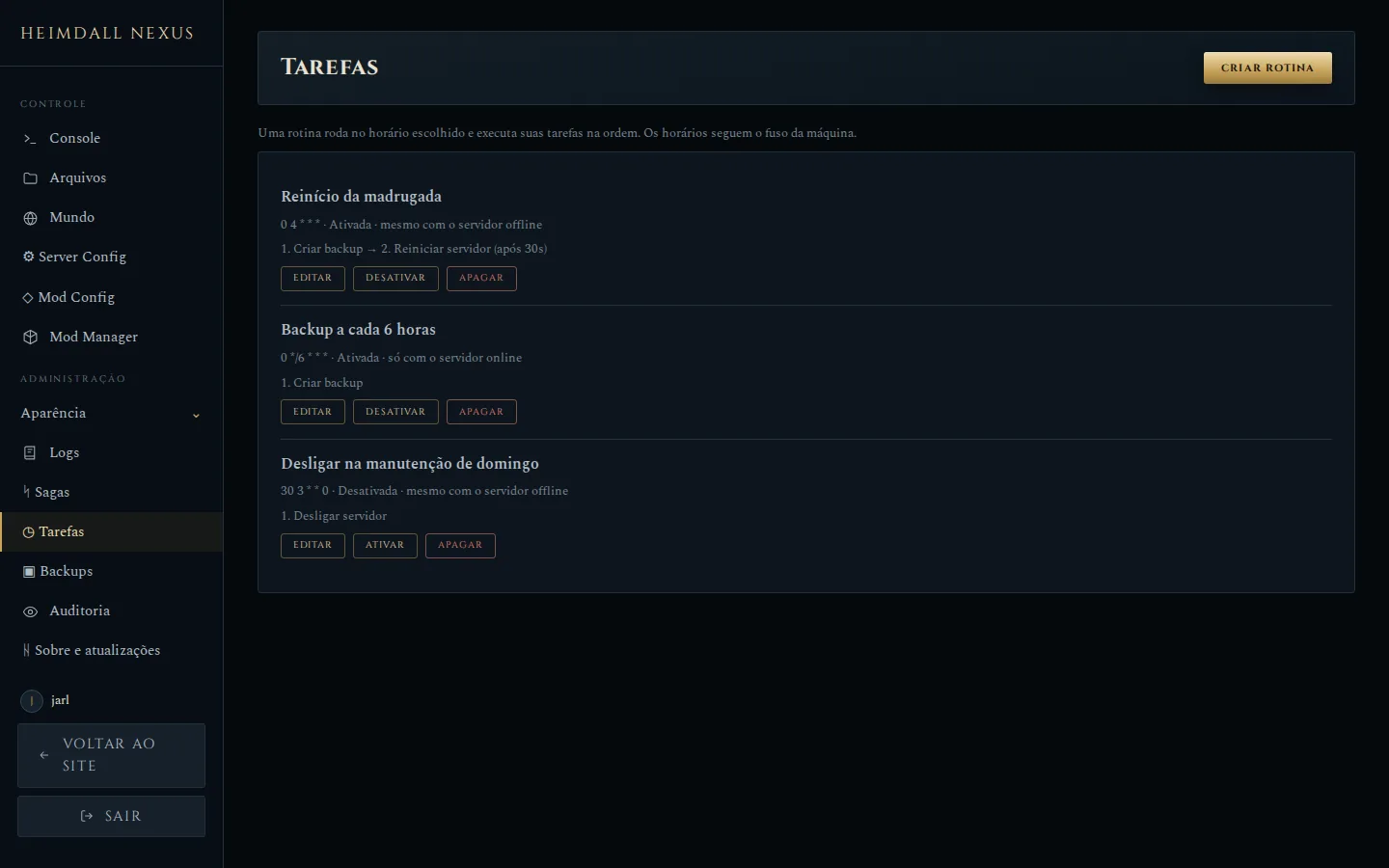
Automatic routines, such as a backup every six hours or the nightly restart.
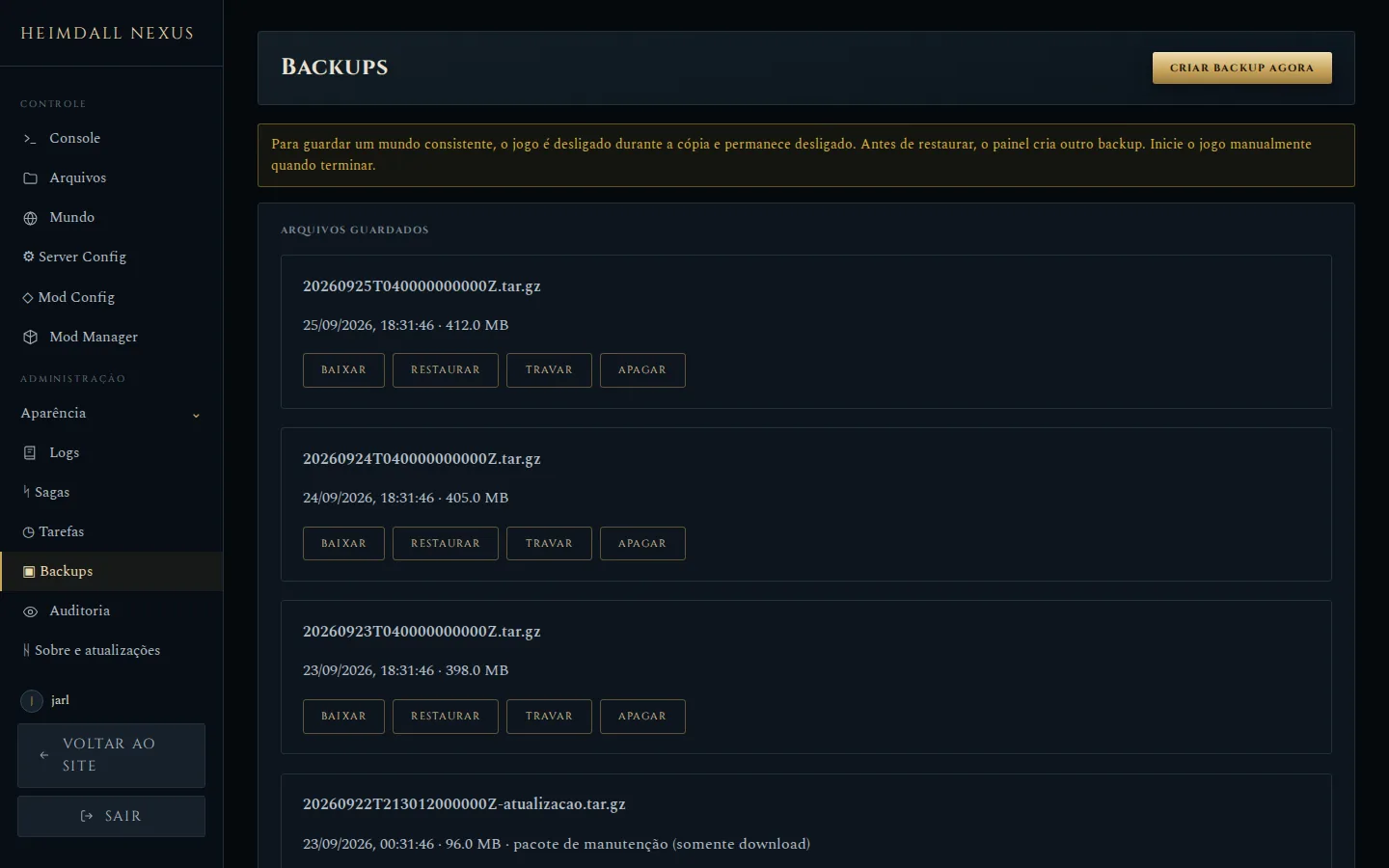
Download, restore, lock and delete backups. A locked backup cannot be deleted from the panel.
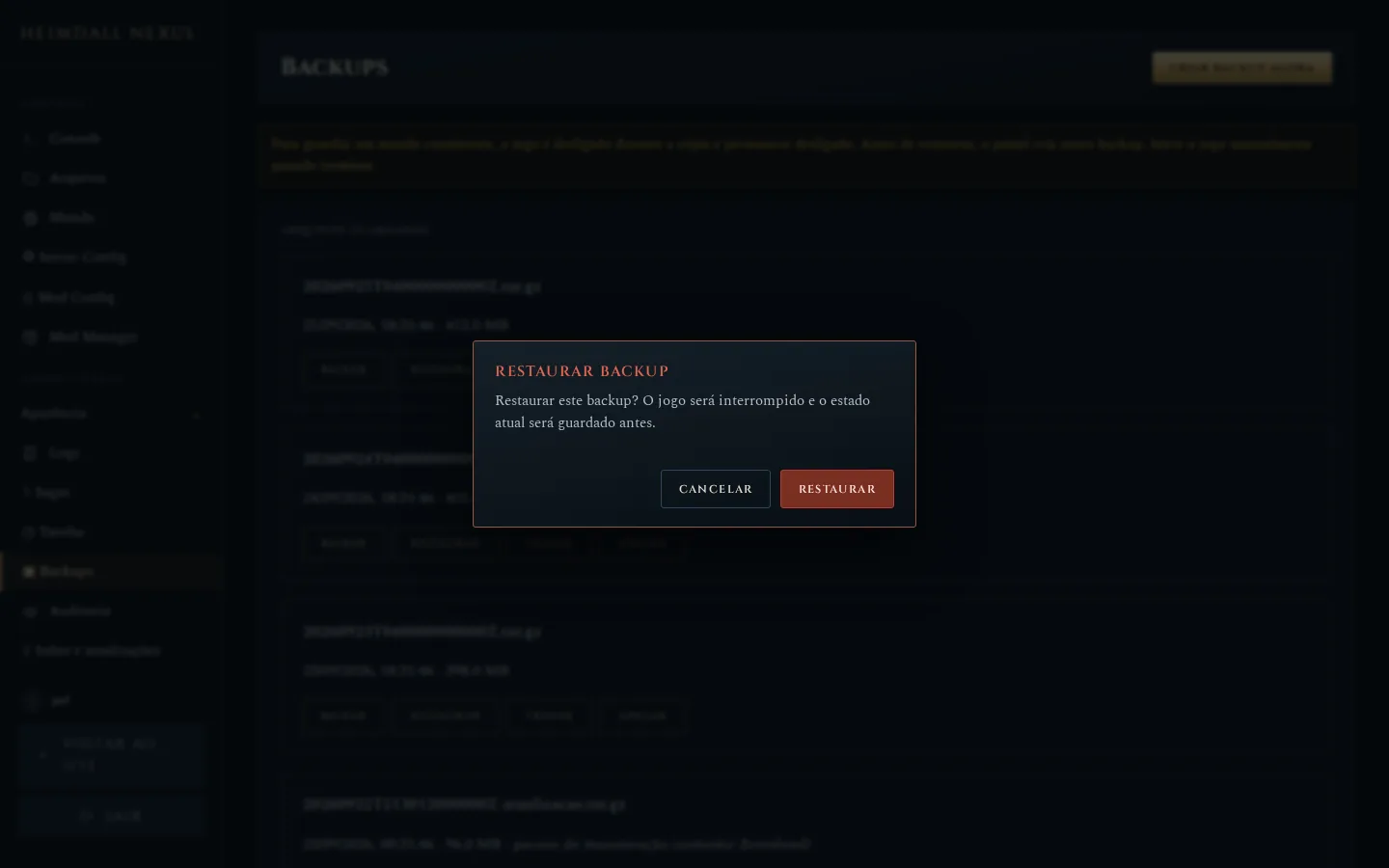
Actions that stop, delete or restore ask for confirmation in a dialog inside the panel.
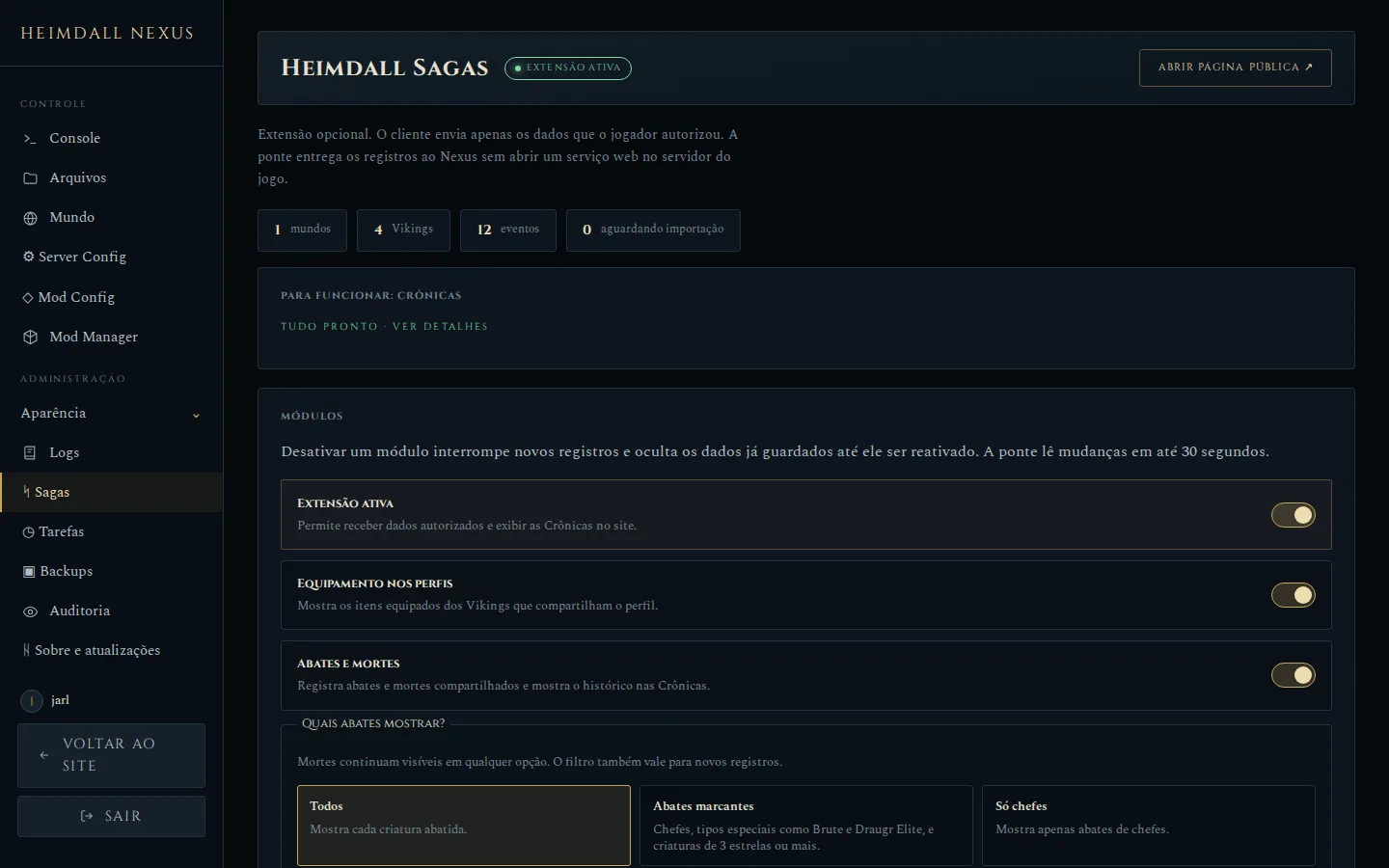
The Sagas extension modules and the cards that explain what each one still needs.
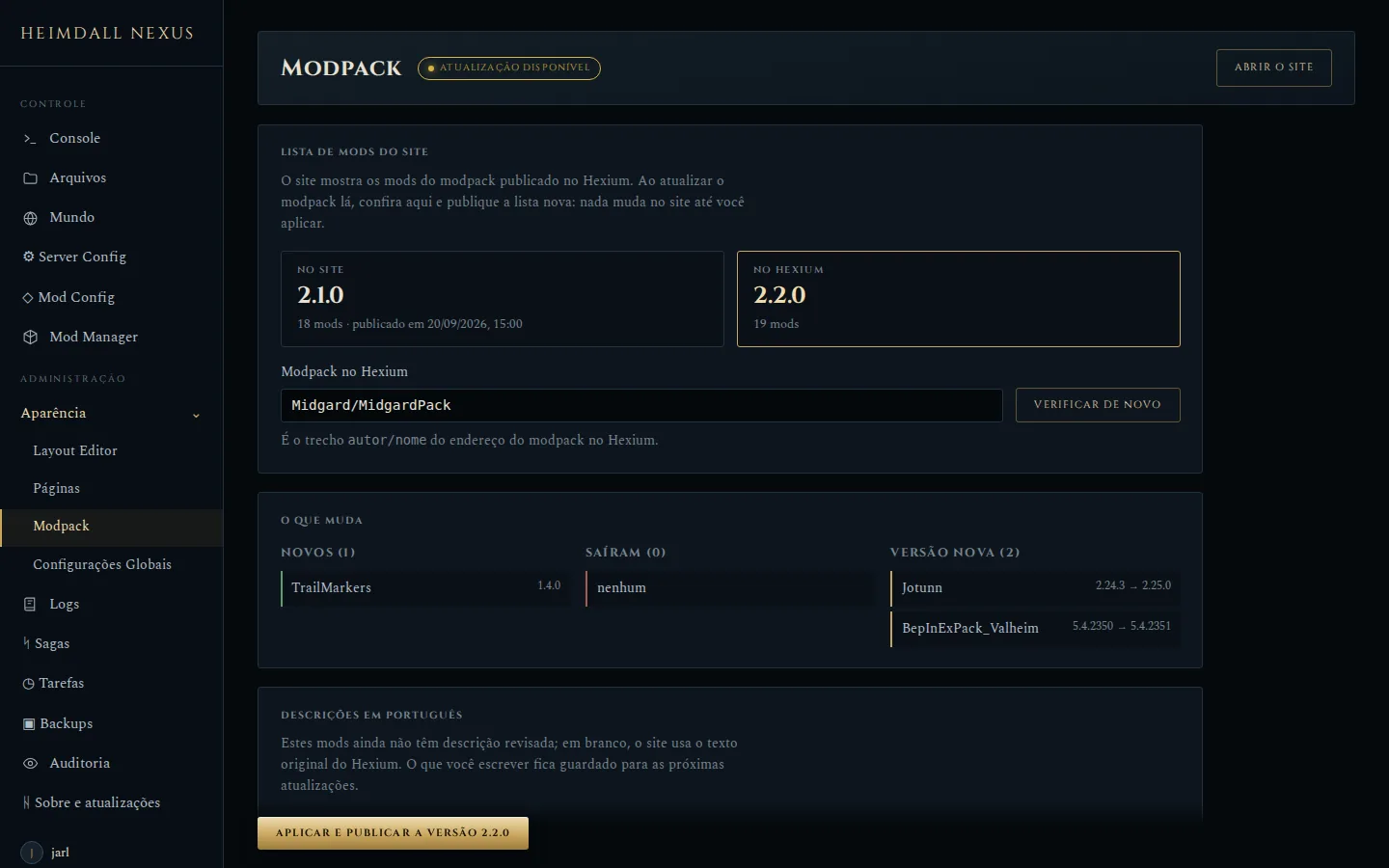
When the modpack changes on Hexium, this screen shows what was added, removed and updated before publishing.
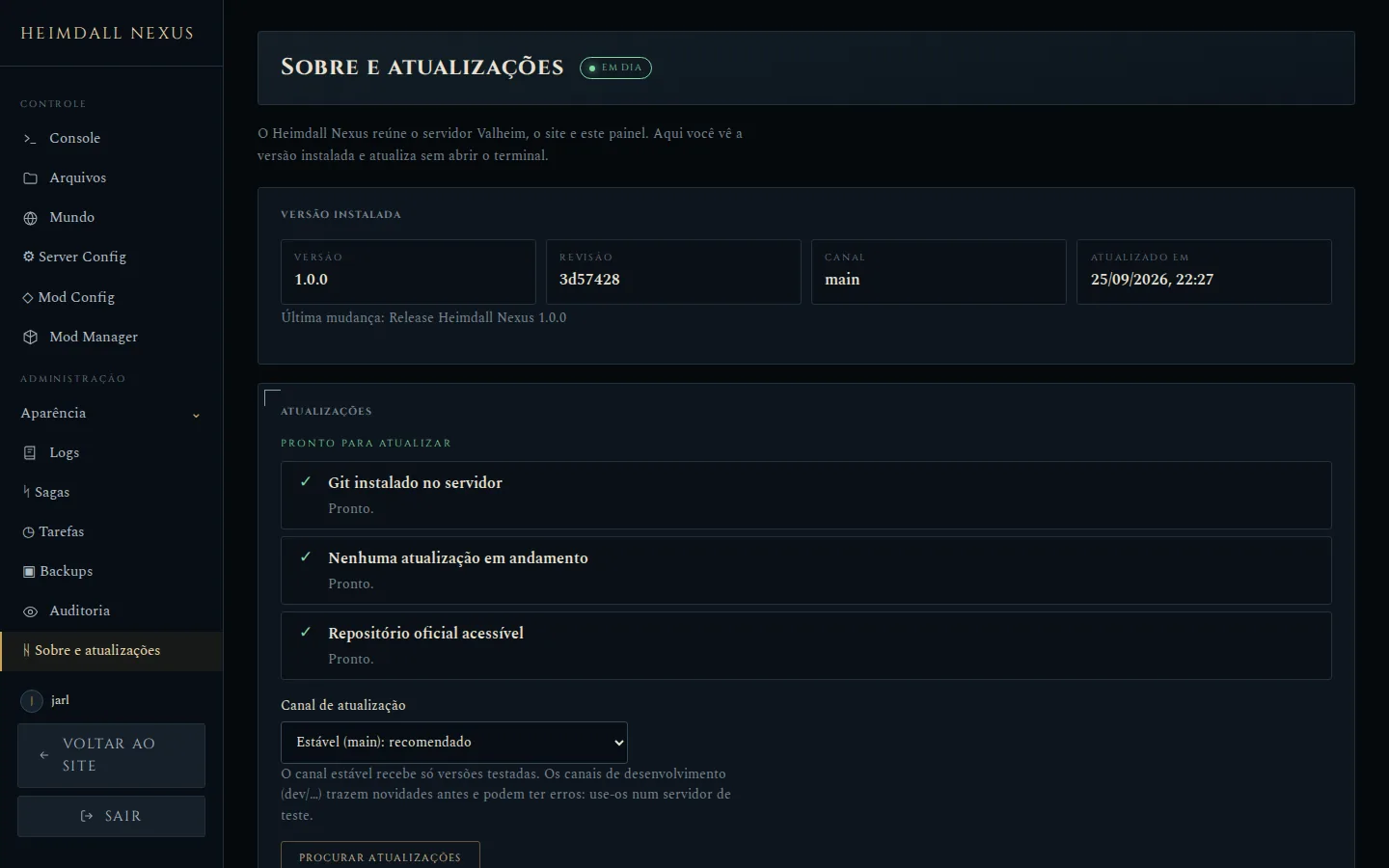
The installed version, the update channel and the check for new releases, without a terminal.
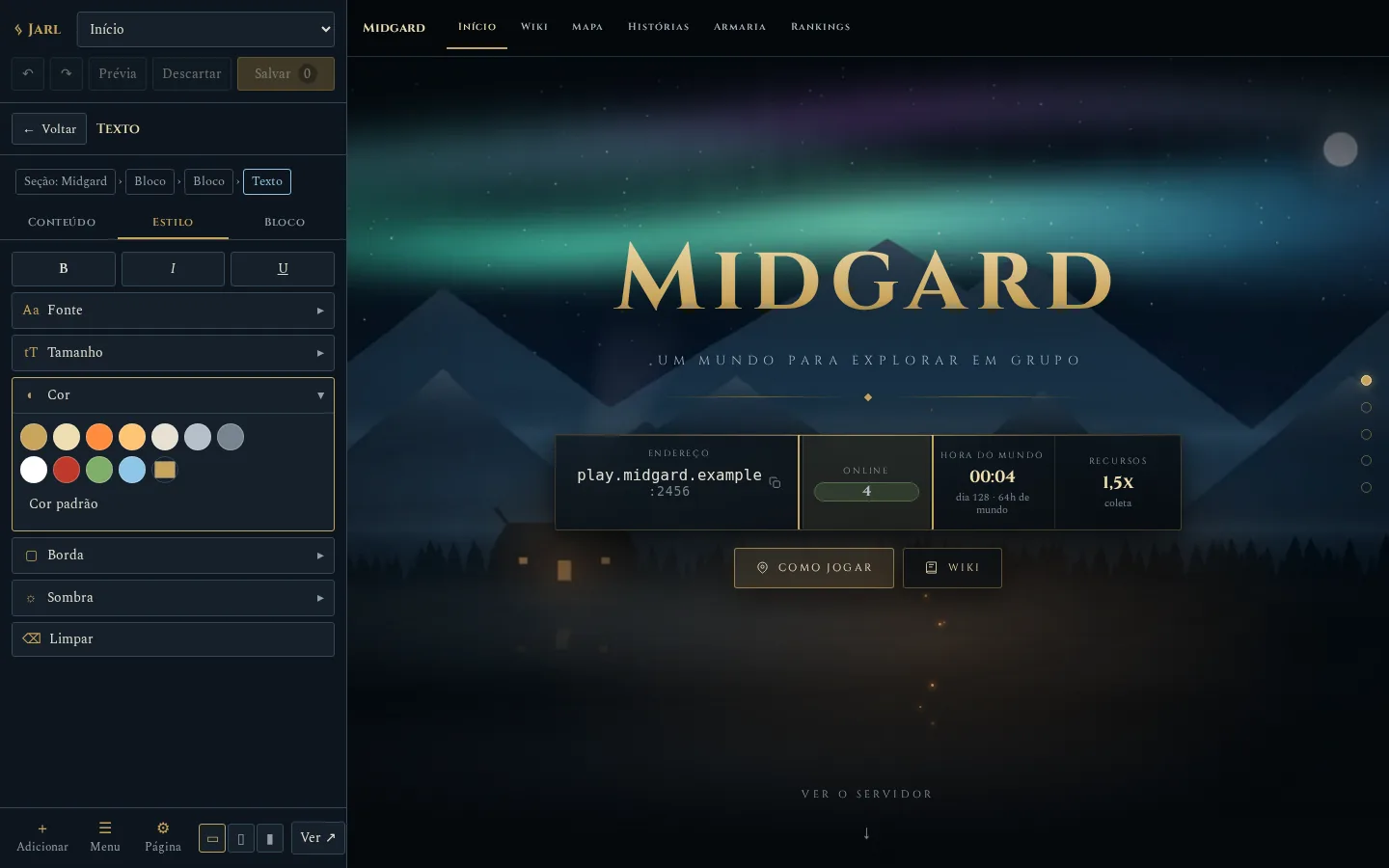
Click anything on the page and the sidebar shows only its tools. Details in Layout Editor.
A text selected, with the Style tools open: font, size, color, border and shadow.
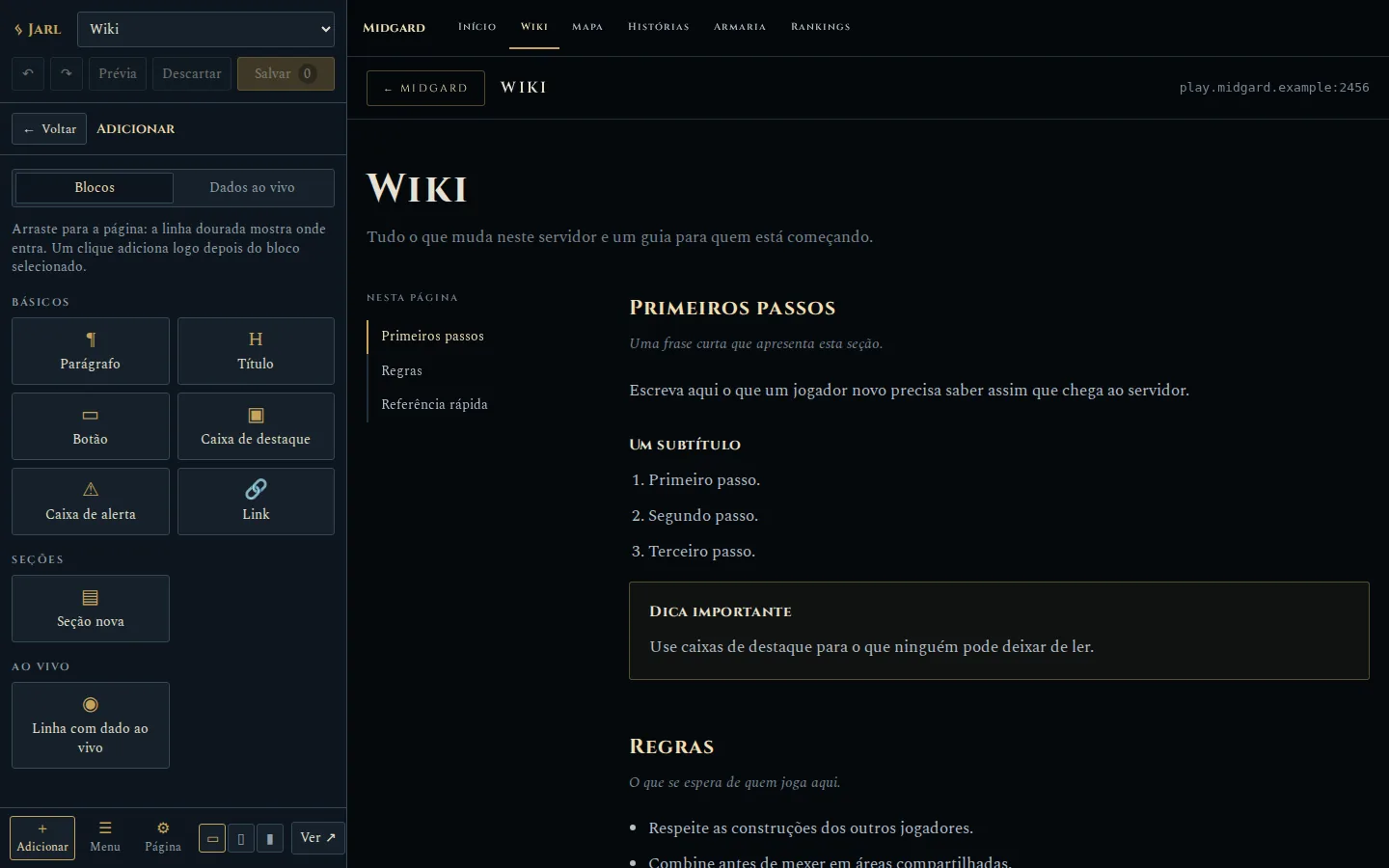
Ready-made blocks to drag onto the page, such as paragraphs, headings, buttons and highlight boxes.
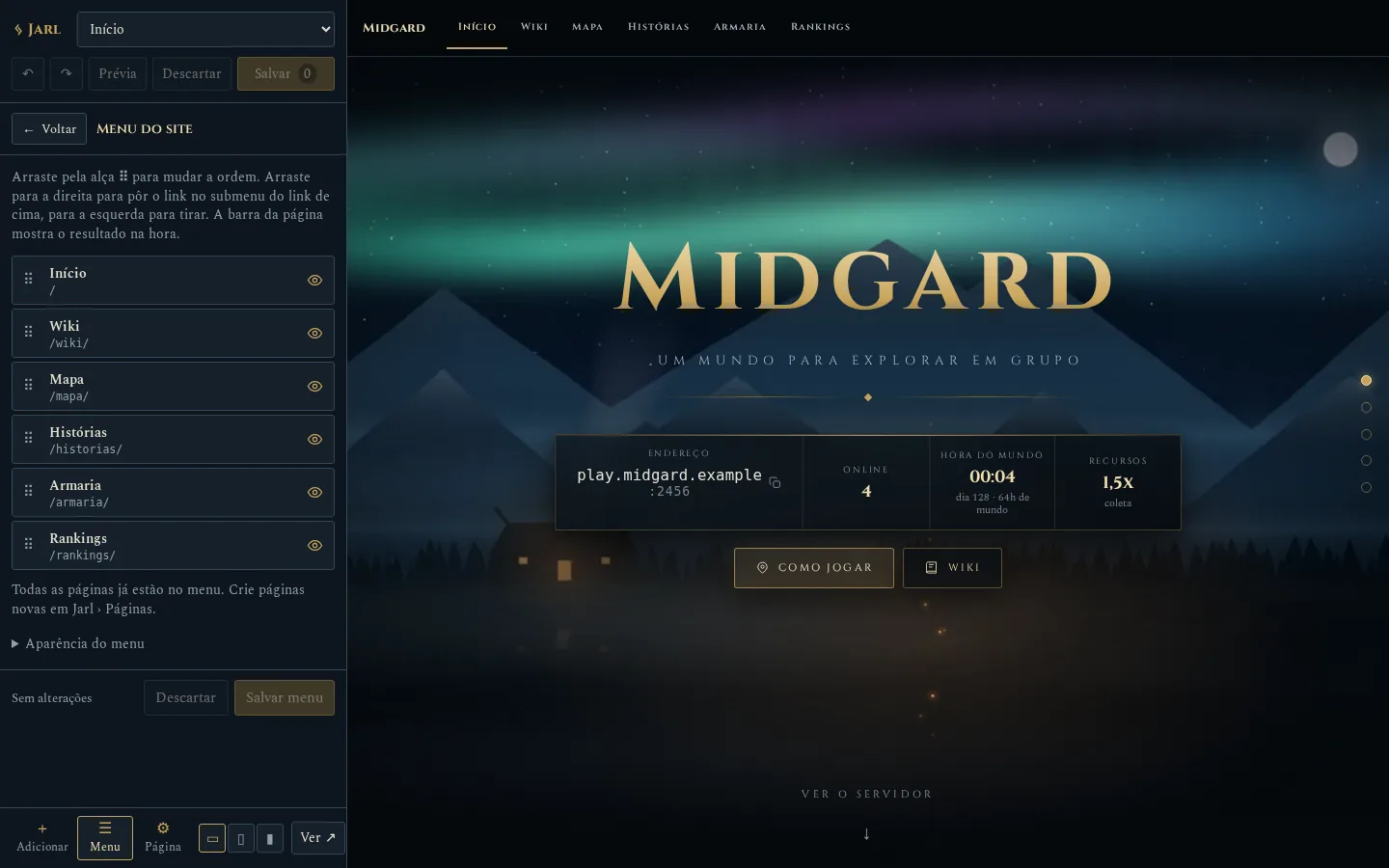
Drag links to reorder them or build submenus; the page menu bar shows the result right away.
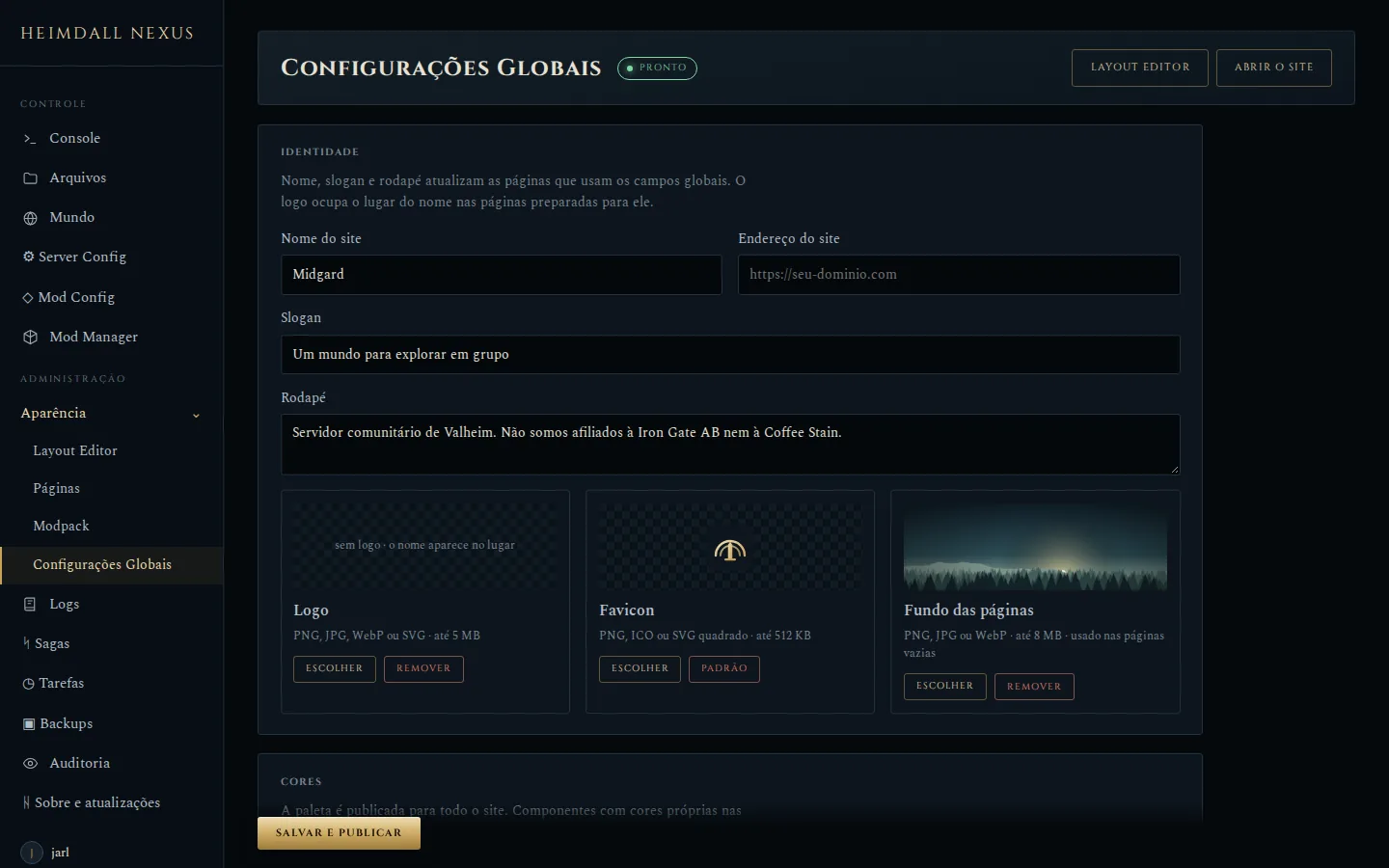
Name, slogan, footer, logo, favicon, background and colors for the whole site.
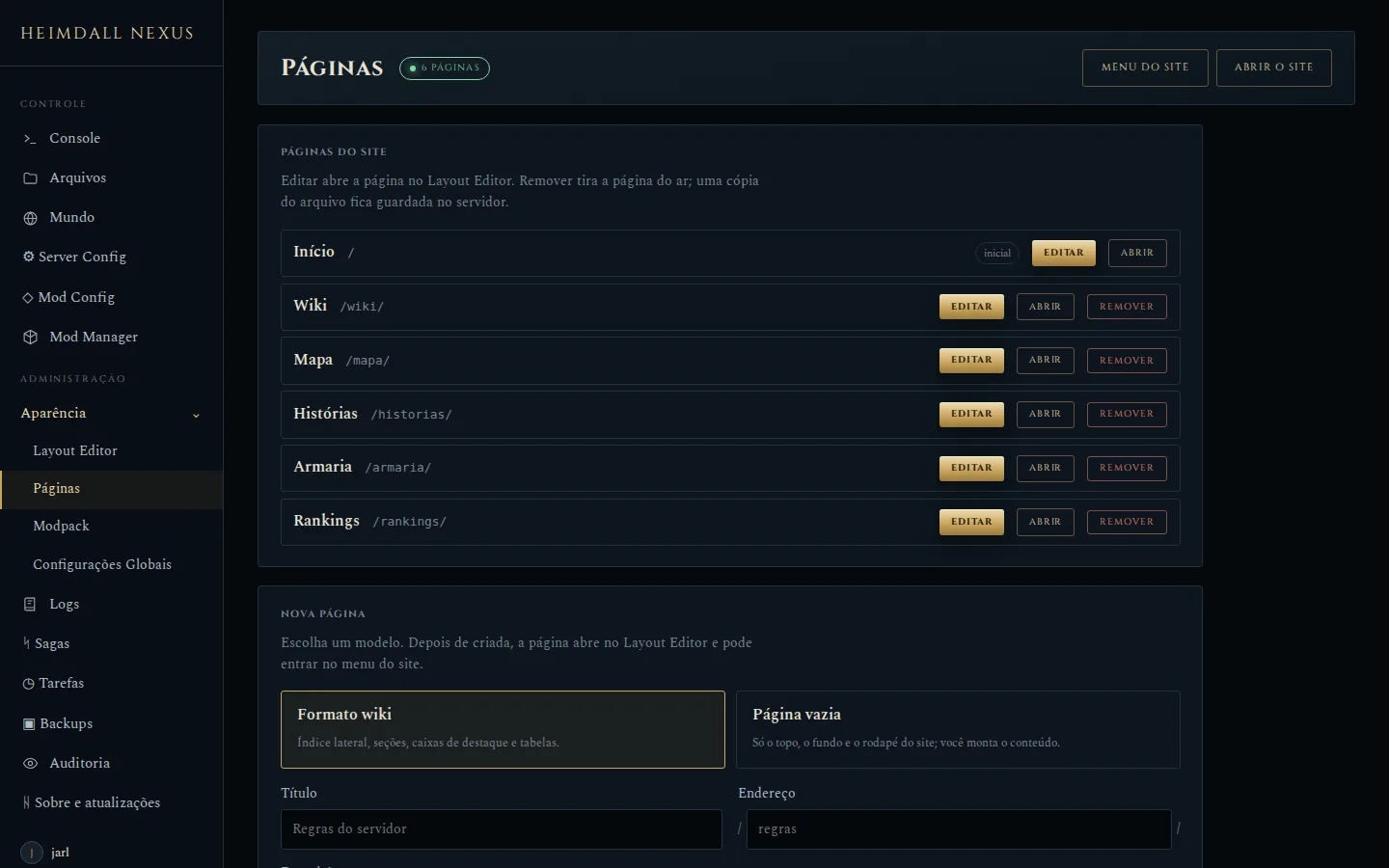
The site pages and new pages created from a template.