Repository navigation
GUI Quick Start
This page goes from an empty app to a hazard curve in eight steps. The screenshots come from the CHS-NA test savepoint that ships with the library (CHESS_Library/GUI/test_CHS-NA_data.zip, extratropical Peaks) and a sample rubble mound breakwater.
The GUI runs the same library functions as CHESS_Usage_Example.m and writes the same output folders (Model Outputs). For requirements and CHS downloads, see Getting Started.
In MATLAB, open CHESS_Library/GUI/CHESS_UI_canvas.mlapp and press Run. The app adds the library to the MATLAB path.

The window has two parts:
- Left panel. The Project Tree (project → PSE → alternative), the Project Navigation dropdowns, which follow the tree, and the Constants table (water density, gravity, and the offshore elevation once a storm database is loaded).
- Tabs. PSE Viewer, Storm DB Viewer, CHESS Run and Results Viewer.
The two menus do everything else:
| Menu | Items |
|---|---|
| Project Management | Create New Project · Import/Export Project · Add Project Element (PSE: Levee, Rubble Mound, Floodwall, Low Crested Breakwater; Alternative; Tides) · Remove Project Element |
| Storm Database Management | Add Storm Database (Import CHS Study (HDF5)) · Remove Storm Database |
Project Management → Create New Project.

| Field | What to enter |
|---|---|
| Project Name | Becomes the project folder name. |
| Project Path | The folder the project is created in. |
| Unit System |
SI or Imperial. |
| Vertical Datum | A label for plots and tables, e.g. NAVD88. |
| Project CLs (%) | Up to four confidence levels for hazard curves (e.g. 100 0 84 0 gives the 84% and 100% curves). Leave unused boxes at 0. |
The green lights turn on when a field is valid. Press Create Project. To share a project, use Import/Export Project: it reads or writes a project .mat or an exported .zip.
Project Management → Add Project Element → PSE → pick the structure type. The wizard opens with the library template for that type.

- Enter a PSE Name (the structure or transect) and an Alternative Name (a design option, e.g.
Existing). - Edit the Value column. The transect preview redraws after each edit. Elevations are signed and slopes are cot(α) (Model Conventions); each field is described in config_reference.
- Press Create PSE.
Add more design options with Add Project Element → Alternative. To compare designs, run each alternative separately.
Select an alternative in the Project Tree to see it in the PSE Viewer tab. The values can still be edited there.

The two buttons between the plot and the table open the table and the figure in their own windows.
Storm Database Management → Add Storm Database → Import CHS Study (HDF5).

-
CHS Zip Folder: the CHS download (
.zipof Peaks and/or Timeseries.h5files for the ADCIRC and wave savepoints). It also accepts a convertedCHS_Data.mat, or a storm + prob_mass.mat(the wizard then asks for the region, savepoint and uncertainties). The globe button opens the CHS website. -
CHS Study Dependencies Folder: the
CHS_Dependenciesfolder. It supplies the bias and uncertainty values, the probability masses for tropical storms, and the savepoint's offshore elevation. - Optional: Create WHP / WLP Storm DB (wave height or water level priority peaks; these need Timeseries).
- Enter a Storm DB Name and, if needed, a vertical offset to the project datum.
- Press Create Storm DB. Preview Study Details shows the study, datum and savepoint, and Plot Controls let you browse the storms.
- Press Import to Project.
The Storm DB Viewer tab shows any field of the database against another, and a table of the storms.

Project Management → Add Project Element → Tides downloads one year of NOAA tide predictions for a station. Use it when you want random tides added to the storm water levels.

Pick the station and datum and a start date. The end date is set for you (one year). Then press Get Data. The file is saved in the project's Tides folder, and you choose it as the Tide File on the Run tab.
Select the alternative in the Project Tree, then open the CHESS Run tab.

- Define Project Forcing: the storm database, the storm type (XC, TC or CC), the tide file, Apply Depth Limitation and Sea Level Change.
- Define CHESS Workflow: PROS-RB, Deterministic, LCS or PROS-FB (CHESS PROS, CHESS DET, CHESS LCS). The table below lists that workflow's own inputs (storm duration, AEP or AEF, life cycles, and so on).
- Define Project Responses & Data Types: tick the responses to compute. Only those valid for the PSE type are listed (PSE Hydraulic Responses). Also tick the data types: Peaks (expand it for the WLP/WHP datasets, when the database has them) and/or Timeseries.
- The status bar says whether a saved simulation exists for this alternative, workflow and storm database.
Press Run Simulation. A progress bar follows the library steps. When the run finishes, the status bar reports how it ran, and the results load into the Results Viewer.

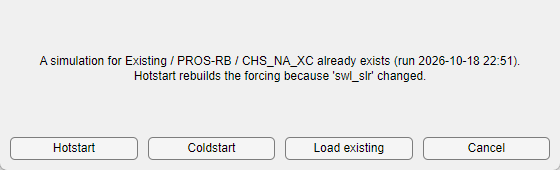
If a simulation already exists for the same alternative, workflow and storm database, the app asks what to do:
| Button | Effect |
|---|---|
| Hotstart | Reuses what has not changed. The message says what is reused and why (Hotstart Levels). Hidden when a hotstart is not possible. |
| Coldstart | Recomputes everything. |
| Load existing | Shows the saved results without running. |
| Cancel | Does nothing. |
When you switch to an alternative that has saved results, the app loads them. If your current inputs differ from the saved ones, it first asks Load or Keep current inputs.
The Results Viewer tab plots the loaded run.

Pick the Plot Type, then the storm type, data type, match type and Field To Plot (any computed response or forcing). Which plot types are offered depends on the workflow:
| Workflow | Plot types |
|---|---|
| PROS-RB, PROS-FB | Hazard Curve, Storm Event Viewer |
| Deterministic | Response vs Forcing, Response Table, Peaks vs Timeseries, Storm Event Viewer |
| LCS | Annual Response Distribution, Event Sampling Distribution, PSE Submergence Distribution, Sampling Scheme Dashboard, Storm Event Viewer; with armor damage: Slope Armor Damage, Damaging Instances Distribution, Final Damage State, Mound Damage Dashboard |
The two buttons under the plot open the table and the figure in their own windows.
The results are also saved on disk under <project>/PSE/<PSE>/<alternative>/<workflow>/ (Model Outputs), so the library and the visualization classes can read them.