Repository navigation
Home
Juvin works beside you. It rewrites the email you are drafting in Gmail or Outlook on the web, using the conversation it replies to, with a model on your own computer or network.
Select your draft, press Ctrl+Shift+F, and a menu of actions opens beside it. Pick one, and the draft changes in place. Ctrl+Z puts the original back.
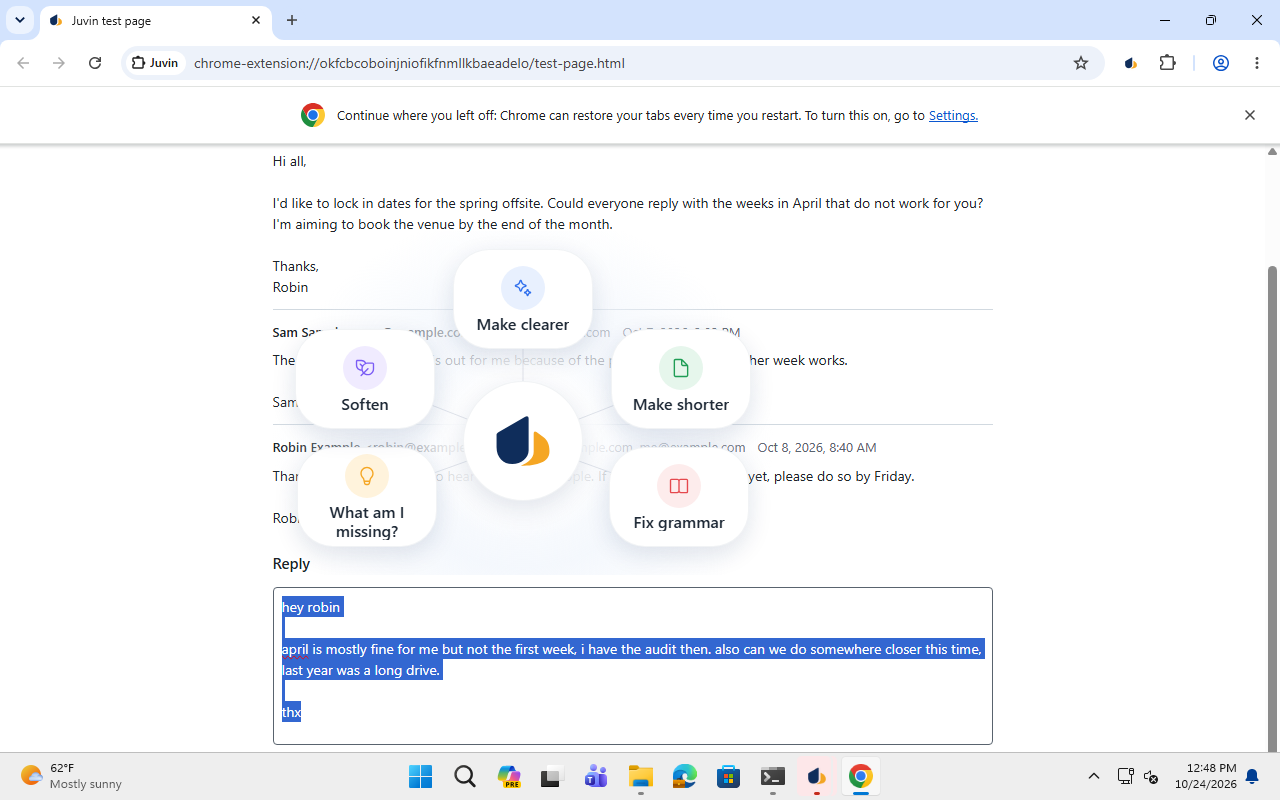
Juvin is free and open source under the GPL-3.0, and it runs on Linux, macOS, and Windows. It is in alpha: everything below works, and rough edges are expected. Please report them on the Issues page.
- The Juvin desktop app for your system, from the Releases page.
- The Juvin browser extension for Chrome or Firefox.
- A model to do the writing. Either a model server on your computer or network (Ollama, LM Studio, or llama.cpp), or the Codex CLI signed in to your ChatGPT account.
- Install Juvin on your computer.
- Add the Browser extension to Chrome or Firefox.
- Walk through the Setup wizard. It finds your model, connects your browser, checks your shortcut, and lets you try a rewrite on a sample email.
- Learn the action menu: five actions on the keys 1 to 5, your own requests, and Review.
- Choosing a model: local servers, servers on your network, and Codex.
- Settings: every section of the settings window.
- Troubleshooting: when the shortcut, the browser, or the model does not answer.
- Privacy: what Juvin reads, where it goes, and what it keeps.