Repository navigation
Using Juvin
- In Gmail or Outlook on the web, reply to a message or start a new one, and write your draft.
- Select the text you want rewritten: a line, a paragraph, or the whole draft.
- Press Ctrl+Shift+F (the Control key on a Mac too). The action menu opens beside the draft.
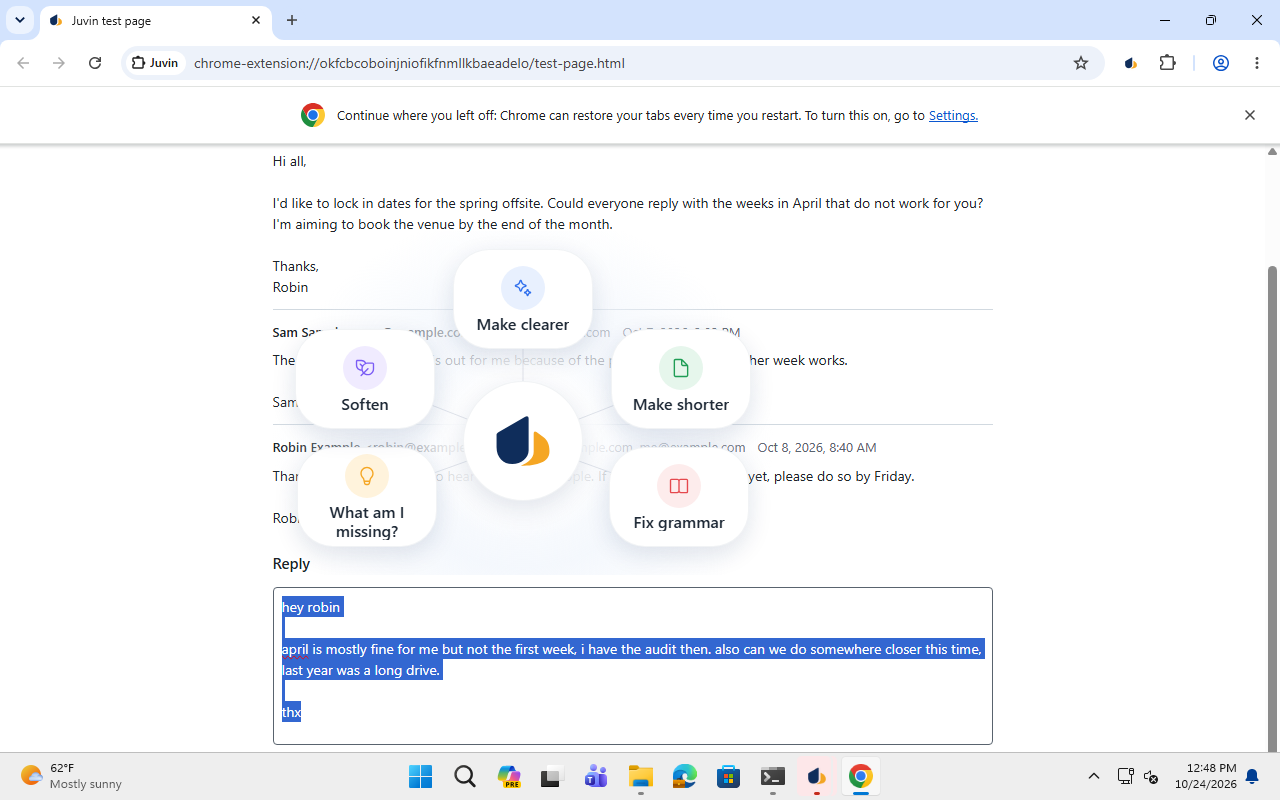
- Press a number key, or click an action:
| Key | Action | What it does |
|---|---|---|
| 1 | What am I missing? | Compares your draft with the requests and questions in the thread and lists what it does not answer yet. It gives advice and leaves your draft alone. |
| 2 | Soften | Warmer and more courteous, without weakening any request, deadline, or commitment. |
| 3 | Make clearer | Leads with the main point and tidies the structure. |
| 4 | Make shorter | Cuts filler and repetition, keeps every fact. |
| 5 | Fix grammar | Spelling, grammar, punctuation, and capitals only. |
When the rewrite is ready, it replaces your selection in place. A note says so, and Ctrl+Z (Cmd+Z on a Mac) in the editor puts your original text back.
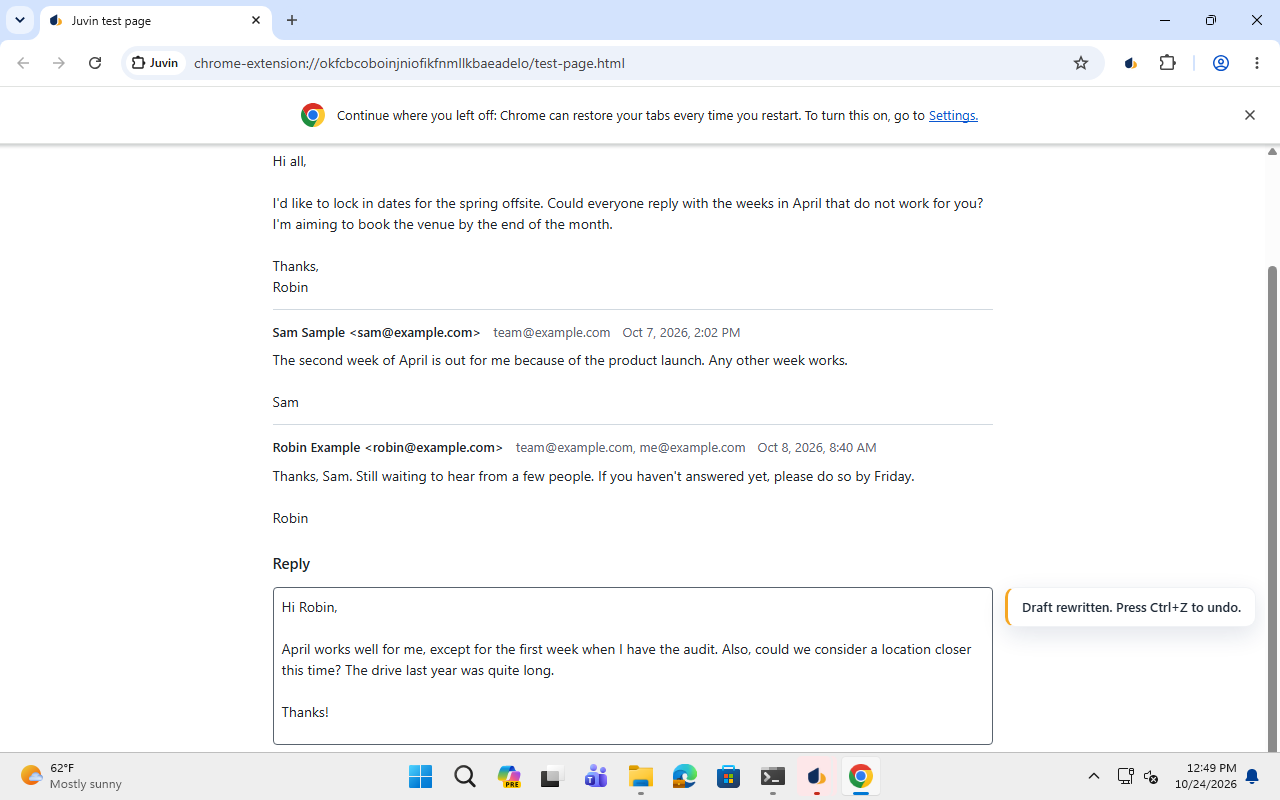
Juvin reads the whole conversation, including messages Gmail has collapsed, so the rewrite keeps the deadlines, names, and promises already in the thread. It only ever changes your draft.
In Outlook, Juvin reads the messages that are open on the page. When some are collapsed, the right-click list says Loaded messages only and how many it skipped; open them before you press the shortcut if they matter. A reply in its own tab or window carries the earlier message quoted below it, and Juvin reads that, also after Outlook moves it into the editor.
If Gmail or Outlook changes its page so that Juvin no longer recognizes the draft editor, Juvin still rewrites the text you selected and uses the page's visible text as the conversation. The right-click list then says Visible text only.
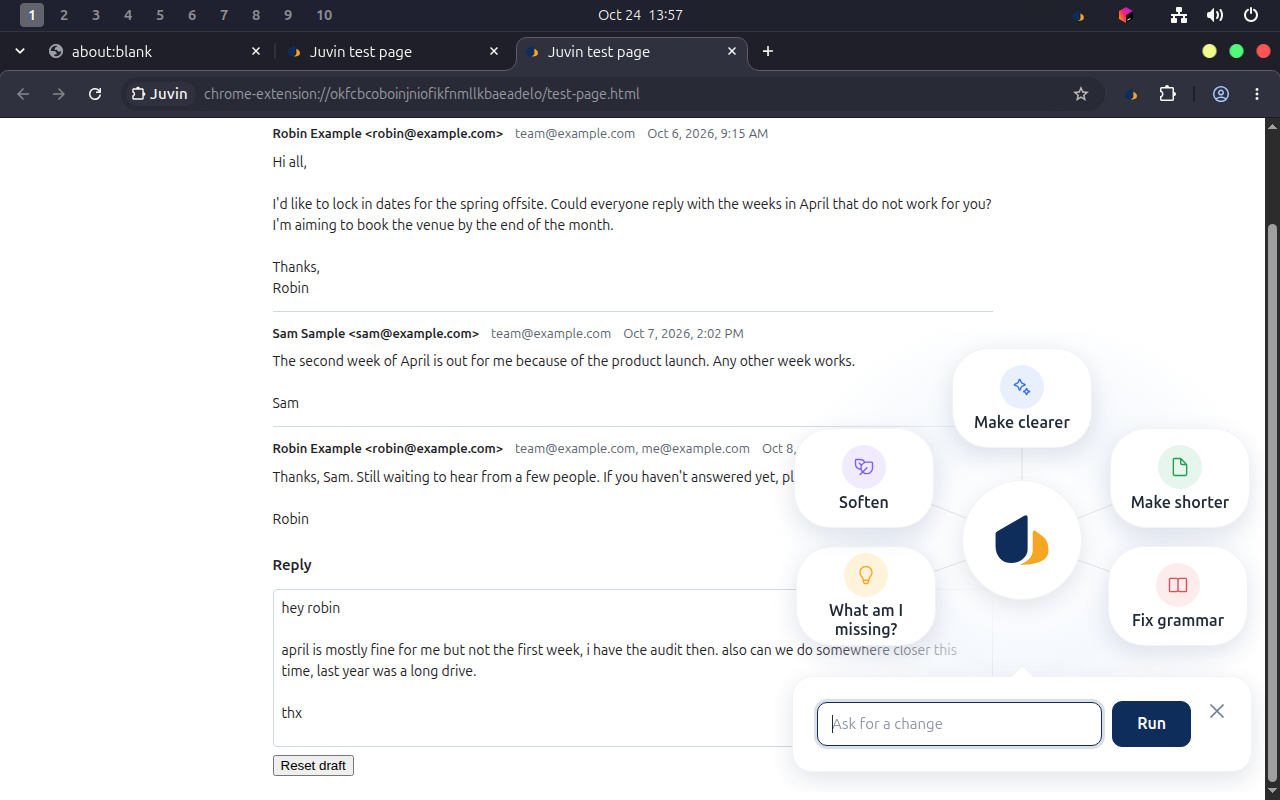
Click the Juvin mark in the middle of the menu and type a request in your own words, such as "make it more formal" or "turn this into three bullet points", then press Run.
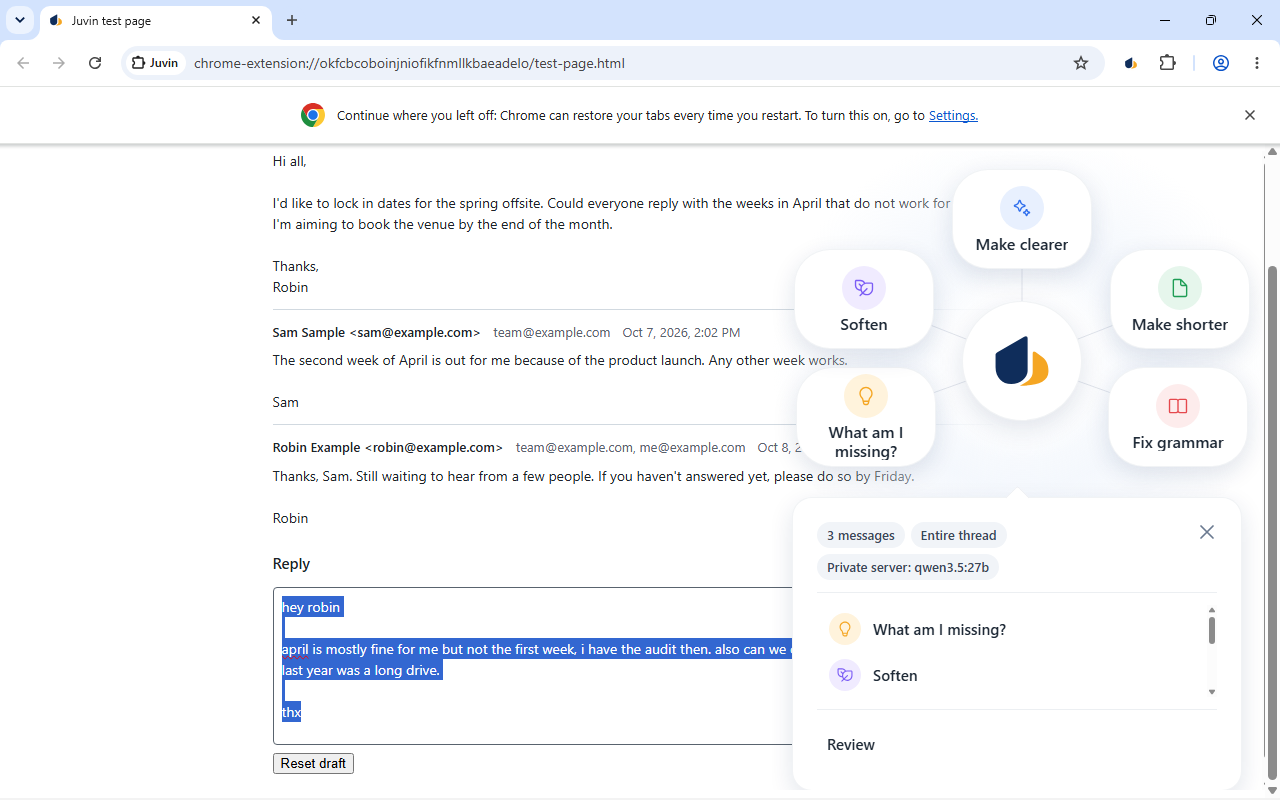
Right-click the Juvin mark for the full list. At the top it shows what Juvin read (how many messages, whether it got the entire thread) and which model it will use. Below are all your actions, including any you added in Rewrite actions, and Review.
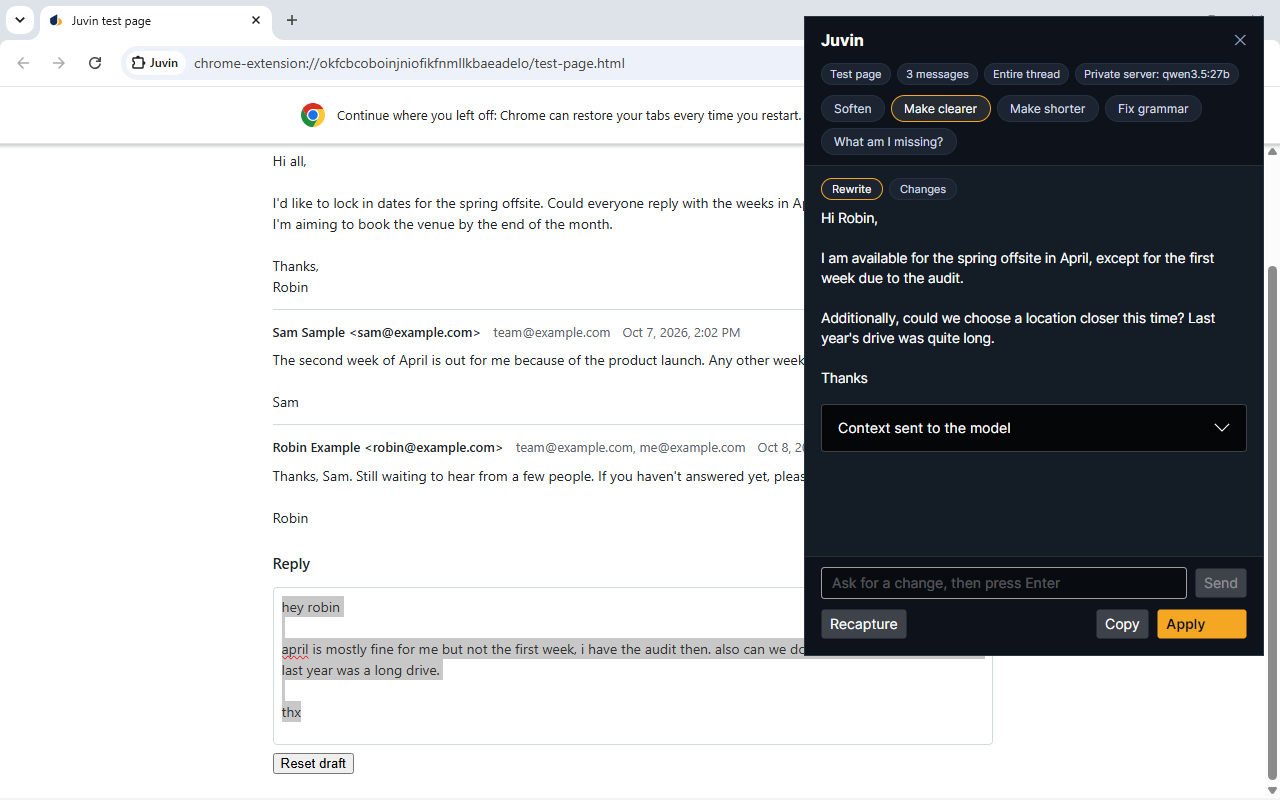
Review opens the rewrite in a panel at the top right of your screen instead of applying it straight away. Pick an action at the top, read the result, open Changes to see what changed, or type a follow-up such as "keep the second sentence as it was". Press Apply to put it into your draft, or Copy to take it to the clipboard.
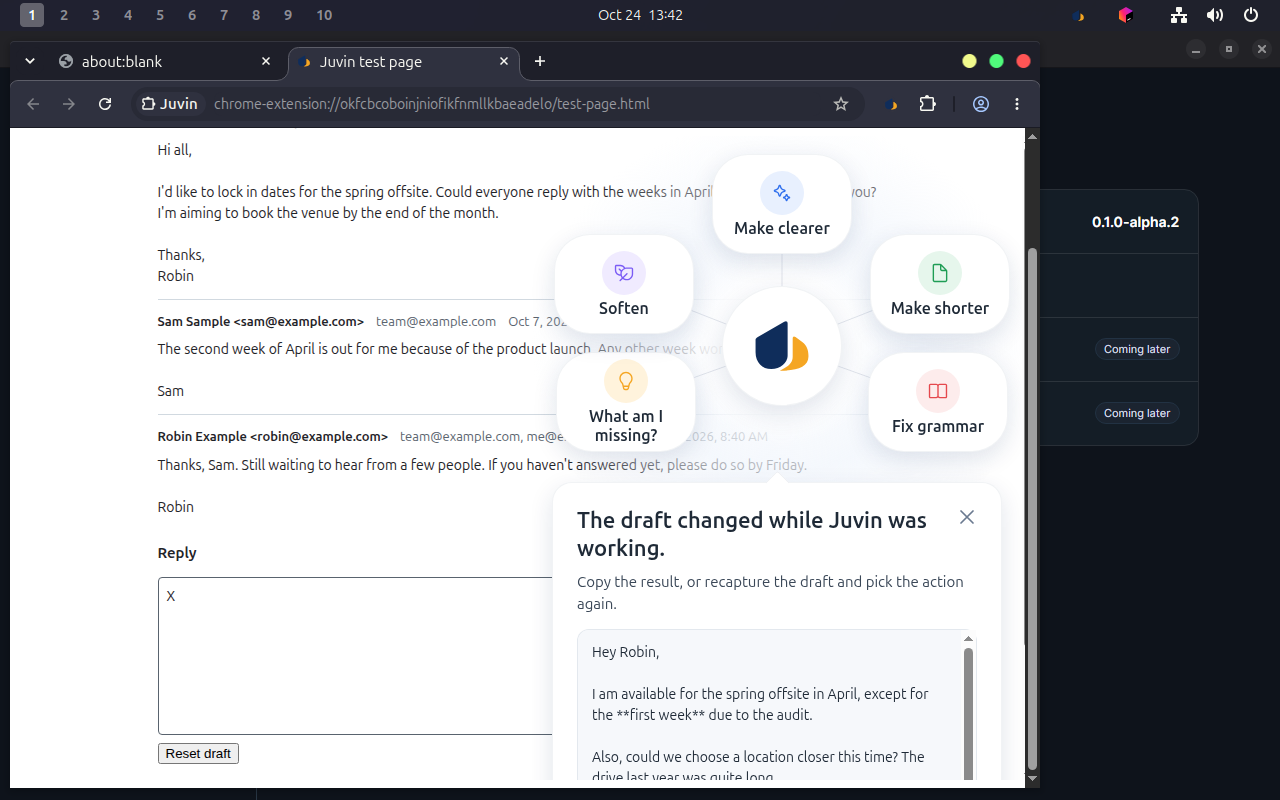
- You keep typing while Juvin works. Juvin will not overwrite a draft that changed after you pressed the shortcut. It shows the rewrite with Copy and Recapture: copy it, or select your draft again and press Recapture to start over.
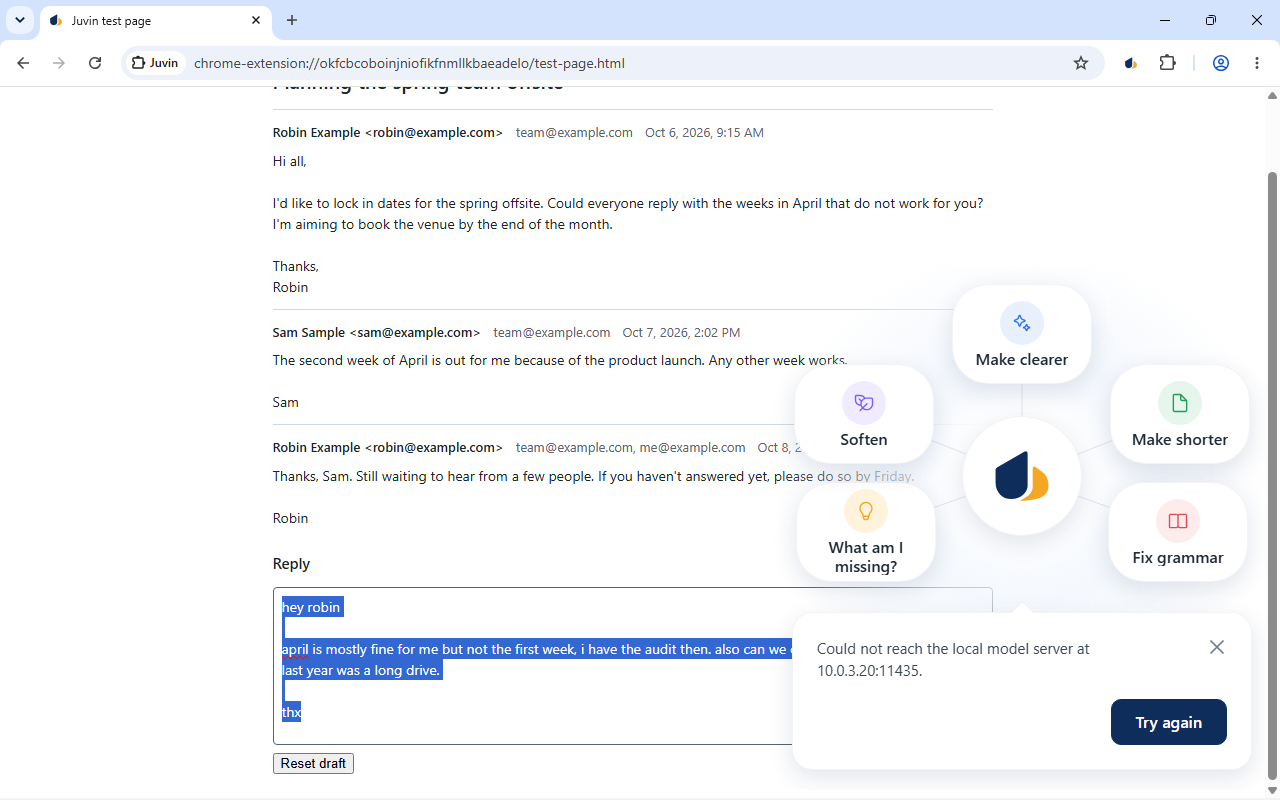
- The model server cannot be reached. The menu says so and offers Try again. Your draft is untouched. In Local mode Juvin never falls back to a server on the internet; see Troubleshooting.
- Escape closes the menu at any time and cancels a rewrite in progress. Your draft stays as it was.
Juvin works in Gmail and Outlook on the web out of the box. To use it in email editors on other sites, see Browser extension.