Repository navigation
Installing
Download the file for your system from the newest release on the Releases page. Each one includes the small helper program the browser extension talks to, so there is nothing else to install from there.
| System | File |
|---|---|
| Windows 10 or 11 (64-bit) | Juvin-<version>-x64-setup.exe |
| macOS 12 or later on Apple silicon | Juvin-<version>-arm64.dmg |
| Ubuntu, Debian, and others using deb | juvin_<version>_amd64.deb |
| Fedora, openSUSE, and others using rpm | juvin-<version>-1.x86_64.rpm |
| Any other 64-bit Linux | Juvin-<version>-x86_64.AppImage |
While Juvin is in alpha, its Start menu and Linux menu entries read Juvin (Alpha).
- Run the setup file. Juvin installs for your account only, under
%LOCALAPPDATA%\Programs\Juvin, and does not ask for administrator rights. - The installer is not code-signed yet, so Windows SmartScreen may say "Windows protected your PC". Click More info, then Run anyway.
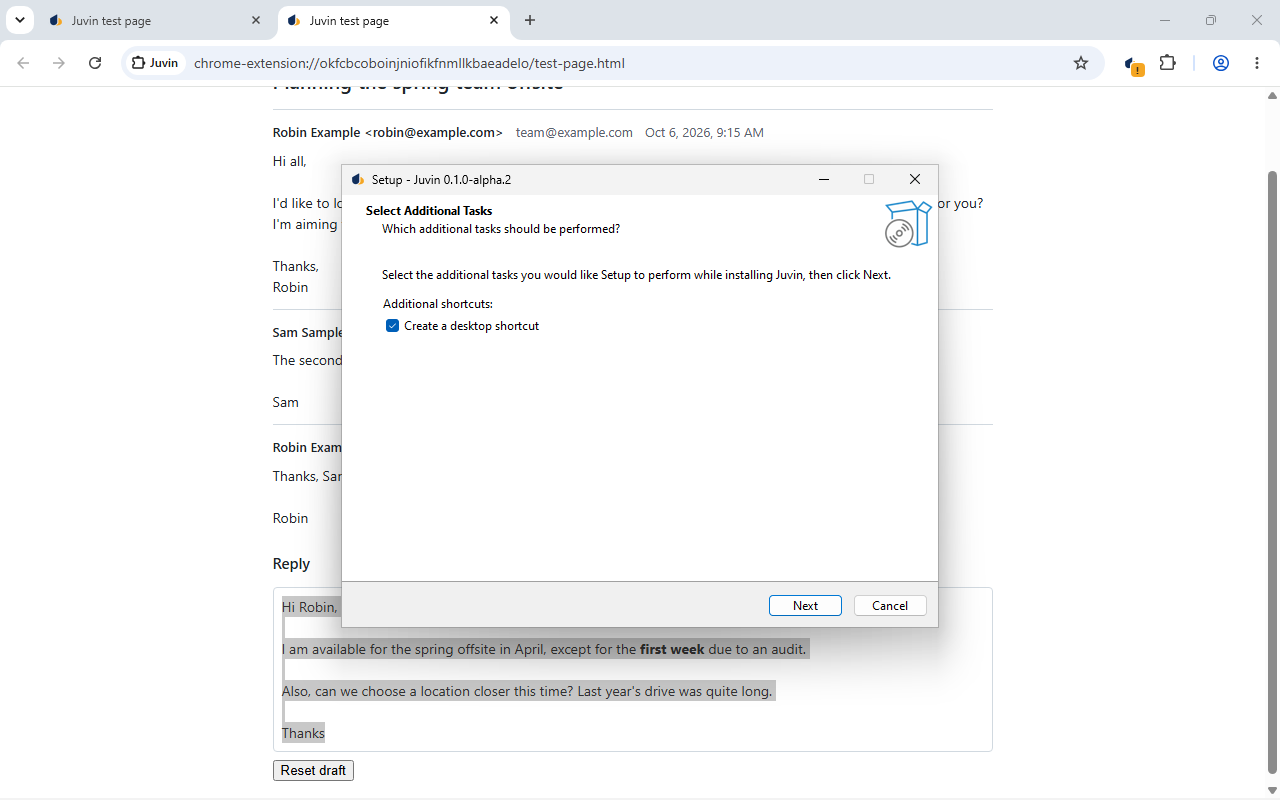
- Choose whether you want a desktop shortcut, then Install.
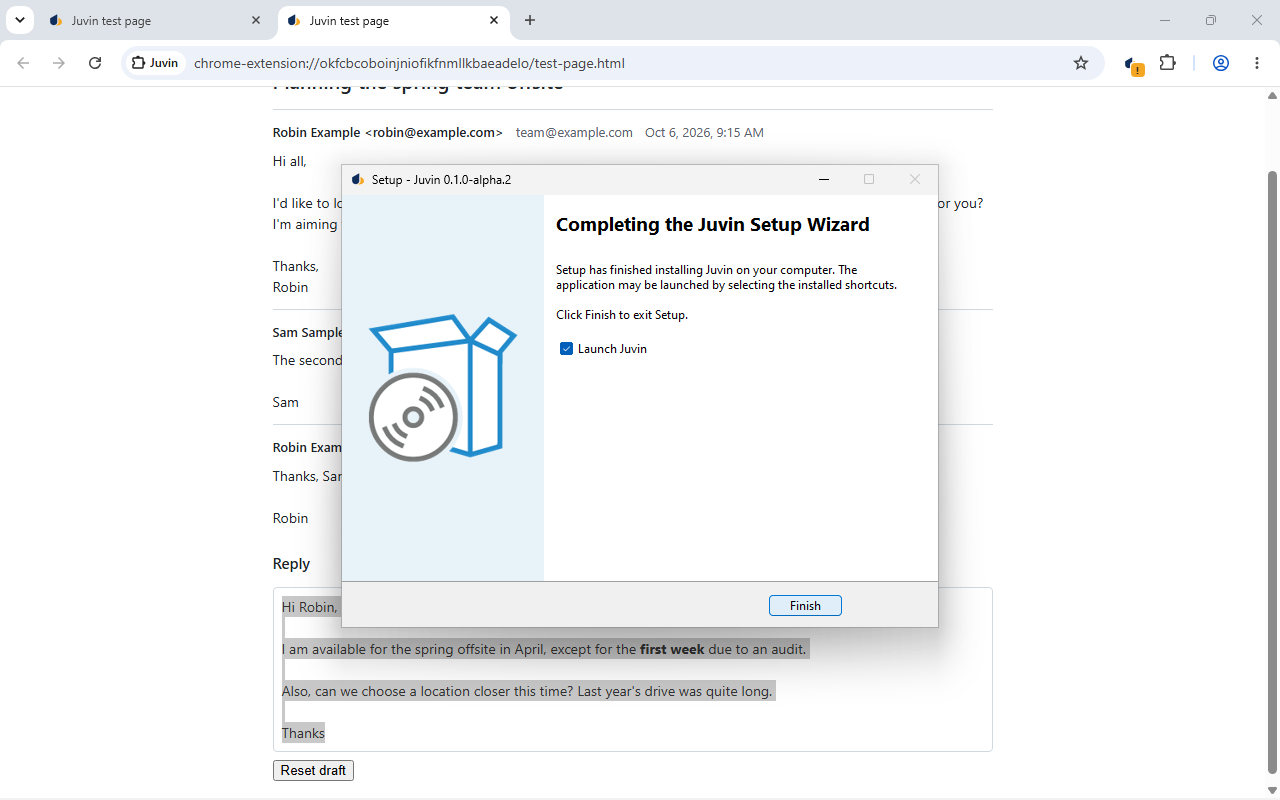
- Leave Launch Juvin ticked and click Finish. The Setup wizard opens.
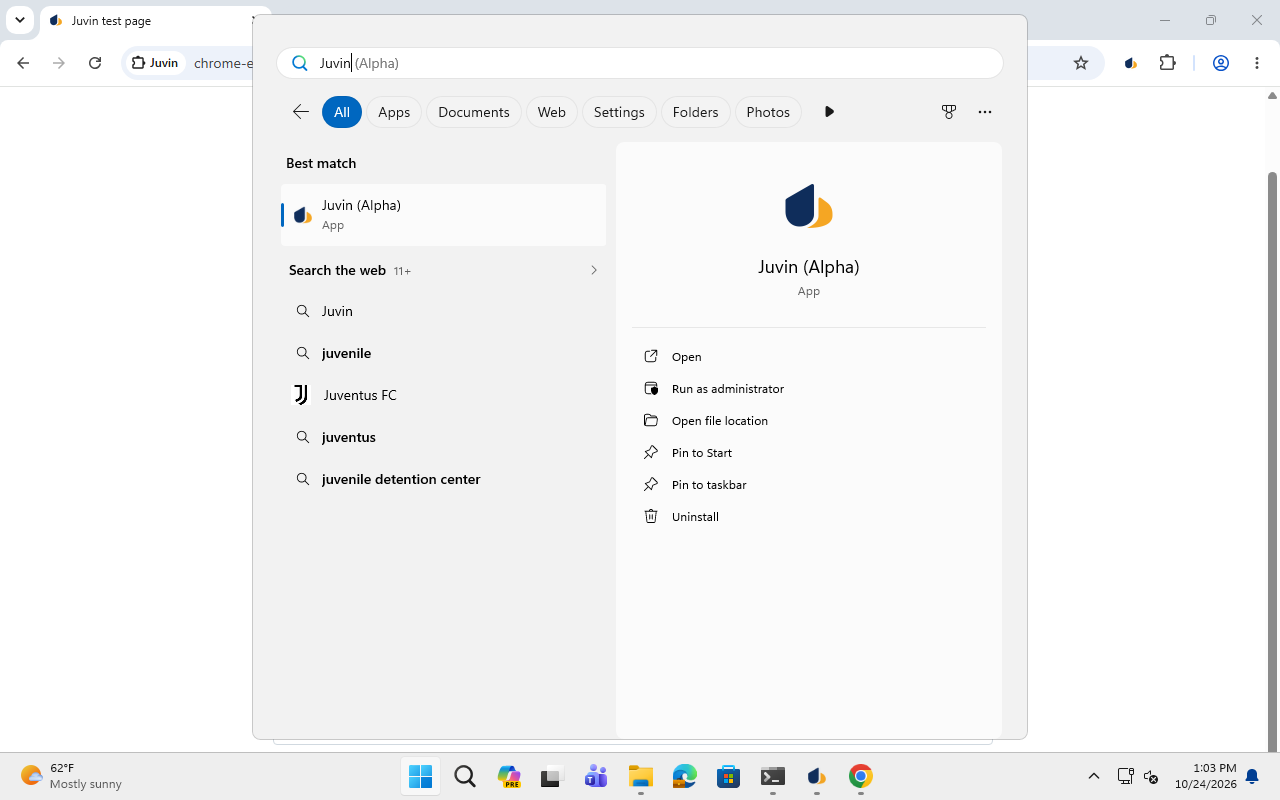
Juvin is then in the Start menu, and under Settings, Apps, Installed apps:
Updating: run the newer setup file. If Juvin is running, setup asks you to quit it from the tray icon first. Your settings stay.
Removing: uninstall Juvin (Alpha) from Installed apps. Your settings and history stay in %LOCALAPPDATA%\Juvin; delete that folder too if you want them gone, or use Delete all data in Settings first.
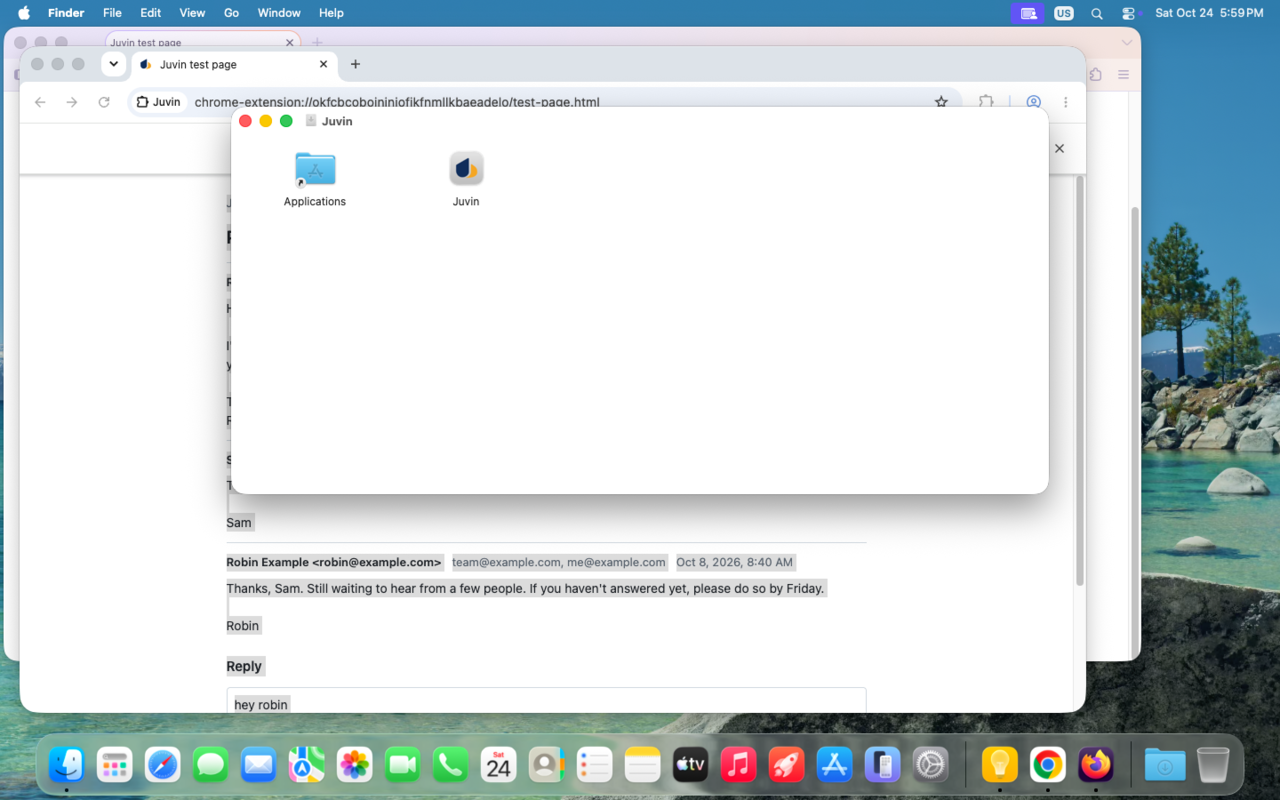
- Open the dmg and drag Juvin onto Applications.
- Open Juvin from Applications. Juvin is not notarized by Apple yet, so the first time macOS says it cannot verify the app. Click Done.
- Open System Settings, Privacy & Security. Next to "Juvin was blocked to protect your Mac", click Open Anyway, then confirm with your password. Juvin opens, and macOS does not ask again.

- The Setup wizard asks for the Accessibility permission, which the shortcut needs.
Updating: quit Juvin from its menu bar icon, then drag the new version onto Applications and replace the old one.
Removing: first use Delete all data in Settings to remove the launch-at-login entry, then quit Juvin and move it from Applications to the Bin. Your settings are in ~/Library/Application Support/Juvin.
deb (Ubuntu, Debian, Linux Mint, Pop!_OS):
sudo apt install ./juvin_<version>_amd64.deb
rpm (Fedora, openSUSE):
sudo dnf install ./juvin-<version>-1.x86_64.rpm
Both install Juvin under /opt/juvin and add Juvin (Alpha) to your application menu.
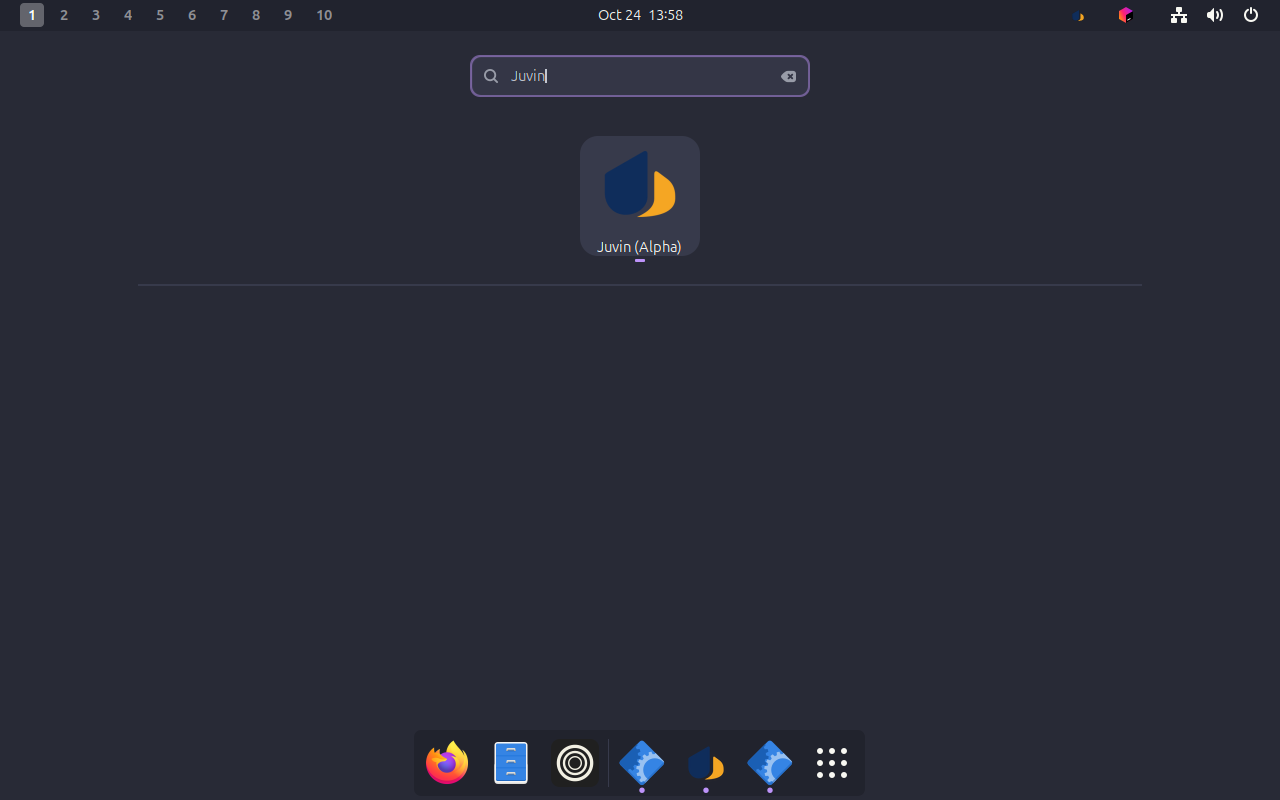
AppImage: make it executable and run it from a folder where it can stay, such as ~/Applications:
chmod +x Juvin-<version>-x86_64.AppImage
./Juvin-<version>-x86_64.AppImage
The first start adds Juvin to your application menu. If you move the AppImage later, run it once from its new place.
Juvin shows an icon in the system tray where your desktop has one. On GNOME that needs the AppIndicator extension, which Ubuntu includes. Without a tray, closing the window quits Juvin. Where the tray icon has no menu, such as Sway with swaybar, quit from Settings, General, Quit Juvin.
Updating: install the newer deb or rpm the same way, or replace the AppImage with the new one.
Removing: first use Delete all data in Settings, which removes the shortcut Juvin registered with your desktop and the launch-at-login entry. Then sudo apt remove juvin or sudo dnf remove juvin, or delete the AppImage. Your settings are in ~/.local/share/Juvin.
Add the Browser extension, then walk through the Setup wizard.