Repository navigation
Settings
Open the settings window from the tray icon (the menu bar icon on a Mac) with Open Juvin, or start Juvin again from your application menu.
Whether Juvin is ready: the browser connector, the model, and the shortcut, each with its state. Recent rewrites lists your last rewrites when history is on. Open setup wizard runs the Setup wizard again.
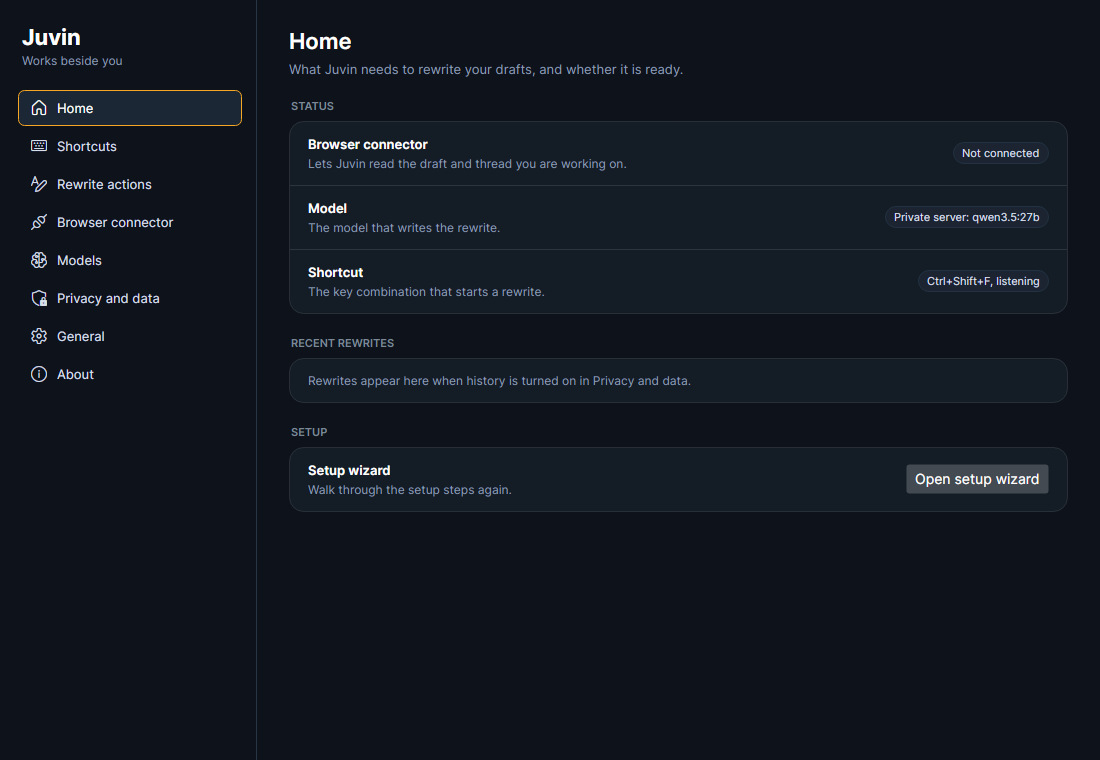
- Rewrite shortcut: click it and press the keys you want. Ctrl+Shift+F by default.
- Shortcut service: how this computer delivers the shortcut to Juvin. Automatic picks the best one. On Linux you can also choose Keyboard devices (needs keyboard access, see the Setup wizard) or Desktop shortcut, which adds the shortcut to your desktop's own keyboard settings (GNOME, KDE, Hyprland, and Sway).
- Test: press the shortcut; Juvin shows Detected when it hears it.
Edit what each built-in action asks the model to do, and Reset one to its original wording. Below them, add actions of your own. Your actions appear in the right-click list of the action menu and in Review.

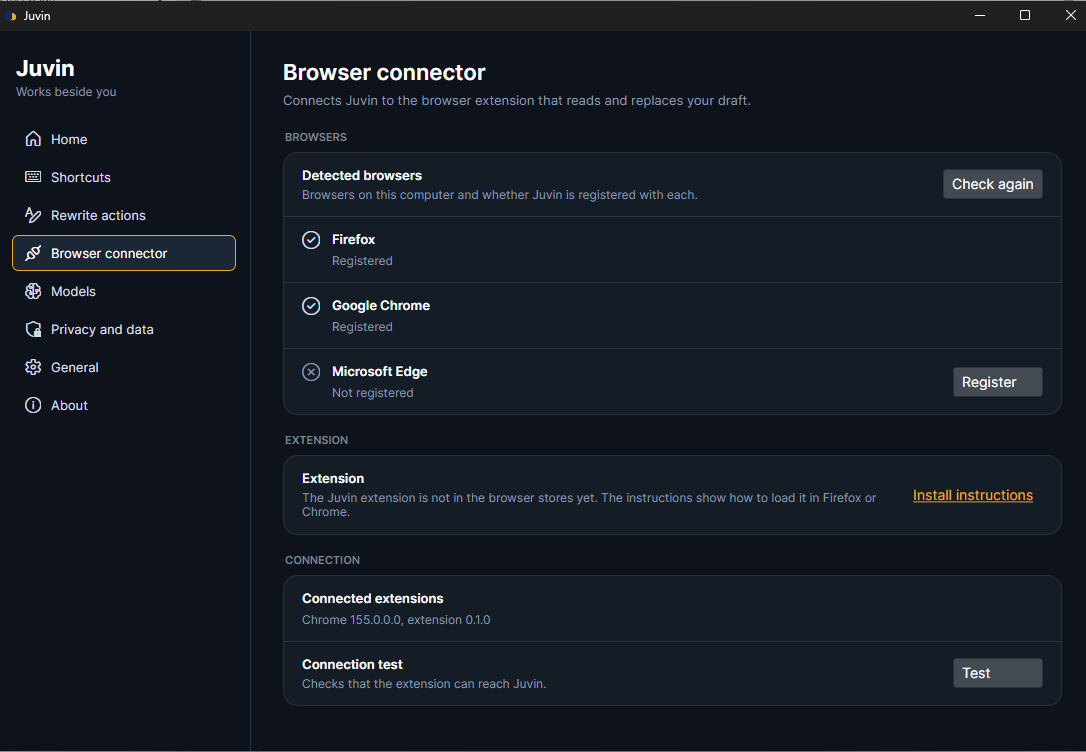
Which browsers Juvin is registered with, which extensions are connected now, and Test, which checks that the extension can reach Juvin. Press Register or Update on a browser's row if it is not ready.
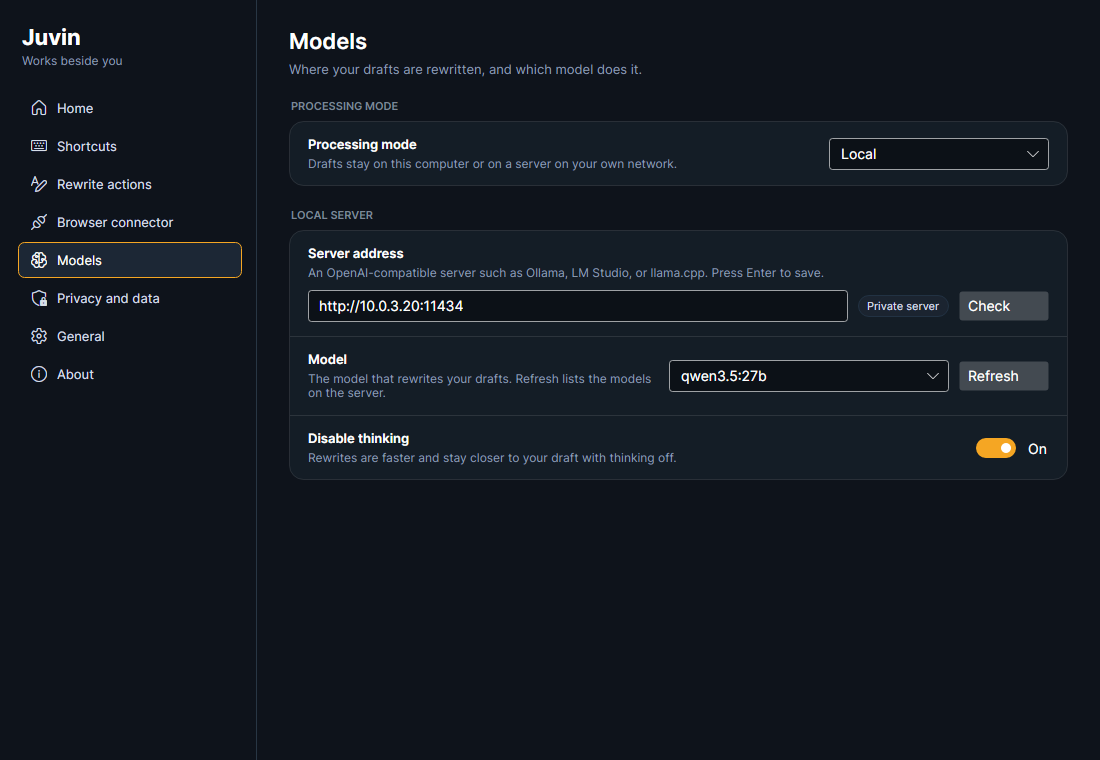
Processing mode, the server address and model in Local mode, and the Codex status in Codex mode. See Choosing a model.
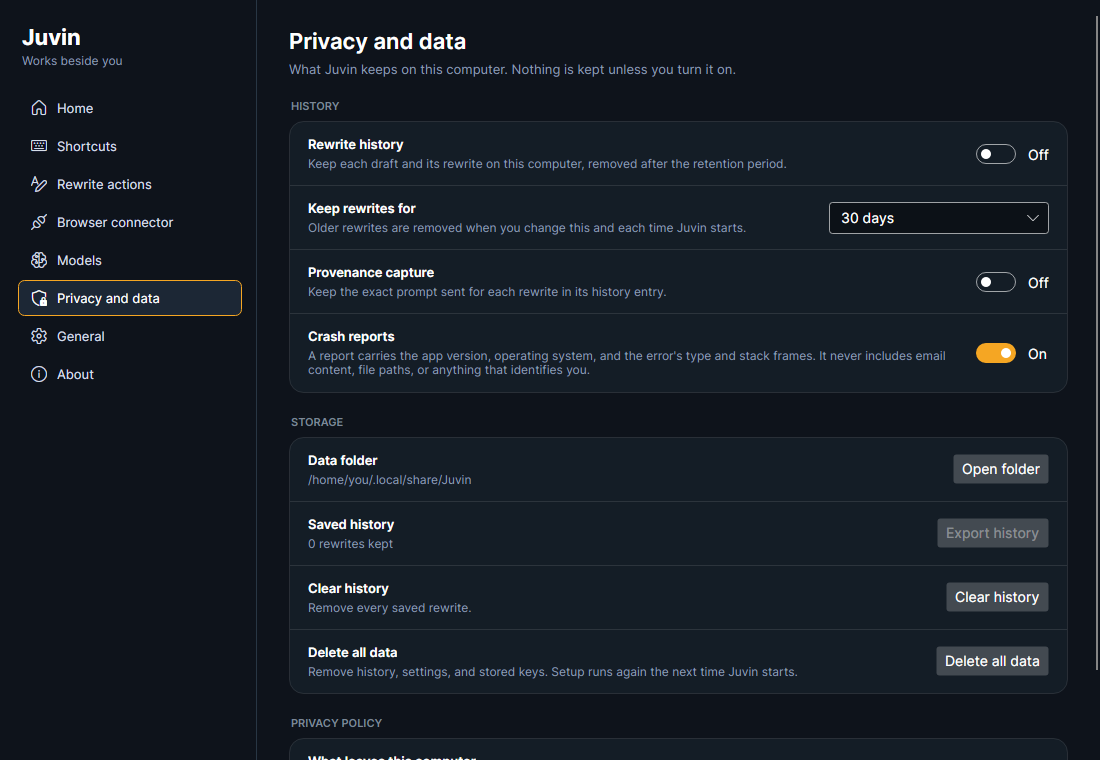
- Rewrite history: off by default. When on, each draft and its rewrite are kept on this computer for the time you choose under Keep rewrites for, then removed.
- Provenance capture: off by default. Keeps the exact prompt sent for each rewrite in its history entry.
- Crash reports: see Privacy.
- Data folder: where Juvin keeps its settings and history. Export history, Clear history, and Delete all data, which removes history, settings, stored keys, the launch-at-login entry, the shortcut registered with your desktop, and Juvin's logs; setup runs again the next time Juvin starts.
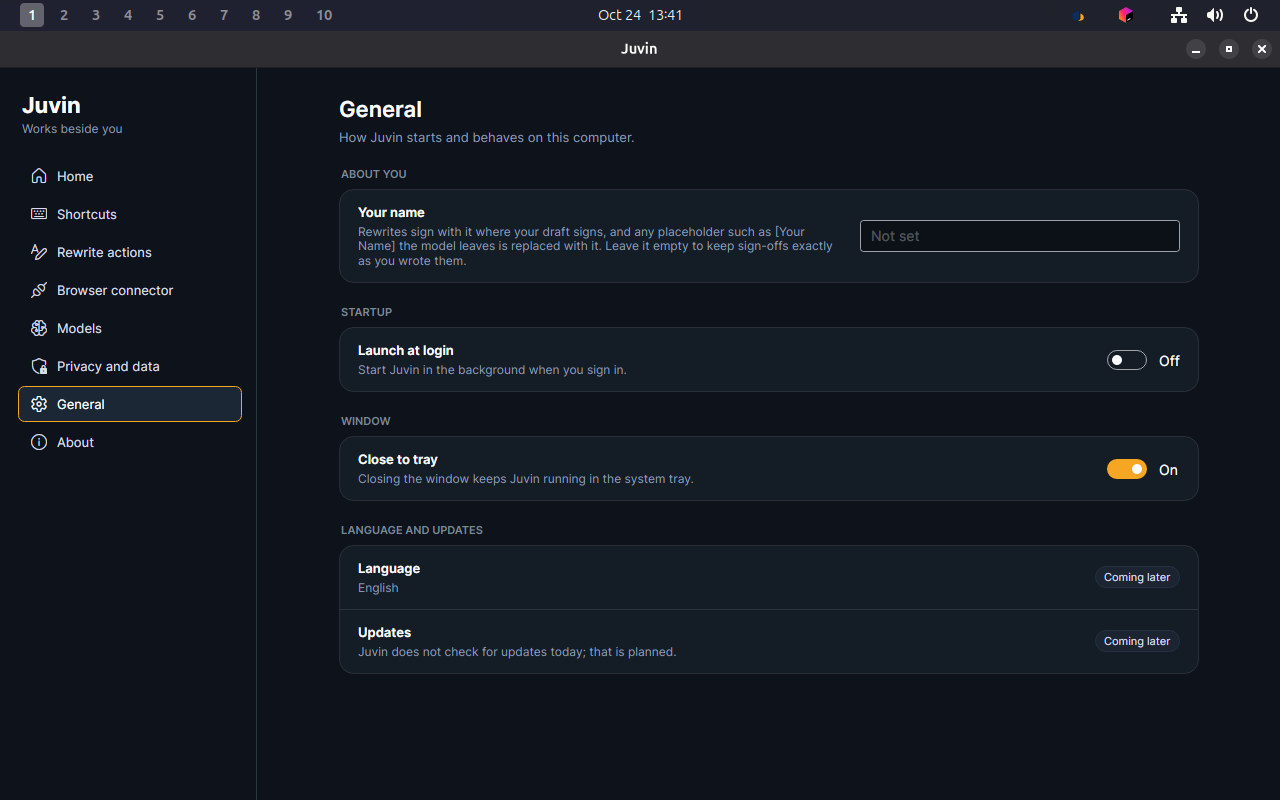
- Your name: Juvin signs with it where your draft signs, and fills in placeholders such as [Your Name] the model leaves. Leave it empty to keep sign-offs as you wrote them.
- Launch at login: start Juvin in the background when you sign in.
- Close to tray: closing the window keeps Juvin running in the tray.
- Quit Juvin: stops Juvin and its shortcut, the same as Exit in the tray menu. Use it where the tray has no menu, such as Sway with swaybar.
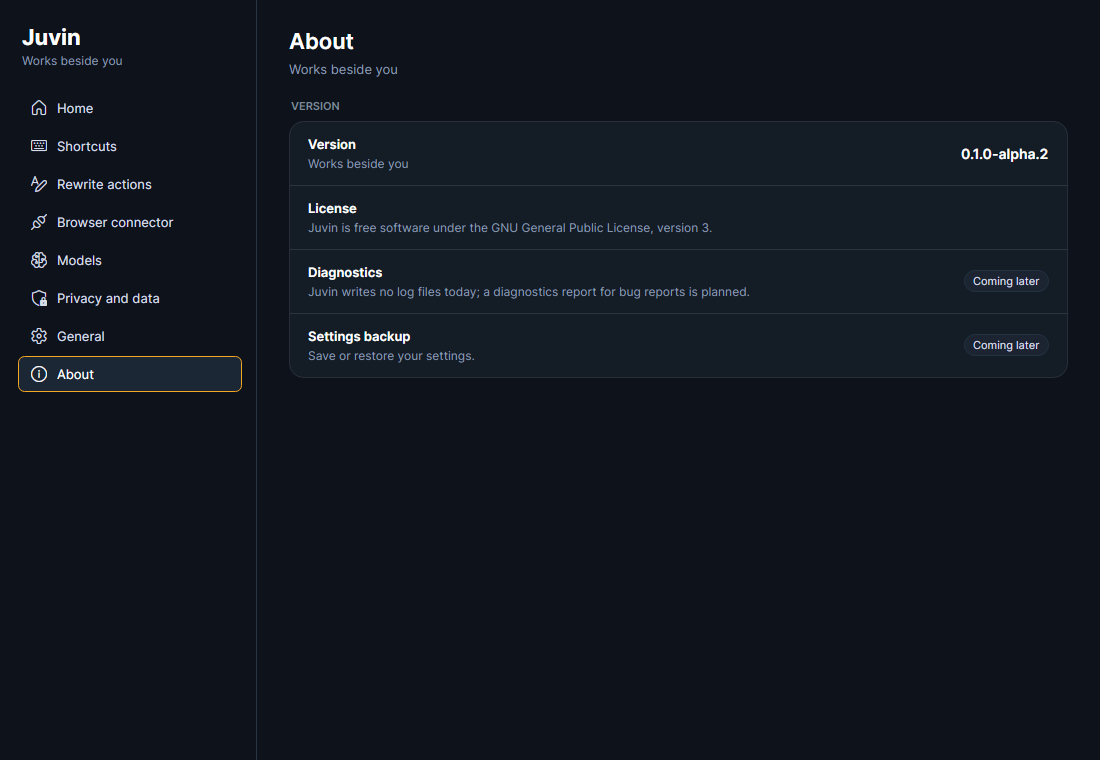
The version you are running and the license.