Repository navigation
Setup Wizard
The setup wizard opens the first time Juvin starts. It has seven steps, and you can leave and come back: Juvin reopens it at the step you stopped on. To run it again later, open Settings, Home and press Open setup wizard.
Choose whether Juvin sends a crash report when it crashes. A report carries the app version, your operating system, and the error's type and stack frames, never your email, file paths, or anything that identifies you. It is on by default, and you can change it later in Privacy and data.

Local keeps your email on this computer or on a server on your own network. Codex uses the Codex CLI you are signed in to with your ChatGPT account. Choosing a model compares them.
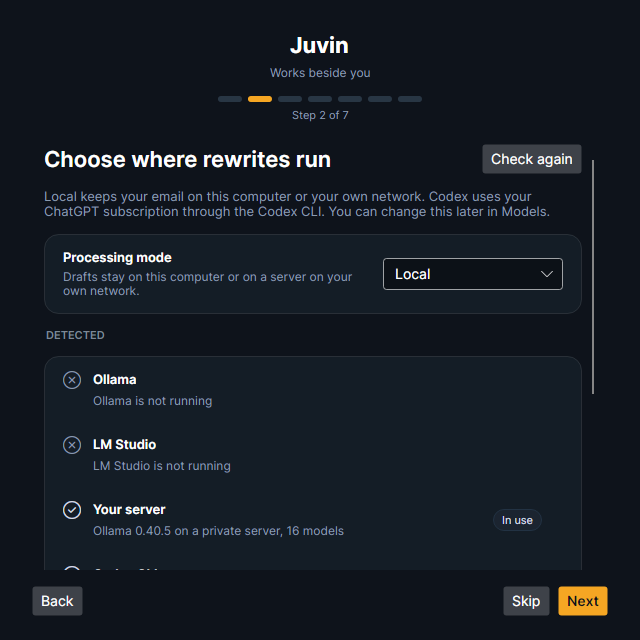
In Local mode, Juvin looks for Ollama and LM Studio on this computer. If your server runs on another computer, type its address under Your server, for example http://192.168.1.20:11434, and press Enter. Juvin then suggests a model from that server; press Use this model, or pick another later in Models.
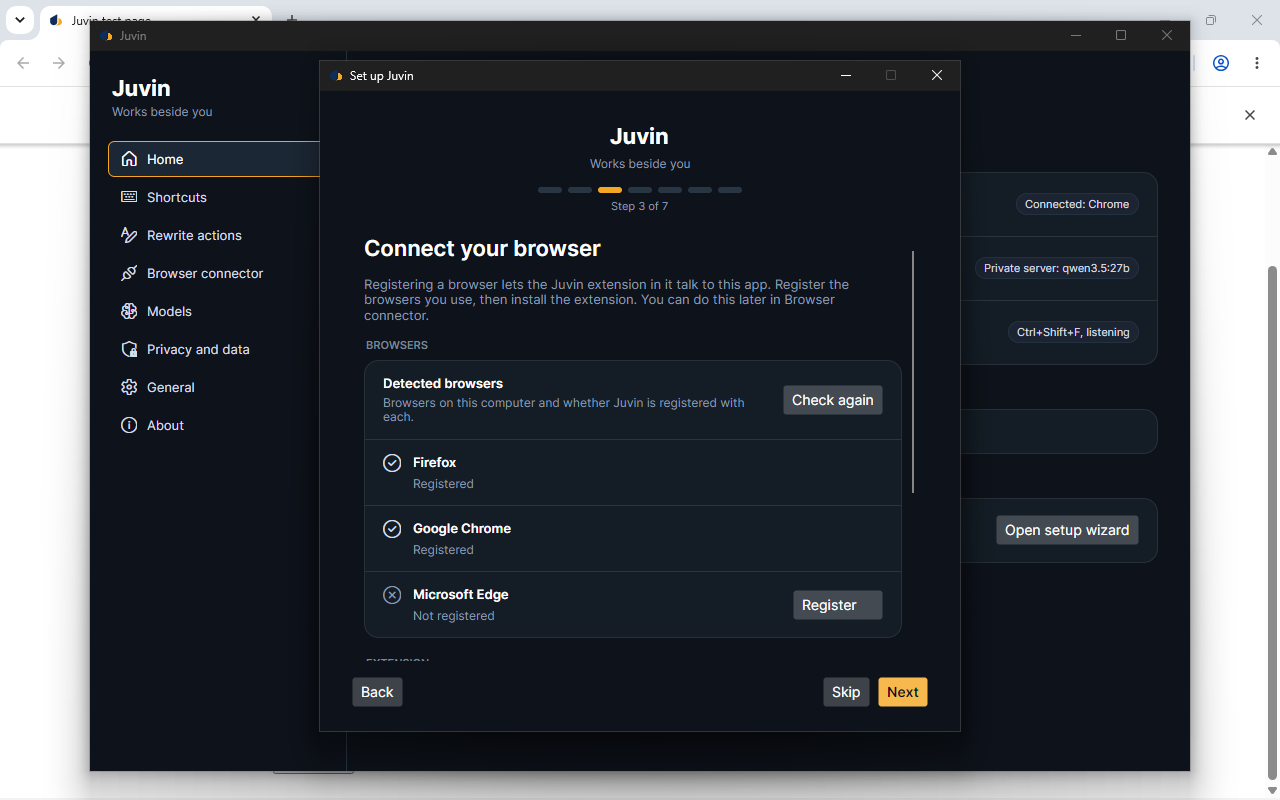
Press Register for each browser you use. This tells the browser where to find Juvin, so the extension can reach it. The row then reads Registered. If you have not installed the extension yet, Install instructions leads to the Browser extension page.
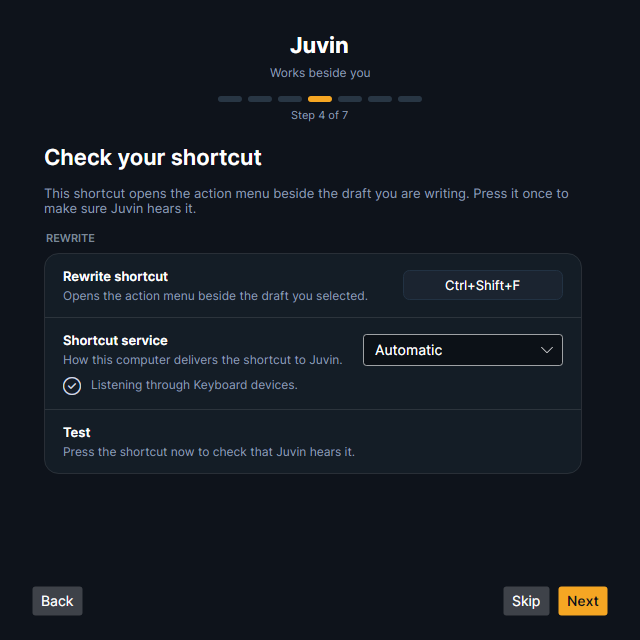
The default is Ctrl+Shift+F, and the physical Control key on a Mac too. Press it once: Test shows Detected when Juvin hears it. Click the shortcut to record different keys.
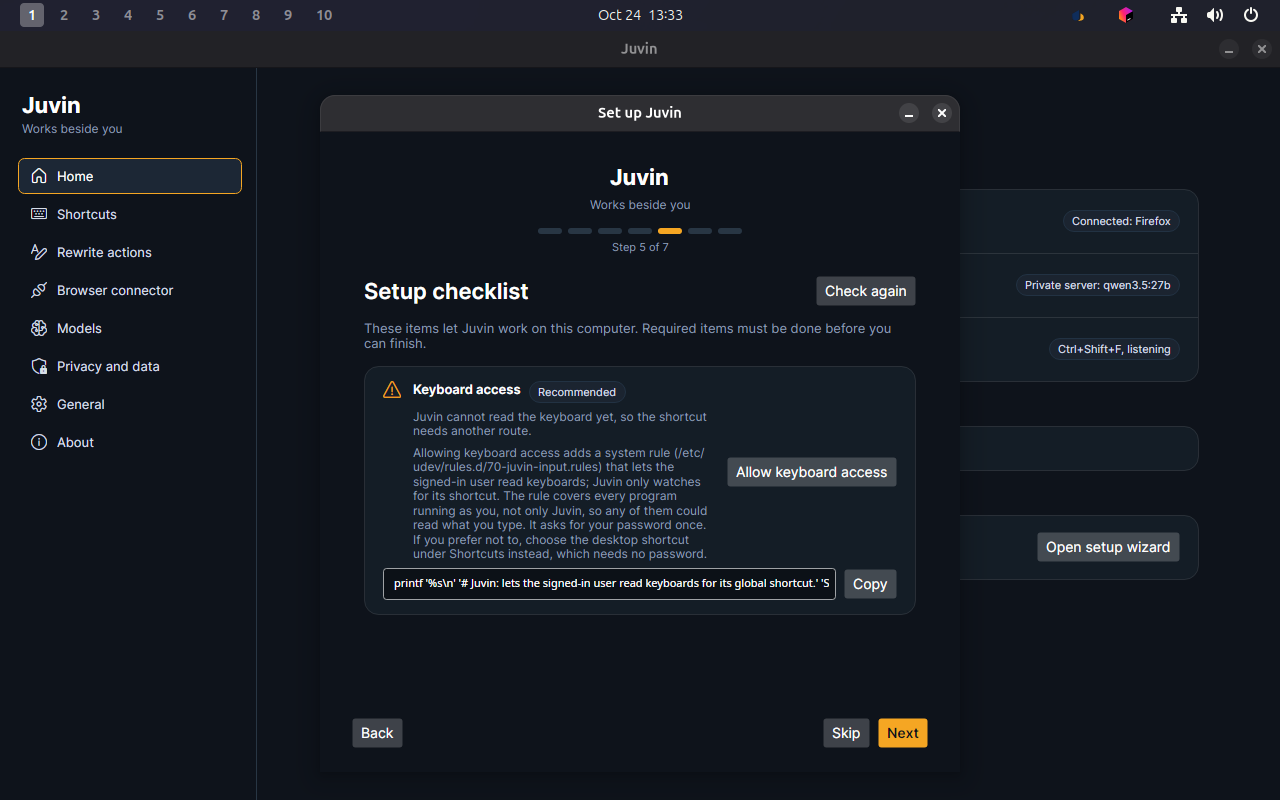
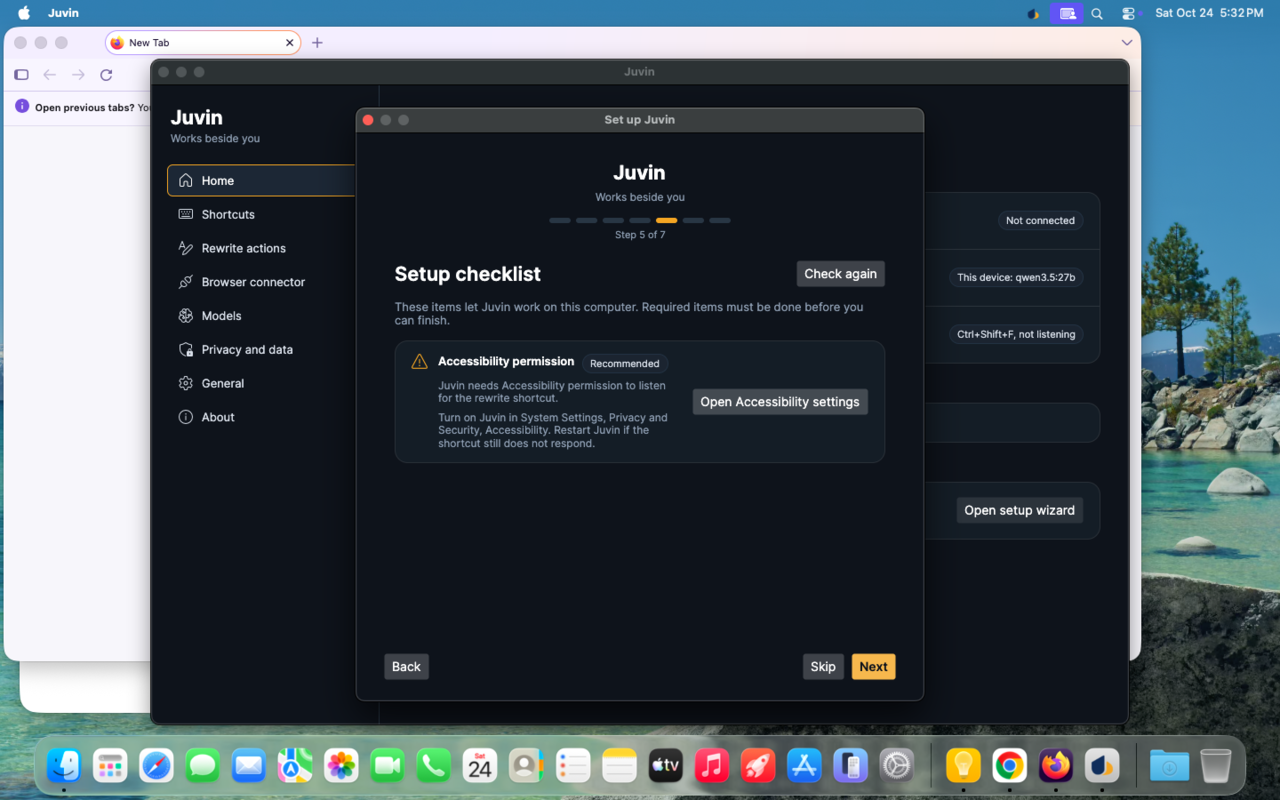
Anything your system needs before the shortcut works everywhere. On Windows there is usually nothing to do.
Linux: Keyboard access lets Juvin hear the shortcut in every app. Allow keyboard access adds a system rule and asks for your password once. If you would rather not, Juvin can use your desktop's own shortcut settings instead; choose Desktop shortcut under Shortcuts.
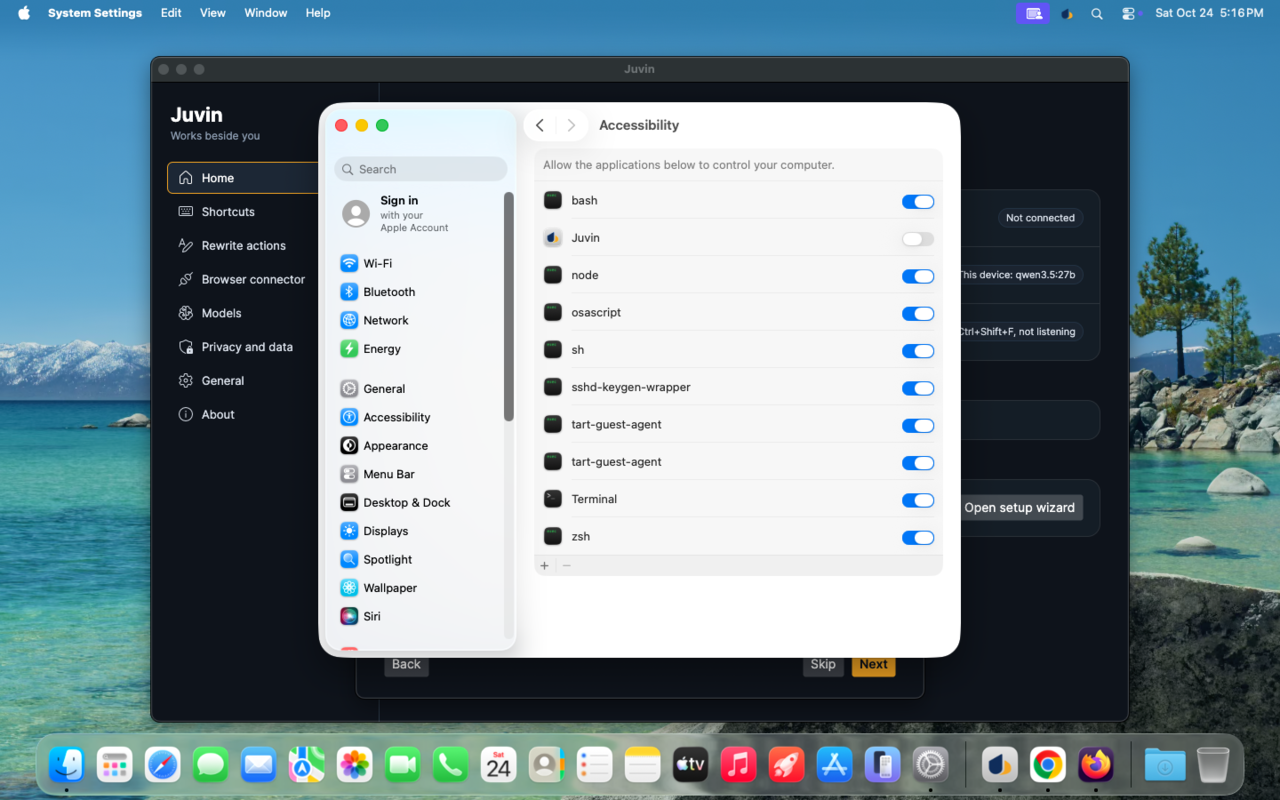
macOS: Accessibility permission is needed for the shortcut. Press Open Accessibility settings, turn on Juvin, and come back. If the row then asks you to, press Restart Juvin.
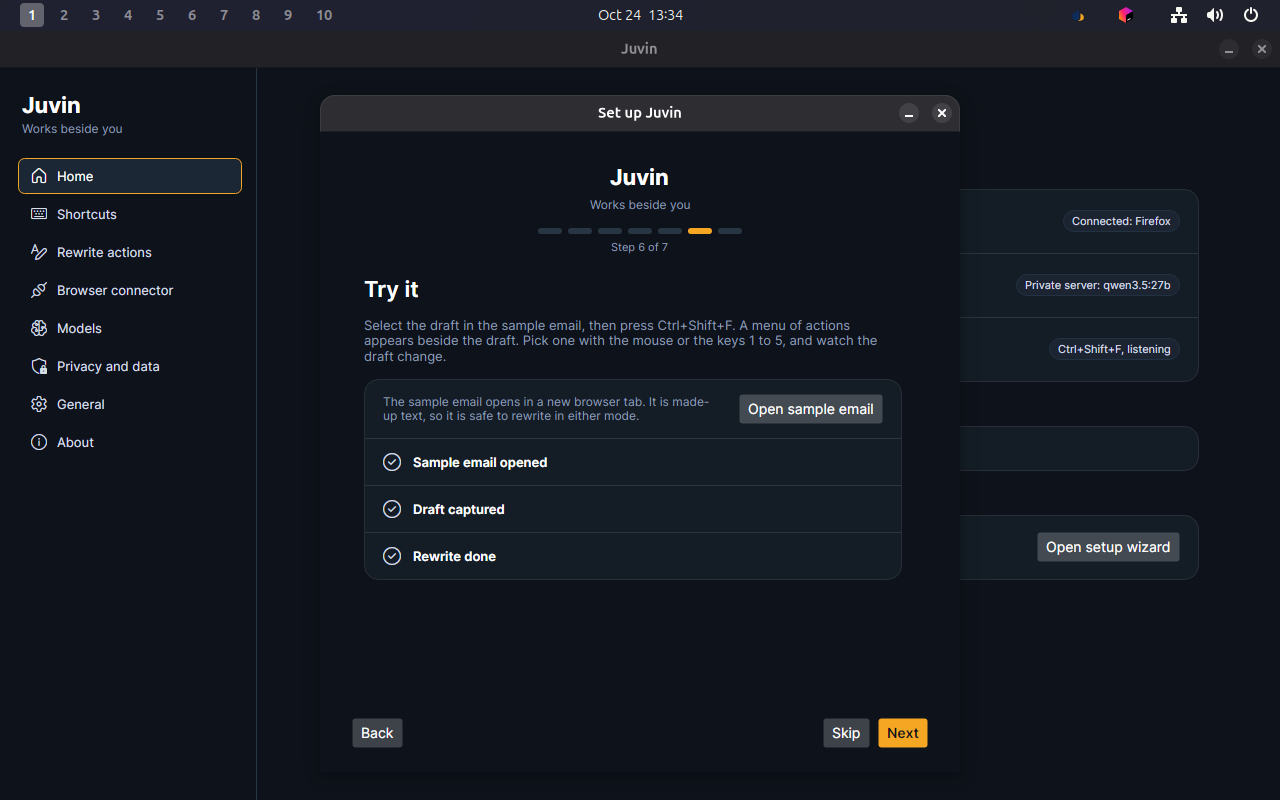
Press Open sample email. A made-up email thread opens in a new tab of your browser; switch to it if it did not come to the front. Select the reply draft at the bottom, press the shortcut, and pick an action from the menu. The three rows tick as the sample opens, the draft is captured, and the rewrite is done.
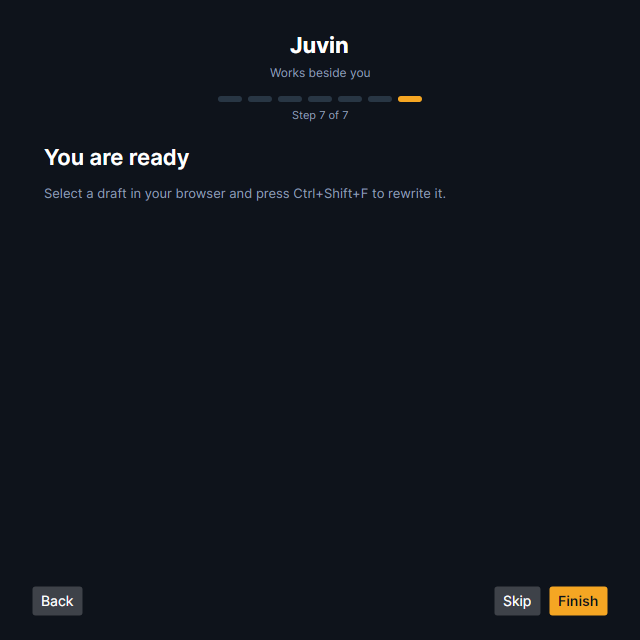
Press Finish. Juvin keeps running in the system tray (the menu bar on a Mac), and closing its window does not quit it.
Next: Using Juvin.