Secret Provider Setup Example
Note: This feature is available in Lite, Enterprise, and Ultimate editions only.
This guide shows a basic setup for a secret provider using the web UI. The example uses HashiCorp Vault, but the same approach applies to other providers.
-
Open the Vault UI.
-
Go to Secrets Engines.
-
Click Enable new engine +.
-
Select KV, set Path to
secret, and click Enable Engine.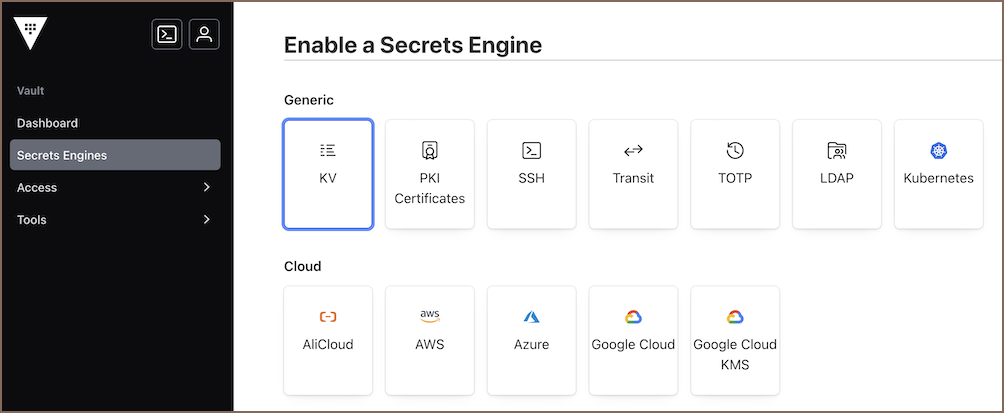
Tip: If KV is already enabled, reuse the existing mount path.
-
Go to Secrets Engines -> secret.
-
Click Create secret +.
-
Enter name.
-
Add key-value pairs.

-
Click Save.
-
Start creating a connection.
-
In the Create Connection wizard, go to the Main tab, choose secret provider configuration and enter the secret name in the Secret parameters field.

Note: Secret name format depends on the provider. See Secret name format.
-
If required fields are missing in the secret, enter them manually.
-
Click Test Connection to verify your settings.
-
Click Finish to save the connection.
- Getting started
- DBeaver configuration
-
Security

- Connection settings
- Databases support
- Classic
- Cloud
- Embedded
- File drivers
- Graph
- Database Navigator
- Data Editor
- SQL Editor
- Entity relation diagrams (ERD)
- Cloud services
- AI Assistant
- Data transfer and schema compare
- Task management
- Integrated tools
- Administration
- DBeaver Editions
- Standalone
- Cloud-hosted
- FAQ
- Development