Repository navigation
English
Display Shopware products in WordPress without importing them. Shopware remains the source for product data and prices. Configure one Shopware 6 shop per WordPress site. Requirements: WordPress 6.6+, PHP 8.1+ and a Shopware 6.7 Store API Sales Channel. Gutenberg works without Bricks; optional Bricks Components require Bricks 2.4.2+. Elementor pages can display WordPress output; there is no separate Elementor widget.
Download the plugin ZIP from the latest GitHub release, upload it under Plugins → Add New → Upload Plugin, and activate it. Under Settings → Connect for Shopware, save the public HTTPS shop URL. No shop is preconfigured.
Provide the Sales Channel key server-side as DW_SW_ACCESS_KEY: define the constant in wp-config.php or expose a PHP environment variable of the same name. A nonempty constant takes precedence. The plugin does not load .env files, store the key in WordPress options or display it in settings. An explicitly included secret PHP file outside the web root can define the same constant. Do not put credentials into blocks, templates or public files.
Run the connection test after saving. The Store API URL defaults to the shop URL plus /store-api. Expand Advanced connection settings to provide a complete API base URL when the storefront uses a language path or a different API host. Both addresses require public HTTPS on the standard port, without credentials, query parameters or fragments. Redirects and private/local HTTP destinations are not supported.
The anonymous Sales Channel defaults determine language, currency and tax state. A storefront language path does not switch this context by itself. Verify the reported context against the intended storefront. Prices and discounts come from Shopware; WordPress does not recompute them. Shopware currency formatting and net/gross/tax-free labels are used.
Changing shop/API URL clears the Connector cache and diagnostics and invalidates previous Quick View tickets. Existing article selections and installed Components are retained; review them when switching catalogs.
In Multisite, a server-side DW_SW_ACCESS_KEYS constant can map site IDs to credentials. Alternatively, PHP may expose DW_SW_ACCESS_KEY_<site-ID>. An explicit site credential takes precedence over the global key; otherwise the existing global constant/environment fallback applies. Different shops each require the matching Sales Channel key. Credentials are never stored in WordPress options.
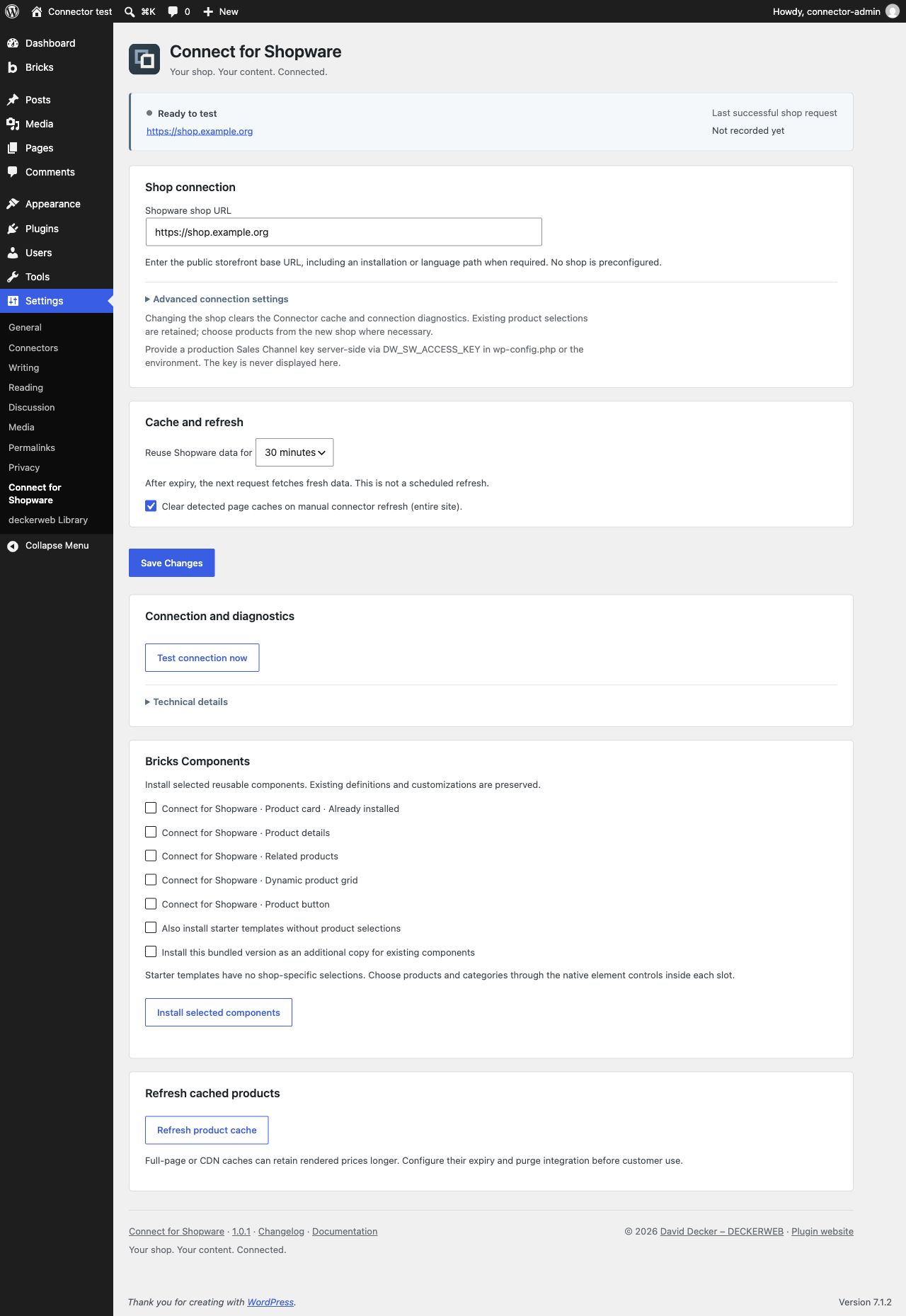
The compact status area shows the shop address and last known successful request. This is not continuous live monitoring: run the connection test to check the current state. API overrides and technical diagnostics are collapsible. Connection, cache and optional Bricks Components have separate sections.
Search by product name or number in a Gutenberg block or native Bricks element. Select a product family or an exact variant/size/color. Changing the family clears the variant; the server also validates that relationship. Product cards can display image/gallery, title, summary/description/custom text, variant label, current price, list price, discount, reference price, availability and a shop link. Family prices are marked “from”.
Arrange image and main product information left, right or below. Description and tabs follow the main information. Choose the cover image or available product gallery. Video previews link to their provider without loading an external player automatically. Optional tabs show description, available PDF documents and manufacturer data. Images and documents depend on Sales Channel data; inherited covers may show a different size.
Choose a text link or styled button and current/new tab. New-tab links use noopener noreferrer. Product links prefer Shopware SEO URLs, with a technical product URL as fallback. Optional Quick View loads details on demand and supports Escape and focus return. Shop links remain usable if it cannot load.
Assign ordered products in the article's Shopware Products document panel or Related Products block inspector; save the article for frontend output. Related Products reads those assignments. In a Bricks Single template, select a preview article with assigned products. Product Button provides a standalone shop CTA.
For a dynamic grid, select an active Shopware category backed by a dynamic product group. Shopware evaluates its rules. Choose product count and an available sorting; empty sorting uses the shop default. Pagination and a category shop link are optional. Multiple grids retain independent page parameters. Presentation presets are shared across Gutenberg and Bricks.
With Bricks 2.4.2+ active, settings offer individual Components for product cards, product details, related products, dynamic grids and product buttons. Optional starter templates contain native elements without catalog selections. Nothing installs automatically. Existing definitions and templates are preserved; an additional version-copy option lets you try bundled designs separately. Repeating the same version does not create duplicate copies.
Expand a Component slot in the structure panel and select its native Shopware element to use the product/category search. An empty slot needs an element; starter templates already supply one. Wrapper settings are shared; slot-element settings belong to each instance. Related Products exposes heading, button text and target as connected properties. The installer respects Bricks permissions and import locks. In multisite with shared main-site Components, install on the main site.
Cache duration defaults to 30 minutes; choose 15, 30 or 60 minutes. The next access after expiry fetches fresh data. There is no scheduled background fetch. Manual refresh clears the Connector cache. Optional integration clears the entire site's detected WP Rocket, LiteSpeed Cache, WP Super Cache or W3 Total Cache page cache. Coordinate server/CDN cache expiry separately so rendered prices do not remain cached longer than intended.
During a temporary shop outage, retained product content may appear without expired prices or availability. Without retained data, no product card is shown. A 60-second retry pause and request limits protect both systems. Diagnostics contain status and duration without raw credentials or context tokens. No product import, Shopware extension, remote write operation, WordPress cart or checkout is required.
Stable GitHub releases appear in the regular WordPress update system. Automatic updates remain your choice. Updates preserve settings, article assignments and installed Components. English UI and German translations are included. The footer links to documentation in the admin language and opens the structured local changelog, with a text-file fallback when JavaScript is unavailable.
The optional shared deckerweb plugin catalog is available under Plugins → Add New → deckerweb. Its settings are shared with other installed Library hosts. The Connector runs independently of other deckerweb plugins. Public updates require no GitHub credential.
| Hook | Purpose |
|---|---|
dw_sw_post_types |
Filter supported editorial post types; defaults to posts and pages. |
dw_sw_cache_refreshed |
Action after manual Connector cache refresh. |
dw_sw_page_cache_purge_requested |
Action for additional page-cache integrations. |
Shop settings and manual refresh require manage_options. Product selection requires editorial permissions; saved assignments additionally require edit_post. Component installation checks native Bricks permissions.
Each network site stores its shop URL, cache lifetime, article assignments and diagnostics separately. New sites start without a configured shop. Library settings apply per network; its introduction status applies per user. Shared Bricks Components are installed on the main site.
Deactivation preserves settings, content and Components. Uninstall removes temporary Connector data, caches and locks across network sites. Shop settings, article assignments and installed Components remain. There is no additional deletion option for editorial content. The Library also detects other inactive hosts and cleans shared data only after the last host is removed, according to its own settings.
Configuration authorizes read-only Store API requests to the selected shop. Requests send the server-side Sales Channel key, an anonymous context token and necessary product IDs, search terms, sorting and page parameters. No customer accounts or WordPress user profiles are transmitted. The shop server sees the WordPress server IP. Diagnostics omit keys and context tokens.
The browser loads images from media URLs supplied by the shop. Product, document and manufacturer links open their target addresses; external video players are not automatically embedded. GitHub update checks and downloads contact GitHub. Optional online Library catalog requests follow its settings and start disabled. No telemetry system is included.
Compatible corrections increase the patch version; new features increase the minor version. Incompatible API/data changes require a major release and a documented migration path. Higher platform requirements are explicitly stated in release notes. Published releases and tags serve as fixed references.
© 2026 David Decker – DECKERWEB. GPL v2 or later · SPDX GPL-2.0-or-later.