Repository navigation
04. Deploying Terraform
Walk through
terraform applyend-to-end: configure tfvars, init, plan, apply, capture deployment info, and (Direct Access only) point DNS to the redirector. Assumes Prerequisites is complete.
| At a glance | |
|---|---|
| Time | ~5-10 min apply + ~5-10 min cloud-init |
| Cost | Compute starts billing as soon as instances launch (~$0.25/hr) |
| Output |
deployment_info.txt in redStack/ contains all IPs, passwords, and connection info |
Caution
EC2 instances bill 24/7 once running. Forgetting a deployed lab is the #1 cause of unexpected AWS bills. The recommended pattern is: stop instances at the end of every session, and run terraform destroy before any break of three or more days. See Cost Management for the full breakdown.
Important
localPub_ip takes a list, so you can allowlist more than one IP. Add an entry for every network you deploy from (home, office, phone hotspot) and all of them keep working without re-running Terraform. The value is always in brackets, even when you only have one address. Replace YOUR_IP with your public IP address. The /32 suffix is CIDR notation meaning "exactly this one IP address"; keep it on every entry. Run curl -4 -s ifconfig.me to get your current public IPv4. If you run curl -s ifconfig.me and it returns an IPv6 address (contains colons), re-run with the -4 flag; every localPub_ip entry must be an IPv4 /32 because the security groups do not wire up IPv6.
All terraform commands in this guide run from inside redStack/terraform/, the subdirectory where the .tf files live.
cd redStack/terraform
cp terraform.tfvars.example terraform.tfvars
nano terraform.tfvars   # Linux/Mac
notepad terraform.tfvars # WindowslocalPub_ip = [
"YOUR_IP/32", # Your public IP + /32 (e.g. 203.0.113.5/32)
]
ssh_key_name = "rs-rsa-key" # Must match your AWS key pair name
ssh_private_key_path = "../rs-rsa-key.pem" # Key sits in redStack/ root; path is relative to terraform/, so use ../ (decrypts Windows password)localPub_ip accepts as many addresses as you need, so you can deploy from home, the
office and a phone hotspot without re-running Terraform every time your address changes.
Add one /32 per line:
localPub_ip = [
  "203.0.113.5/32",     # home
  "198.51.100.42/32",   # office
]
Every address you list is allowlisted on all six management ingress rules: SSH to Mythic,
Sliver, Adaptix, Kali and Guacamole, plus RDP to the Windows workstation. Keep the list
short and remove addresses you no longer use, since each one is a permanent hole in the
break-glass paths. Changing the list is a cheap terraform apply; it updates security
group rules only and does not touch running instances.
[!NOTE] Older checkouts declared
localPub_ipas a plain string (localPub_ip = "1.2.3.4/32"). If a bracketed list gives youInvalid value for input variable ... string required, but have tuple, your clone predates the list change. Rungit pulland re-runterraform plan. See Troubleshooting.
The choice affects three tfvars and a couple of post-deploy steps. See Deployment Modes for the full decision matrix.
Direct Access (default, public domain + Let's Encrypt):
redirector_domain = "yourdomain.tld"You'll need to point your domain's A record at the redirector EIP after deploy, then run Certbot. See Redirector for the cert step.
Tunneled Access (cyber ranges via OpenVPN):
redirector_domain                    = ""     # use the public IP, not a domain
enable_vpn_tunnel                  = true   # OpenVPN client + WireGuard tunnel
enable_redirector_htaccess_filtering = false  # disable scanner blocking
Skip the DNS step. See OpenVPN Tunnel Environments for the OpenVPN routing setup.
# Network
use_default_vpc = false              # creates a dedicated VPC
vpc_cidr        = "10.50.0.0/16"     # team server VPC

# Instance types
sliver_instance_type = "t3.medium"   # Go cross-compiler needs headroom during implant generation
adaptix_instance_type = "t3.small"

# Kali operator: "headless" (default, t3.medium) or "gui" (t3.medium + XFCE/XRDP)
kali_deployment_mode = "headless"

# C2 URI prefixes (baked into payloads at deploy time)
mythic_uri_prefix = "/cdn/media/stream"
sliver_uri_prefix = "/cloud/storage/objects"
adaptix_uri_prefix = "/edge/cache/assets"

# Custom tags applied to every AWS resource
tags = {
  Owner      = "Operator"
  CostCenter = "redStack"
  Purpose    = "Boot-to-Breach Training Environment"
}
✅ Checkpoint: terraform.tfvars saved with your actual values.
Note
Header validation is always enabled. c2_header_name defaults to X-Request-ID, and the token auto-generates at deploy time. Retrieve it after deploy with terraform output deployment_info. Passwords are auto-generated too. A single random password covers SSH and Guacamole admin. The Windows Administrator password is AWS-generated and decrypted automatically with your .pem.
Run the following from inside redStack/terraform/.
terraform initExpected:
Initializing the backend...
Initializing provider plugins...
- Finding hashicorp/aws versions matching "~> 5.0"...
- Installing hashicorp/aws v5.x.x...
Terraform has been successfully initialized!
✅ Checkpoint: No errors, providers downloaded.
Run the following from inside redStack/terraform/.
terraform planExpected: beyond the seven instances, terraform apply creates ~91 AWS resources total:
| Category | Count | What |
|---|---|---|
| EC2 instances | 7 | the seven hosts above |
| VPCs | 2 | TeamServer + Redirector |
| Subnets | 2 | one per VPC |
| Internet Gateways | 2 | one per VPC |
| Route Tables | 2 | one per VPC |
| Route Table Associations | 2 | one per VPC |
| Routes | 5 | 2 default IGW + 2 VPC peering + 1 VPN CIDR (when enabled) |
| Default Security Groups | 2 | one per VPC, locked down by Terraform |
| Security Groups | 7 | one per host, with explicit rules per port |
| Security Group Rules | 48 | individual ingress/egress rules |
| Network Interfaces | 7 | pre-created so instances can reference each other's private IPs |
| Elastic IPs | 2 | Guacamole + Redirector |
| VPC Peering Connection | 1 | TeamServer ↔ Redirector |
| Random password | 1 | shared lab password |
| Random ID | 1 | C2 header token |
terraform destroy reverses all of the above, plus the AWS-managed Windows password data.
✅ Checkpoint: Plan shows expected resources, no errors.
Run the following from inside redStack/terraform/.
terraform applyType yes when prompted. Expected output:
Apply complete! Resources: 91 added, 0 changed, 0 destroyed.
✅ Checkpoint: terraform apply completed successfully.
deployment_info.txt is written to redStack/ by terraform apply. To reprint at any time, run from redStack/terraform/:
terraform output deployment_info        # all IPs, passwords, connection commands
terraform output network_architecture   # diagram populated with actual IPs
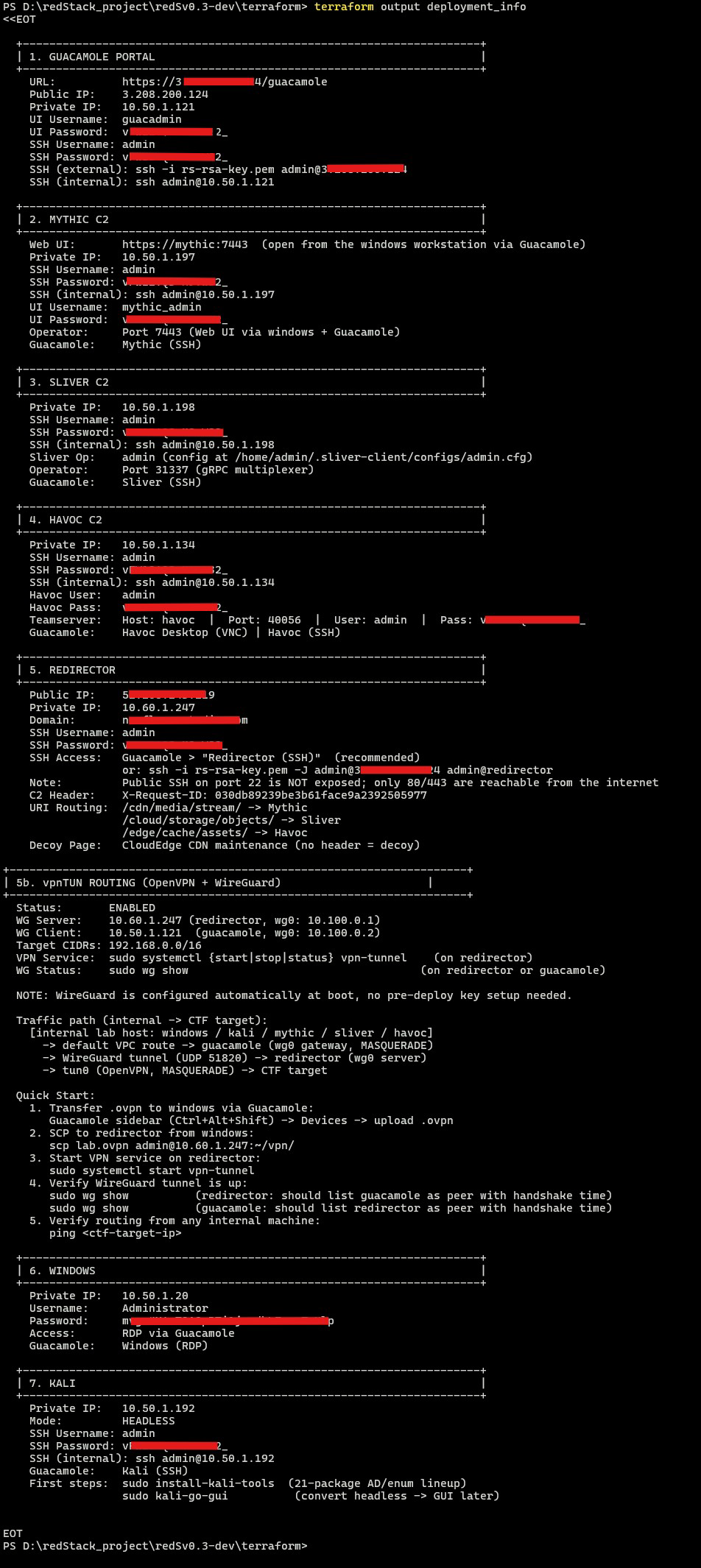
[Figure 4.5.1: terraform output deployment_info after a clean deploy showing all seven host blocks]
✅ Checkpoint: Deployment info reviewed, IPs and credentials noted.
Tip
Keep deployment_info.txt accessible throughout your session. It contains all instance IPs, the lab password (SSH + Guacamole), the Windows Administrator password, and the X-Request-ID C2 header token. Multiple wiki pages reference it by name.
Note
Tunneled Access: skip this step. Proceed to Verify.
Get the redirector EIP from deployment_info (look under APACHE REDIRECTOR). Then create A records at your registrar / DNS provider:
| Type | Host | Value | TTL |
|---|---|---|---|
| A | @ |
<Redirector EIP> |
Automatic |
| A | www |
<Redirector EIP> |
Automatic (optional) |
| A | <sub> |
<Redirector EIP> |
Automatic (optional) |
Only @ is required. www is for www.yourdomain.tld callbacks. The third row is for a custom subdomain (e.g. cdn.yourdomain.tld). Use this to blend C2 traffic into patterns that look like legitimate service traffic. Examples that fit common blend strategies: cdn, static, assets.
Verify DNS propagation:
dig +short yourdomain.tld     # Linux/macOS
Resolve-DnsName yourdomain.tld # Windows PowerShell
The IP returned should match your redirector EIP. Once it resolves, proceed to Redirector for Certbot.
✅ Checkpoint: Domain pointed at redirector, DNS resolves correctly.
After terraform apply finishes, instances are launched but provisioning continues for ~5-10 minutes:
| Host | What's installing |
|---|---|
mythic |
Docker, Mythic core, ~10 containers (Apollo + HTTP profile pre-installed) |
sliver |
Sliver C2 server binary, firewall, redstack C2 profile |
adaptix |
Go toolchain, Adaptix source, teamserver + extenders compile (longest) |
guacamole |
PostgreSQL, Nginx, Docker containers, Guacamole connections |
windows |
Defender/Firewall disabled; RDP enabled; Chromium, VS Code, MobaXterm, 7-Zip installed |
redirector |
Apache + mod_rewrite/proxy/ssl, redirect.rules, decoy page, self-signed cert |
kali |
User rename (kali → admin), MOTD banner, helper scripts (install-kali-tools, kali-go-gui) |
Tip
Tail /var/log/user-data.log on any Linux host to watch provisioning live. Windows is opaque; wait ~10 min and try the RDP connection.
← Previous: Deployment Architecture | Next: Verify →
"Everything fails, all the time."
Werner Vogels, CTO Amazon (~2008)