Testing Authentication Plugin
-
Launch a web browser.
-
Type the URL
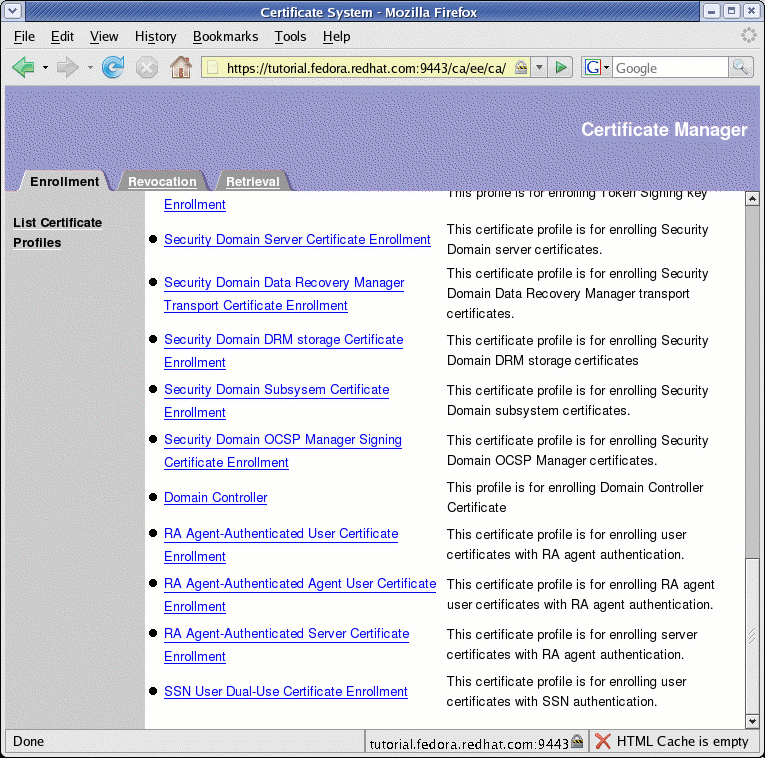
https://<hostname>:<port>/<pki-subsystem>/ee/<pki-subsystem>, where<pki-subsystem>is alwayscafor authentication plugins, into the browser to list the CA Certificate Profiles:
-
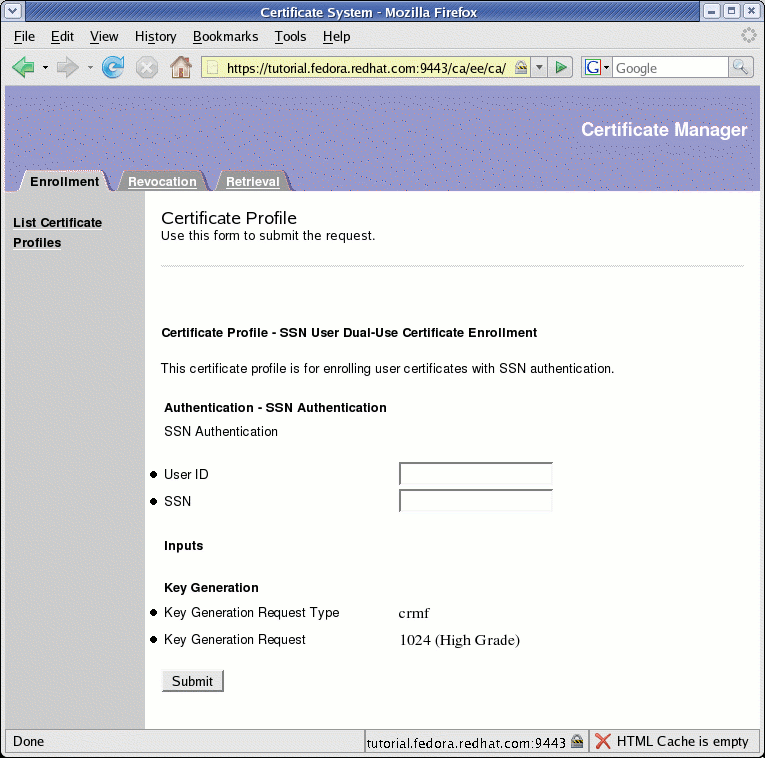
Select the SSN User Dual-Use Certificate Enrollment profile presented in the menu on the right-side of the Enrollment panel to display the following SSN User enrollment profile:
-
Enter
hmillerfor User ID. -
Enter
000112222for SSN. -
Press the Submit button, and the browser should notify the user that it needs to begin generating a key (the user may need to press the OK button). The browser should then start generating the key before it returns a screen stating the following:
Congratulations, your request has been processed successfully
The remainder of the screen should reference the request ID, and contain the requested certificate for the user hmiller.
-
Enter
scarterfor User ID. -
Enter
000112222for SSN. -
Press the Submit button, and the browser should notify the user that it needs to begin generating a key (the user may need to press the OK button). The browser should then start generating the key before it returns a screen stating the following:
Sorry, your request is not submitted. The reason is "Authentication Error".
-
Enter
scarterfor User ID. -
Enter
999887777for SSN. -
Press the Submit button, and the browser should notify the user that it needs to begin generating a key (the user may need to press the OK button). The browser should then start generating the key before it returns a screen stating the following:
Congratulations, your request has been processed successfully
The remainder of the screen should reference the request ID, and contain the requested certificate for the user scarter.
-
Enter
smillerfor User ID. -
Enter
000112222for SSN. -
Press the Submit button, and the browser should notify the user that it needs to begin generating a key (the user may need to press the OK button). The browser should then start generating the key before it returns a screen stating the following:
Sorry, your request is not submitted. The reason is "Authentication Error".