Repository navigation
Releases: editorrylix/Pouchy
Release list
Pouchy 1.1.0

Added
- A welcome guide on the first run: where Pouchy lives, how to use it in four steps with your own shortcuts, and switches for the most useful settings. Open it again any time from the tray menu.
- What's new after every update. When Pouchy updates, it shows what changed, including any versions you skipped. Also in the tray menu.
- Drop actions. Drag files over the pouch and action tiles appear: Zip, Copy to a recent folder, Convert to PNG or JPG, Resize to 50%, Extract text, Copy paths, Share and Print. Drop on a tile to run it. Choose which tiles show in Settings → Drop actions.
- Your own actions. Scripts in the actions folder (PowerShell, batch, Python or an .exe) become actions. They receive the file paths, and any file path they print is added to the pouch. See docs/ACTIONS.md.
- Command palette. Press Ctrl+K in the pouch, or use the tray menu, to search for any command, item, shelf, view or theme, and to run actions on the selected items.
- Smart shelves. Right-click a shelf tab → Auto-collect, and new images, documents, videos, audio, archives, folders, links, notes or colours go to that shelf on their own.
- Clipboard history (off by default). A Clipboard shelf keeps the last 50 things you copied: text, links, images and files. Copies from password managers are skipped.
- Screenshot to Pouchy. Alt+Shift+S (or the tray or the palette) opens Windows' screen snip, and the capture lands in the pouch.
- Recent destinations. Folders you copy, move or drop items into are remembered and offered under Copy to and Move to, as drop tiles and in the palette.
- Auto-clear. Unpinned items can leave the pouch on their own after an hour, a day, a week or 30 days.
- Theme editor. Change a theme's colours, gradient, opacity, corners, shadow and fonts and watch the pouch update as you go.
- Sound packs. Soft, Bubbly, Clicky, or your own WAV files. Off by default.
- One-click updates. When a new version is out, Pouchy downloads it, checks it against the release's SHA-256 checksums, replaces itself and restarts.
- Installer. Releases now include a per-user installer (no admin rights). It sets up the Start menu, startup and the Explorer menu, and its uninstaller removes everything Pouchy added. The portable zip is still available.
- Pouchy starts with Windows by default on a new install. You can turn it off in Settings → General.
- Hotkeys always work. If another app already uses the default shortcut, Pouchy picks a free one (for example Alt+Shift+X for screenshots) and shows it in Settings and the tray menu.
- Add to Pouchy from Explorer. Turn on Settings → General → "Add to Pouchy from Explorer" to get "Add to Pouchy" in the right-click menu of files and folders, and Pouchy in "Send to". On Windows 11 both are under "Show more options". Several selected files arrive as one stack.
- Dropping files on Pouchy.exe adds them to the pouch.
- Starting Pouchy while it's already running opens the pouch instead of doing nothing.
Changed
- An open pouch uses almost no CPU. The mascot breathes for a moment and then rests, idle animations run at 30 frames a second, and the drag overlay no longer animates while hidden. Open and idle: about 14% of a CPU core before, under 0.5% now. Hidden: 0%.
- Sound packs play at the same loudness, and the volume slider follows how loud they sound.
Download
| Your PC | Installer (recommended) | Portable |
|---|---|---|
| Most Windows PCs (Intel / AMD) | Pouchy-1.1.0-setup-x64.exe | zip |
| Windows on ARM (Snapdragon, Surface Pro X) | Pouchy-1.1.0-setup-arm64.exe | zip |
The installer needs no admin rights and sets up the Start menu, startup and the Explorer menu for you. The portable zip is one Pouchy.exe you can run from anywhere. Both update themselves from Settings → About, and neither needs .NET installed.
"Windows protected your PC"? Pouchy isn't code-signed yet, so SmartScreen warns about new downloads. Click More info → Run anyway. You can check the download against SHA256SUMS.txt below.
Requirements: Windows 10 (version 2004 or later) or Windows 11.
Full changelog: CHANGELOG.md
Pouchy 1.0.1
Fixed
- Much lower memory use. Pouchy now uses about 3–5 MB in Task Manager while it waits in the tray (it was over 100 MB), and around 60 MB with the pouch open (it was 130–250 MB).
- The release
.exeis no longer internally compressed. A compressed single-file app unpacks about 80 MB of its own code into memory on every launch. Downloads are now a zip instead (about 70 MB). - Pasted and dropped pictures stay on disk at full resolution. Only a small thumbnail is kept in memory, and the full picture loads only when you copy, drag, preview, share or OCR it. A 4K screenshot used to hold about 33 MB for as long as it sat in the pouch.
- After the pouch hides, Pouchy compacts its memory and returns unused pages to Windows.
- The mascot's looping animations stop while the pouch is hidden.
- The release
Download
| Your PC | Download |
|---|---|
| Most Windows PCs (Intel / AMD) | Pouchy-1.0.1-win-x64.zip |
| Windows on ARM (Snapdragon, Surface Pro X) | Pouchy-1.0.1-win-arm64.zip |
No installer and no .NET needed: unzip it and run Pouchy.exe from wherever you like. Pouchy lives in the system tray. Turn on Settings → Run at Windows startup to keep it around.
"Windows protected your PC"? Pouchy isn't code-signed yet, so SmartScreen warns about new downloads. Click More info → Run anyway. You can check the download against SHA256SUMS.txt below.
Requirements: Windows 10 (version 2004 or later) or Windows 11.
Full changelog: CHANGELOG.md
Pouchy 1.0.0
The first public release. 🎉
Highlights
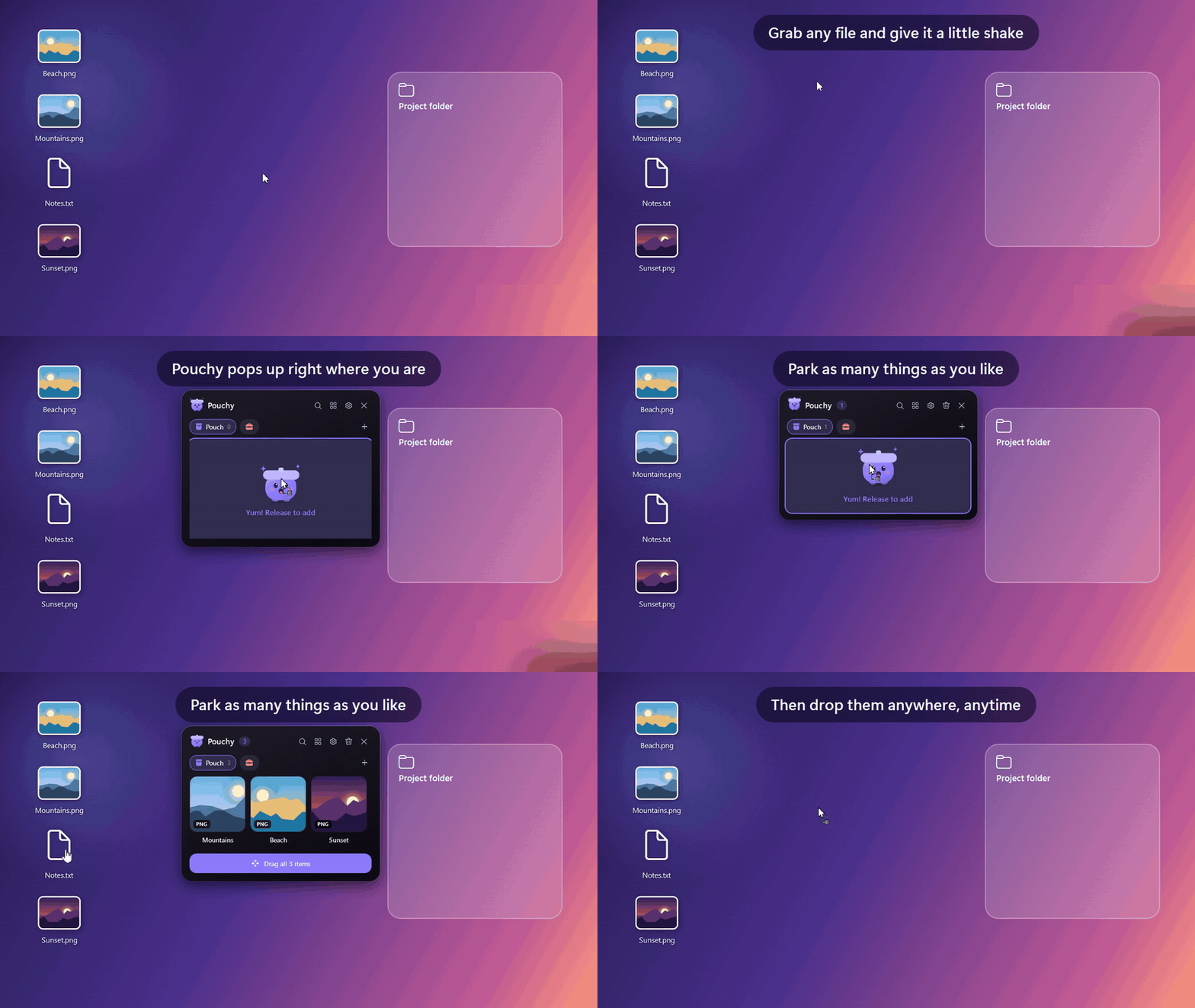
- Shake to summon. Grab any file, shake the mouse a little, and Pouchy pops up right where you are. You can also bump the screen edge or press Alt + Shift + Z.
- Park anything. Files, folders, multi-file stacks, images, text, links and colour values.
- Drop anywhere. Drag items out to any app. Files are copied by default (hold Shift to move), and a picture of the tile follows the cursor.
- Meet Pouchy. A reactive mascot that gets excited while you drag, hops happily when fed, and looks puzzled when a search finds nothing.
Added
- Shelves
- Coloured tabs with 40 icons. They collapse to icons when space is tight.
- Move items between shelves by dragging them onto a tab.
- Search, labels and undo
- Search every shelf with Ctrl + F.
- Finder-style colour labels that tint the tile.
- Pin items so Clear keeps them.
- Undo removals (Ctrl + Z).
- Thumbnail grid using real Windows thumbnails for photos, videos, PDFs and Office files. Stacks show a fanned preview. Grid, List and Compact views.
- Right-click menu
- Open, Open with, Quick Look, Show in folder.
- Copy path, Rename, Move or Copy to.
- ZIP and unzip.
- Image convert and resize, text extraction (OCR) and Set as wallpaper.
- Note editing and case tools.
- The Windows share sheet.
- The full Explorer menu (7-Zip, Send to and so on).
- Smart items:
- URLs become link cards with the page title and icon.
#hexandrgb()values become colour swatches you can copy as HEX, RGB or HSL.
- Themes: Midnight Glass, Frost, Sunset, Paper, Terminal and Follow Windows, plus your own themes as JSON files that reload live (guide).
- Customisation: tile size, columns, background opacity, open animations, reduce motion, gesture sensitivity, ignored apps and your own hotkey.
- Keyboard support: Enter, Space, F2, Del, Ctrl + A/C/V/N/P/G/T, Ctrl + 1–9, and the menu key.
- Tray menu with quick actions, shelf, theme and view switching, and Pause gestures.
- Update notifications: Pouchy checks GitHub for a new release about once a day. You can turn this off in Settings → About.
- Start with Windows, single instance, and items saved between sessions.
Download
| Your PC | Download |
|---|---|
| Most Windows PCs (Intel / AMD) | Pouchy-1.0.0-win-x64.exe |
| Windows on ARM (Snapdragon, Surface Pro X) | Pouchy-1.0.0-win-arm64.exe |
No installer and no .NET needed: download it and run it. Pouchy lives in the system tray. Turn on Settings → Run at Windows startup to keep it around.
"Windows protected your PC"? Pouchy isn't code-signed yet, so SmartScreen warns about new downloads. Click More info → Run anyway. You can check the download against SHA256SUMS.txt below.
Requirements: Windows 10 (version 2004 or later) or Windows 11.
Full changelog: CHANGELOG.md