Creating Your Adventurer
A great quest requires a legendary hero! This guide walks you step-by-step through the process of creating and configuring your starting adventurer inside the 2D6 Dungeon App companion.
- From the Home Screen, click the blue
+ Create a new adventurebutton. - On the Adventure Initialization screen, look for the "Select or Create an Adventurer" section.
- Click the
Newbutton next to the adventurer data table.
This opens the Create an Adventurer wizard.
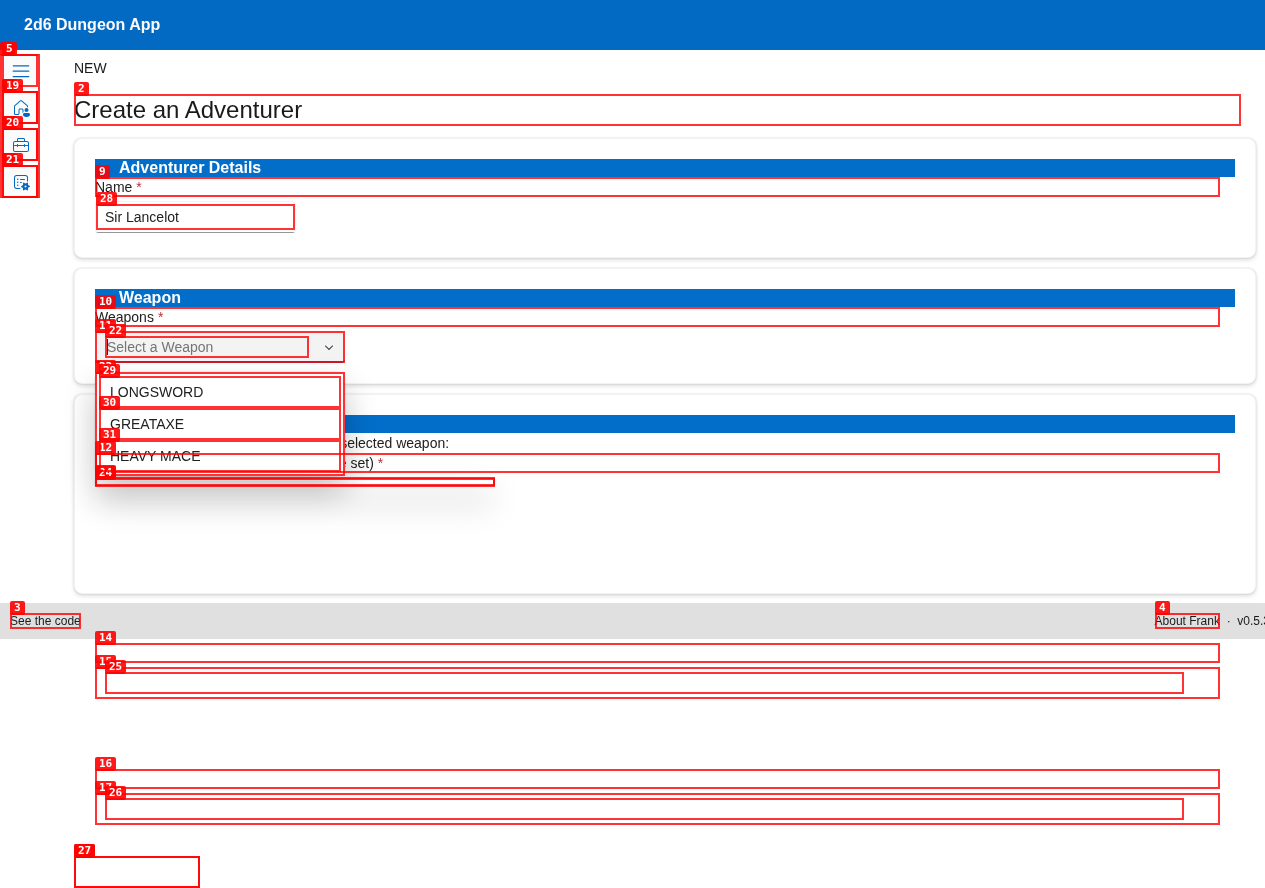
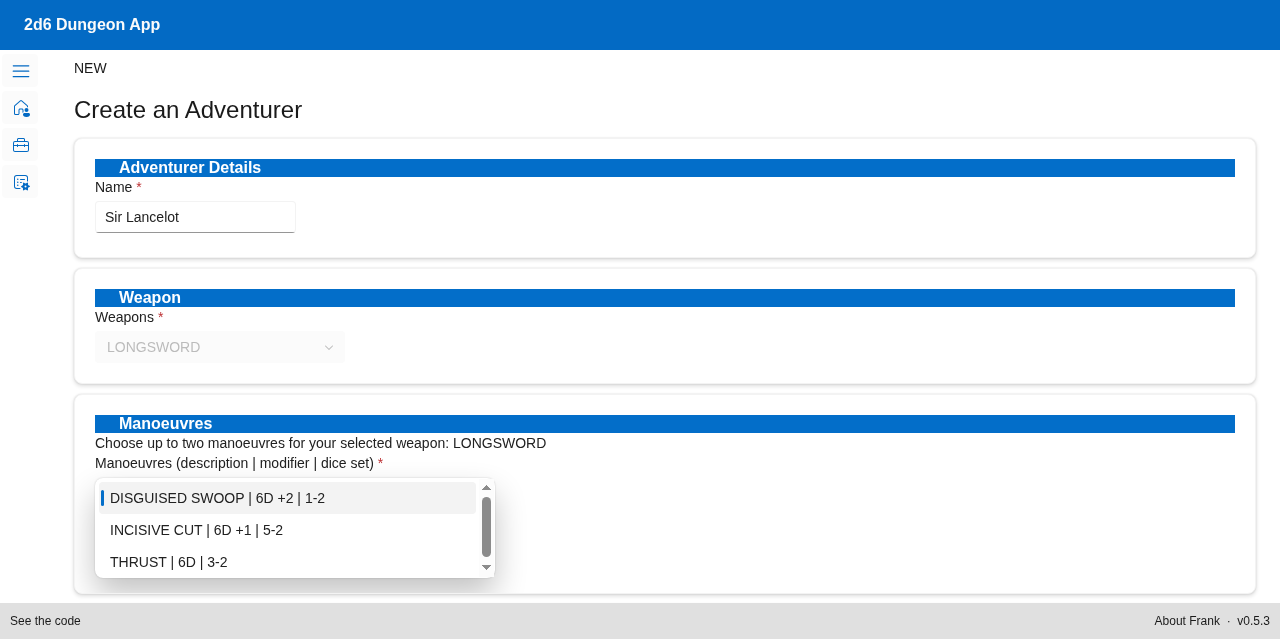
On the creation screen, enter the fundamental traits of your starting character:
-
Name: Enter your hero's name (e.g.,
Sir Lancelot). -
Weapon Selection: Open the Weapons dropdown and choose your starting weapon.
- Available options include classic starting gear:
LONGSWORD,GREATAXE, orHEAVY MACE. - Crucial Rule: Once you select a starting weapon, the field will automatically lock. The application calculates and filters the available combat moves (manoeuvres) matching that specific weapon!
- Available options include classic starting gear:
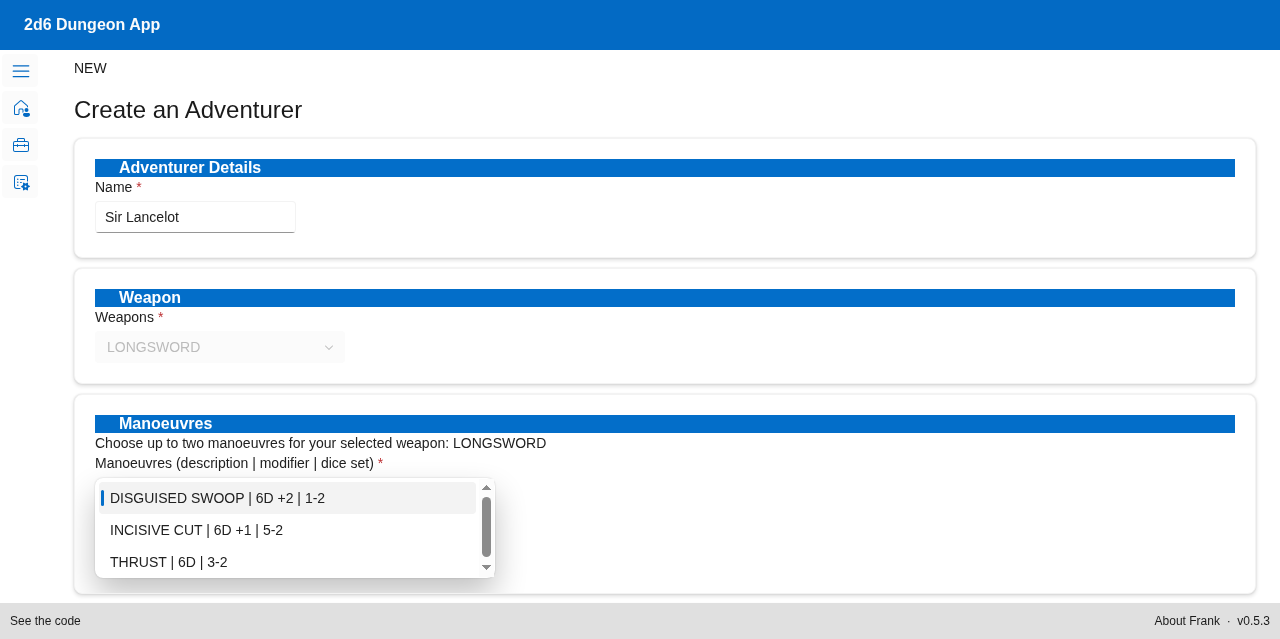
With your weapon selected, you are now prompted to choose up to two combat manoeuvres associated with that weapon. Manoeuvres represent tactical stances, strikes, or defensive postures you can use during combat.
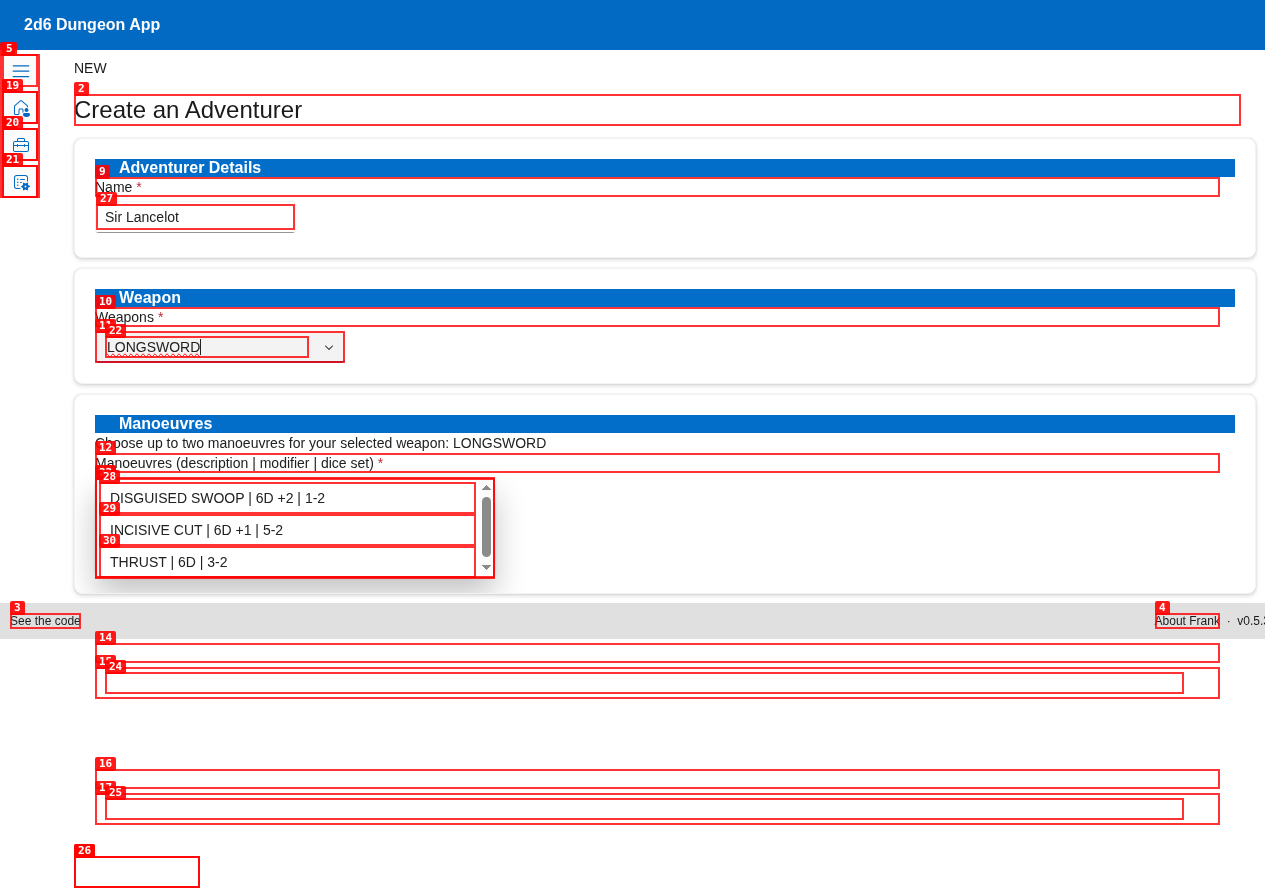
- Each manoeuvre is listed with its Name, Modifier (e.g.,
6D +2or6D +1), and the required Dice Set (e.g.,1-2or5-2). - Select up to two to add them to your adventurer's active sheet.
Scroll down to finish equipping your hero:
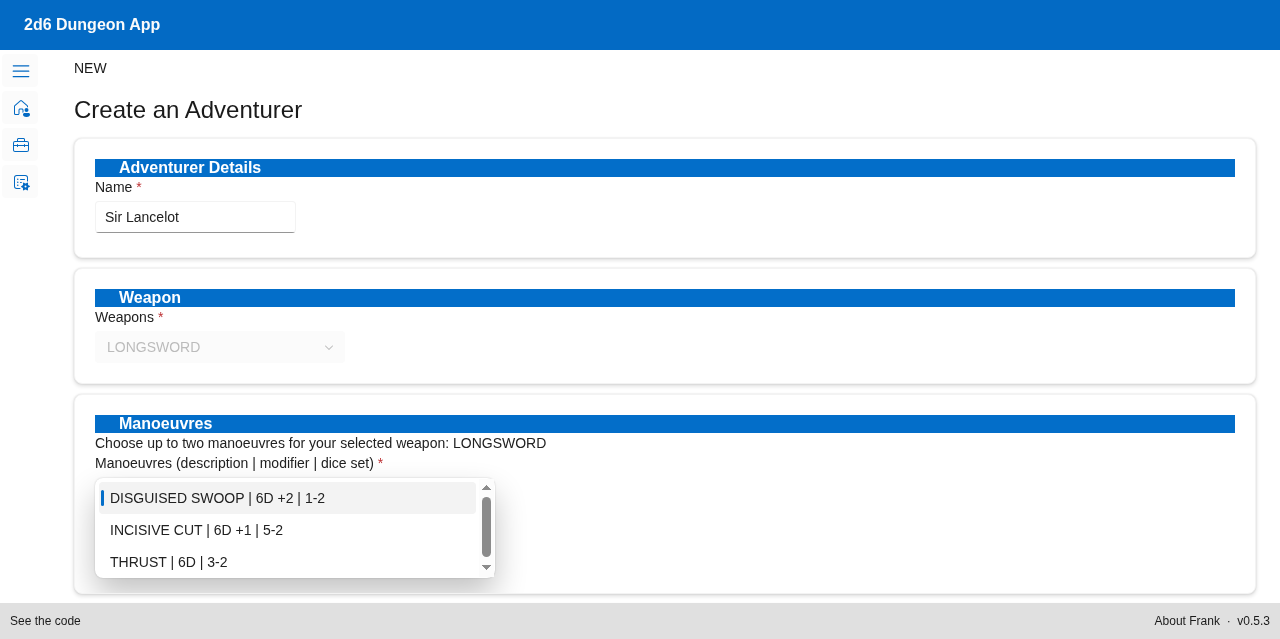
- Armour Piece (Optional): Choose your starting protection. This dropdown lists available starting shields and body armour pieces (displaying Name | Modifier | Dice Set).
- Magic Scroll (Optional): If your hero starts with spells or ancient knowledge, select a magic scroll from the scroll list (displaying Scroll Type | Description).
Once you are satisfied with your character's layout, scroll to the very bottom of the page:
Click the green Save Adventurer button.
- The application saves your adventurer's sheet directly to your local MySQL database.
- You are redirected back to the Adventure Initialization screen.
- Your newly created hero (e.g., Sir Lancelot) will now appear inside the Adventurers table, ready to be selected for your upcoming dungeon crawl!