Repository navigation
Bluetooth receiver
The BlueTooth (BT) protocol allows to change your Raspberry Pi (RPi) into an audio receiver.
The audio path considered here is the one of a multiroom streamer which also acts as a local player:
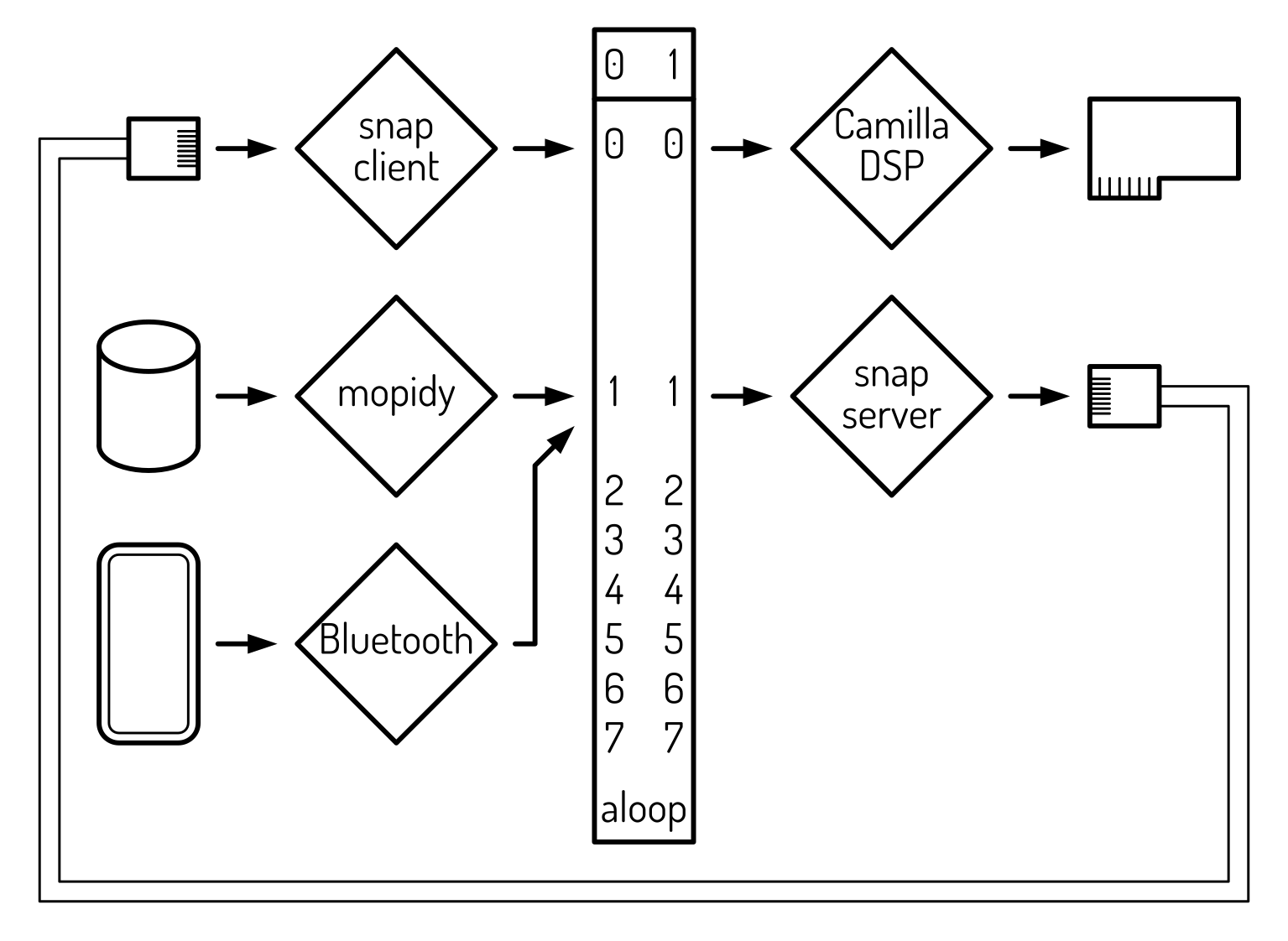
The digital signal processing (DSP) is not mandatory: the snapclient can stream directly to the audio (amplifier) output.
In the case of a simple multiroom audio receiver, the mopidy sound source and the snapserver audio streamer are absent. In this case, the Bluetooth reciever has to be multiplexed to the snapclient output.
Give the user access to BT:
USER='amp'
sudo usermod -a -G bluetooth $USER
cat /etc/group | grep ^bluetooth
First of all, one has to unblock the service:
rfkill list
sudo rfkill unblock bluetooth
rfkill list
In order to serve as a BT audio receiver, edit the BT configuration:
sudo nano /etc/bluetooth/main.conf
and change:
Class = 0x404DiscoverableTimeout = 0PairableTimeout = 0AlwaysPairable = true
Name = BluePi
Restart the service:
sudo systemctl restart bluetooth
On a desktop system, pipewire redirects Bluetooth audio to the speakers. If one want to go through ALSA, one has to disable it:
systemctl --user disable --now pipewire.service pipewire-pulse.service wireplumber.service
systemctl --user mask pipewire.service pipewire-pulse.service wireplumber.service
Install the BT audio ALSA backend:
sudo apt install -y bluez-alsa-utils bluez-tools
#sudo service bluealsa start
From these, bluealsa serves the Advanced Audio Distribution Profile (A2DP) pairing.
It generates an audio source called bluealsa as seen from the command:
aplay -L | head -n 20
As we only want to sink audio, the service configuration has to be changed:
sudo nano /lib/systemd/system/bluealsa.service
Change the command to:
#ExecStart=/usr/bin/bluealsa -S -p a2dp-source -p a2dp-sink
ExecStart=/usr/bin/bluealsa -p a2dp-sink
Restart the service:
sudo systemctl daemon-reload
sudo service bluealsa restart
As we are going to use the play command differently, disable the bluealsa-aplay service :
sudo systemctl disable bluealsa-aplay
sudo systemctl daemon-reload
Clear BT history:
sudo systemctl stop bluetooth
sudo rm -rf /var/lib/bluetooth/*
sudo systemctl start bluetooth
Clear list of connected devices:
bluetoothctl devices | awk '{print $2}' | while read dev; do bluetoothctl remove $dev; done
Prepare RPi for connection:
bluetoothctl power on
bluetoothctl discoverable on
bluetoothctl pairable on
Pair a device to the RPi:
/bin/sh -c 'yes | /usr/bin/bt-agent -c NoInputNoOutput'
Save your connection:
PLAYER=`bluetoothctl player.list | sed 's/.*dev_//' | sed 's/\/.*//' | sed 's/_/:/g'`
echo "saving connection from $PLAYER"
bluetoothctl trust $PLAYER
Check the status:
bluetoothctl show
Check for BT connected devices:
bluetoothctl player.list
List the processes linked to BT:
busctl | head -n 1 | cut -c -$COLUMNS ; busctl | grep -i blue | cut -c -$COLUMNS
Beware: the RPi uses the same radio chip for Ethernet and Bluetooth. If your BT audio stutters, do consider to connect your RPi to a wired Ethernet connection.
Check the audio path:
$AUDIO_BASE_DIR/Management/showInstallation.bash
The BT audio source bluealsa samples 16 bit audio at a 44.1 lHz sampling rate.
This has to be encoded and resampled to the sample bit number and the sampling rate of the audio chain.
If playing, pause Mopidy:
$AUDIO_BASE_DIR/Mopidy/control.bash pause
Connect a smartphone or any other Bluetooth audio source device to the RPi and start playing.
On the RPi, send the audio to the same sink as Mopidy, e.g.:
bluealsa-aplay -D plug:dmix:Loopback,0,1 --pcm-buffer-time=5000000
I had a RPi that rejected the device plug:dmix:Loopback,0,1.
The workaround has been:
ALSA_CONFIG_PATH=<(cat /usr/share/alsa/alsa.conf; echo 'pcm.plugdmix01 { type plug slave.pcm "dmix:Loopback,0,1" }') \
bluealsa-aplay -D plugdmix01 --pcm-buffer-time=5000000
Adjust the buffer time (given in microseconds) to have flawless music playing.
Both mopidy and bluealsa-aplay stream their audio to the same sink. So in order to hear only one of them, one has to pause the other:
$AUDIO_BASE_DIR/Mopidy/control.bash -v pause
$AUDIO_BASE_DIR/Bluetooth/control.bash -v play
# or
$AUDIO_BASE_DIR/Bluetooth/control.bash -v pause
$AUDIO_BASE_DIR/Mopidy/control.bash -v play
The control script:
$AUDIO_BASE_DIR/Bluetooth/streamControl.bash -v
runs an infinite loop which:
- on the connection of a Bluetooth device
- pauses mopidy
- sends a play command to the Bluetooth device
- on the disconnection of the Bluetooth device
- sends a play command to mopidy
In order to have automatic BT streaming when a device is connected, a service is used. Edit the service definition file to adjust the parameters:
nano $AUDIO_BASE_DIR/Bluetooth/dac-bluetooth.service
Then setup the service:
sudo cp $AUDIO_BASE_DIR/Bluetooth/dac-bluetooth.service /lib/systemd/system/
sudo systemctl daemon-reload
sudo systemctl enable --now dac-bluetooth.service