Screenshots
A picture behind the windows. Nine ship; your own drop into
~/.superterm/backgrounds/ and appear in the menu without rebuilding.
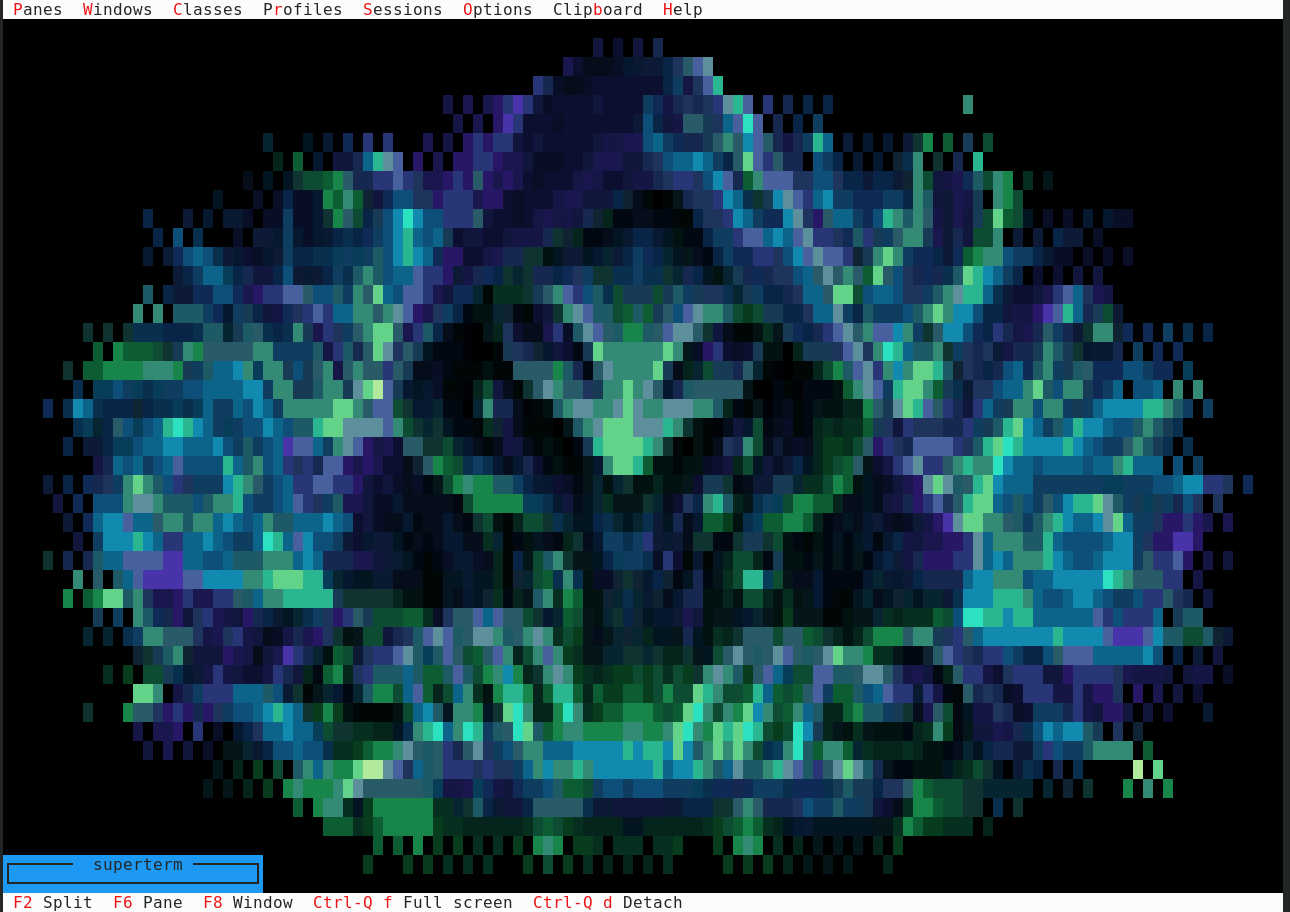
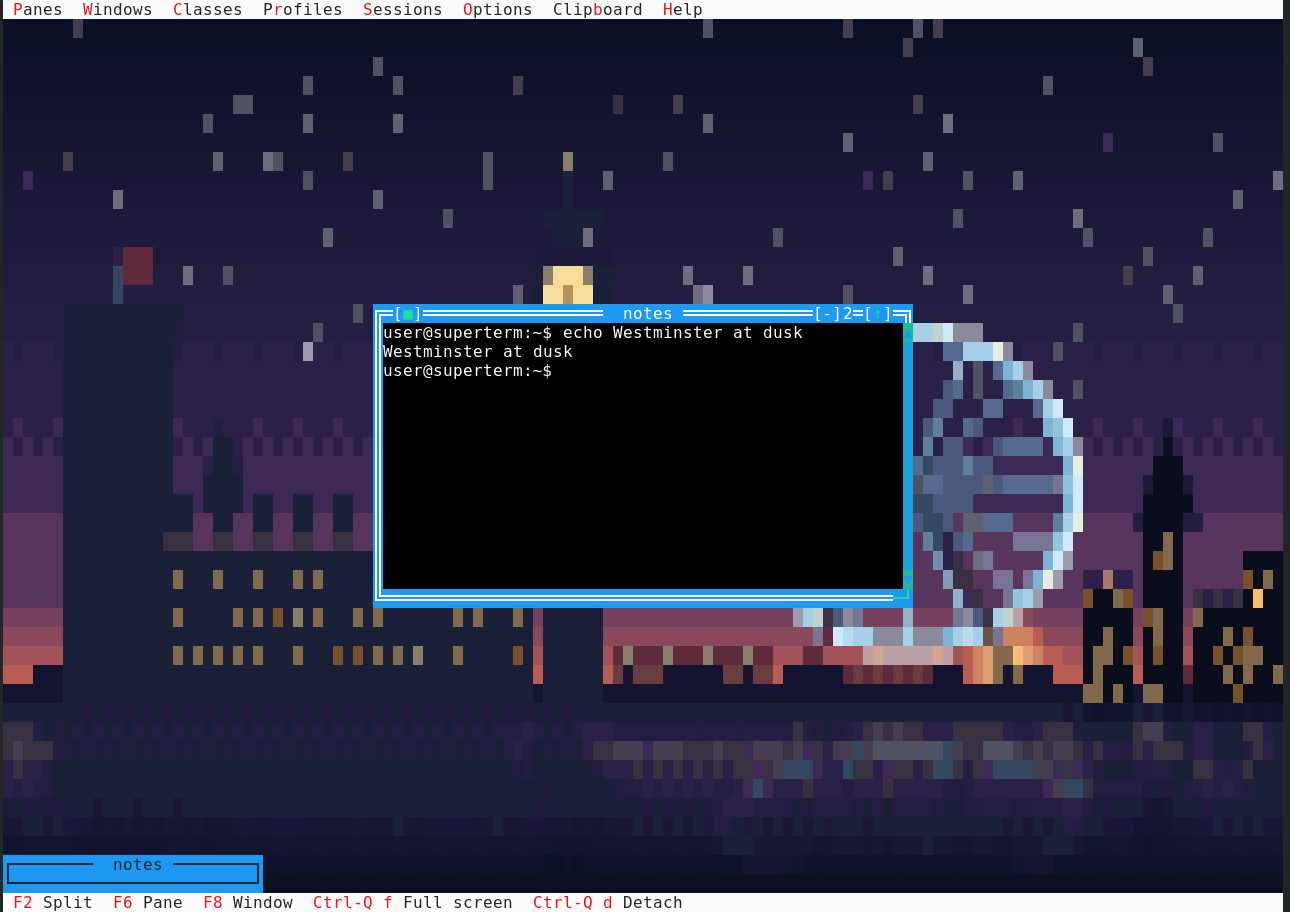
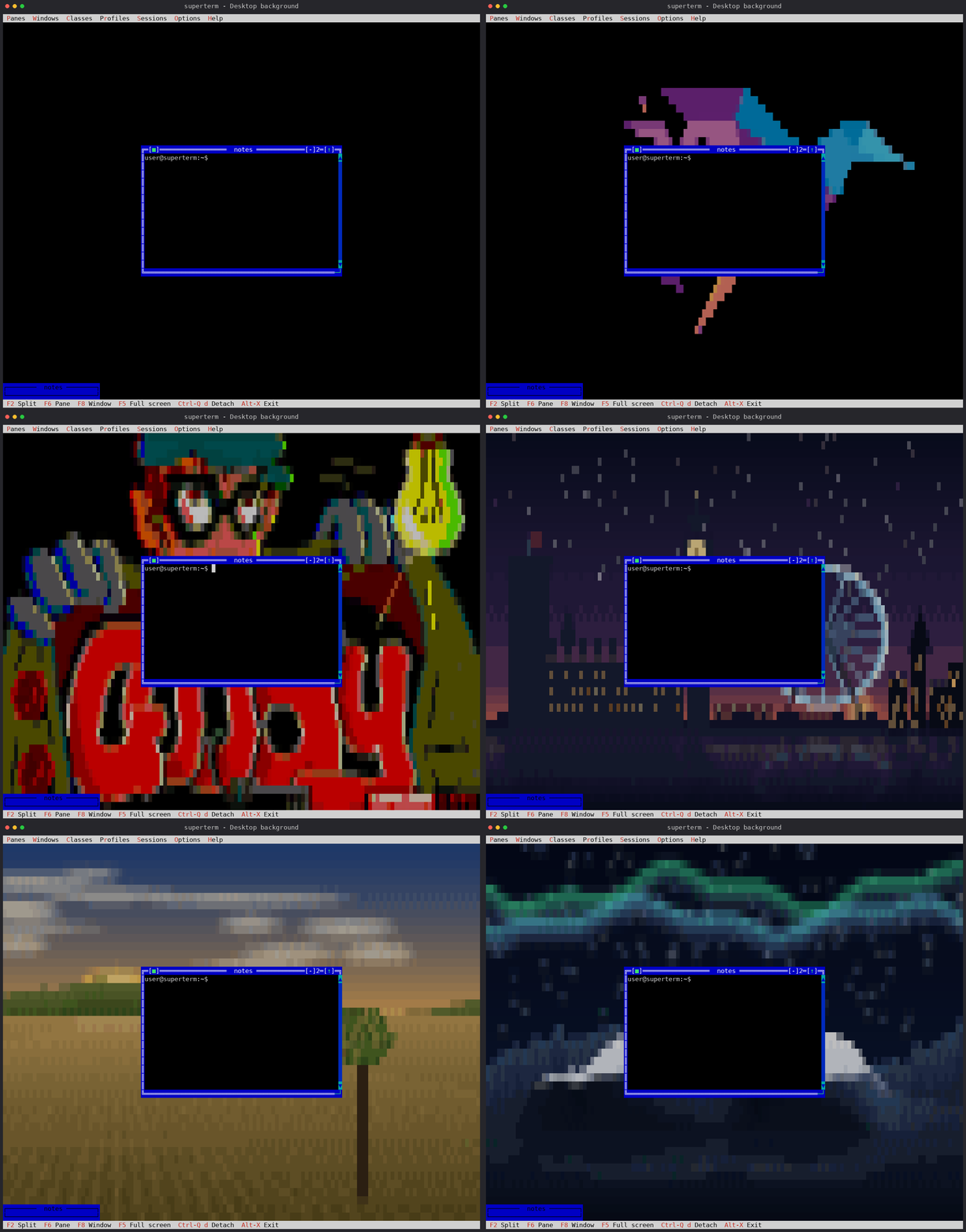
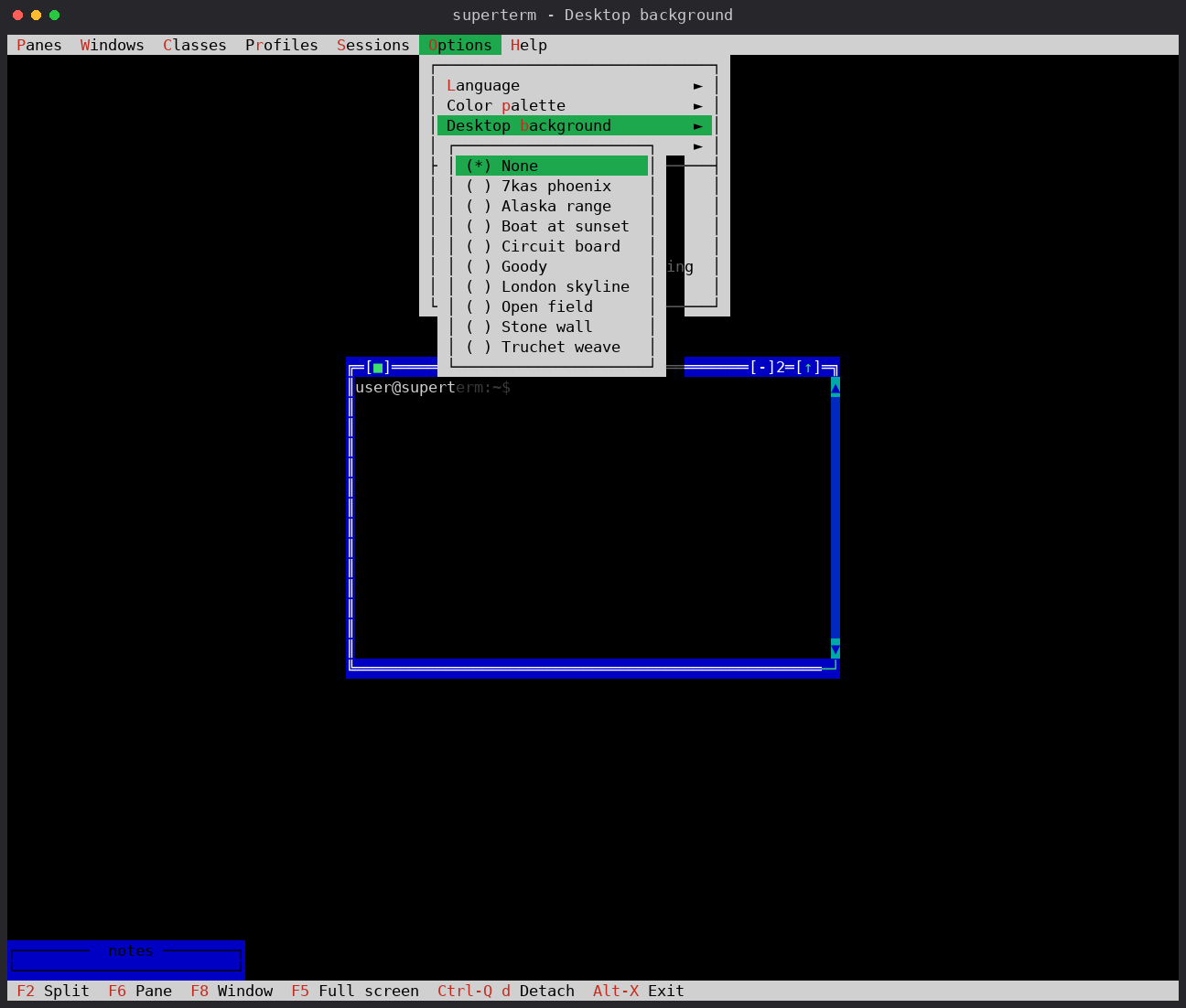
Choosing one. Options > Desktop background lists every picture found on
disk, and the desktop follows the choice as you make it:
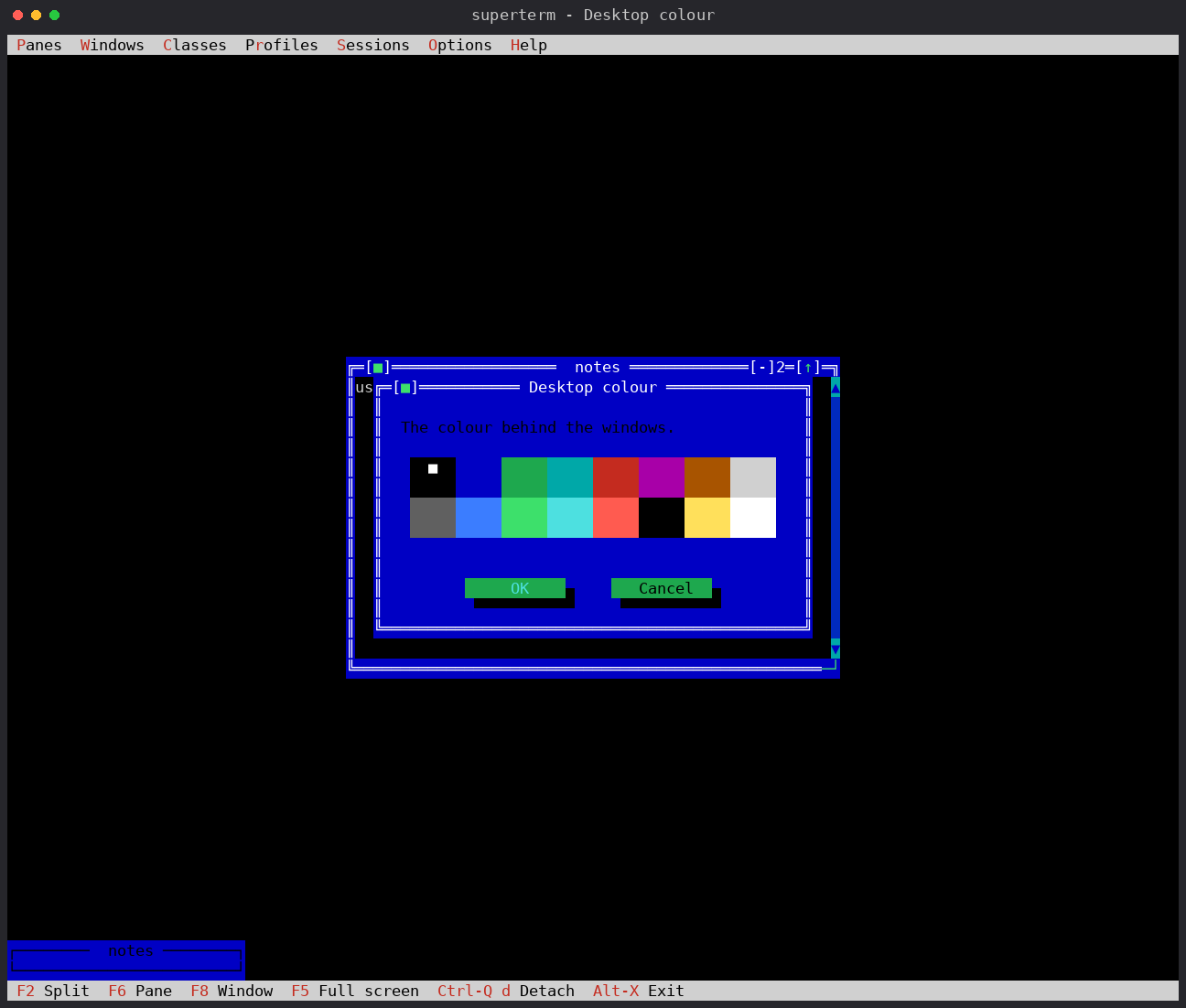
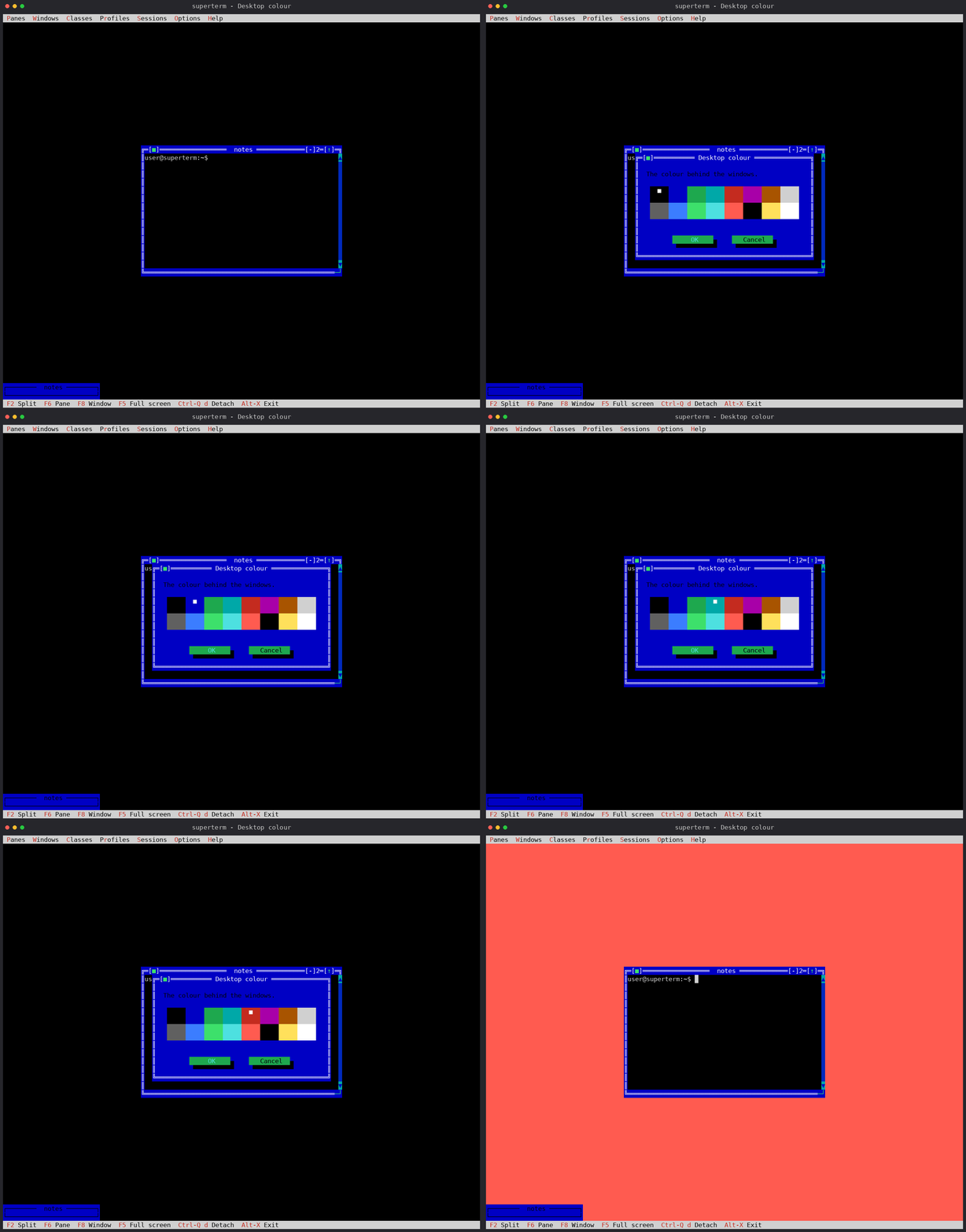
The desktop's colour. Options > Desktop colour...: the sixteen text-mode
colours as swatches, clickable or reachable with the arrows. Black is the
default, and the colour fills the desktop and a picture's empty cells alike.
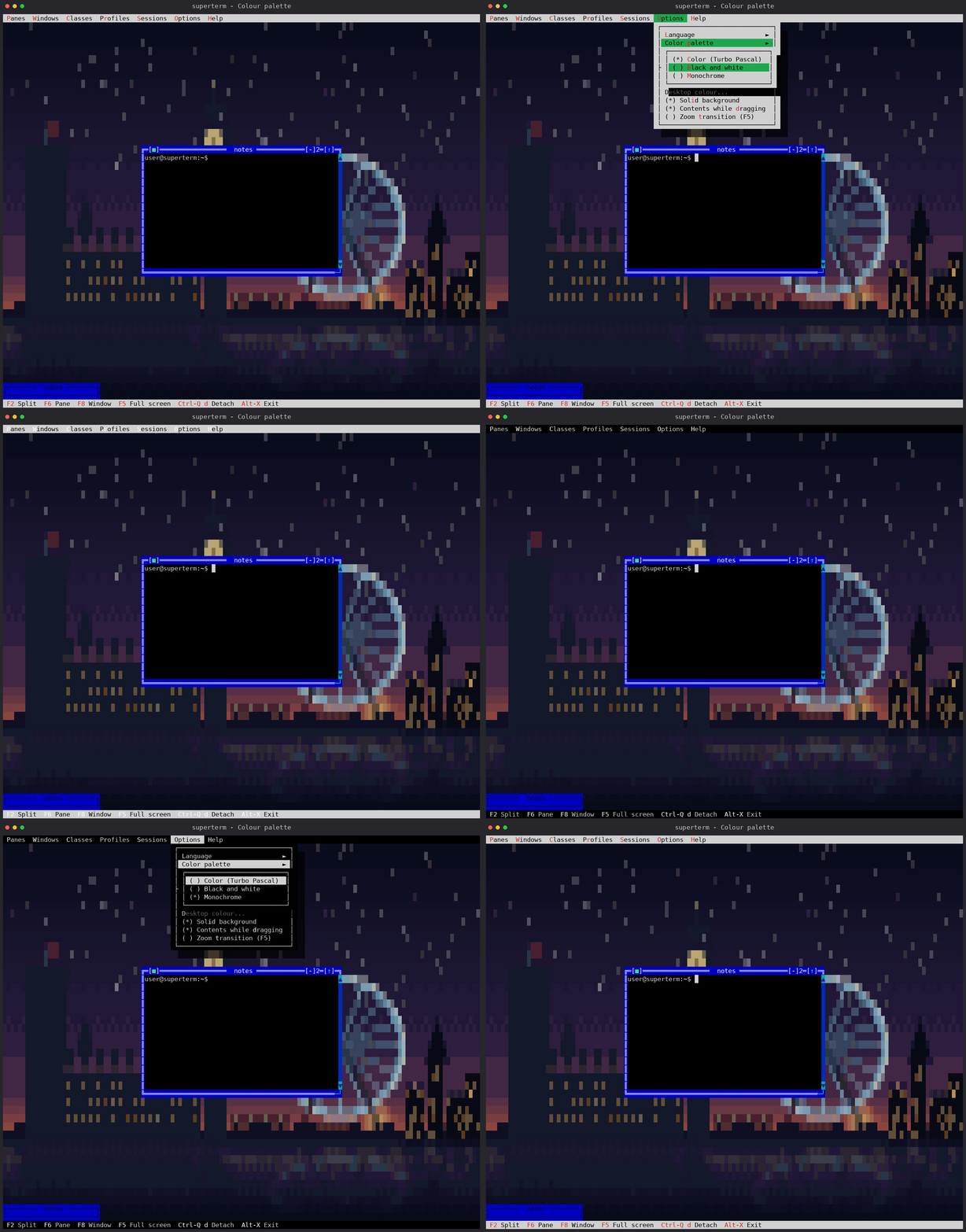
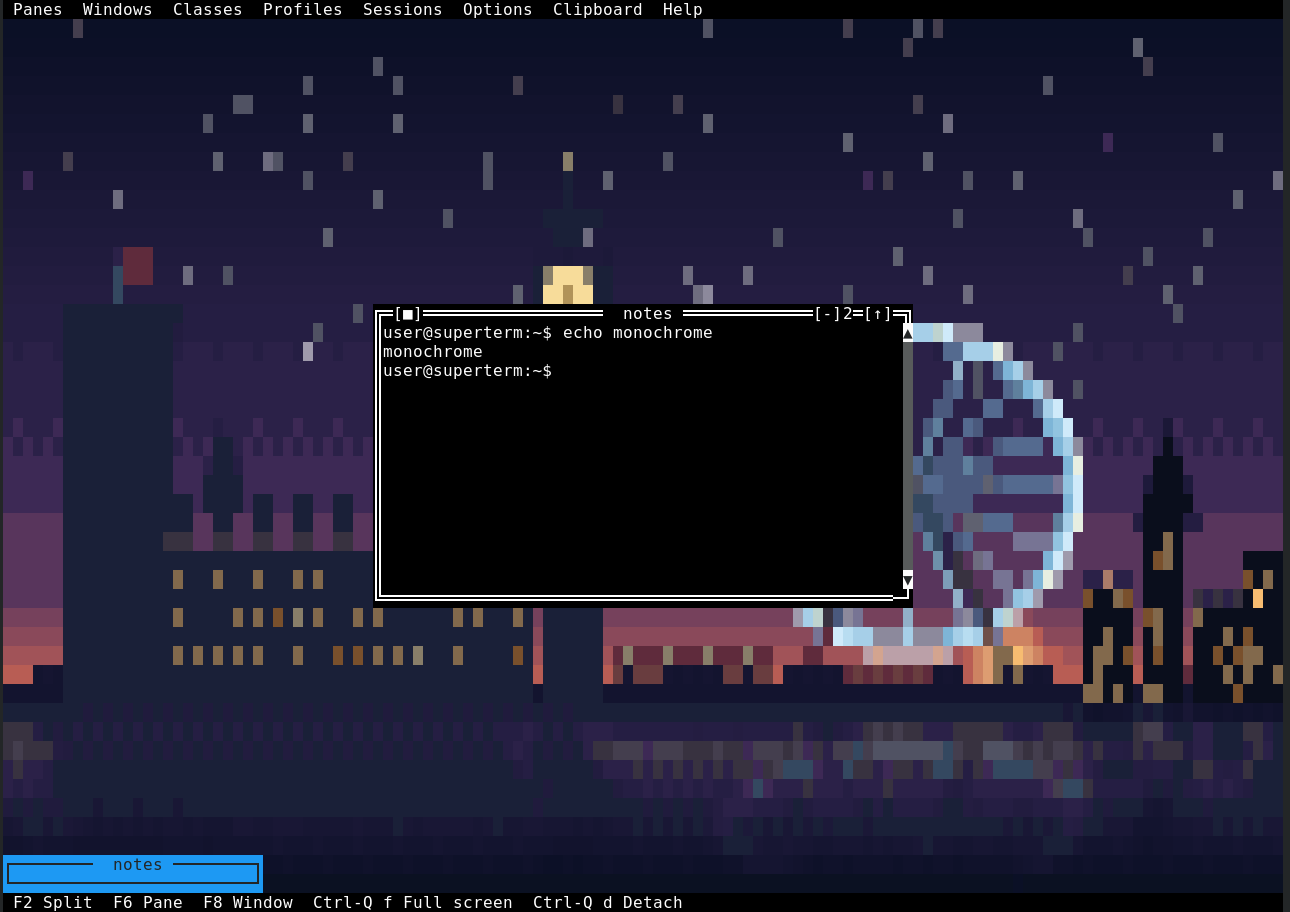
The three palettes, and what a picture looks like in each. A picture keeps its own colours in all of them -- monochrome included:
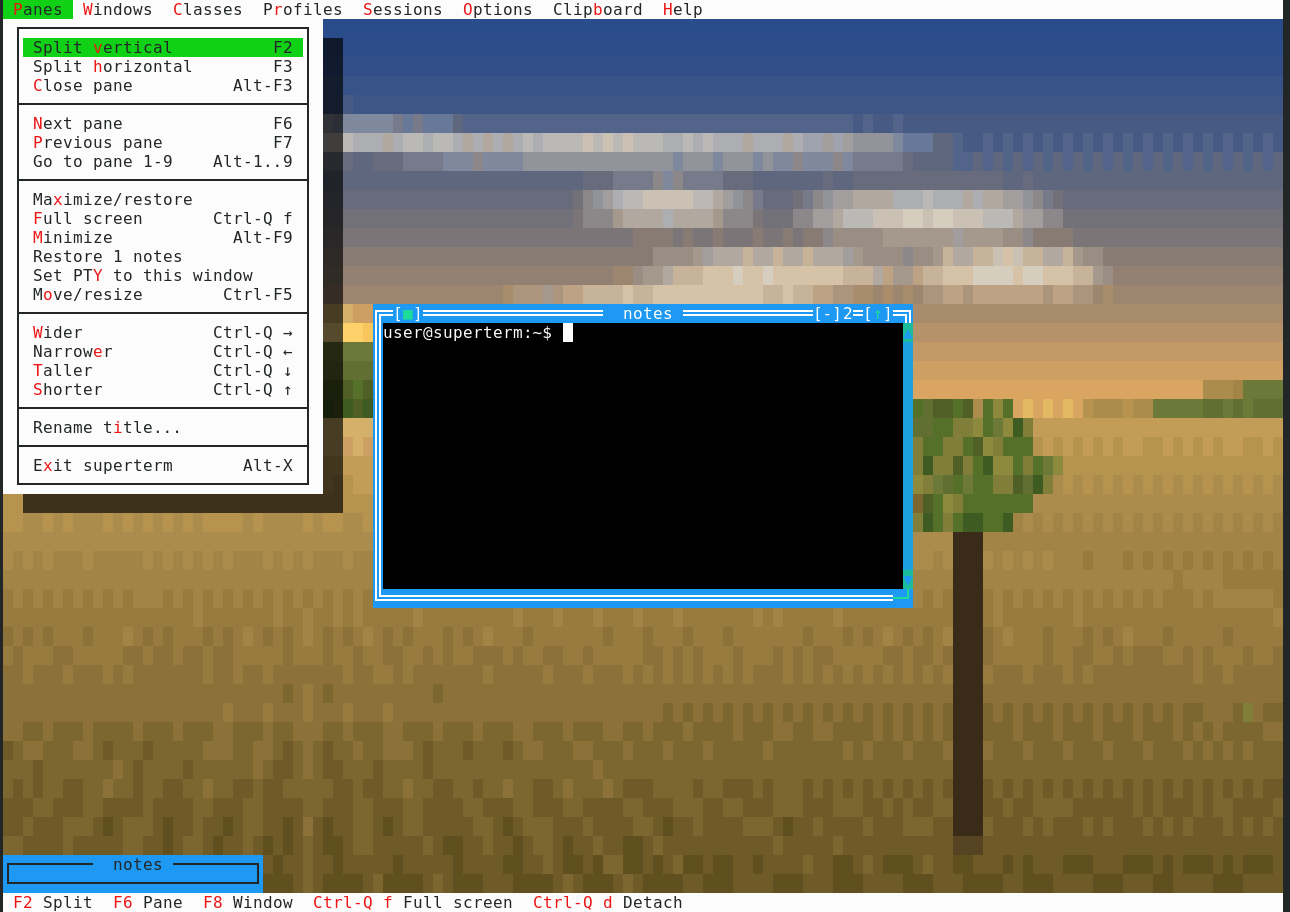
Shadows. A menu or a dialog darkens what is behind it, picture included, instead of falling back to the character grid:
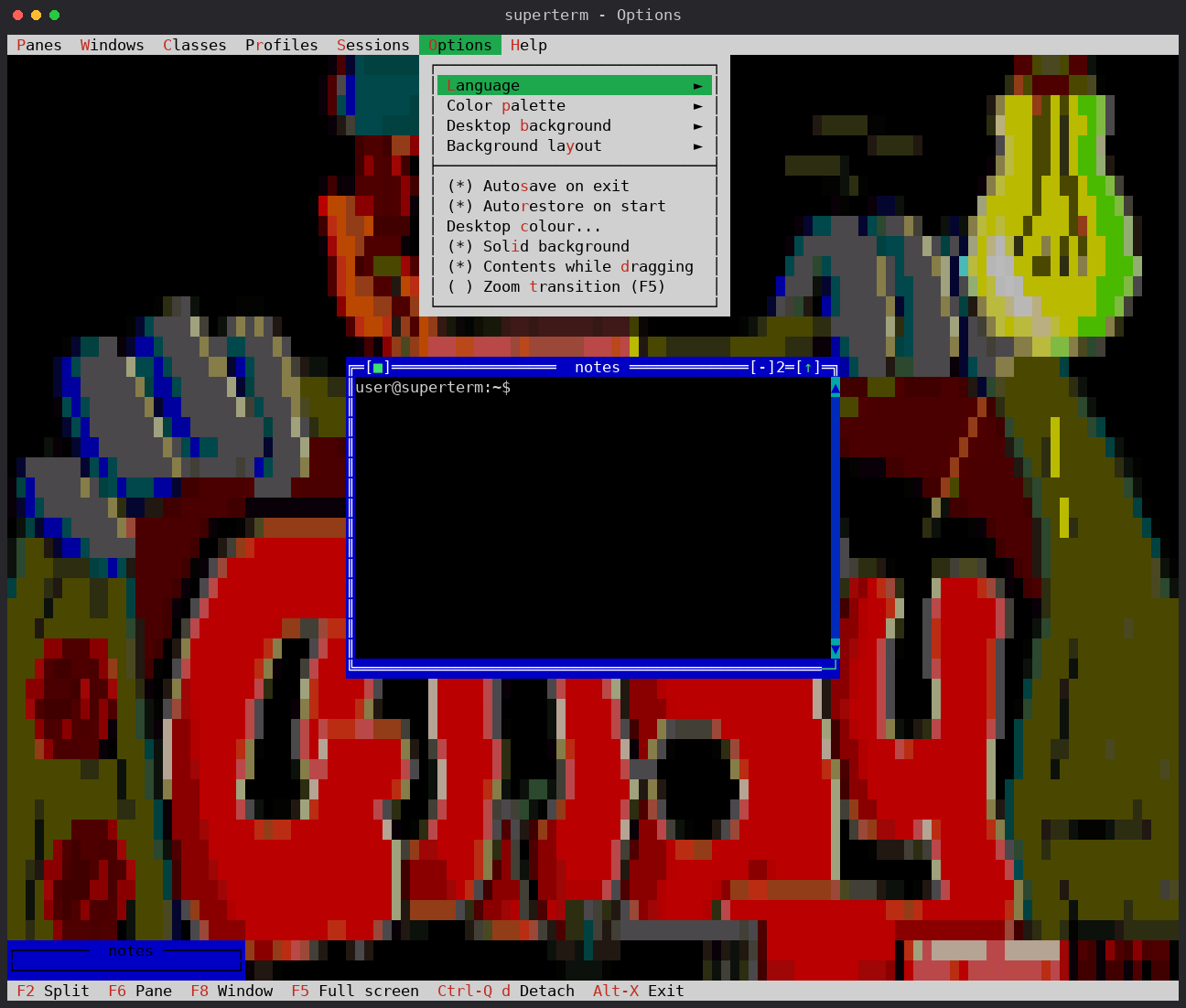
The Options menu, with everything above in it:
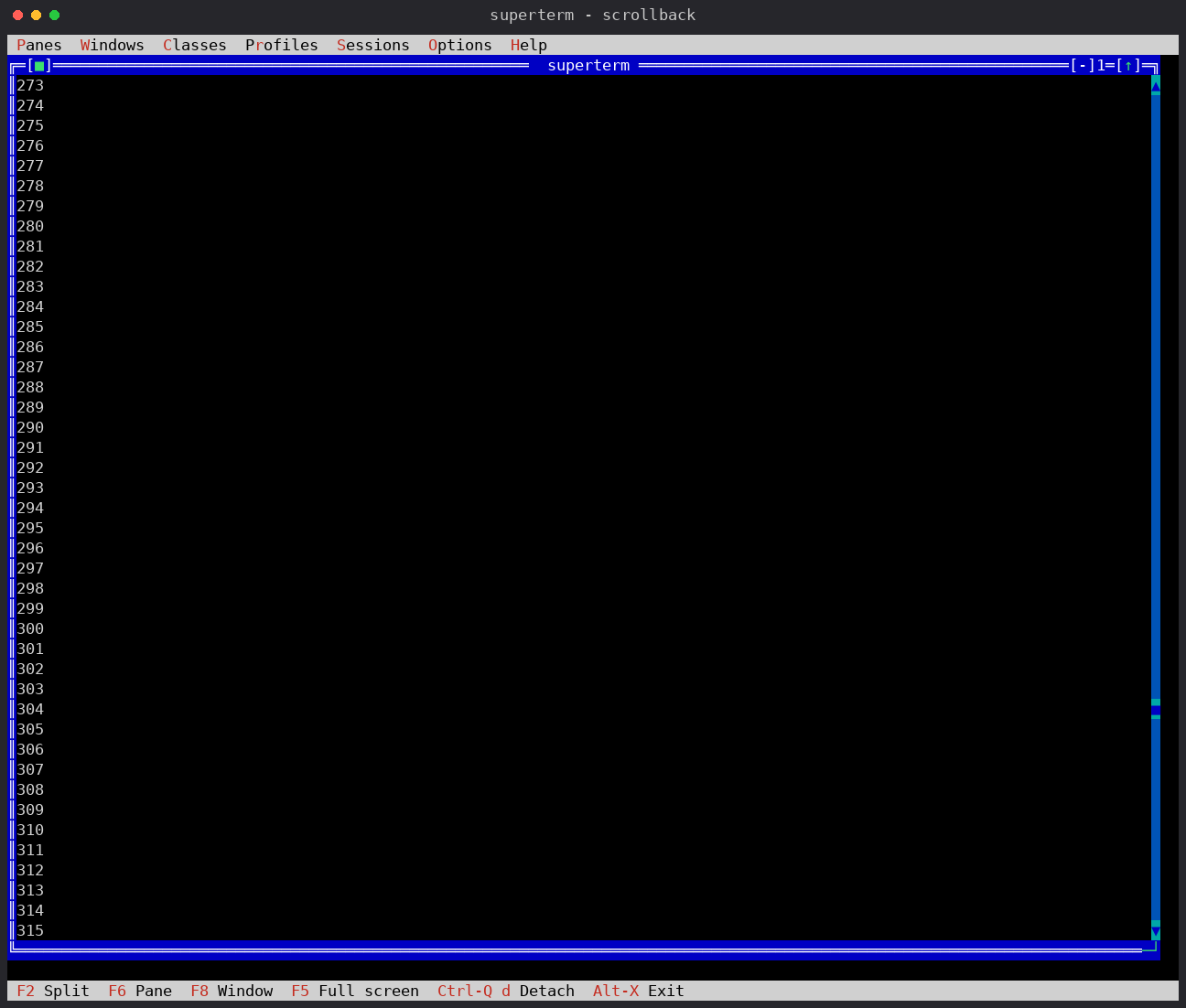
Scrollback. Every window carries a scrollbar in its right frame column --
it costs the pane no column -- and the wheel and Alt-PgUp/PgDn reach the
history:
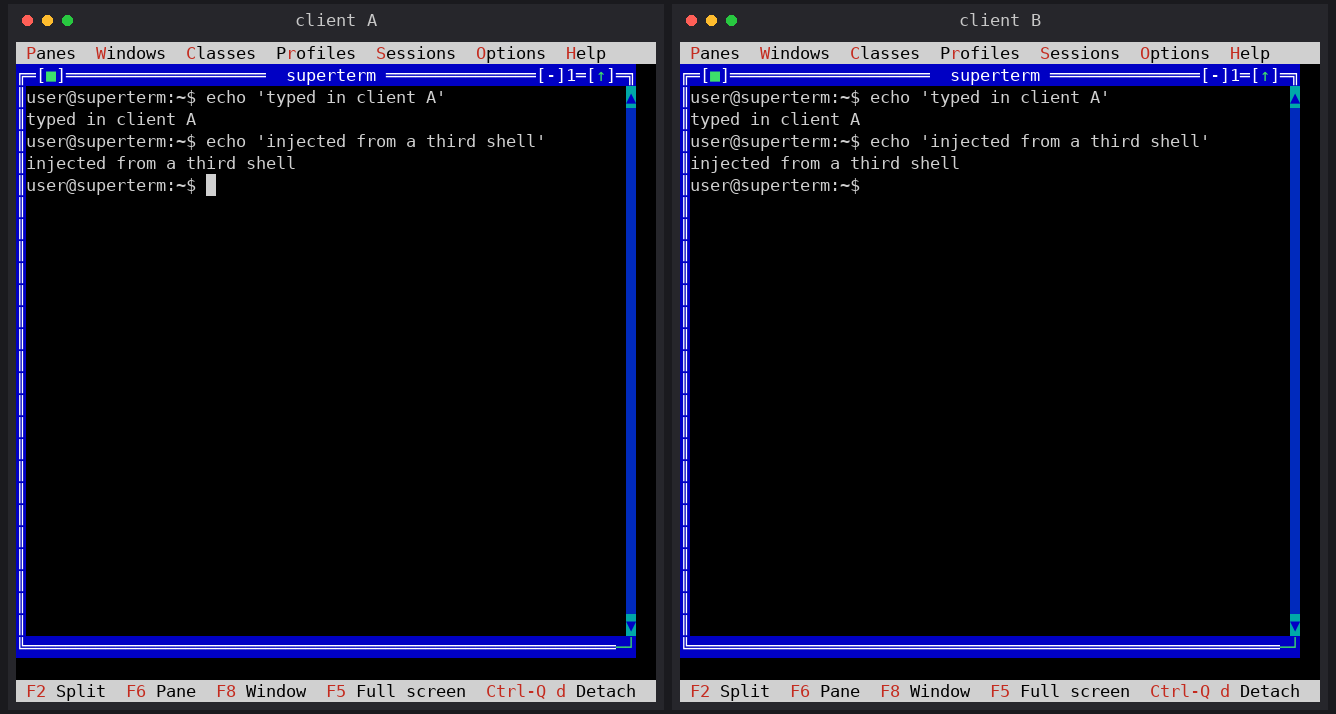
True multi-user sessions. Two clients attached to the same session: everything typed in client A (left) appears live in client B (right), including the line injected from a third shell with the control CLI:
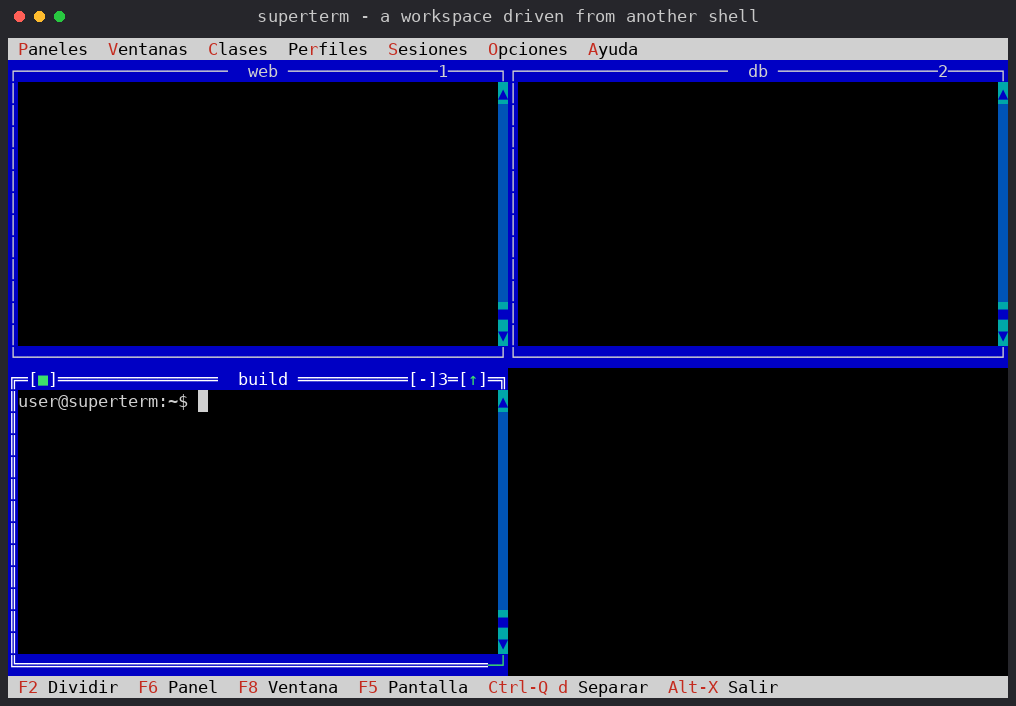
Window management from the command line. This workspace was built
entirely from another shell — panes opened with new, renamed with rename,
re-tiled with organize grid, commands typed with send — while the attached
client watched it happen live:
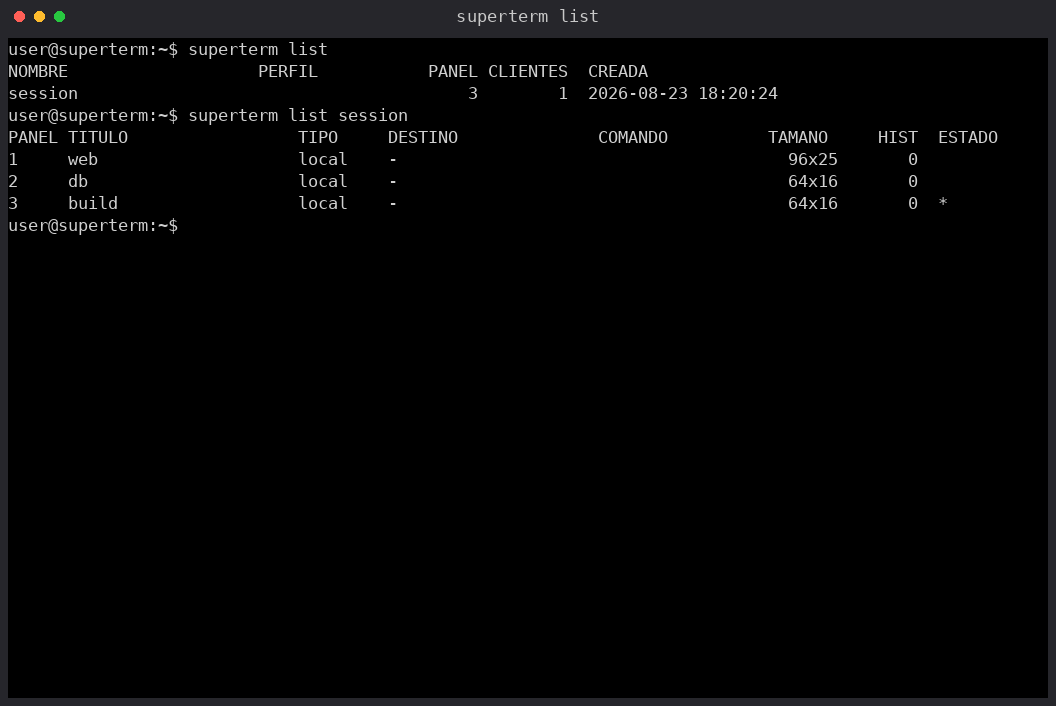
Session and pane listing. Live command, terminal size, scrollback lines
and focus flags per pane; an English command produces Spanish output when
the UI language is Spanish, and listar works everywhere:
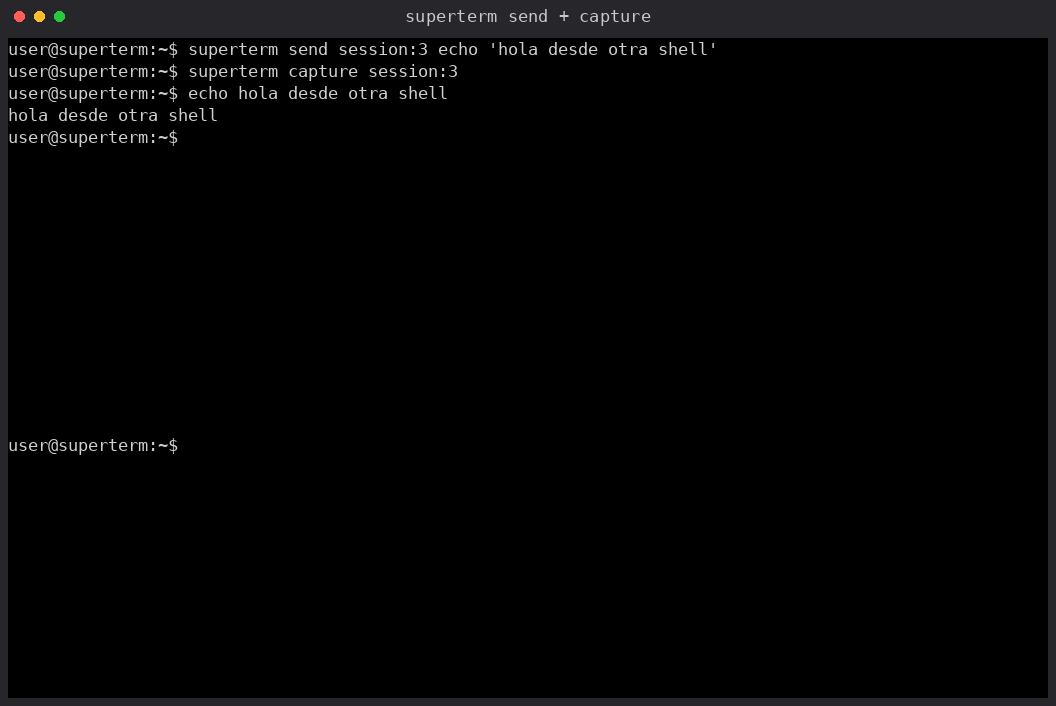
Send and capture. Typing into a pane and dumping its screen — or its entire scrollback — from another shell, pipe-clean UTF-8:
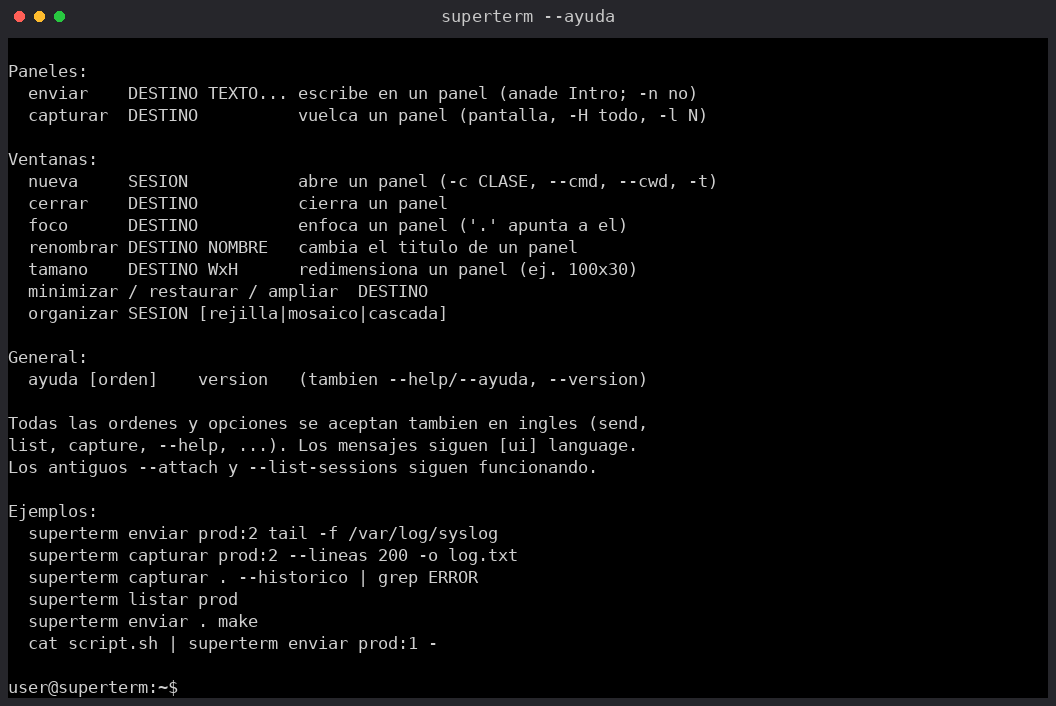
Bilingual CLI. Every command and flag is accepted in English and in Spanish, and the help follows your configured language:
All captures use the classic Turbo Pascal palette. Every visible pane is a real PTY-backed terminal; the frames, menus and dialogs are drawn by the vendored Free Vision UI.
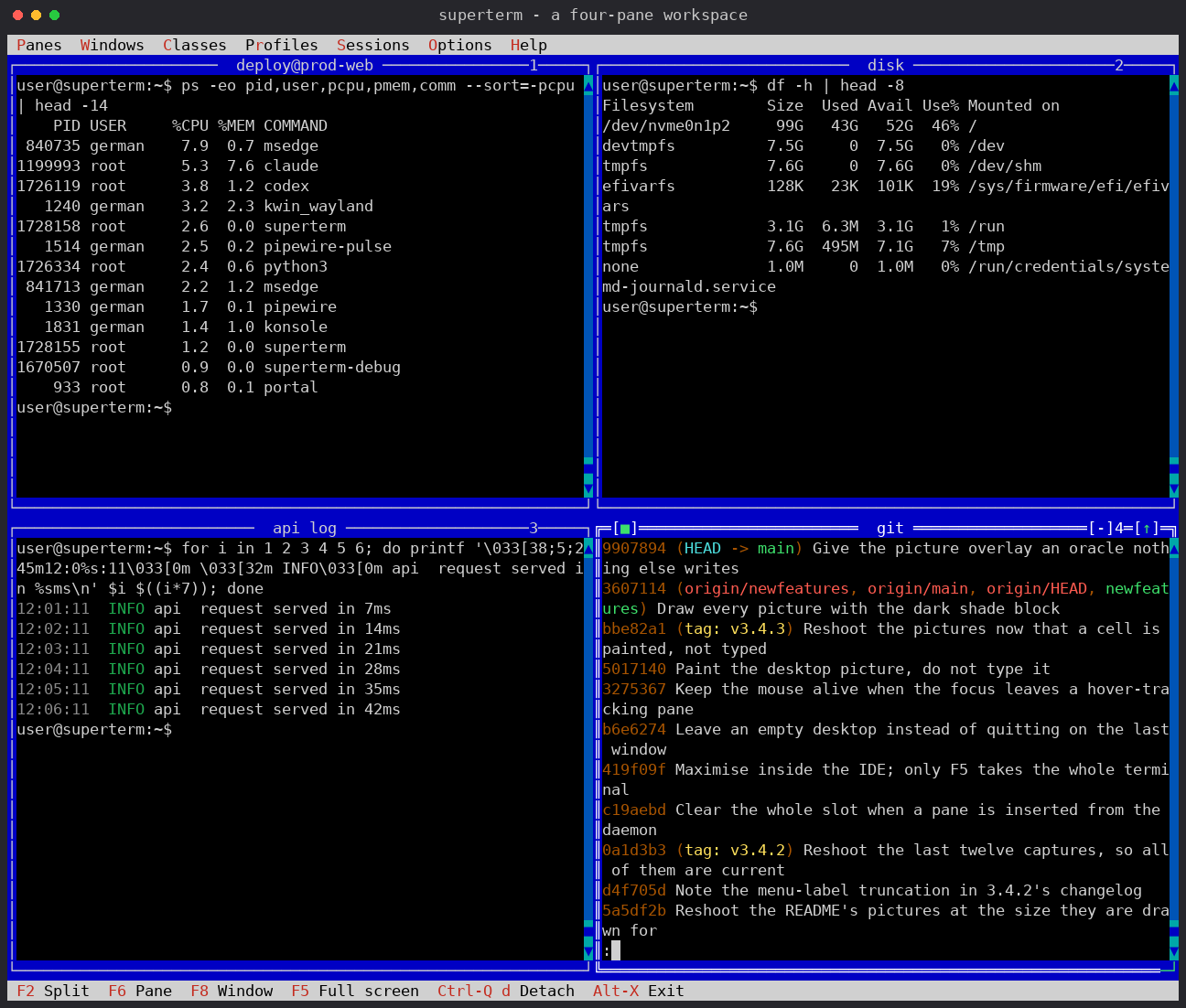
A workspace split into four independent panes: a process list, disk usage, a coloured application log and a git history. Each pane keeps its own process, terminal state, focus and resize behaviour, and the colours in the log and in the git output reach the terminal exactly as the program wrote them.
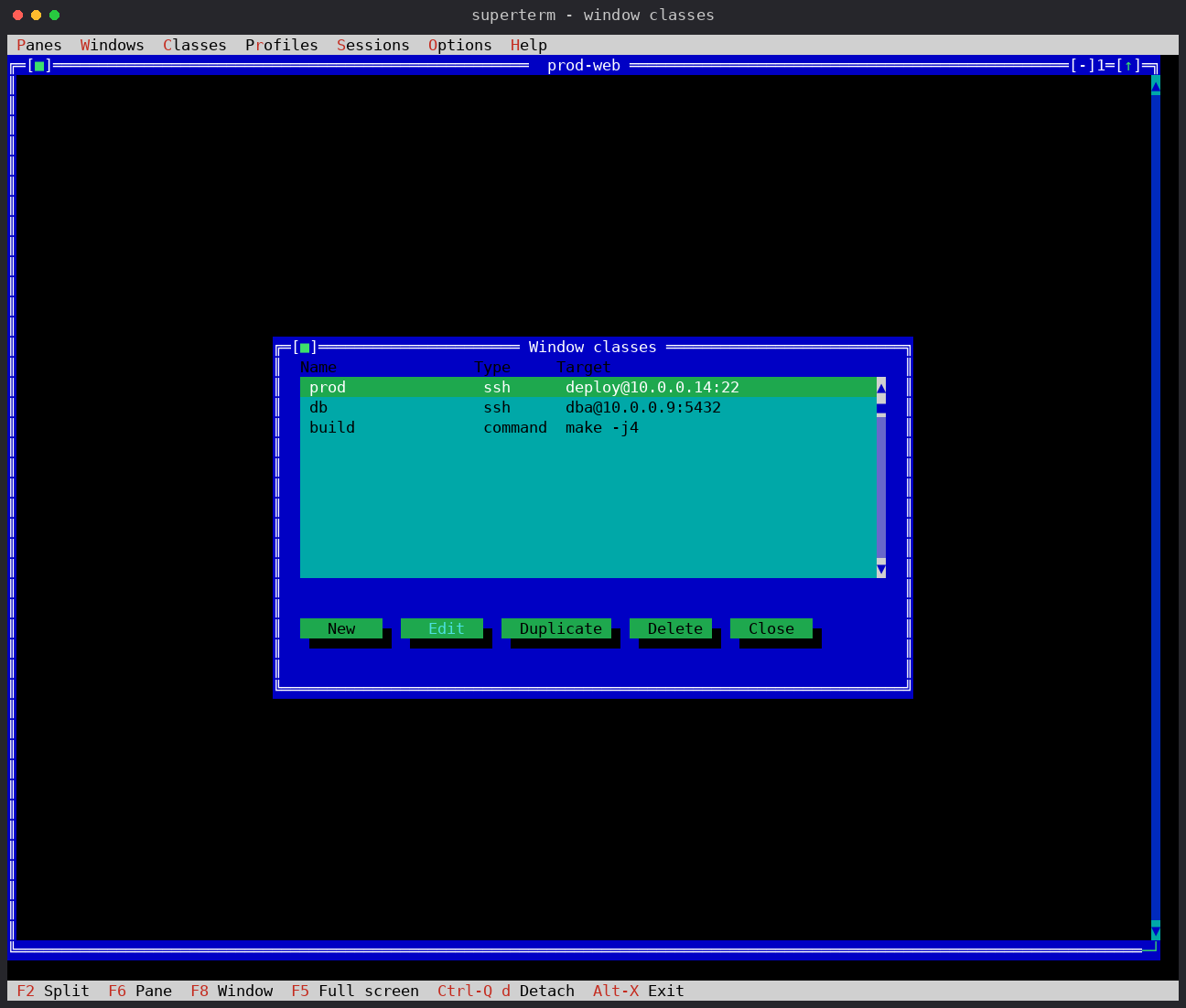
A window class captures how a terminal connects: a structured SSH target
(host, user, port, key) or a free command, plus an optional command to run once
connected. Classes are edited in the app and stored in ~/.superterm/superterm.ini.
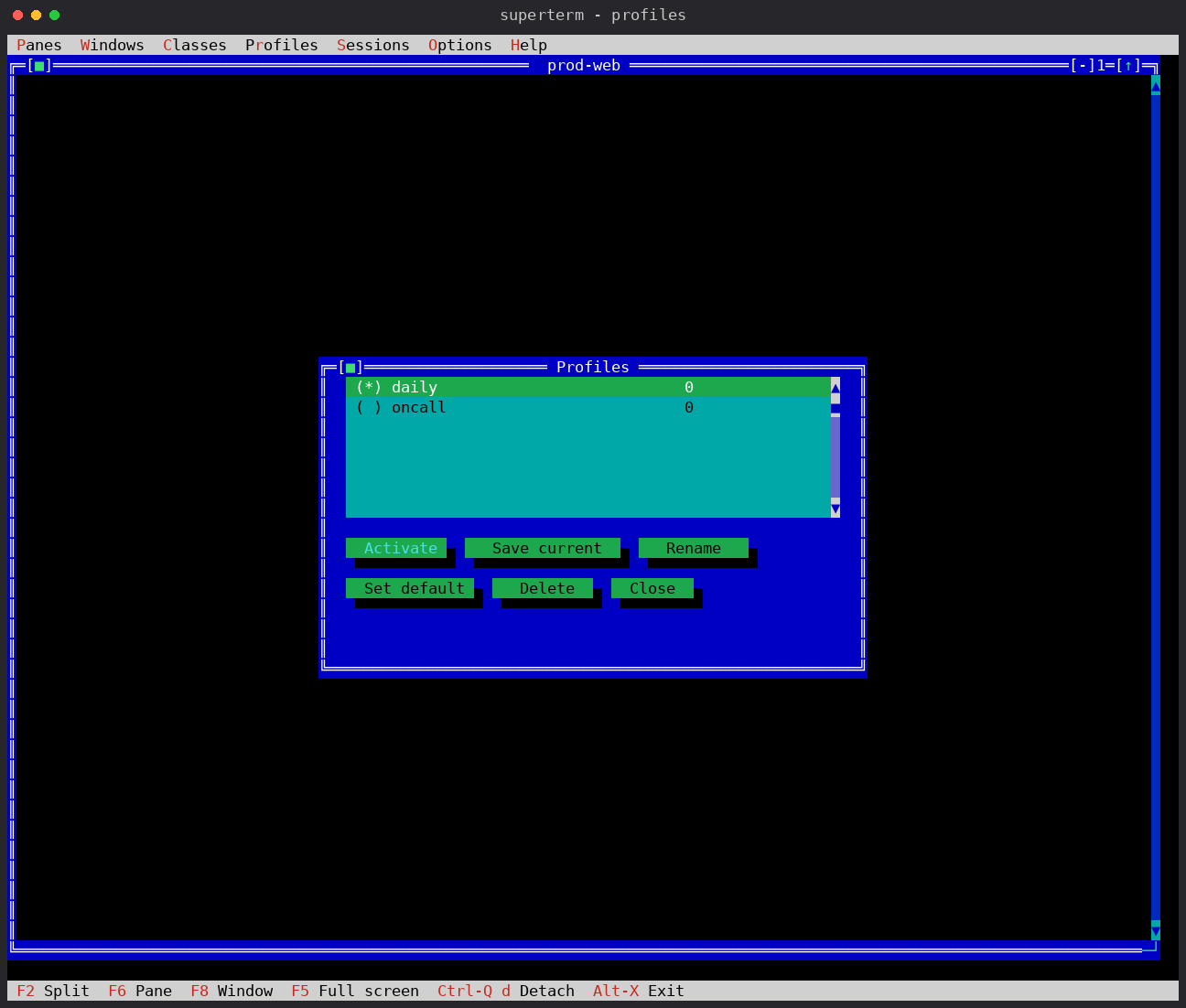
A profile is a named collection of windows and panes — a repeatable workspace. Activate one, save the current layout as a new profile, or mark one as the default that opens on startup.
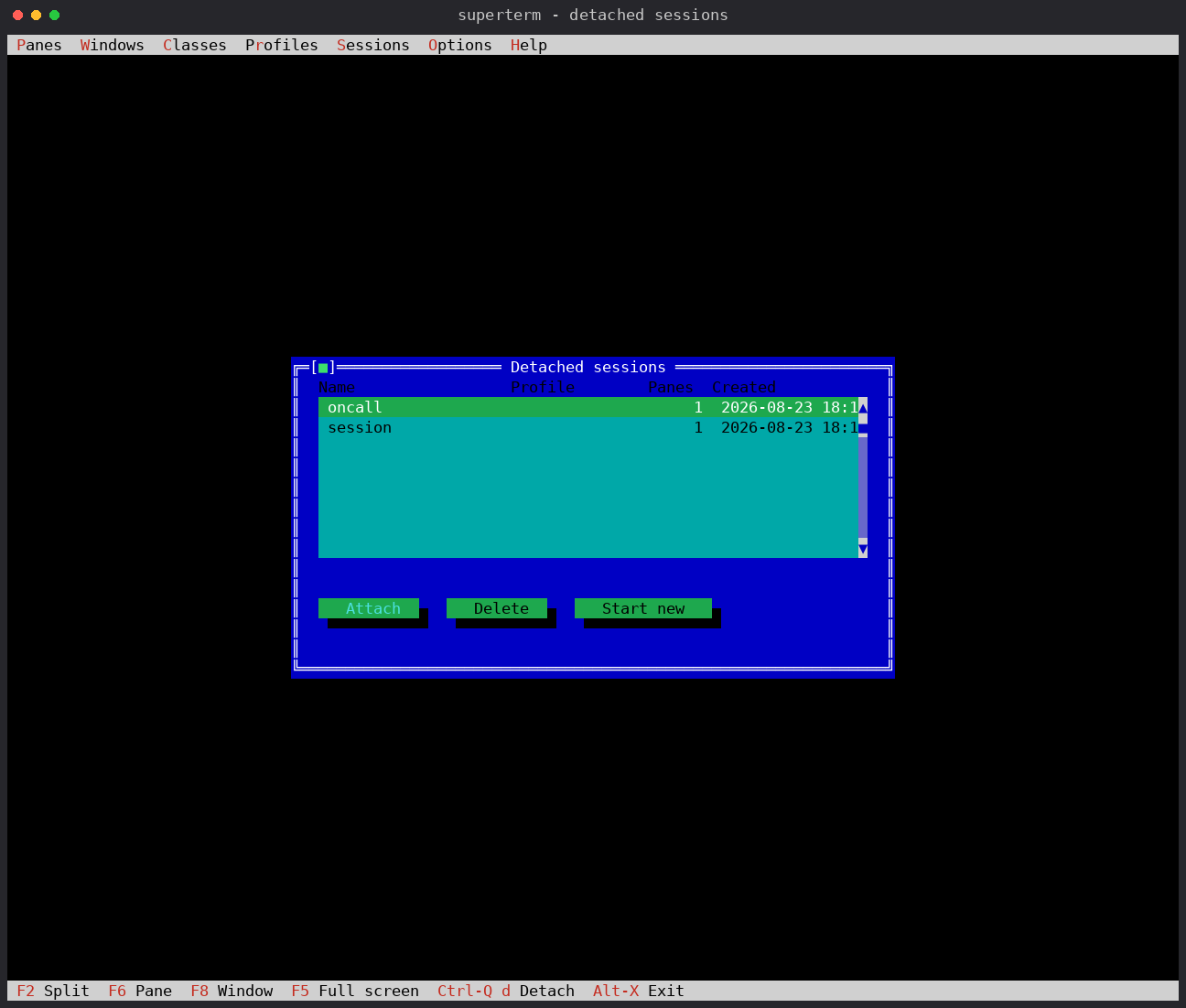
Detach a running workspace (Ctrl-Q d) and it keeps its shells and SSH
connections alive in the background under a name. superterm --attach (or
Ctrl-Q s) shows the picker to reattach, delete, or start a new session.
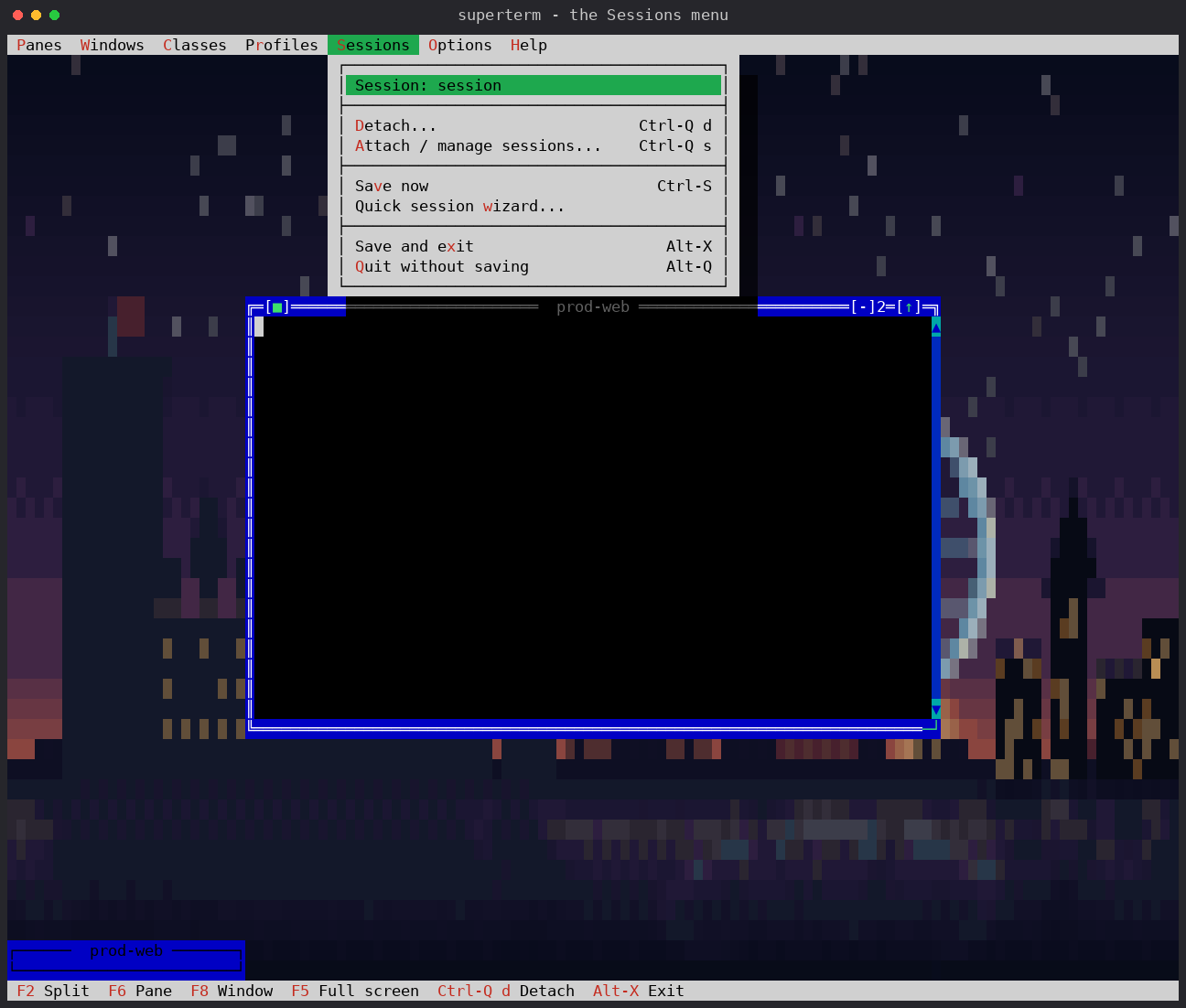
The Sessions menu gathers detach, attach/manage, save, and the quick wizard. Accelerators and shortcuts are shown on the right of each entry.
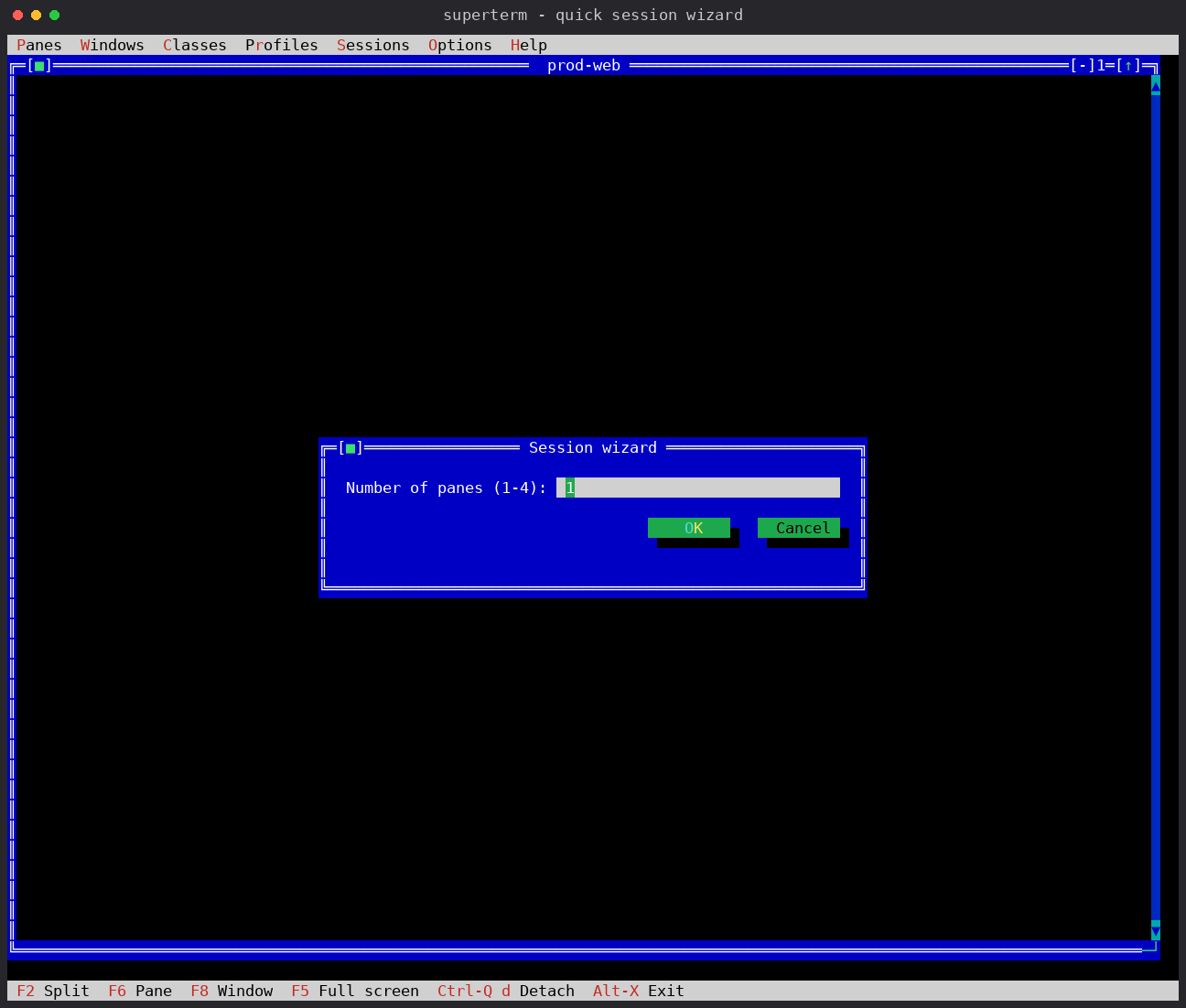
The wizard launches one to four panes without editing a file. It asks for the number of panes, then a connection command for each and an optional command to run once connected. Use it for temporary workspaces; use a class or profile when the layout must be reproducible.
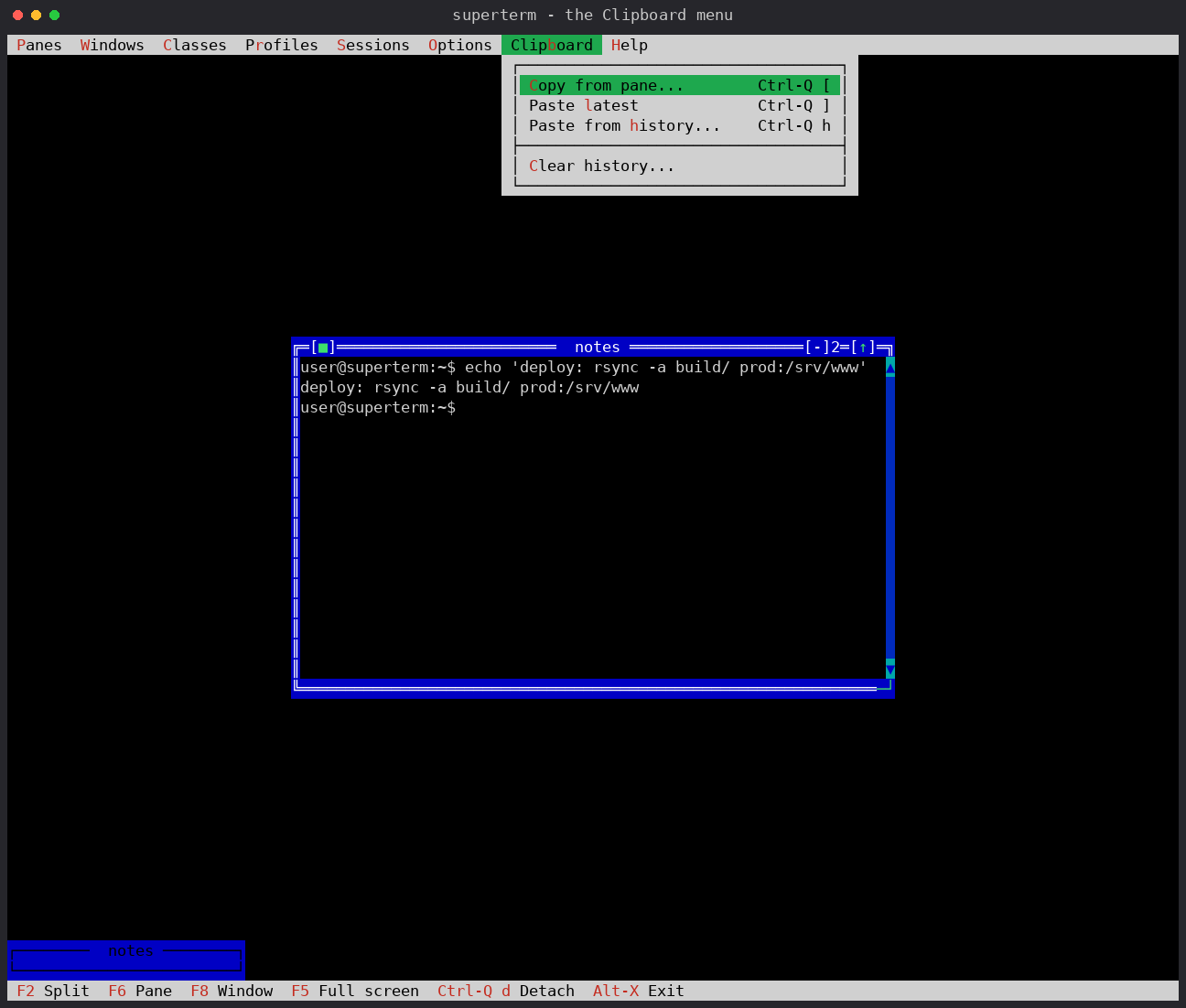
The Clipboard / Portapapeles menu keeps the ten most recent items in
memory. Ctrl-Q [ enters copy mode in the focused pane, Ctrl-Q ] pastes the
newest item straight away, and Ctrl-Q h opens the history so one can be
chosen. Host-terminal pastes arrive atomically through bracketed-paste mode.
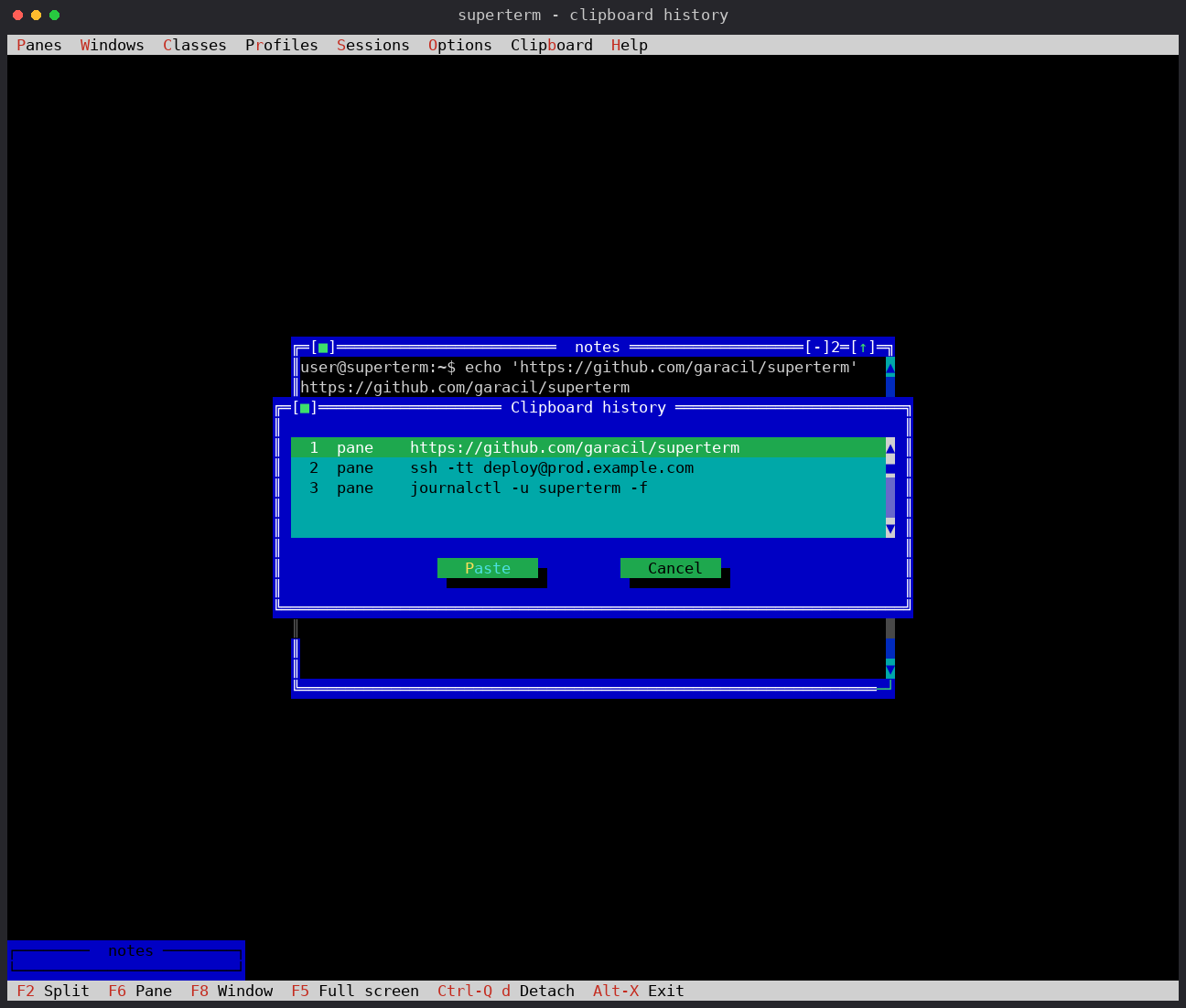
Each row in the history says where the item came from, so a pane copy and a paste from the host terminal can be told apart. A pane's own copy reaches the host clipboard with OSC 52, which is what makes it work when the pane is an SSH connection; a pane asking to read the clipboard is not answered.
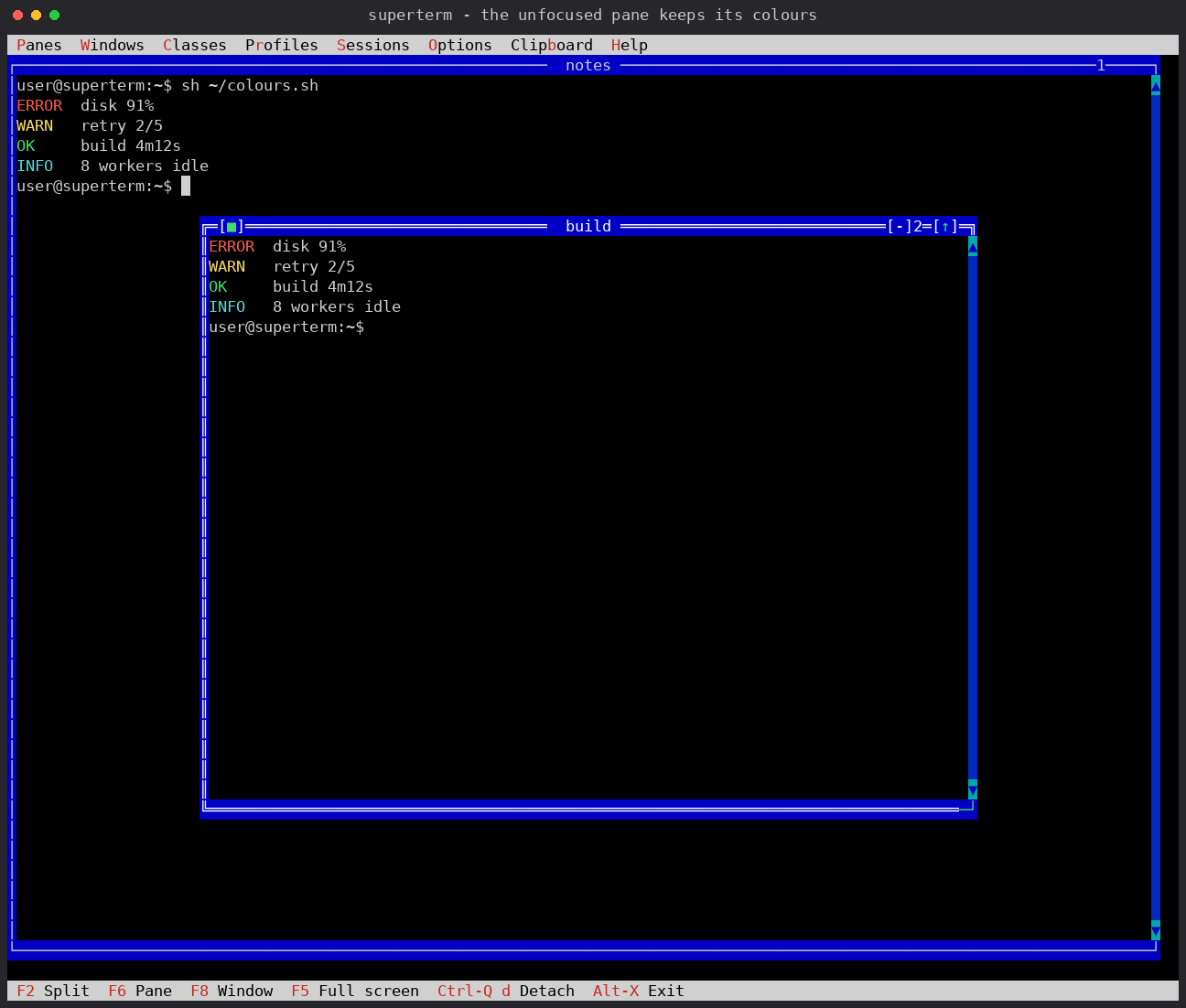
An unfocused pane is no longer darkened into greyscale. Both panes below ran the same output and keep the application's exact foreground, background and attributes; only the window border, the title and the cursor say which one has the focus. Because the interior does not change, moving the focus puts nothing into the terminal delta -- which is what a slow link notices.
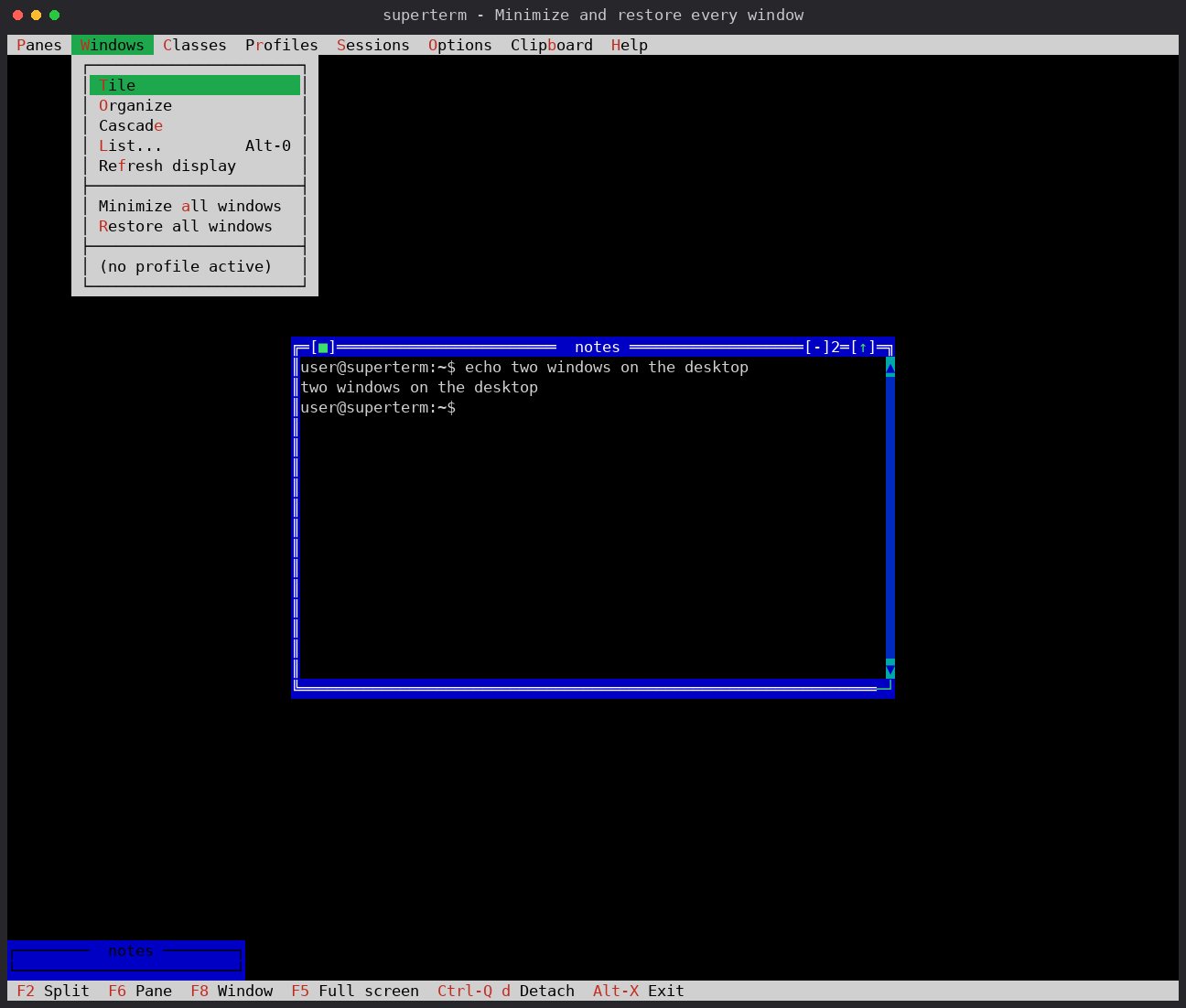
Minimize all windows and Restore all windows act on the whole workspace at
once. The per-window entries remain in Panes / Paneles.
The screenshots are generated deterministically from the real TUI output, so they can be regenerated whenever the interface changes. Keep them free of passwords, private keys, tokens, host secrets, and personal command history before publishing.