Usage
Start the compiled binary:
./bin/supertermEach visible pane contains a real local or remote terminal process. The application starts with the configured default template/session/window when one is defined.
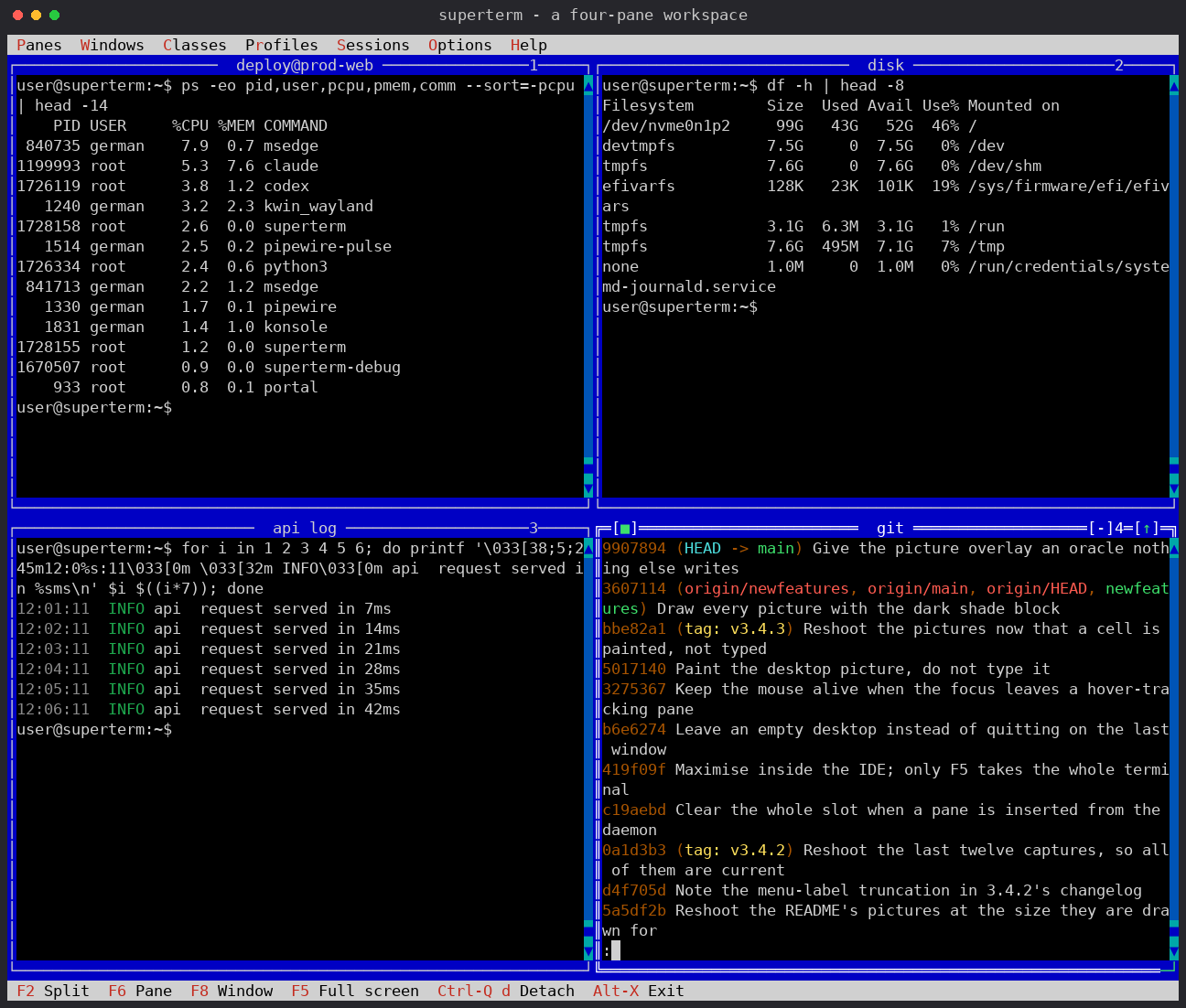
The screenshot illustrates the pane layout, window borders, status line, and independent PTY-backed shells in one workspace.
| Key | Action |
|---|---|
F2 |
Vertical split, side by side |
F3 |
Horizontal split, stacked |
Alt-F3 |
Close the focused pane; exit when one remains |
F6 / F7
|
Next / previous pane |
F5 |
Maximize or restore the focused window |
Ctrl-F5 |
Move or resize the focused window |
Alt-F9 |
Minimize the focused window |
Alt-F4 |
Close the focused window |
+ / -
|
Increase or decrease pane width |
* / /
|
Increase or decrease pane height |
Ctrl-S |
Save the current session or template selection |
Alt-X |
Exit and save when autosave is enabled |
Alt-Q |
Exit without saving |
The same actions are available from the Panels, Size, Templates,
Windows, Sessions, Terminals, Session, and Help menus.
The parent terminal emulator controls the pixel size of the window. superterm
reads the terminal's current rows and columns, updates the FreeVision surface,
relayouts every pane, resizes each virtual screen, and sends TIOCSWINSZ to
each child PTY. A periodic size check also catches resize changes that are not
delivered as a direct application event.
This means a screenshot should be taken after the terminal window has settled. Do not maximize the terminal solely to capture the application; a normal window geometry shows the same adaptive layout more clearly.
Open Sessions -> Quick session wizard.... In Spanish mode use
Sesiones -> Asistente de sesion rapida....
For each of one to four panes, enter a connection command and an optional command to run after it starts:
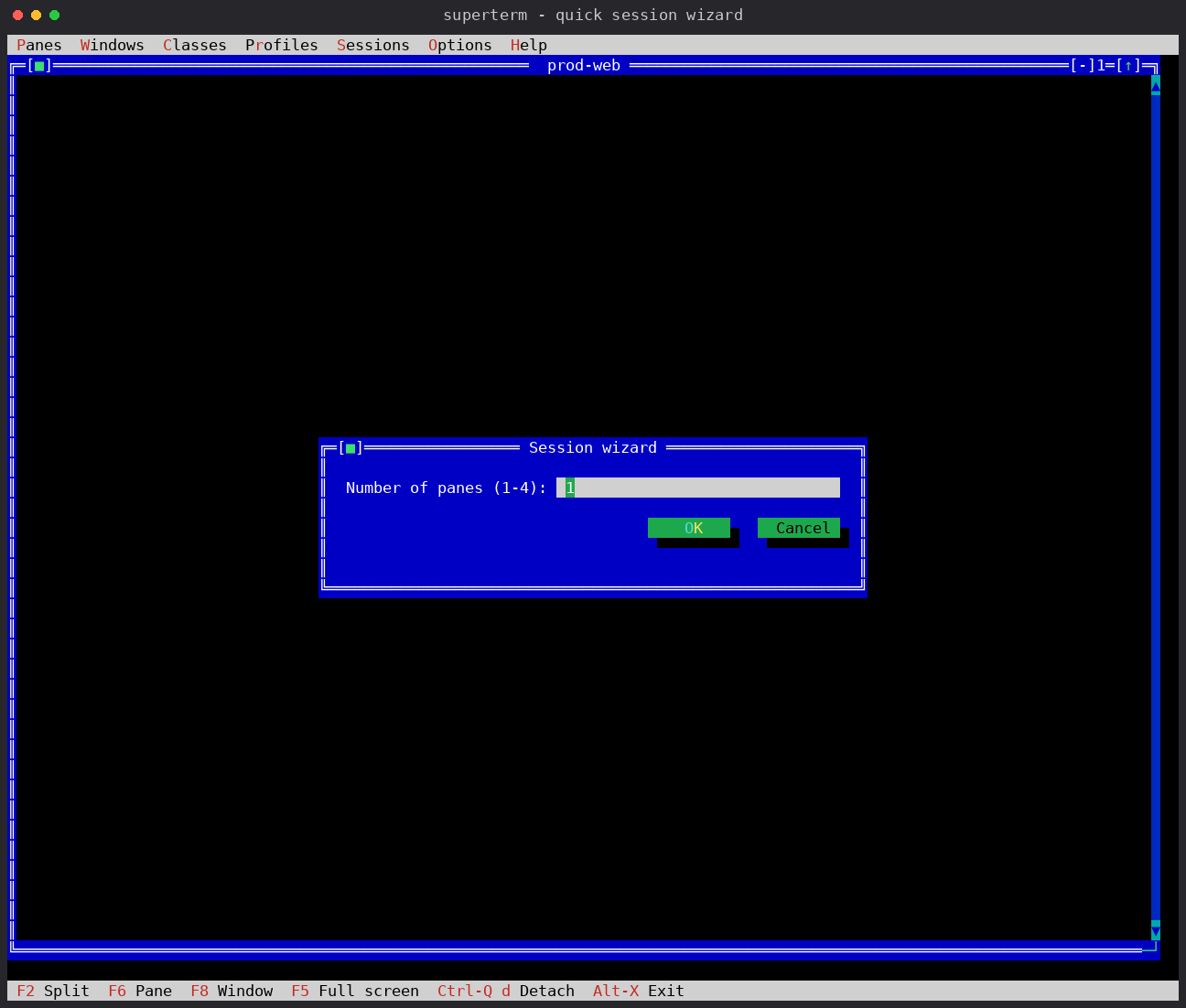
Connection command: ssh -tt alice@prod.example.com
After connecting:   tmux new-session -A -s alice-prod
The wizard is intended for quick workspaces. It does not edit the INI and does not store credentials. Use a window class or a profile for a workspace that must be reproducible across restarts.
The wizard collects all pane entries before replacing the current runtime. If you cancel it, the existing panes remain unchanged. Commands run under the configured login shell and are intentionally not parsed or validated.
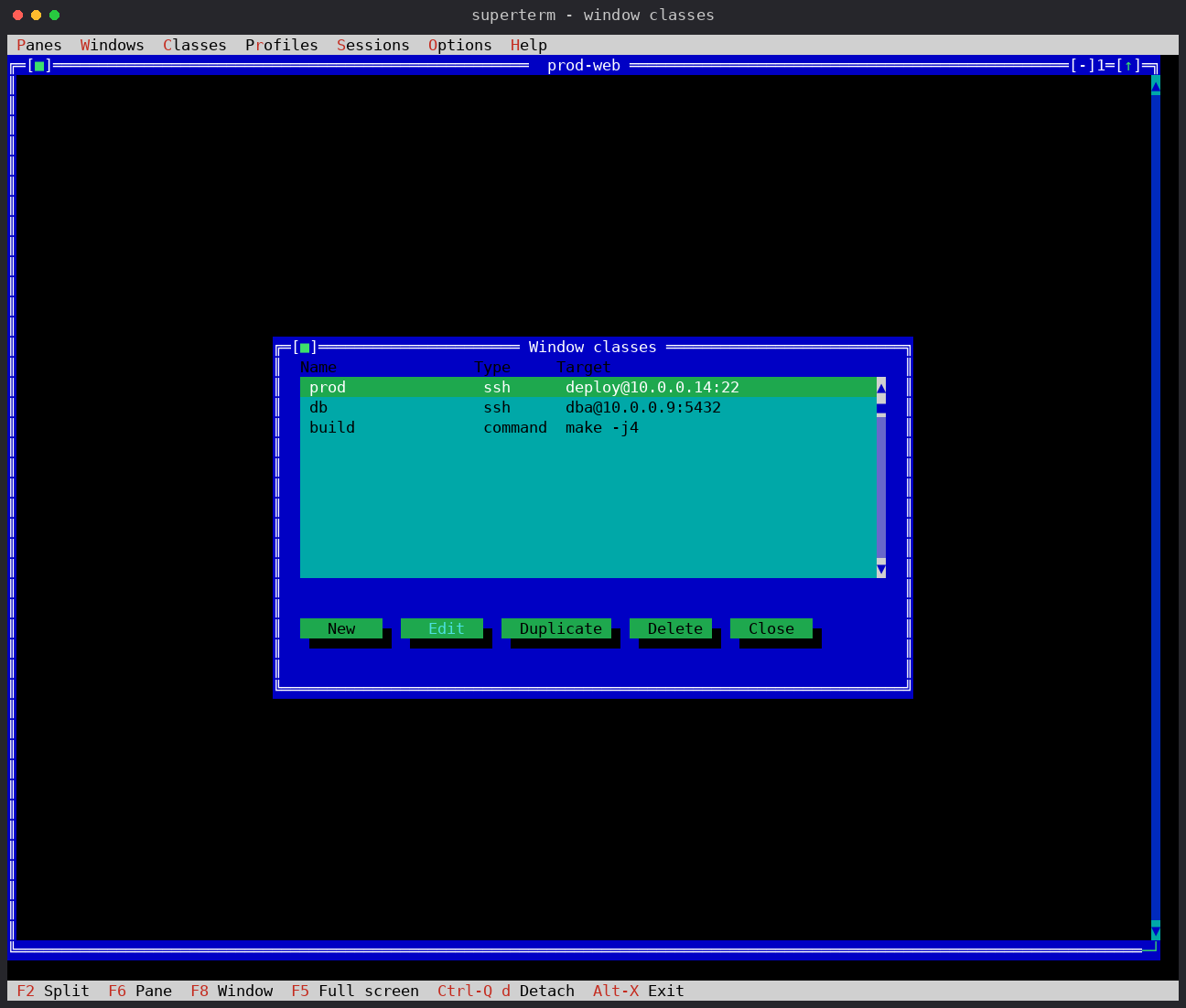
A window class is a reusable, named pane definition: a structured SSH target
(host, user, port, key, optional password) or a free command, plus an optional
command to run once connected. Open Classes -> Manage classes... to create,
edit, duplicate, or delete them. Classes are stored in
~/.superterm/superterm.ini and can also be edited by hand.
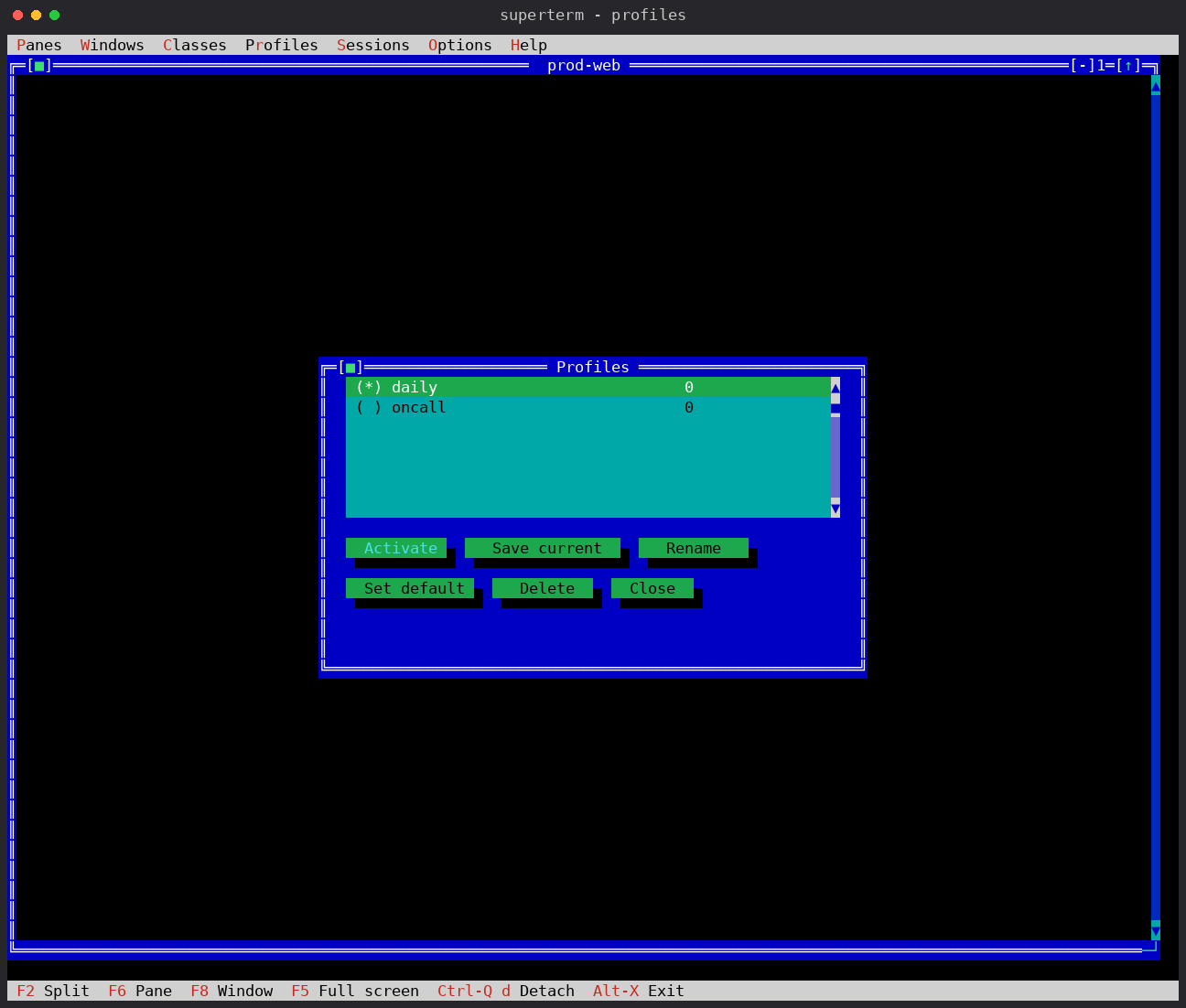
A profile is a named workspace: a set of windows, each with a pane layout whose
panes reference window classes. Open Profiles -> Manage profiles... to
activate a profile, save the current layout as a new one, rename, or set the
default that opens on startup.
Every session is a server from launch, so any other shell can control it while you work (or with nobody attached at all):
superterm list                    # sessions: NAME PROFILE PANES CLIENTS CREATED
superterm list work               # panes: title, type, target, live command...
superterm send work:2 make test   # type into pane 2 (Enter appended)
superterm send work:2 -k C-c      # send named keys: C-c, F5, Up, Esc...
superterm capture work:2 -H       # whole scrollback as pipe-clean UTF-8
superterm new work --cmd htop -t Monitor --right
superterm focus work:Monitor && superterm send . q -n
superterm organize work grid
superterm kill work
Every command and flag is also accepted in Spanish (listar, enviar,
capturar, nueva, cerrar, foco, renombrar, tamano, minimizar,
restaurar, ampliar, organizar, matar), and --ayuda works
everywhere. Targets are SESSION, SESSION:PANE (1-based index or a
unique title substring) or . for the only live session. See CLI for
the full bilingual reference.
Sessions are named automatically at launch: --session NAME, else the
active profile name, else session, adding -2/-3 on collision.
Detaching with the prefix + d is instant (no name dialog). Alt-X closes
the session (the server saves session.ini first); Alt-Q closes it
without saving; killing the client process leaves the session running.
[session] server=detach in the configuration restores the classic
detach-only behaviour.
Up to 8 clients can attach to the same session -- run superterm --attach
from several terminals. Output is broadcast to everyone; opening, closing,
renaming, focusing and re-tiling windows propagates live to every client;
each pane runs at the smallest terminal size requested among the attached
clients, tmux-style. A slow client briefly pauses output through flow
control, and a stalled one is disconnected after a grace period so it can
never block the session. Pre-3.0 clients still attach exclusively.
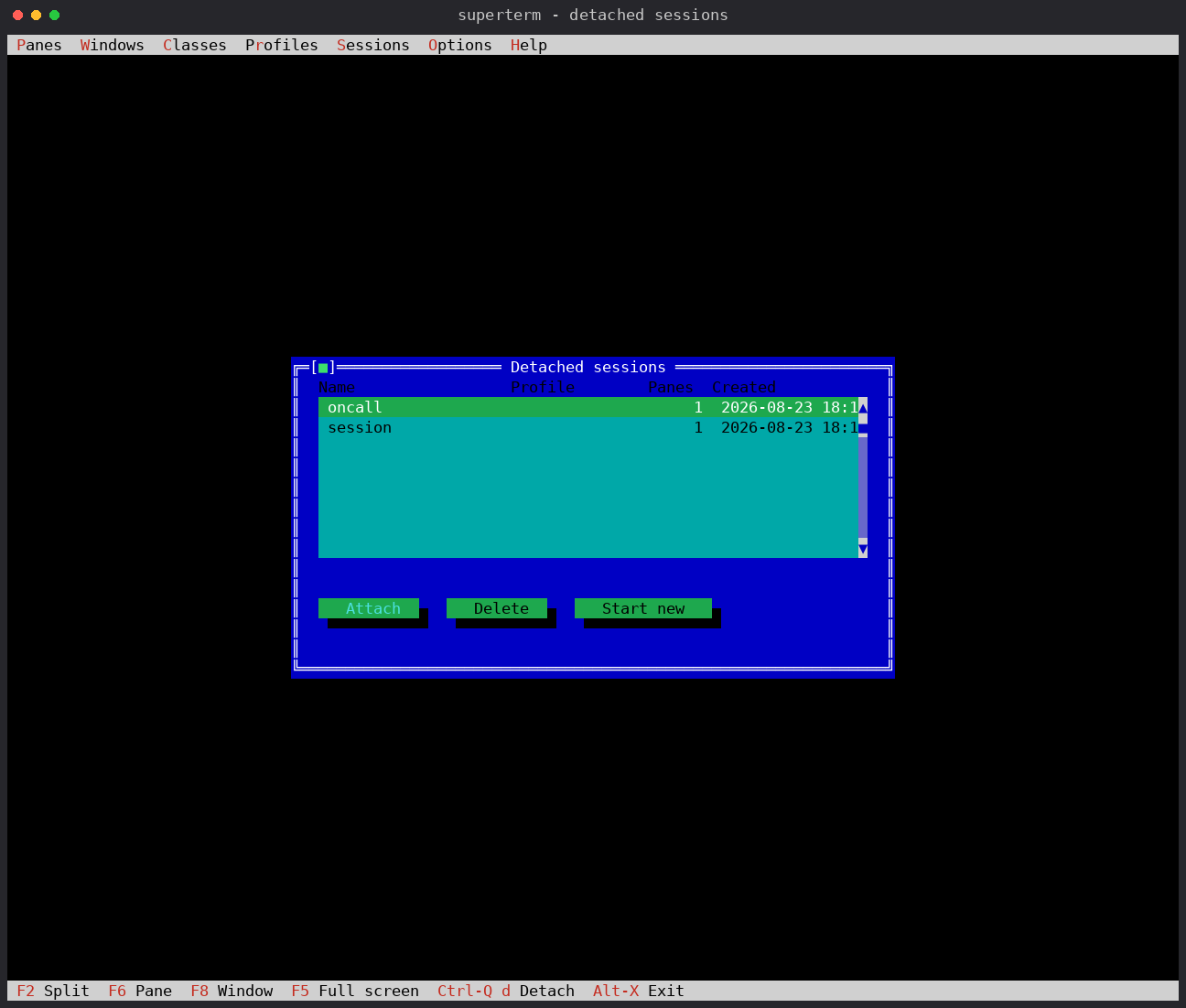
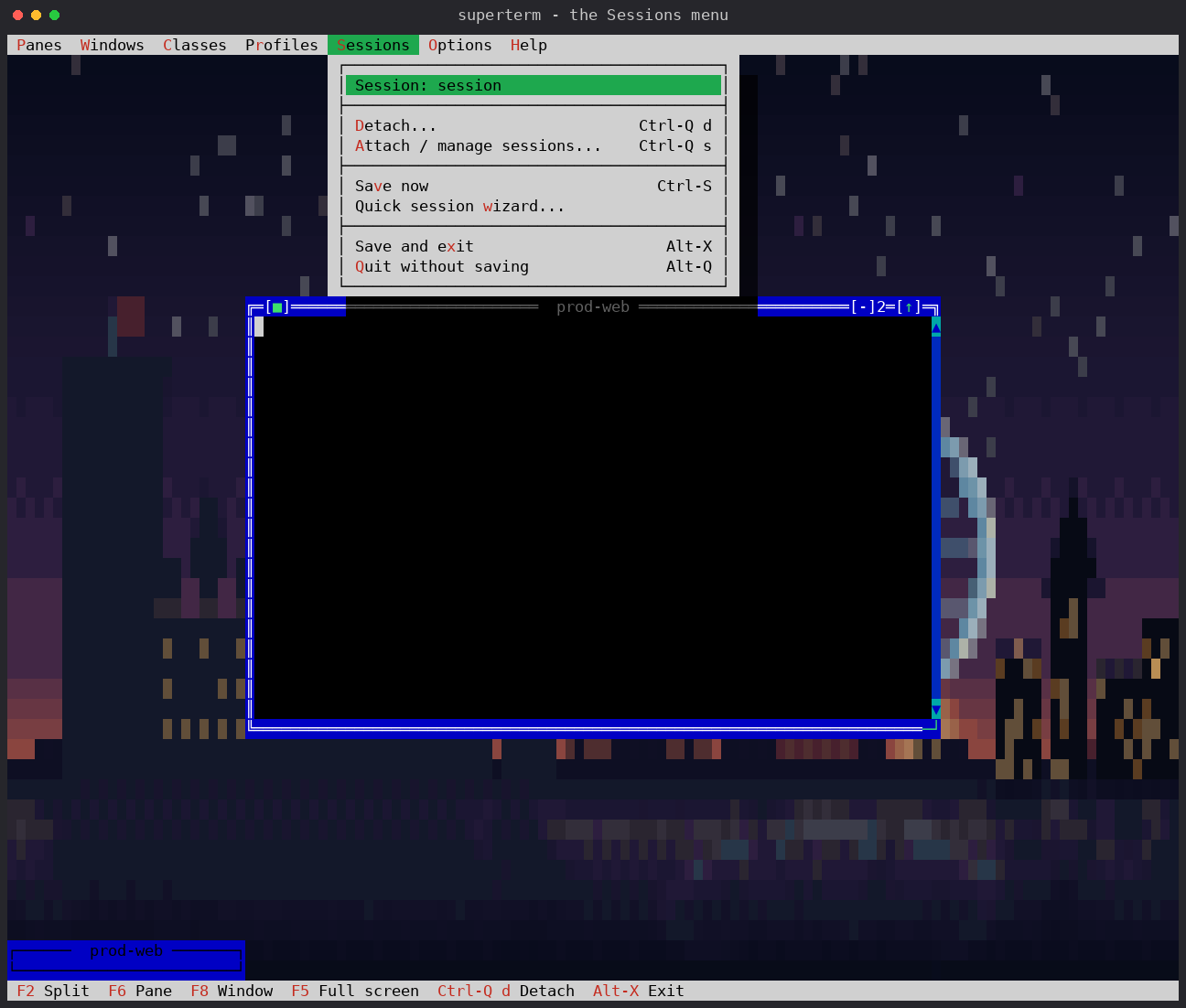
Ctrl-Q d (or Sessions -> Detach...) disconnects the client instantly —
the session already has its name from launch — and its shells and SSH
connections keep running in the background. Reattach
with superterm --attach, Ctrl-Q s, or the startup picker when live sessions
exist. superterm --list-sessions prints them for scripts.
The Sessions menu gathers detach, attach/manage, save, and the quick wizard:
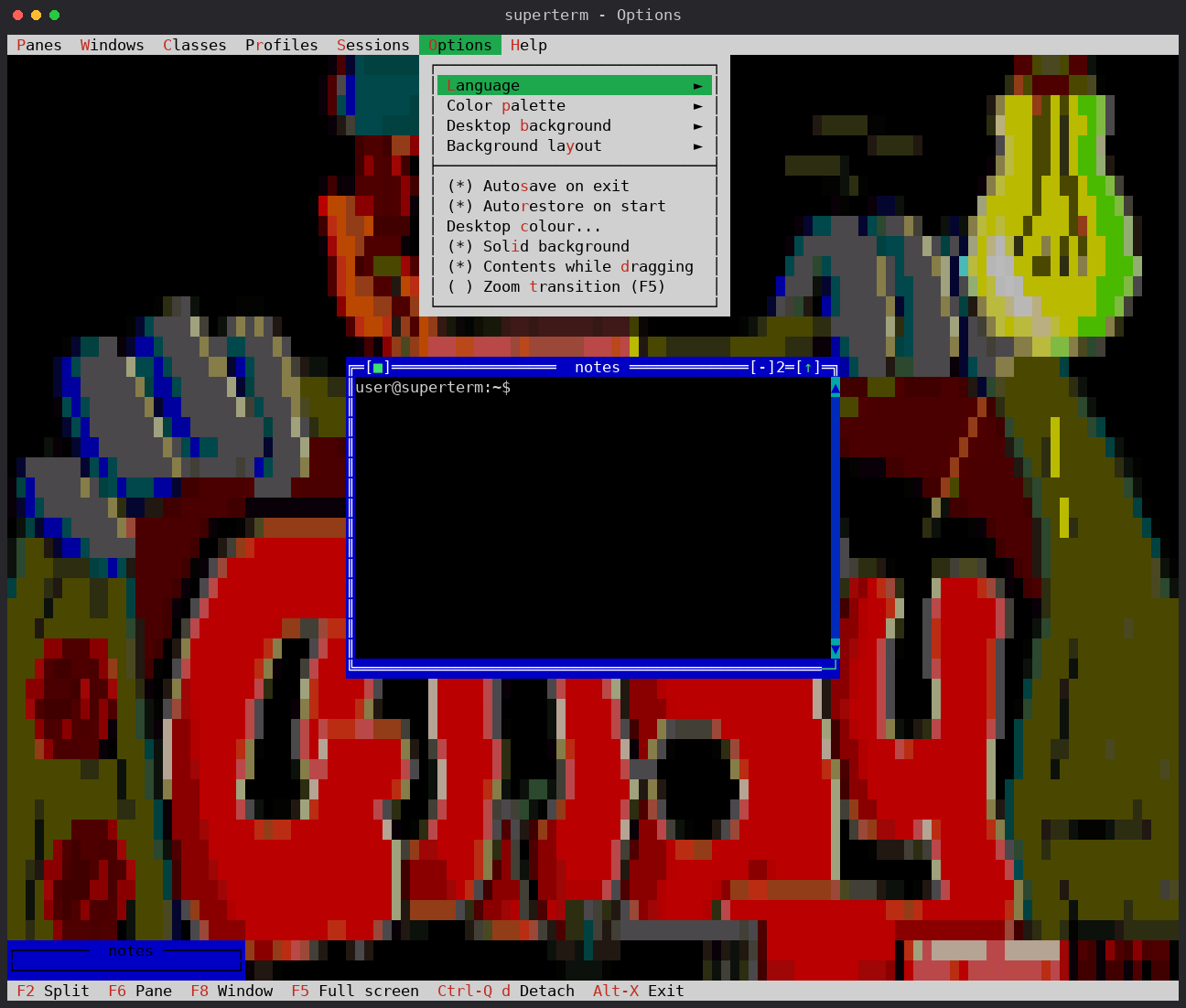
The default interface is English. Everything under Options is saved in the
user configuration as you choose it.
-
Language / Idioma switches the whole interface between English and Spanish, live.
-
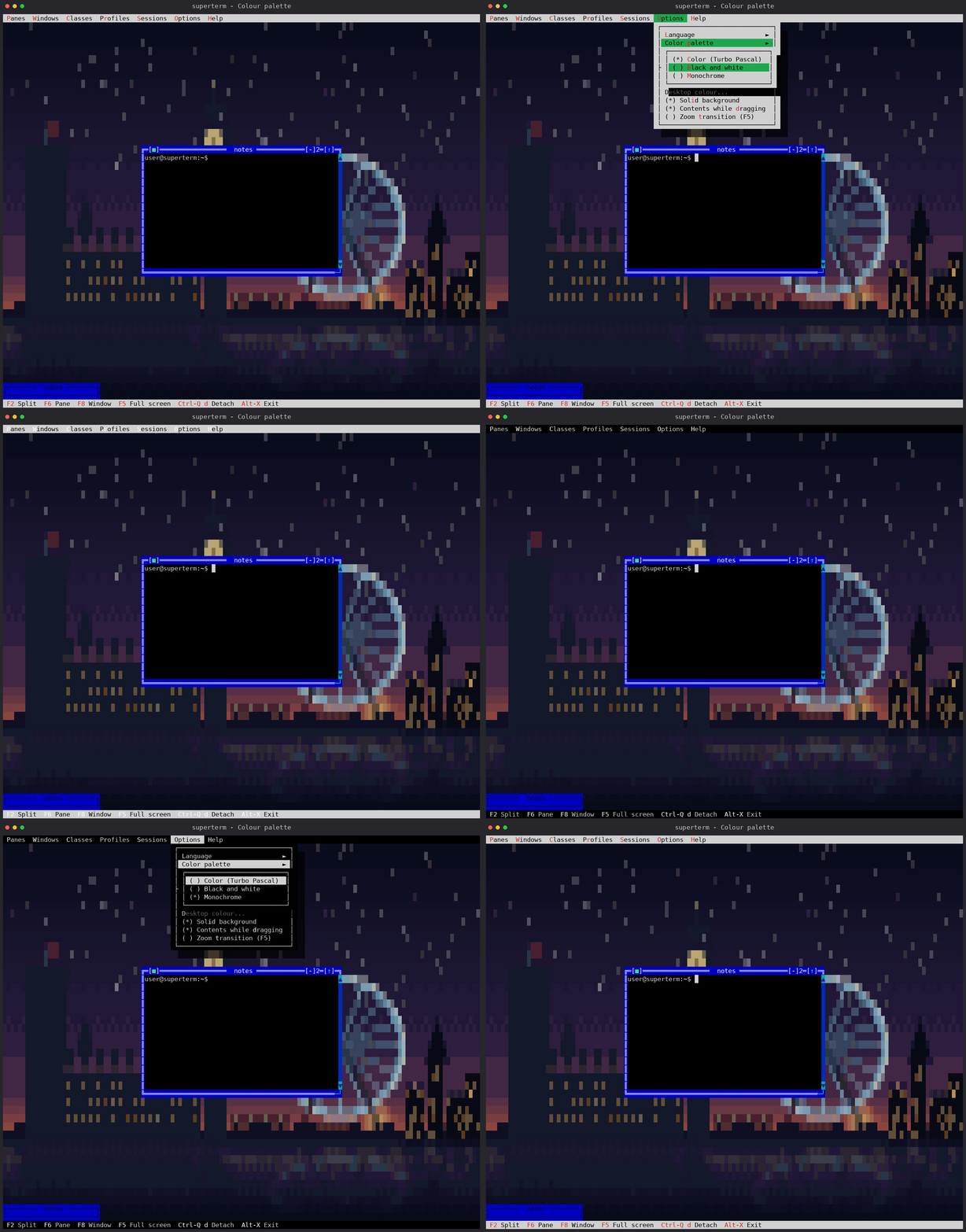
Color palette chooses the classic colour theme, black and white, or monochrome. A desktop picture keeps its own colours in all three.
-
Desktop background lists every picture found on disk -- the nine that ship, plus anything you dropped in
~/.superterm/backgrounds/. The desktop follows the choice as you make it.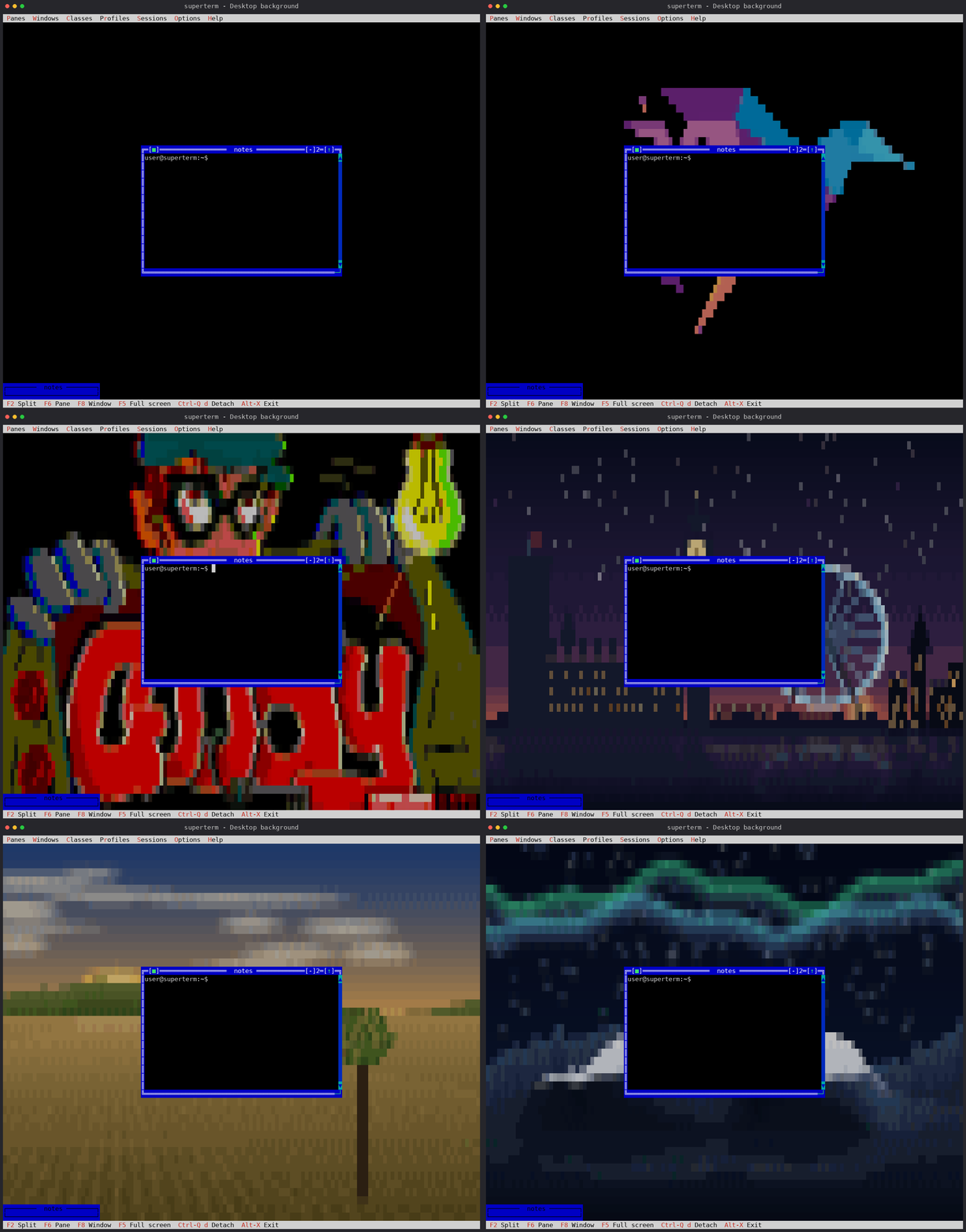
-
Background layout is centred, tiled, stretched or fitted. A picture can name the layout it was drawn for, and choosing it adopts that layout.
-
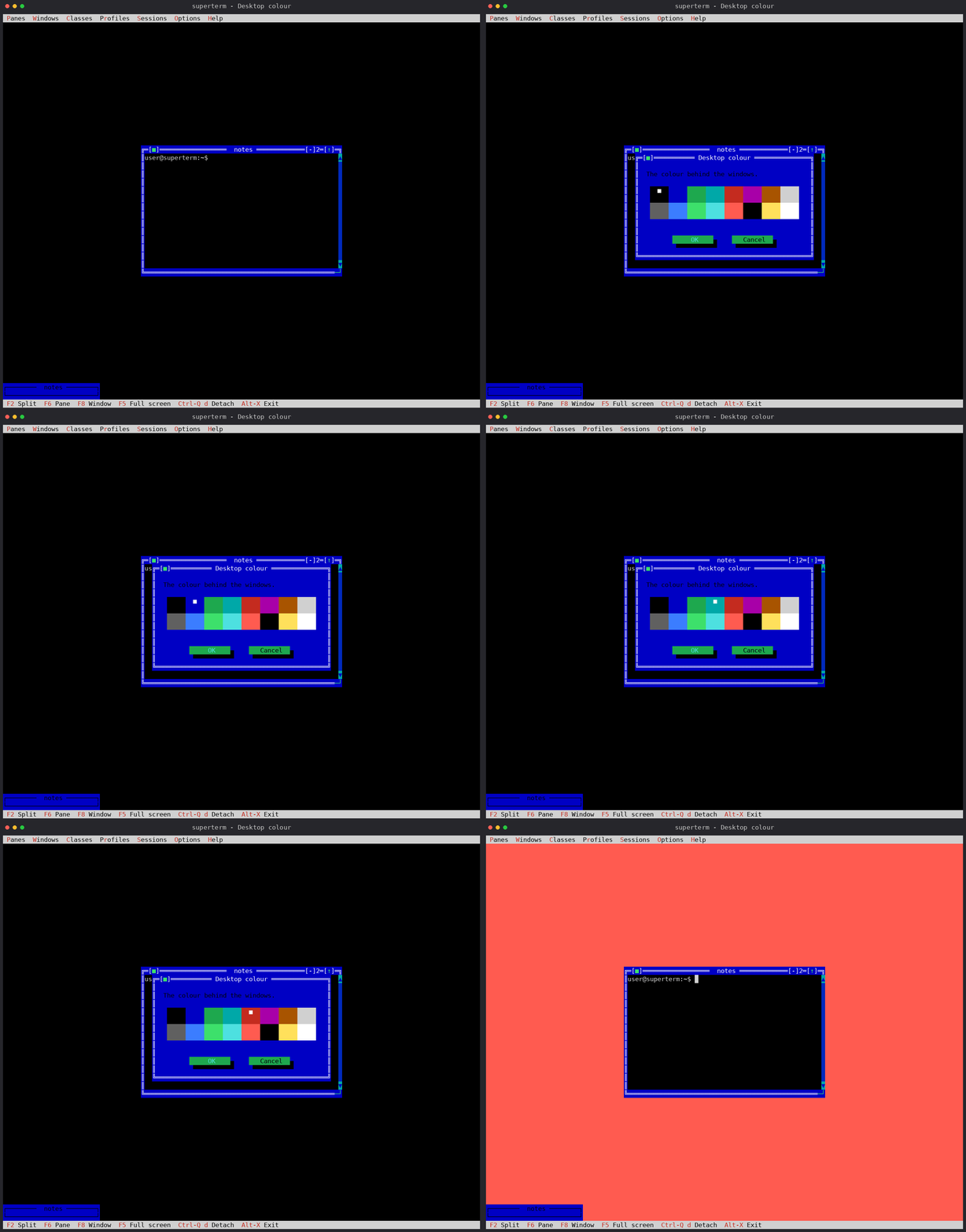
Desktop colour... opens a picker over the sixteen text-mode colours: click a swatch or move with the arrows. It is the colour behind the windows, and the one that fills the cells a picture leaves empty.
-
Solid background (on by default) makes superterm paint its own black rather than naming the terminal's. Turn it off if your terminal has a transparent background and you want it to show through.
-
Autosave on exit, Autorestore on start, Contents while dragging and Zoom transition (F5) are the session and display toggles.
User session state is stored in ~/.superterm/session.ini. Alt-X exits with
autosave enabled, while Alt-Q exits without saving. Configure autorestore=1
when the saved session should be restored on startup.