YoComposite
A YoComposite is an abstract data structure composed of several YoVariables, for more information on YoVariables YoVariable wiki, which can represent a more complex type of data such as a 2D or 3D point.
A YoComposite is attributed a name and a pattern, following the example of a 3D point composite, the name would be Point3D and the pattern would be: x, y, and z. Using the pattern, SCS 2 can then search throughout all the control variables to retrieve any set of YoVariables that represents a Point3D, allowing then direct interaction with a point rather than its coordinates.
By default, SCS 2 defines a small set of predefined YoComposites that are:
- YoTuple2D representing any 2D points and vectors. It uses the following pattern: x, and y.
- YoTuple3D representing any 3D points and vectors. It uses the following pattern: x, y, z.
- YoQuaternion representing any unit-length quaternion. It uses the following pattern: qx, qy, qz, and qs.
- YoYawPitchRoll representing any orientation described as the yaw, pitch- and roll angles. It uses the following pattern: yaw, pitch, and roll.
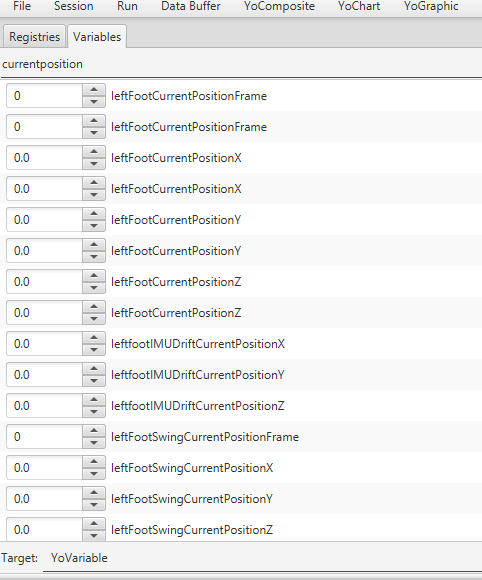
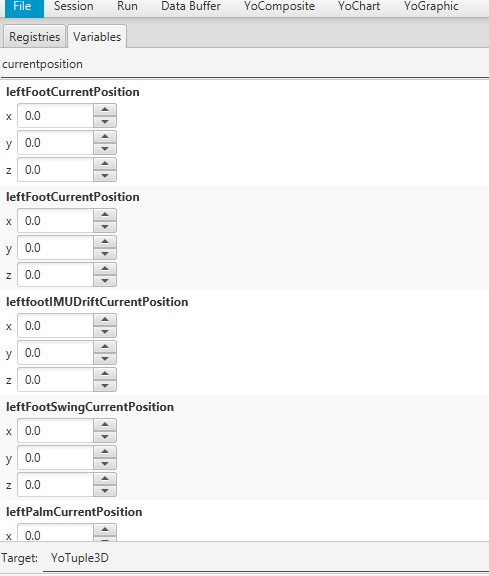
The use of YoComposites instead of YoVariables when searching control variables greatly reduces the size of the search result.
Search example when searching for YoVariables:
Same keywords but searching for YoTuple3Ds:
This optional feature, when enables, consider YoComposites that have their components registered across multiple YoVariableRegistrys. This feature however is more computationally expensive especially for composites with a few identifiers which is why it is disabled by default.
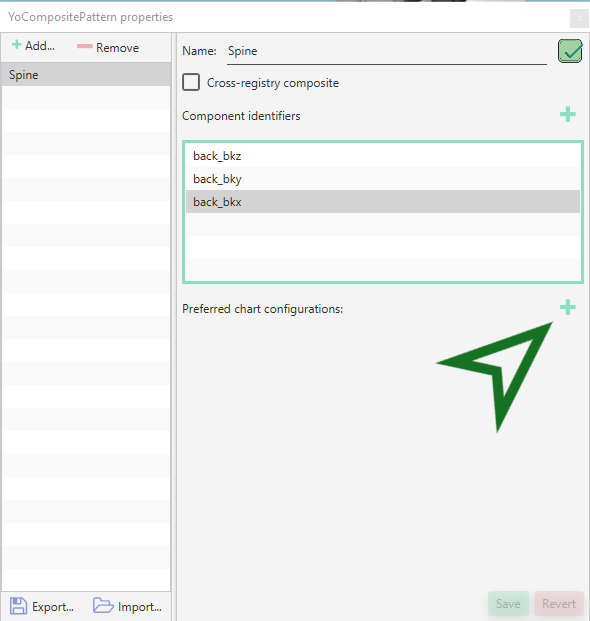
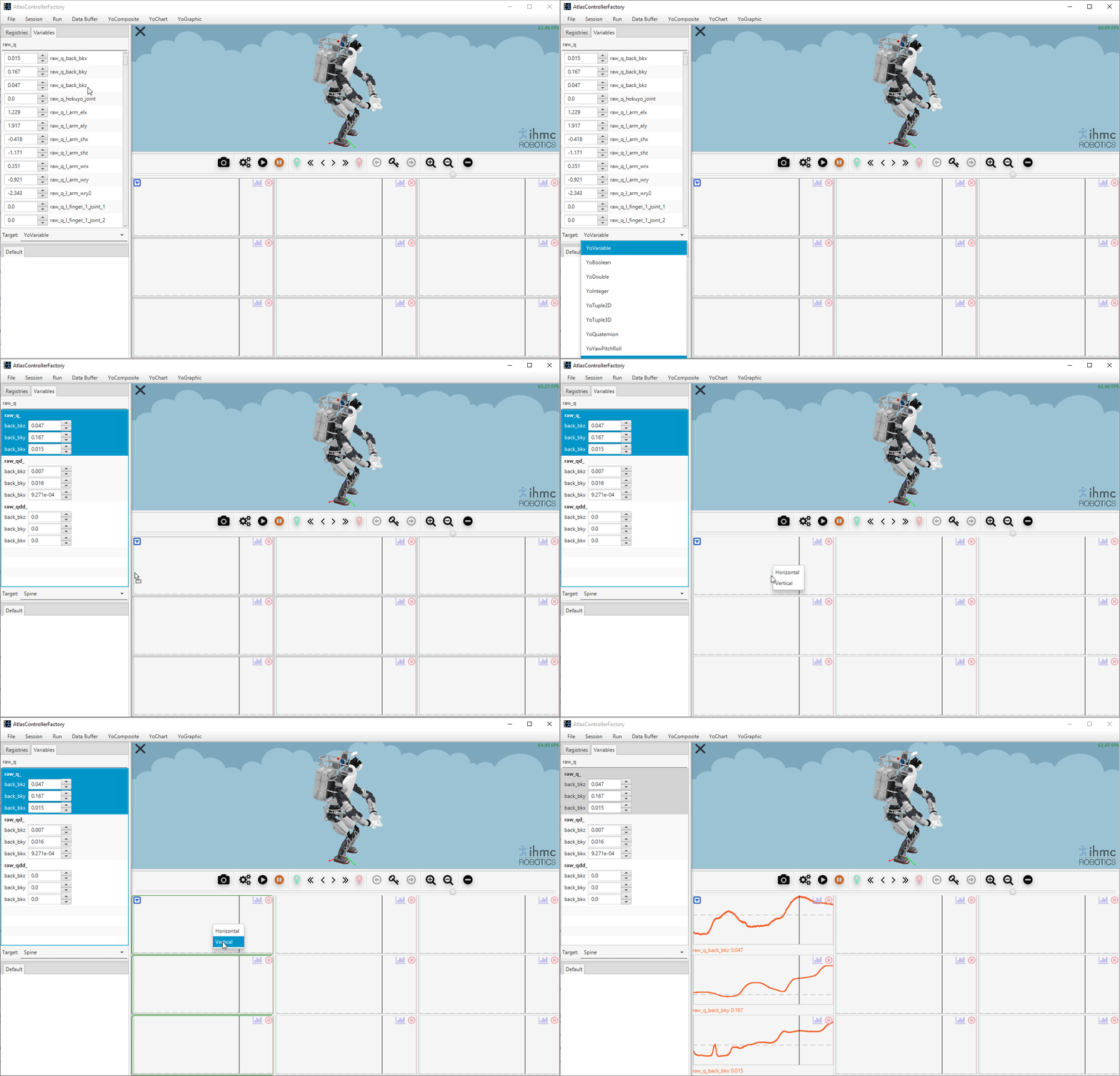
In addition to enable searching for composites, a YoComposite can also declare a preferred chart configuration that simplifies the process of plotting multiple YoVariables.
Going back to our example with the spine composite for Atlas, open the composite editor dialog and add a preferred chart configuration:
Let's name this first configuration "Horizontal":
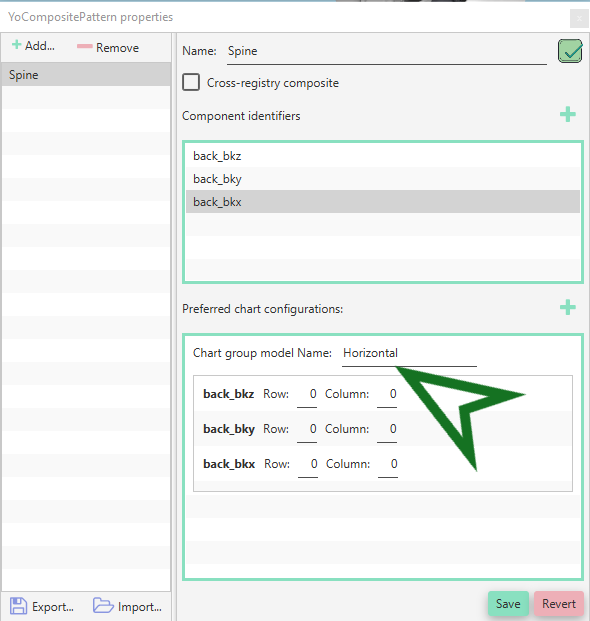
Modify the column field for each component as follows:
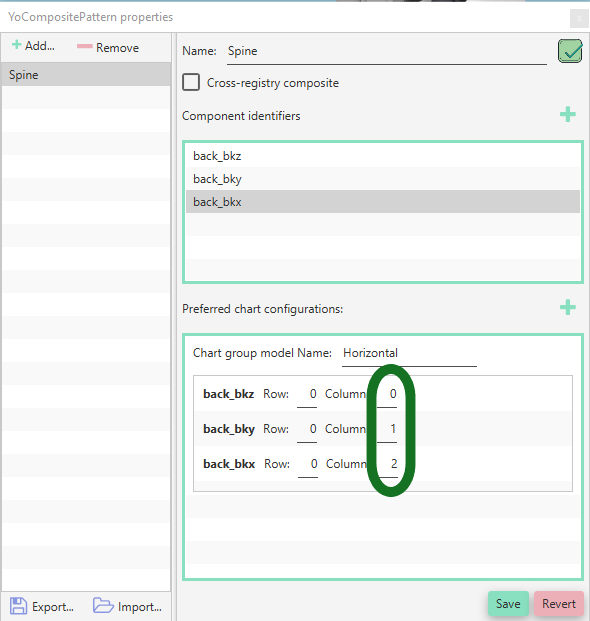
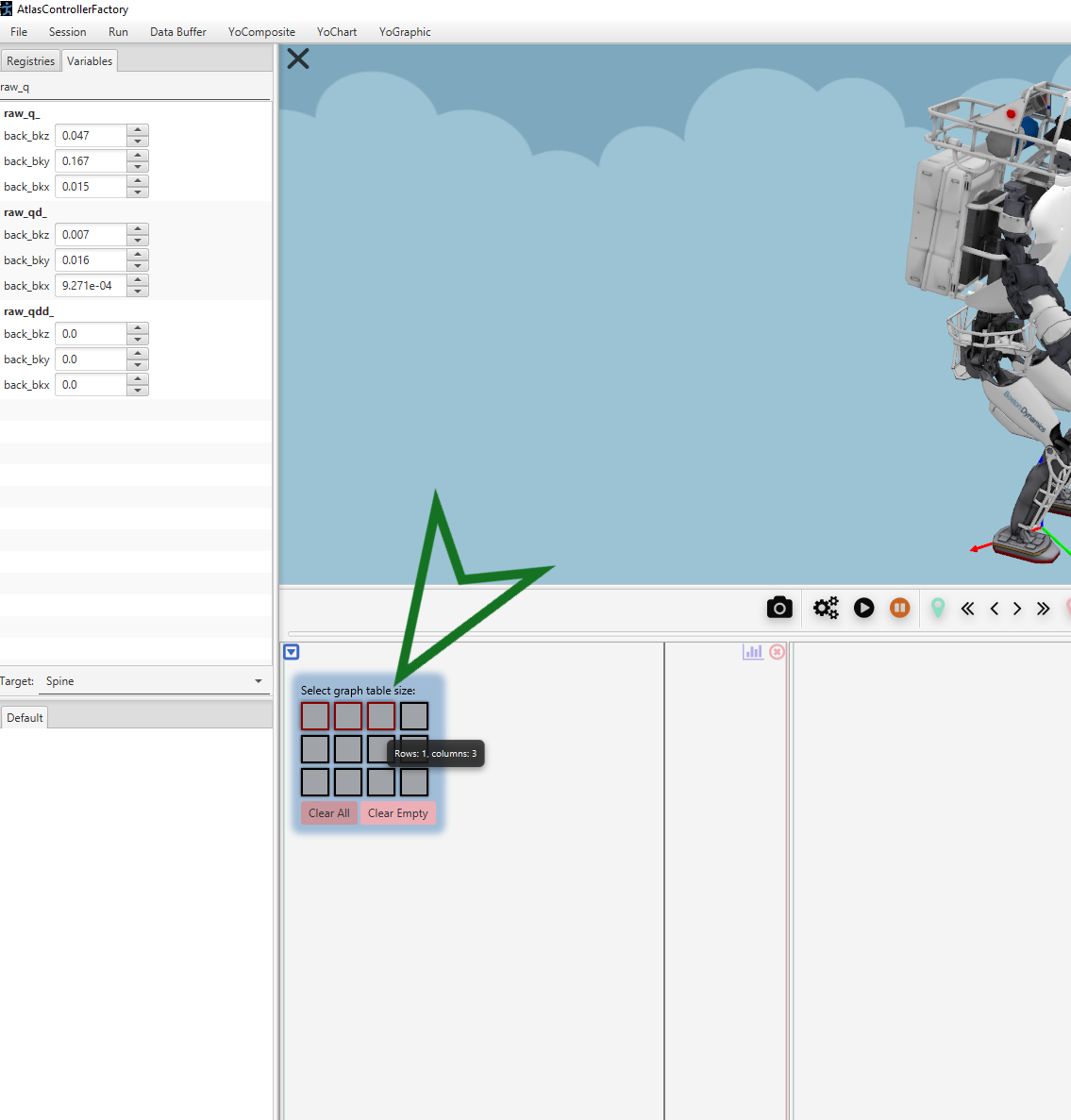
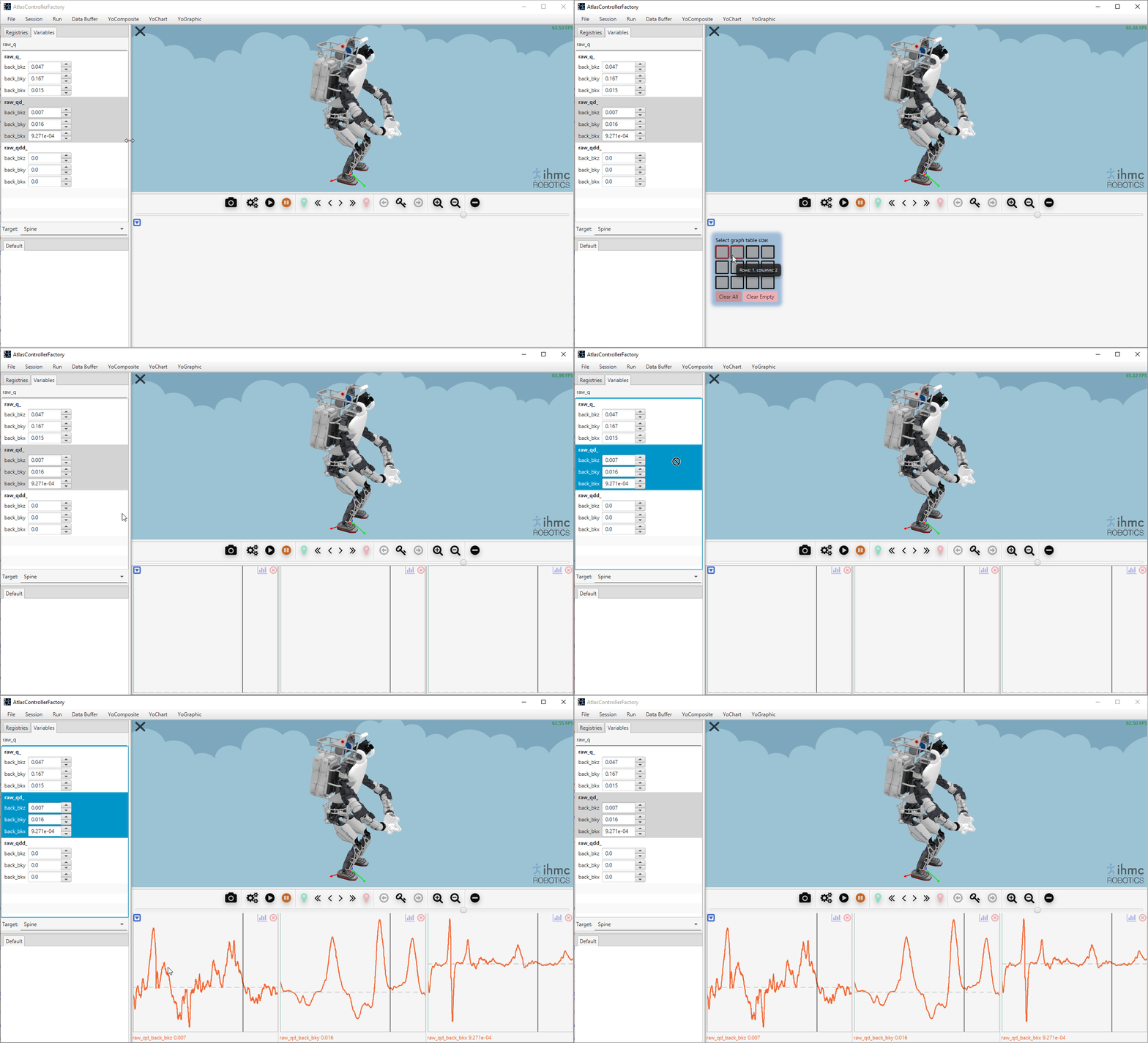
Now save the modifications and close the editor. Create 3 charts:
Search for any spine composite, then drag and drop a composite in the first chart:
Additional preferred configurations can be added to the same YoComposite in which case when plotting the composite a popup window will request which configuration to use:
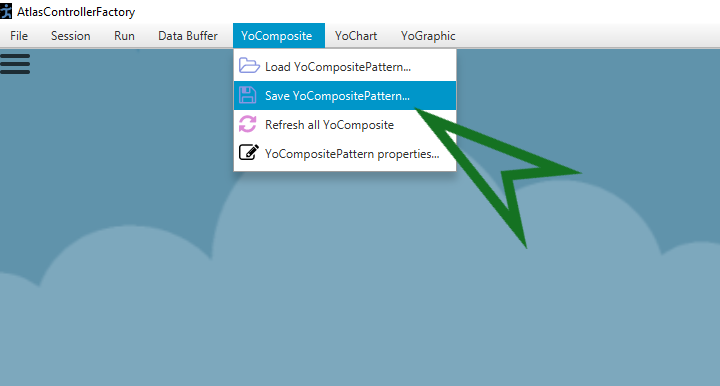
Upon closing the application, SCS 2 will automatically saves your custom YoComposite patterns such that the next time a session for the same robot and same controller is opened, they are automatically loaded. You can find the save file in: /home/SCS2/Configurations/RobotName/ControllerName/YoComposite.scs2.yoComposite.
However, if desired, YoComposite patterns can be loaded/saved at any moment: