Repository navigation
Interface
THE LLAMAS UI
There are three main components to the LLAMAS interface: the main window, the settings window, and the streaming display figure.
THE MAIN WINDOW
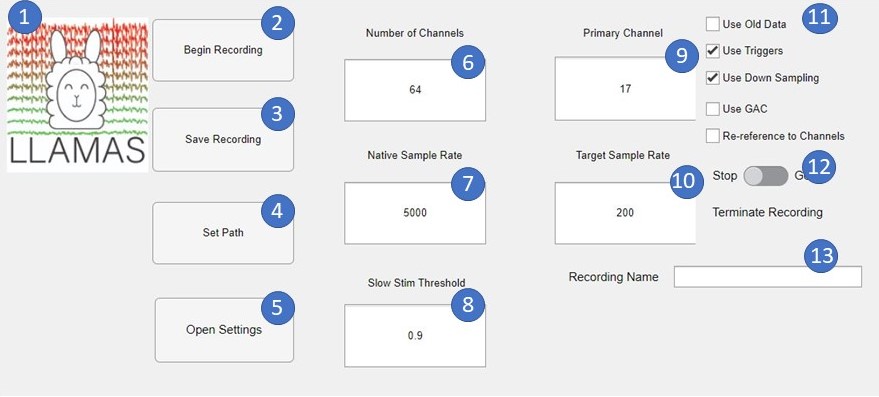
The main window is the first component that opens when you run EEG_LLAMAS from the command line. it is where you can begin and end new recordings, and set some basic settings regarding your recording. It has a number of sub-components
-
The LLAMAS Logo
-
The 'Begin recording' button. Pressing this will begin a new EEG recording with whatever settings you have chosen
-
The 'Save Recording' button. This opens a save dialog for the most recent recording.
-
The 'Set Path' recording. This allows you to set what folder the raw data and log file will be written into. By default, the raw data and a log file are written into .txt file in the 'Recordings' subfolder of the EEG_LLAMAS directory. This button allows you to change folder they are written into.
-
'Open Settings' button. This button opens the second component of the UI, the settings window, which has a number of more detailed preferences for your recording. You should generally set these before each new session. Note that if you do not specify in the settings dialog, your data will not be displayed during a recording by default, although data will still be collected, and a streaming display figure will still be created (although it will remain blank).
-
'Number of channels' field. Allows you to specify how many channels you are using. Note that if this does not match the actual number of channels received via LSL, it will likely cause an error.
-
'Native Sample Rate' field. Allows you to specify the native sampling rate (prior to downsampling) of your equipment.
-
'Slow Stim Threshold' field. This field serves as a general purpose input to neurofeedback functions. We created it for use with slow wave stimulation experiments, but changing it will have no impact on core LLAMAS functionality.
-
'Primary Channel' field. Allows you to select a channel to be targeted by neurofeedback, if desired. also can function as a second general purpose input to neurofeedback functions. changing it's value it will have no impact on core LLAMAS functionality, although the channel indicated here will always be displayed while streaming data if you use the 'UpdateMainWindow' option in the settings dialog.
-
'Target Sample Rate' field. Set the sample rate to which you would like to downsample.
-
Various toggles:
- 'Use old data': if this is checked, LLAMAS will not collect new data, instead you will be prompted to select an old recording to replay
- 'Use Triggers': if this is selected, LLAMAS will expect one extra channel of data streamed from LSL to serve as the triggers. it is assumed that this will be the last channel (last row in the LSL chunk)
- 'Use Downsampling': if checked, LLAMAS will downsample from the native sample rate to the target sample rate. An anti-aliasing FIR filter will be applied prior to downsampling.
- 'Use GAC': If this is selected LLAMAS will perform Average Artifact Subtraction Gradient Artifact Correction, with parameters read from the settings window. Note that this is always done prior to downsampling.
- 'Re-reference to channels' If checked, LLAMAS will re-reference data to the channels indicated in the 'ReReferenceChannels.csv' file
-
The stop button. Pressing this will end the current recording, and prompt you to save. You can also end recording by closing the streaming display figure.
-
The Recording Name field. Allows you to give your recording a name. The raw data file and log file will automatically be saved with this name, in addition to the date and time.
THE SETTINGS WINDOW
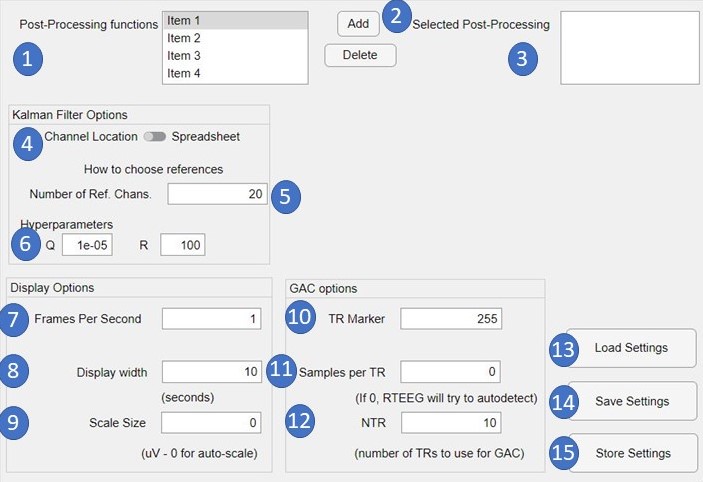
This window is where you choose more detailed settings for your recording. Note that setting will carry over from one recording to the next, as long as you keep the same instance of the LLAMAS main window open. it has several subcomponents
-
The post-processing functions menu. This menu will automatically populate with all the functions from your PostprocessingFunctions subfolder. This is where some basic options, like UpdateMainWindow (which plots your data in real time) and Kalman_chunk (which filters out BCG artifacts using a Kalman filter, are located, and where you should store any neurofeedback functions that you create. We have recently added the Kalman_cwl function, which is an adaptation of the Kalman filter for use with a BrainProducts carbon wire loop caps, without the need for a reference layer. We have not validated this method as extensively as the Kalman_chunk method, so please use at your own risk.
-
The add/delete buttons. The add button will add the selected function from the post-processing functions menu to the selected post-processing menu. Delete will remove the selected option from the selected post-processing menu.
-
The Selected post-processing menu. shows which functions have been selected, and will be implemented in the next recording when you press 'store settings'
4-6: The Kalman filter options. The options effect the behavior of the Kalman filter, f you have chosen 'Kalman_chunk' as a post-processing option
-
The reference channel selector toggle. By default, it is set at 'Channel Location' which means the farthest N reference channels will be used, where N is the value in field 5. If set to 'Spreadsheet,' all channels will be used and field 5 will be ignored. In either case, the available reference channels will be read from KalmanChannels.csv
-
Sets the number of reference channels to use.
-
Set the Kalman hyperparameters Q and R. You should tune these values using the SetParams function (from the 'Extras' folder) in the command window.
7-9 The display options. These set the options for how the streaming data is displayed if you select the 'UpdateMainWindow' option for postprocessing. Use the Displaychannels.csv file to choose which channels will be plotted.
-
Sets the number of times per second to refresh the display. Higher frame rates are computationally intensive, which can impact latency and performance negatively. Your optimal settings will ultimately depend upon your hardware, but we recommend starting with a frame rate of 1 unless there is a reason you need to visualize more quickly.
-
Sets the number of seconds of data to display at once.
-
Sets the y-axis scale bars for the display. if set to 0, the axis will auto-scale on each frame refresh.
10-12 The Gradient Artifact Correction Options. Sets the GAC parameters, if the GAC option is selected in the main window.
-
This sets what value in the trigger channel LLAMAS will search for as TR markers.
-
You may set this manually to set how many EEG samples per TR at the native sample rate. If set to 0, LLAMAS will try to autodetect based on the modal interval between TR triggers.
-
Sets the number of TRs to average to create the AAS template.
-
Allows you to load settings from a saved settings file
-
Allows you to save your settings to a file. note that this does not apply them to your next recording. to do that, use the 'store settings' button
-
Stores your settings to the main window for your next recording. Note that this is button you should use to actually enact your settings.
THE STREAMING DISPLAY FIGURE
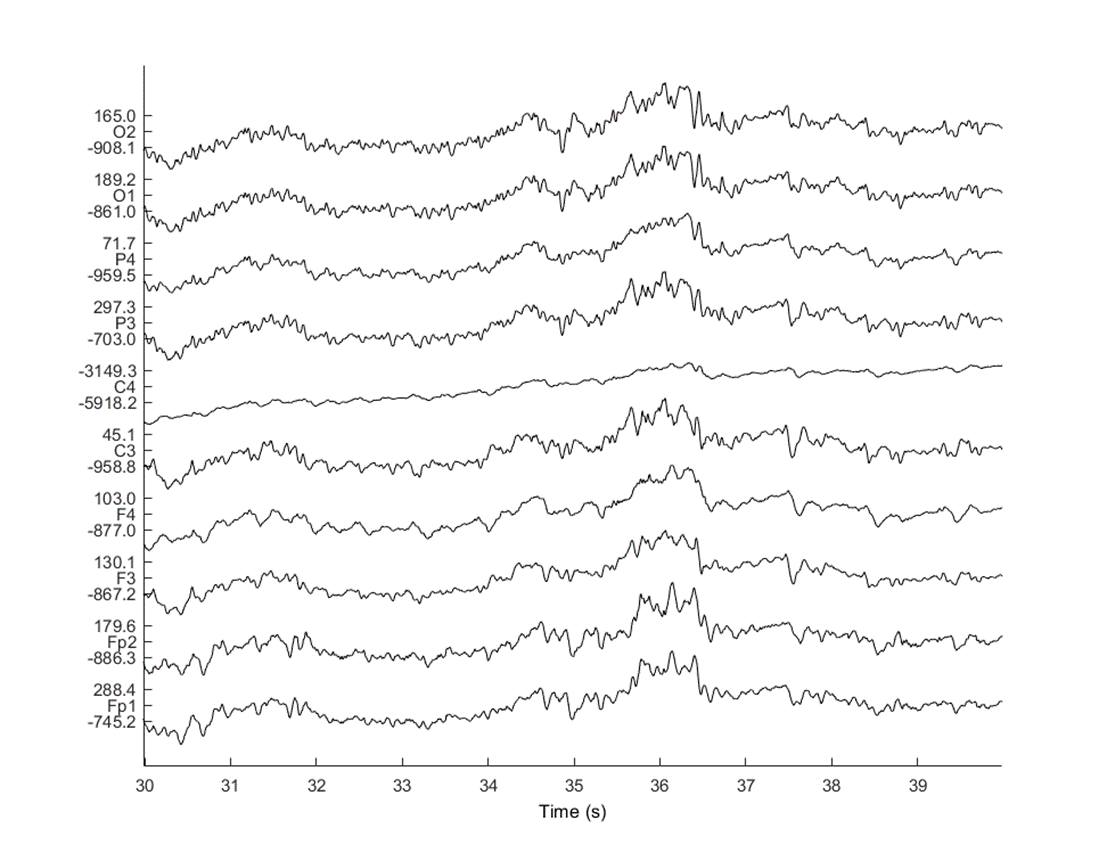
This is where your data will be displayed in real time as it is collected, assuming you have selected 'updateMainWindow' from the settings panel. Note that if this setting is not selected, this window will still be created, and data will be collected, but it will not be displayed, and this figure will remain blank.
To control which channels are plotted, use the DisplayChannels.csv file. The data will be from the downsampled signals, and if KalmanChunk is selected from the setting menu, it will display the Kalman filtered signals for the selected channels which are also Kalman filter targets. Note that the channel indicated by the 'Primary Channel' field in the main window will always be displayed, assuming you have selected 'updateMainWindow.'
They y-axis scale bars, x-axis scale, and frame rate can be controlled in the settings panel, see components 7-9.
Closing this window will end your recording.
The channel names displayed here assume you are working with 64-channel BrainCap MR equipment. If this is not what you are using, consider changing the generateLabelNames.m and ChannelNames.mat files