Getting Started
This guide walks you through installing FXCommands and setting up your first button.
- Stream Deck hardware connected to your PC
- Stream Deck software v6.9 or later
- FiveM or RedM running on the same PC
- Open the Stream Deck application
- Click the Stream Deck Store icon (bottom-right)
- Search for FXCommands
- Click Install

Note: The Marketplace version may be outdated while updates are pending approval. If you experience issues such as "action not found" or missing settings, install manually instead.
- Go to the latest release
- Download the
.streamDeckPluginfile - Double-click the downloaded file
- Accept the Stream Deck installation prompt
- In the Stream Deck app, find FXCommands in the actions list (right panel)
- Drag the Run Command action onto an empty button slot
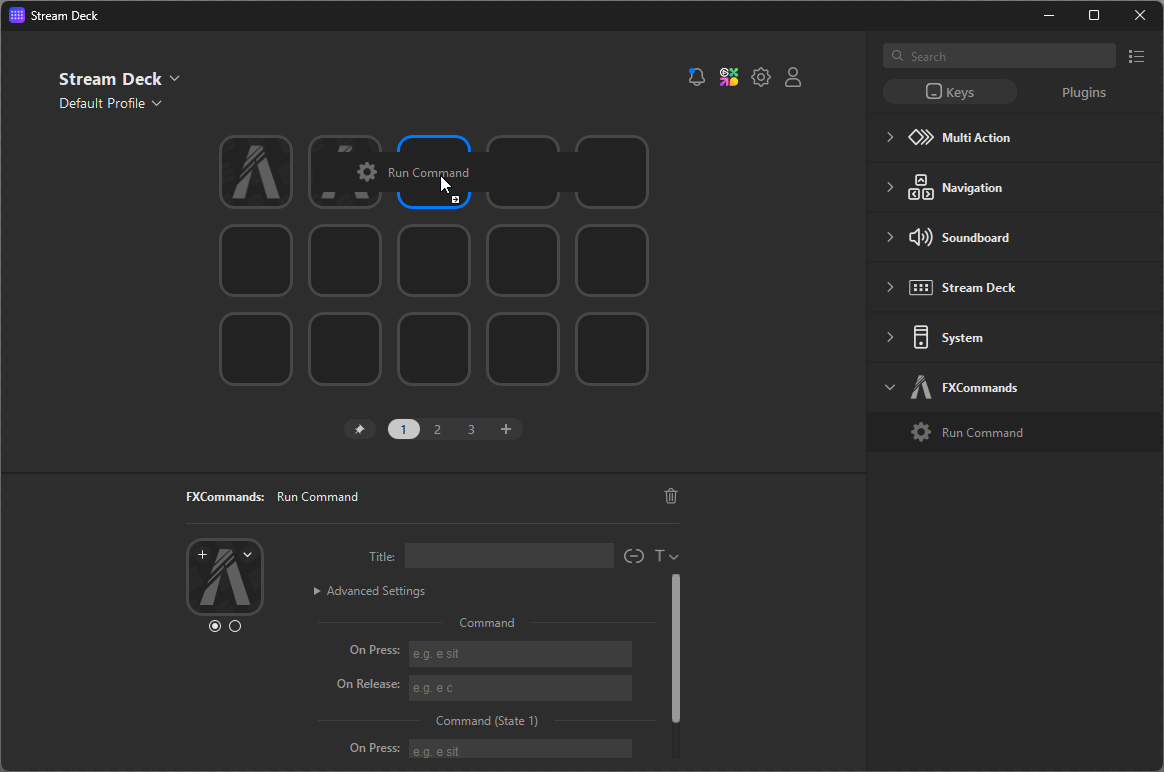
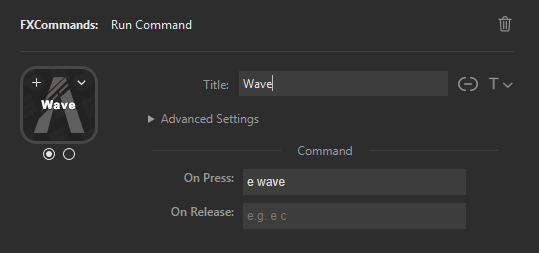
- Click the button to open its settings
- In the On Press field, enter a command - for example:
e wave - Leave On Release empty for now
- Launch FiveM or RedM and connect to a server
- Press the button on your Stream Deck
- Your character should perform the wave emote
If the button flashes a grey alert icon instead, see the Troubleshooting Guide for help.
Each button has two command slots per stage:
| Field | When it fires |
|---|---|
| On Press | When you push the button down |
| On Release | When you let go of the button |
This is useful for hold-to-activate scenarios. For example:
-
On Press:
e sit(start sitting) -
On Release:
e c(cancel emote when you release)
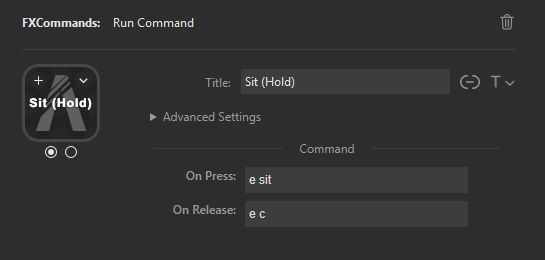
For most use cases, just use On Press and leave On Release empty.
Under Advanced Options, you can set the Number of States (1-5). Each stage has its own pair of press/release commands.
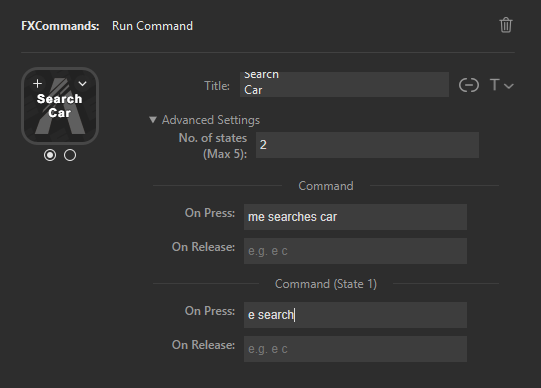
- Stage 0 runs first, then Stage 1, and so on
- After the last stage, it cycles back to Stage 0
- The button icon changes to reflect which stage is active

See Command Syntax for detailed syntax options, or Examples for real-world setups.
- Command Syntax - Learn about chaining, delays, and staged commands
- Examples - Copy-paste button setups for common scenarios
- Troubleshooting Guide - Fix common issues