Repository navigation
Calls
Start a call from the button in a conversation's header, or join one already running with Join call. During a call you can turn your microphone and camera on and off, and hang up.
While you wait for an answer you hear a ringing tone, for up to a minute. The other person's video fills the space beside the chat, cropped to fit, and your own camera sits above the chat. With more people, everyone shares that space evenly.
Your camera can take several seconds to start, depending on the camera. The call doesn't wait for it: the other side rings straight away, and your video follows once the camera is ready.
The conversation's chat sits beside the video, under your own camera, so you can share a link or a file without leaving the call. In a narrow window it goes under the video instead. The chat button in the call's controls hides it, giving the video the whole window, and Tala remembers your choice for the next call.
While the chat is hidden, new messages in that conversation appear as popups.
The screen share button in the call's controls opens your desktop's own picker, where you choose a whole screen or a single window. Cancel it and nothing is shared.
While you share, a bar above the call says so, with Stop sharing. Your shared screen also shows in the call, as the others see it, so you can follow along while you present. If you share the whole screen while Tala is in view, that picture shows itself inside itself; sharing a single window avoids it. Closing a window you're sharing stops the share too.
When someone else shares their screen, it takes the main space, uncropped, with everyone's video in a row below it. Seeing other people's screens needs Tala 0.5.1 or newer, and sharing your own needs 0.6.0.
Sharing has been tried on GNOME under Wayland. Other desktops should work if they provide the screen-sharing portal, but haven't been tried.
Tala uses whichever your server has set up. With Talk's High Performance Backend, a media server carries the call.
Without it, everyone connects directly to everyone else. That suits small calls: each extra person adds to what your computer and connection have to send, so a large call can struggle. Direct connections may also fail between some networks unless your server has a TURN server set up, which your administrator can add.
Calls in conversations hosted on another server still need the High Performance Backend.
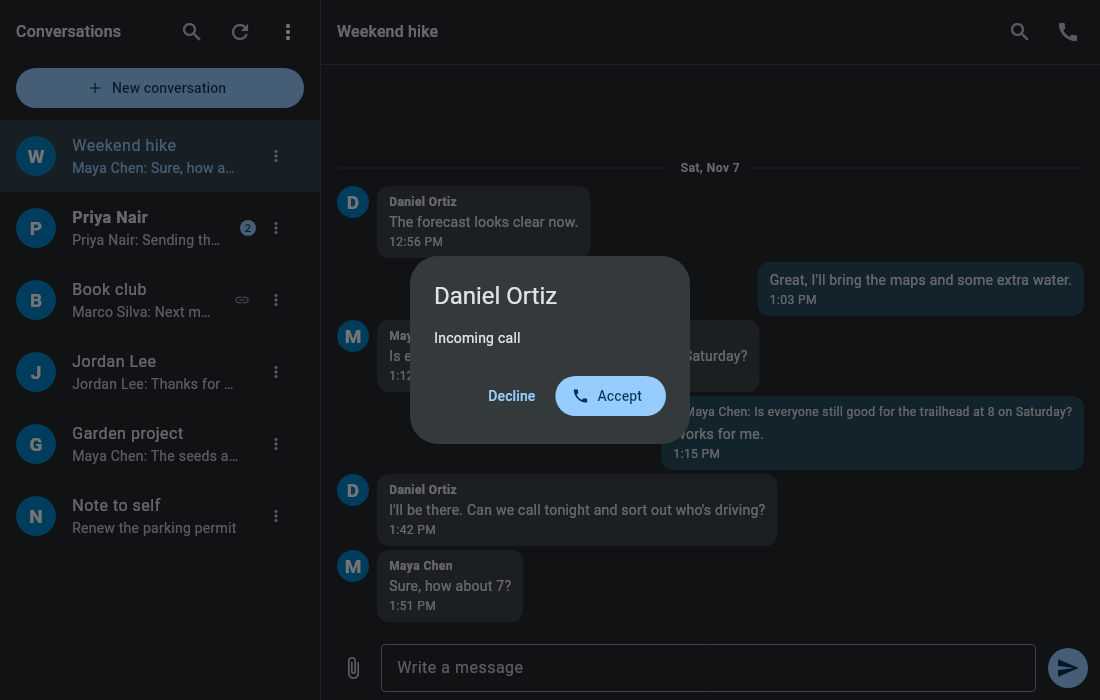
While Tala is running, including from the tray, an incoming call rings and shows Accept and Decline. If the window is hidden, it opens for the call. On Wayland, the desktop may not let it come to the front, so look for the popup too.
Call backgrounds aren't part of Tala.